English
Sending Signed Documents by Email
Sending Signed Documents by Email from an eZsign Folder
It is now possible to send signed documents directly from an eZsign folder without having to go through the EDM.
- From the main menu, click the

icon, then select the desired Completed eZsign folder from the eZsign Folder List.
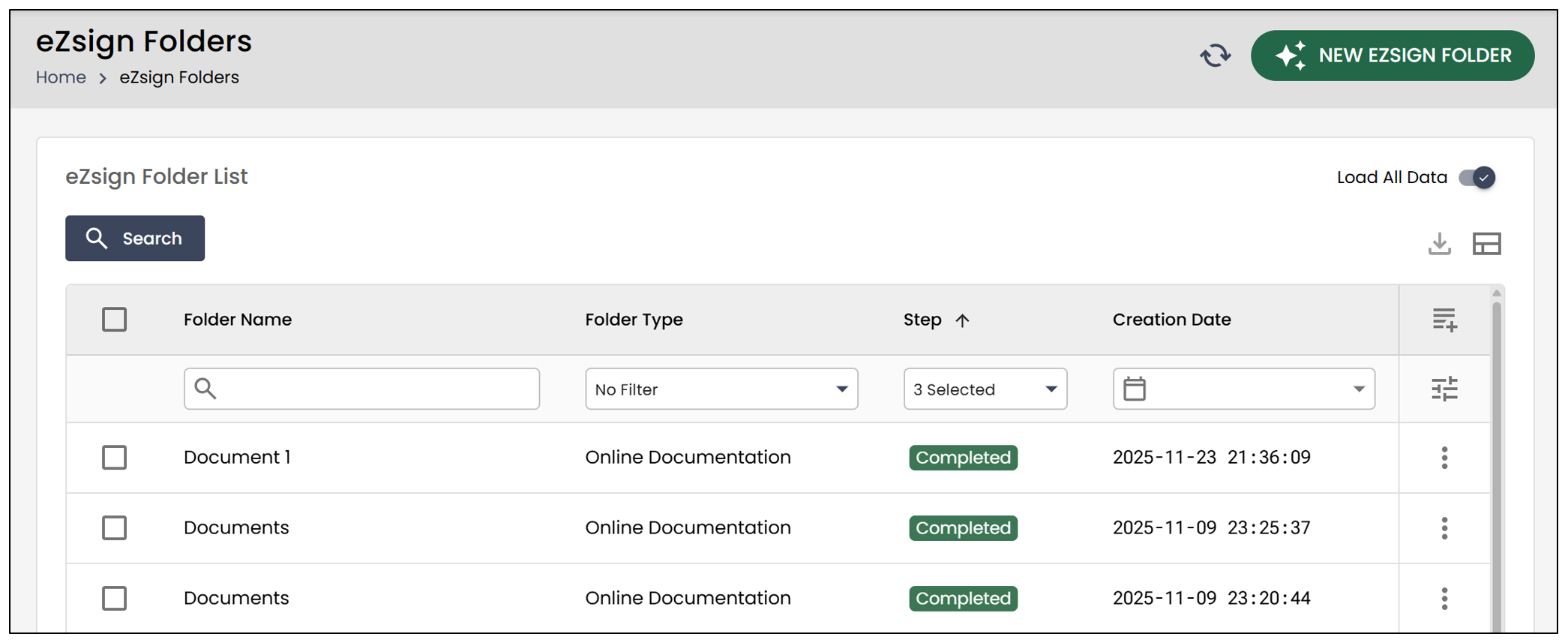
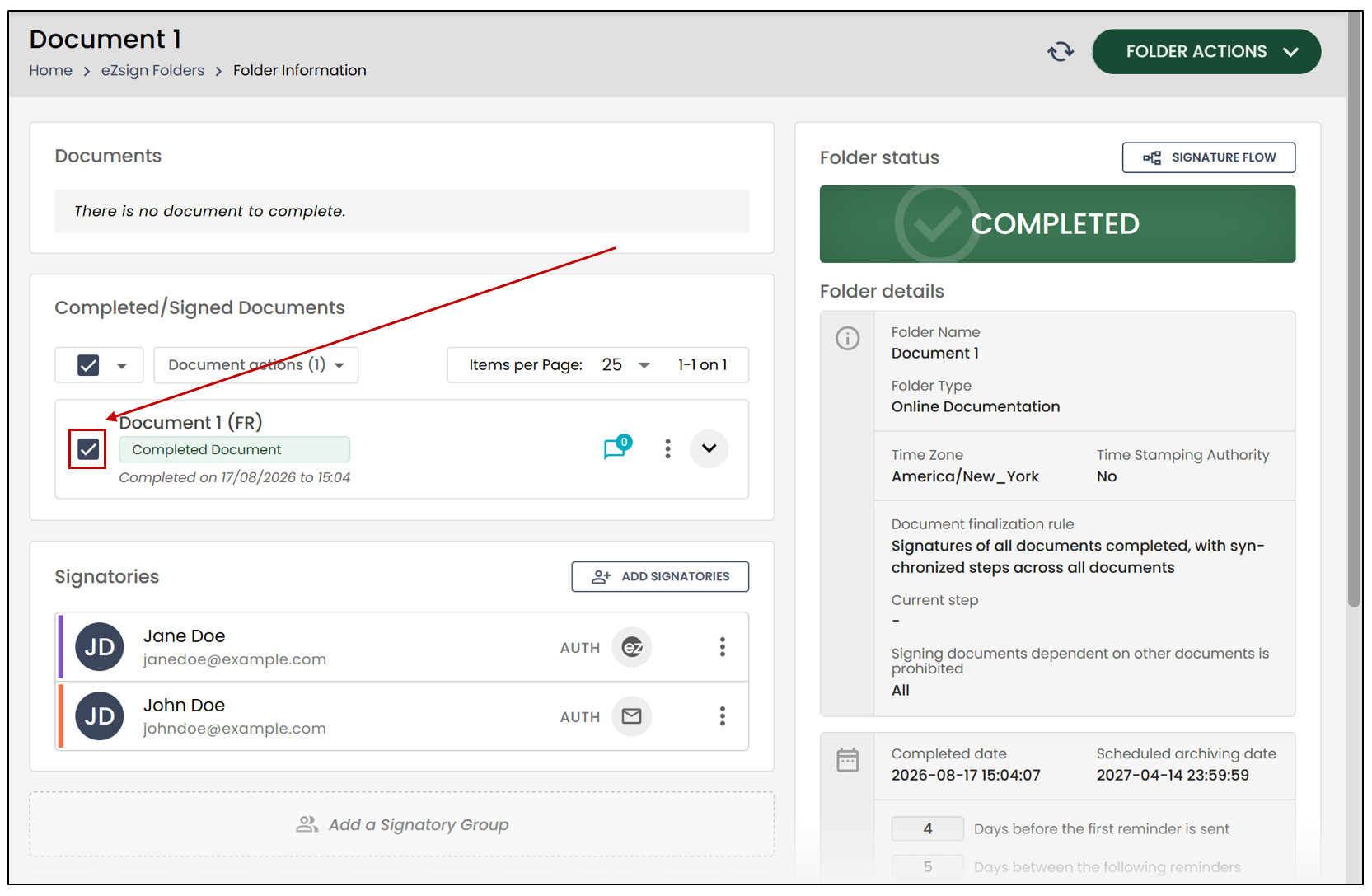
- First, select the completed document you want to send by email.
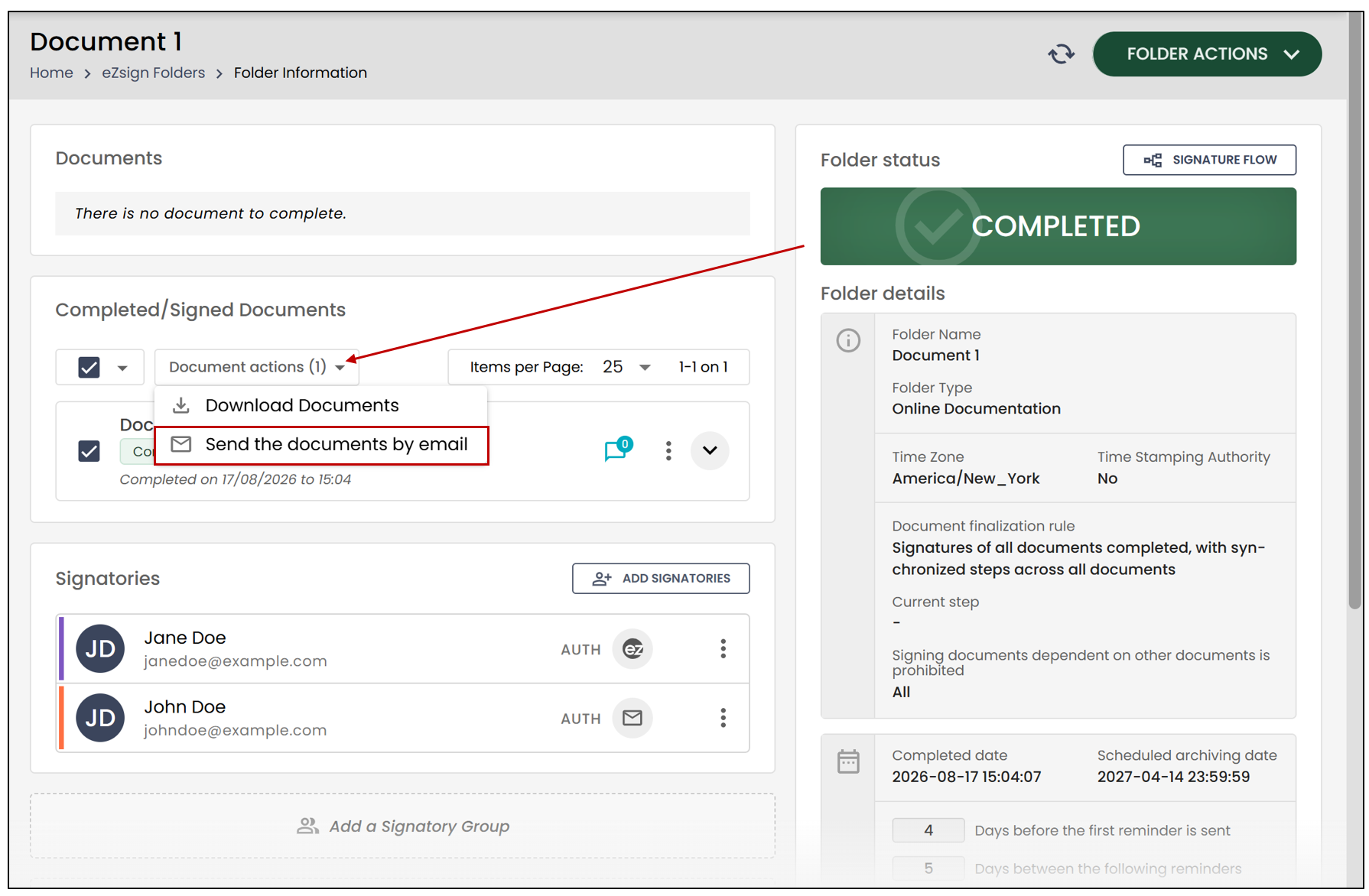
- Click Document Actions , then select Send the documents by email.
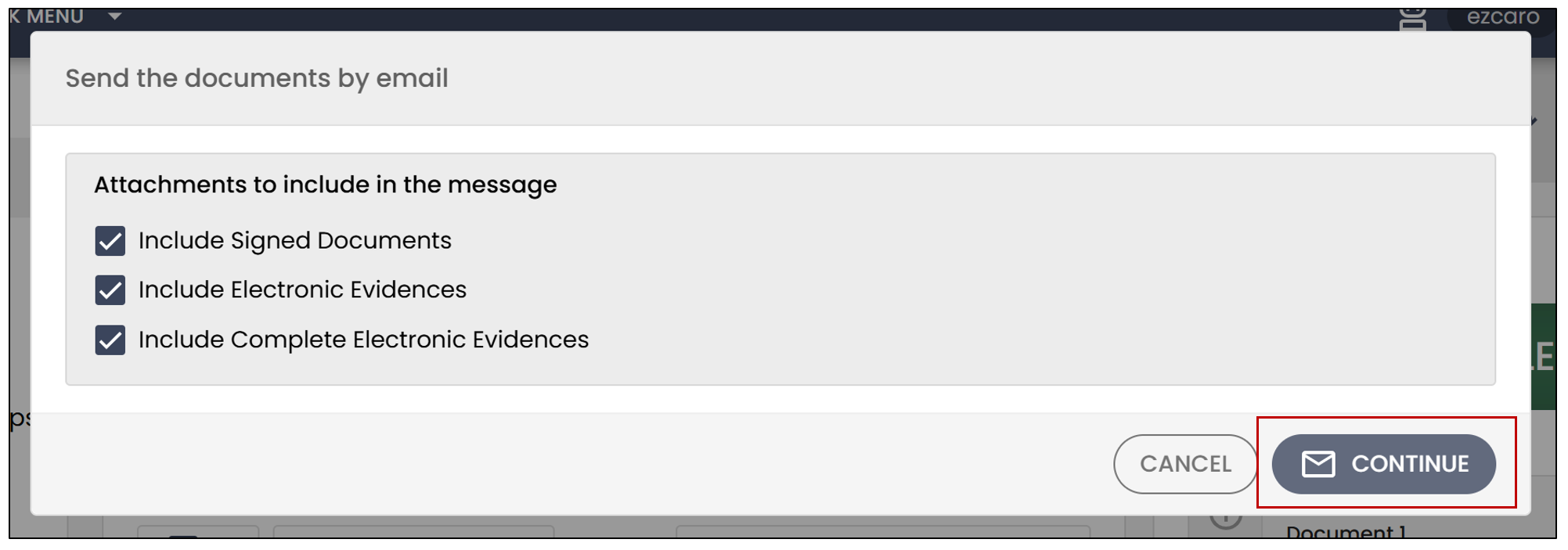
- Select the desired attachments, then click Continue.
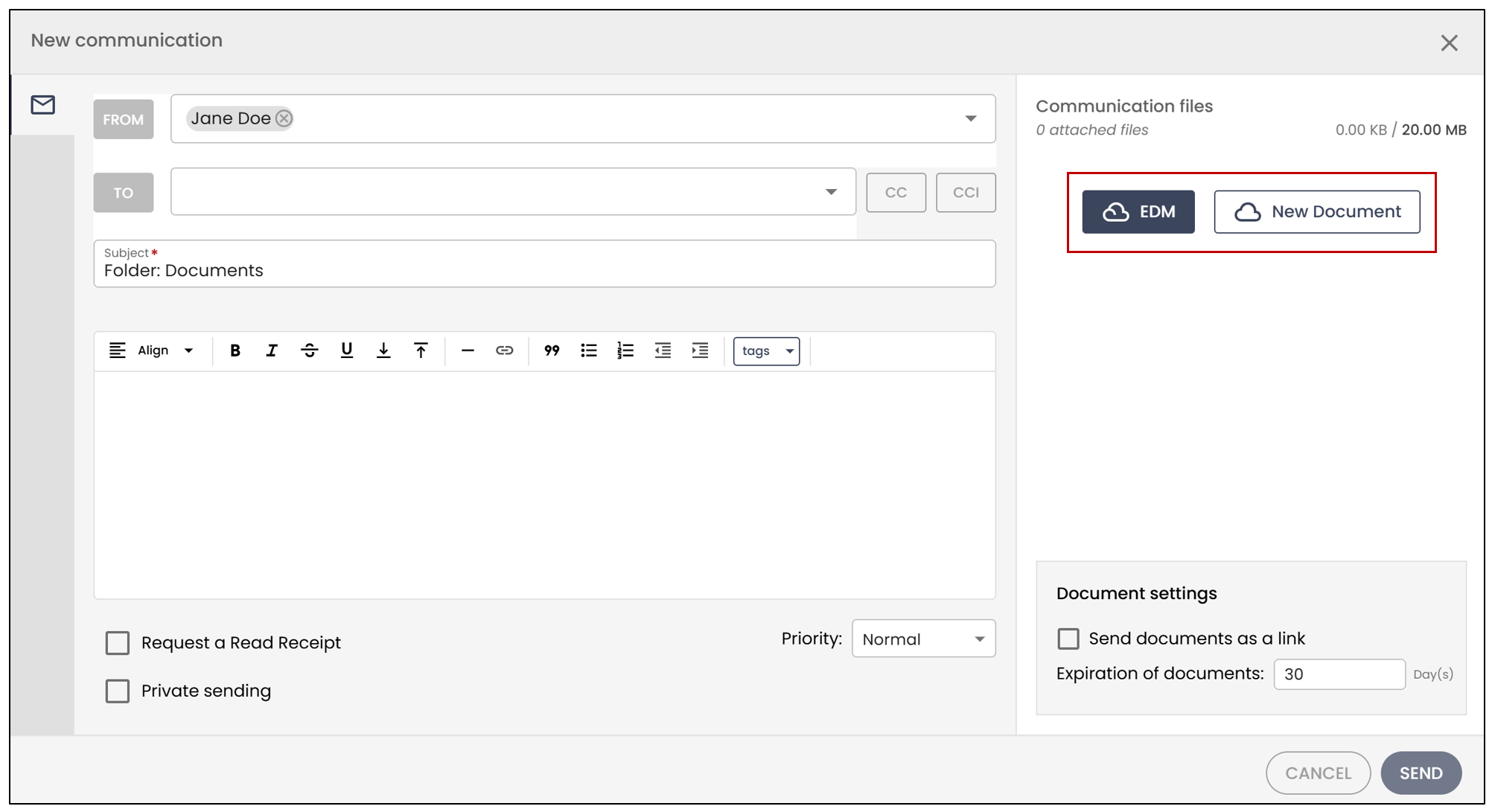
- You can then enter the email recipient and compose a message.
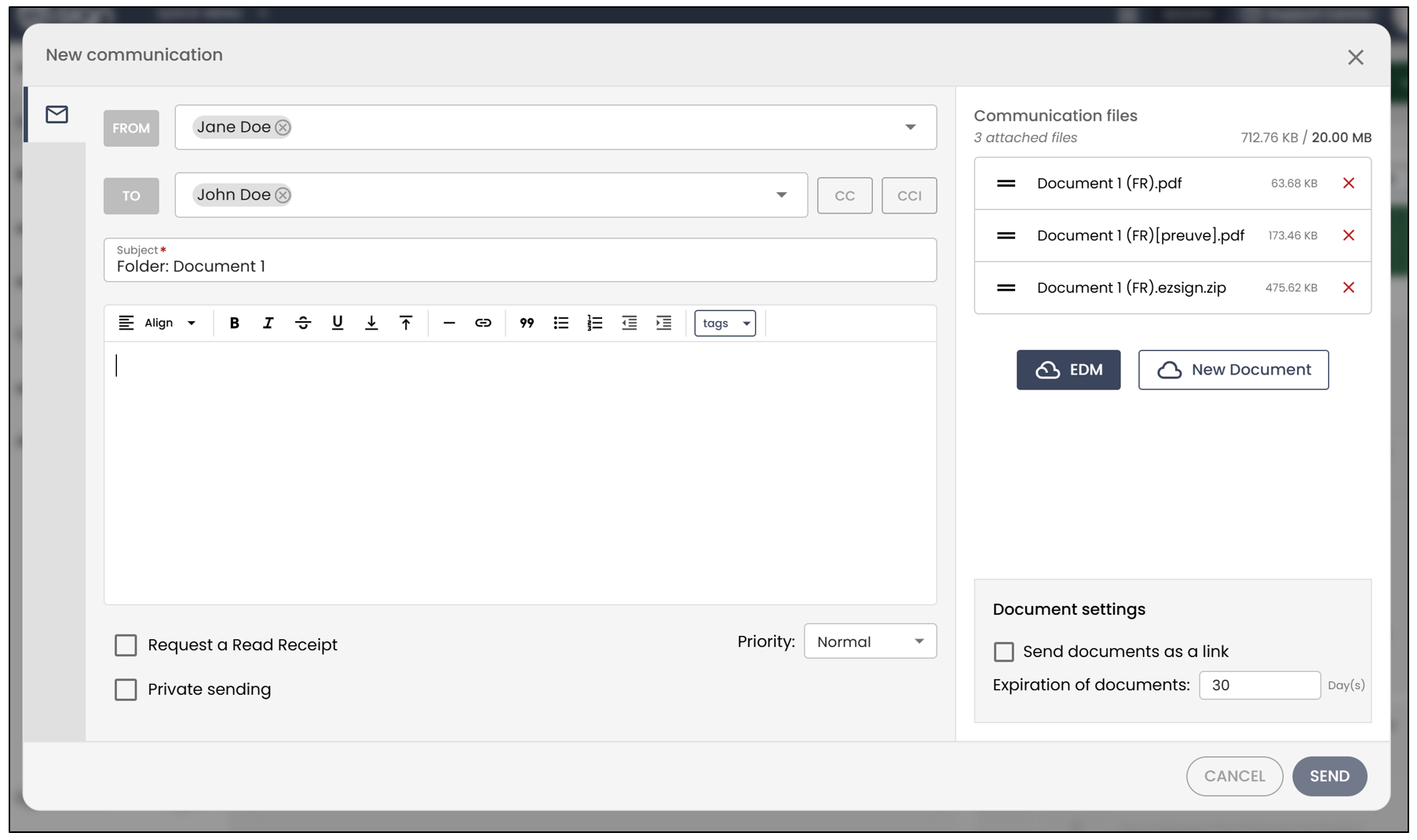
- You can then click **Send **to send the email.
Sending Signed Documents by Email from the EDM
It is possible to send the signed documents by email, along with their electronic proof, directly from an eZsign folder.
- From the main menu, click the
icon, then select the desired Completed eZsign folder from the eZsign Folder List.
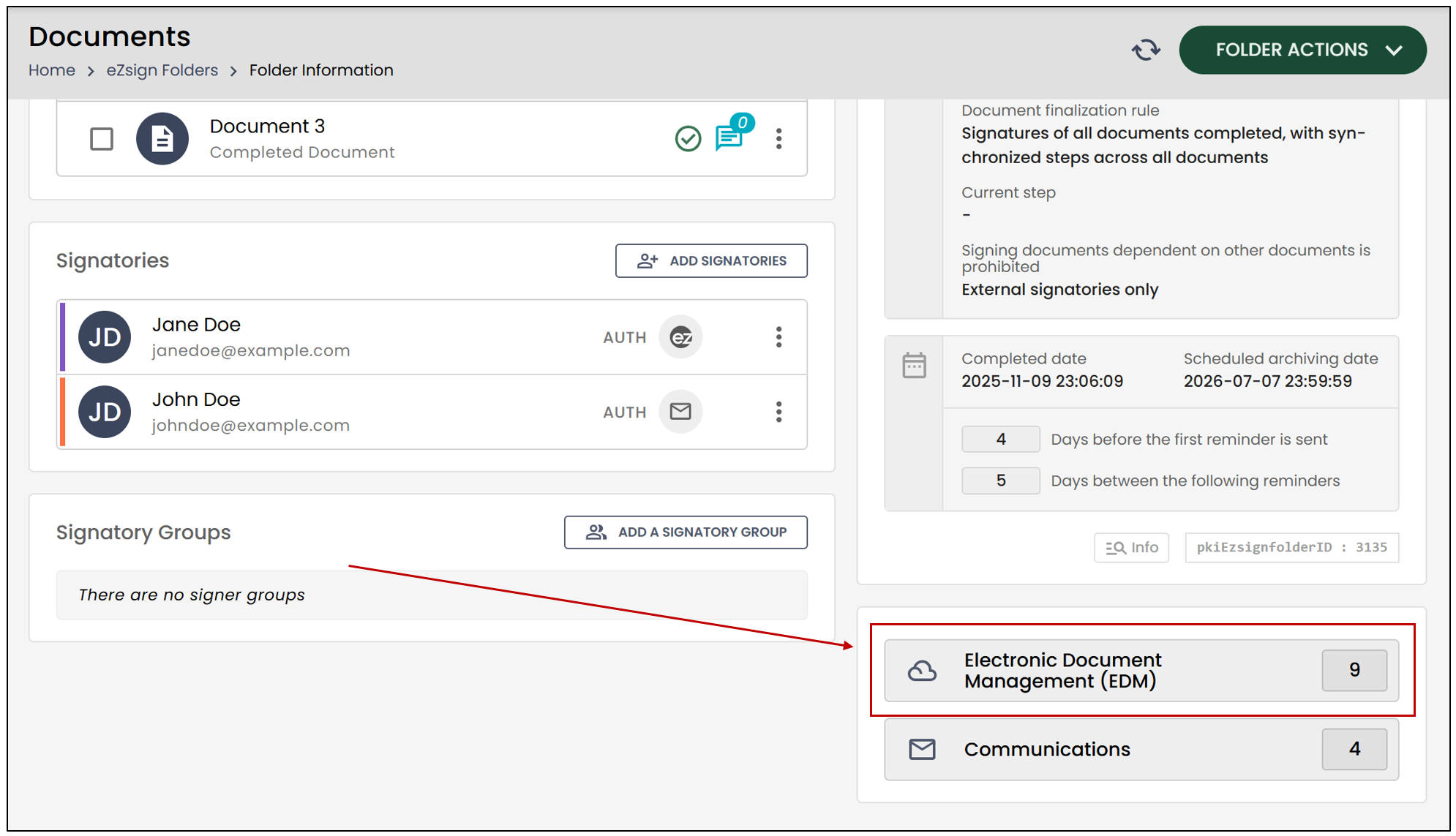
- Go to Electronic****Document Management , located at the bottom right of the folder.
- You will then be able to select the documents you want to send by email.
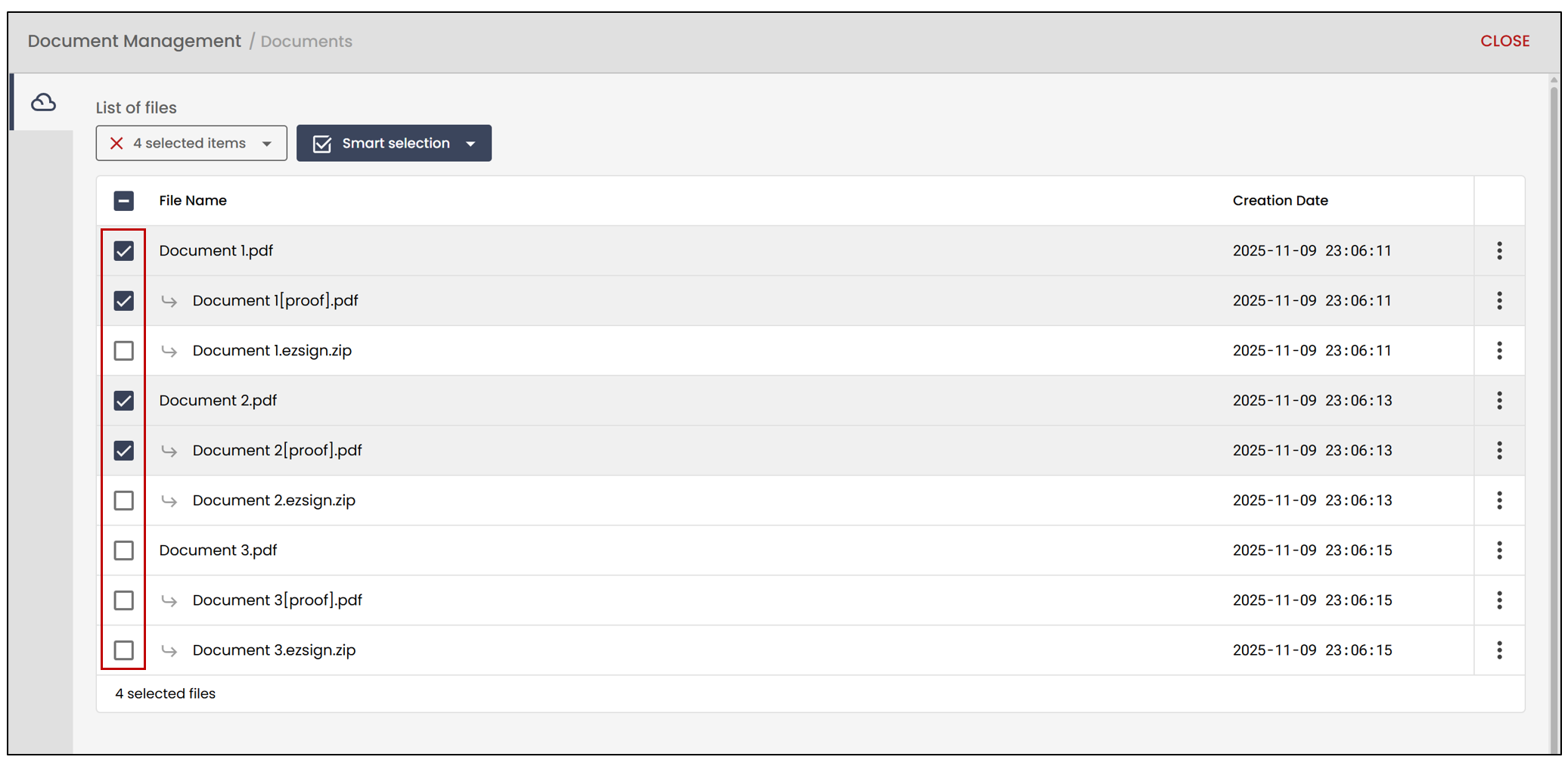
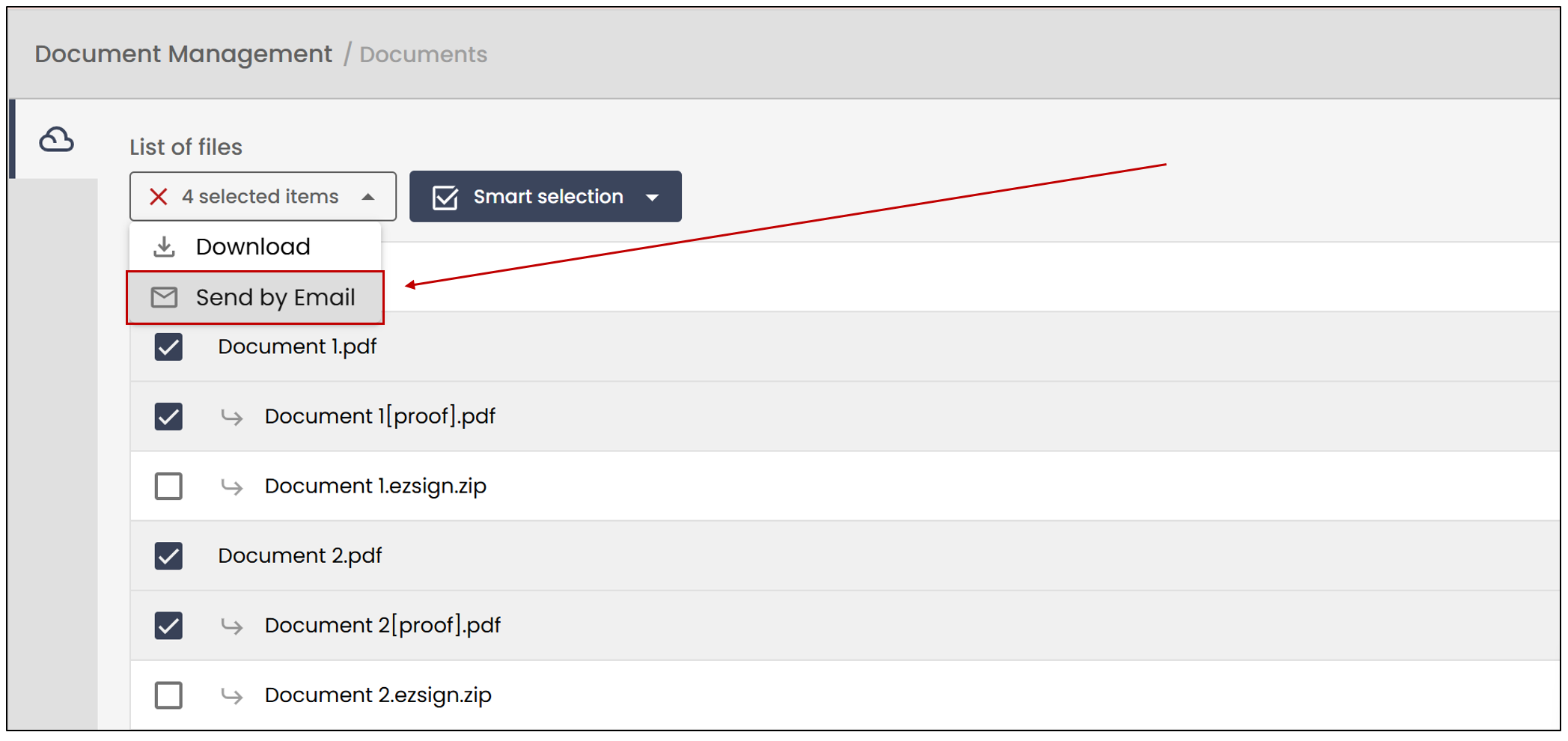
- Select the downward-pointing arrow under List of Files , then click Send by Email.
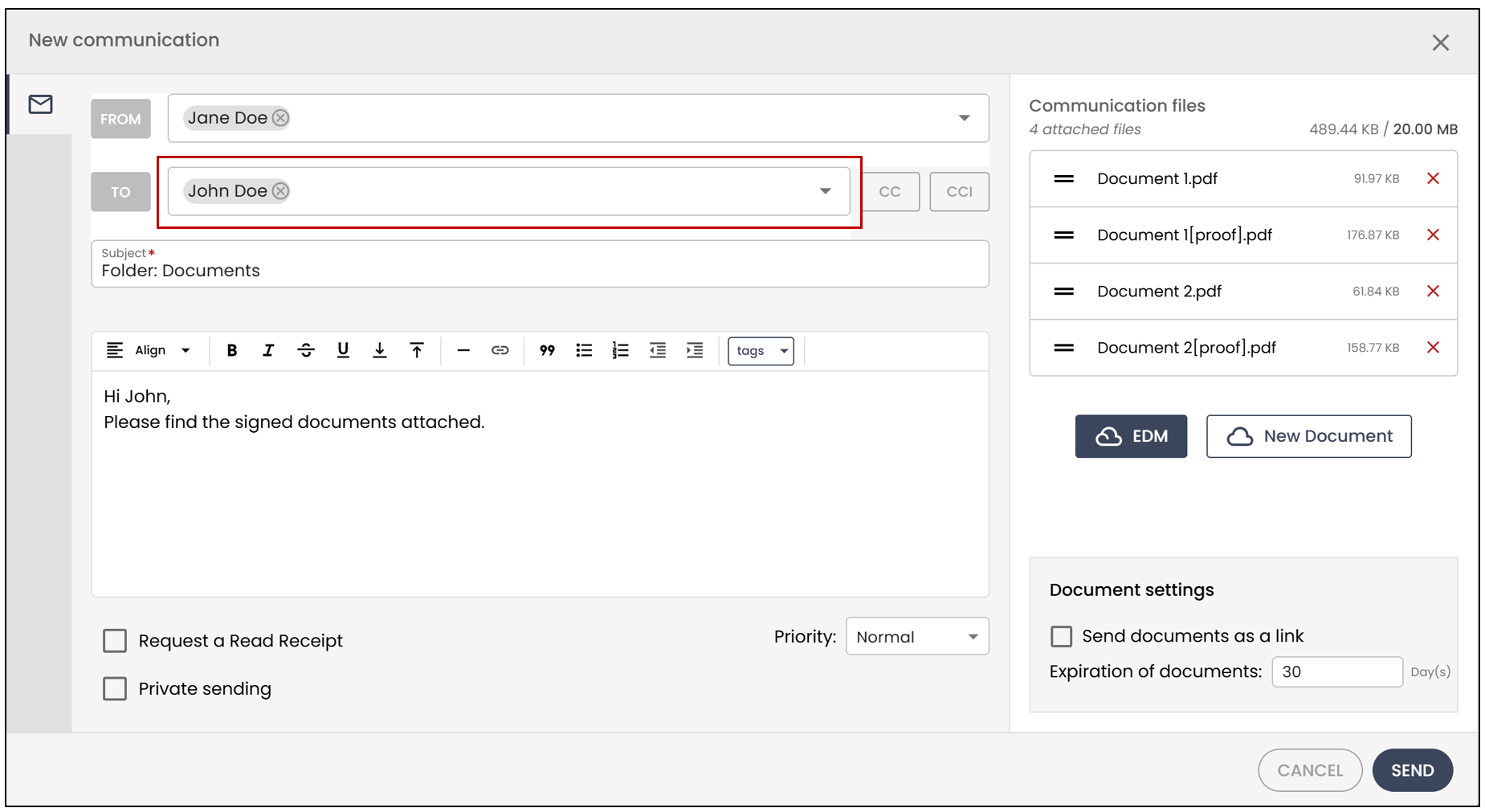
- You can then enter the email recipient and type a message.
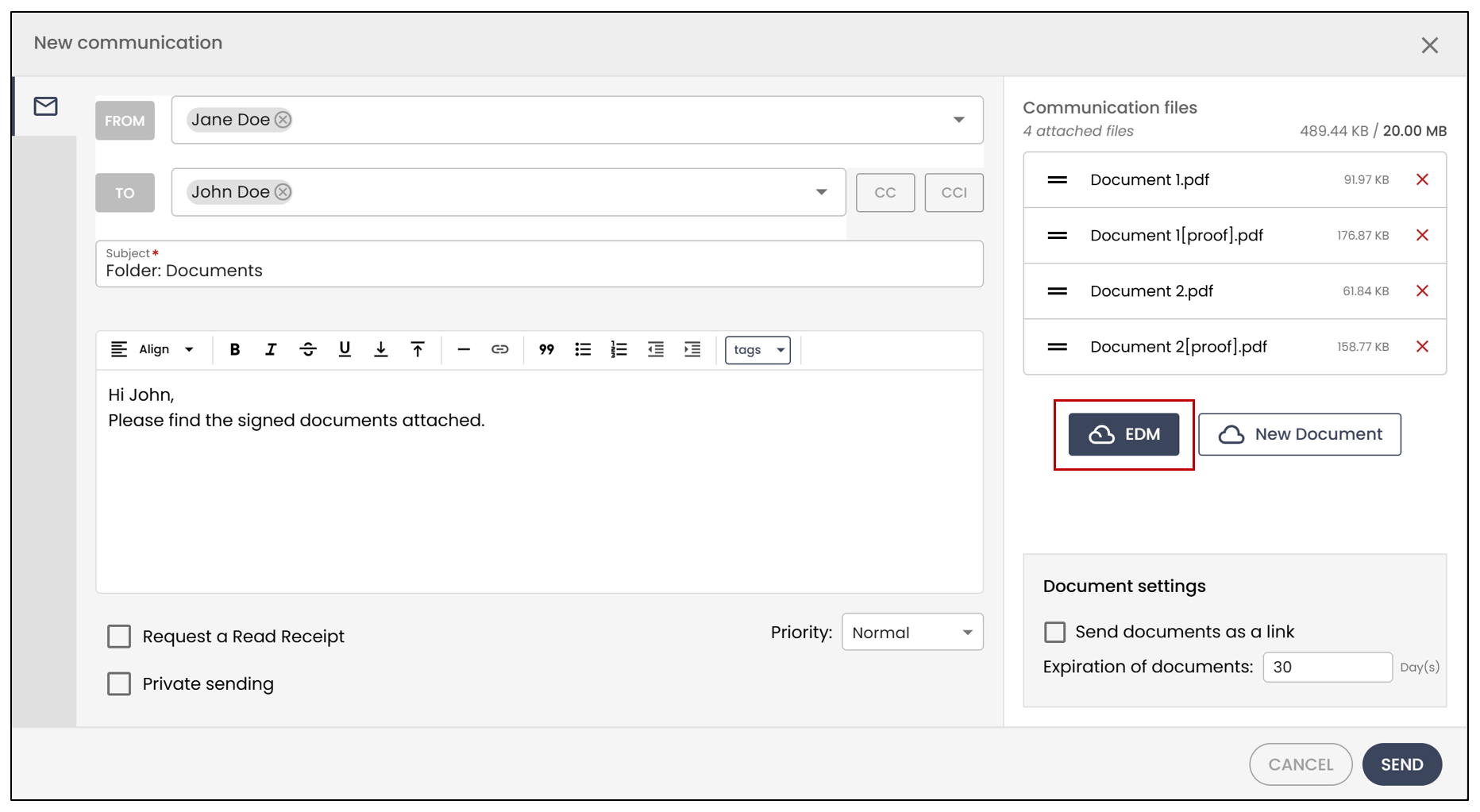
- If you want to add other documents from the EDM , click the corresponding button.
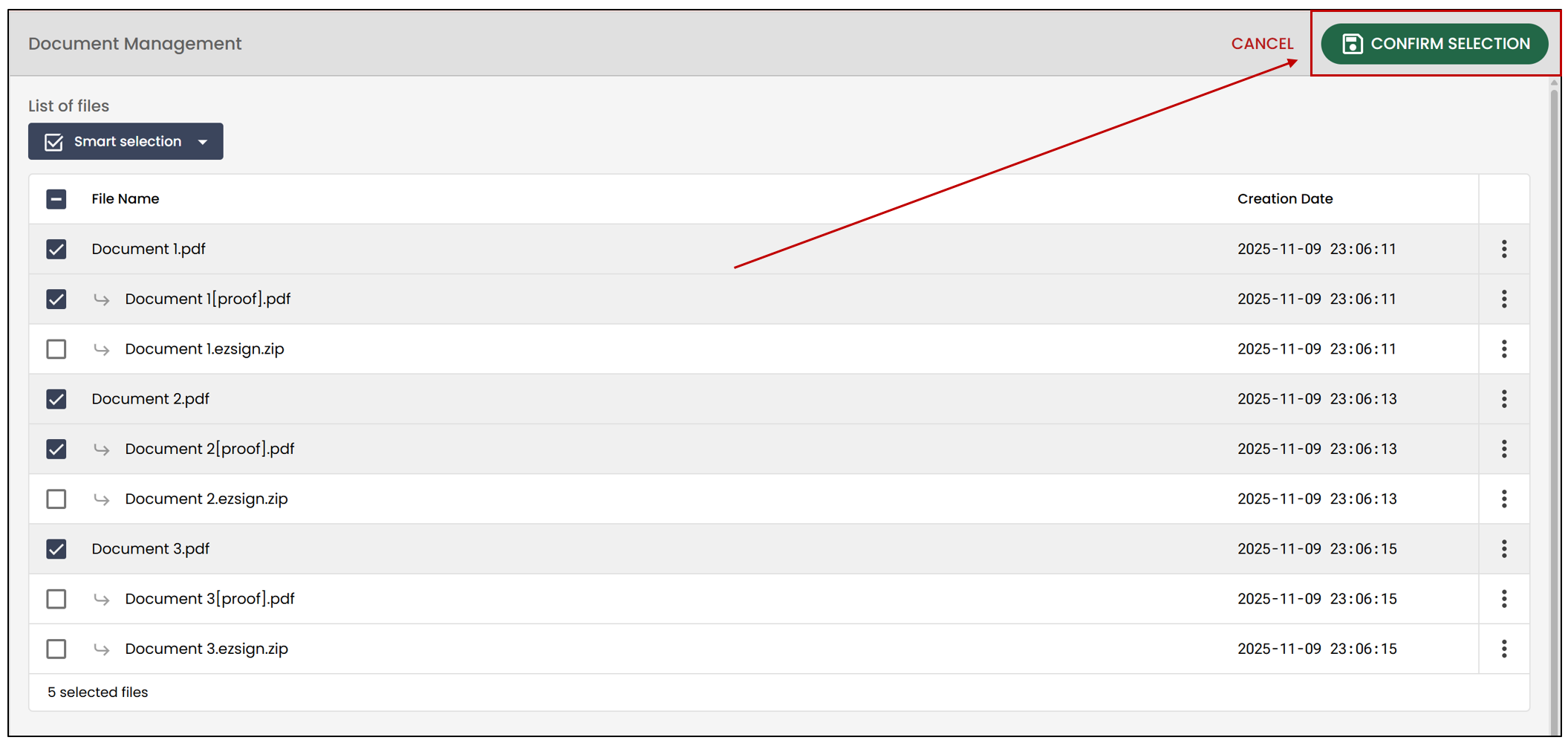
- You can then select the documents you want to add, and then Confirm Selection.
- To add a document from your computer, click New Document.
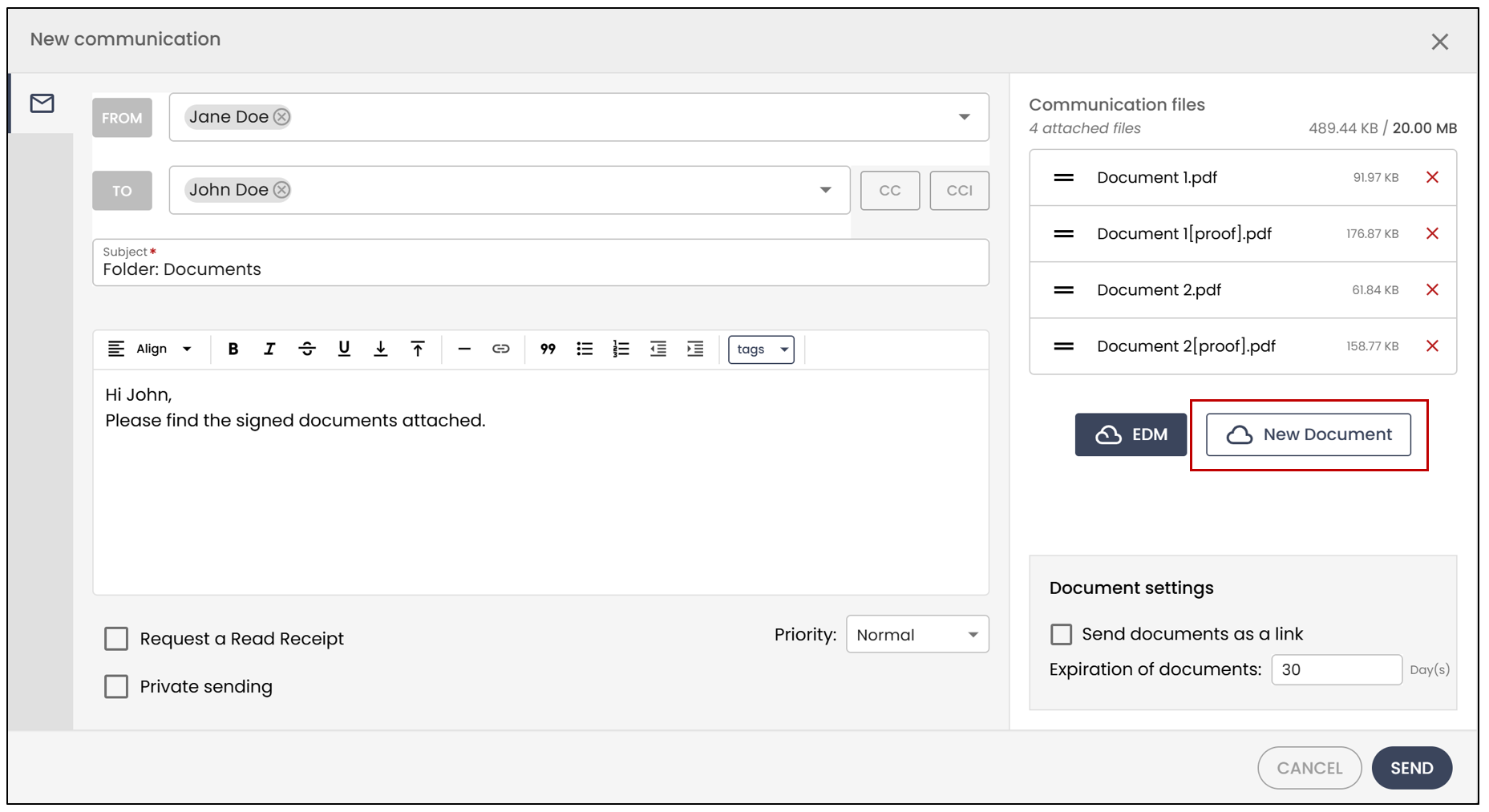
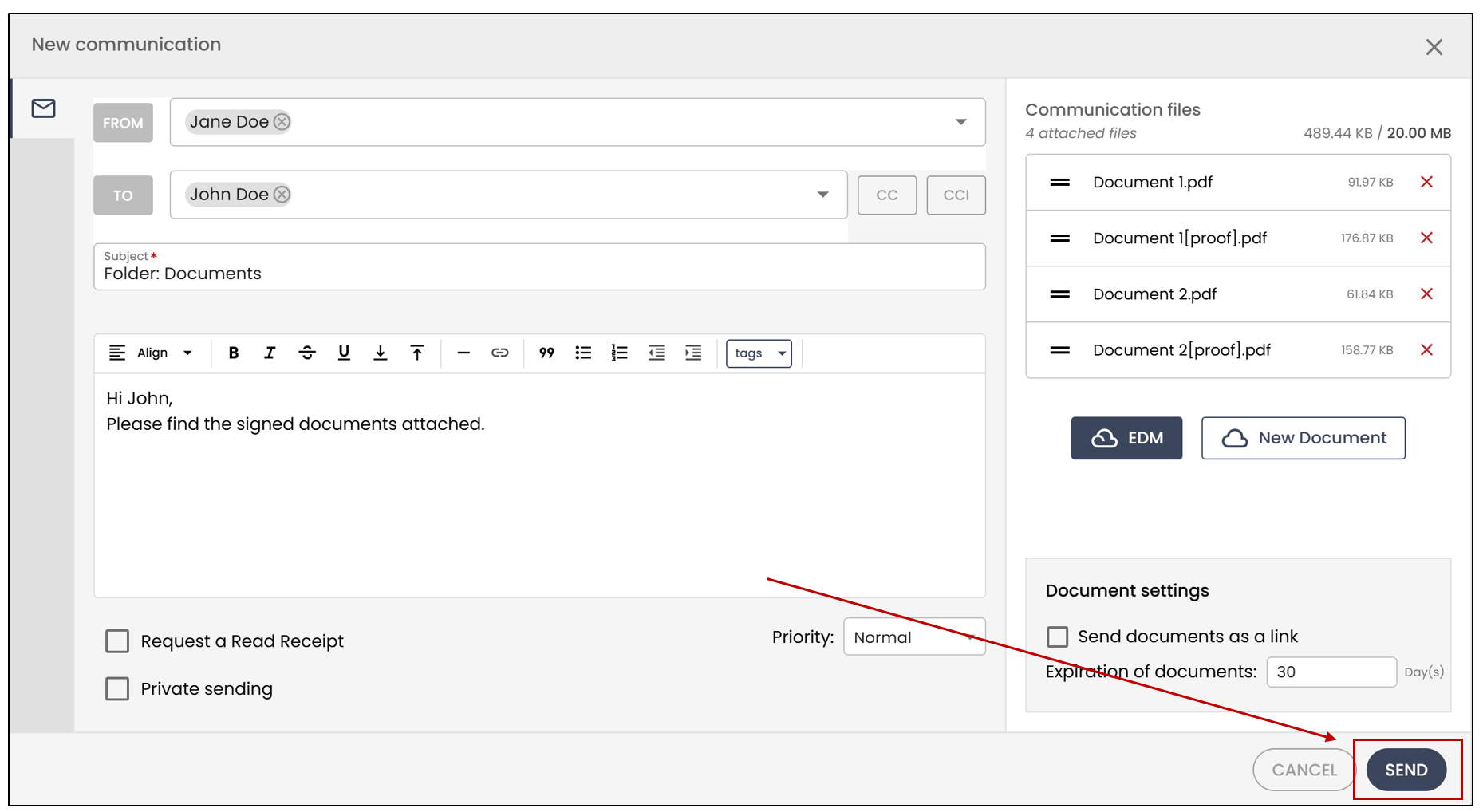
- You can then **Send **the email.
View Folder Communications
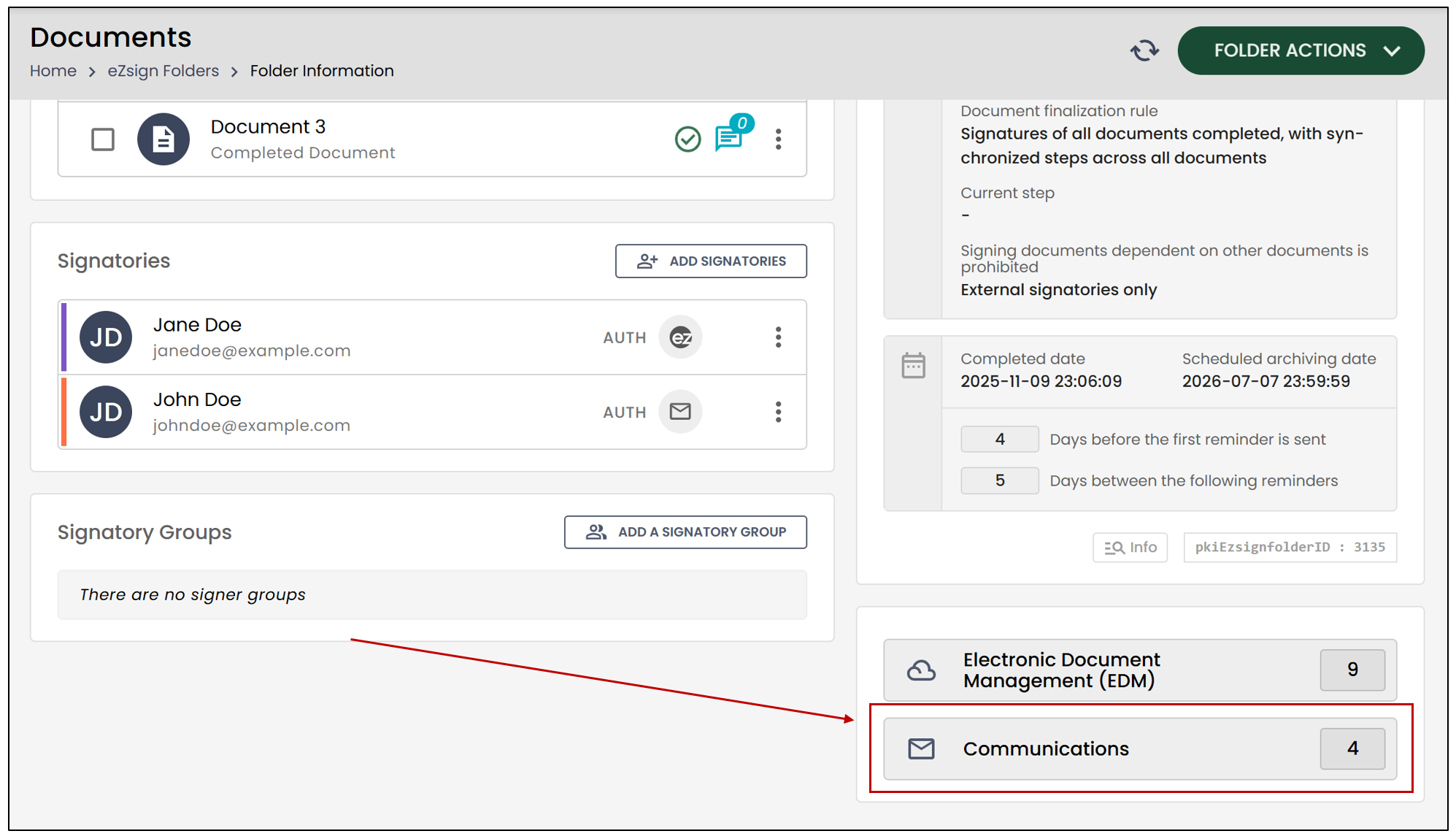
- To view the communications, click the Communications button located at the bottom right of the folder.
You will be able to view all communications related to the folder.
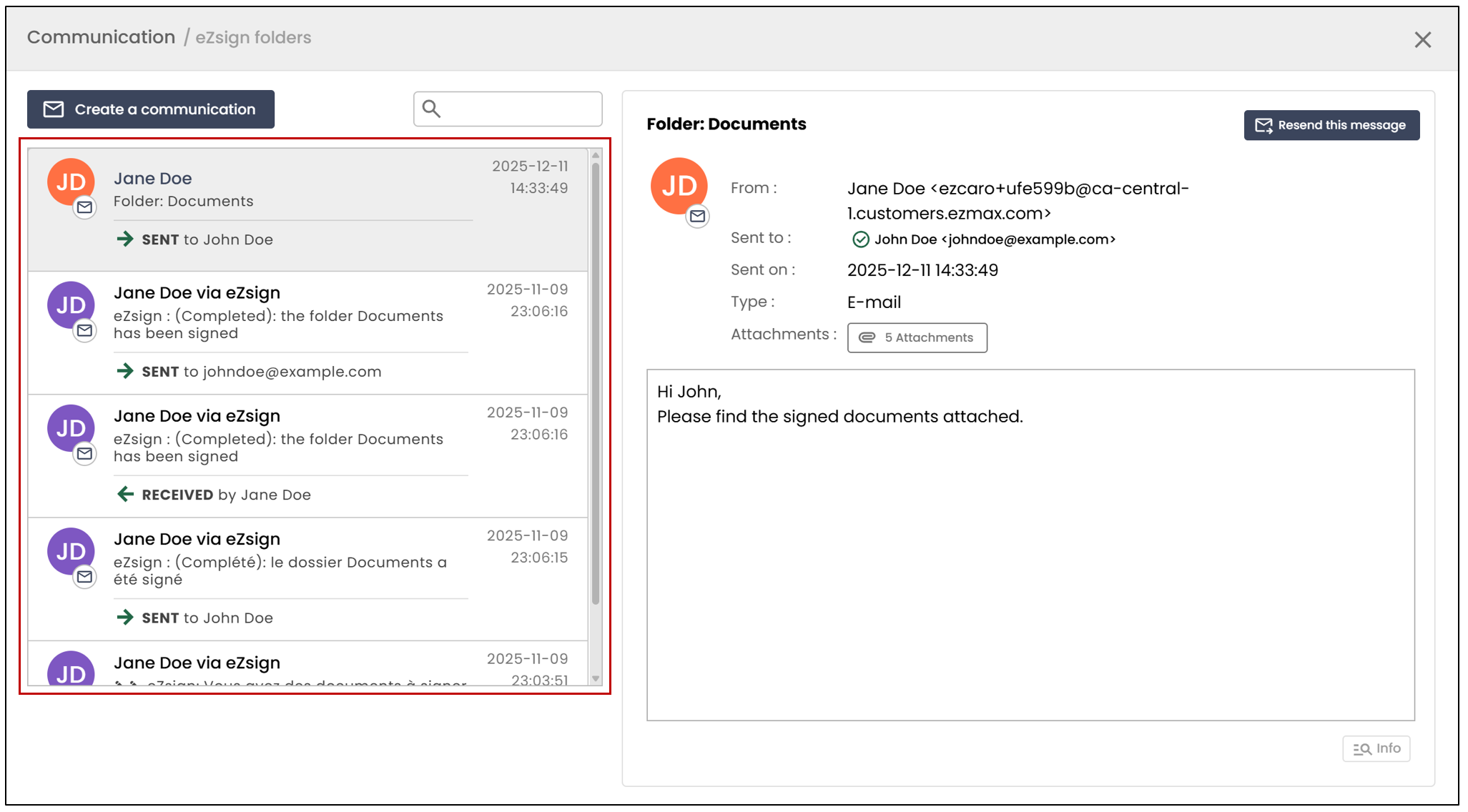
- To send a new communication, click Create a communication.
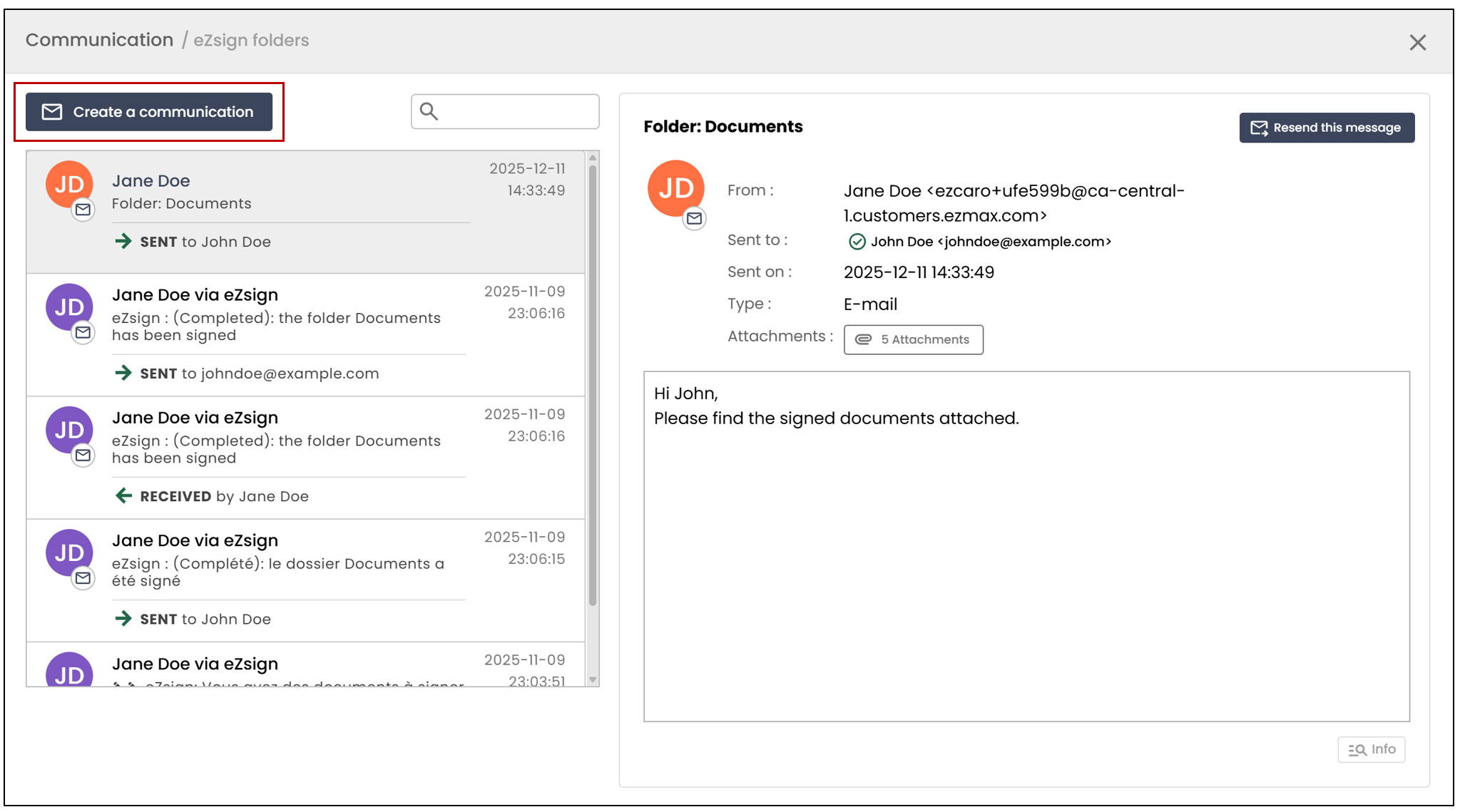
- You can add documents from the EDM or from your computer.