

English
Adding a Form in an eZsign Folder
When you add documents in an eZsign folder, it is possible to add a document that contains a form. You can download a form with pre-filled fields or a blank form that will have to be completed by a signatory.
- From the desired folder, in the "List of Documents" section.

- Click on the Sheet with a + icon to add a document.
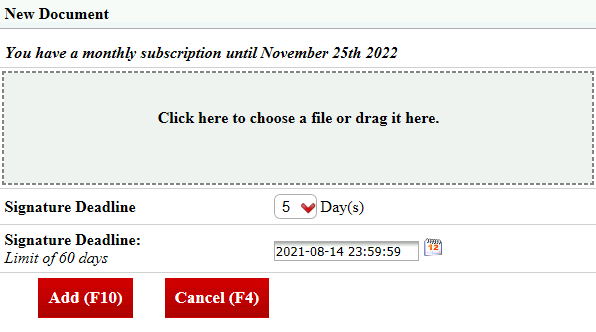
- Click onClick here to choose a file or drag it here** to select and download the desired document.**
Warning
The file to be downloaded must be in PDF format.
For more informations, please see the article Adding/Editing/Deleting a Document in an eZsign Folder.
Click on Add and this message will appear:
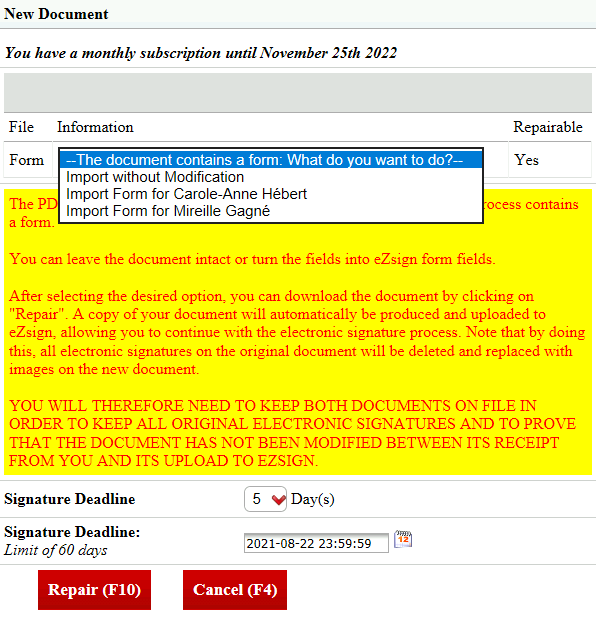
Adding a Pre-Filled Form
In the case of a form with the fields that were filled in before downloading to the eZsign folder.
In the Information , select "Import without Modification" from the drop-down list.
Click on Repair to continue and add the form to your folder.
**In the "List of Documents" sectio n of the folder, click on the file name or the **Fountain Pen icon to display the form.
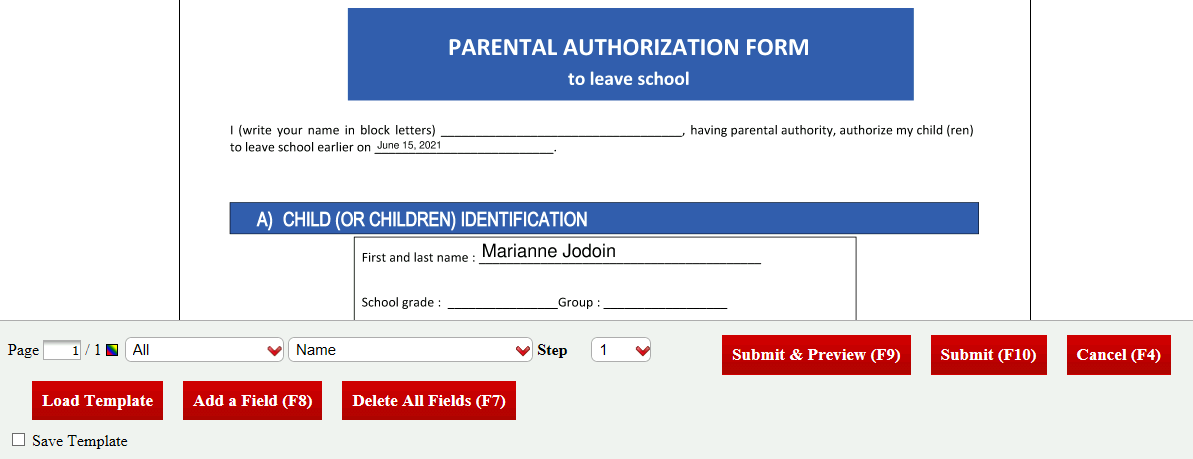
The pre-filled fields will appear on the form and will not be editable.
You can add form fields and/or electronic signature fields (e.g. Name). For more information, please see the article Manually Adding/Editing/Deleting a Field in a Document.
NOTE: When you have added your form fields and you add electronic signature fields, the form fields will be transparent on the document.
When all the desired fields are added, you can click on Submit & Preview or Submit.
From the Actions menu, click on Send Documents. For more information, please see the article Sending Documents to Sign.
For the next steps, depending on the type of fields added (form or electronic signature) and the type of signatory, please see the articles Filling In a Form as a User, Filling In a Form as an External Signatory, Signing a Document as a User and Signing a Document as an External Signatory.
NOTE: Form fields must be completed before electronic signature fields.
Adding a Pre-Filled Form
In the case of a form with the fields that were filled in before downloading to the eZsign folder.
In the Information , select "Import Form for (Name of the signatory)" from the drop-down list.
Click on Repair to continue and add the form to your folder.
**In the "List of Documents" sectio n of the folder, click on the file name or the **Fountain Pen icon to display the form.
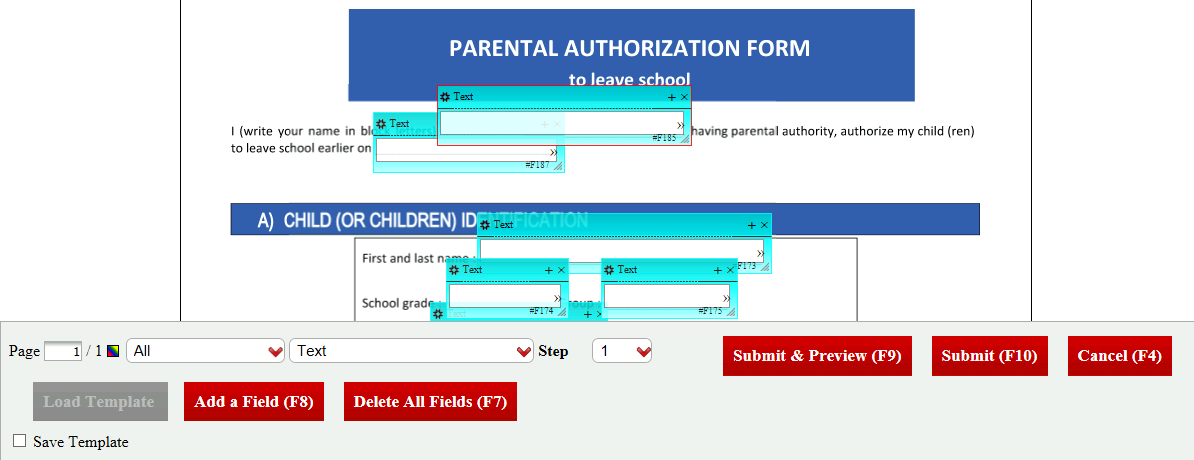
The fields to fill in the form will be added automatically, but you can modify them manually.
You can add form fields and/or electronic signature fields (e.g. Name). For more information, please see the article Manually Adding/Editing/Deleting a Field in a Document.
NOTE: When you have added your form fields and you add electronic signature fields, the form fields will be transparent on the document.
When all the desired fields are added/edited, you can click on Submit & Preview or Submit.
In the eZsign folder, click on Send Documents. For more information, please see the articleSending Documents to Sign.
For the next steps, depending on the type of fields added (form or electronic signature) and the type of signatory, please see the articles Filling In a Form as a User, Filling In a Form as an External Signatory, Signing a Document as a User and Signing a Document as an External Signatory.
NOTE: Form fields must be completed before electronic signature fields.