

English
Import a Form into eZsign – Action Required
Import a Form into eZsign – Action Required
Add a Form
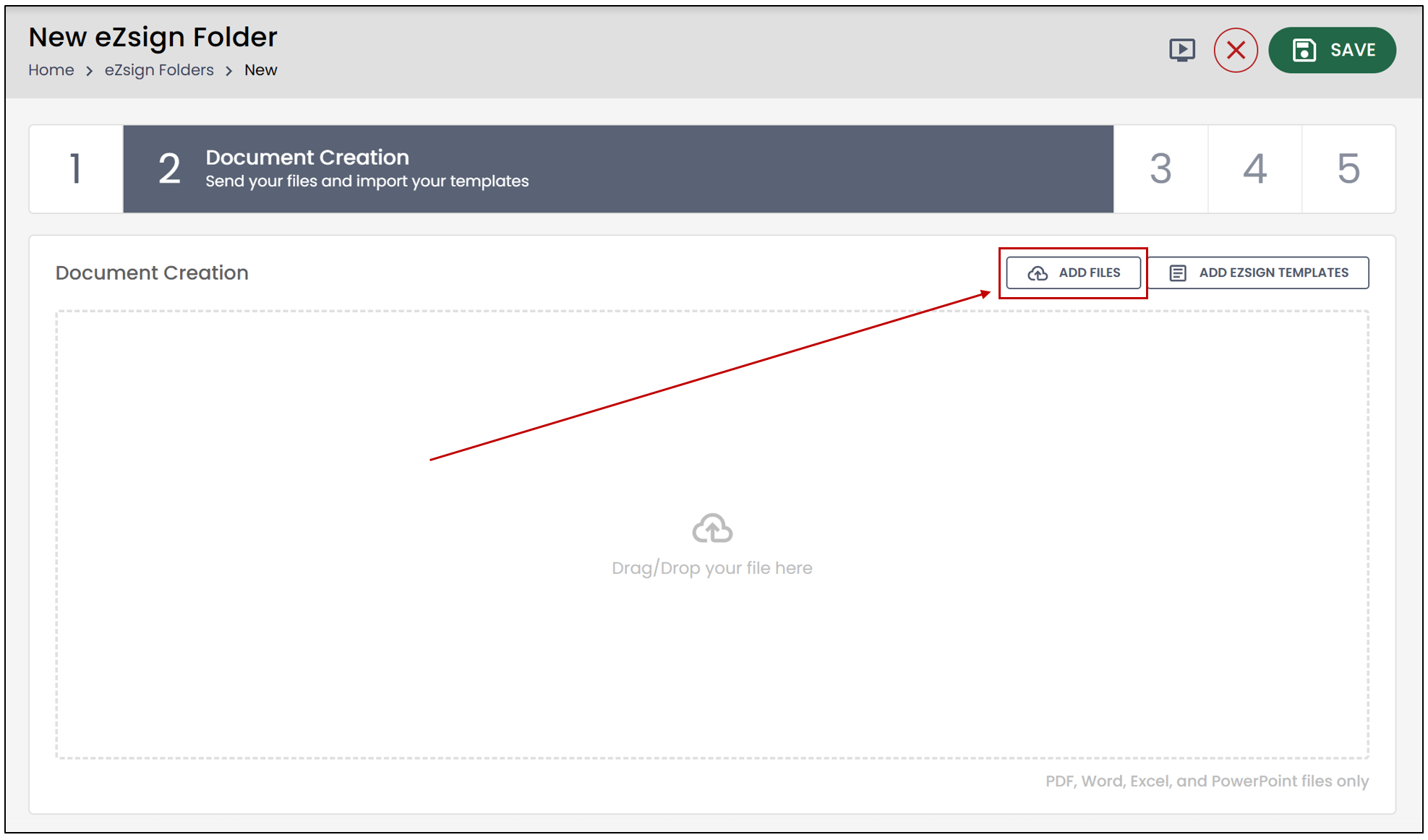
During the creation of a new eZsign file, documents are added at step 2. When a fillable form is added at this step, an action is required.
- To add a form from your computer, click Add Files.
- Select the desired file. If the document already contains form fields, the Action Required button will appear.
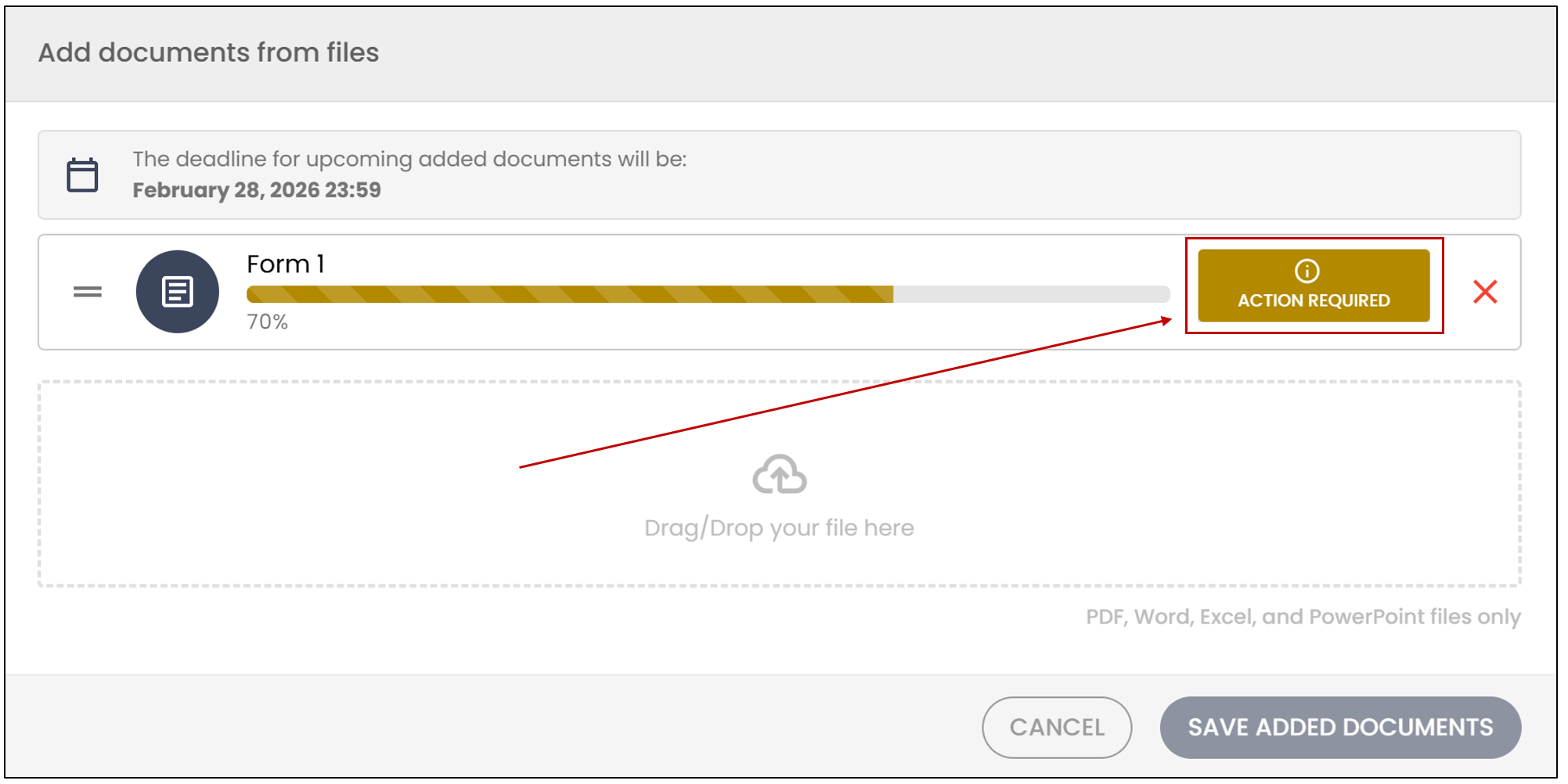
Action Required
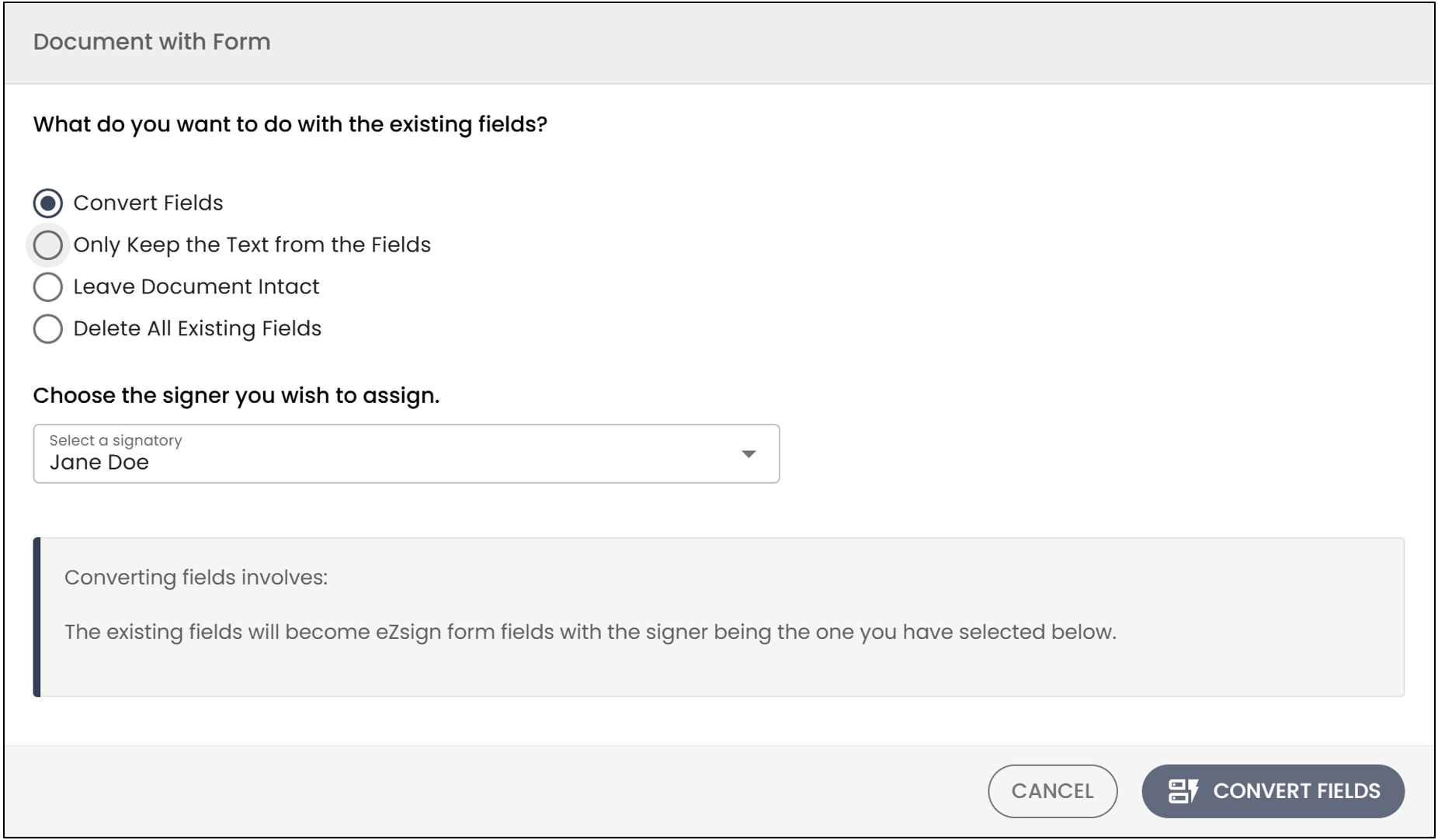
Convert Fields
The first option, Convert Fields , allows all fields in the document to be made fillable directly in eZsign by the signatory.
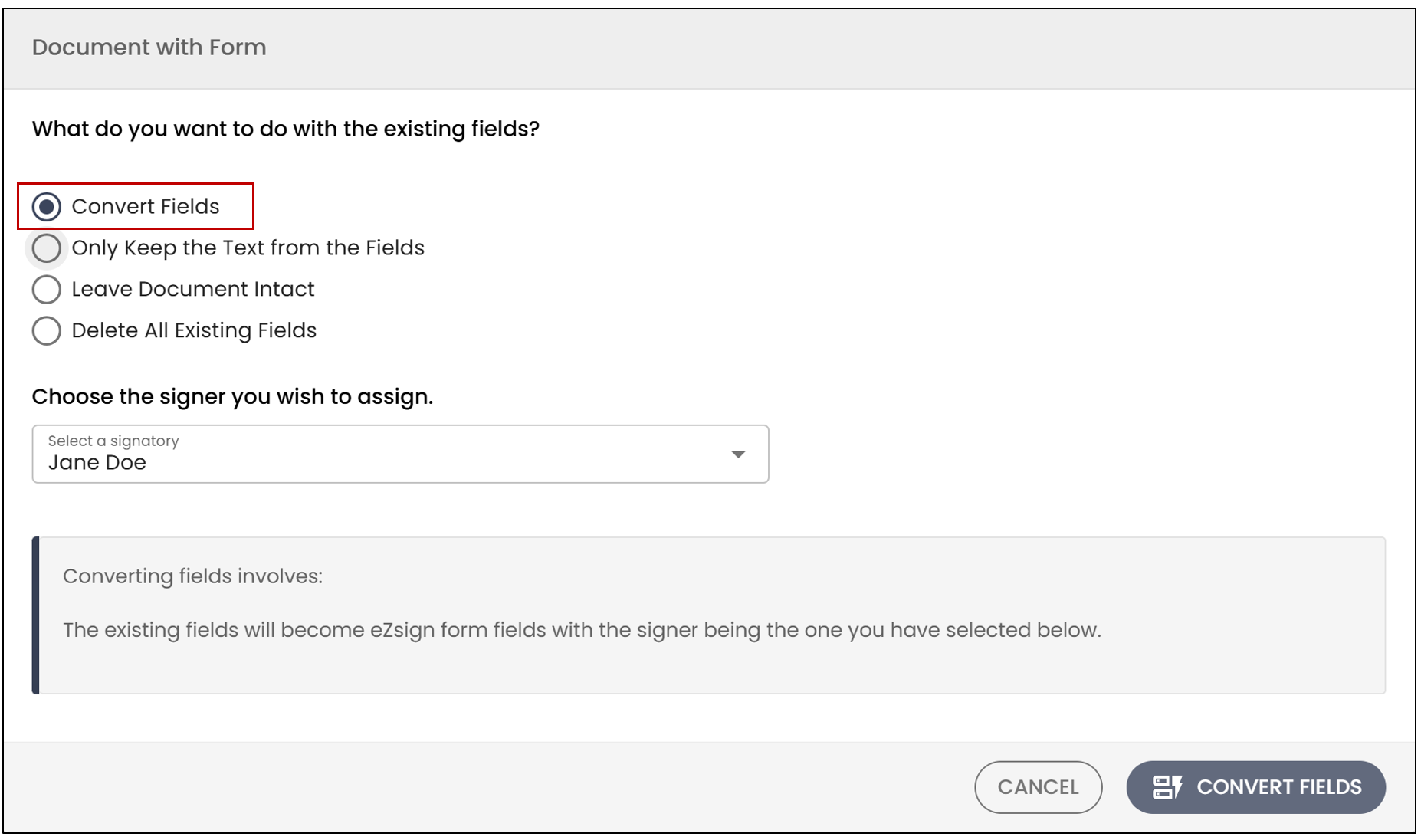
- You will be able to select the field signatory from the drop-down list or by clicking Add Signatories.
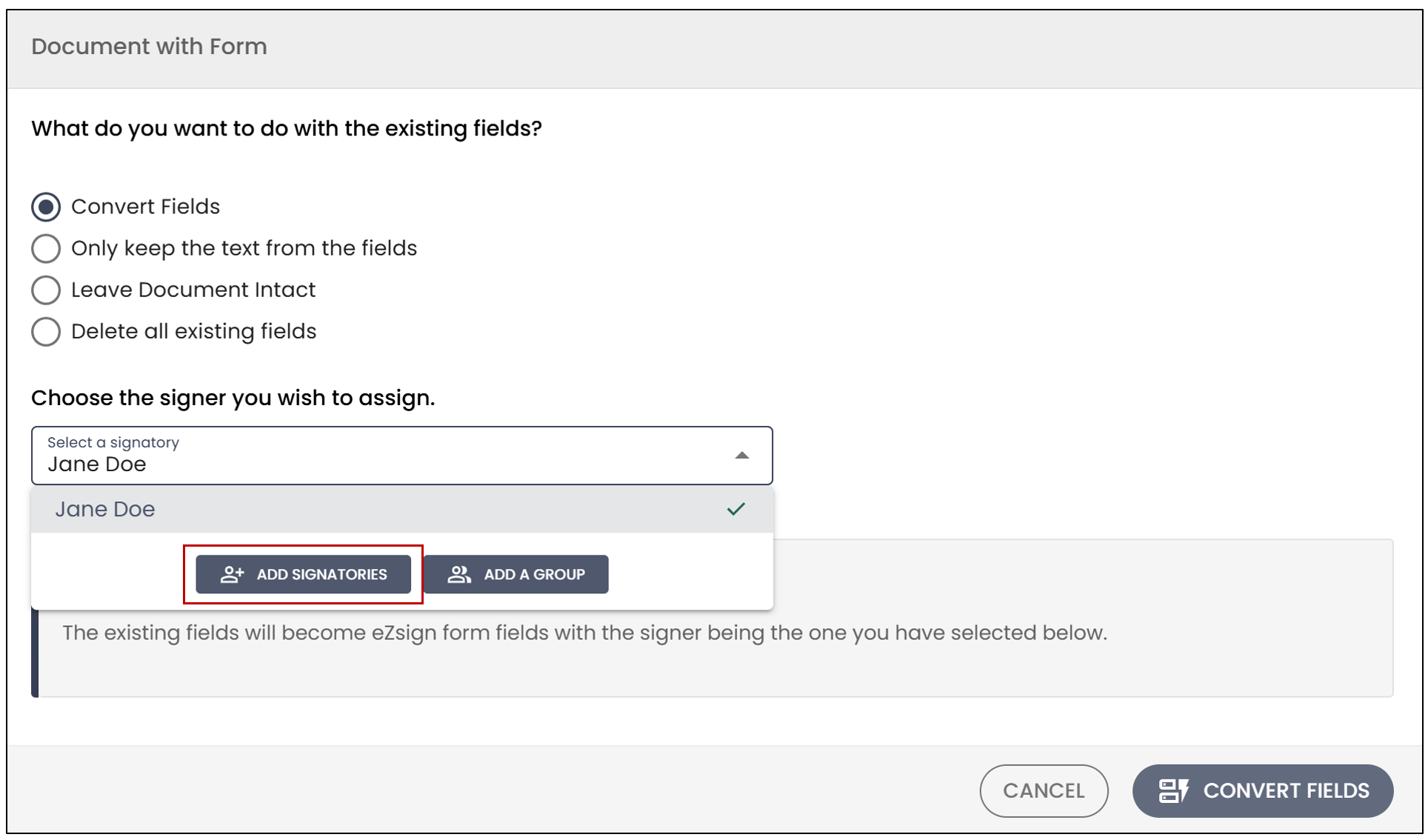
- Select the desired signatory from the drop-down list or click Create a Signer.
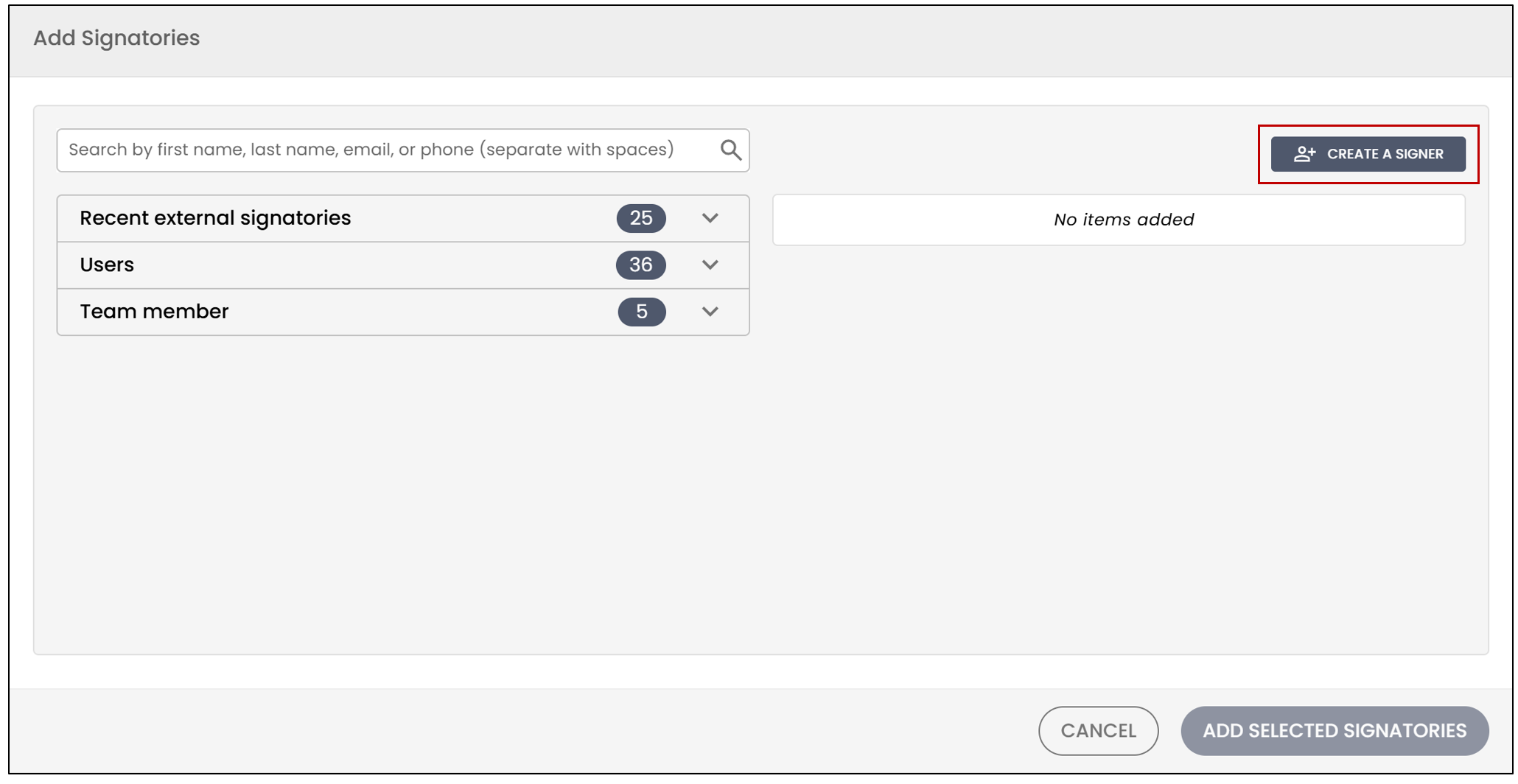
For more information on creating a signatory, please refer to the article Adding/Editing/Deleting a Signatory in an eZsign Folder.
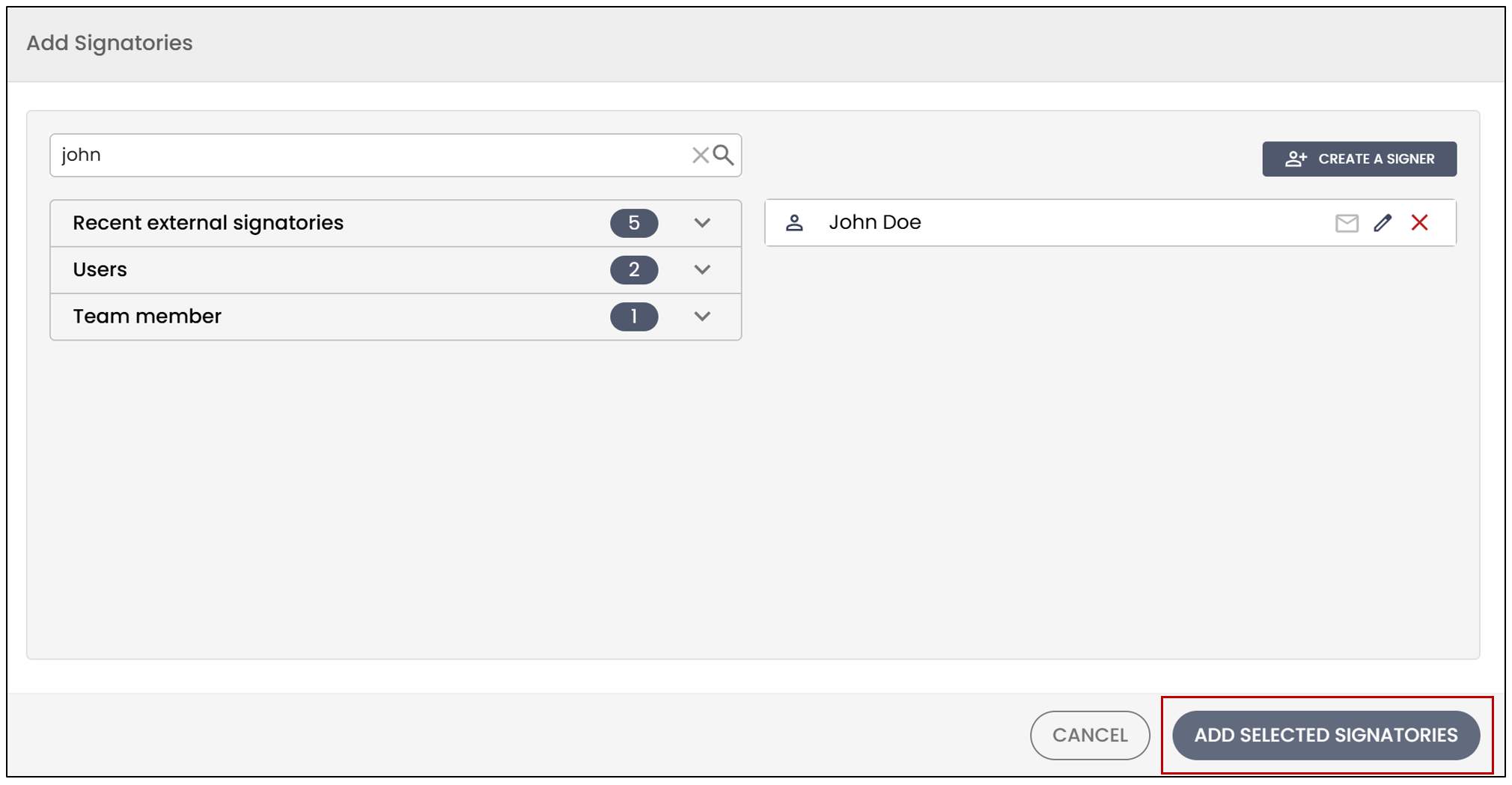
- Once the signatory has been selected, click Add Selected Signatories.
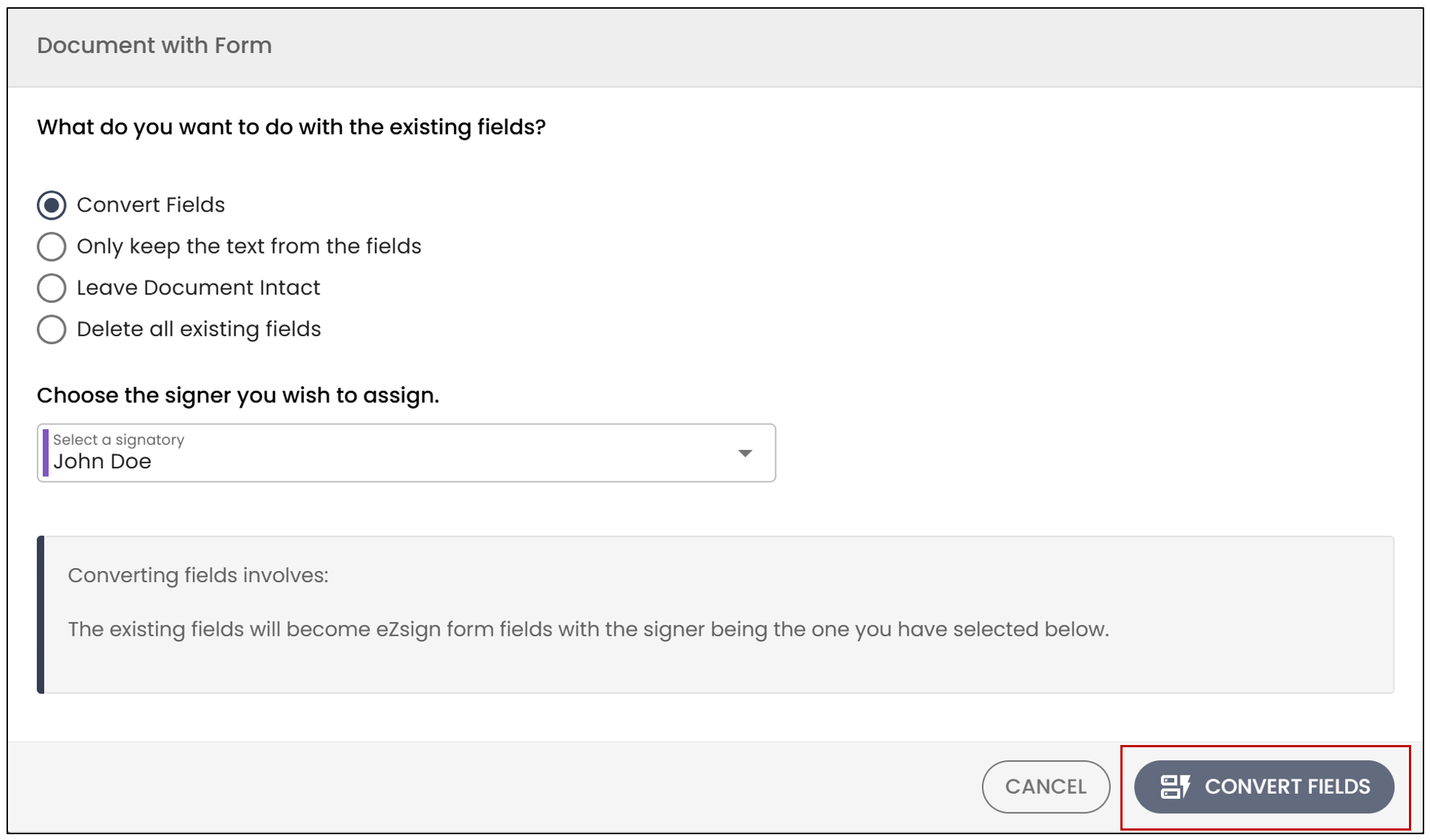
- Select the field signatory from the drop-down list, then click Convert Fields in the bottom-right corner.
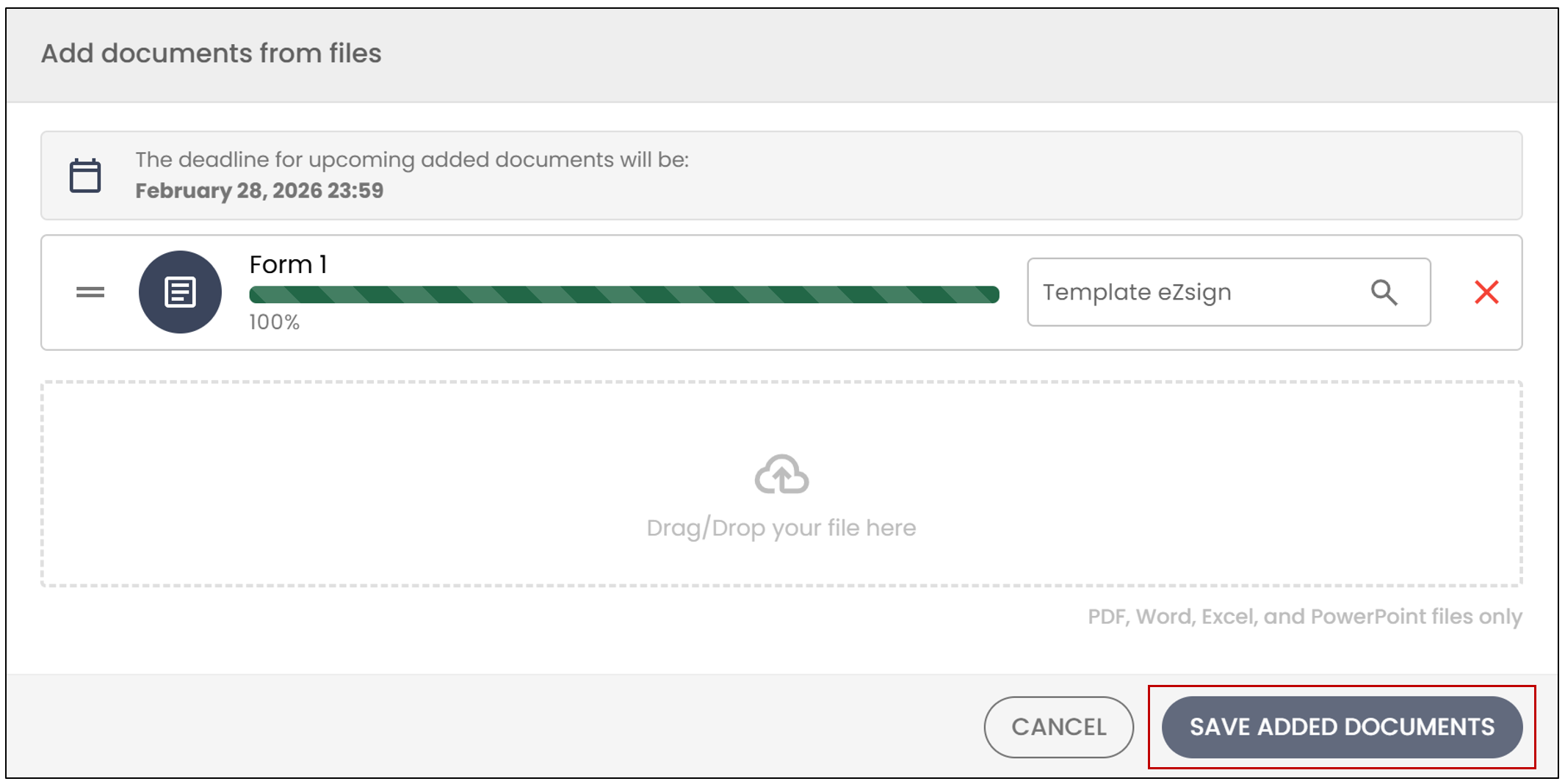
- Click Save Added Documents.
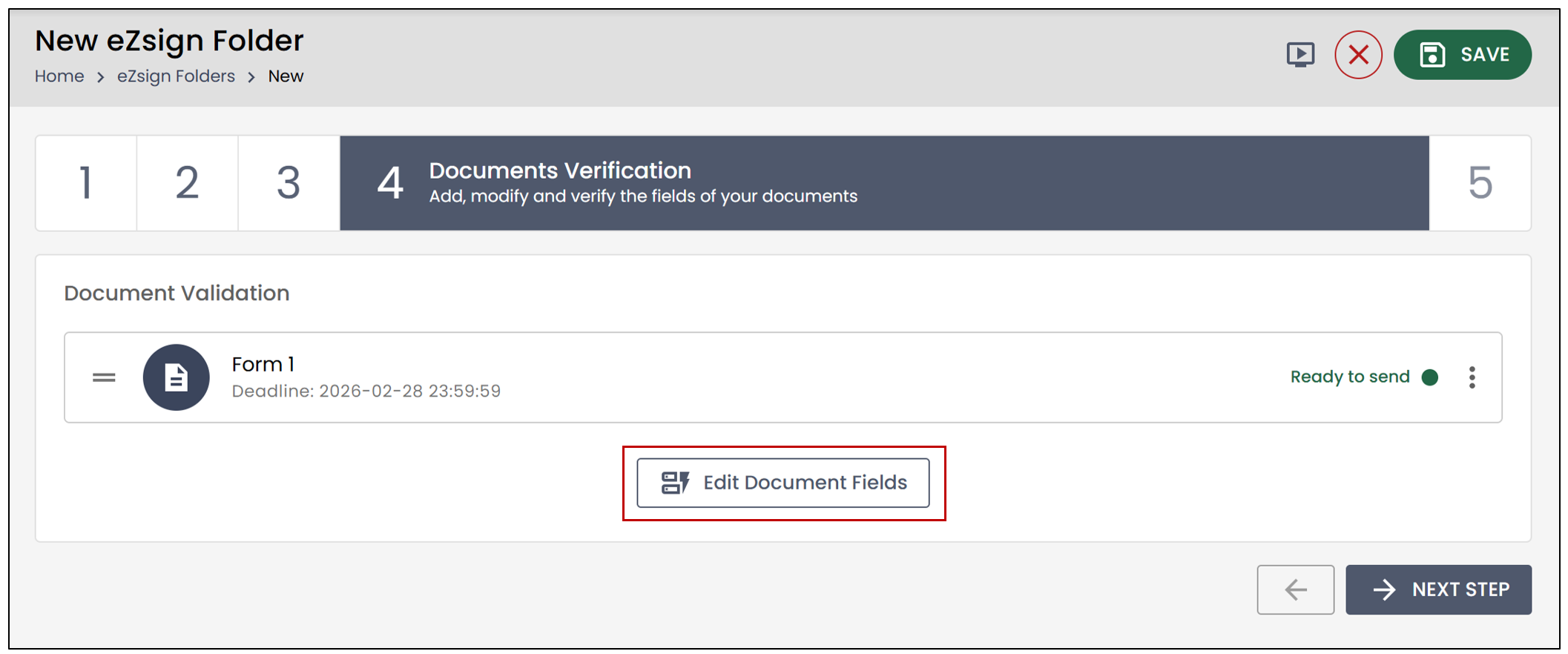
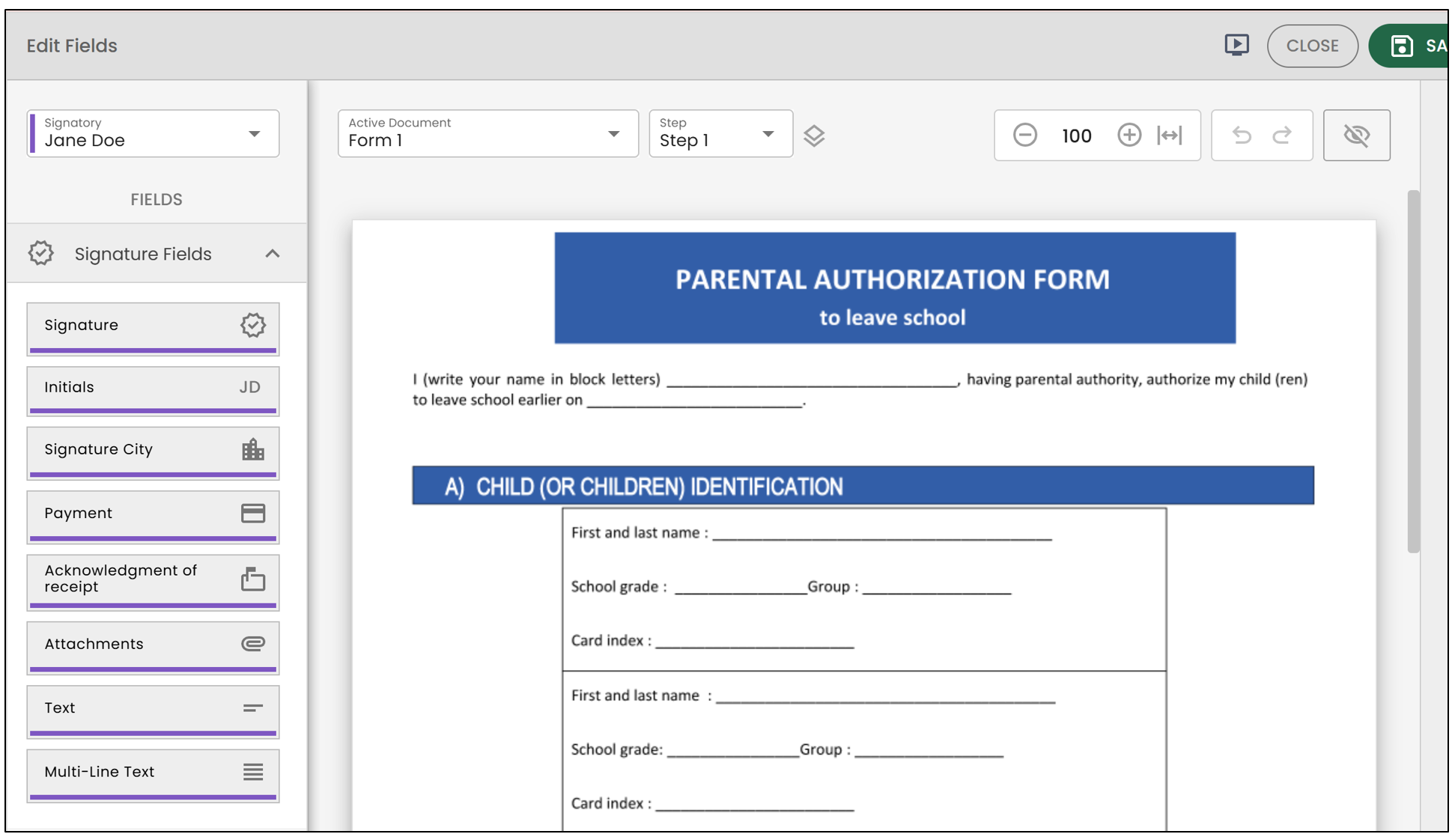
- At the Document Verification step, click Edit Document Fields to view the form.
All form fields are then converted into eZsign form fields.
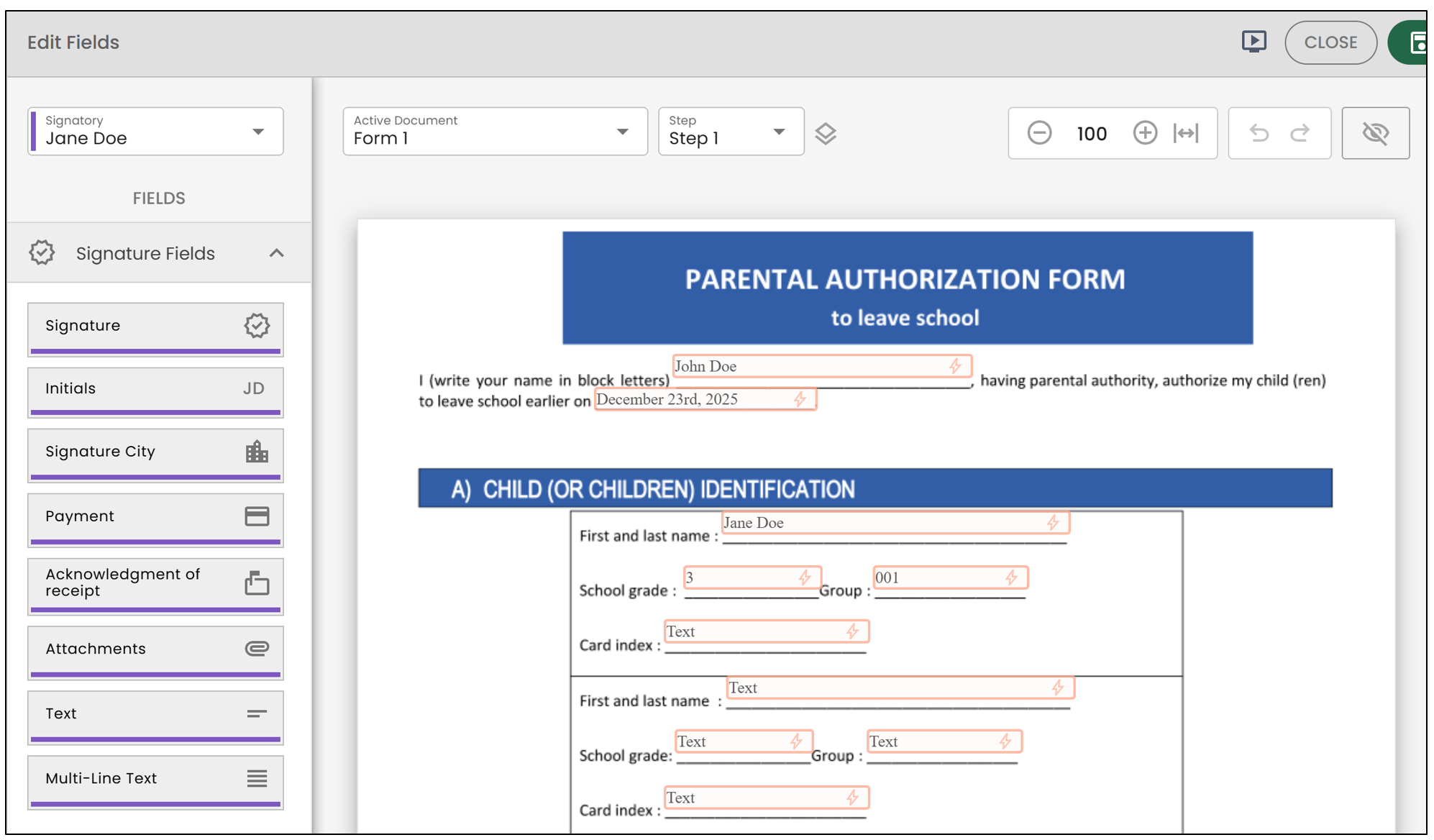
NOTE: Fields that were prefilled before the form was added to eZsign will be retained. It is still possible to modify the document fields afterward.
Only Keep the Text from the Fields
The second option, Only Keep the Text from the Fields , allows existing fields to be converted into plain text. Fields that are already filled in will be transformed into text.
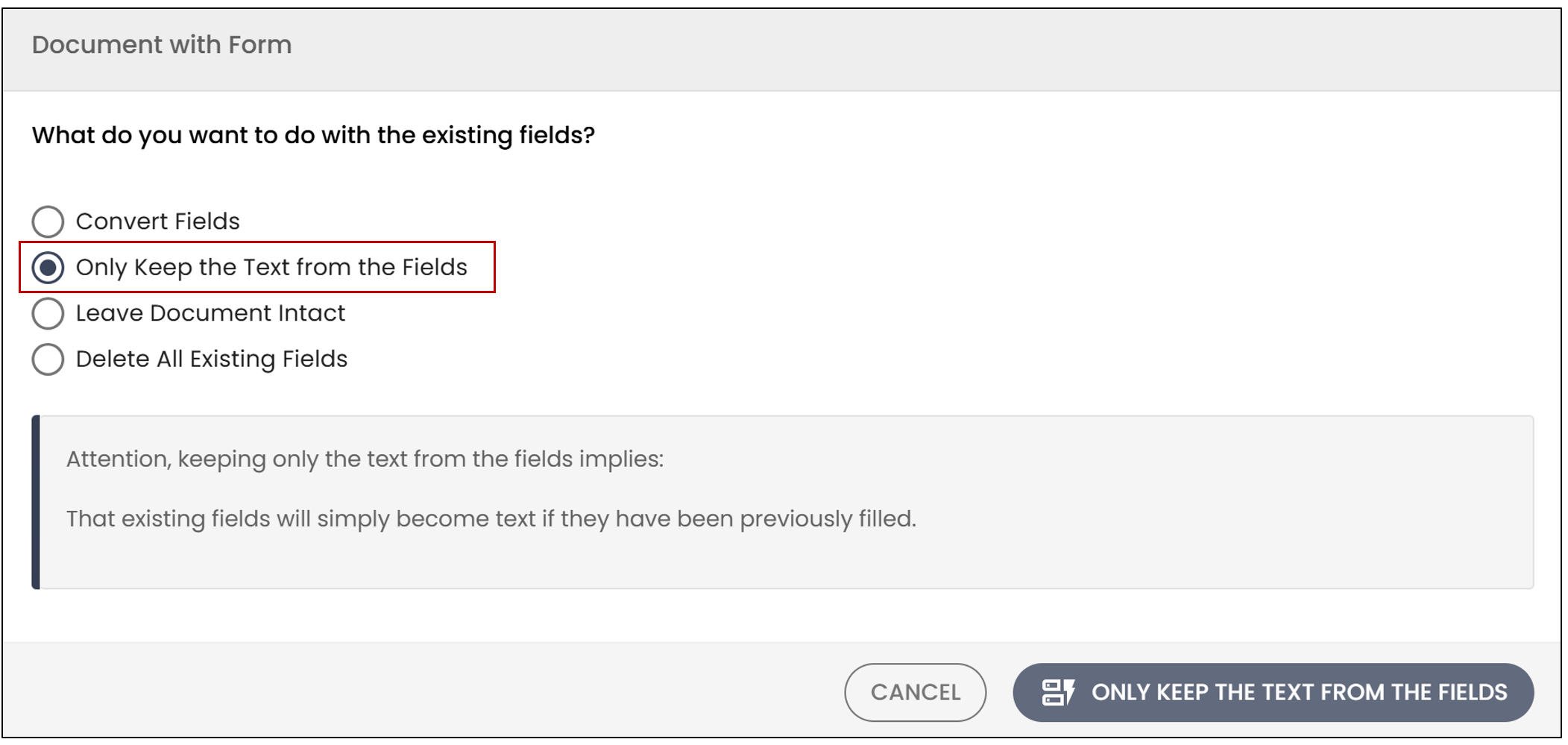
- Click on Only Keep the Text from the Fields , then on Save Added Documents.
- At the Document Verification step, click on Edit Document Fields.
The document retains only the existing text: filled fields are converted to text, while empty fields are ignored. It is still possible to add fields to the form before sending by dragging them onto the document.
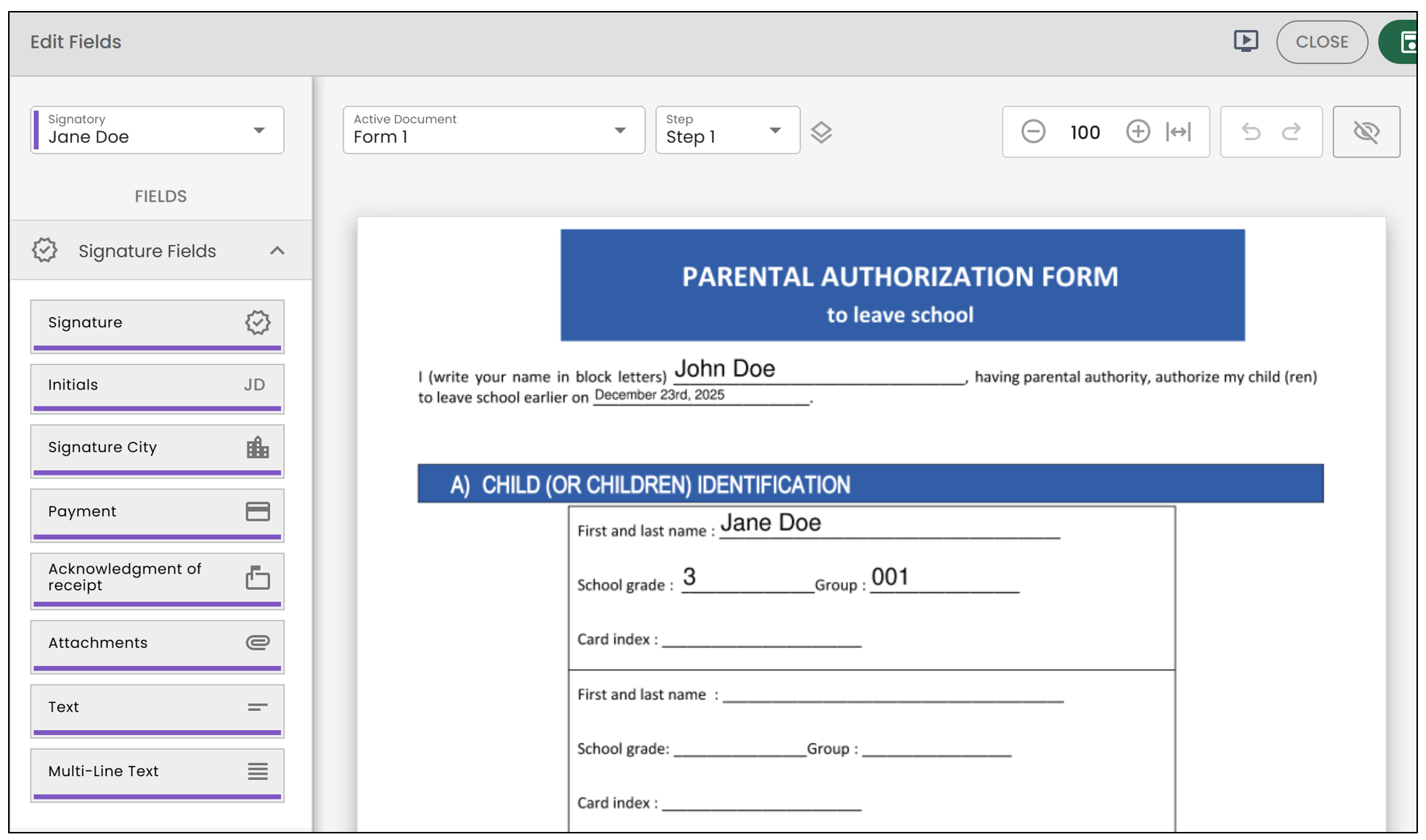
- When you are finished, click on Save and Close.
Leave Document Intact
The third option, Leave Document Intact , allows you to keep the document in its original state: no form fields will be added, and existing fields will remain unchanged.
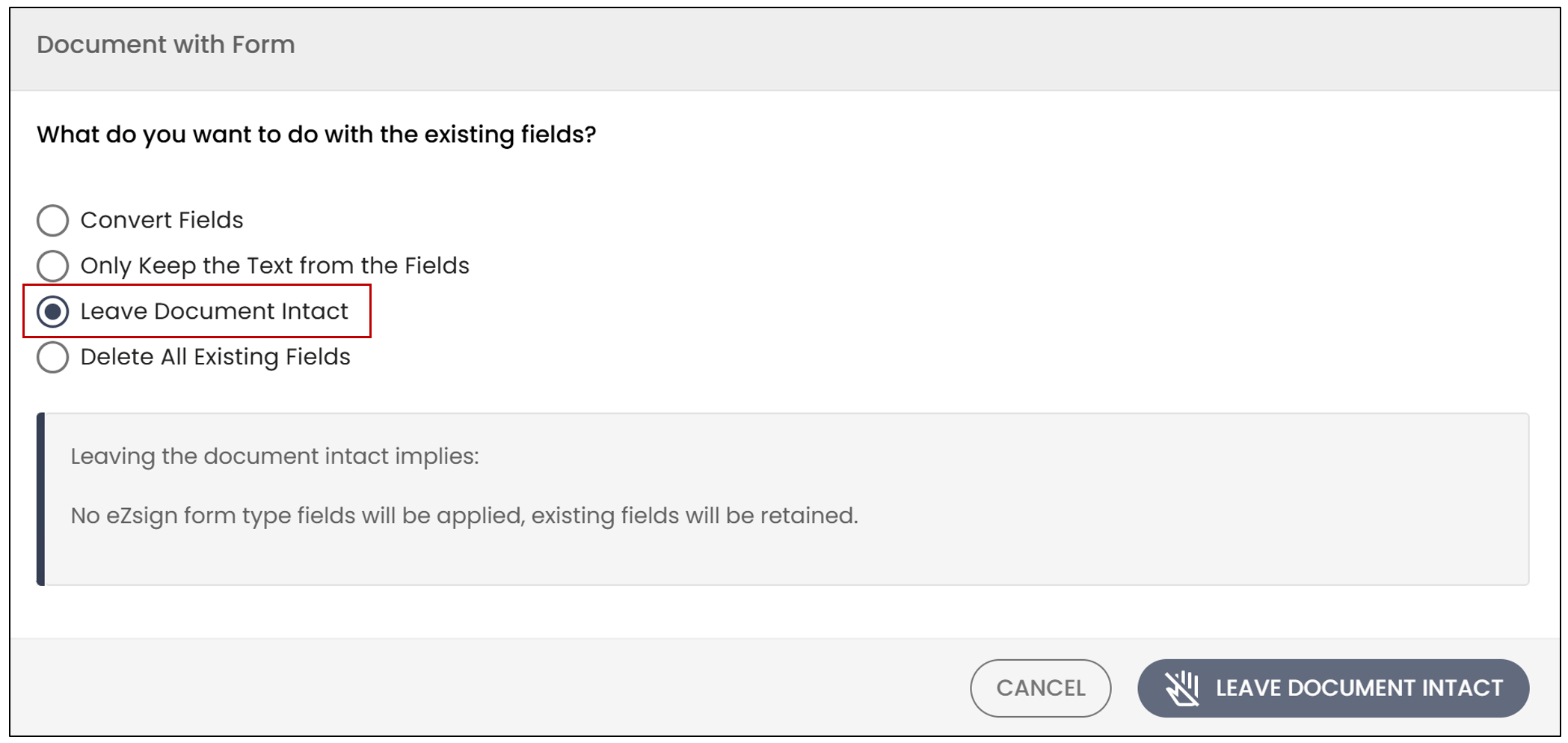
- Click on Leave Document Intact , then on Save Added Documents.
- At the Document Verification step, click on Edit Document Fields.
The document is kept as is: all existing fields, whether filled or empty, are preserved without any changes.
- When you are finished, click on Save and Close.
Delete All Existing Fields
The fourth option, Delete All Existing Fields , allows you to remove all fields from the document. Any fields and already entered responses will be deleted
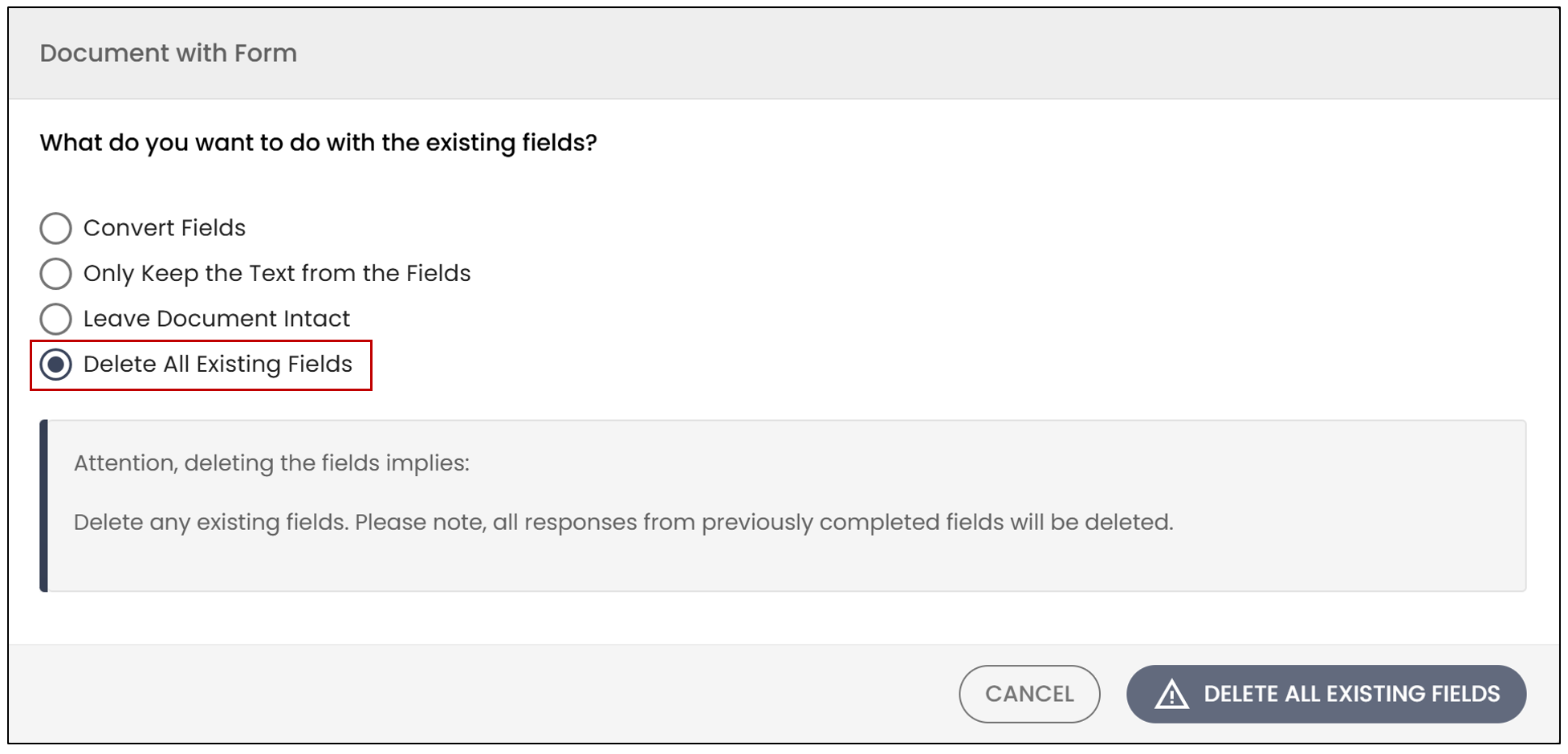
- Click on Delete All Existing Fields , then on Save Added Documents.
- At the Document Verification step, click on Edit Document Fields.
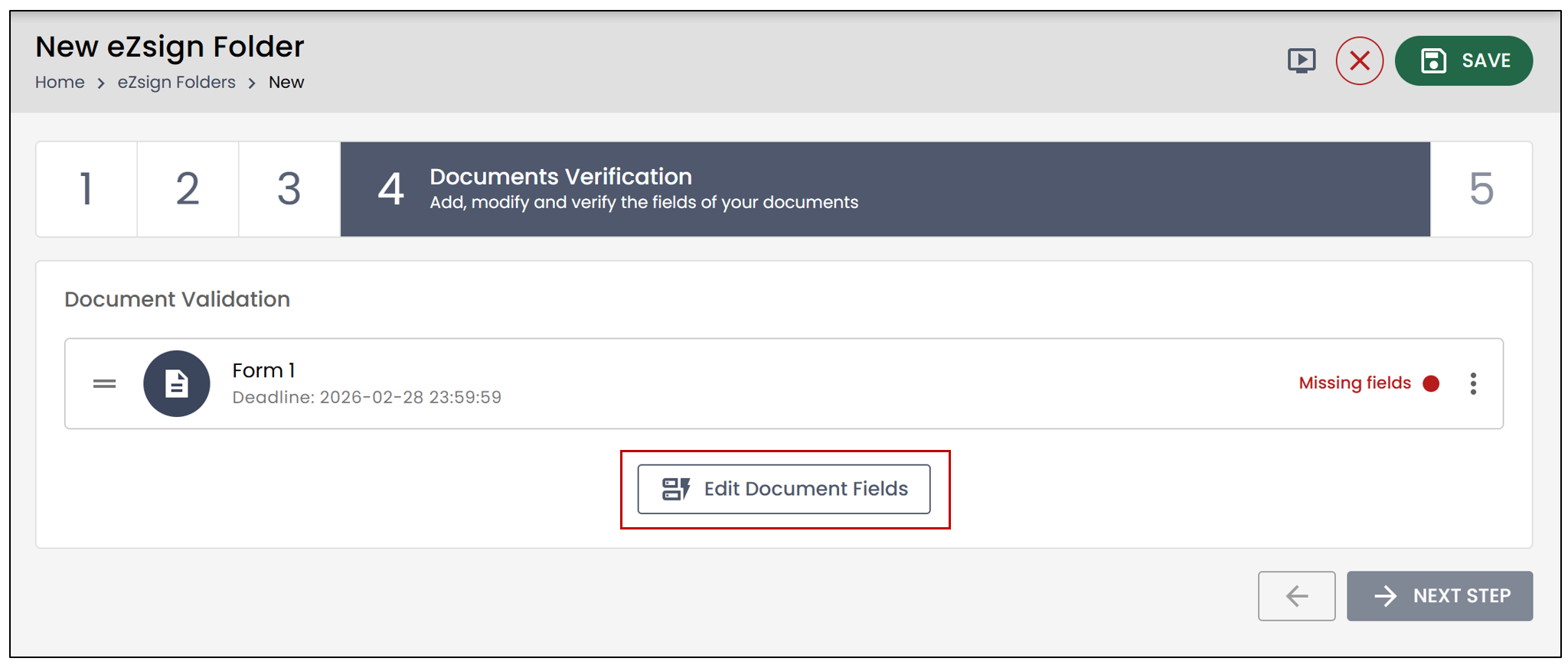
All form fields will be deleted: the document becomes blank in eZsign, allowing new fields to be added.
- When you are finished, click on Save and Close.