

English
Consult and add documents in EDM (eZmax for agents)
Consult and add documents in EDM
Add Documents
- Open the desired transaction.
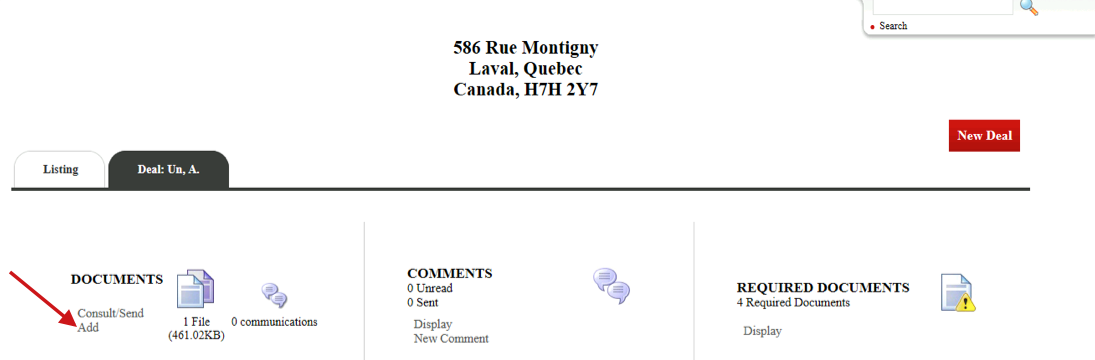
- In the "Documents" section, click on Add.
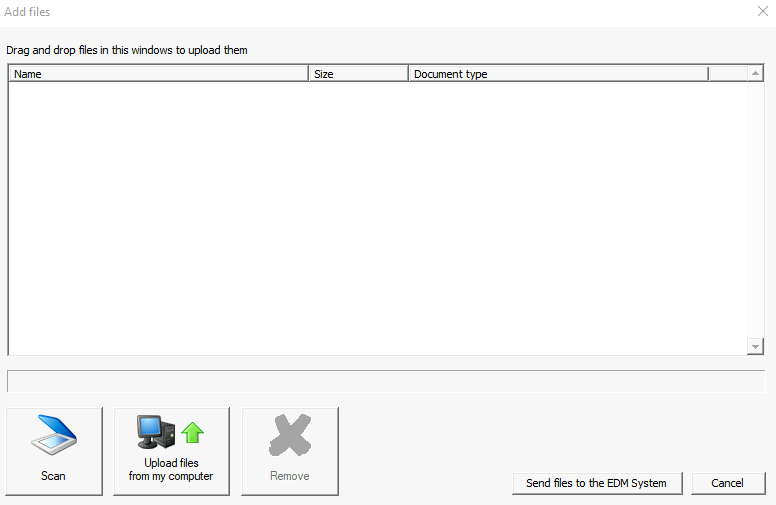
There is two options: Scan or upload a document.
Upload: On your computer, open your folder with the desired files, select them and drop them into the eZmax window.
Select the Document type from the drop-down list.
Click on Send files to the EDM system.
Click on Refresh.
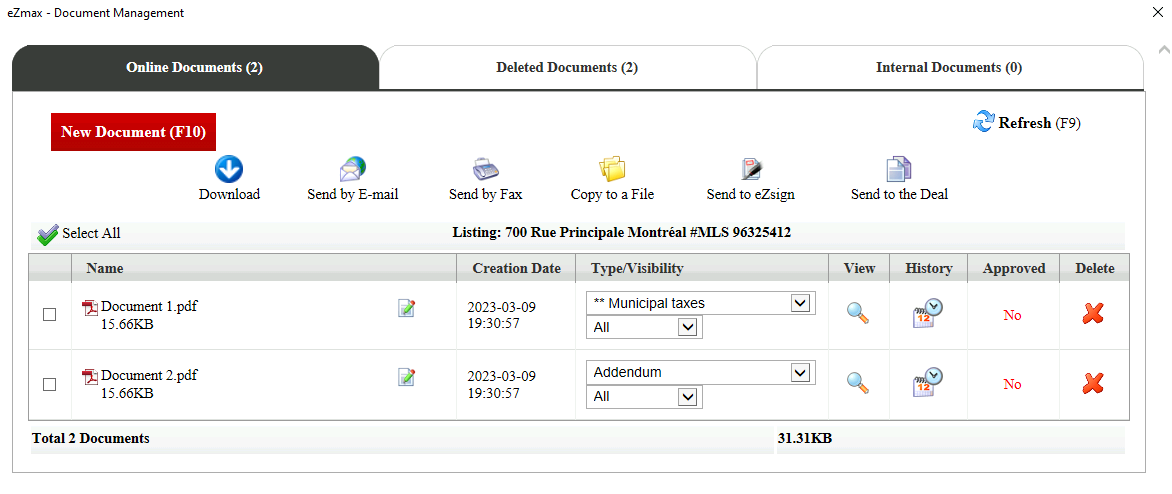
- Your documents are now uploaded into the system in the "Online Documents" tab.
Consult a Document
- In the View column, click on the magnifying glass icon to the right of the desired document to open it and see it.
Document approval
If a document is not yet approved by your agency, a red "No" appears in the Approved column but you can still perform all available actions (view, e-mail, etc.).
When your agency has viewed, verified and approved a document, a green "Yes" appears in the Approved column.
Download a Document
- Select the desired document by checking the box to its left and click on Download. You can, for example, save the document on your computer.
Send by E-mail
- Select the desired document by checking the box to its left and click on Send by E-mail.
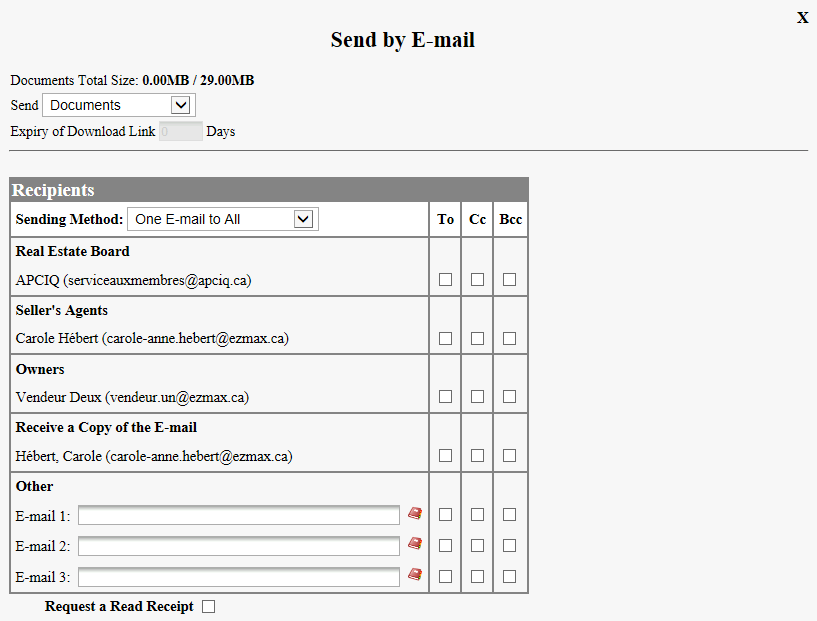
All the e-mail addresses of everybody who is part of this transaction will show up. Ex.: Seller’s agents, buyers, seller’s lawyer, etc.
Select the desired person or add an e-mail address in the "Other" section.
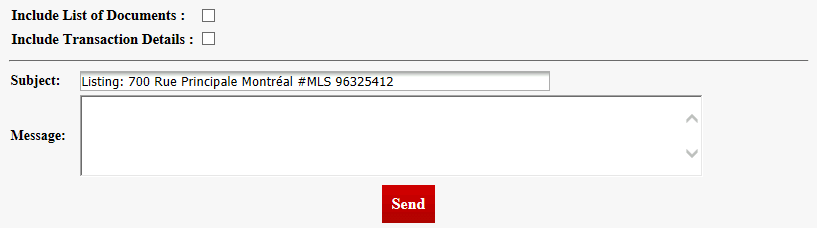
You can write a personalized Message.
Click on Send and the following message will appear: "The e-mail has been sent successfully".
Send by Fax
- Select the desired document by checking the box to its left and click on Send by Fax.
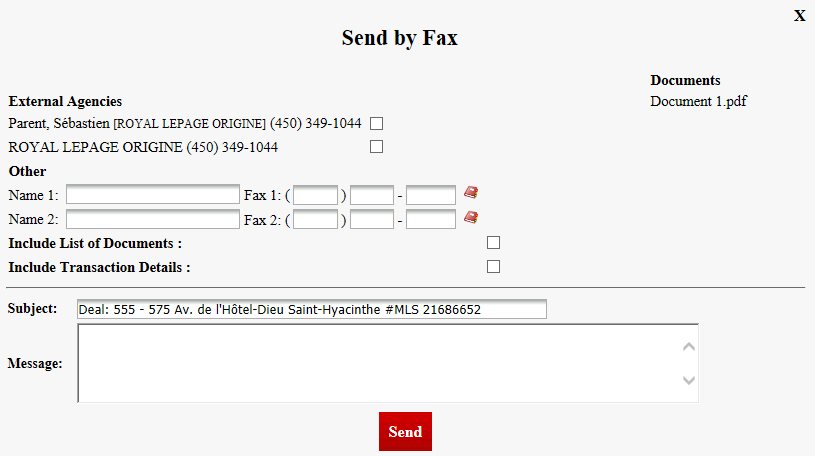
All the fax numbers in the file appears.
Select the desired person or add a number in the "Other" section.
You can write a personalized Message.
Click on Send and the document will be sent by virtual fax.
Copy to a File
- Select the desired document by checking the box to its left and click on Copy to a File.
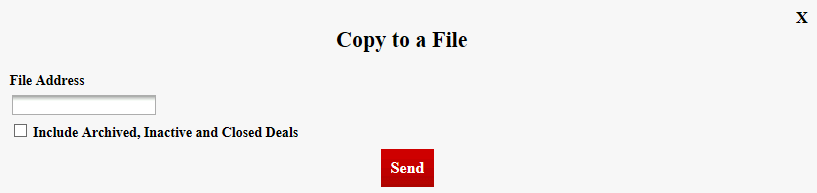
Enter the File Address.
Click on Send.
Send to eZsign
NOTE: You must have an eZsign account to use this feature.
- Select the desired document by checking the box to its left and click on Send to eZsign.
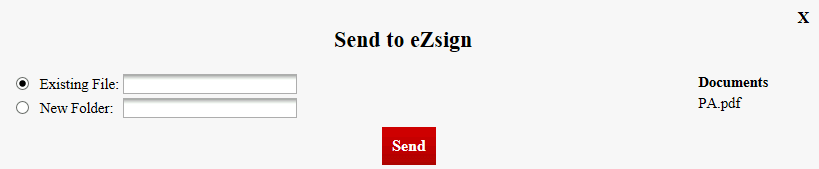
Enter the name of an eZsign folder or create.
Click on Send.
Send to the Listing
- Select the desired document by checking the box to its left and click on Send to the Listing.

- Click on Send and the document in the deal section of the transaction will be copied in the listing section of the transaction.