

English
Adding/Editing/Deleting a Signatory in an eZsign Folder
Once the folder is created, here are, in order, the next steps:
- Add the signatories.
- Add the documents. For more information, please see the article Adding/Editing/Deleting a Document in an eZsign Folder.
- Add the fields. For more information, please see the article Adding/Editing/Deleting a Field in a Document.
- Send the documents to sign. For more information, please see the article Sending Documents to Sign.
- Sign the documents. For more information, please see the articles Signing a Document as a User and Signing a Document as an External Signatory.
- Send the signed documents by e-mail. For more information, please see the article Sending Signed Documents by E-mail.
Adding a Signatory in an eZsign Folder
The user who created the folder is automatically added to the signatories, but you can add more signatories in 2 different ways, i.e. by creating a new signatory or by searching for someone already entered in the system.
New Signatory
- From the desired folder, in the "List of Signatories" section.

- Click on the Sheet with a + icon to add a new signatory.
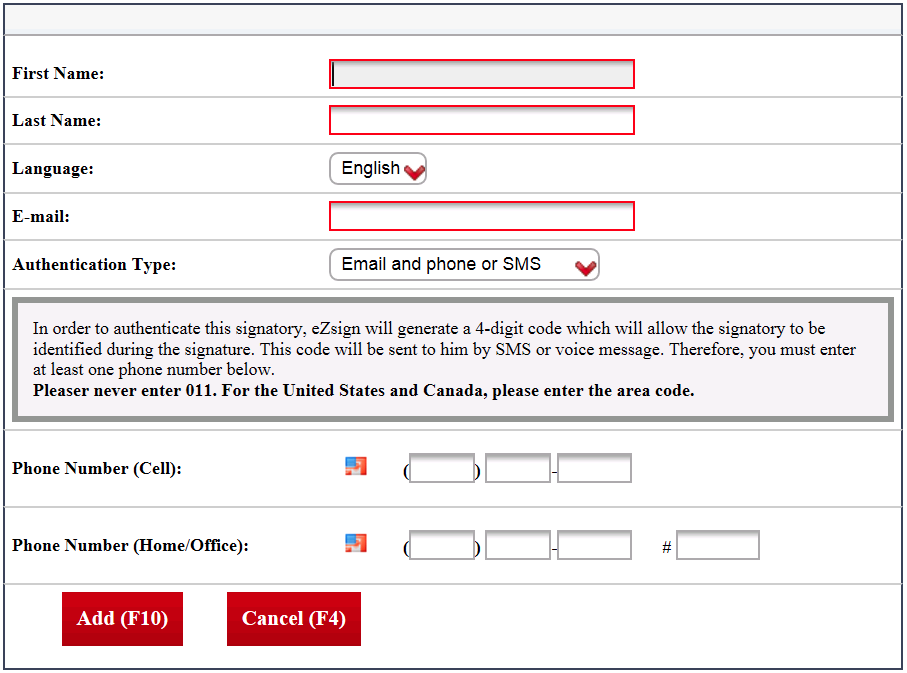
Enter the First Name and Last Name of the signatory.
Select the appropriate Language. The e-mail message and all the instructions sent to the signatory will be in this language.
Enter the E-mail address of the signatory.
Select the desired Authentification Type. For more information, please see the article Types of Signatory Authentication.
Depending on the type of authentication selected, enter the Phone Number (Cell) or Phone Number (Home/Office).
NOTE: If the phone number of the signatory is outside of Canada or the United States, click on the Flag icon to show the Earth icon. Enter the phone number without entering 011, spaces or dashes.
- Click on Add and the signatory will be added in the eZsign folder.
Existing Signatory
- From the desired folder, in the "List of Signatories" section.

- Click on the Binoculars icon to search for existing signatories in the system.
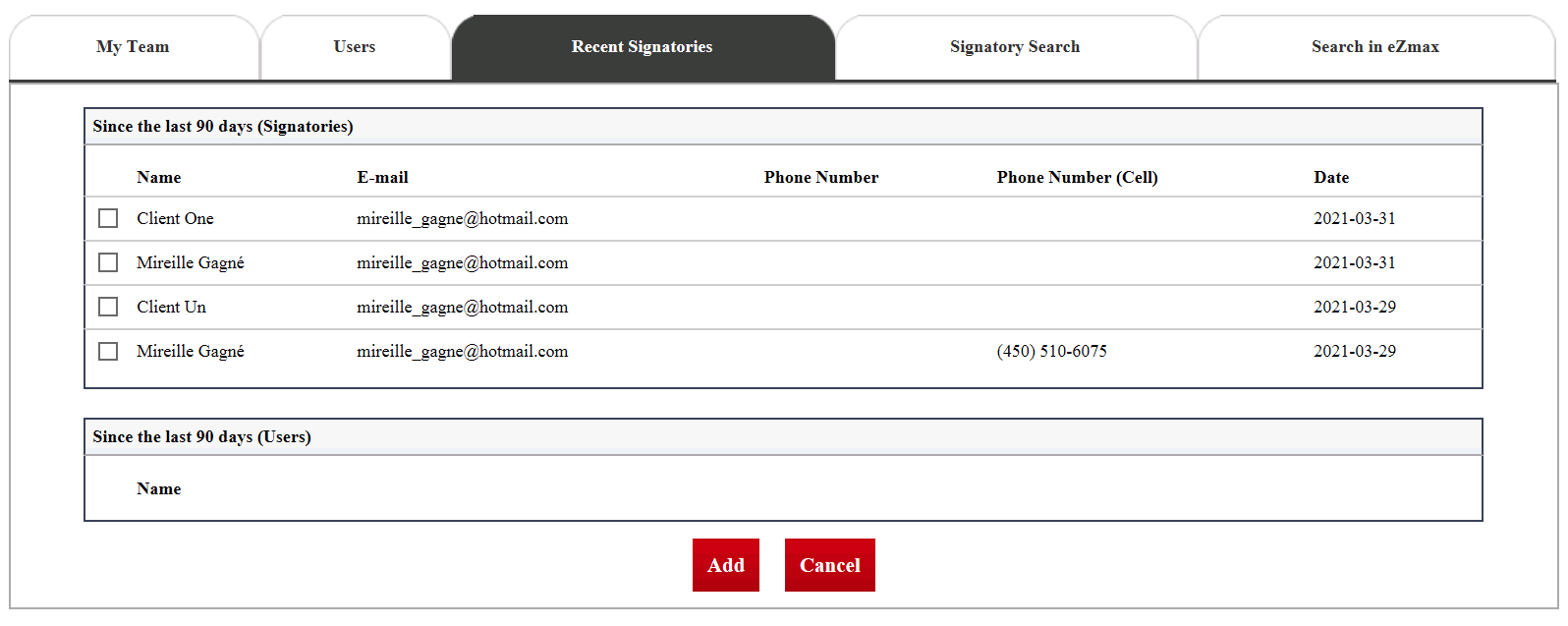
By clicking on the different tabs, you can do a specific search:
- "My Team": If you are part of a team in this office and it is programmed into the system, all team members will appear in this tab. If you are not part of a team in this office, only your name will appear in this tab. Check the box of the desired agent and click on Add.
- "Users": Enter the user’s First Name , Last Name and/or Licence # and click on Search. Check the box of the desired user and click on Add.
- "Recent Signatories": Check the box of the desired signatory and click on Add.
- "Signatory Search": To search for a signatory in eZsign only, enter the signatory’s First Name , Last Name and/or E-mail address, check the box Include Inactive Signatories to extend your search to inactive signatories and click on Search. Check the box of the desired signatory and click on Add.
- "Search in eZmax": To search for a person in your list of eZmax contacts (buyer, seller, lawyer, etc.), enter the person’s First Name, Last Name and/or E-mail address and click on Search. Check the box of the desired person and click on Add.
Editing a Signatory in an eZsign Folder
It is possible to modify a signatory, for example to correct an error in the name, e-mail or phone number, in all folders except a folder with a document partially signed by this signatory.

In the "List of Signatories" section, click on the Edit icon.
Make the desired changes and click on Submit to save them and return to the eZsign folder.
If you have changed the e-mail address of the signatory, this message will appear:
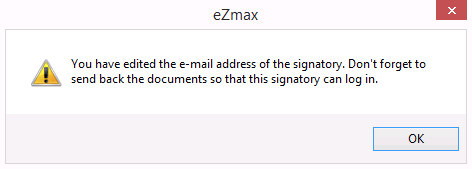
- Click on Close to confirm and return to the eZsign folder. Don’t forget to resend the documents so that this signatory receives the e-mail and can complete the signature.
**
Editing a Signatory who is Already Logged In**
In case you want to modify a signatory to whom you sent a document to sign and who opened the e-mail (but has not yet signed), you will have to log out him to be able to modify him.
- If the signatory is already logged in, this message will appear:
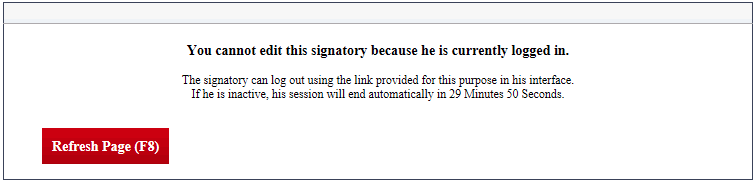
- Close this window (Red X icon) to return to the eZsign folder.

- Click on this icon

(Signature in Person) to the right of the signatory you want to modify to display his login page.
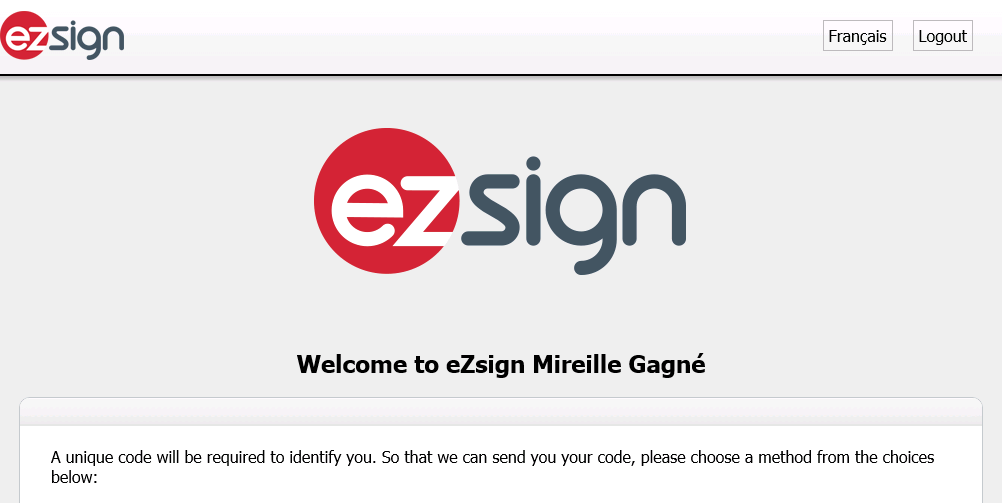
Click on Logout and the following message will appear: "Do you want to end your session?"
Click on Yes and the signatory will be logged out.
Close this Web page to return to your eZsign folder.
We recommend clicking on Refresh Folder.
You now have the possibility to modify the signatory. See above in this article for the next steps.
**
Deleting a Signatory in an eZsign Folder**
It is possible to delete a signatory from an eZsign folder, but only if no document in that folder, on which this signatory must sign, has been sent.

- In the "List of Signatories" section, click on the Sheet with an X icon to the right of the desired signatory and this message will appear:

- Click on Yes to confirm.