English
Adding/Editing/Deleting an eZsign Personal Template
In eZsign, it is possible to create personal templates to simplify and speed up document creation by reusing fields and a predefined structure.
- From the main eZmax menu, click the

icon, then enter List of Templates eZsign in the search bar.
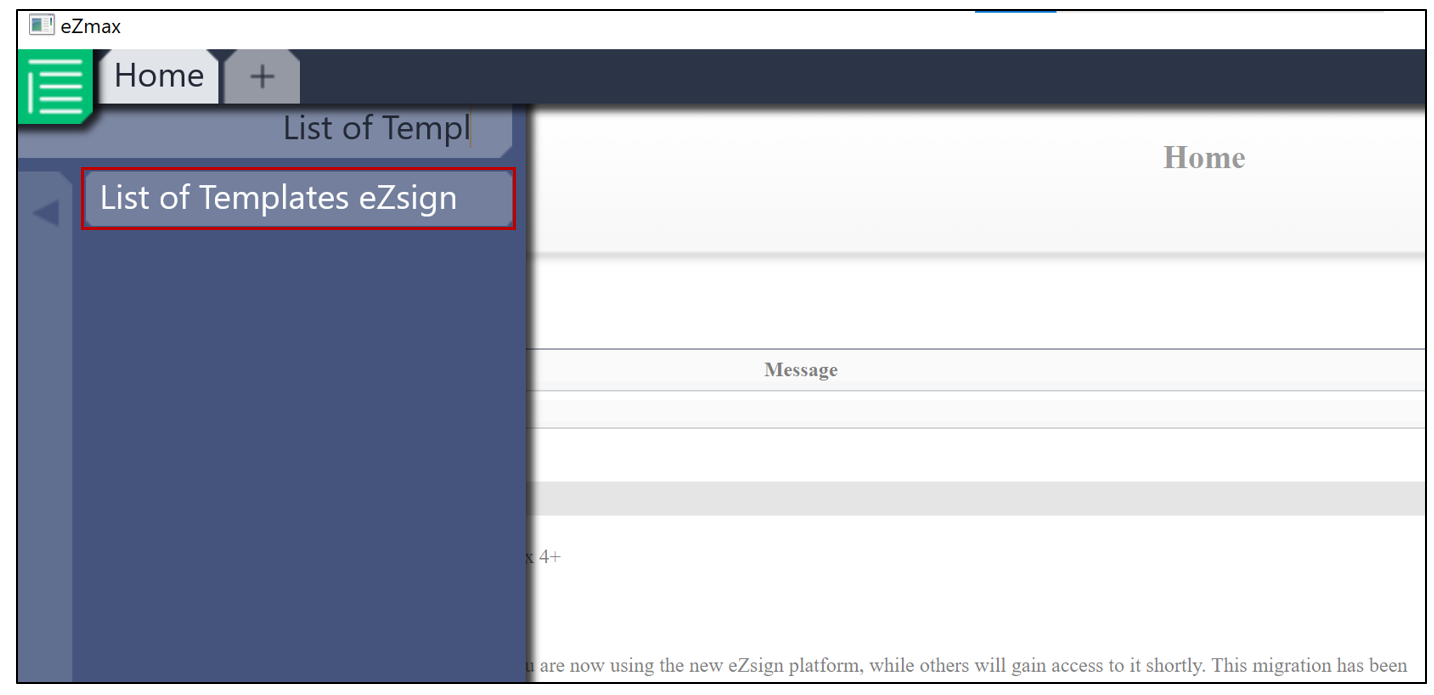
- You will have the option to create new templates or edit existing ones.
Create a Personal Template
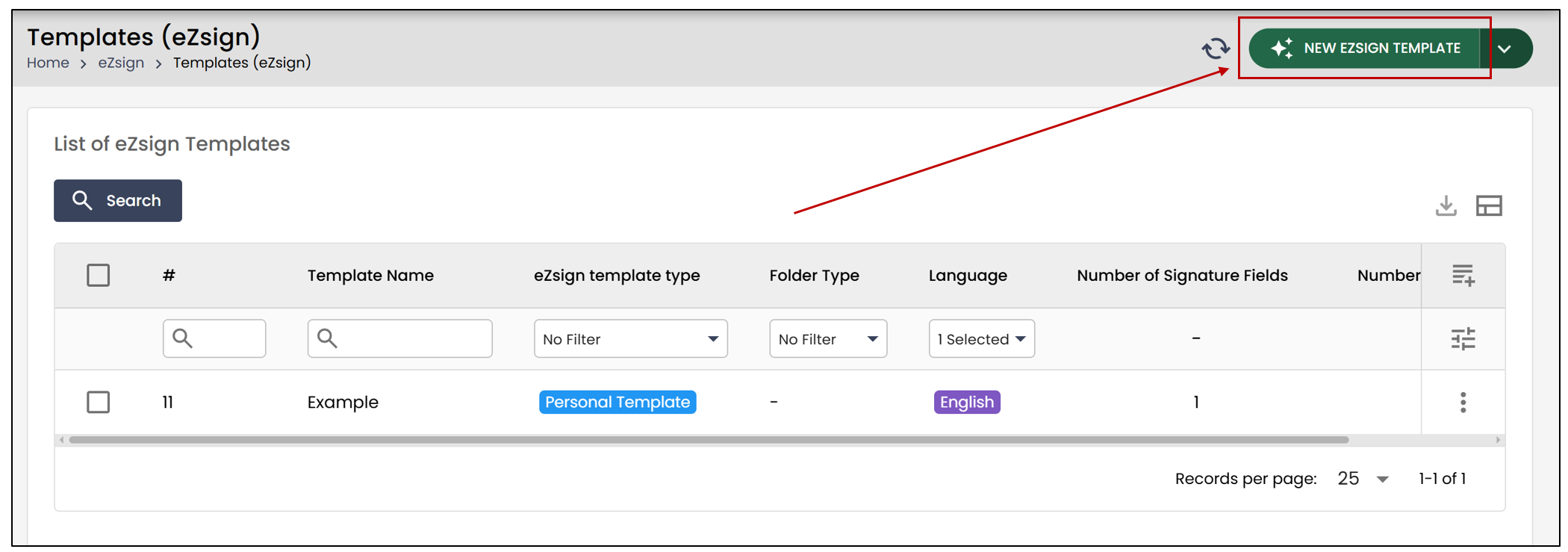
- To create a new personal template, click on New eZsign Template.
Template Information
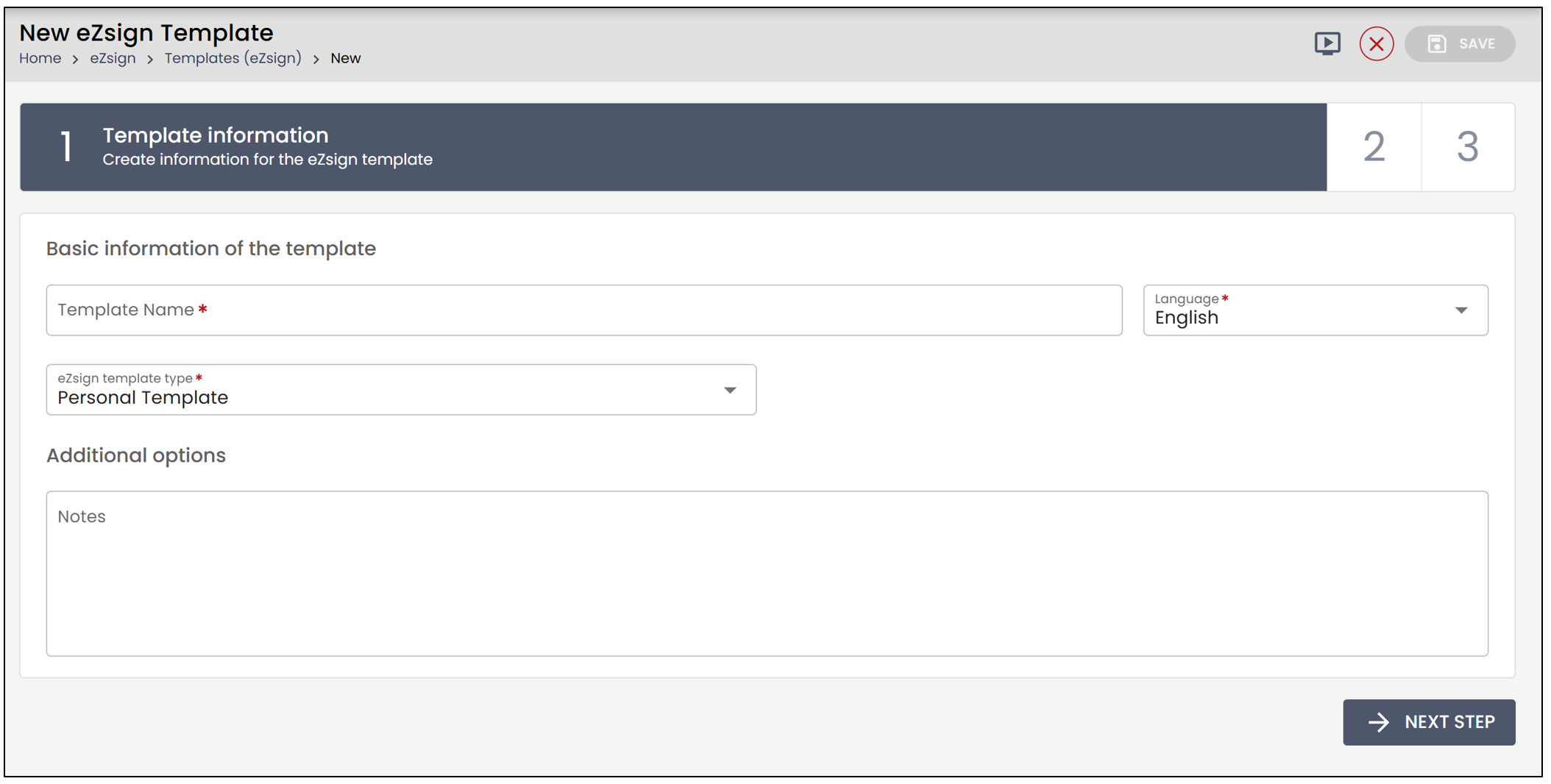
You will need to enter the following information:
Template Name: Enter the name of the template
eZsign Template Type: Select Personal Template
Language: Select the template language
You will also have the option to add notes to the template.
- Click Next Step.
Adding roles
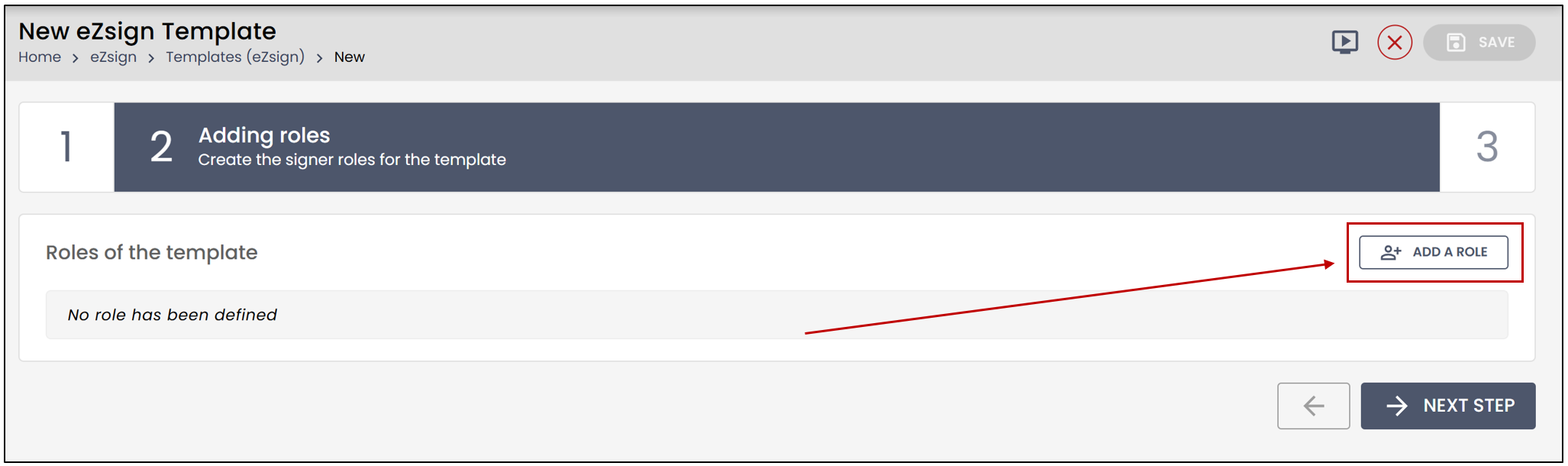
- To add roles to the personal template, click on Add a Role.
- Enter the Role Name , then click on Save.
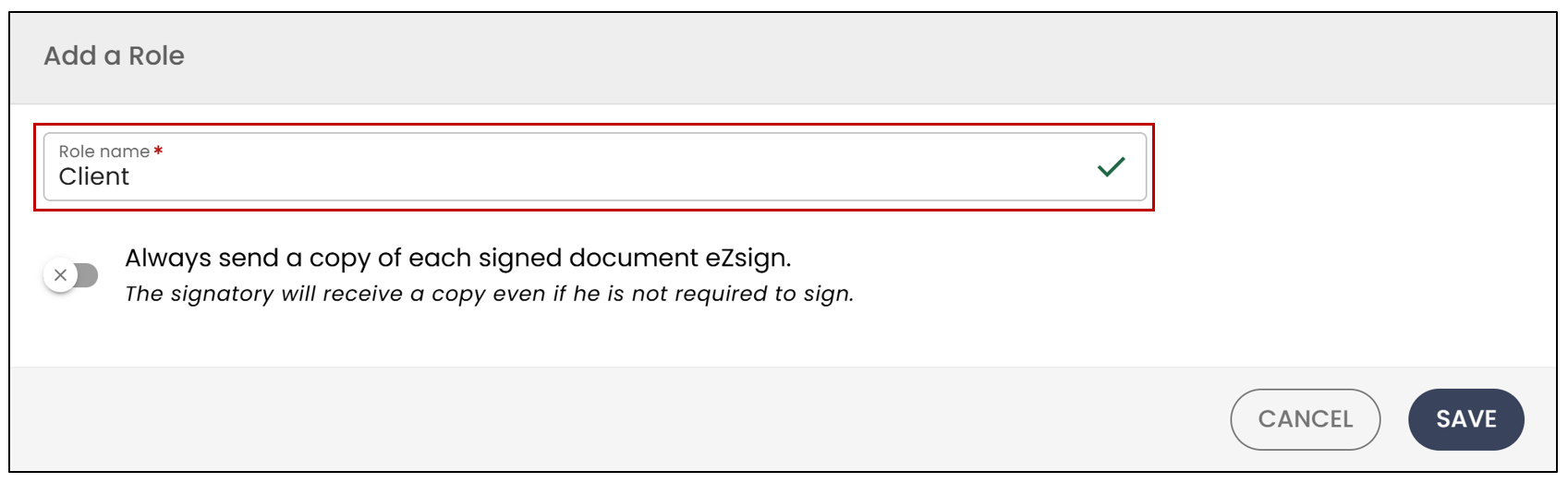
NOTE: If you want the signatory associated with this role to receive a copy of the signed documents, even if they are not required to sign, check this option.
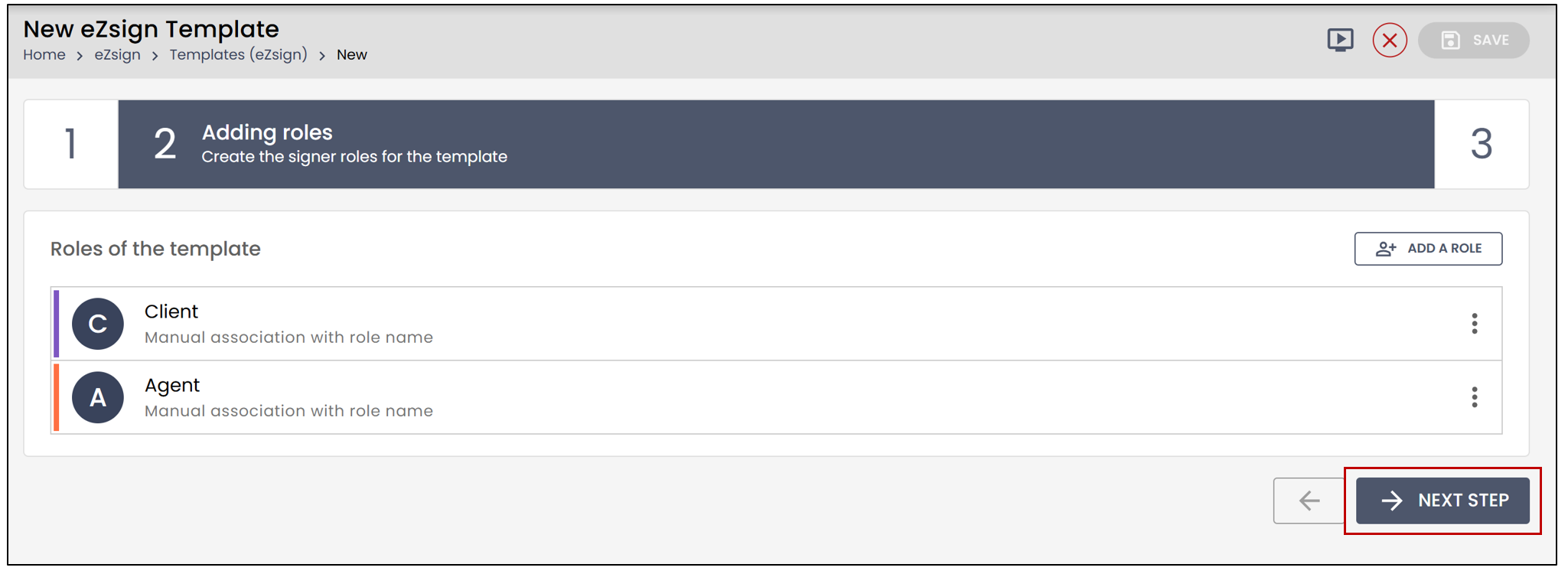
- Once all roles have been added, click on Next Step.
Creating Document Fields
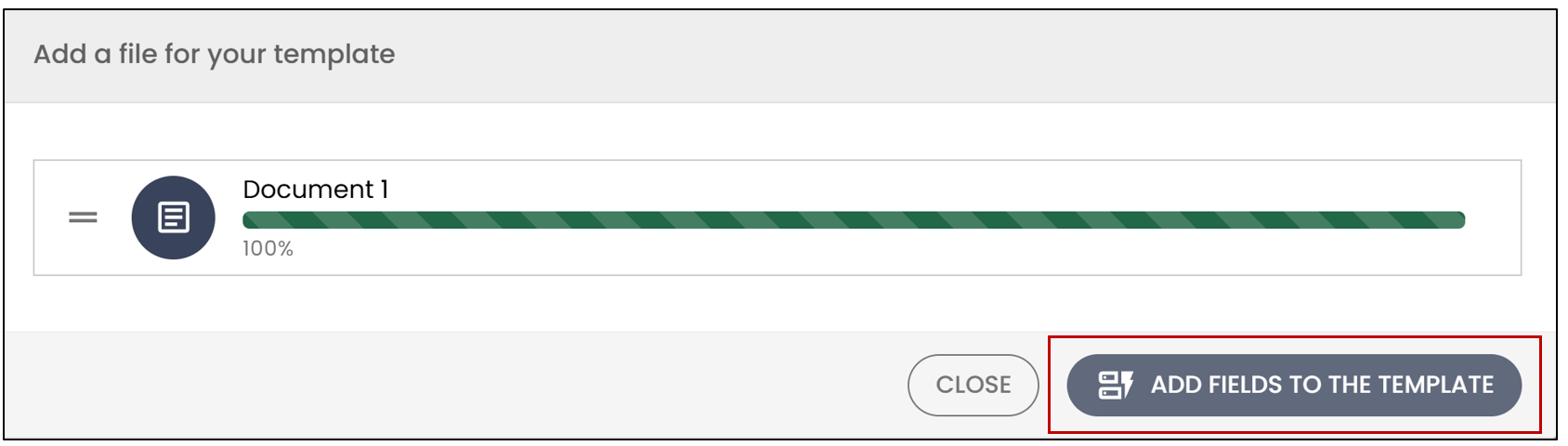
- You will then be able to add documents to the template by clicking on Add a File.
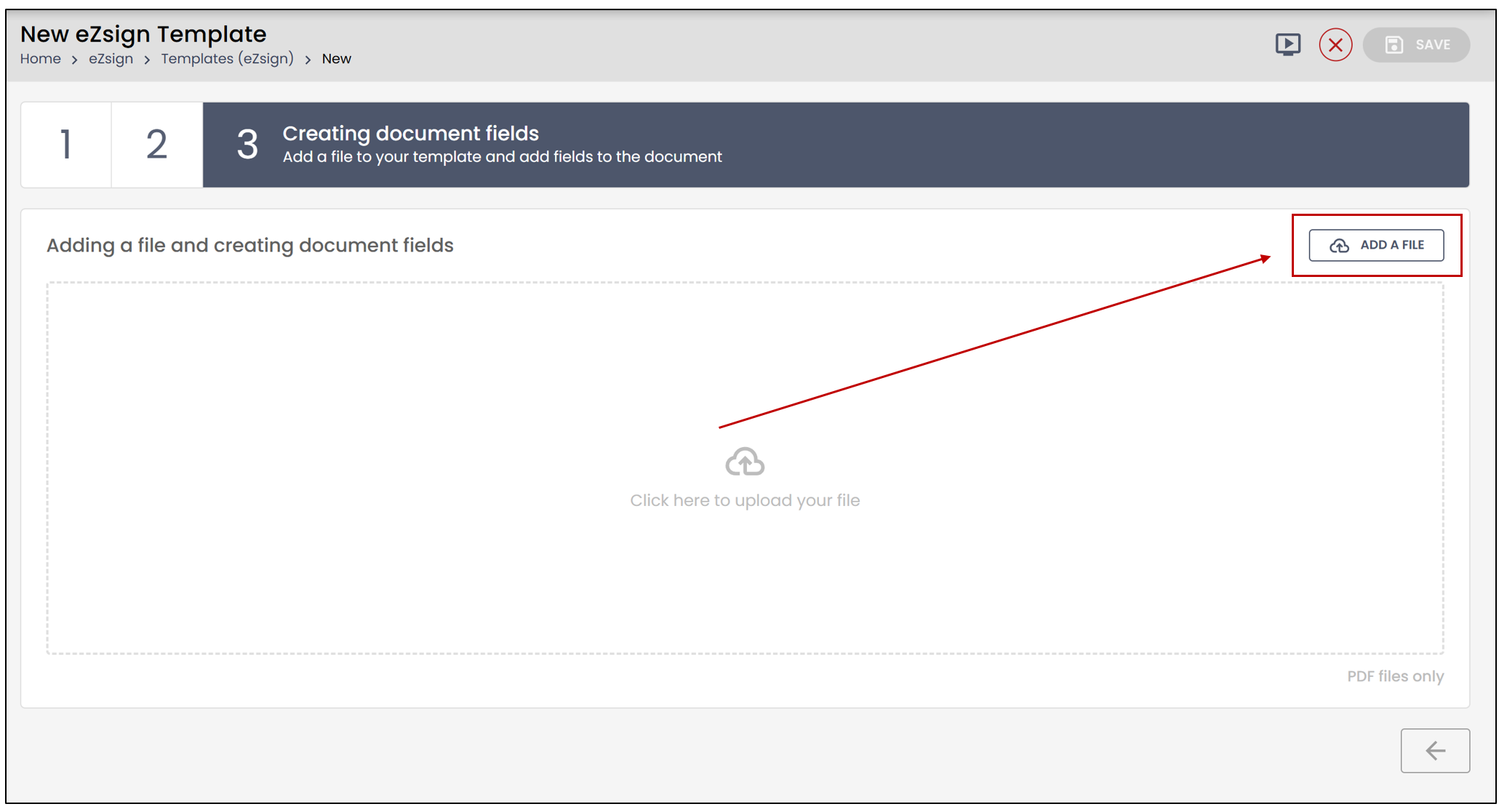
- Select the file from your computer, then click on Add Fields to the Template.
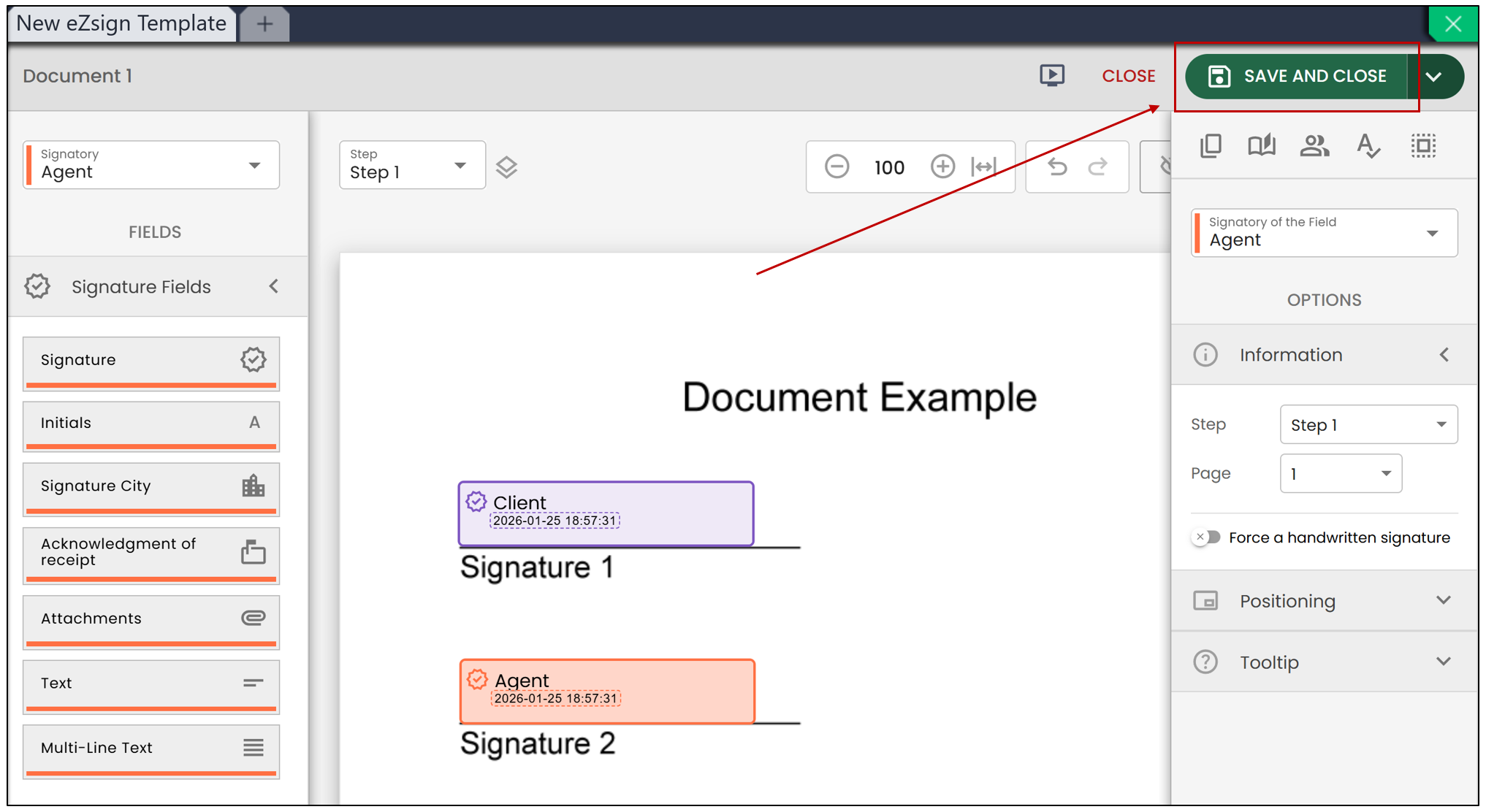
- Once the desired fields have been added, click on Save and Close.
Positioning Fields Using a Word
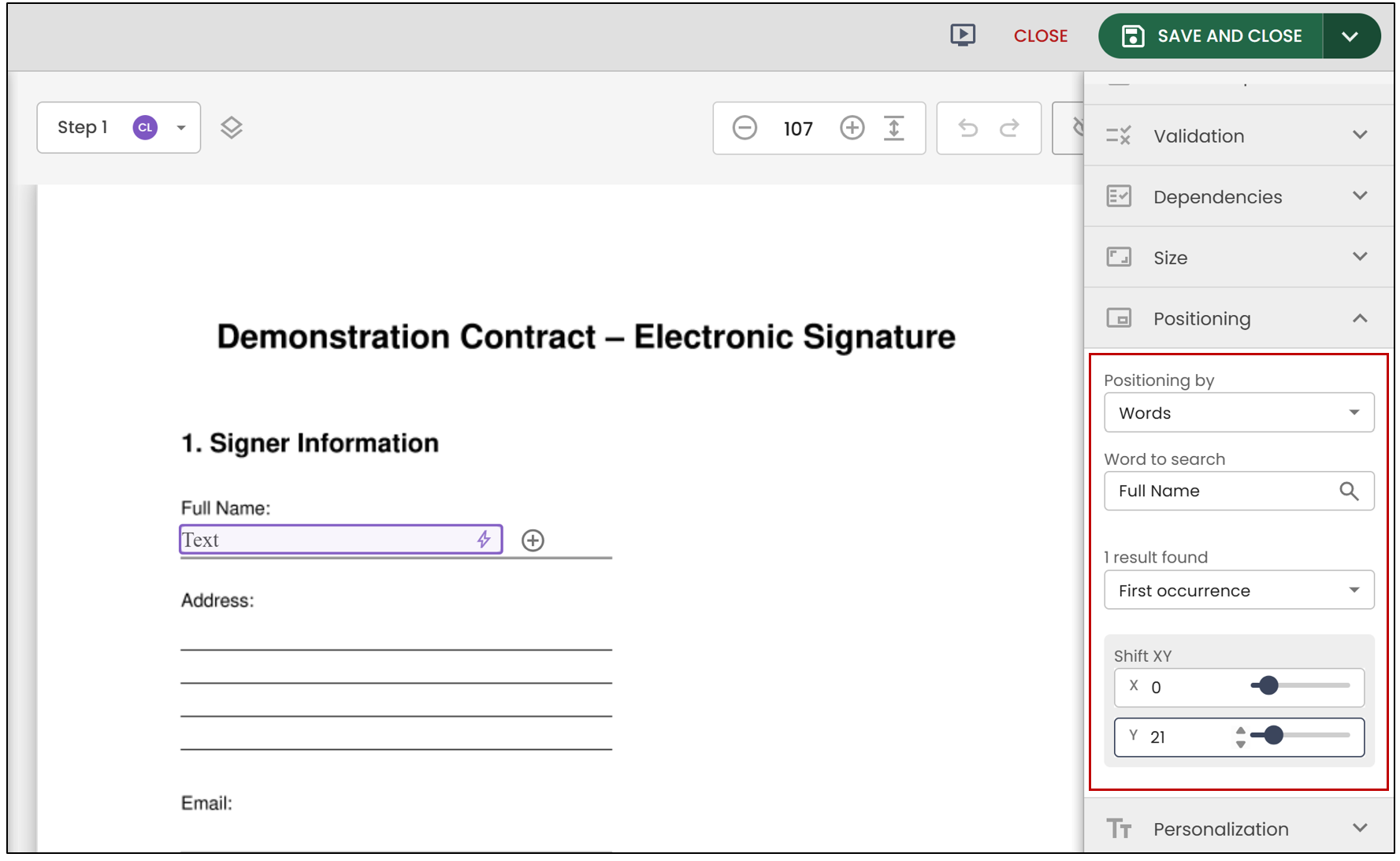
When creating a template, signature fields and form fields can be positioned automatically based on the location of a word in the document. This option is available in the Positioning section.
- Enter the Word to search , then select the desired occurrence. You can then adjust the X and Y values to edit the field's position within the document.
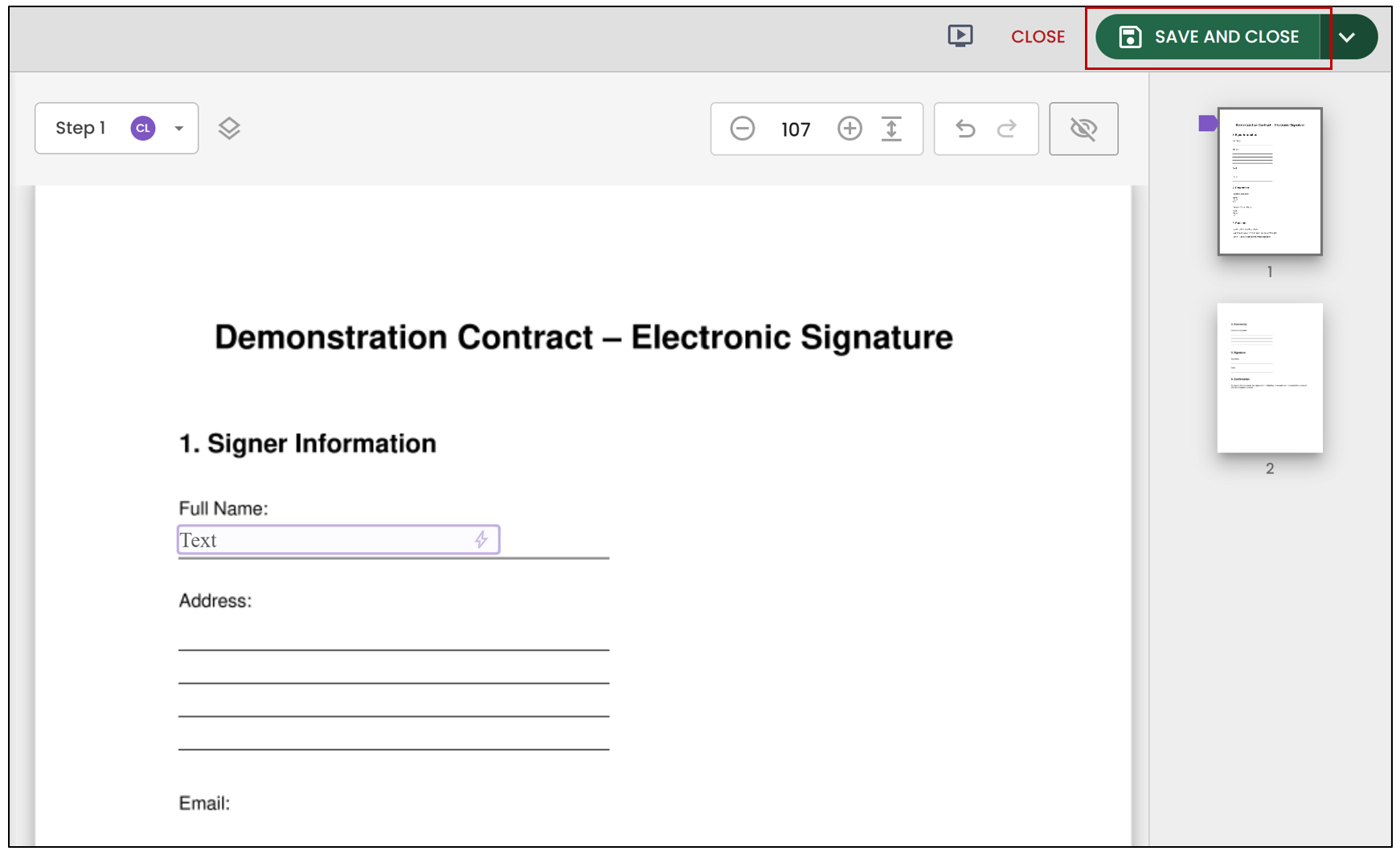
- Once finished, click Save and Close.
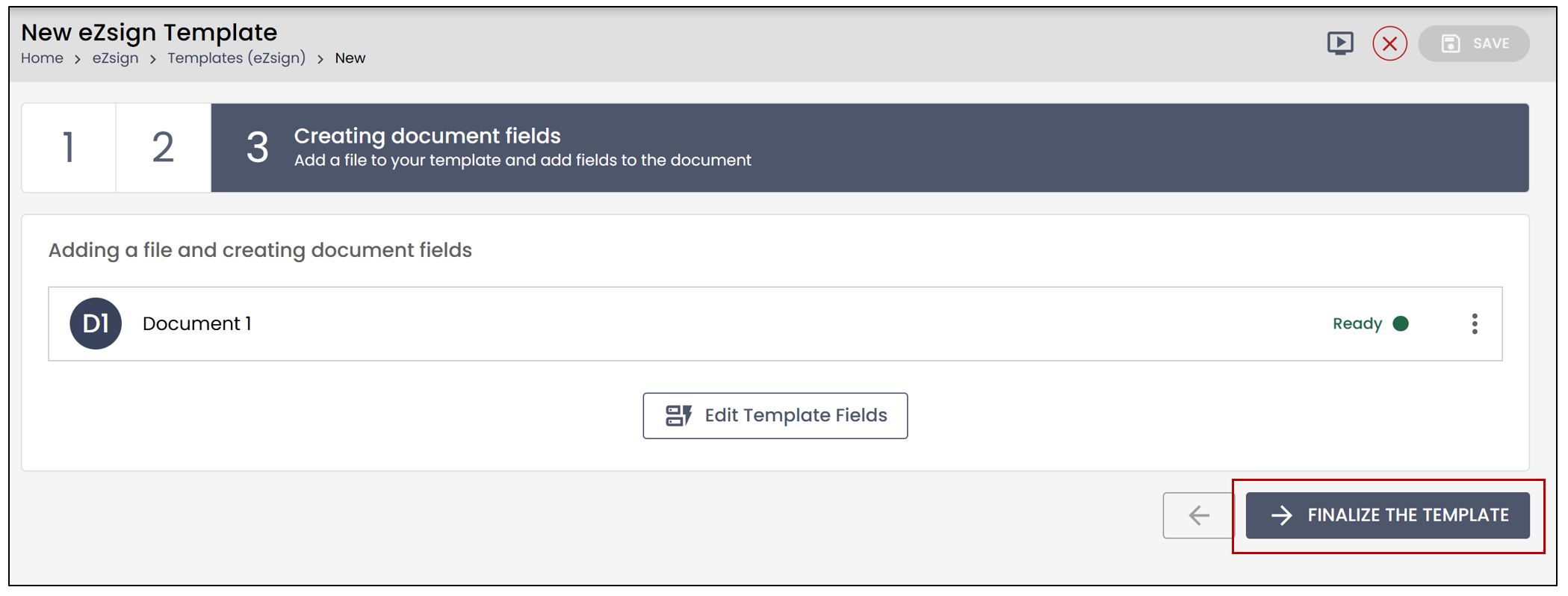
- Click on Finalize the Template to save the personal template.
Adding a Personal Template to a New Folder
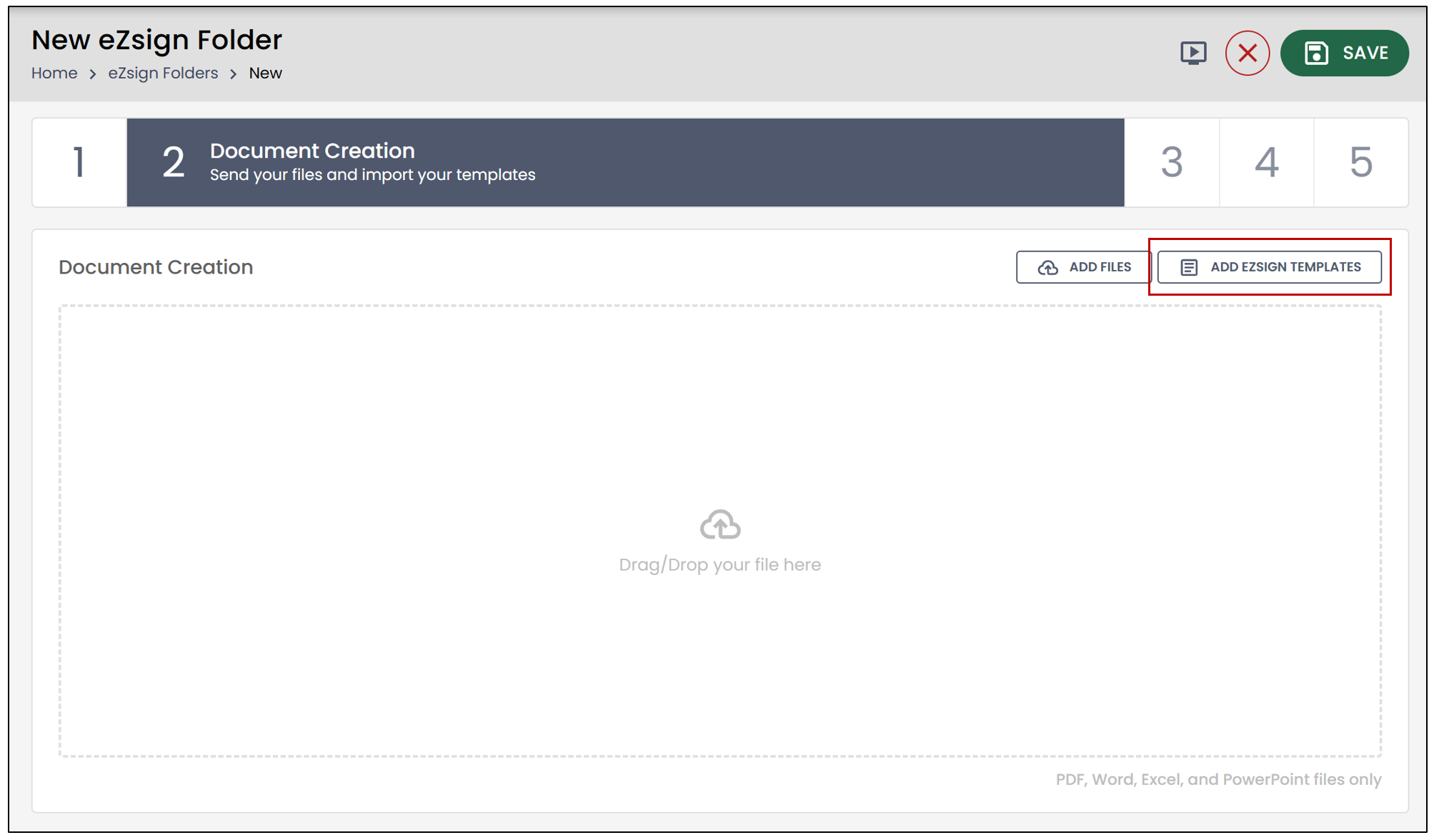
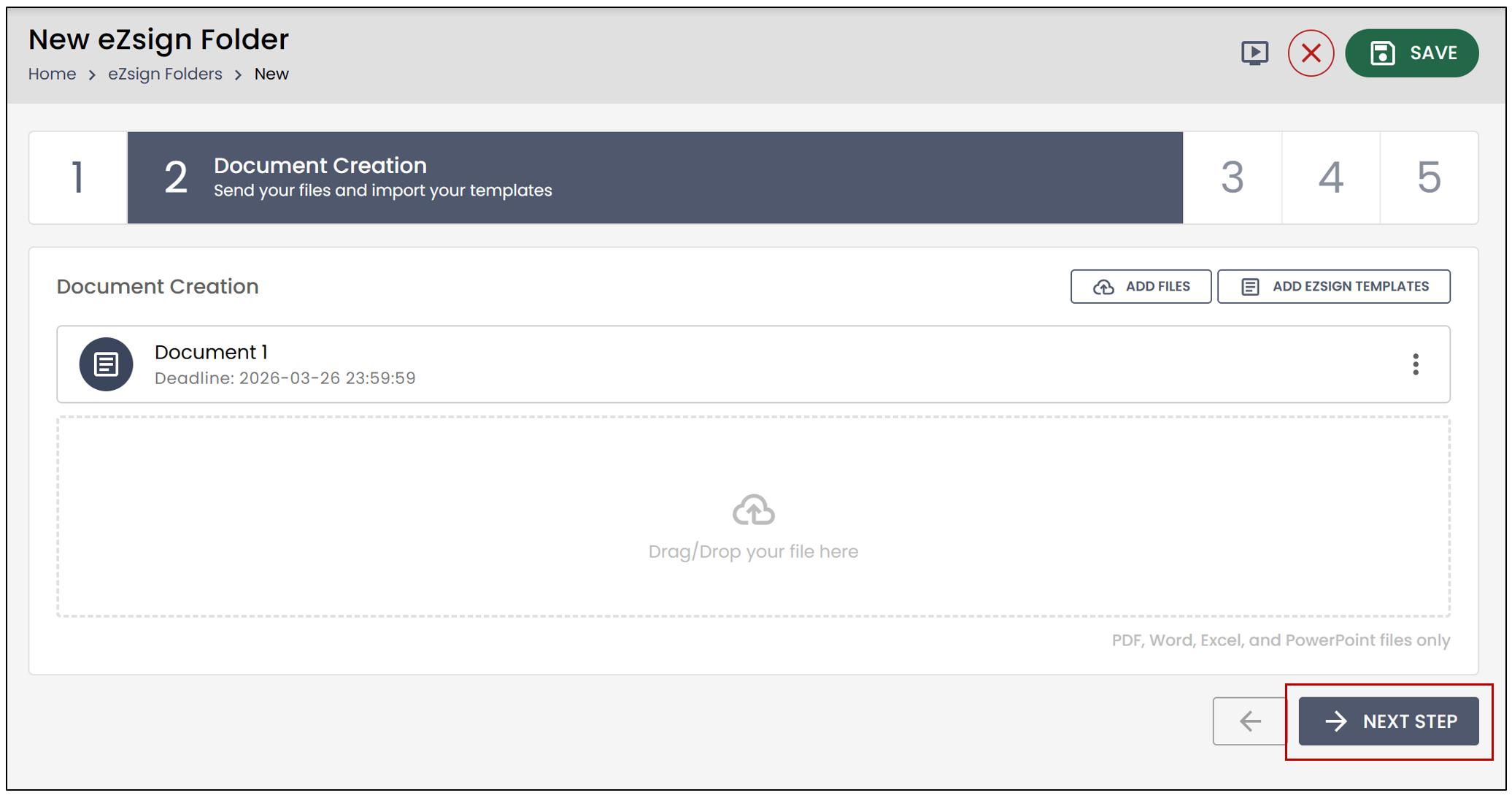
If you want to add an eZsign template to a new folder, click on Add eZsign Templates at the Document Creation step.
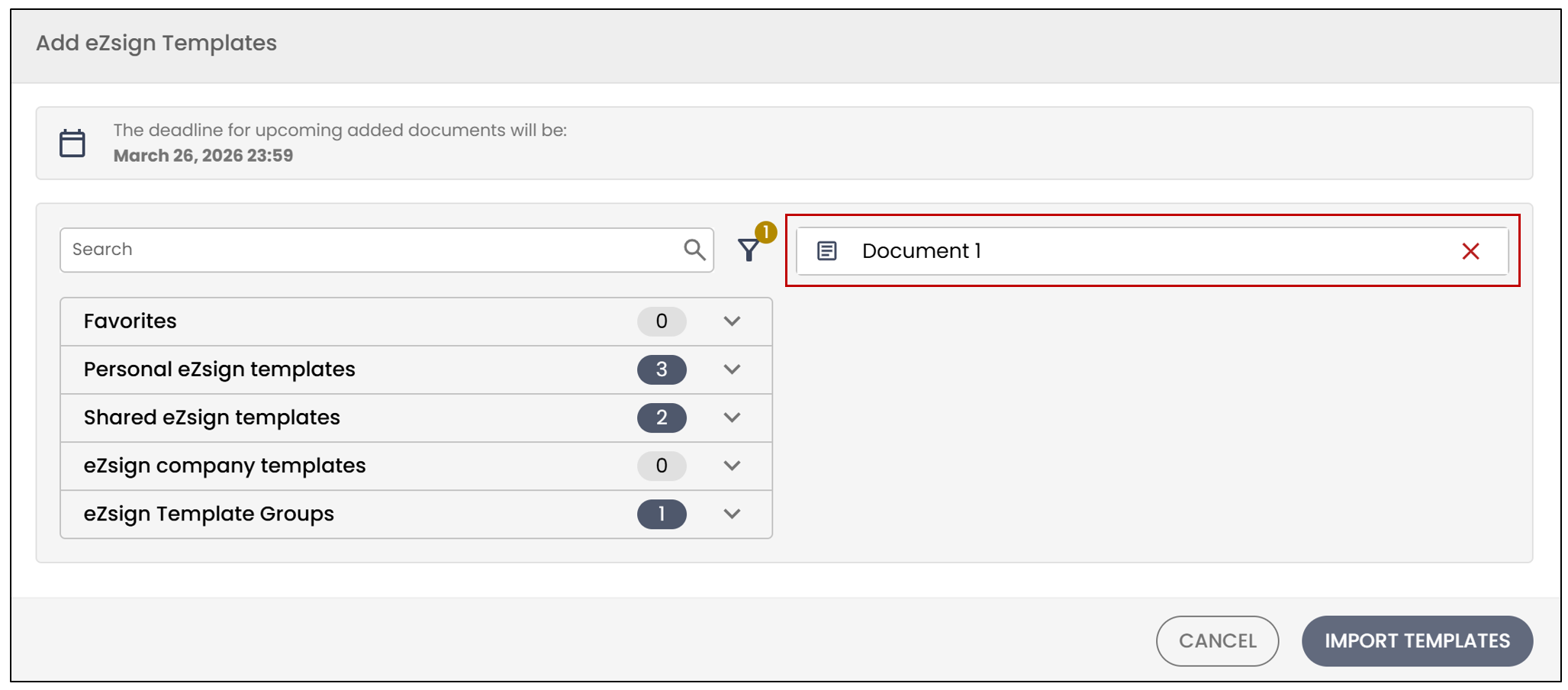
- Select the desired template from the drop-down list, then click on Import Templates.
- Once all desired templates have been added, click on Next Step.
Assigning Template Roles
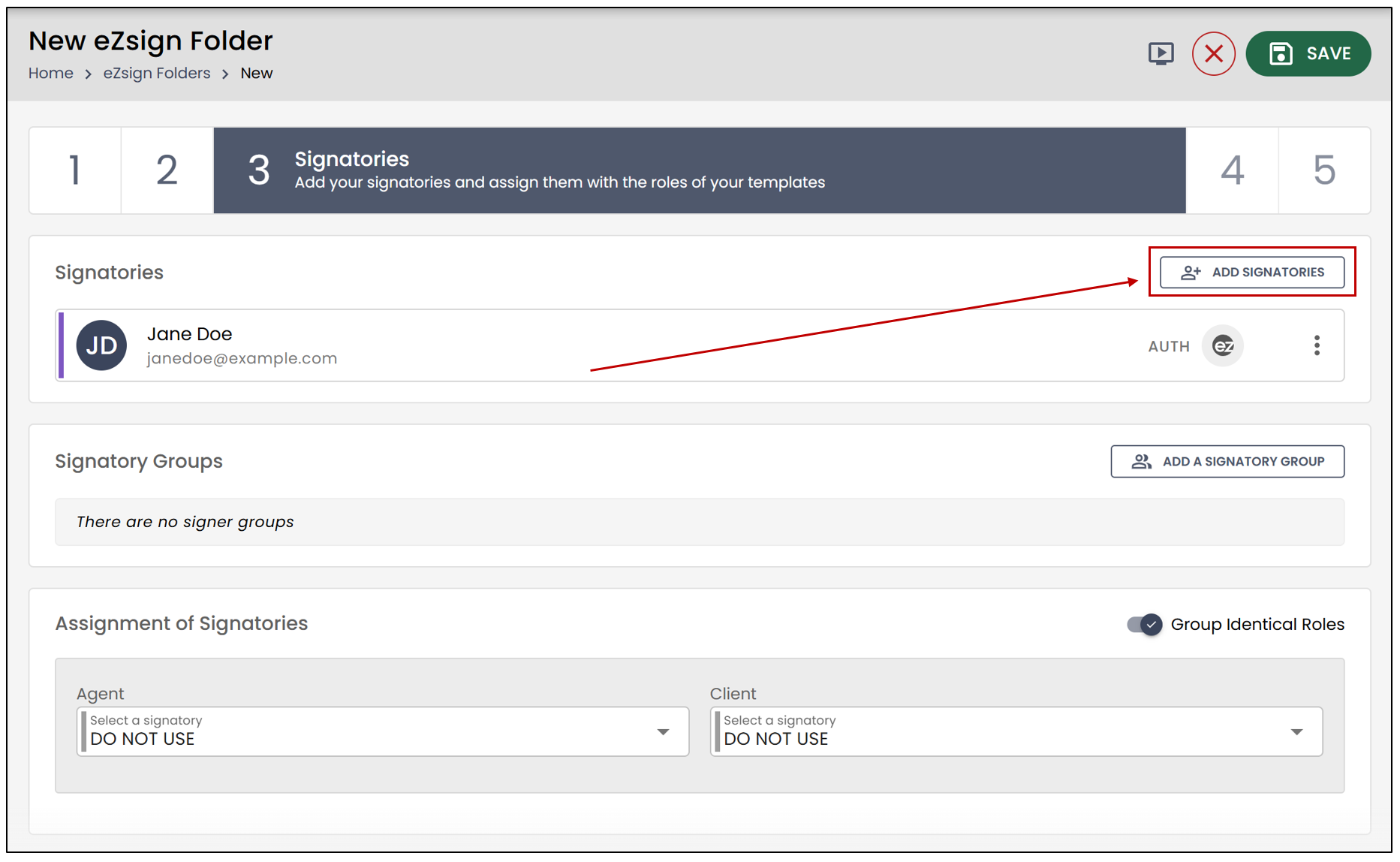
- To add signatories to the folder, click on Add Signatories.
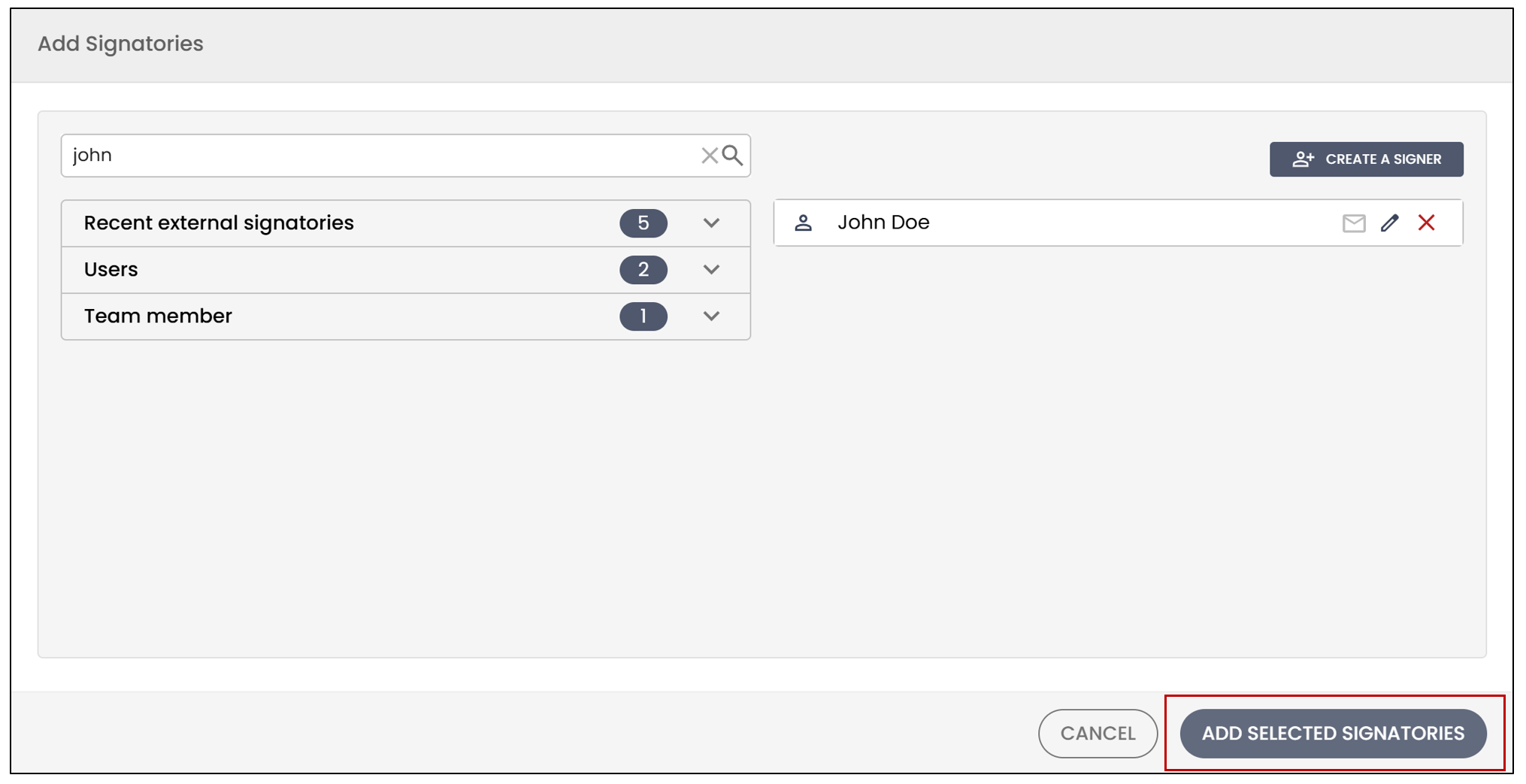
- Select the desired signatories, then click on Add Selected Signatories.
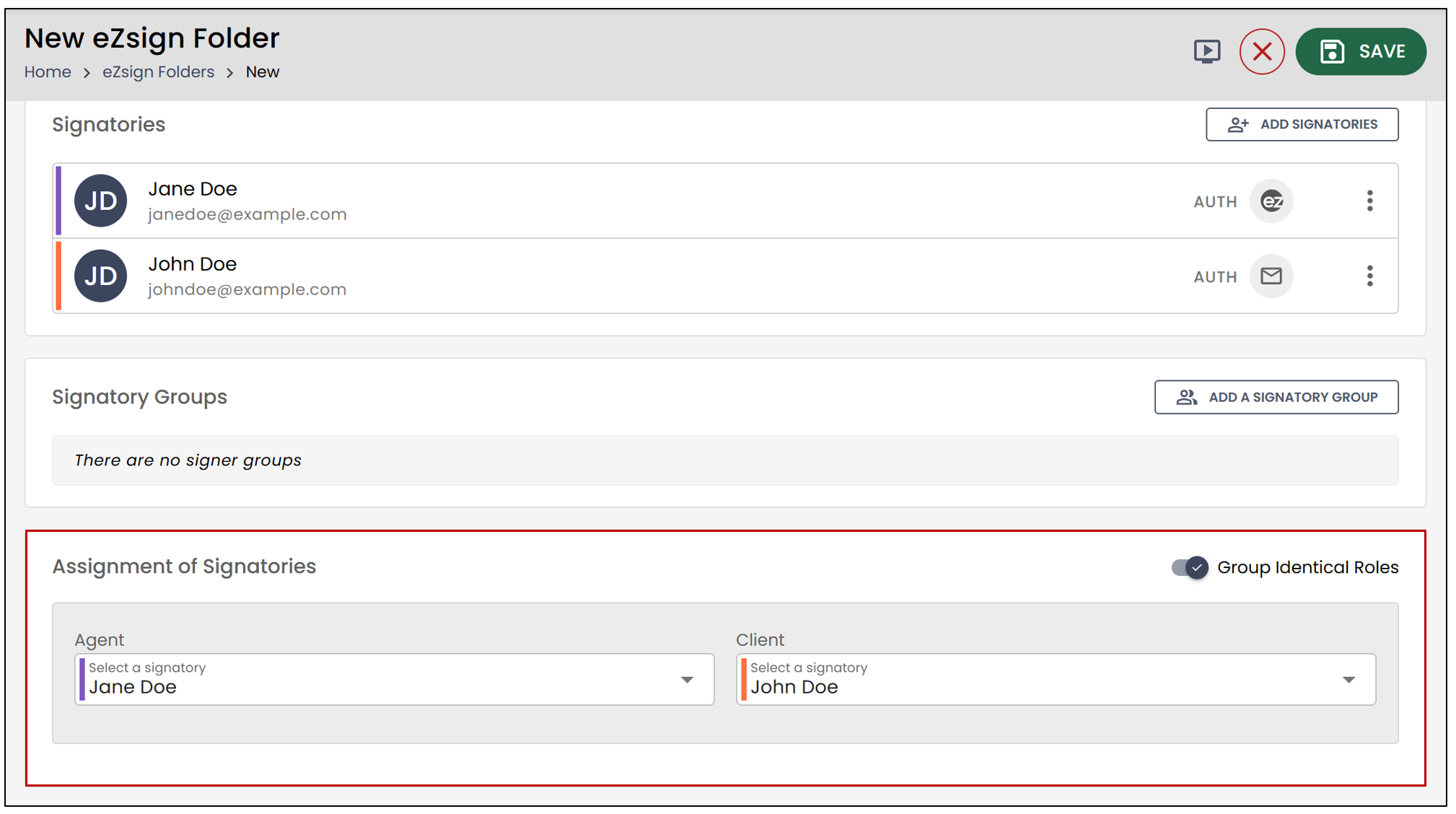
- You can then associate the signatories with the template roles.
- Click on Next Step.
Linking a Personal Template to a Document
It is possible to add the fields from an already created eZsign template to a file. The fields are automatically positioned in the same locations as in the template. To do this, you must first add a file from your computer at the Document Creation step.
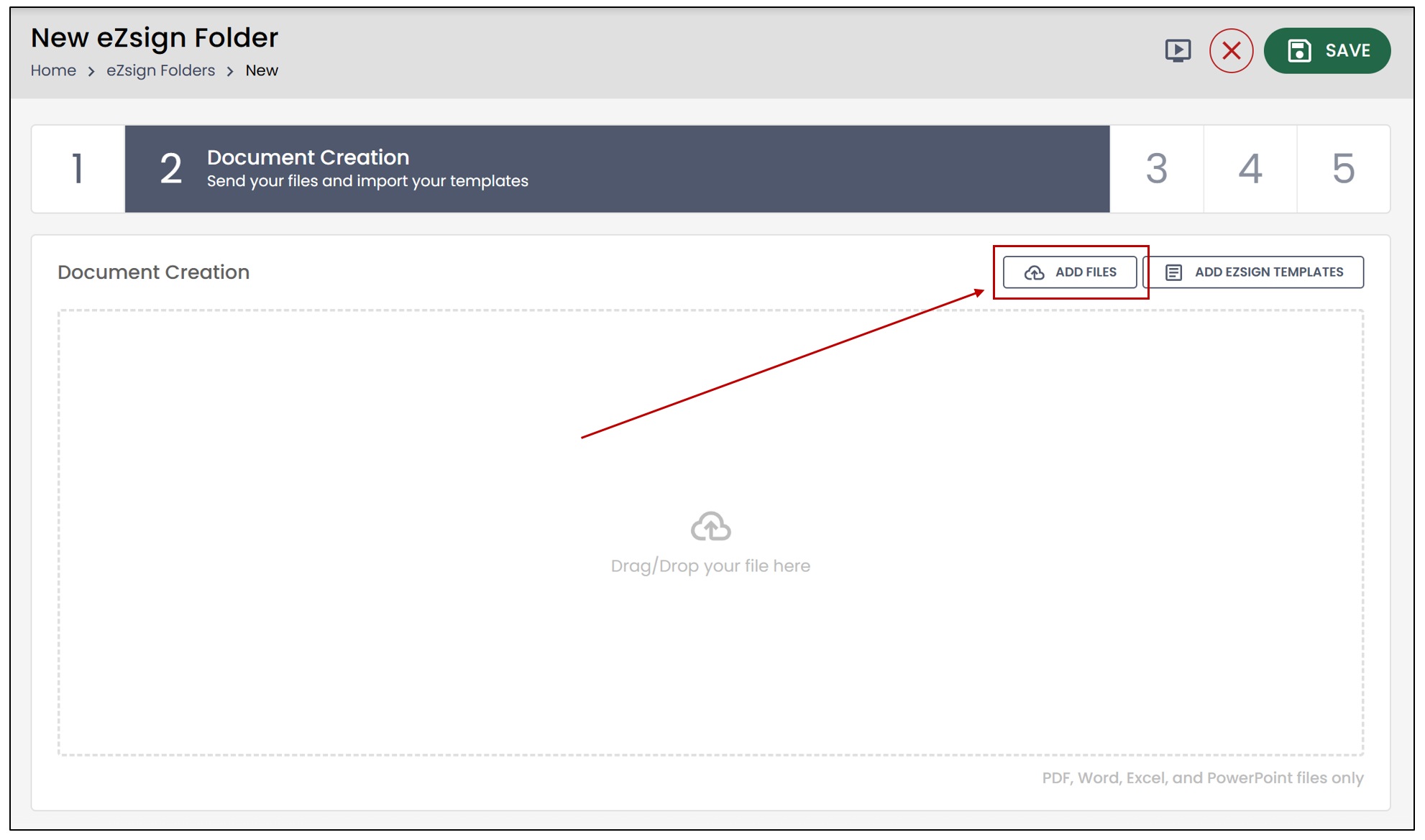
- Select the desired folder, then click on eZsign Template.
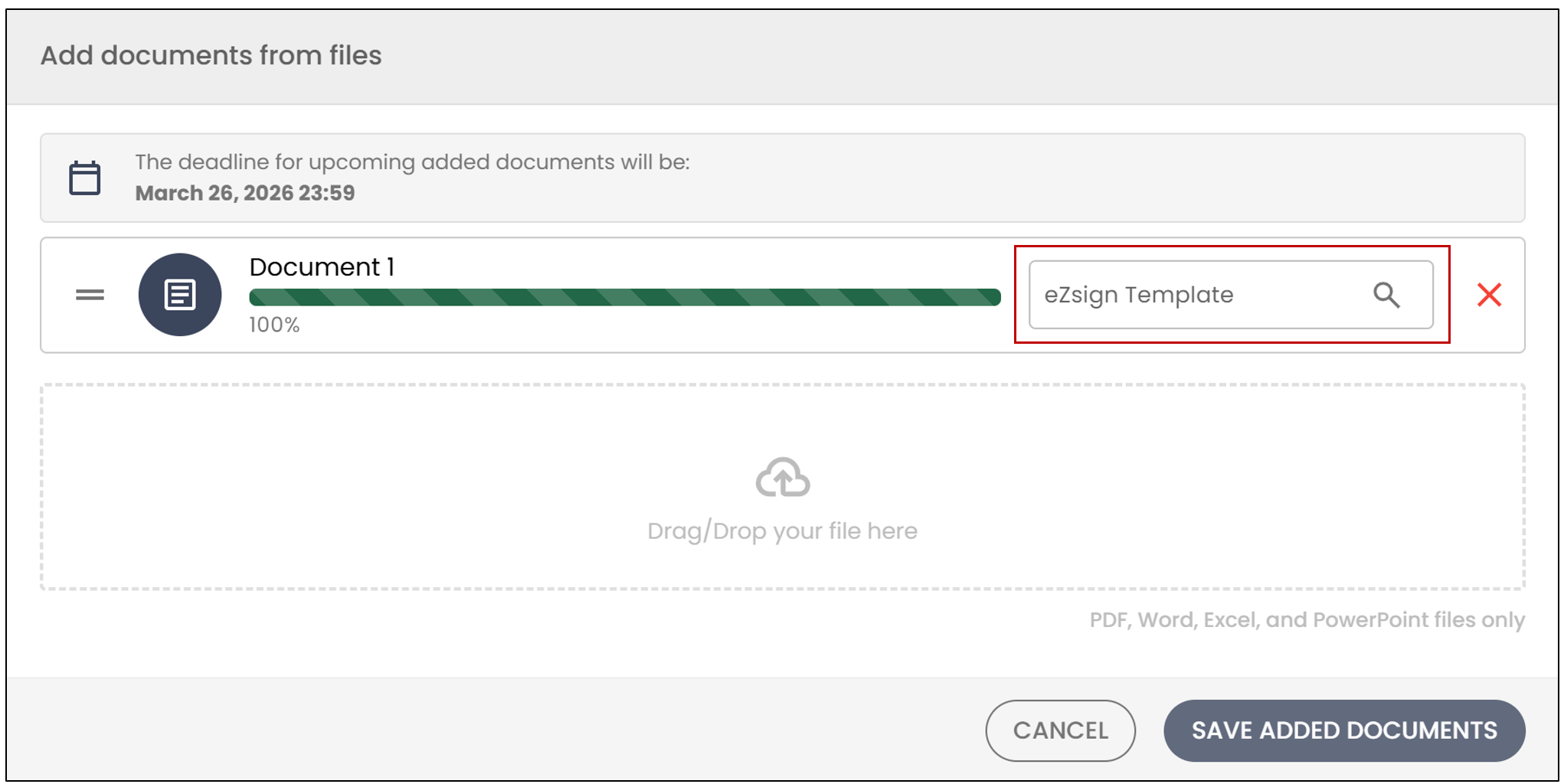
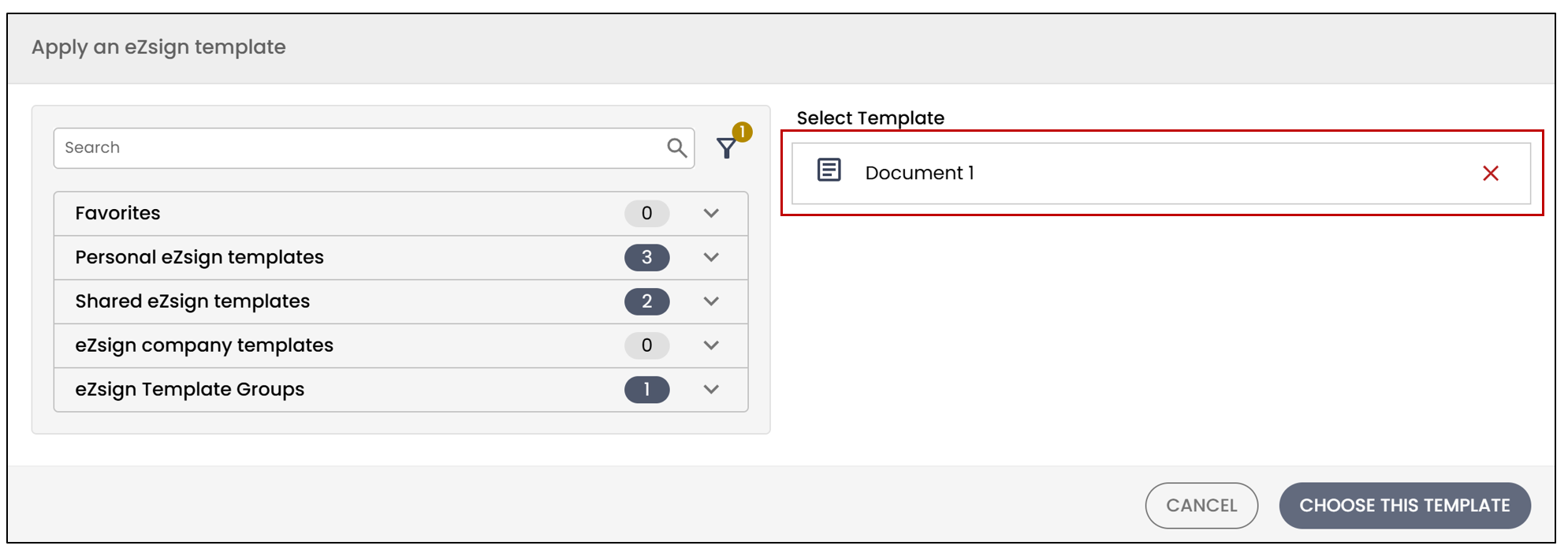
- Select the desired template from the drop-down list, then click on Choose This Template.
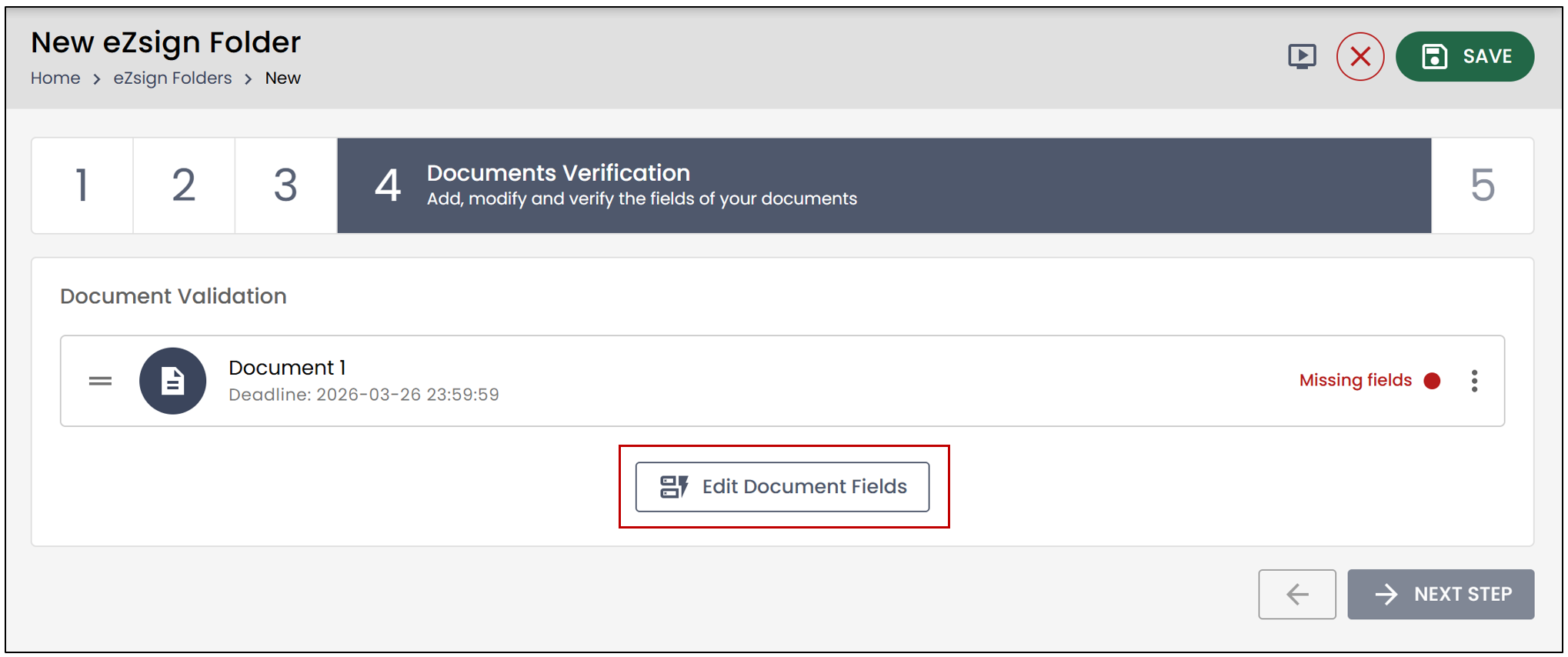
NOTE: If you forgot to add a template to a document at the Document Creation step, it is possible to associate one at the Document Verification step.
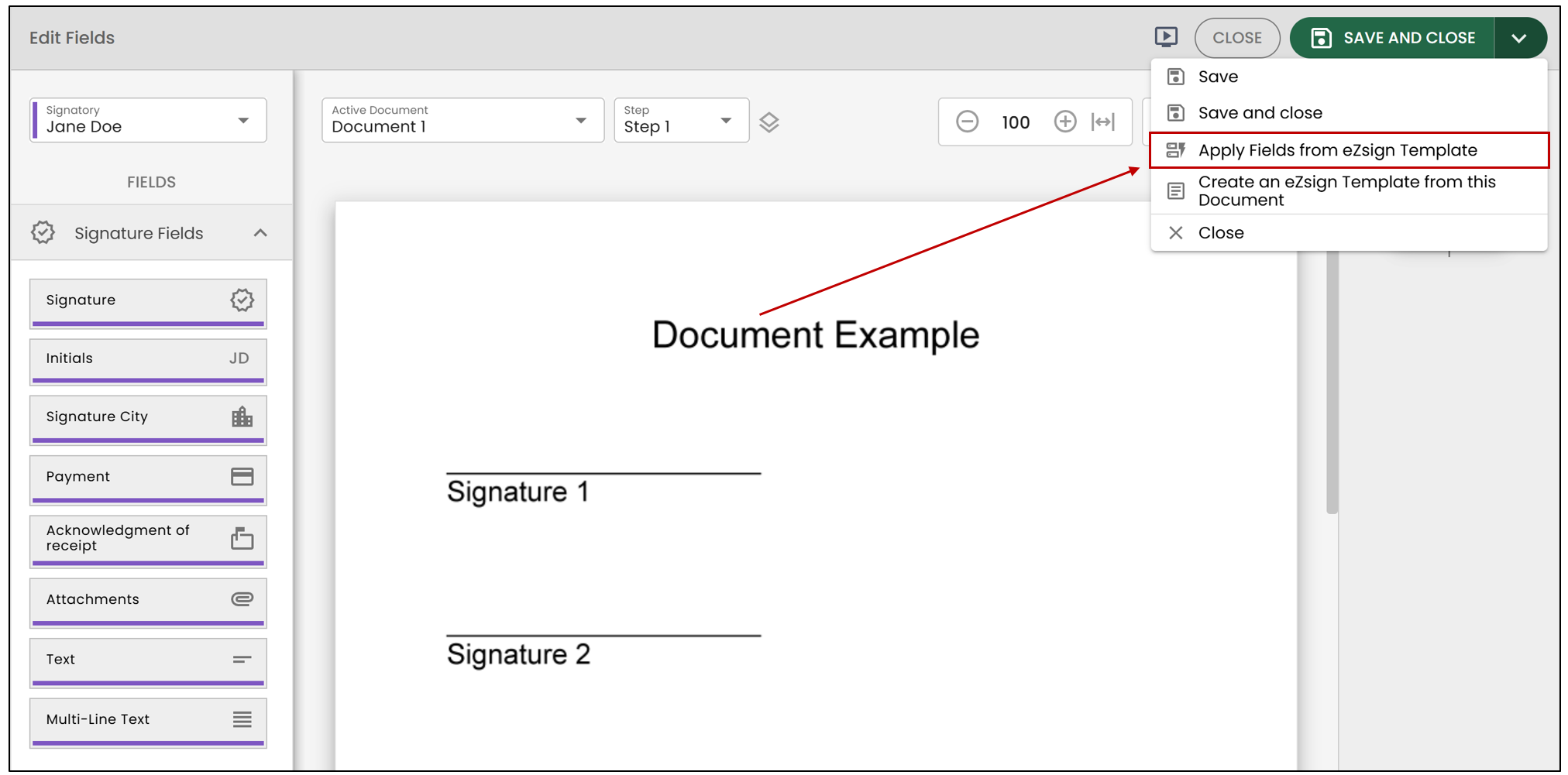
- Click on Edit Document Fields.
- Select the downward-pointing arrow, then click on Apply Fields from eZsign Template.
- Select the desired template, then assign the document signatories to the roles.
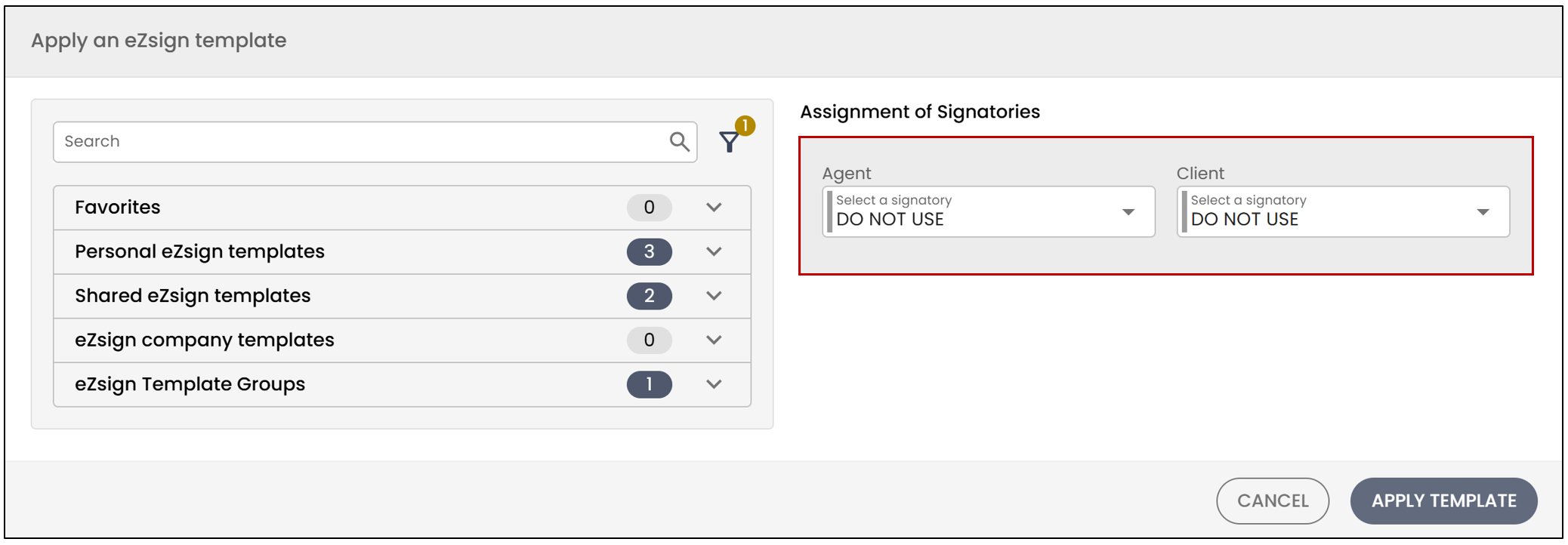
- Once finished, click on Apply Template.
Creating a Personal Template from a Document
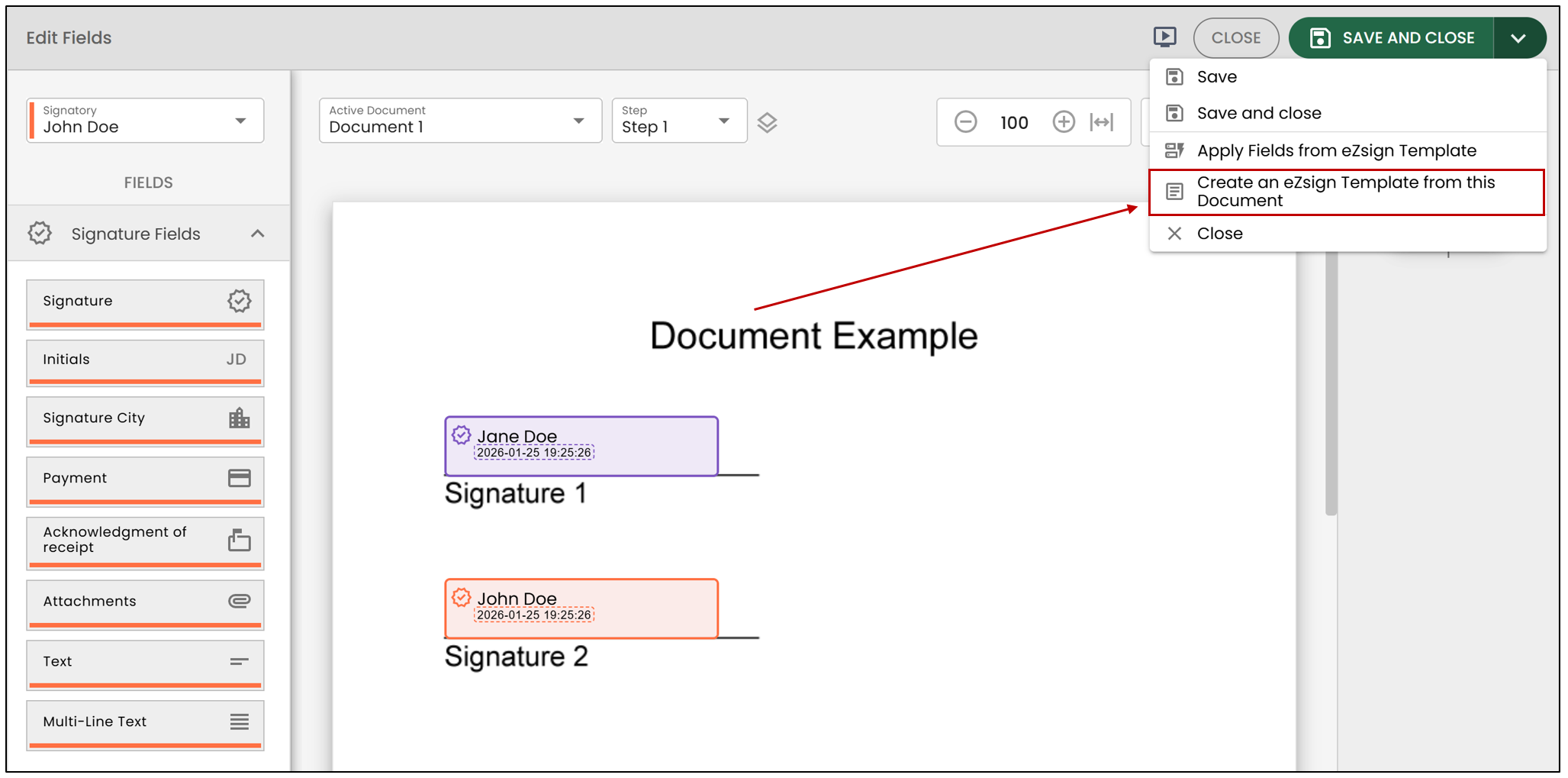
It is also possible to create a template from a document. To do this, you must create a new eZsign folder and add fields to a document.
- Once the fields have been added, click on the downward-pointing arrow, then click on Create an eZsign Template from this Document.
- Enter the template information, then enter the names of the roles.
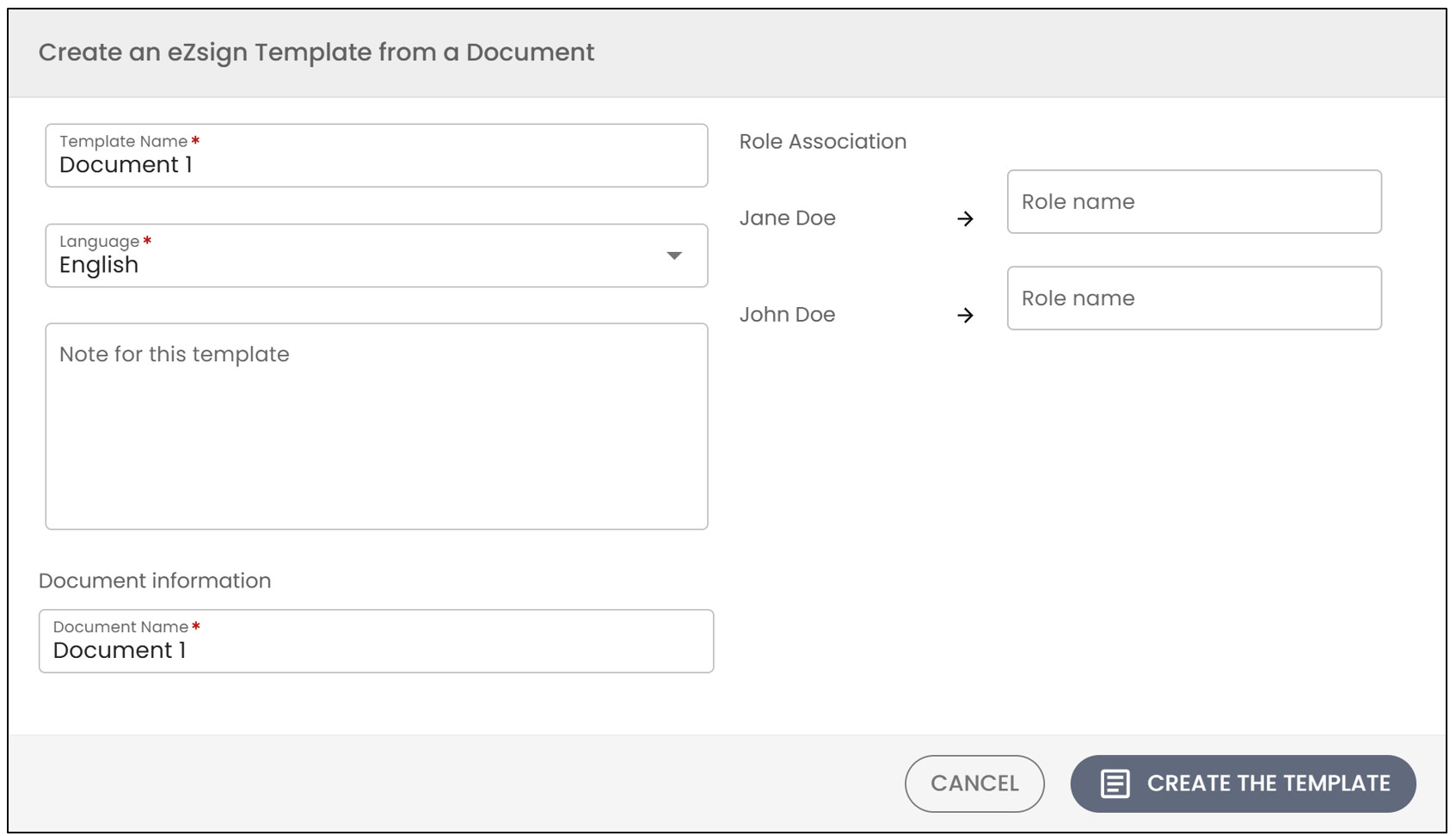
- Click on Create the Template.
Editing a Personal Template
From the main menu >> eZsign Templates >> Select the desired template.
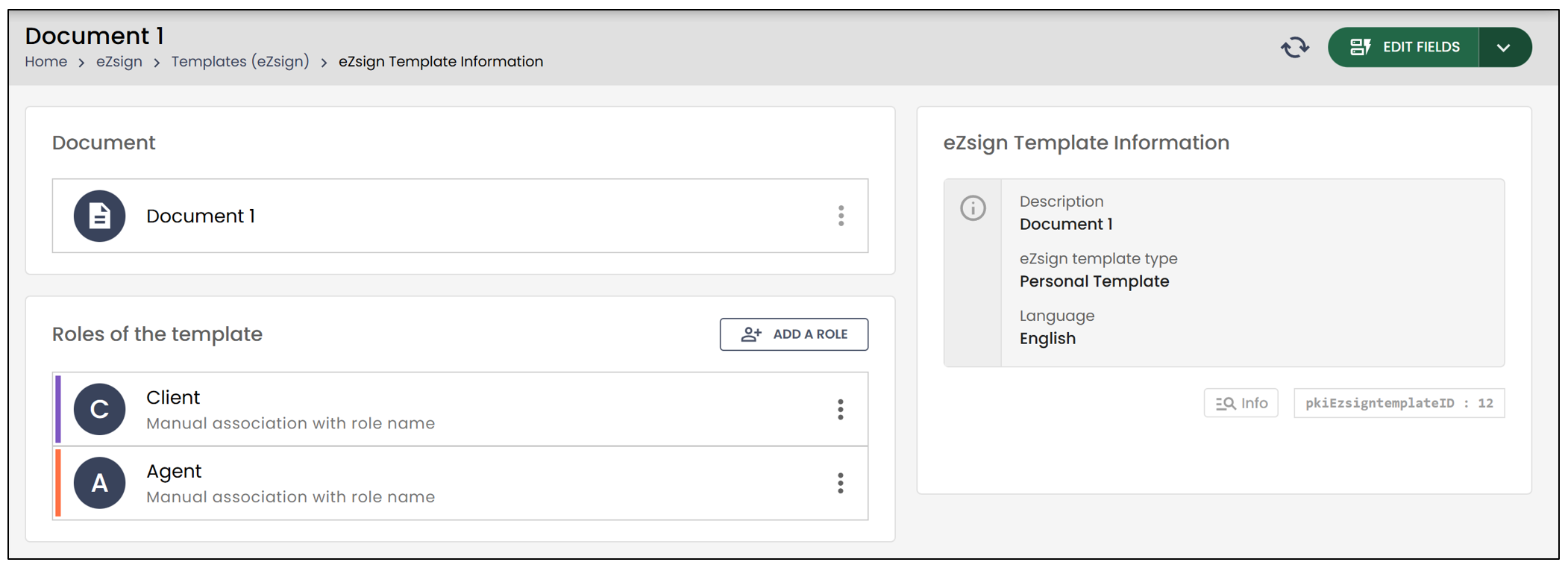
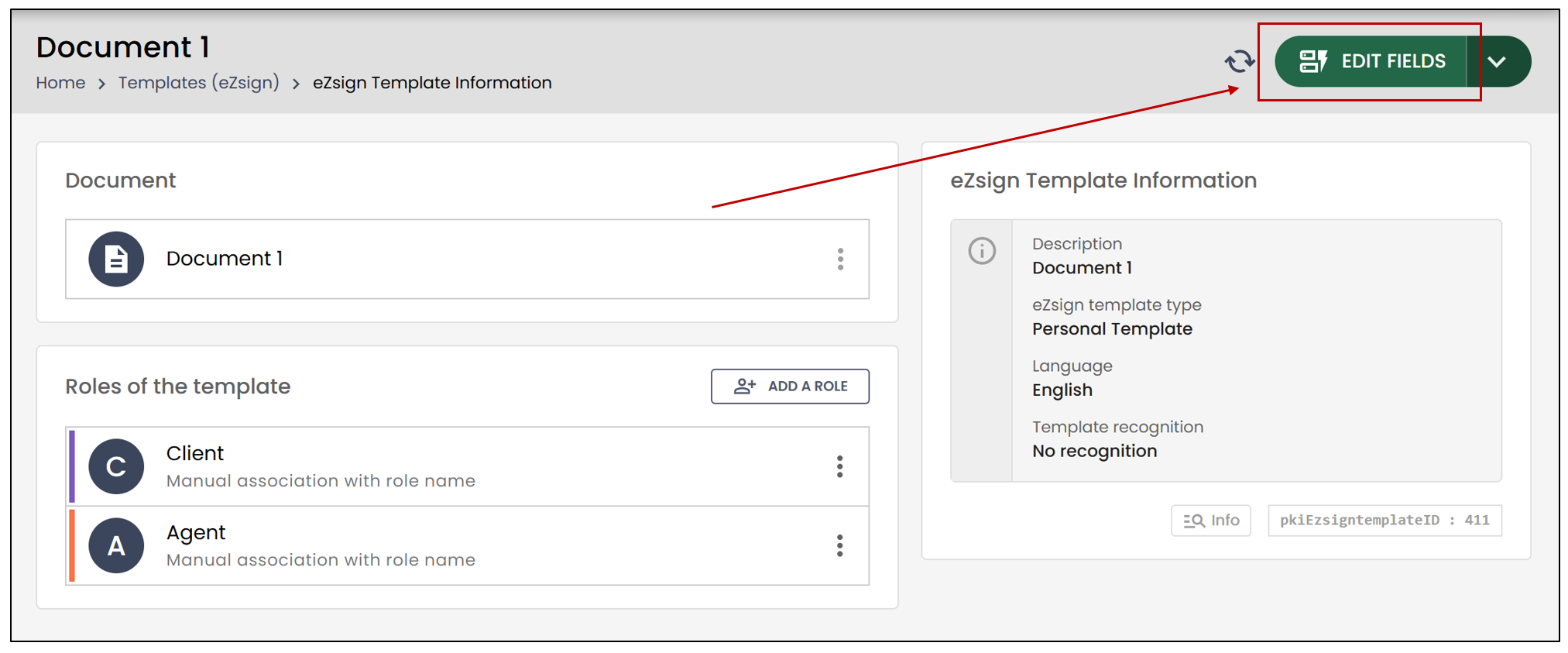
- You will be able to edit the document fields by clicking the button at the top right.
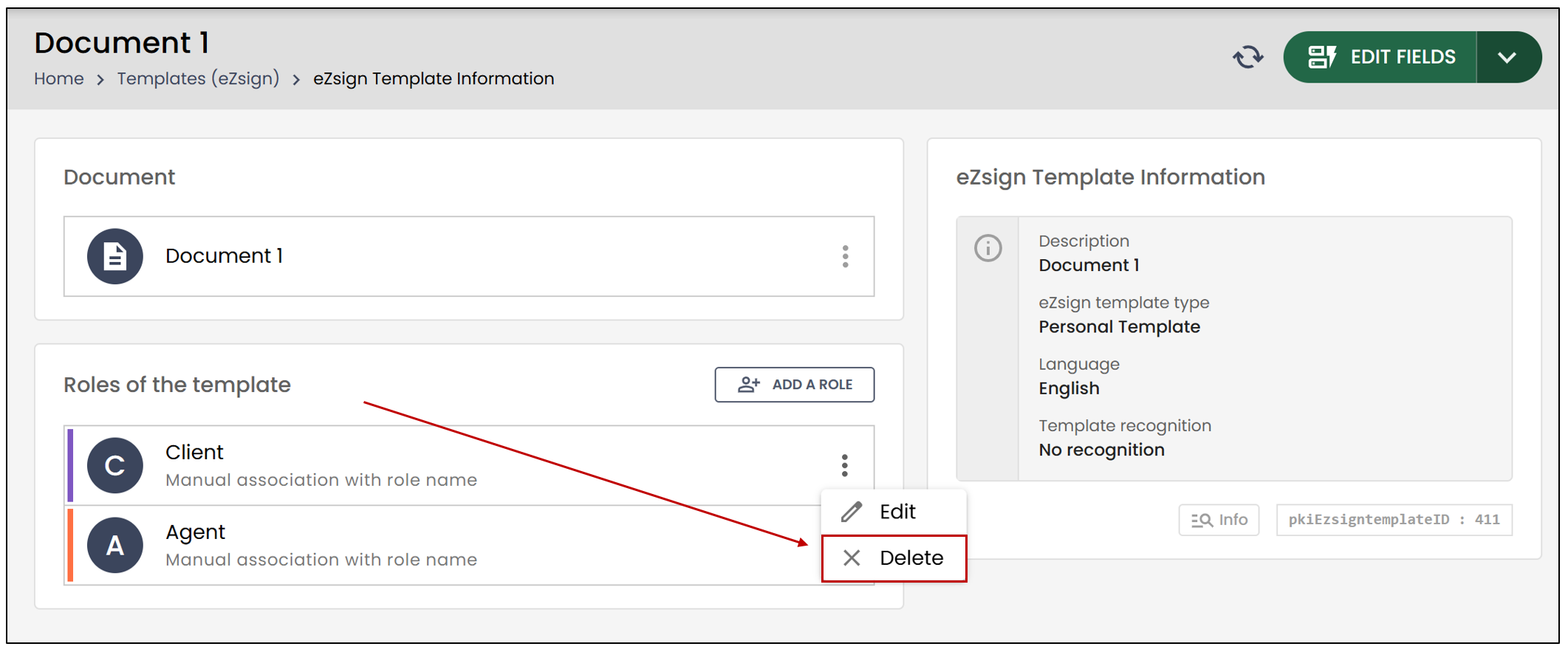
- You can also add a role by clicking the designated button or delete a role by clicking on the three vertical dots, then Delete.
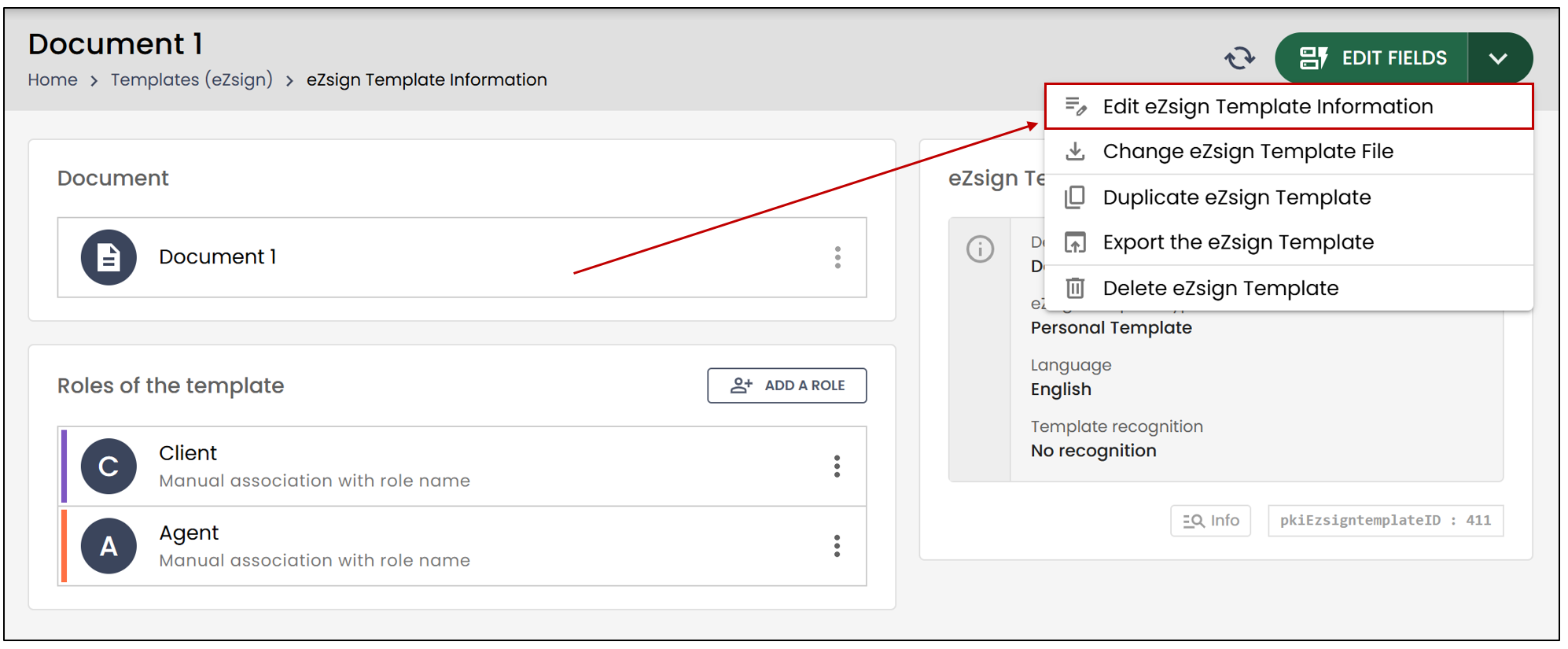
- To edit the template information, click on the downward-pointing arrow, then click on Edit eZsign Template Information.
Changing the File of a Personal Template
From the main menu >> eZsign Templates >> Select the desired template.
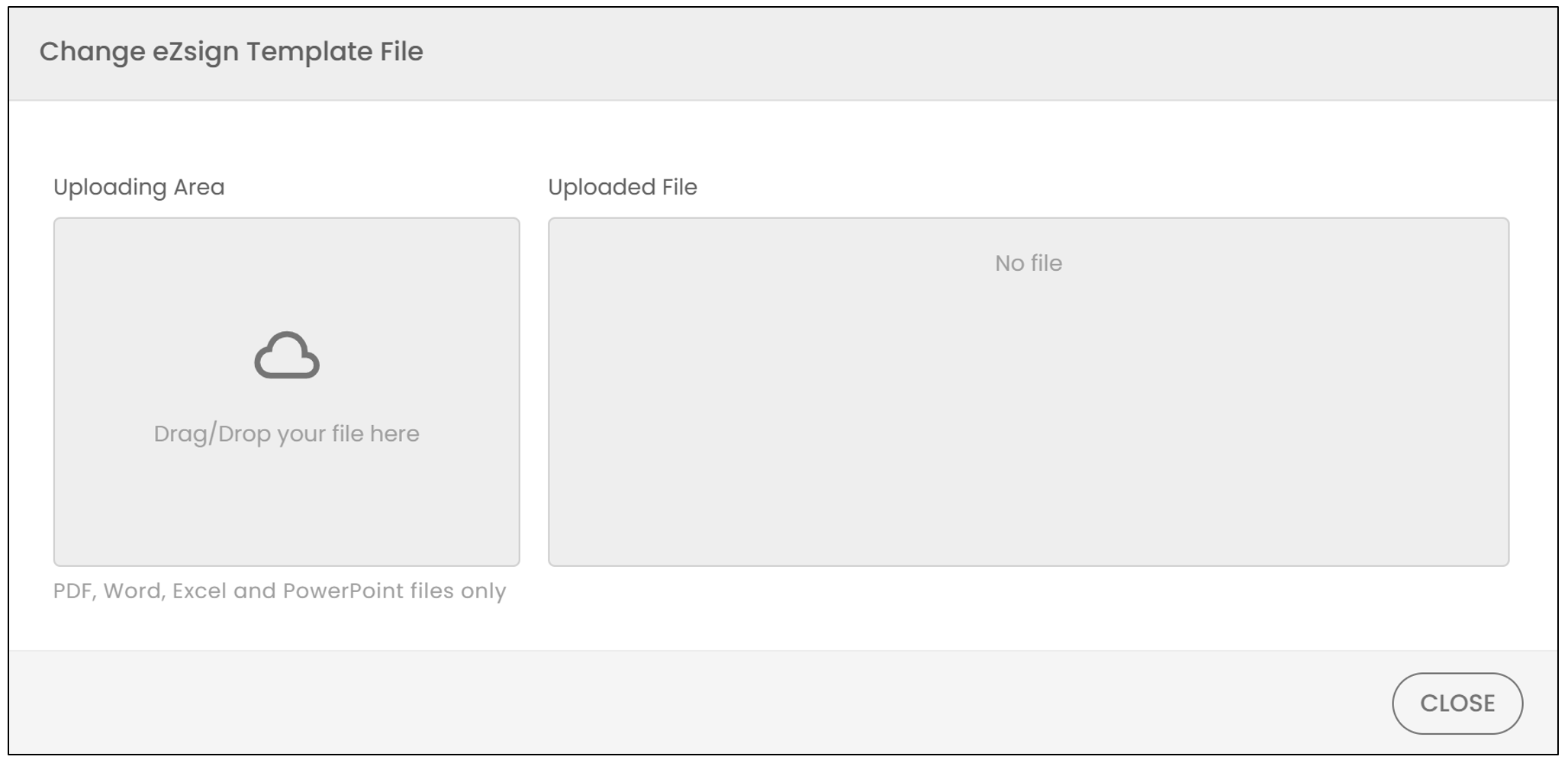
- To change the file of the personal template, click on the downward-pointing arrow, then click on Change eZsign Template File.
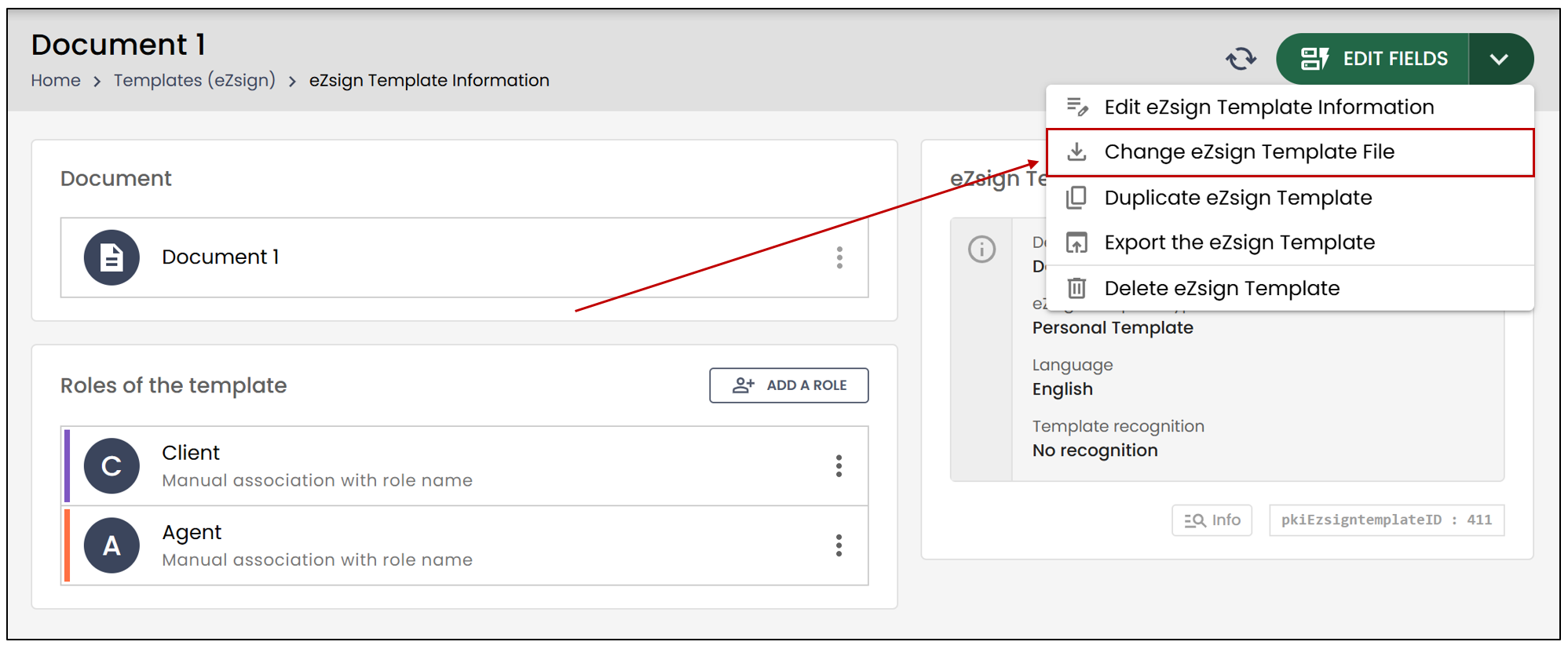
- You can select the desired file from your computer.
Delete a Personal Template
From the main menu >> eZsign Templates >> Select the desired template.
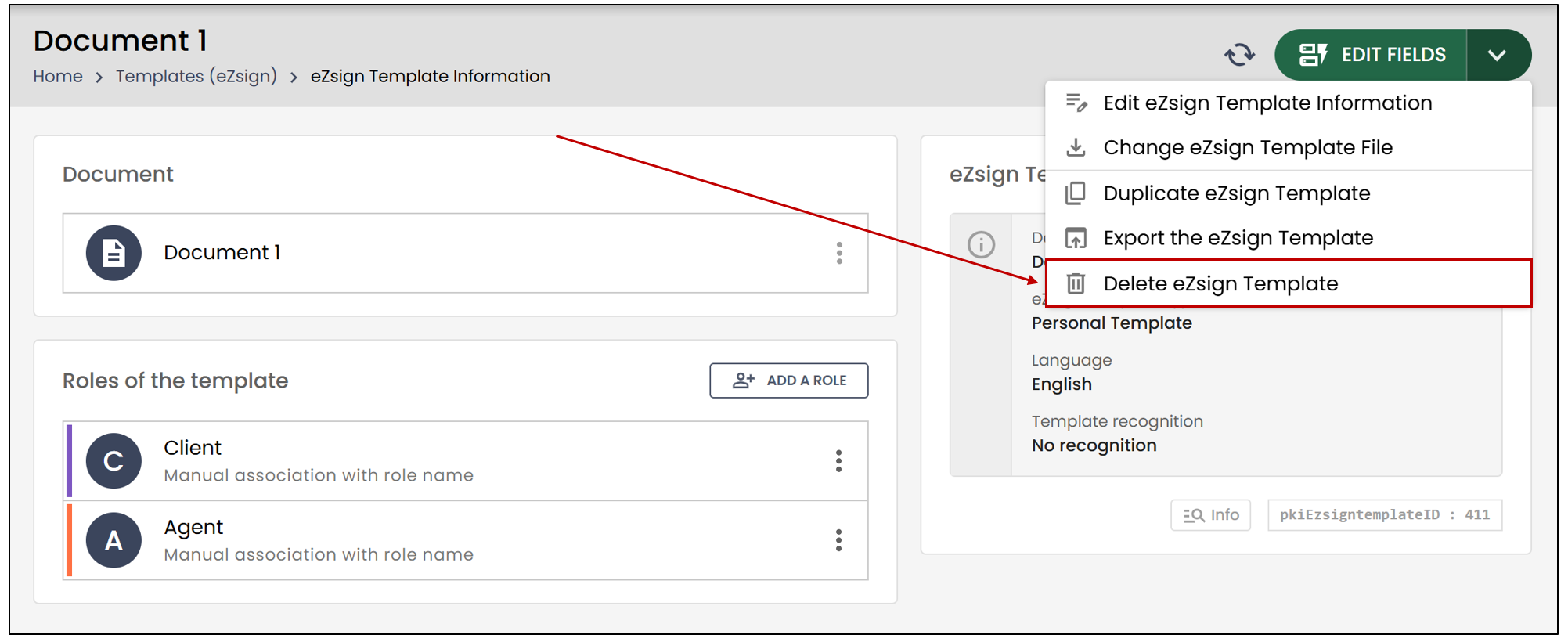
- To delete a template, click on the downward-pointing arrow, then click on Delete eZsign Template.