

English
Adding a Checkbox in a Document
If a checkbox was not added when creating a document in Instanet forms, you can add this form type field in eZmax.
In this article, you will see more specifically a situation with an agent who needs to add two checkboxes in an amendment document (AM).
In the desired eZsign folder, add the blank AM. For more information, please see the article Adding/Editing/Deleting a Document in an eZsign Folder.
**In the "List of Documents" sectio n of your folder, click on the file name or the **Fountain Pen icon to display the document.
Load the AM template from your governing body (e.g. OACIQ). For more information, please see the article Loading a Template from your Governing Body.
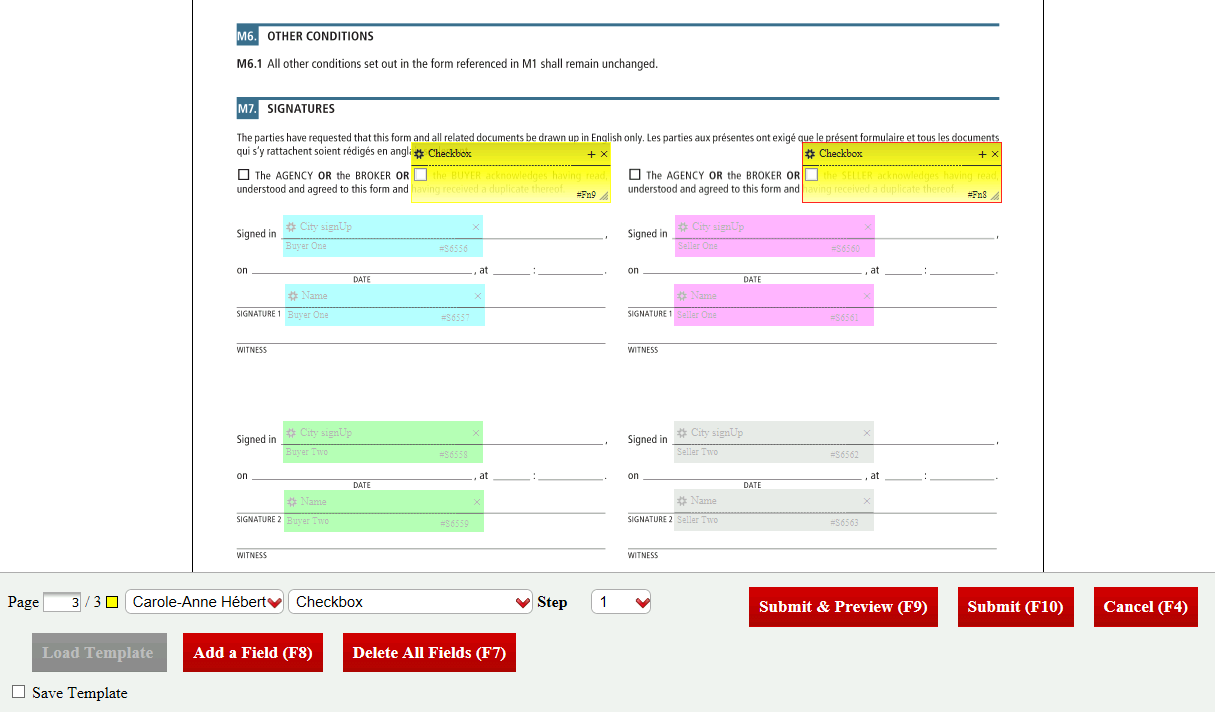
The fields will automatically appear in the right place in the document, so do not edit/move them.
In the desired section of the AM, manually add and place the two form fields "Checkbox". The agent will be selected as the signatory for both fields. For more information, please see the article Manually Adding/Editing/Deleting a Field in a Document.
NOTE: Form fields must be completed before electronic signature fields so you don’t have to edit the Step of a checkbox.
Click on Submit.
Send the document to sign. The form will be sent first to the agent. For more information, please see the article Sending Documents to Sign.
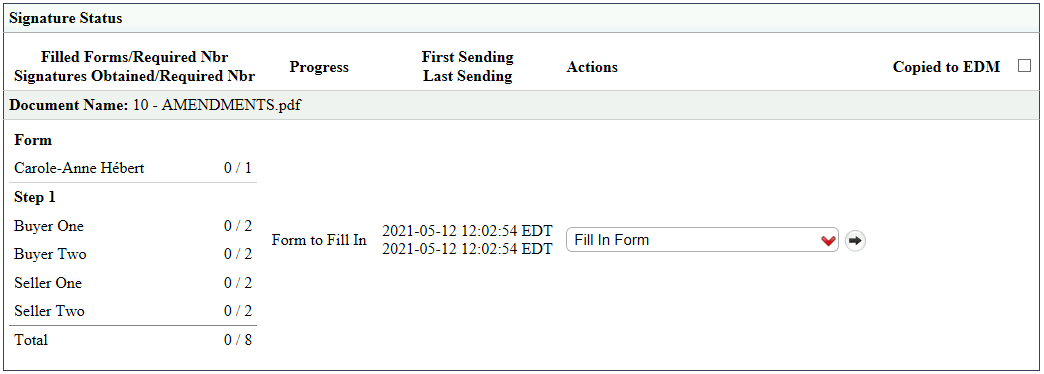
- As an agent, from the document Actions menu, select "Fill In Form" to display the form. For more information, please see the article Filling In a Form as a User.
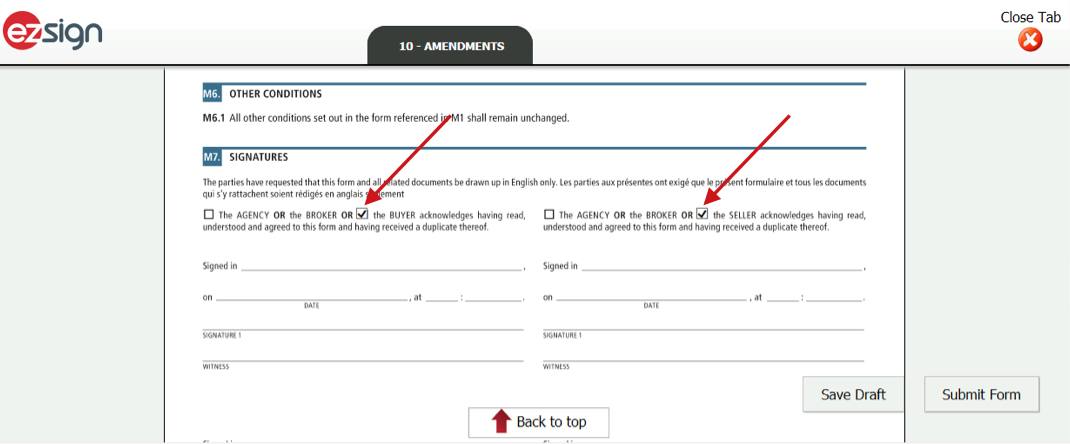
- Check the two checkboxes.
NOTE: There is no indication to locate a checkbox so you need to remember its position.
Click on Submit Form.
The document with the added check marks will be sent to the other signatories and you can proceed with the next steps.