

English
Copy to EDM (eZsign Version 4+)
This article provides a detailed procedure for copying a document into the electronic document management (EDM) system using the new eZsign interface. It describes the steps required to select a completed document, transfer it to the appropriate transaction, and configure relevant settings such as document type, visibility, and the rewrite option. Two methods are covered: copying from the “Completed Documents” section of an eZsign folder, or directly from that folder’s EDM.
Copy to EDM (eZsign Version 4+)
- From your eZmax application, click the

icon to open the eZsign menu. You will then be automatically redirected to the eZsign Folder List.
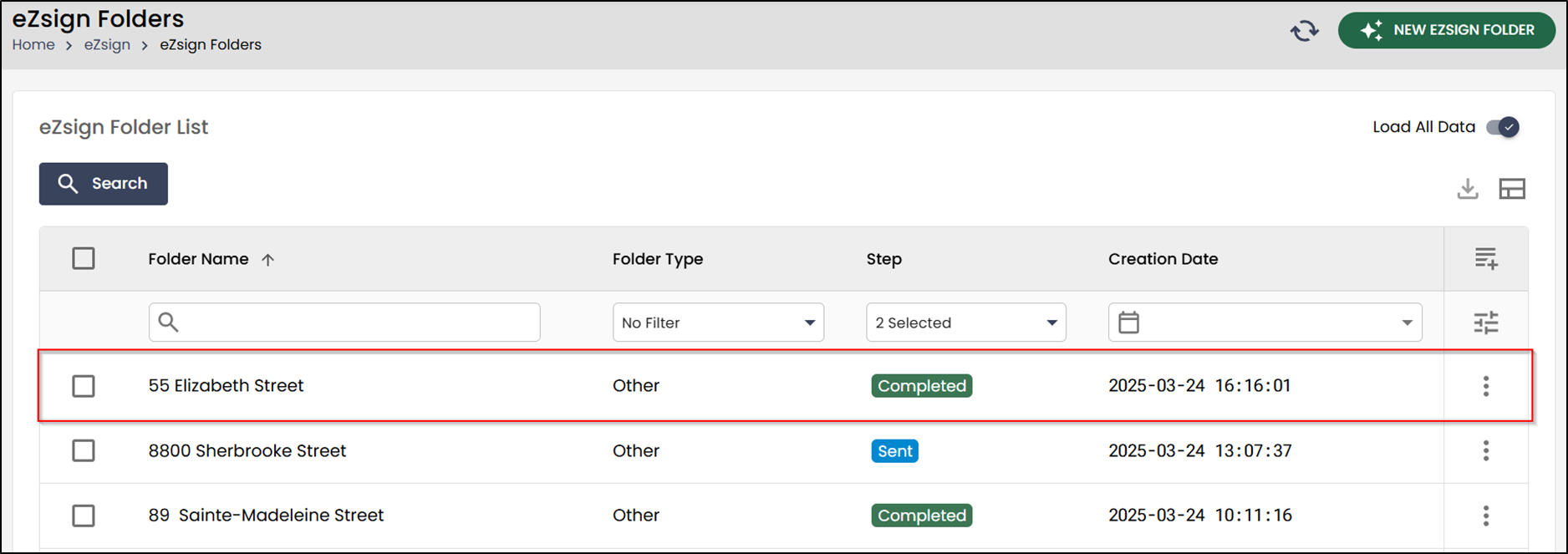
- Select the eZsign folder that contains the completed documents you want to transfer to the Electronic Document Management (EDM) system.
Copy from the “Completed/Signed Documents” section of a folder
The first method involves selecting, directly from an eZsign folder, the completed and signed documents, then transferring them to the EDM.
- Under Completed/Signed Documents , select the document you wish to transfer, then click Copy to the eZmax EDM.
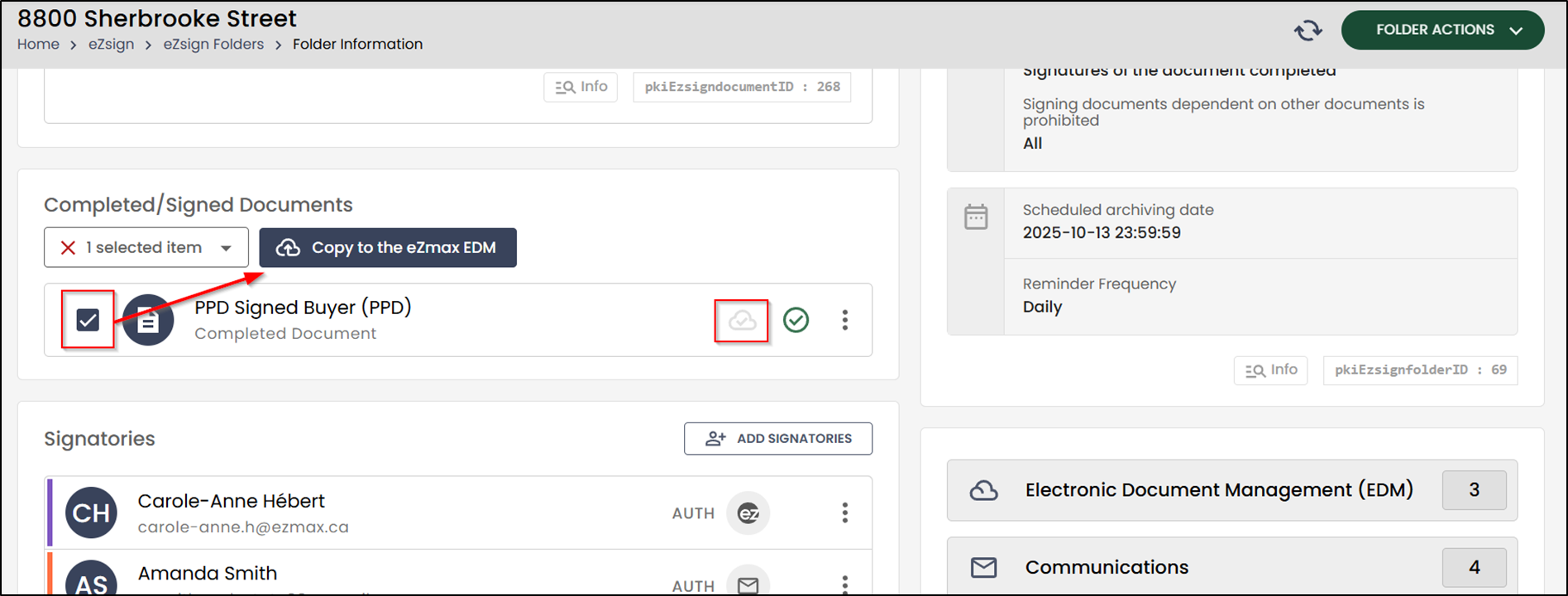
NOTE: The cloud‑shaped icons to the right of the documents initially appear in light gray. Once a document has been transferred to the EDM, the icon will turn dark gray, indicating that the transfer was successful.
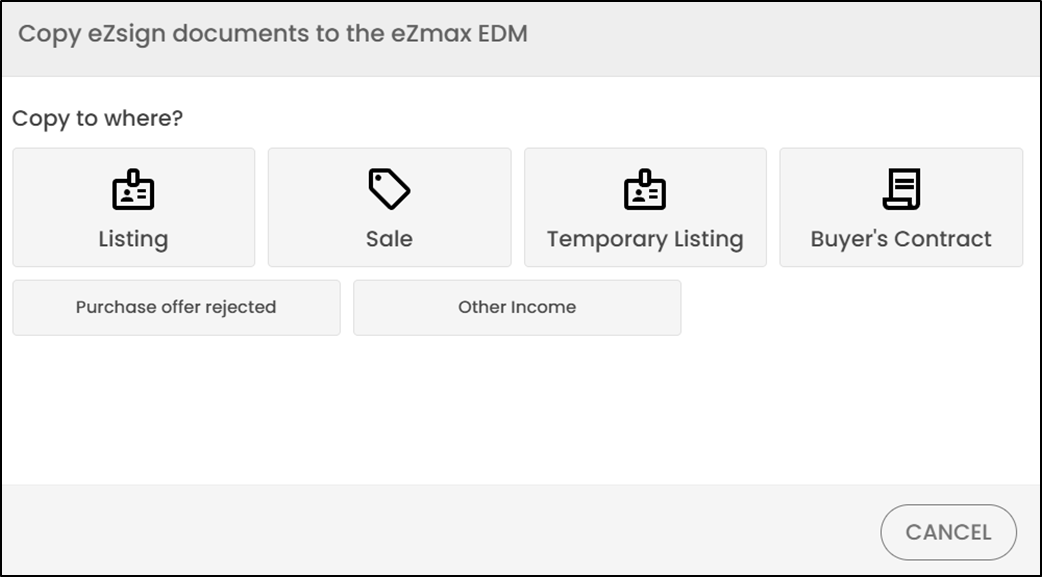
- Select the destination where you want to copy the document(s).
You can then select the transaction using the filters and search options.
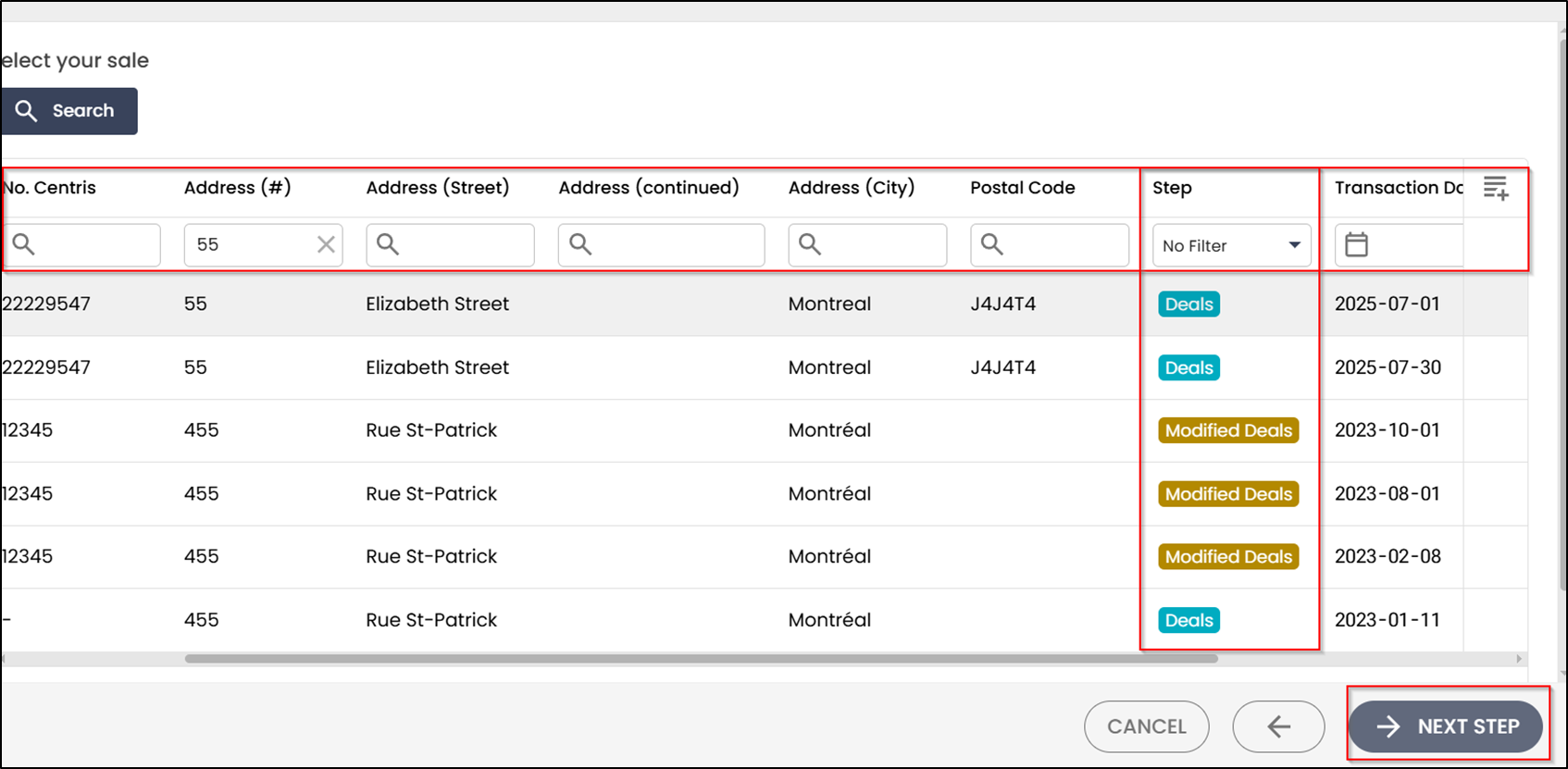
- To add or remove columns, click the

icon. You can then select which columns will be visible.
- Select the desired transaction, then click Next Step.
- You can rename the document.
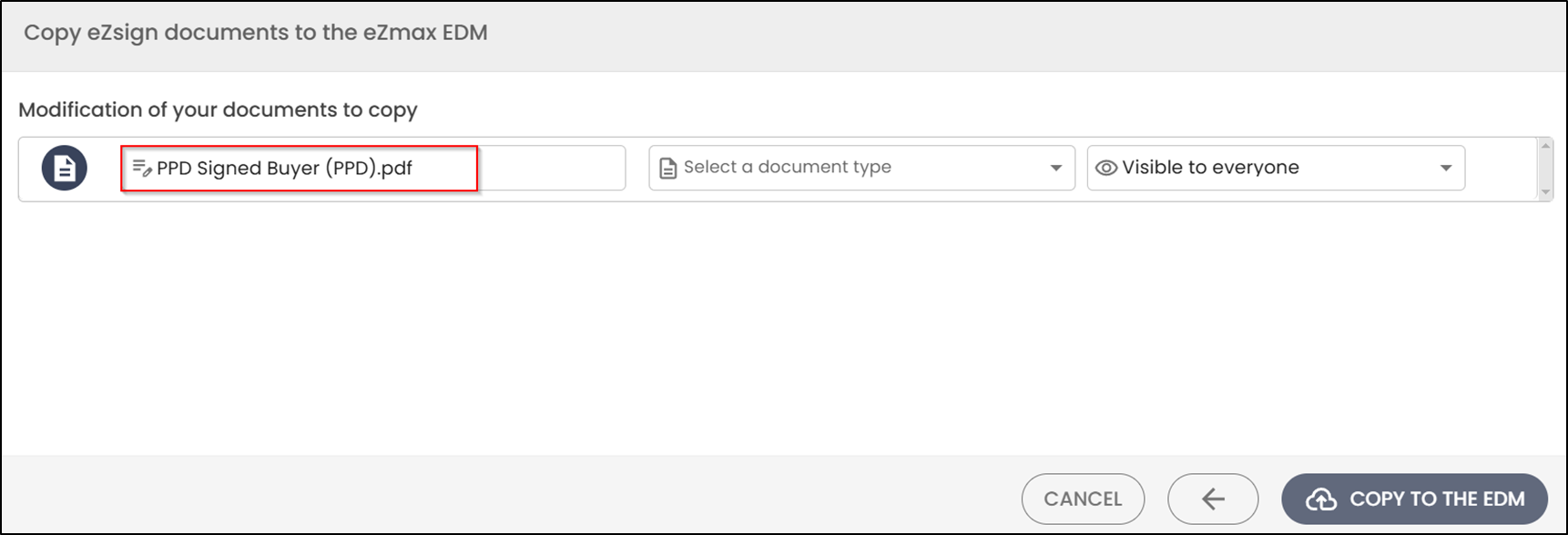
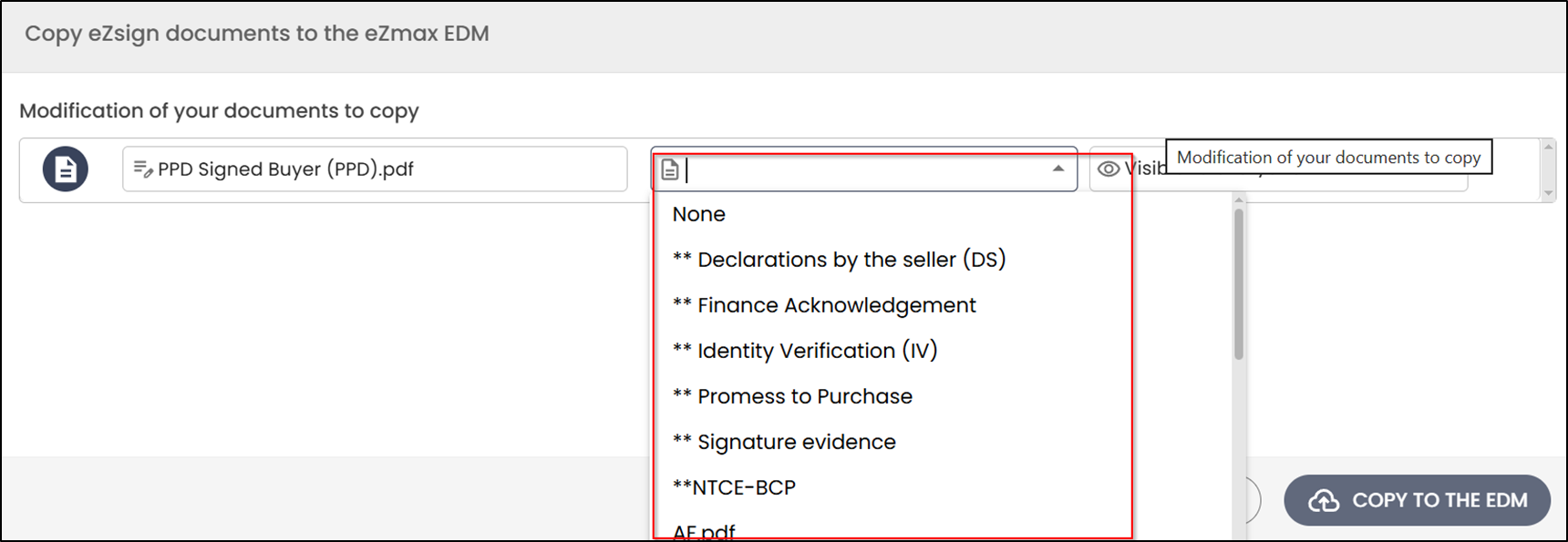
- You can then select a document type from the drop‑down list.
- You can then specify which users are authorized to access the document.
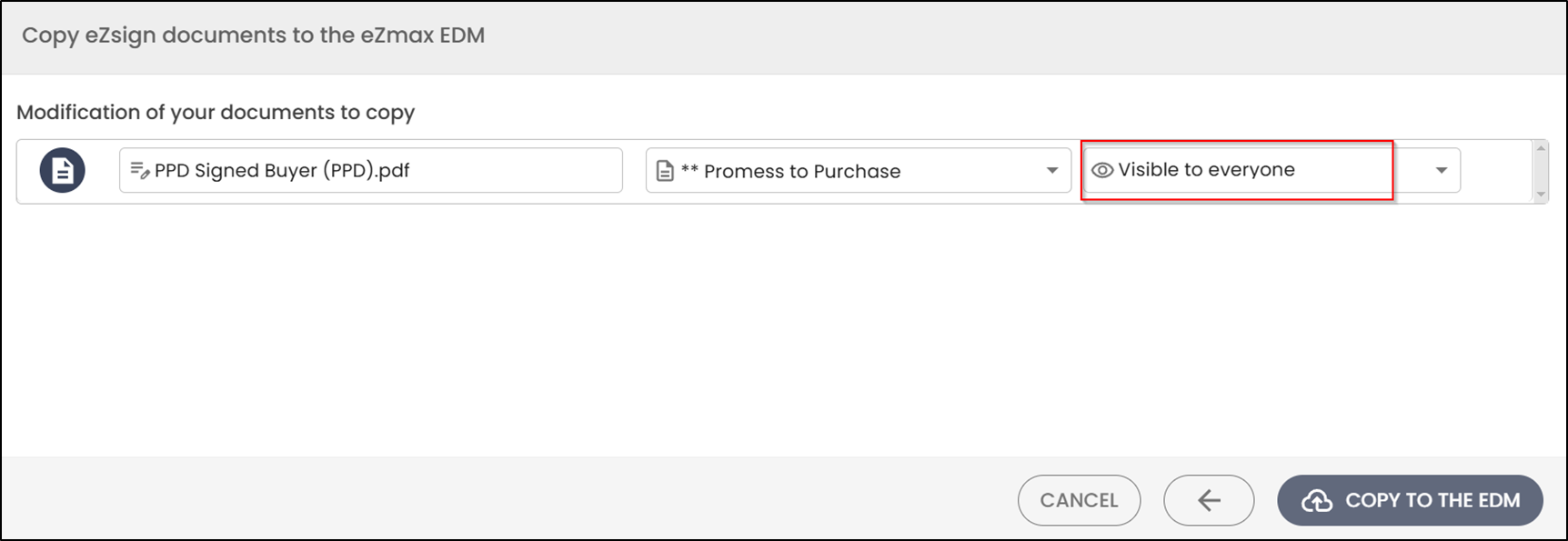
- Once all the options are selected, click Copy to EDM.
NOTE: You’ll notice that once you return to the folder, the cloud‑shaped icon now appears in dark gray. This indicates that the document has been successfully transferred to EDM.
Copy from the “EDM” section of a folder
The second method consists of selecting the documents to be transferred directly from the EDM section of the folder, then initiating their copy to EDM.
- Click the Electronic Document Management (EDM) button.

- Select the document to be transferred, then click Copy to the eZmax EDM.


- Then, follow the same steps as before to complete the process.
NOTE: To confirm that the document was successfully copied, go to the Registrations section in the eZmax application.