

English
Transfer contacts from one eZmax account to another
It is possible to transfer contacts from one eZmax account to another.
First, log in to your old account (the account where there are your contacts to transfer).
From Main menu >> Tools

Contacts.
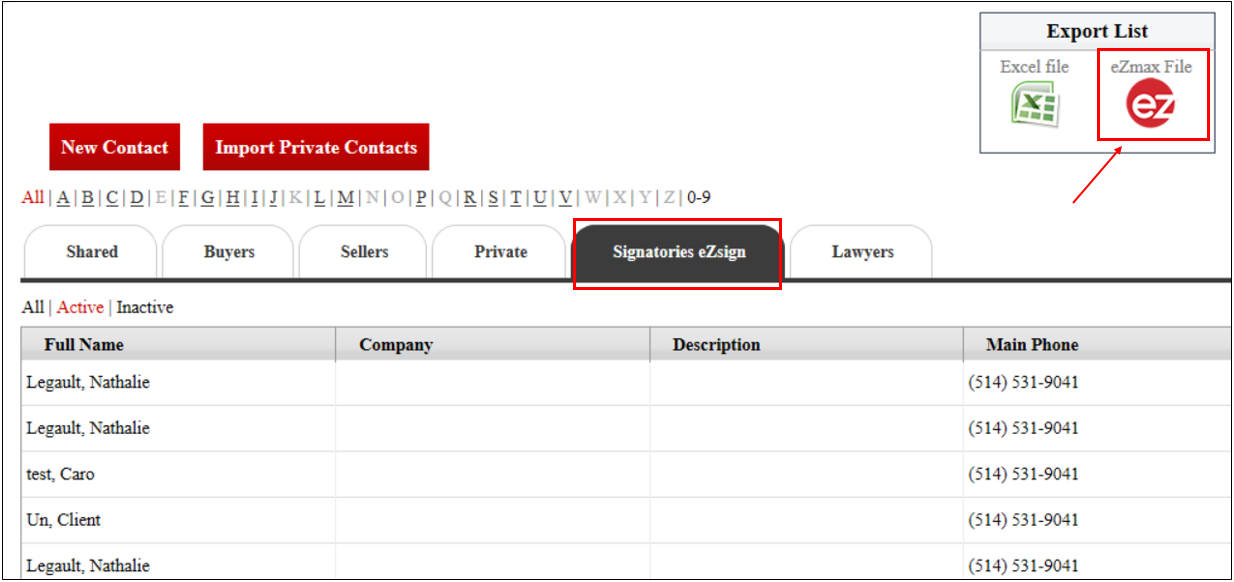
Select the category of contacts you want to import (the tab should be dark).
From the "Export List" section, click on eZmax File.
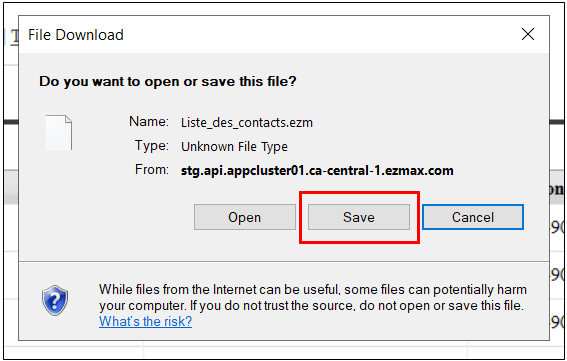
- Save the file to your computer. We suggest you save it on your desktop.
Warning
Do not rename the file.
Log in to your new account.
From Main menu >> Tools
Contacts.
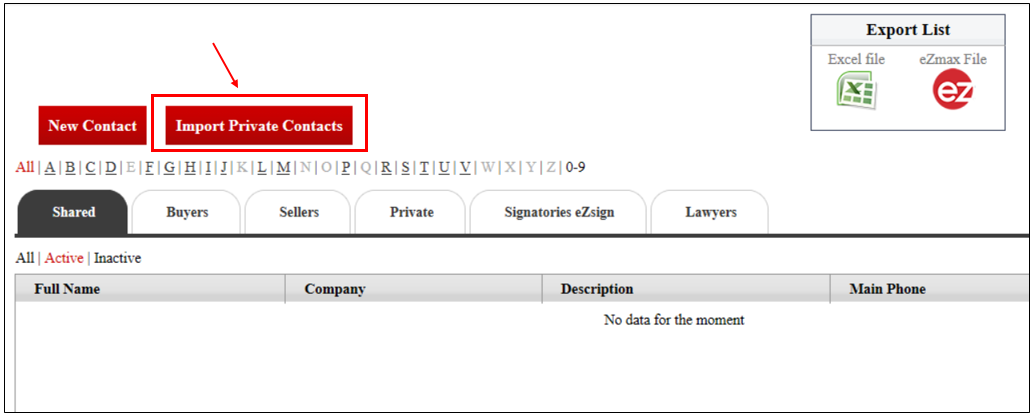
- Click on Import Private Contacts.
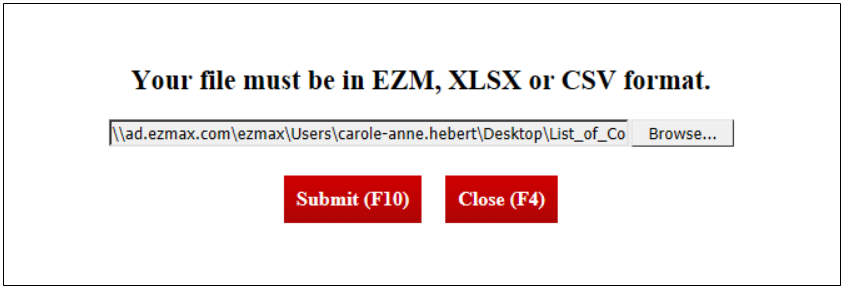
Click on Browse and find your saved file on your desktop.
Click on Submit.
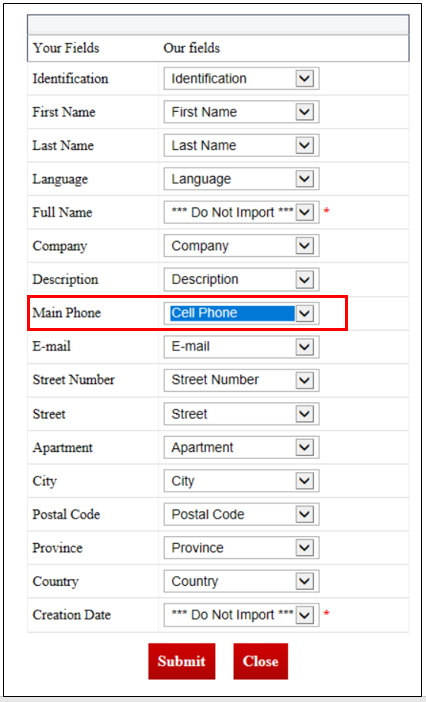
- Make field associations.
Warning
The associations will be done automatically, except for the Main Phone : You will have to change it to Cell Phone (see image above).
- Click on Submit.
NOTE: Repeat the instructions from the beginning of the article to import the other desired contact categories.
Find Imported Contacts in the System
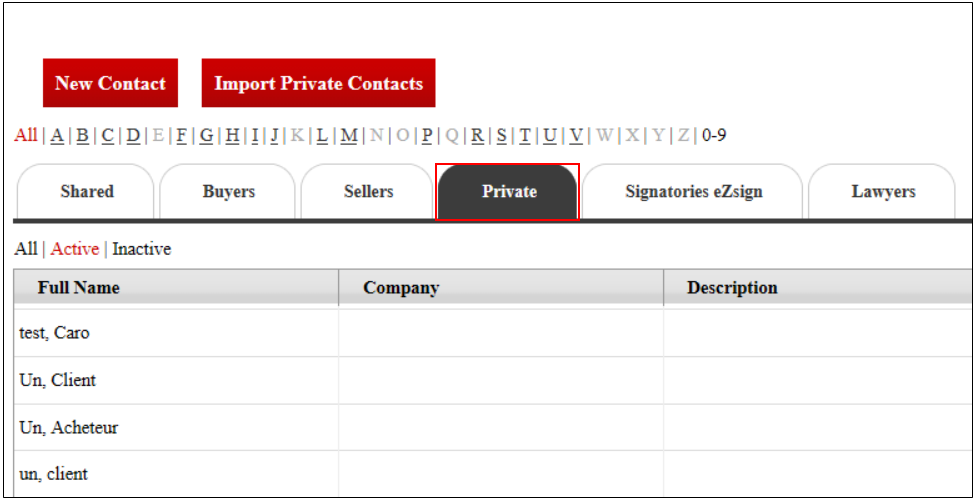
Your contacts will now be imported into the "Private" contact category.
When you want to add contacts in a folder (e.g.: eZsign folder):
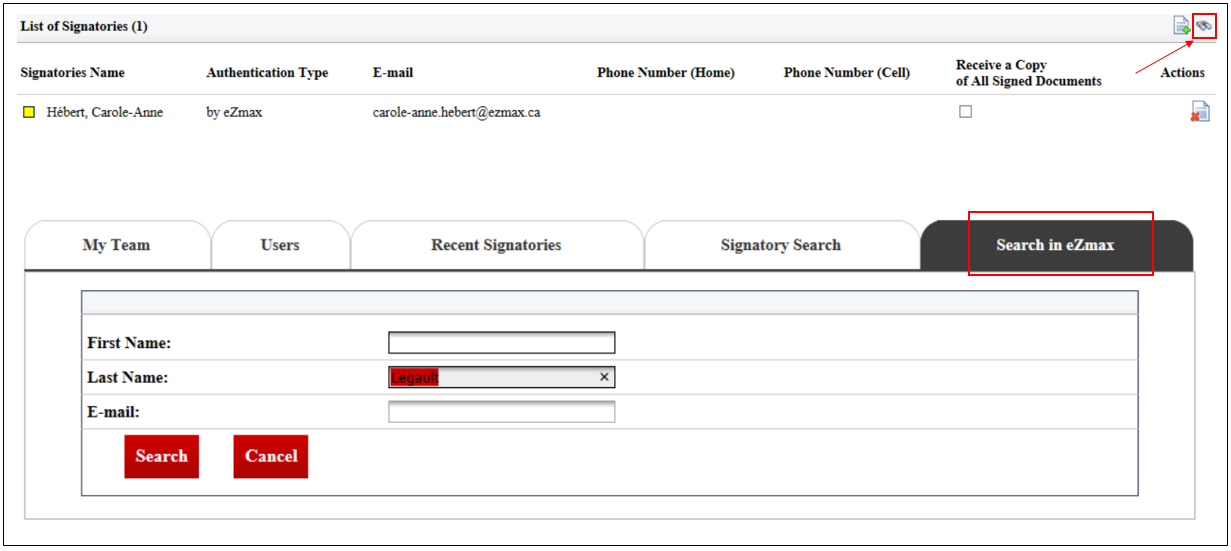
Click on the Binoculars icon.
Click on the "Search in eZmax" tab.
NOTE: Your contacts will return to their respective categories as you add them to a folder.