English
"Completed" Folder: Available Actions
"Completed" Folder: Available Actions
Here’s how to do it in eZsign:
From the main menu, select eZsign Folders , then in the Step section, select the Completed filter.
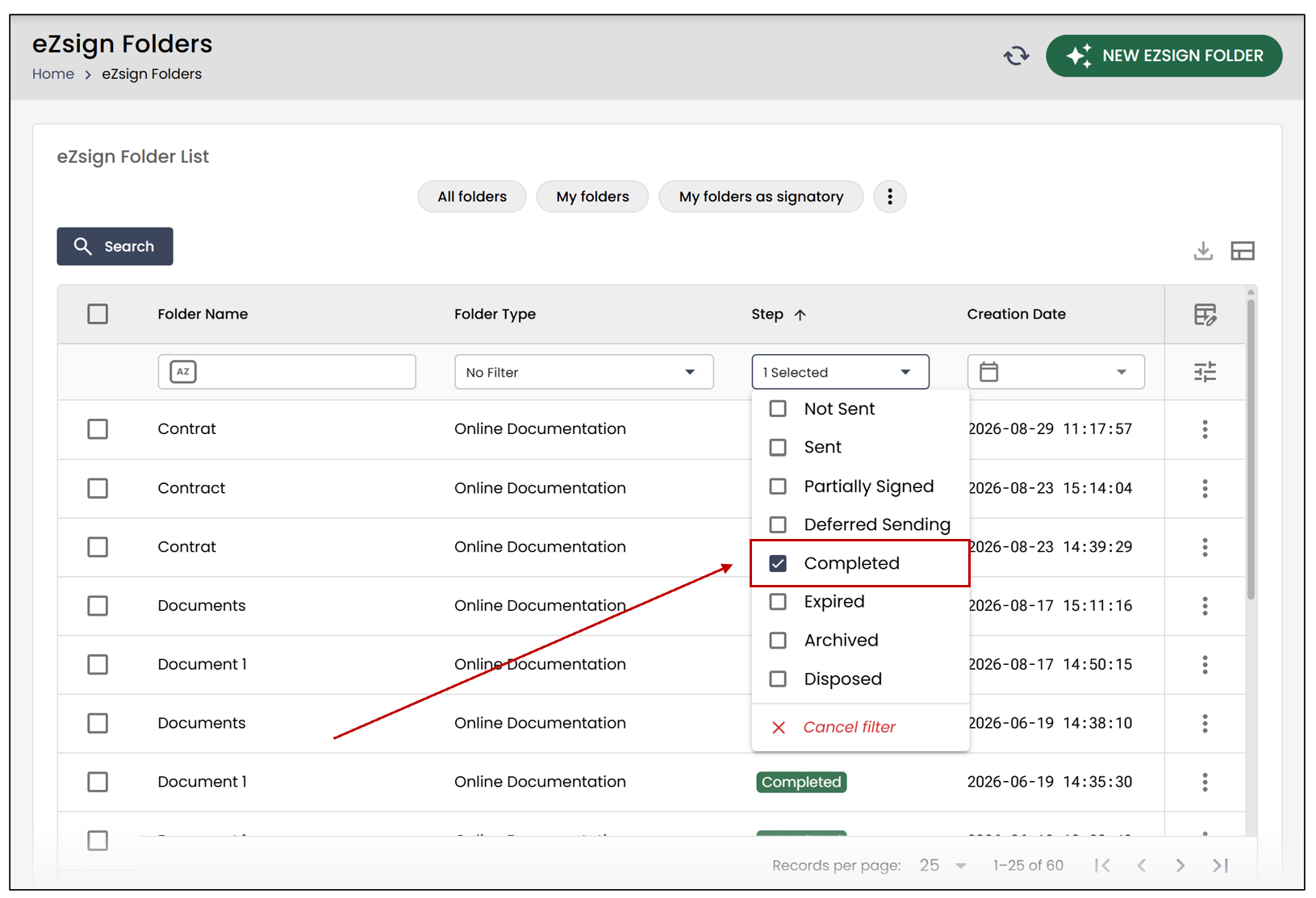
Select the desired completed file. You will be able to see its step on the right.
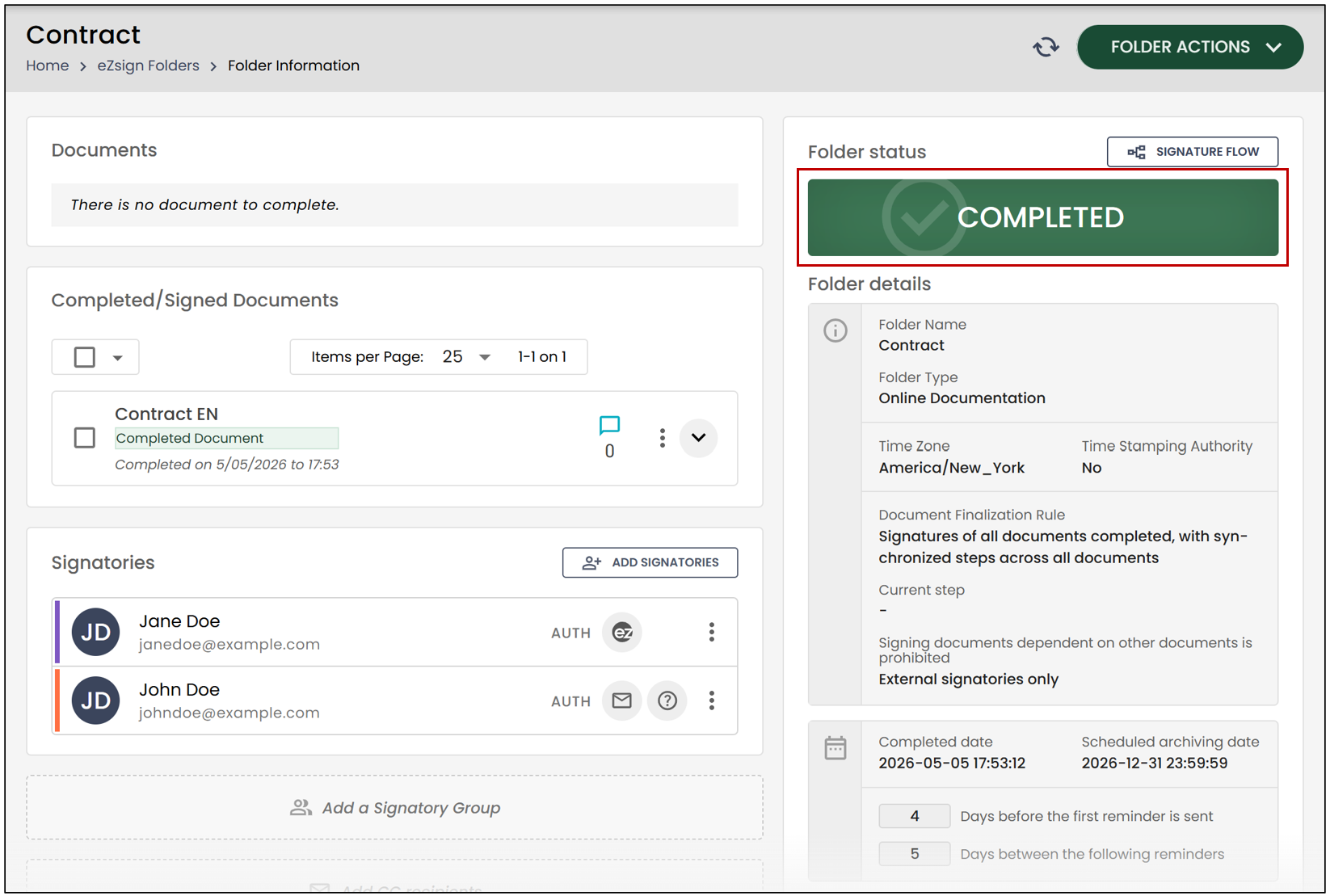
NOTE: You will notice that the eZsign file contains two separate sections for documents: the Documents section (which includes incomplete documents) and the Completed/Signed Documents section.
Folder Actions
Edit eZsign Folder Information
To Edit the eZsign Folder Information , click the corresponding button.
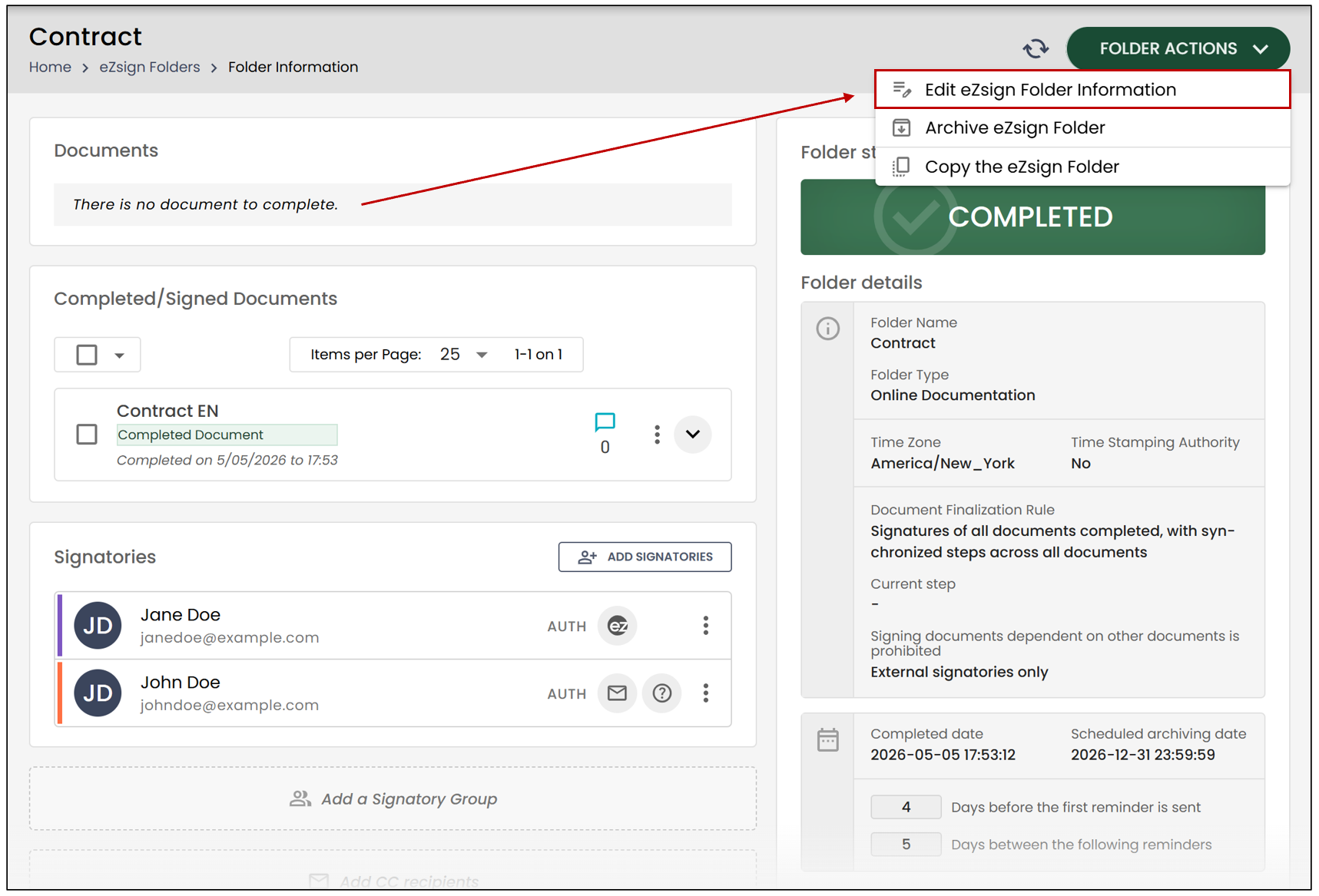
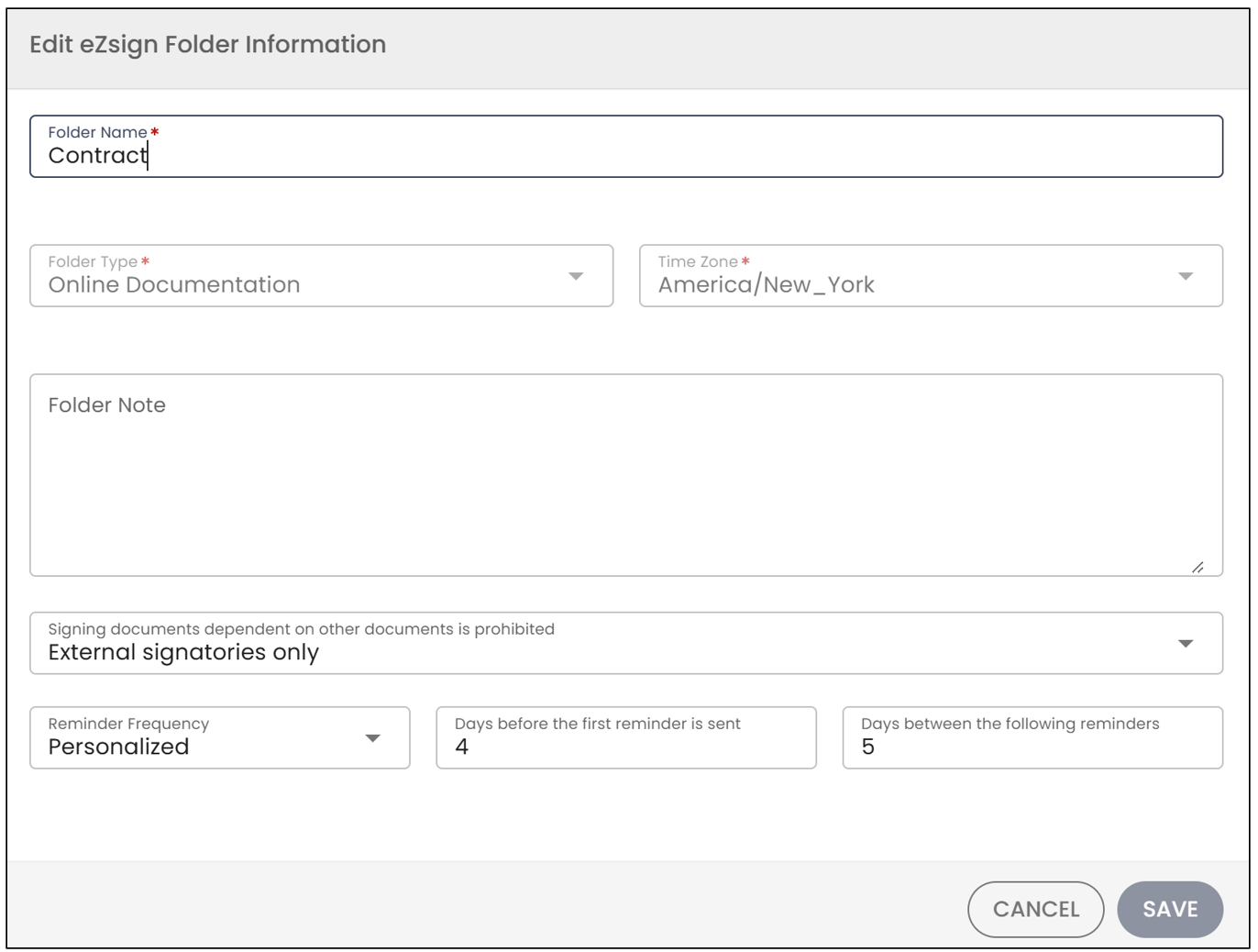
You will be able to:
- Edit the Folder Name
- Add a Folder Note
- Configure the restriction on signing documents that depend on other documents
- Modify the Reminder Frequency , if you add new documents to be signed in this eZsign folder
When you’re done making changes, click Save.
Archive an eZsign Folder
NOTE: The archiving period begins after the last signature deadline indicated in the folder, even if the document was signed before that date. For example, if a document is signed on February 1st but the signature deadline is set for February 15th, the archiving period will begin after February 15th.
To Archive the eZsign Folder , click the corresponding button.
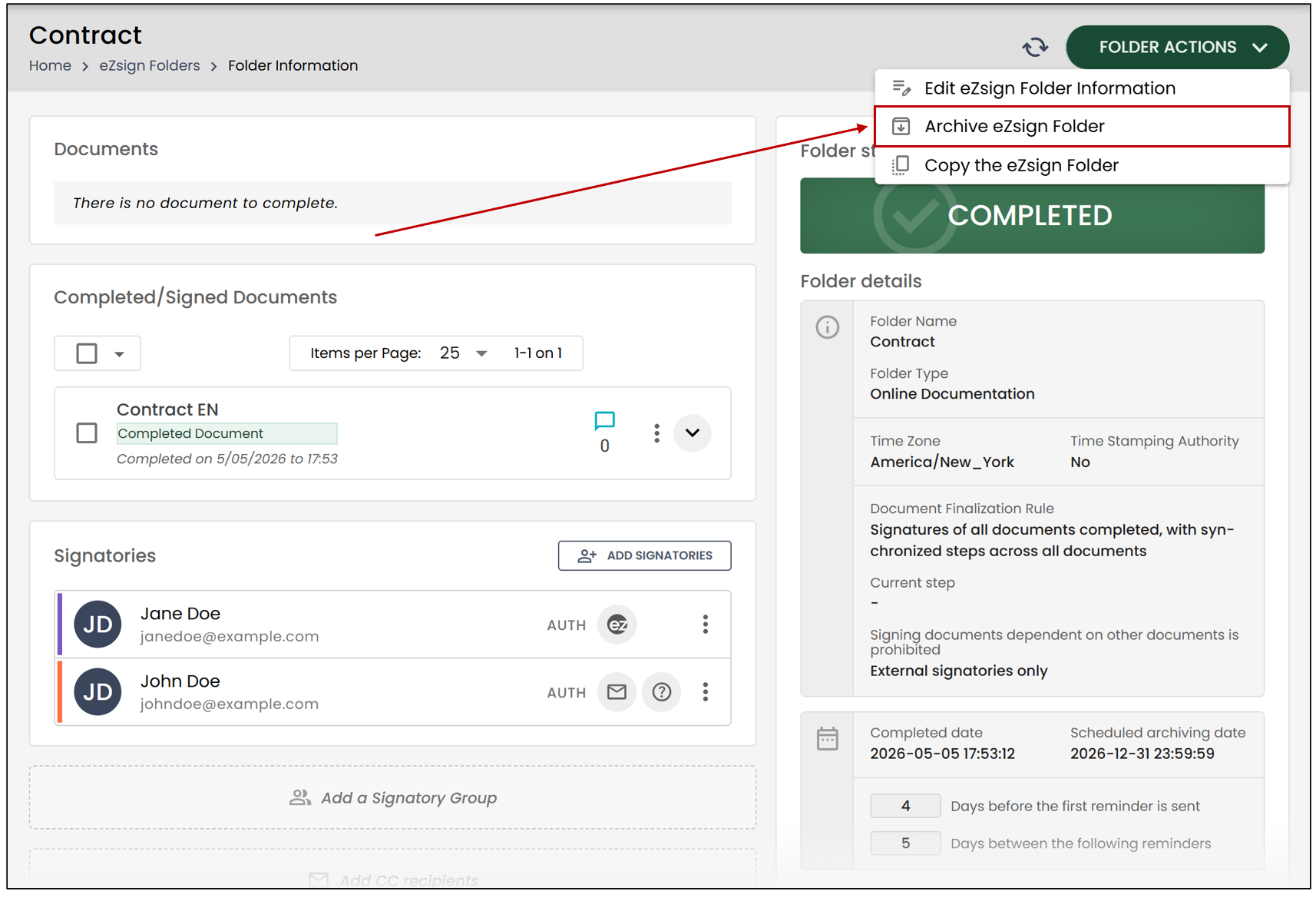
This message will appear:
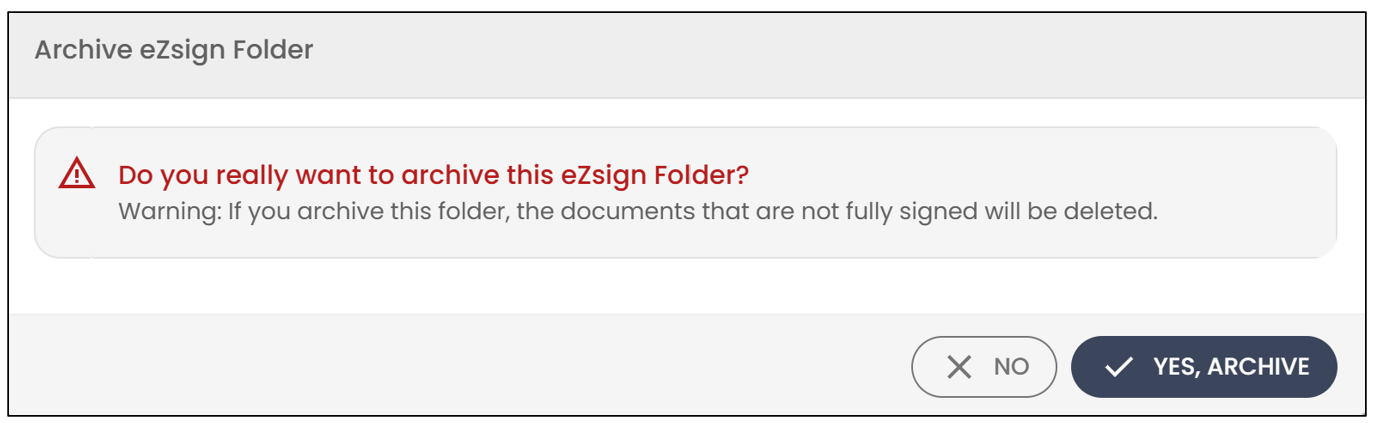
To proceed with the archiving, click Yes, Archive.
Copy an eZsign Folder
To Copy the eZsign Folder , click the corresponding button.
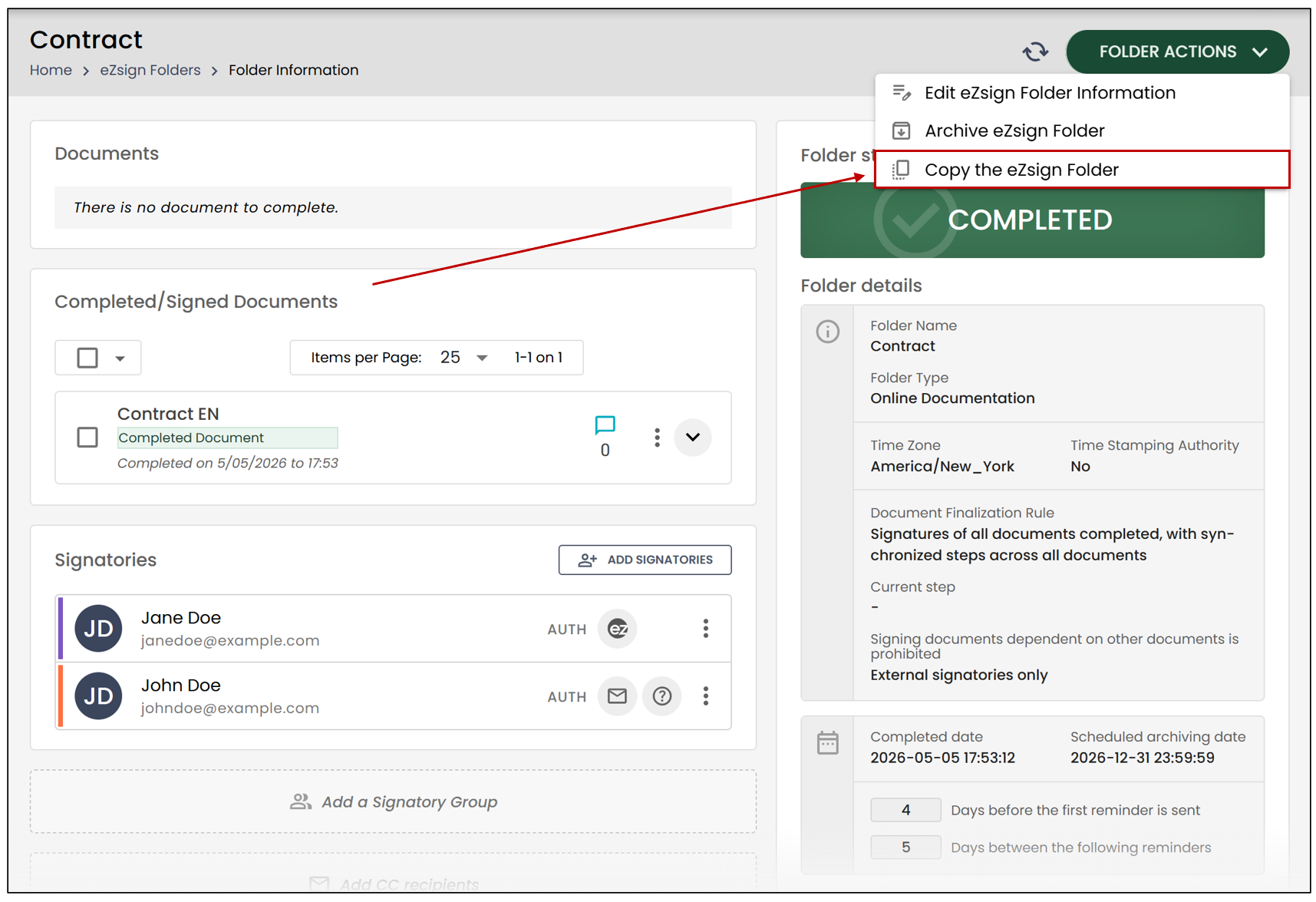
For more information, please refer to the article Copying an eZsign Folder.
Document Actions
View the Signed Document (PDF)
By clicking on the three vertical dots to the right of the file, you can select Consult the signed document (PDF).
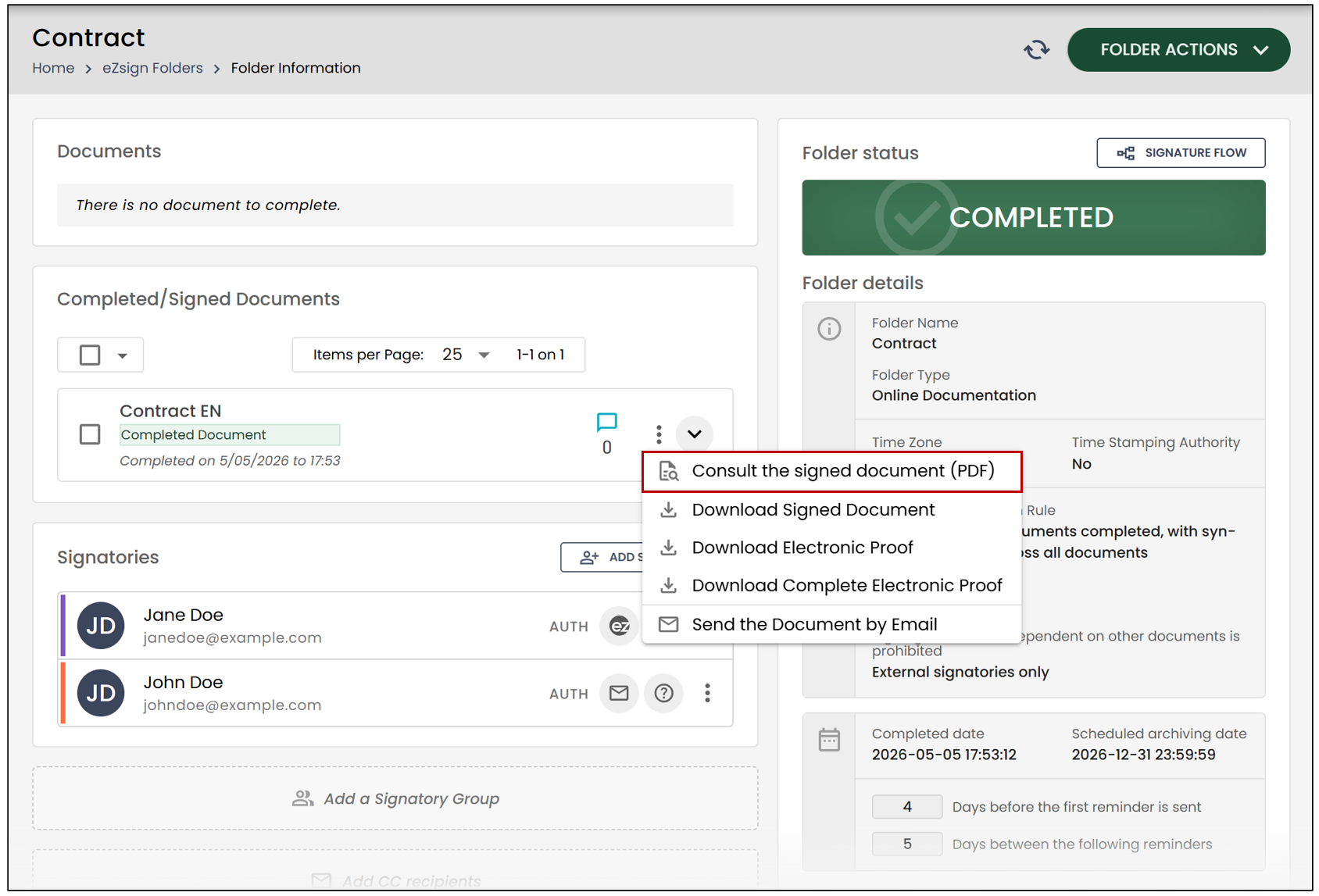
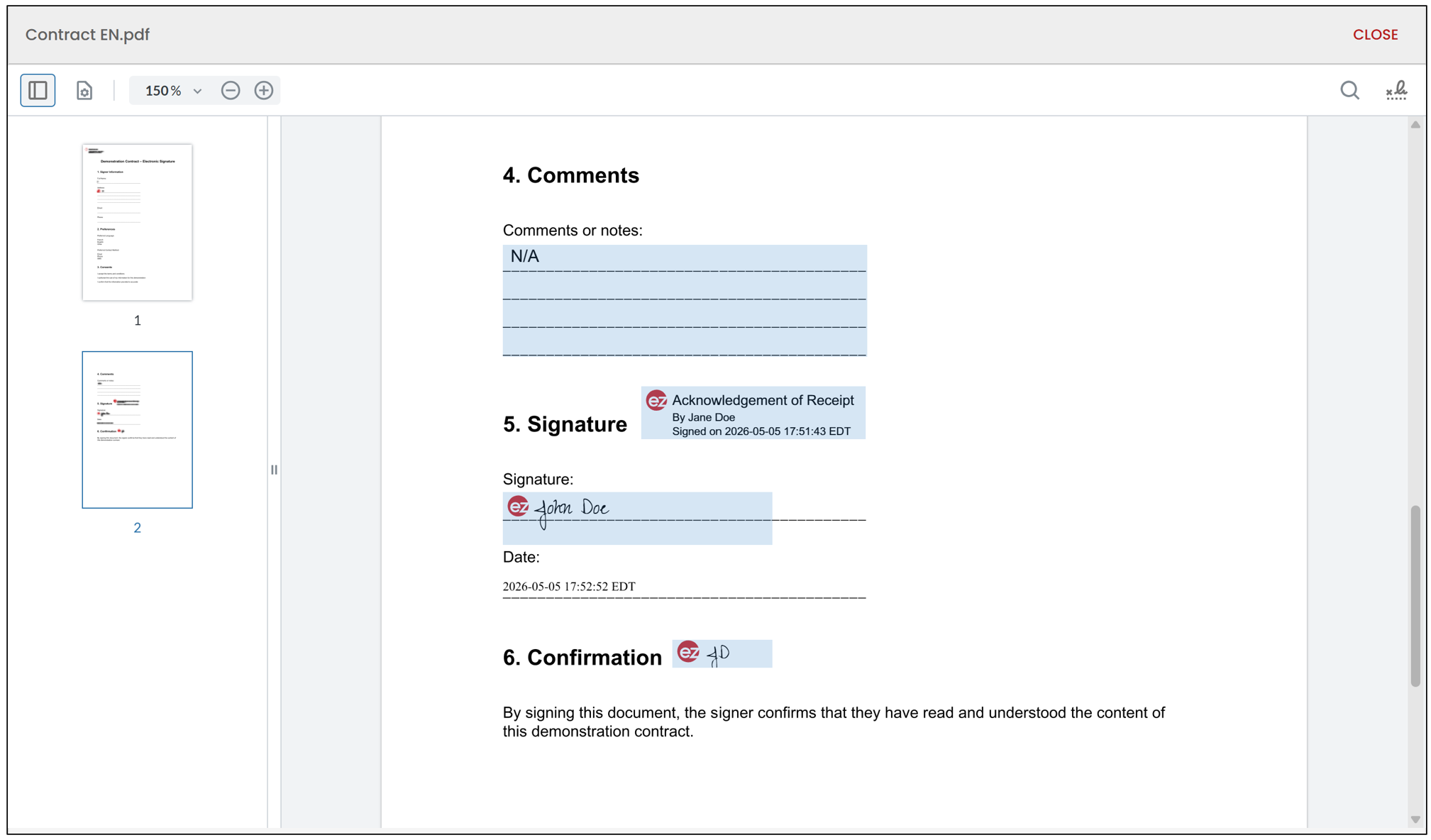
You will then be able to view all the signatures and fields in the completed document.
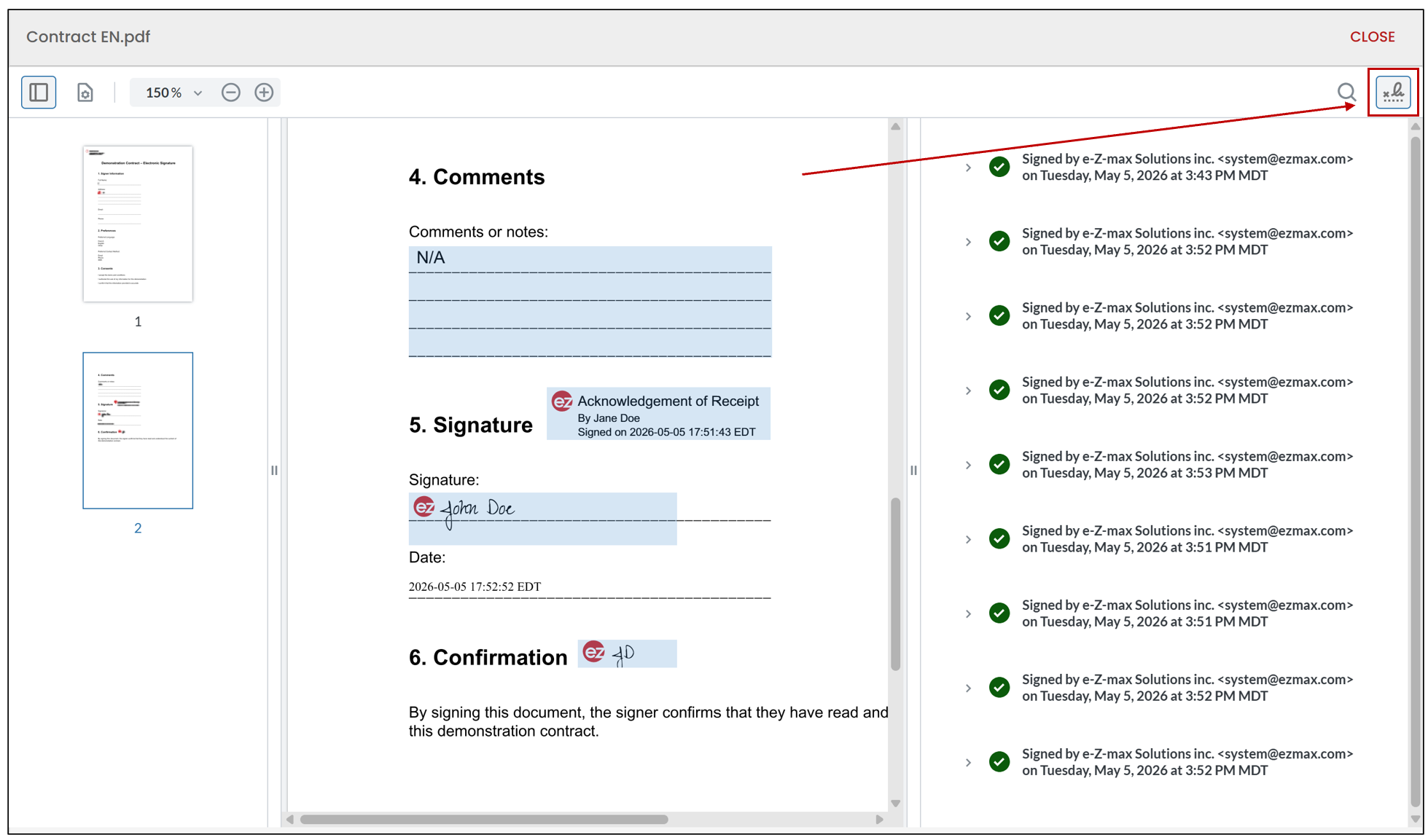
By clicking on the

icon, you can view the signatures and verify their validity.
Download the Document
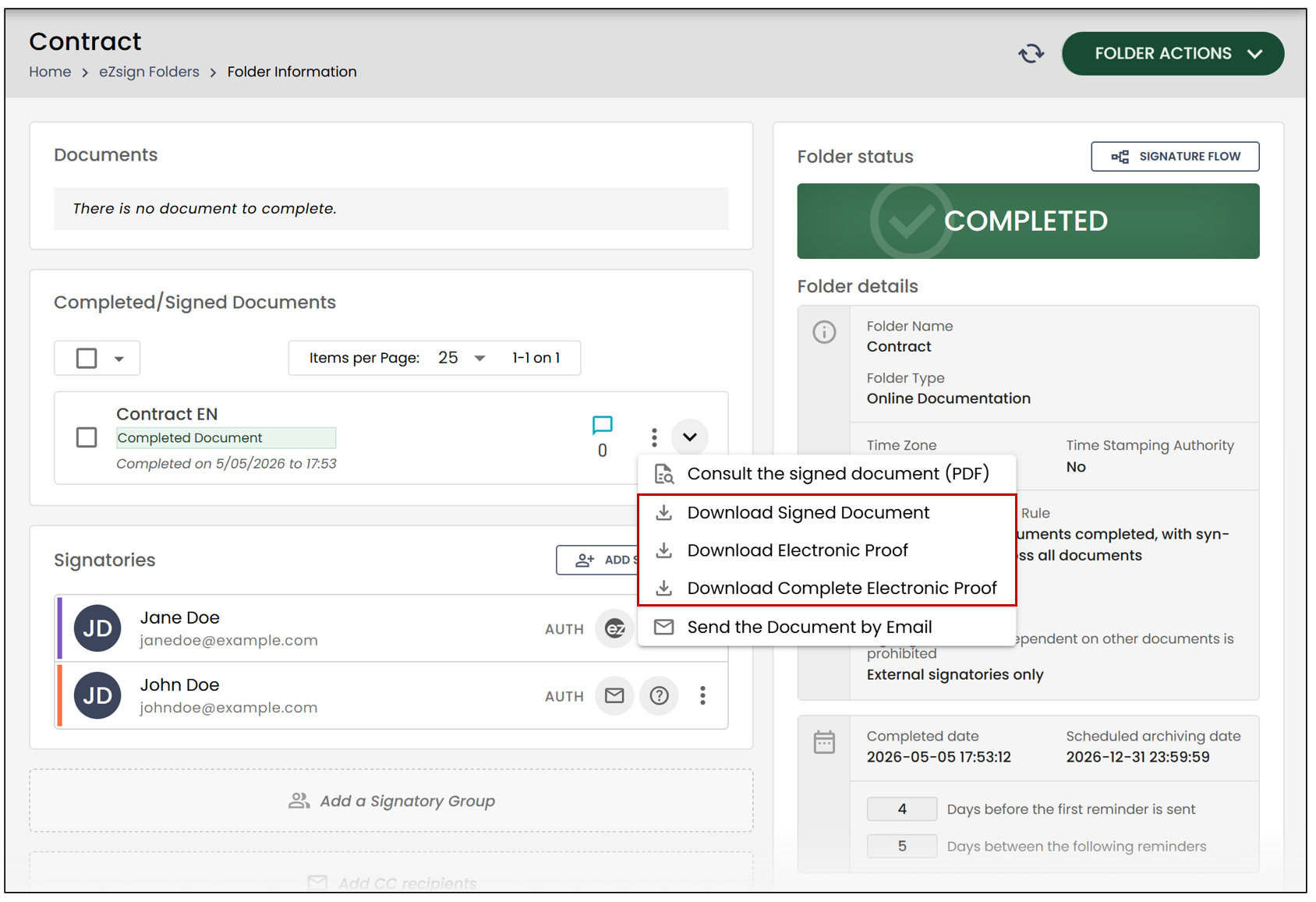
By clicking on the three vertical dots to the right of the file, you can select one of the download options.
Actions When Selecting a Document
When you select completed documents, additional actions become available:
Download the documents
Send the documents by email
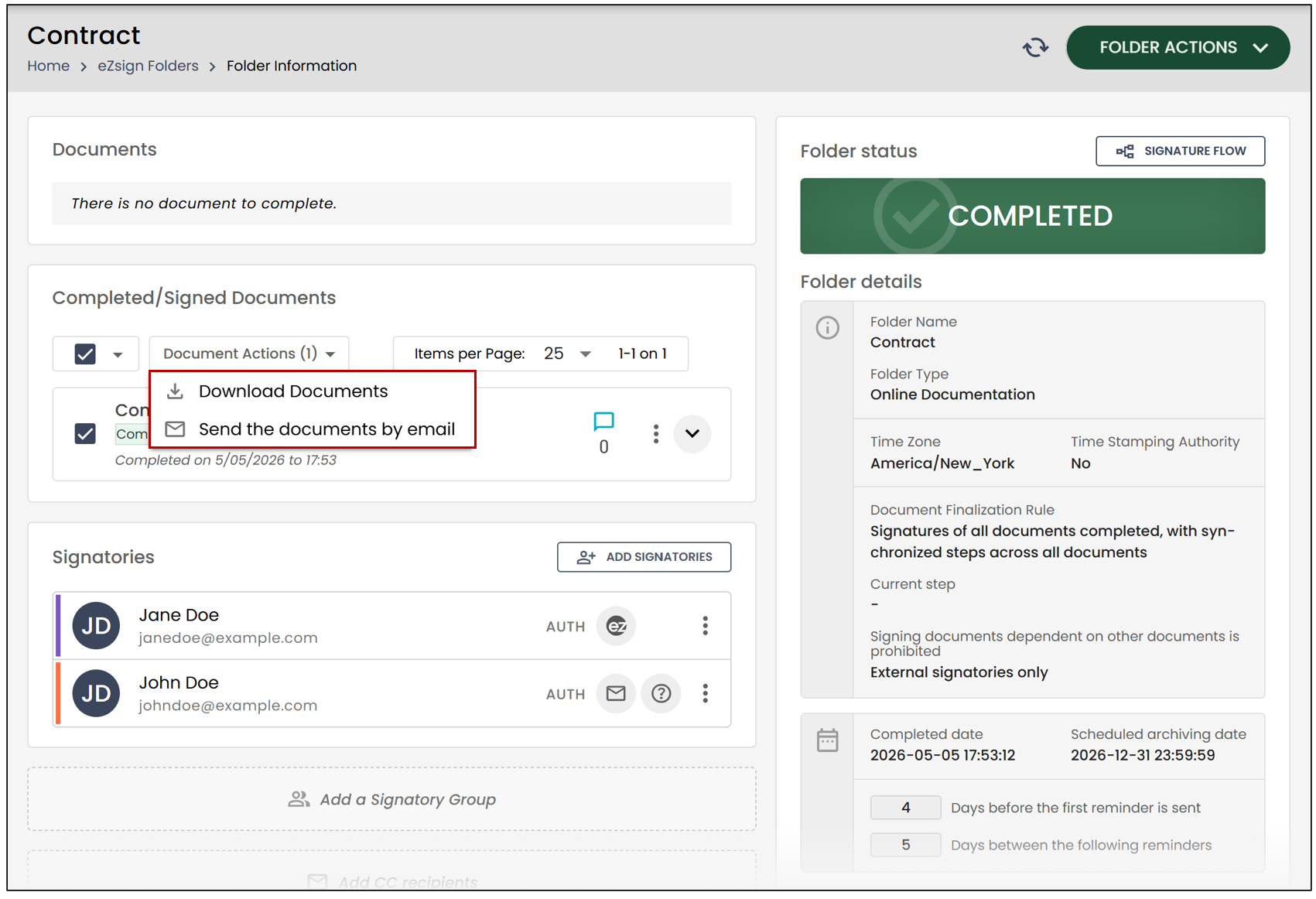
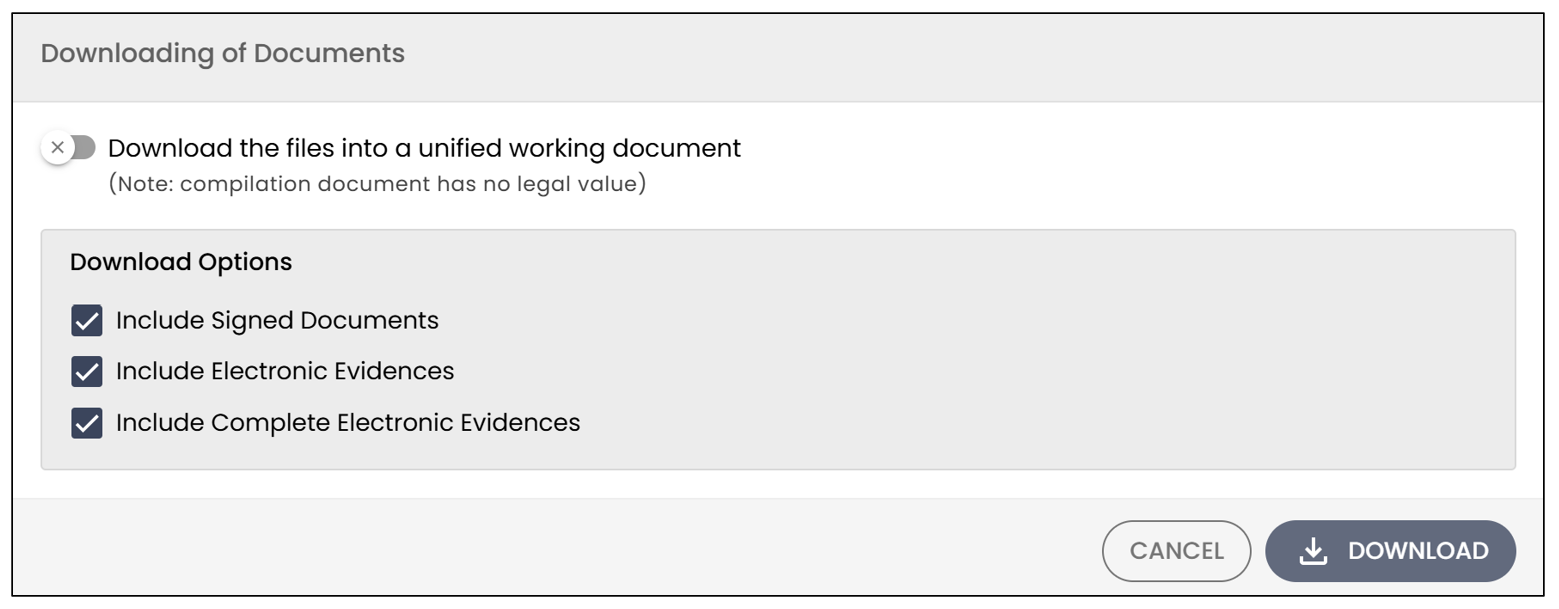
Download Documents
When downloading the documents, you can choose to combine them into a single working document. However, this document will have no legal value.
You can also select which documents you want to include in the download.
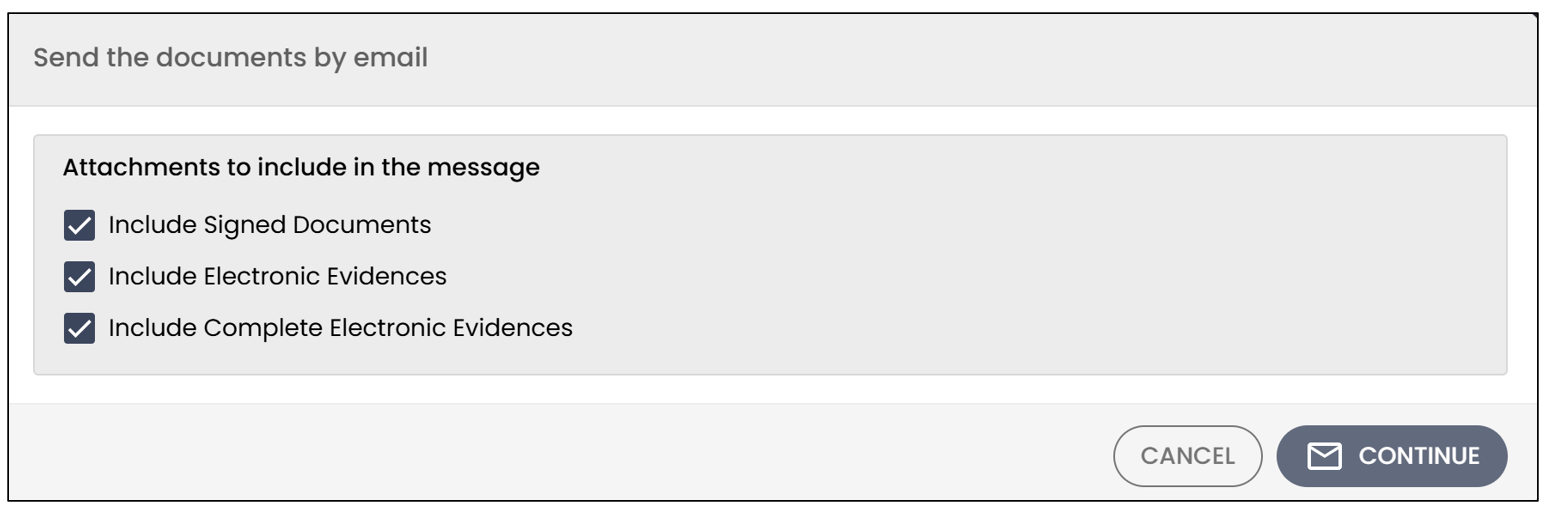
Send Documents by Email
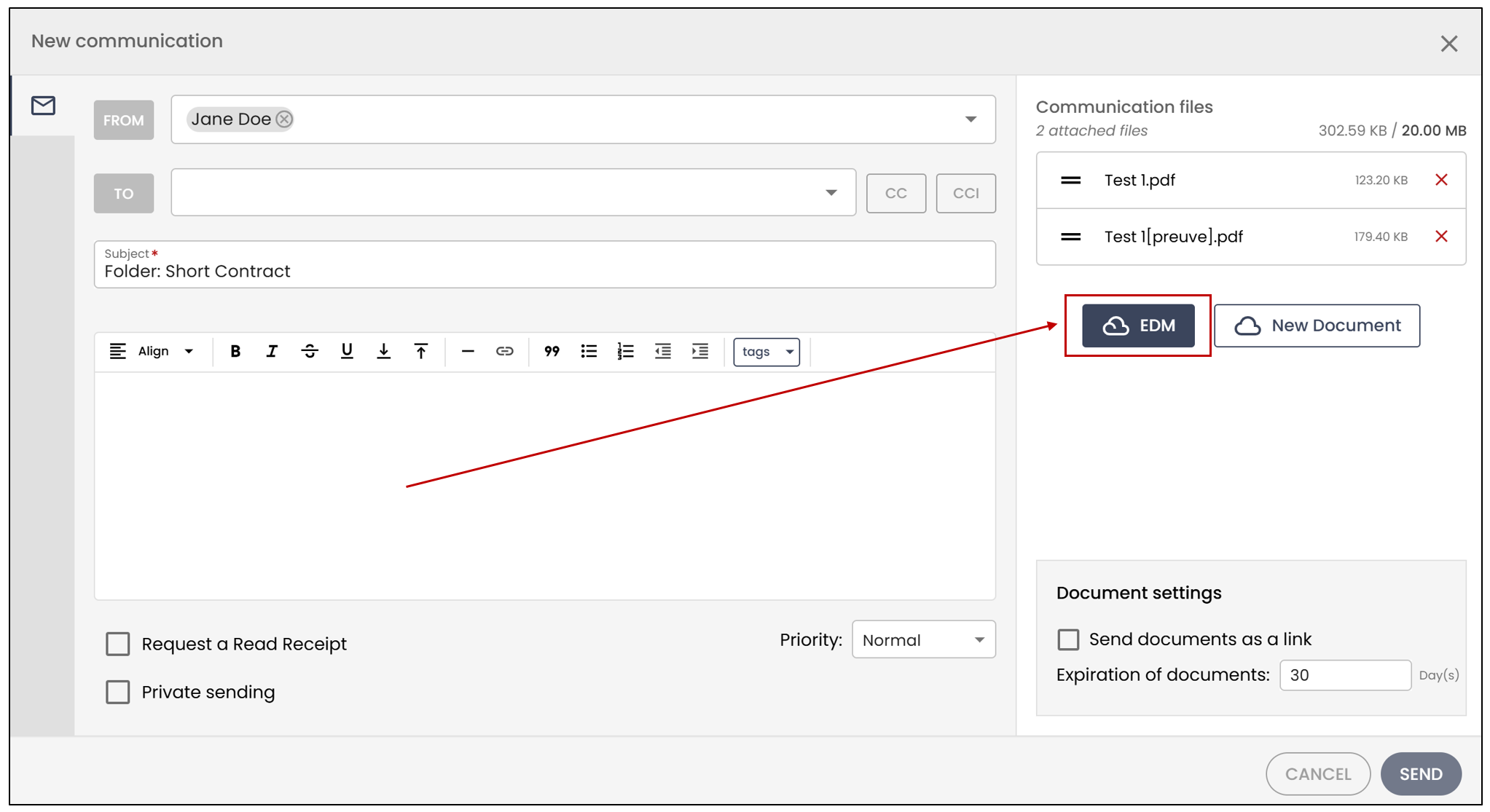
To send documents by email, select the documents you want to include, then click Continue.
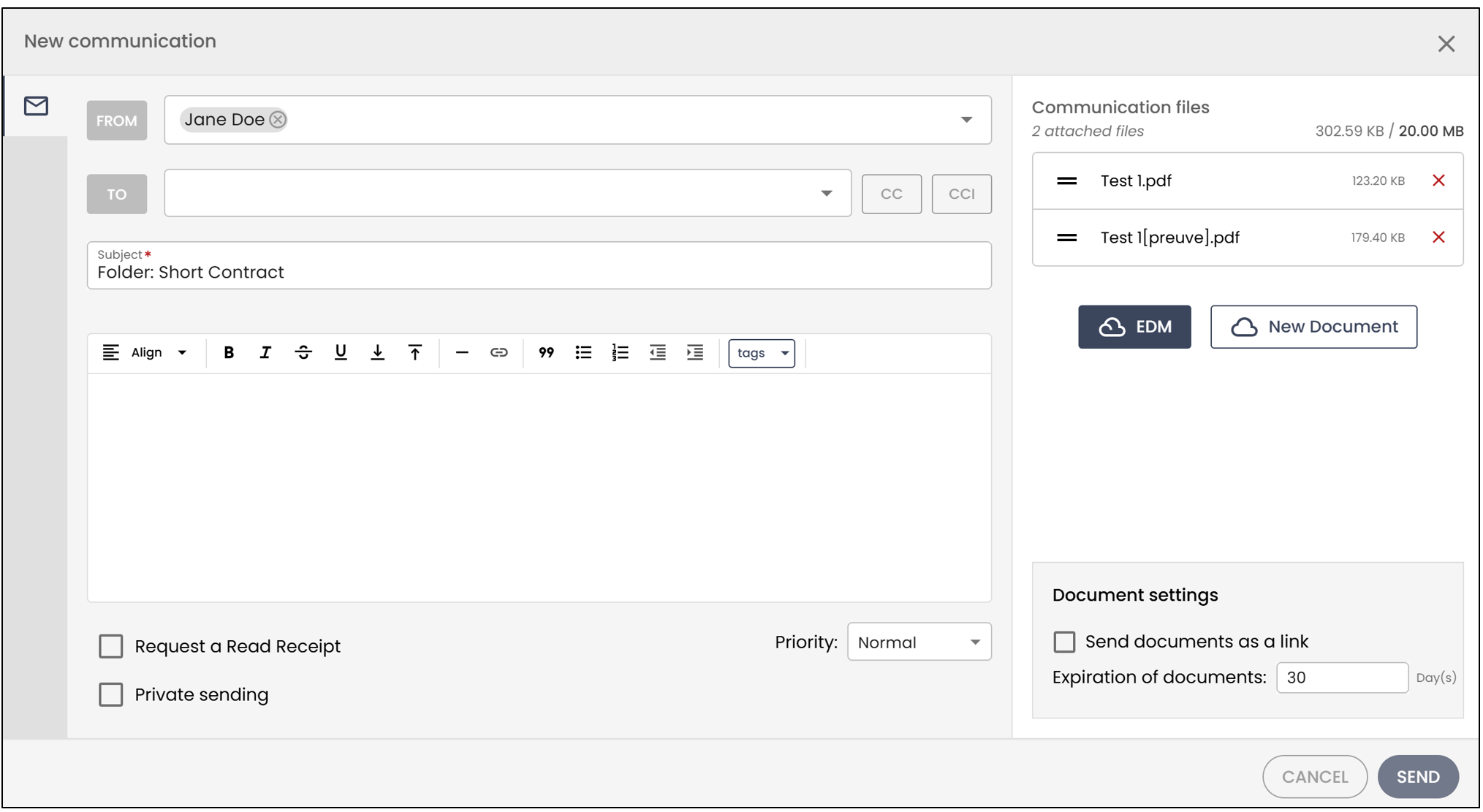
You can select the recipient of these files in the To field.
The default subject will be the folder name, but you can modify it.
You can enter the email content in the designated field.
To modify the file selection, click EDM.
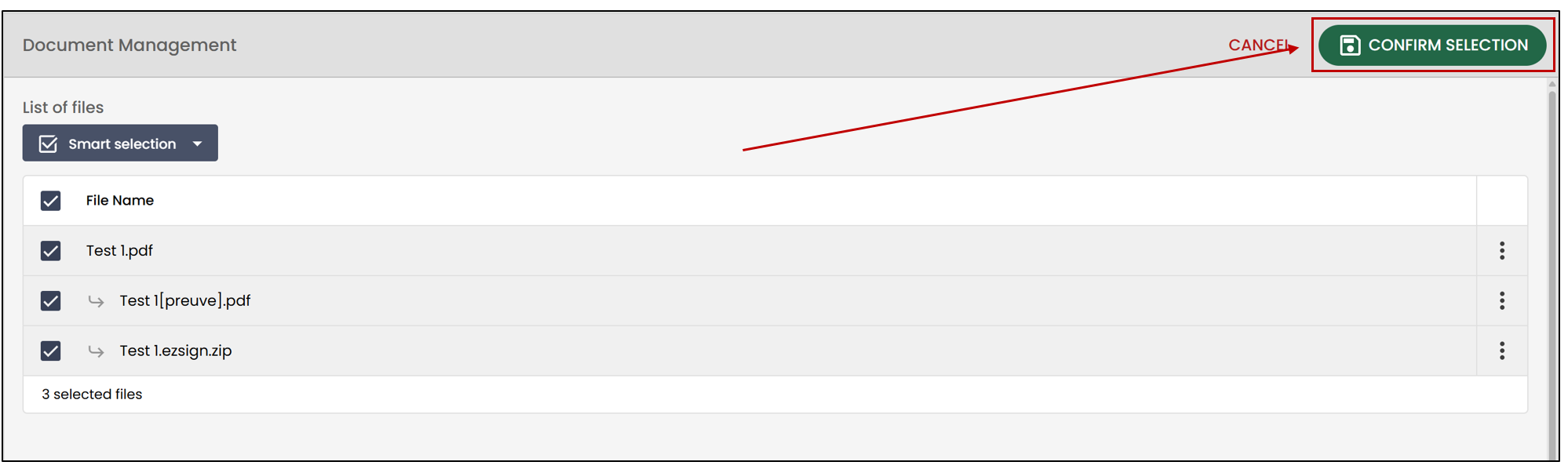
You will then be able to add or remove documents by checking/unchecking them. To save the changes, click on Confirm Selection .
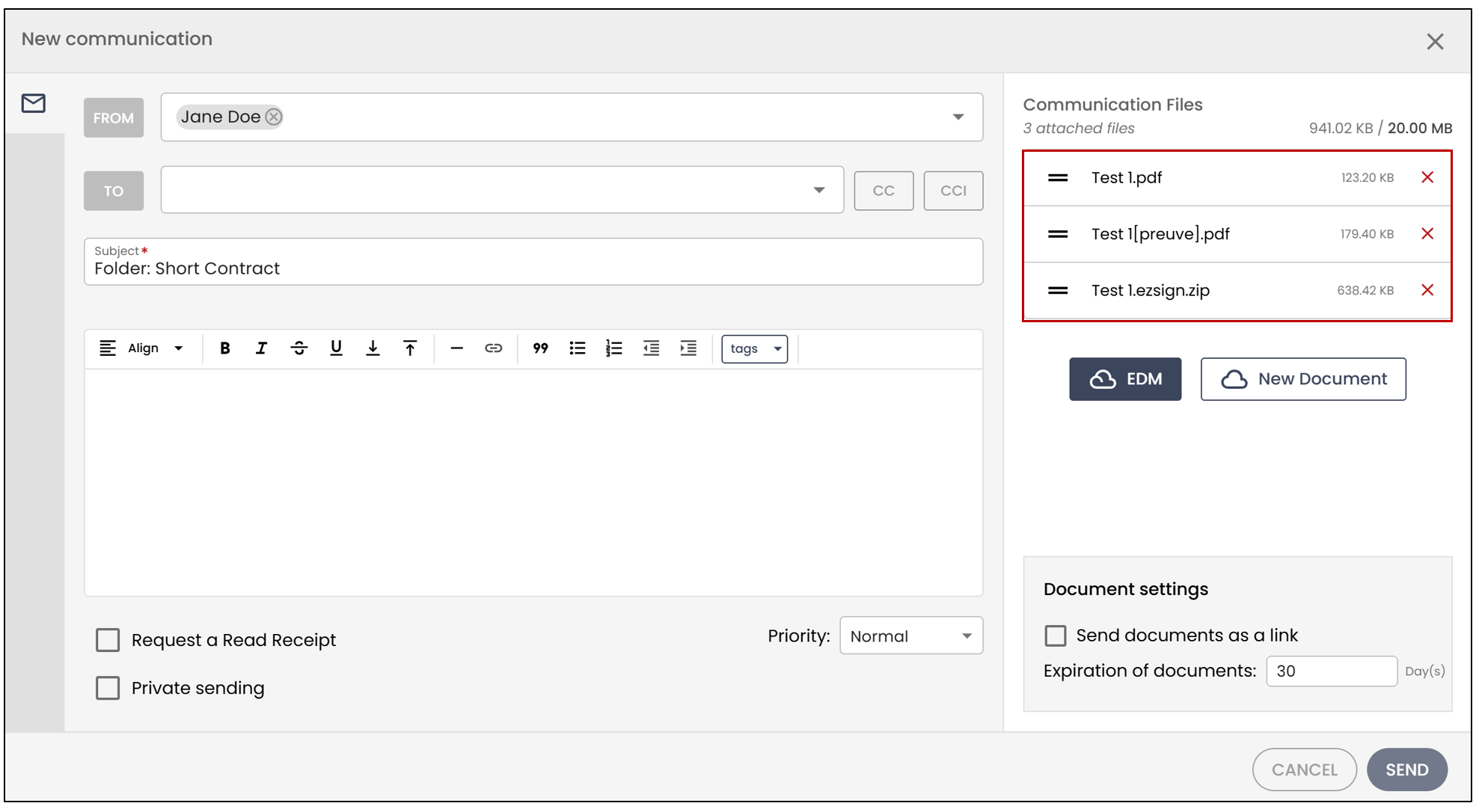
You will be able to see the new selection under Communication Files.
Add an Additional Document
To add an additional document to this email, click on New Document.
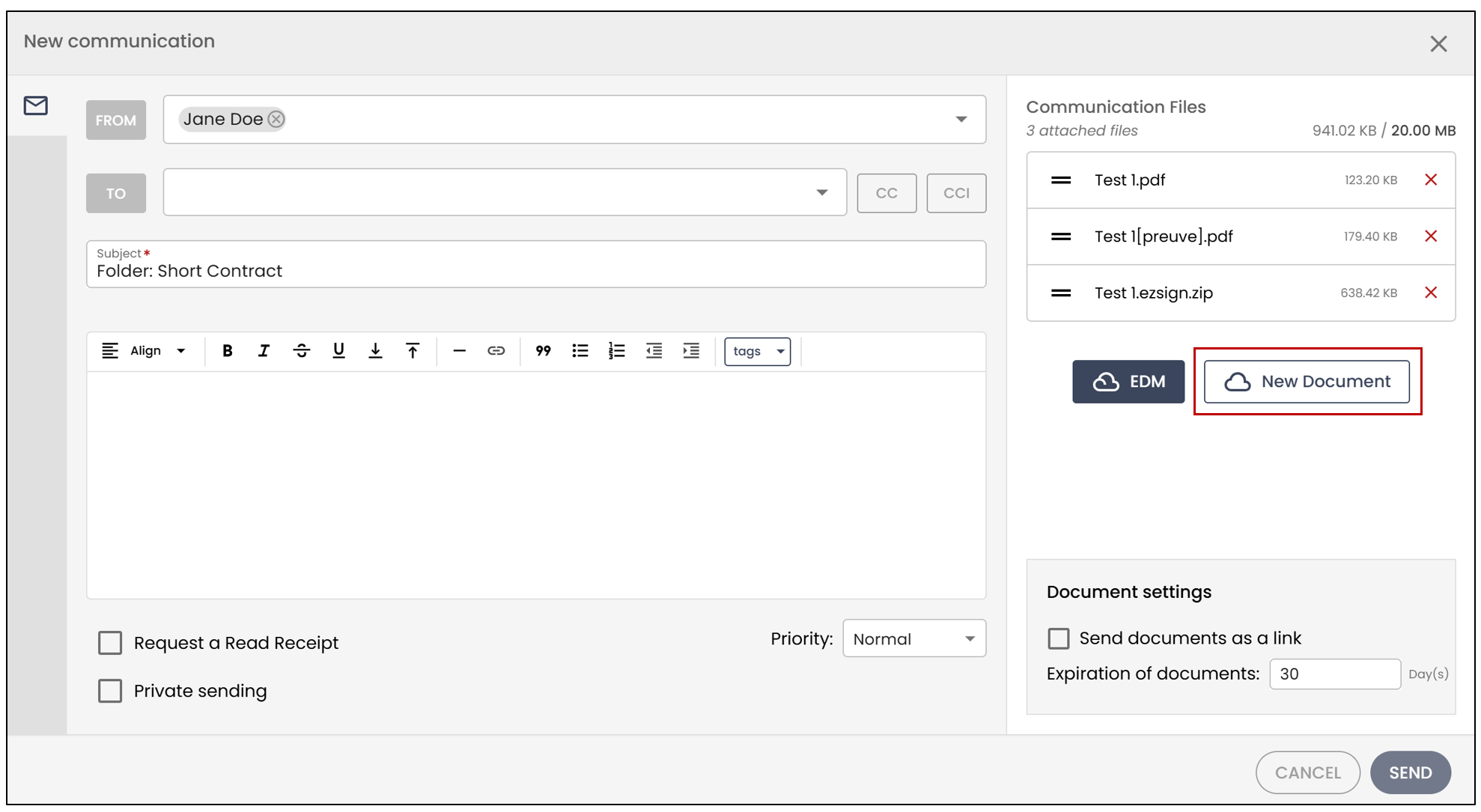
You will then be able to select a document from your files and attach it to this communication.
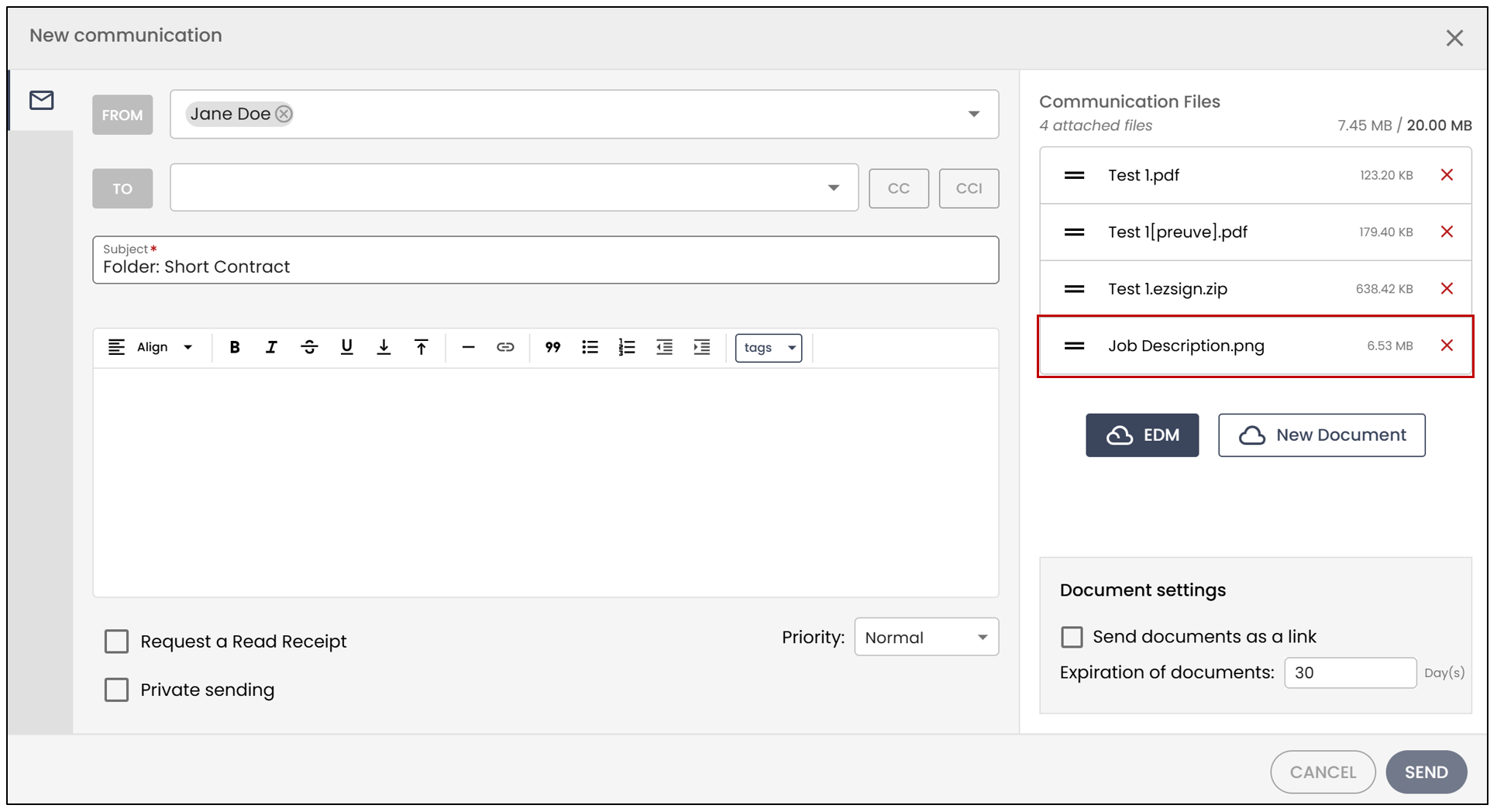
NOTE: The documents can be sent as a link or as attachments. If you wish to send the documents as a link, check the box for this option and enter the number of days before the Expiration of documents.
Once finished, click on Send.
Actions on Signatories
Edit or Remove a Signatory
For more information about the signatory options, please refer to the article Modify the Signatory’s Information.
Electronic Document Management (EDM) and Communications
View the Files in the Folder
To view the list of files in this folder, you will need to click on the Electronic D****ocument Management (EDM) button at the bottom of the page.
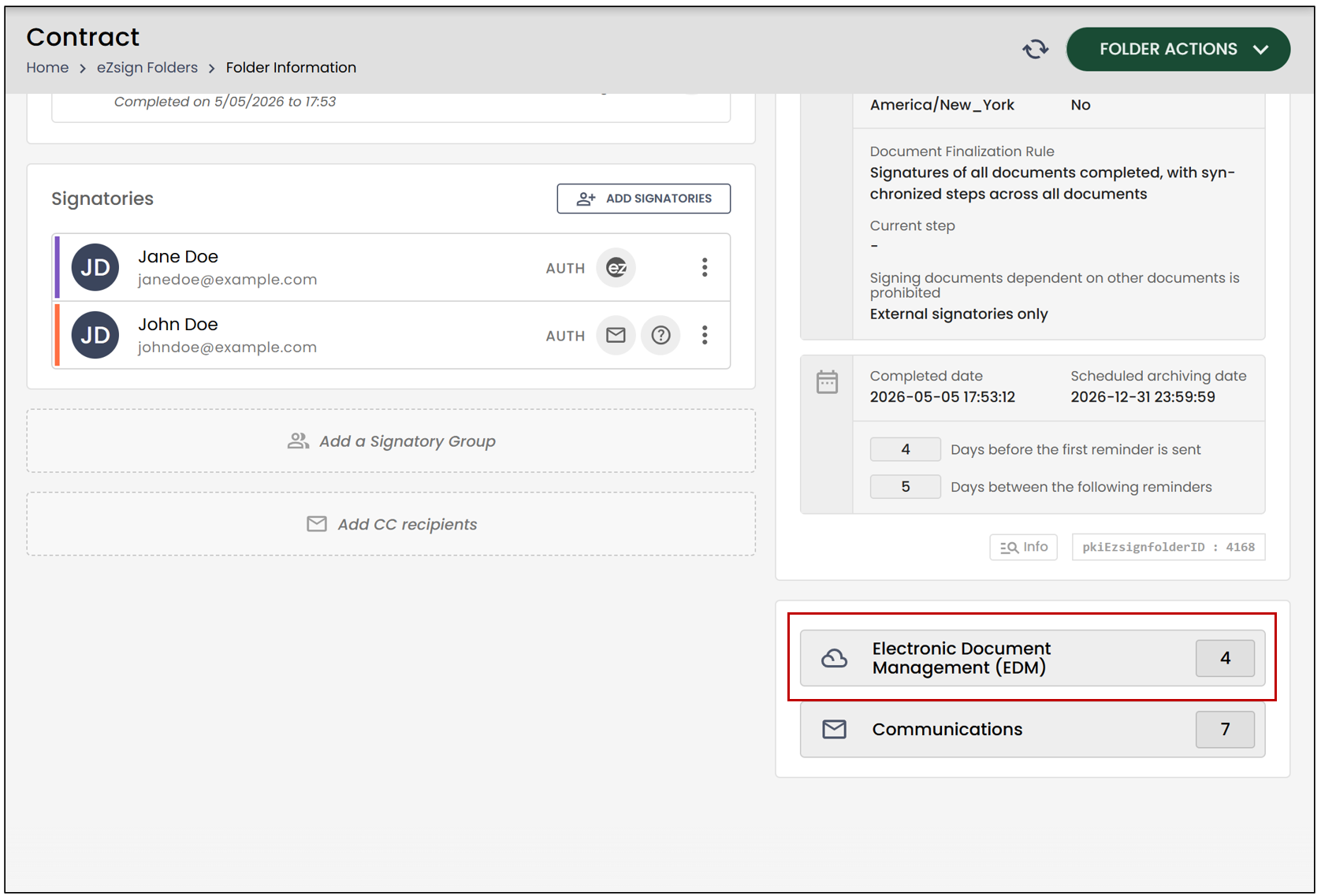
In the EDM, you will find the signed document in PDF format, the proof, and the .zip file. Select the desired items, then click Selection Actions.
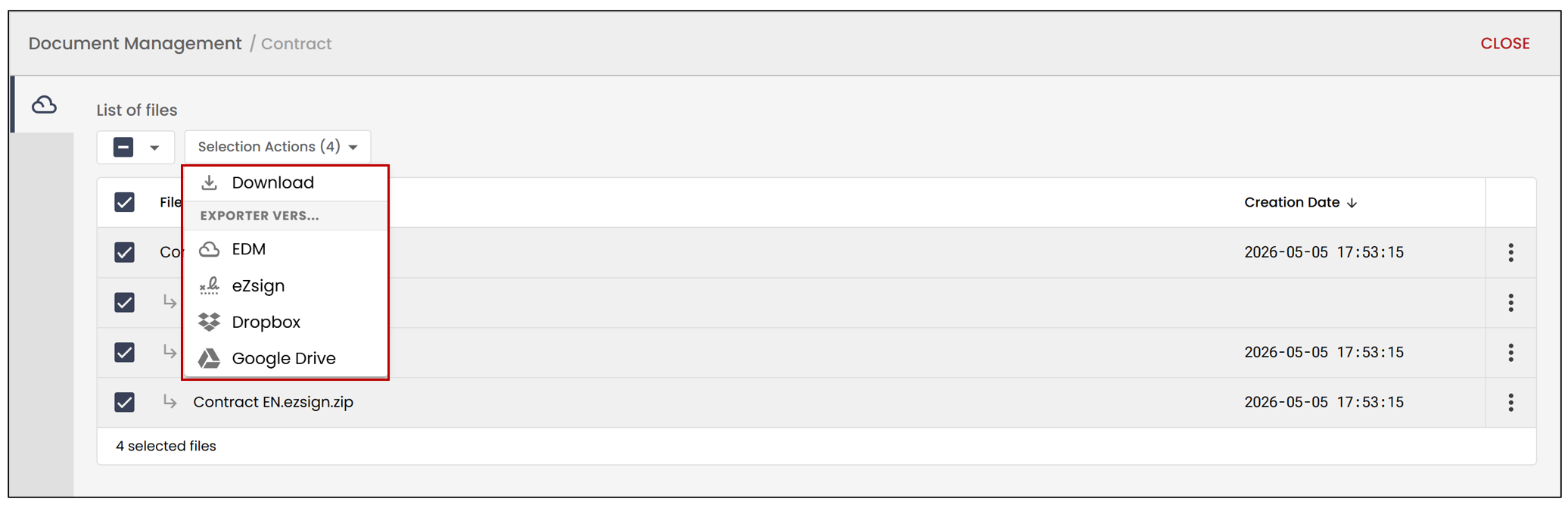
You will then have the option to download the documents or export them.
View Communications
From the folder, you can view all communications related to the folder.
Click Communications.
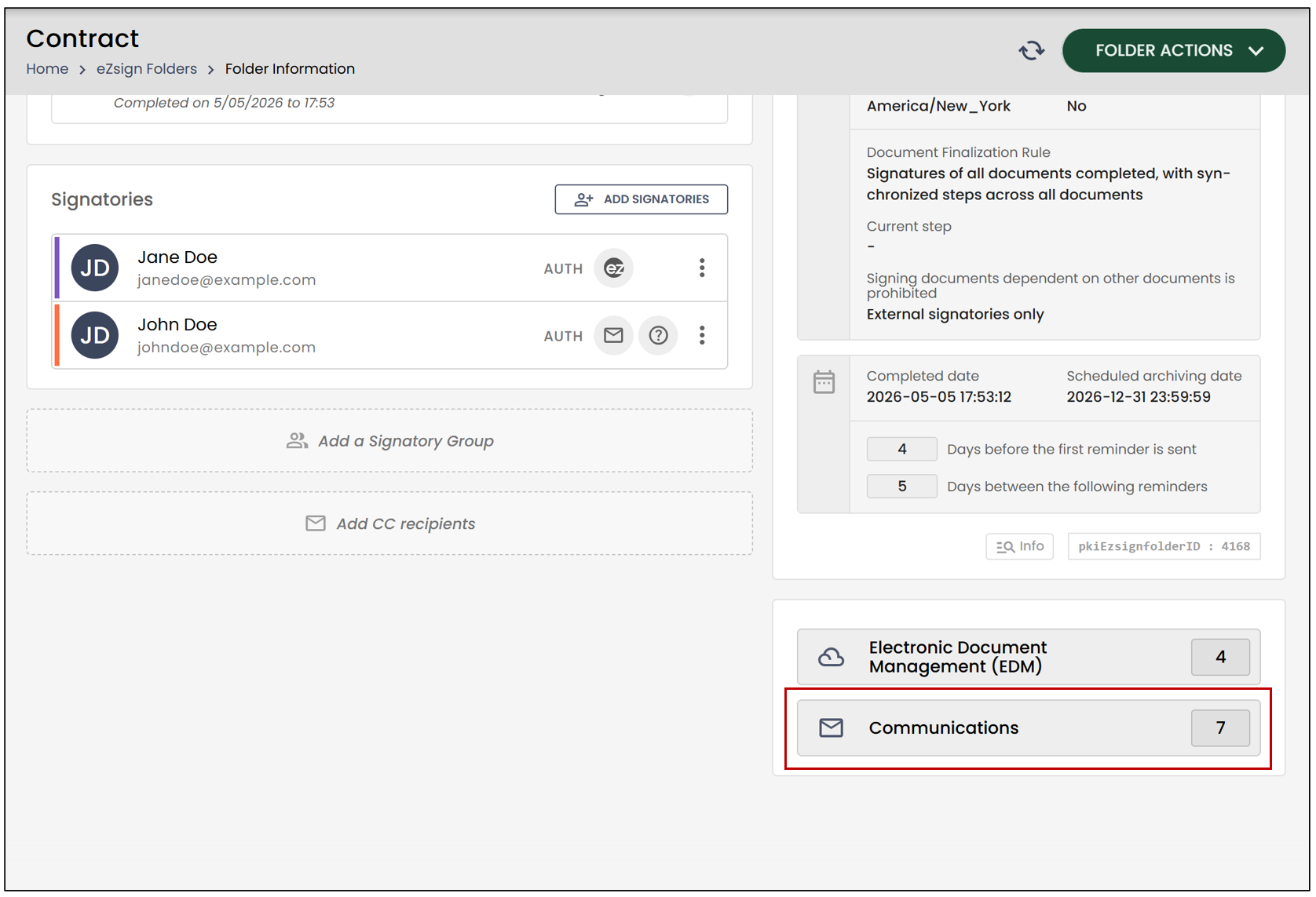
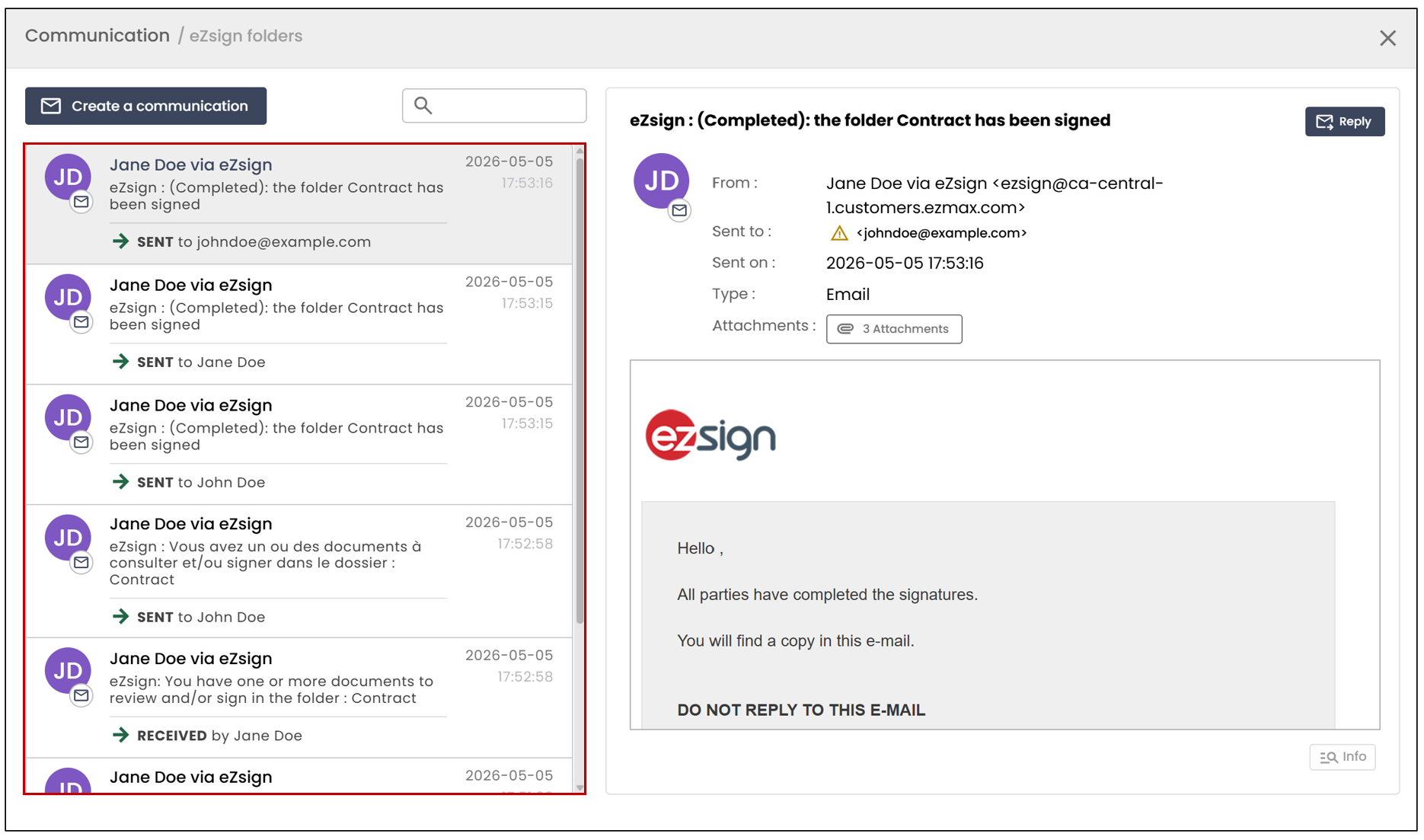
For more information on the email delivery to the recipient, please refer to the article Communication status (eZsign Web).
View Attachments
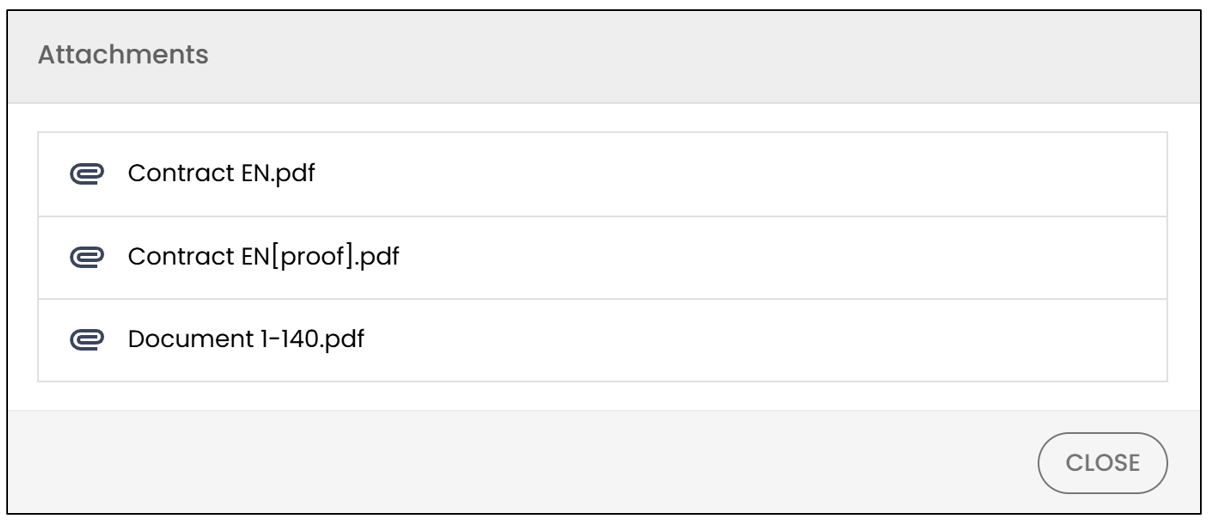
To view the attachments of a sent email, click on the corresponding button.
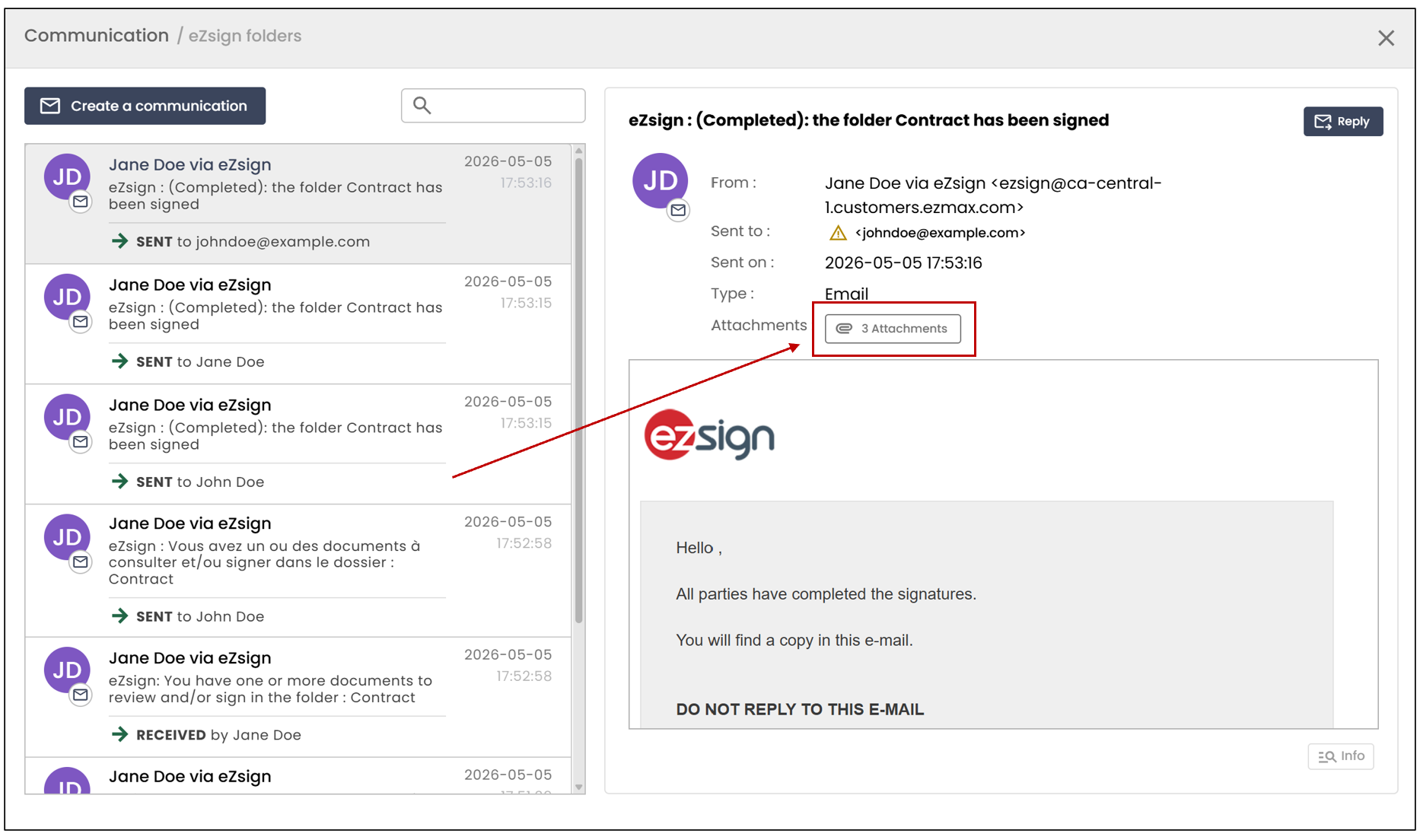
To download an attachment, simply click on the desired file. It will be automatically downloaded to your computer.