

English
EDM: Add Documents eZmax Version 4
This eZmax feature allows you to add documents to the EDM. There are 6 different ways to add documents to the application.
eZmax Local
If you open eZmax local and your file is already there, you can double-click on it.
You can then click on Send to EDM.
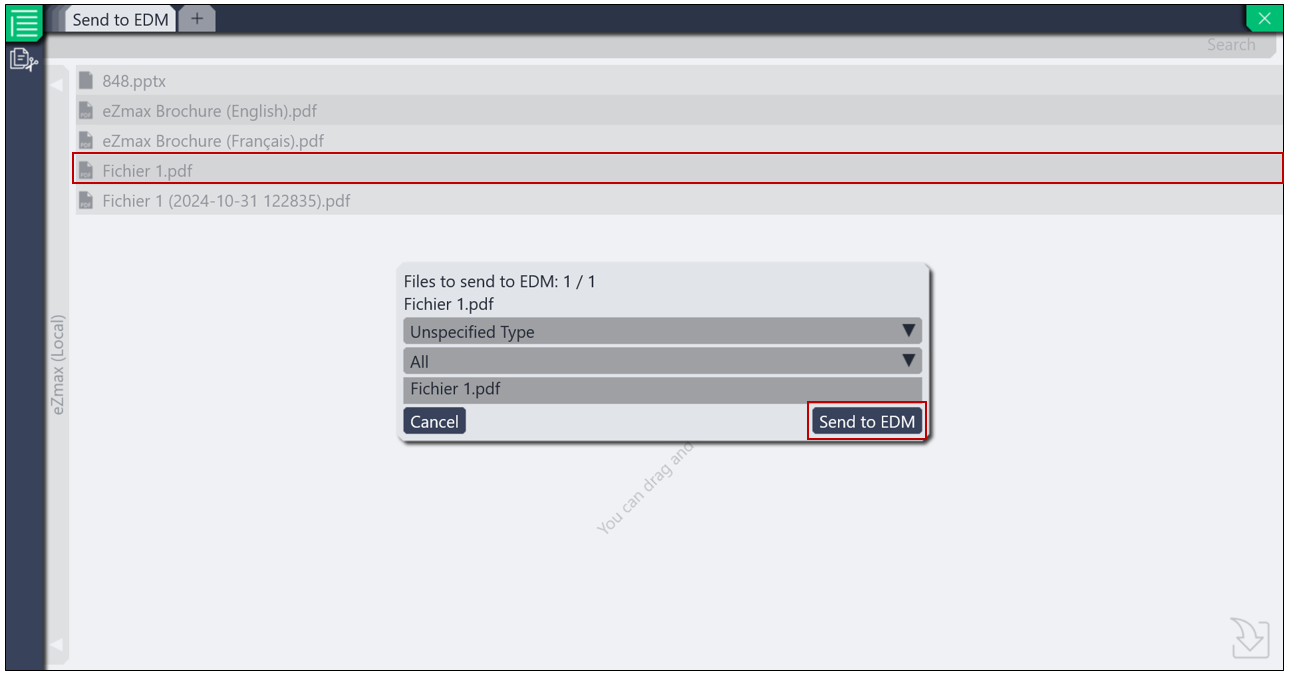
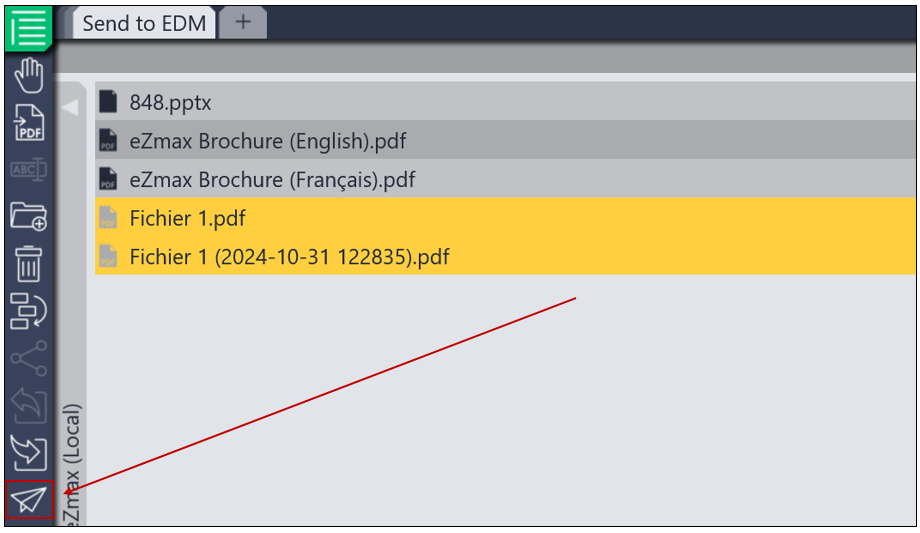
- If you want to send more than one file at a time, select them, then click on the

icon.
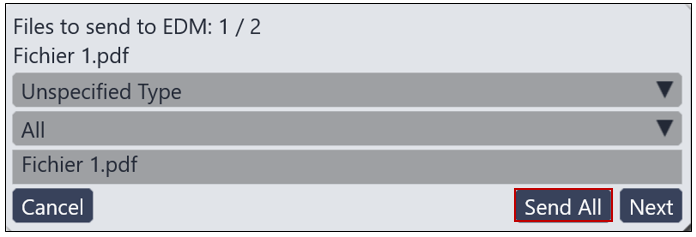
- Then click on Send all.
Drag and Drop
If your document is not already in eZmax local, you can use this second method to add documents to the EDM. Simply drag and drop a file into the application from your computer or from an email.
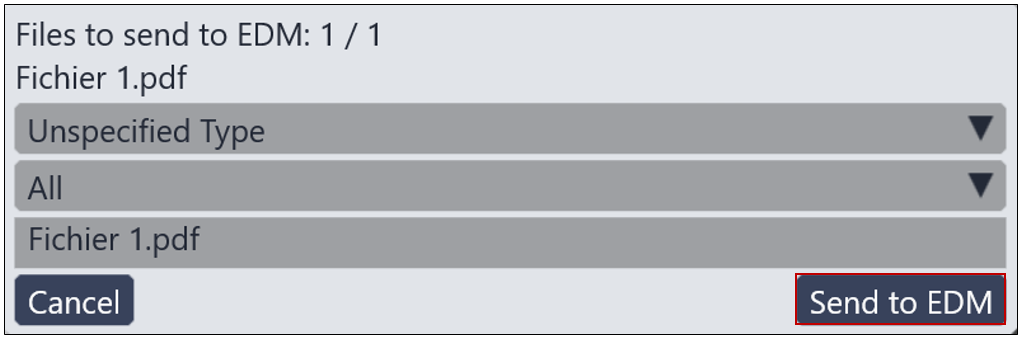
Once the document is dropped, you can click on Send to EDM.
Import Files
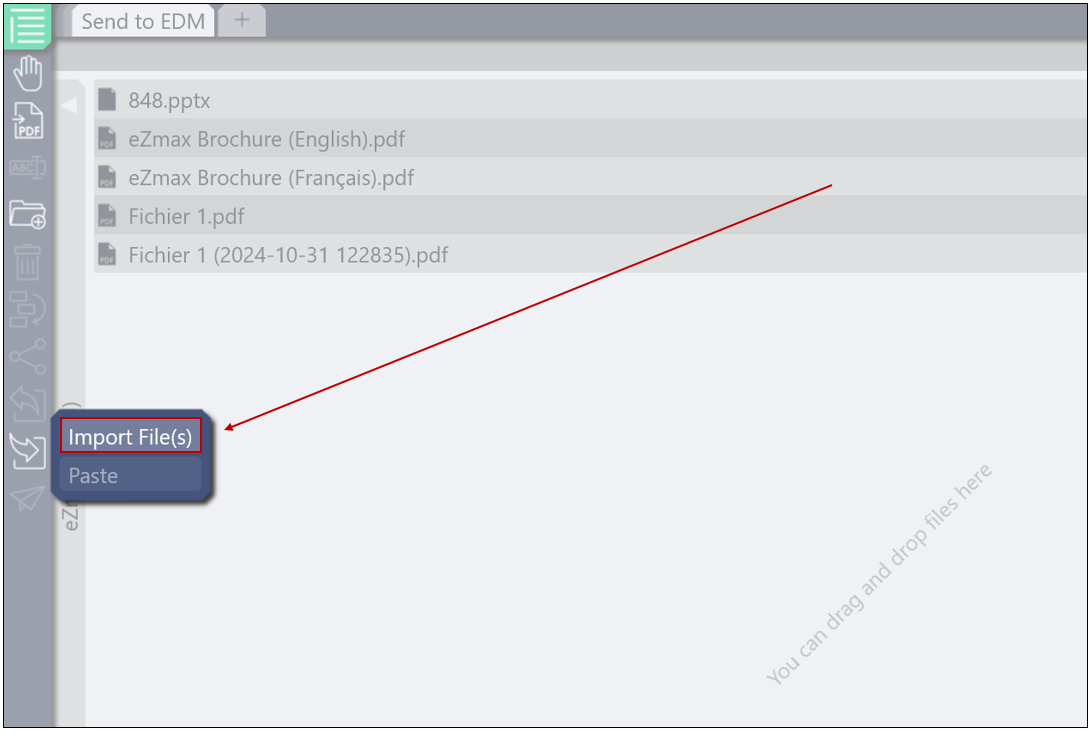
To import files directly into eZsign, you will need to click on the

icon, then on Import File(s).
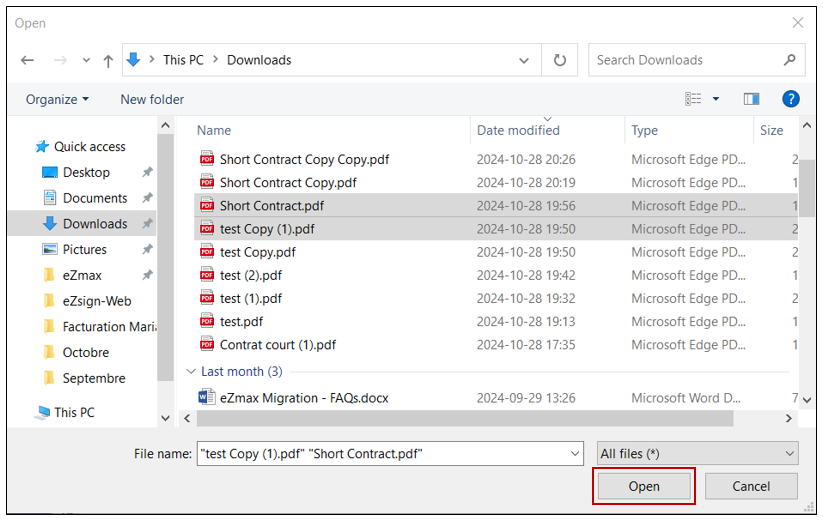
- Simply select one or more files and click on Open.
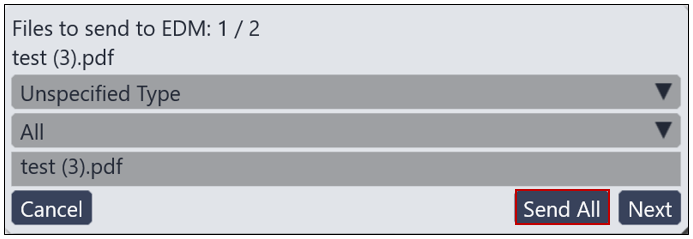
- You will then see the documents appear in eZmax local. You can click on Send All.
Share with eZmax (Open with eZmax)
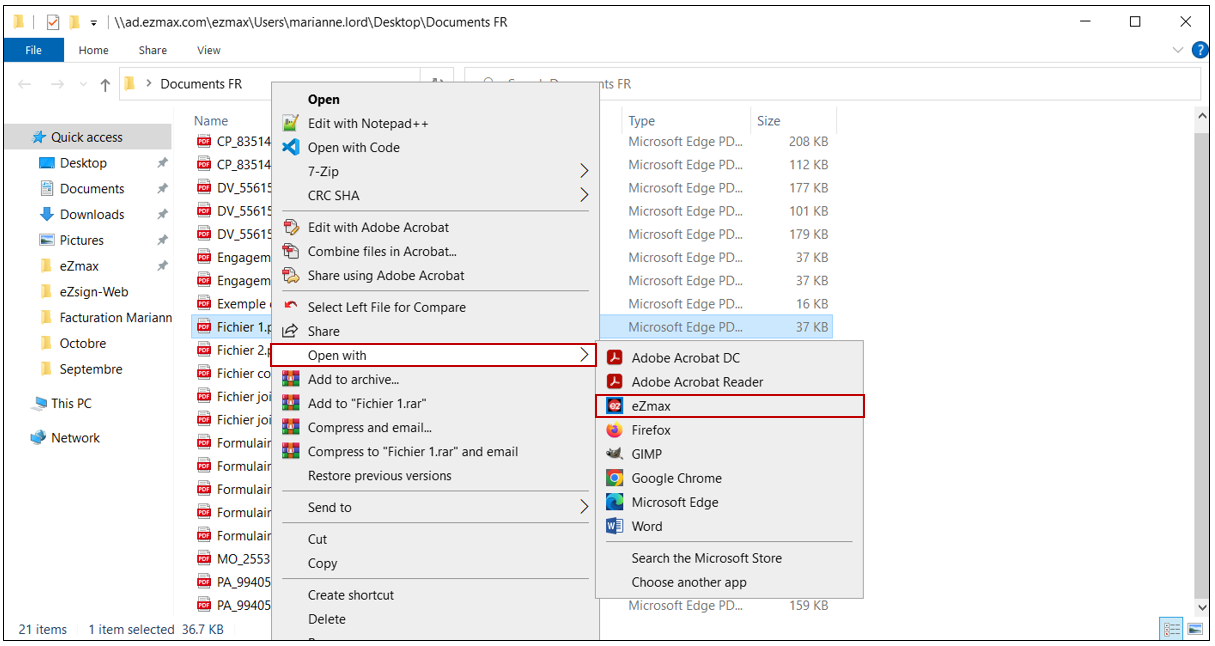
It is possible to share a file directly from your computer. You will need to right-click on the desired document, then open it with eZmax.
You will receive this message:
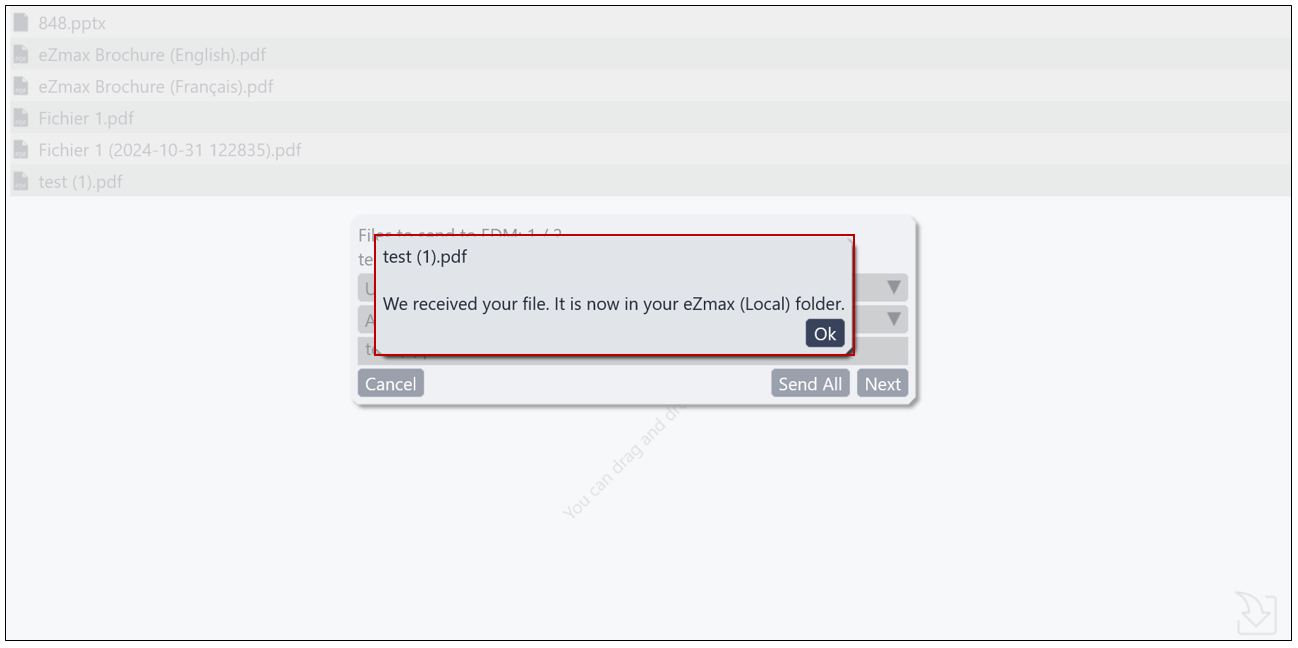
- This will send a copy of the file to eZmax local. You can then double-click on it and click on Send to EDM.
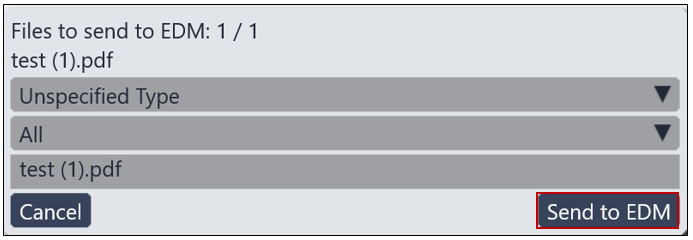
If you want to send a document to eZmax local from an email, you will need to right-click on the attachment, then click on Open with eZmax.
This will send a copy of the file to eZmax local. You can then click on Send to EDM.
Save Externally in eZmax Local
For this feature, you will need to open your browser.
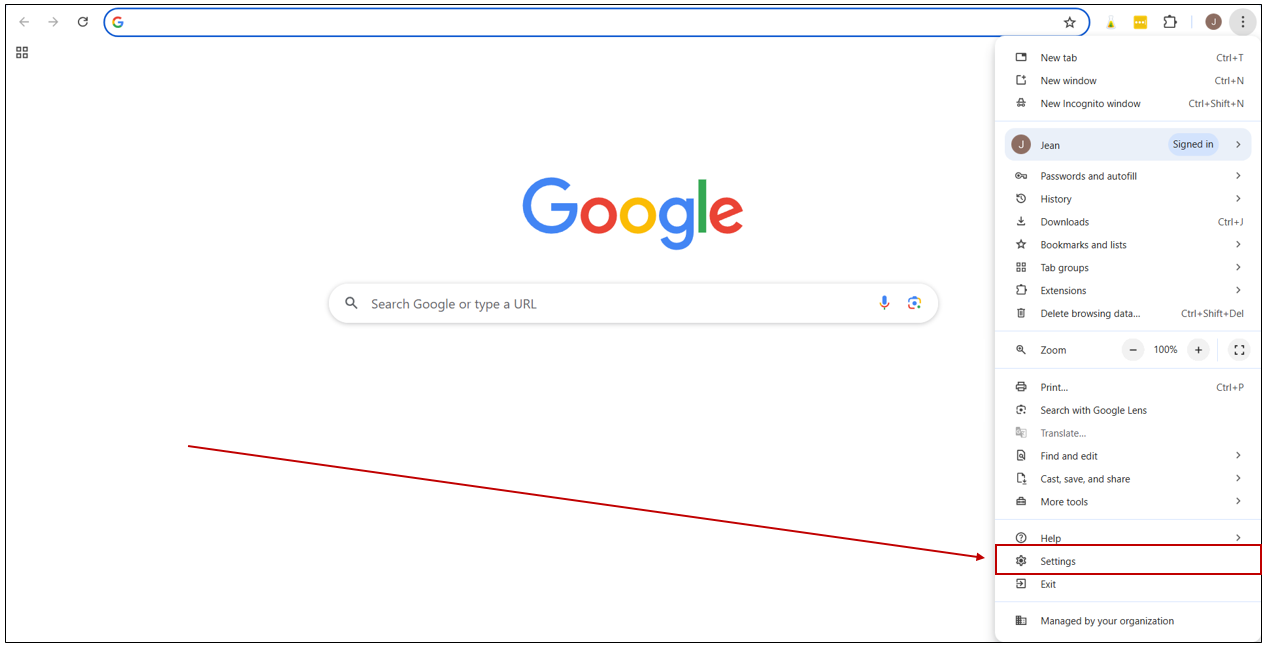
- From your browser, click on the three vertical dots >> Settings >> Downloads.
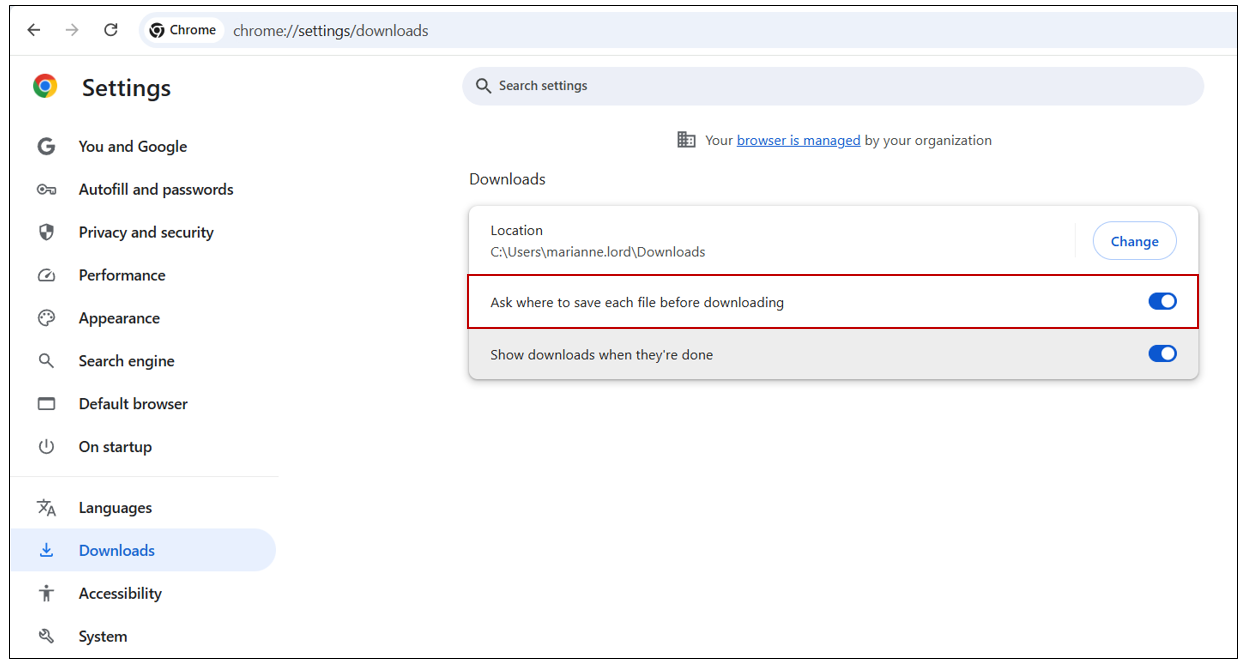
- You will then need to enable Ask where to save each file before downloading**.**
- When you download a PDF document, you can add it directly into eZmax.
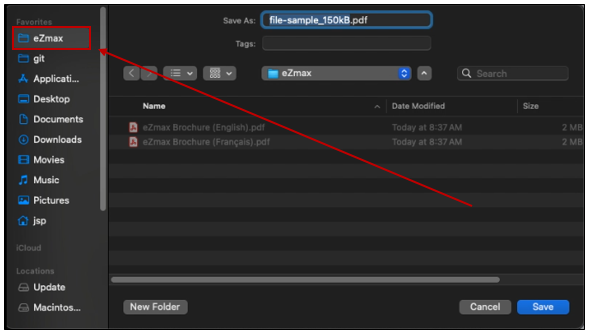
- You will also have the option to download a file into eZmax local from an email attachment. Simply right-click on it, then download the attachment. You can then select eZmax from the left menu.
Paste
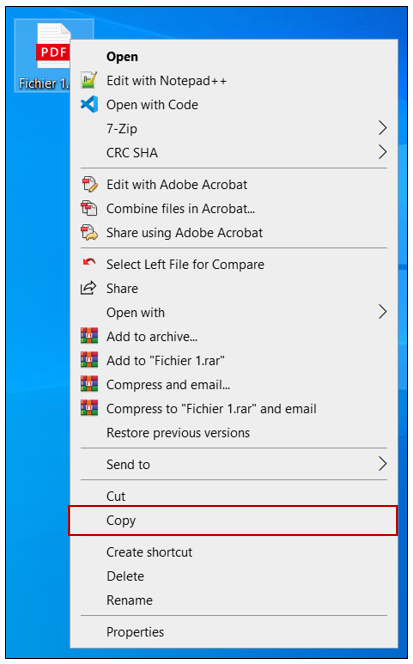
You will also have the option to copy and then paste a file directly into eZsign.
- Right-click on the desired file, then select Copy.
- In eZmax local, you can then right-click on the icon, then click on Paste.
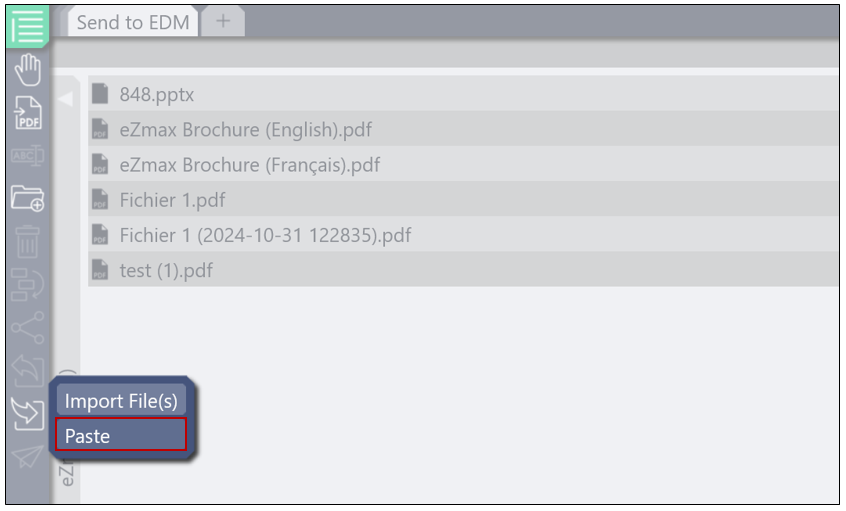
- You will then see the document appear in eZmax local. You can click on Send to EDM.