English
Filling In a Form as a User
When you need to fill in a form as an eZmax user, you can do it directly from the eZsign folder.
NOTE: Form fields must be completed before electronic signature fields.
Access the Form to Fill In - From the eZsign Folder
- In the "Signatures Status" section of the eZsign folder:
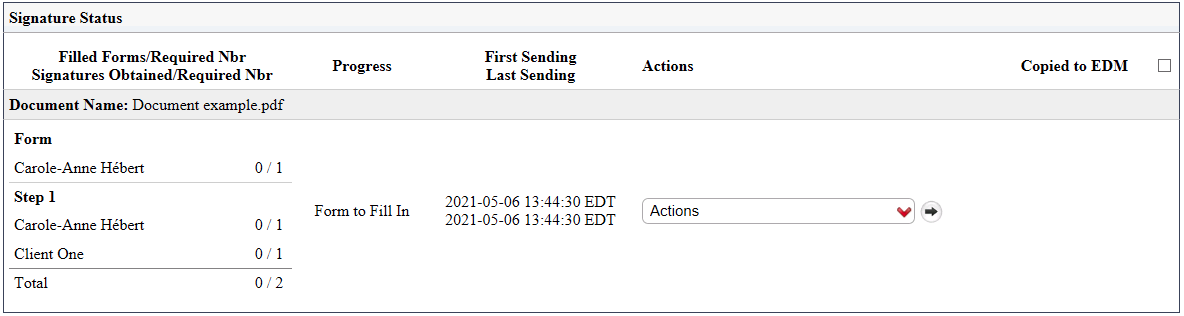
- From the Actions menu of the desired document, select "Fill In Form" to display the form.
**
Fill In the Form**
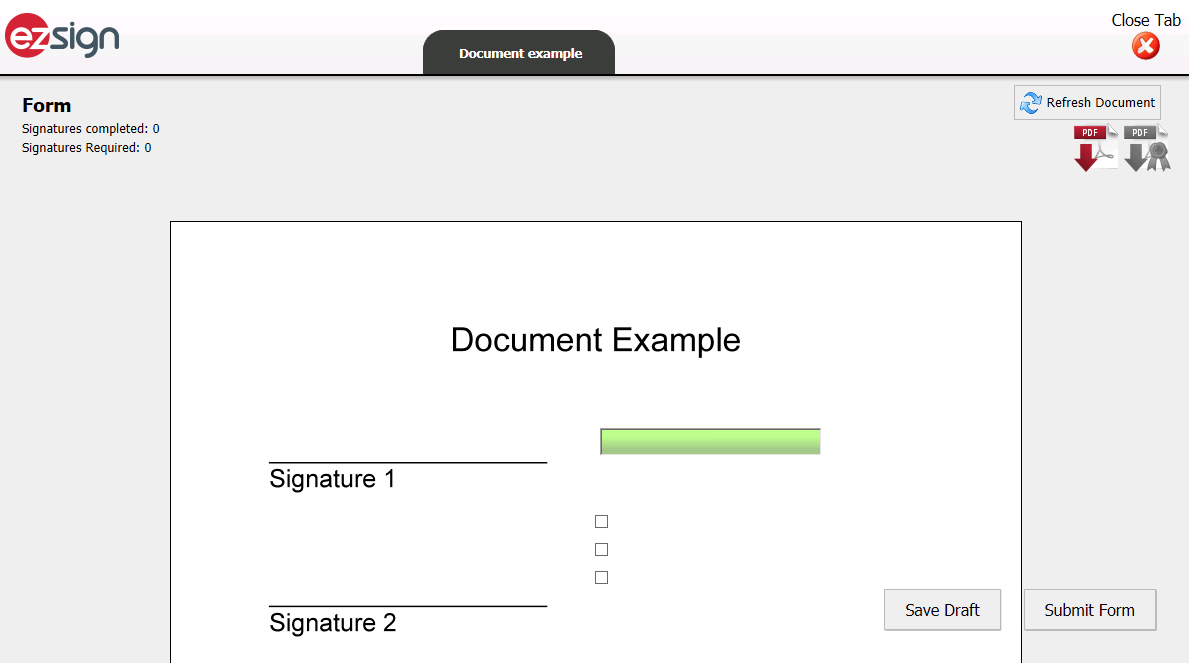
Fill in the desired form fields.
You can Save Draft to save the fields you have filled in so far. You will be able to complete the document later.
NOTE: When you have forms to complete, the message "You have pending forms." will appear on your home page.
When all the form fields are completed, click on Submit Form.
The message "The form as been processed successfully." will appear.
Click on Close to proceed to the next step.
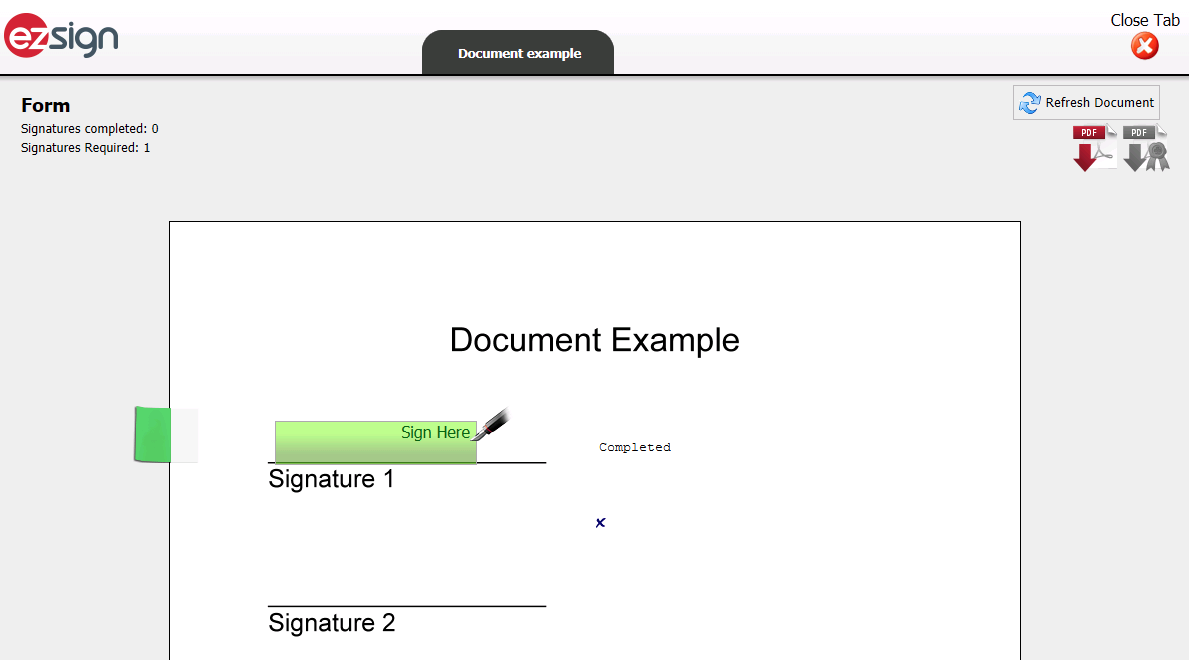
- If the document contains electronic signature fields and you are the signatory, sign the document where indicated by clicking on Sign Here.
NOTE: If the field that was added in the document is "Signature City", click on Enter the city here. Enter the name of the city from which you are signing in the window that will appear and click on Send. The system will ask you to confirm then click on Yes to confirm.
- Once electronic signature fields completed, this message will be displayed to let you know that the electronic signature process has been completed.
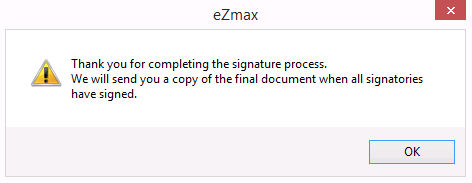
Click on OK.
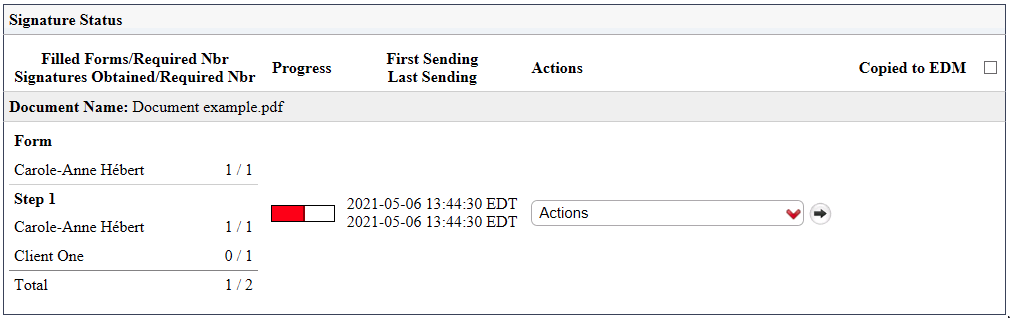
In the eZsign folder, you will see the Progress of the signatures in the form and you will be able to proceed to the next step.