

English
How to Create an eZsign Folder Without Adding a Document
It is possible to set up an eZsign folder even before adding any documents to it.
How to Create an eZsign Folder Without Adding a Document
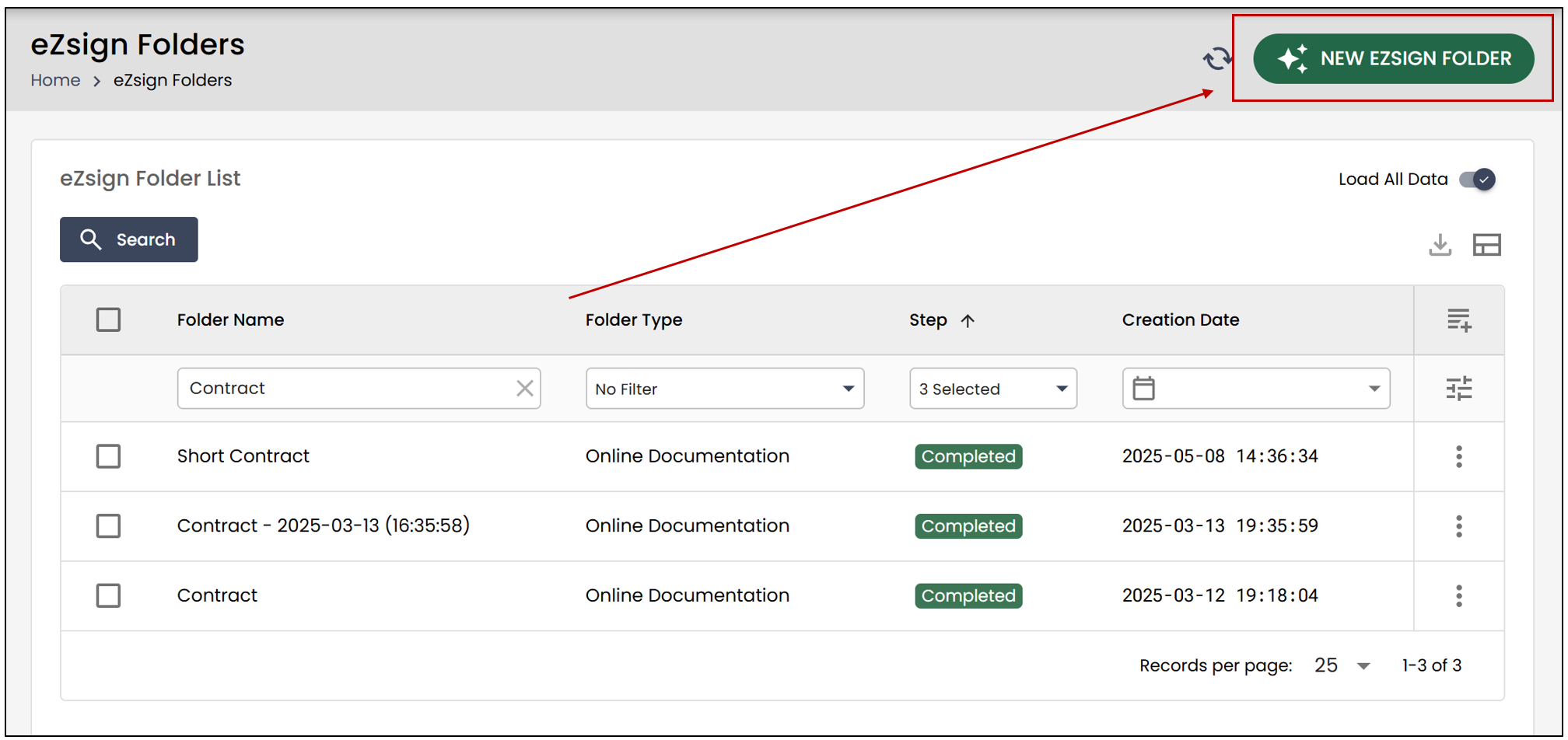
From the main menu >> eZsign Folders >> New eZsign Folder.
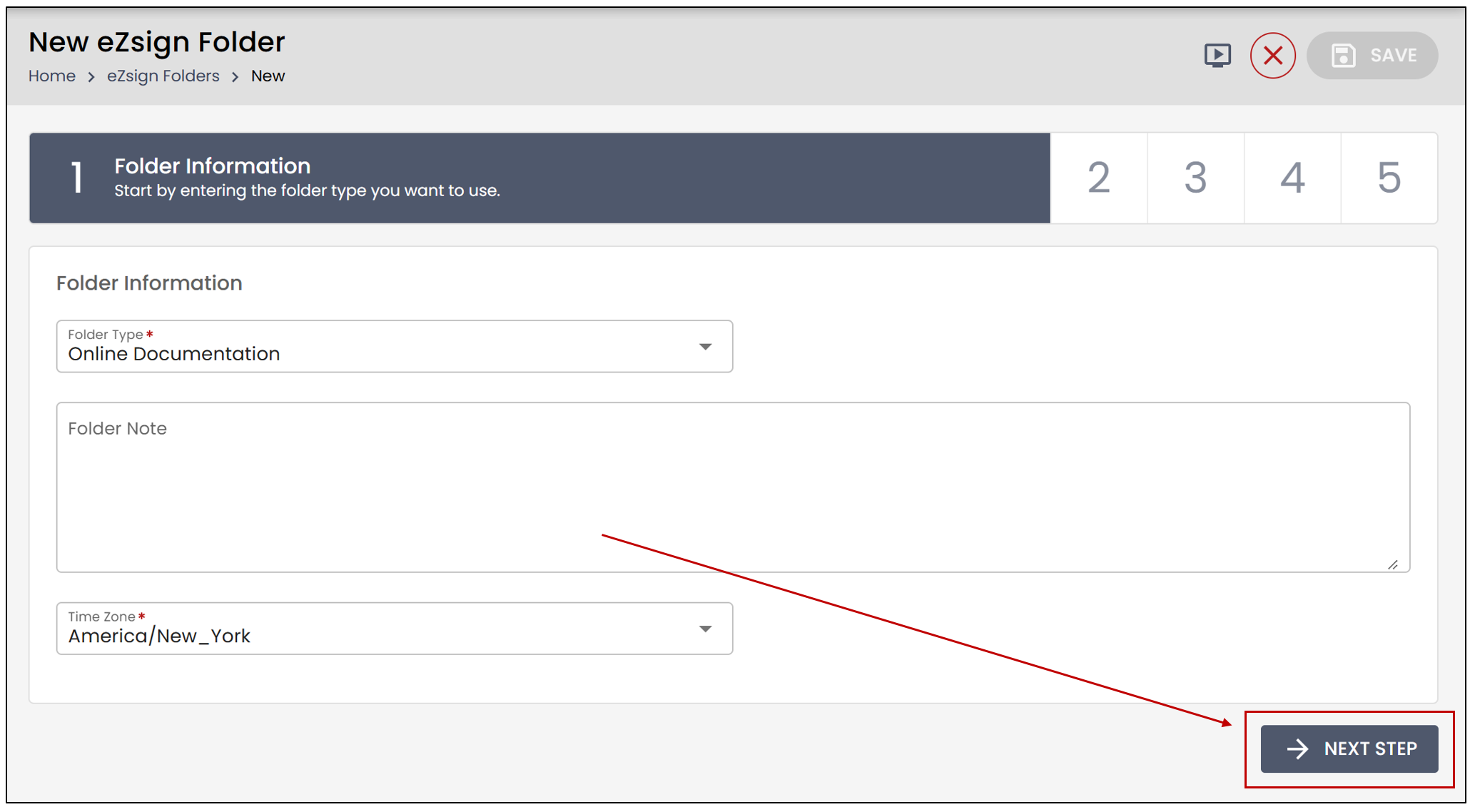
- Select the folder type from the drop-down list, then click Next Step.
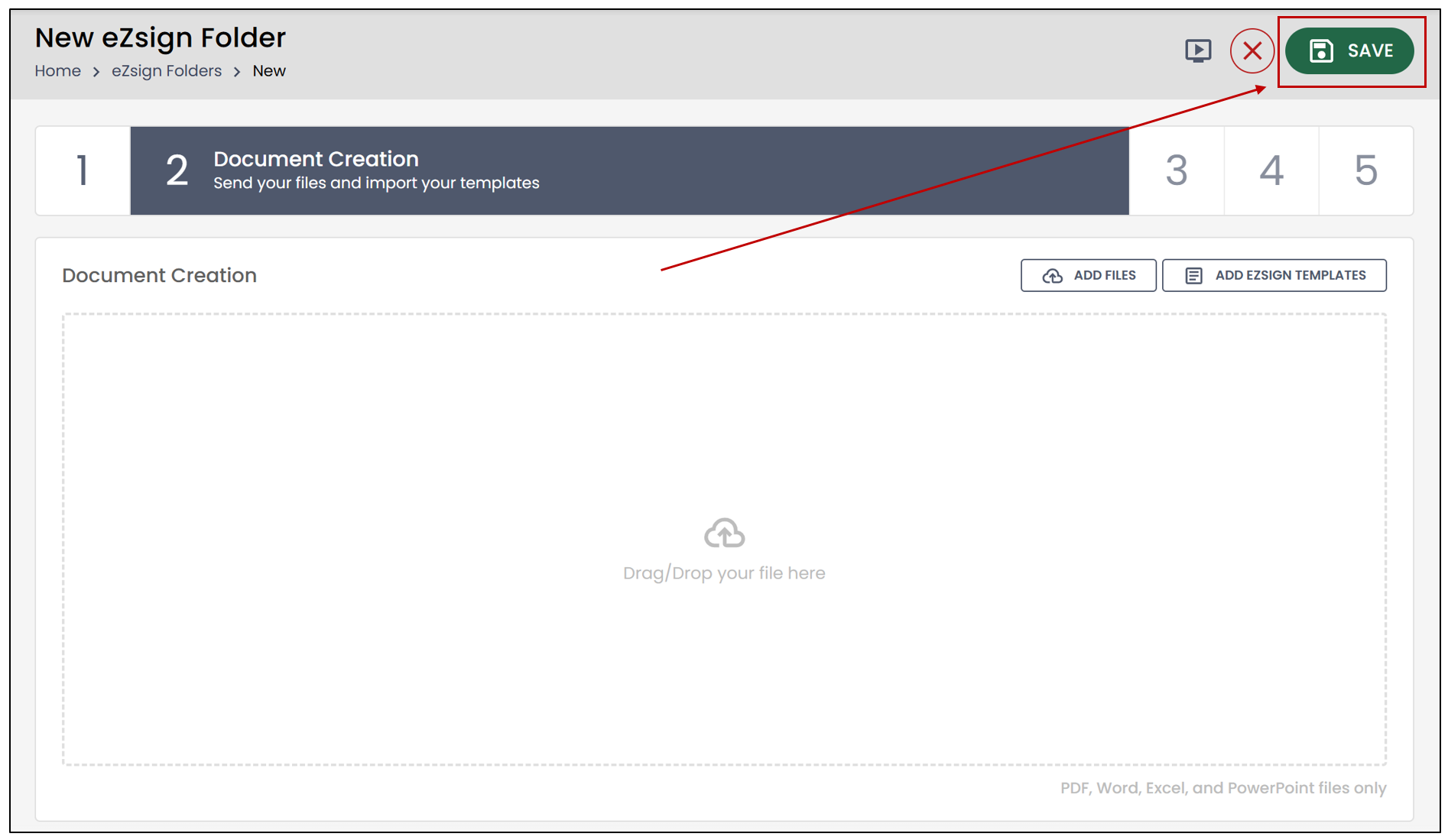
- At the Document Creation step, if you do not wish to add any documents, you can simply click Save in the top-right corner.
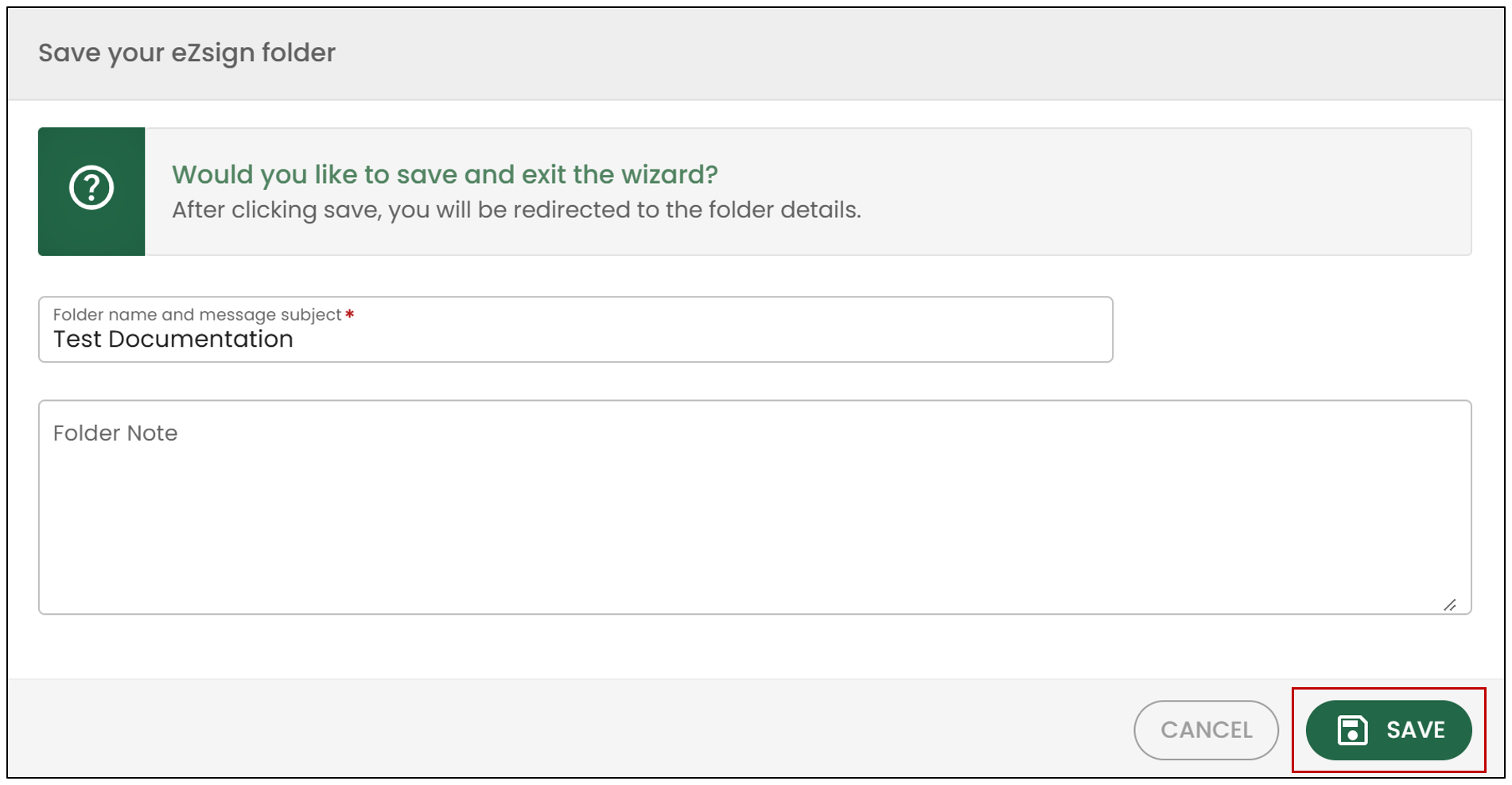
- Enter the folder name, then click Save.
- Your folder will then be saved.
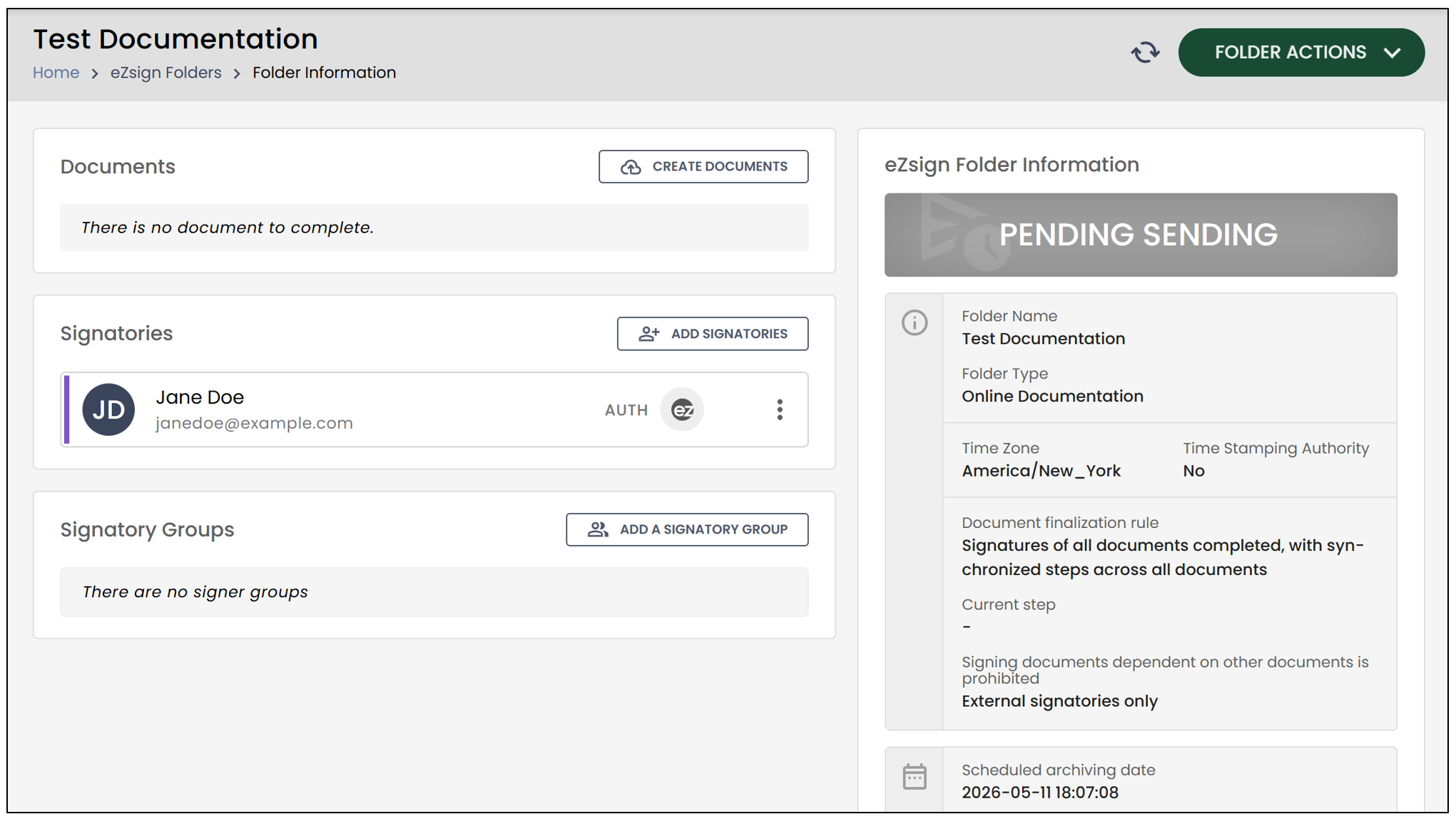
Adding Signers to the Folder
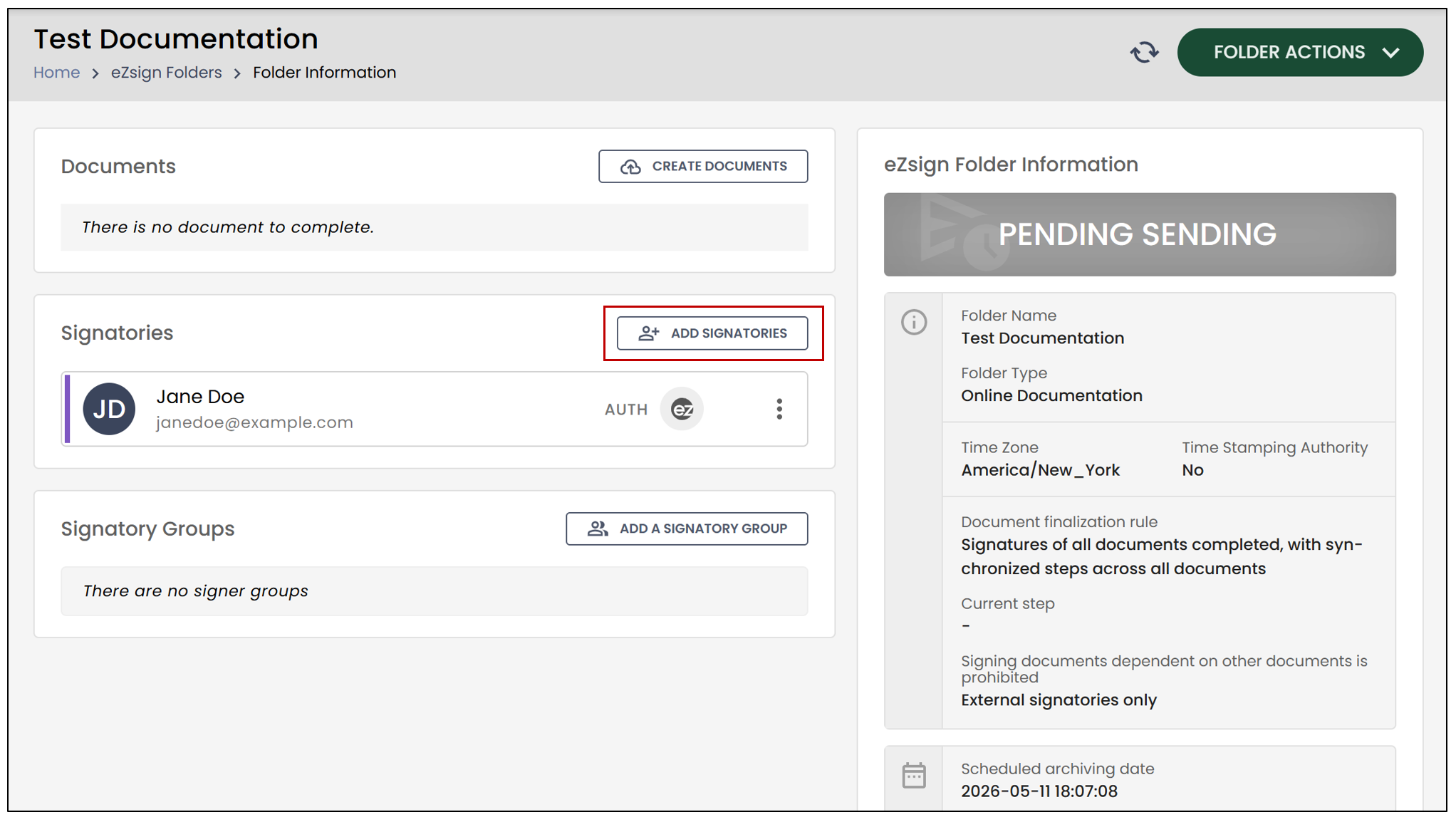
- To add signers to the folder, click Add Signatories.
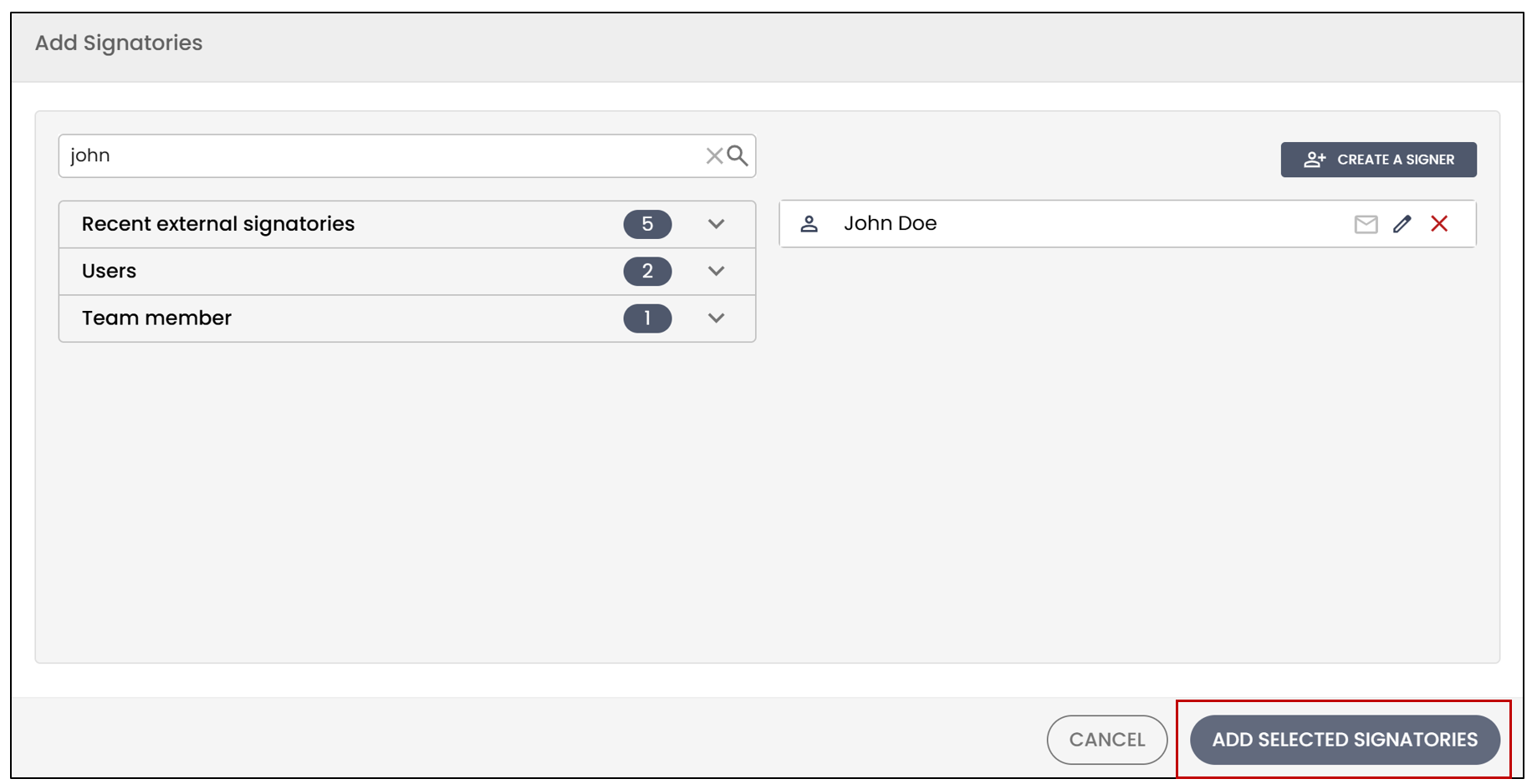
You can then add existing signatories or Create a Signer.
- Click Add Selected Signatories to add the signers to the folder.
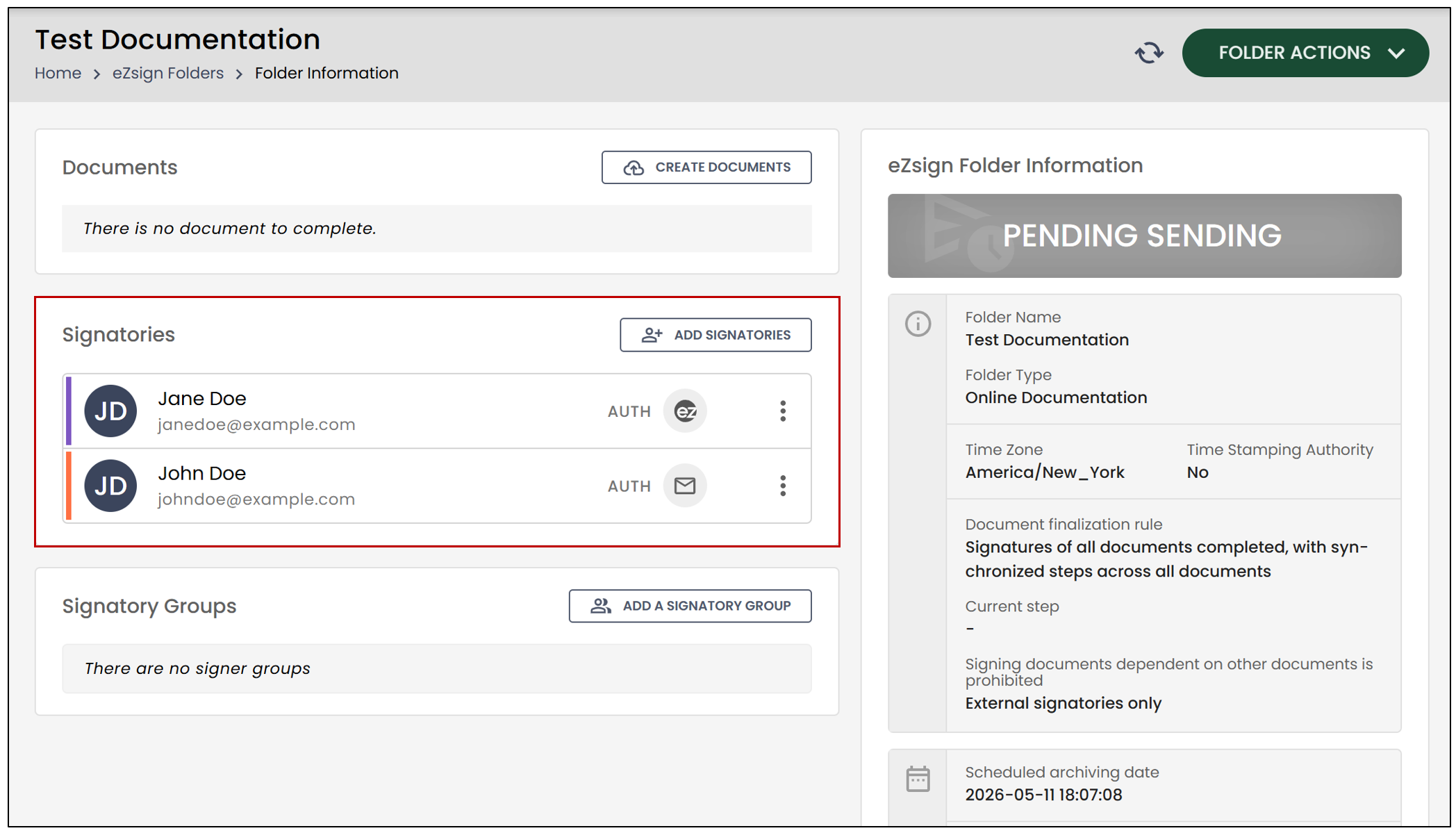
You will be able to see the new signers in the Signatories section of your eZsign folder.
Adding Documents to the Folder
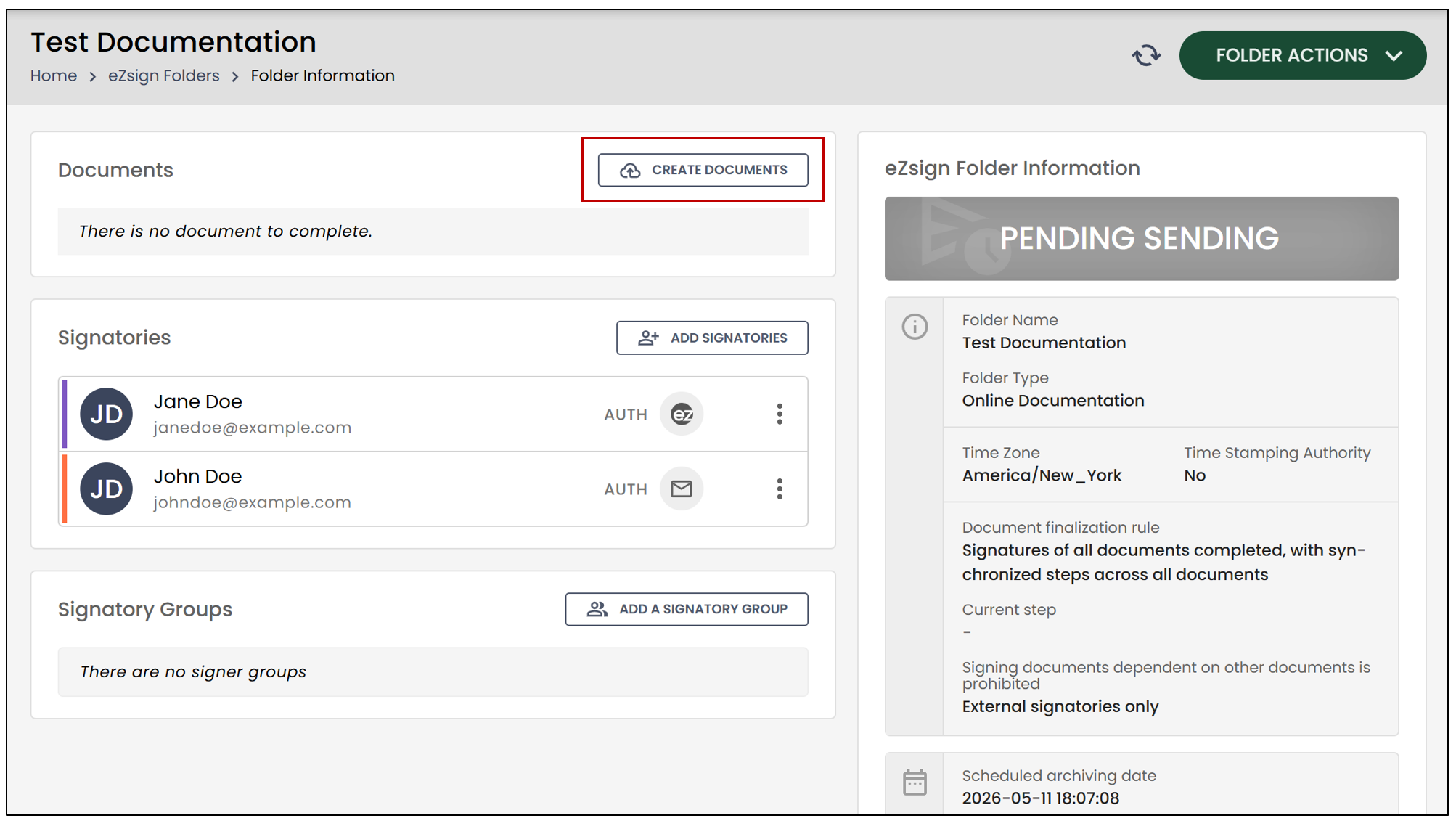
- After saving your folder, you will be able to add documents by clicking Create Documents.
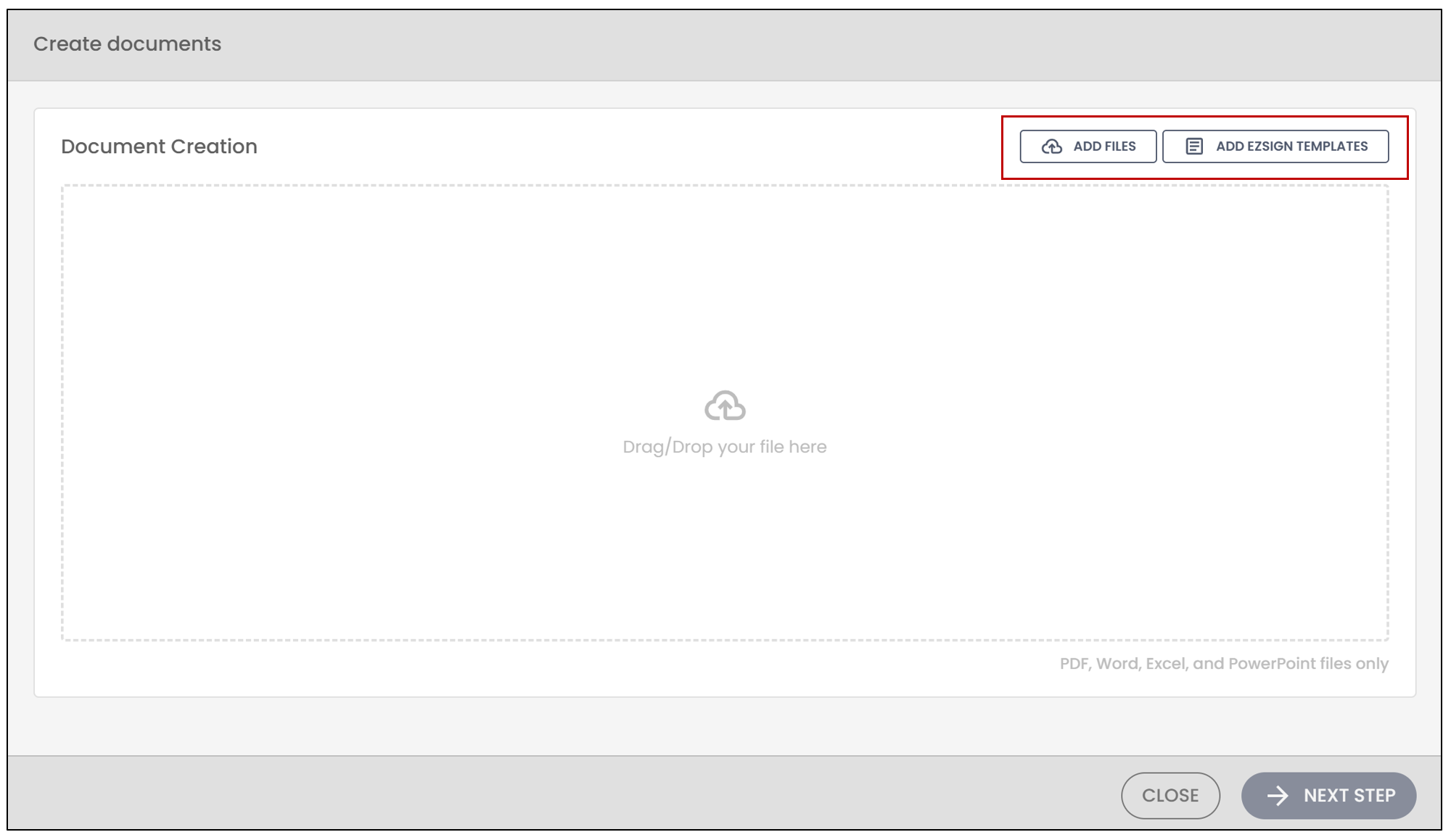
You will be automatically redirected to the document creation step. You can then add files or eZsign templates.
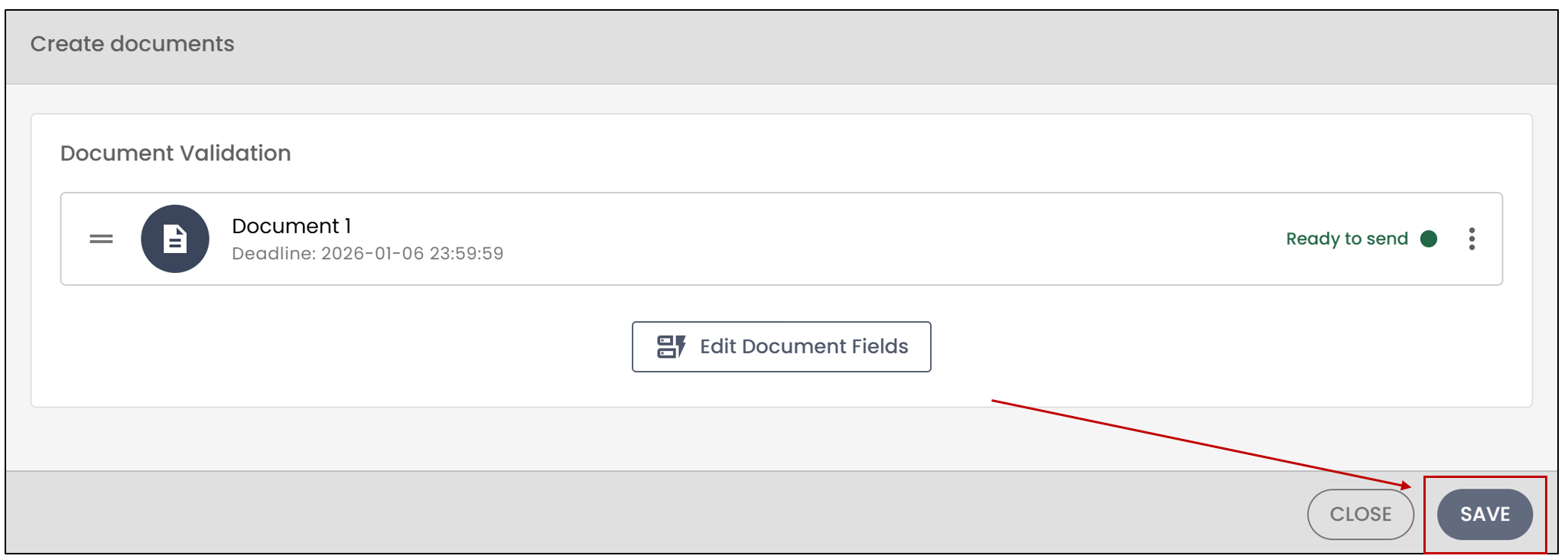
- You can then edit the document fields and click Save.
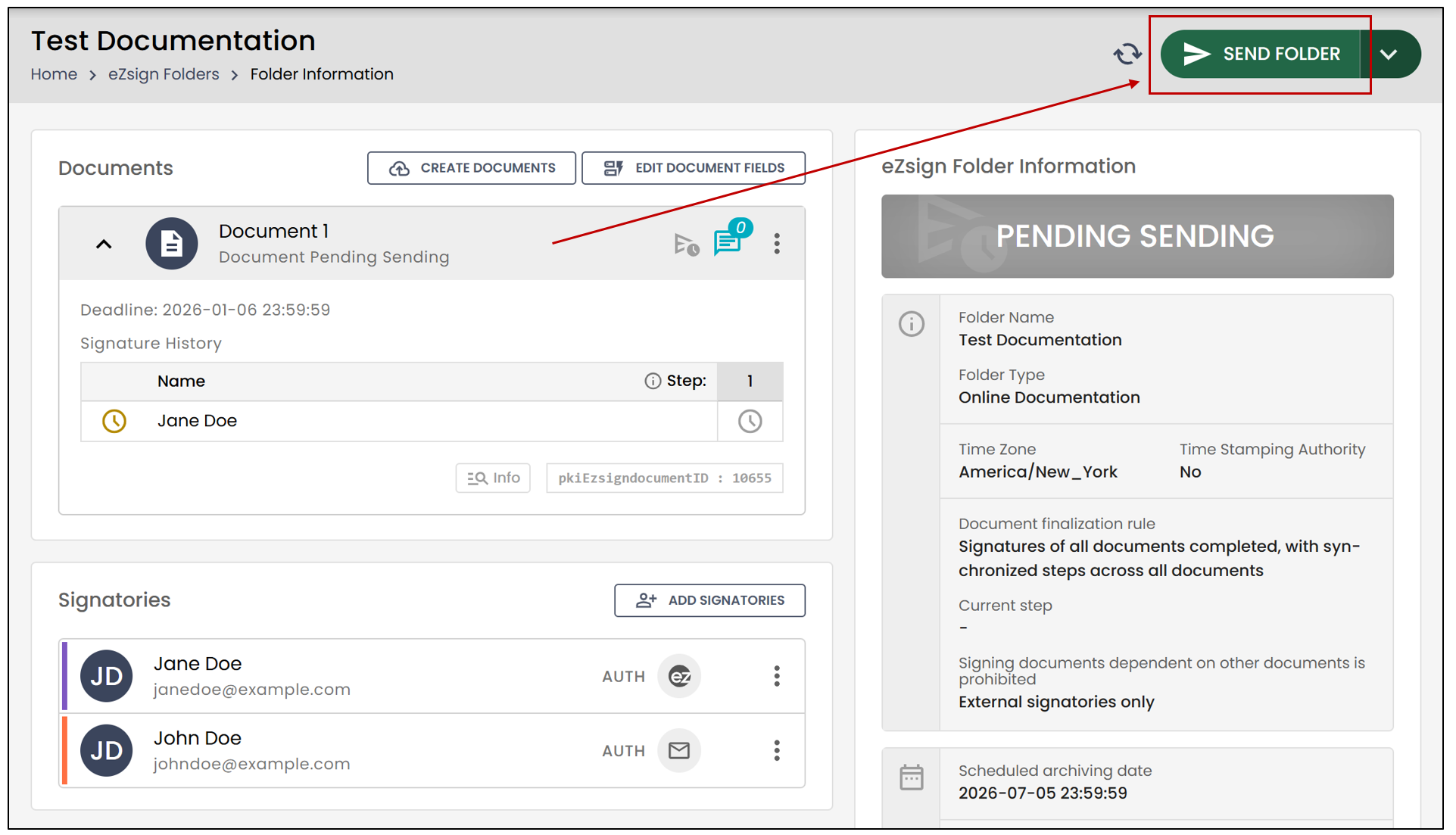
Warning
The documents will not be sent automatically after saving the document. You will need to send it manually by clicking Send Folder , located in the top-right corner.
For more information, please refer to the article Creating an eZsign Folder: Start Here .