English
Create a Bulk Send (eZsign Web)
Create a Bulk Send
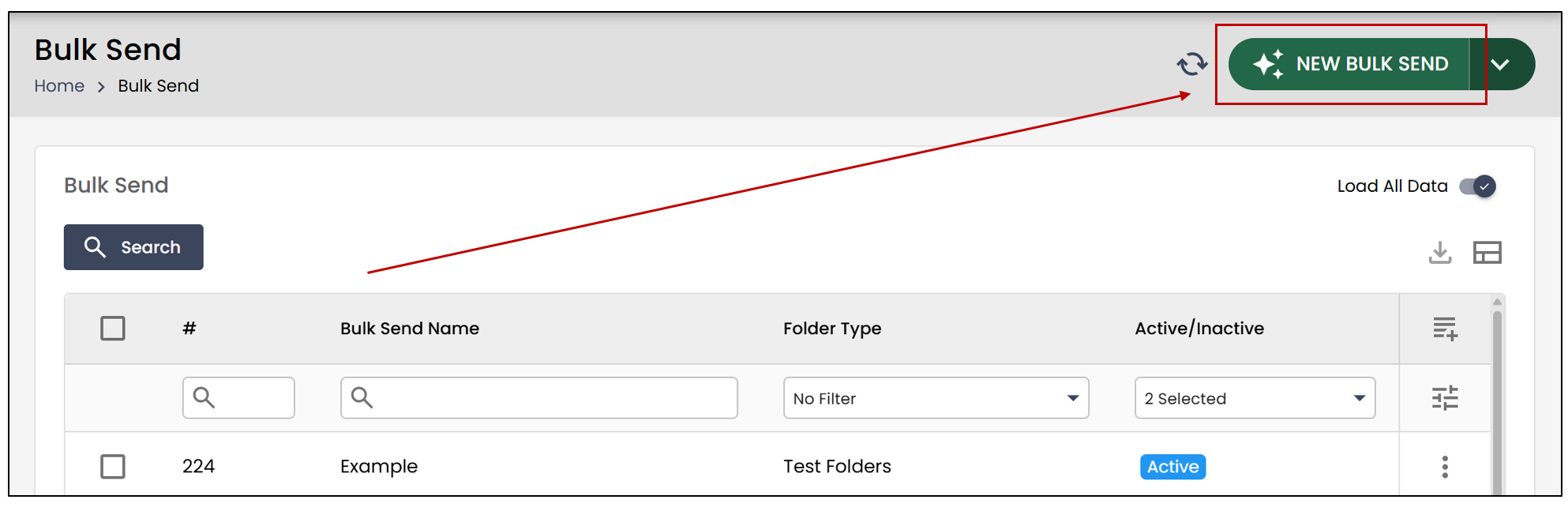
From the main menu >> Bulk Send >> New Bulk Send.
Bulk Send Information
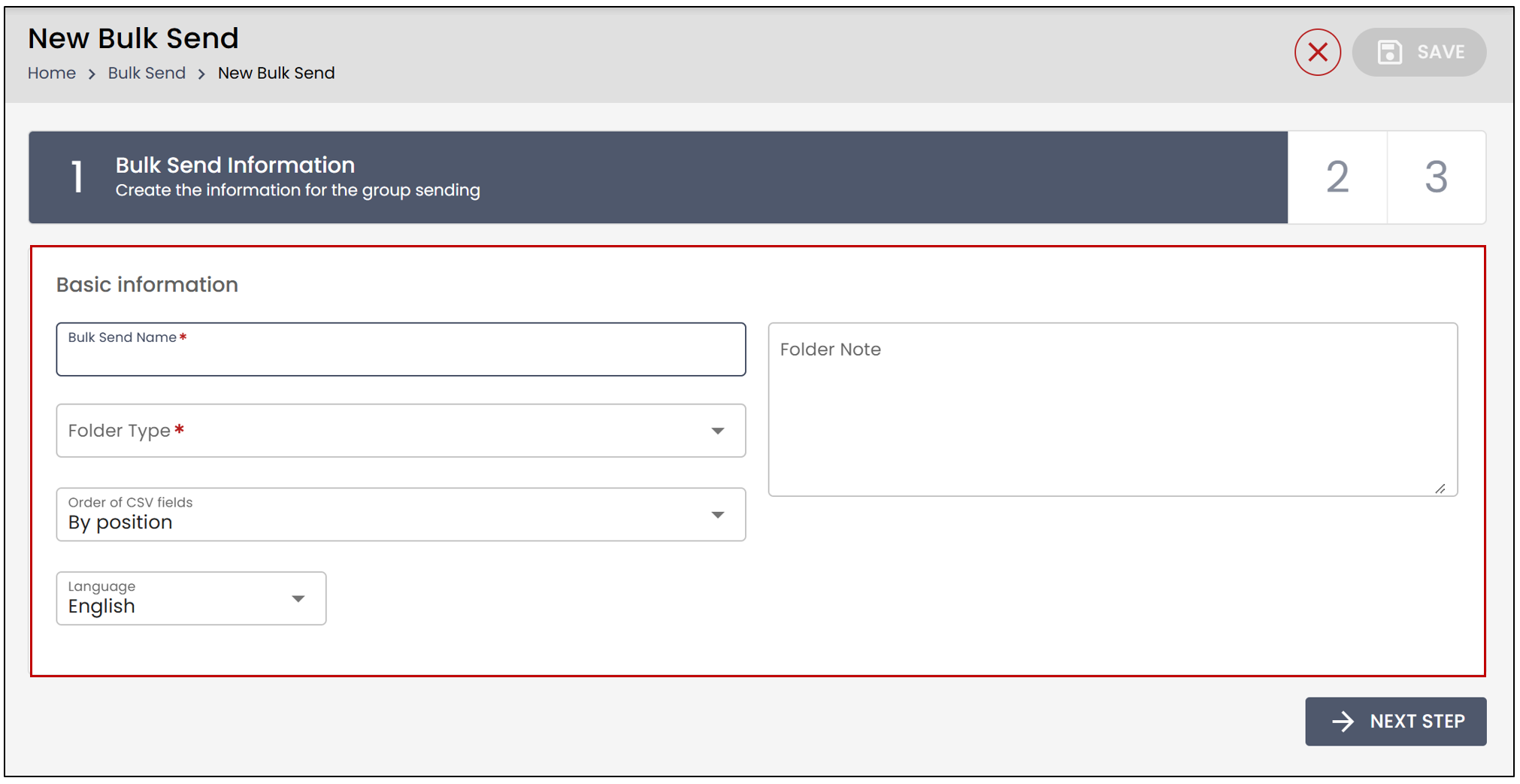
Bulk Send Name : Choose the name for the bulk send.
Folder Type : Select the folder type where the bulk send will be located.
Order of CSV fields
- By position : The fields will be listed in the same order as they appear in the document within the CSV file.
- By field name : The fields will be listed in alphabetical order in the CSV file.
Language : Select French or English.
Folder Note : You have the option to add a note to the folder.
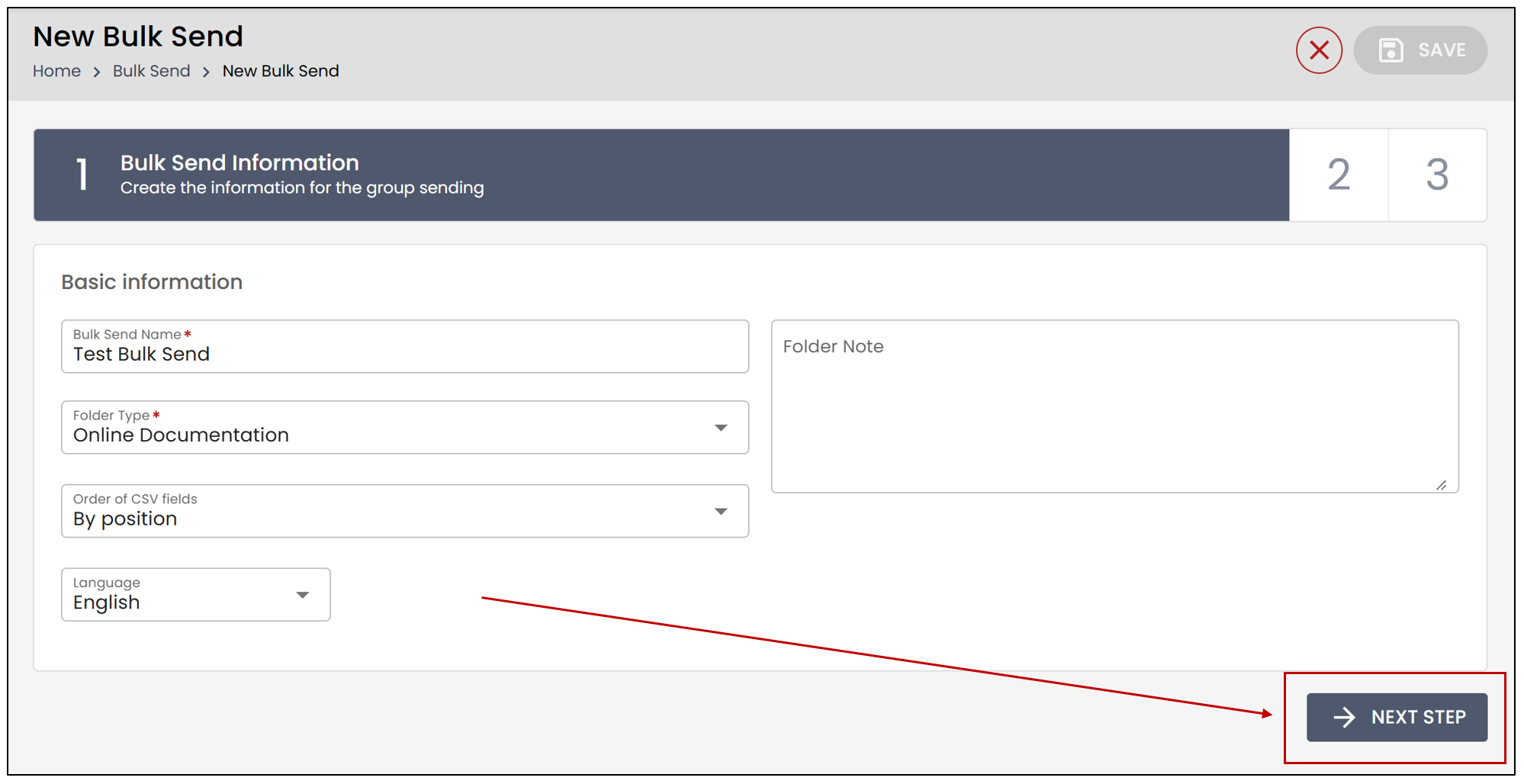
- Click Next Step.
Add Documents
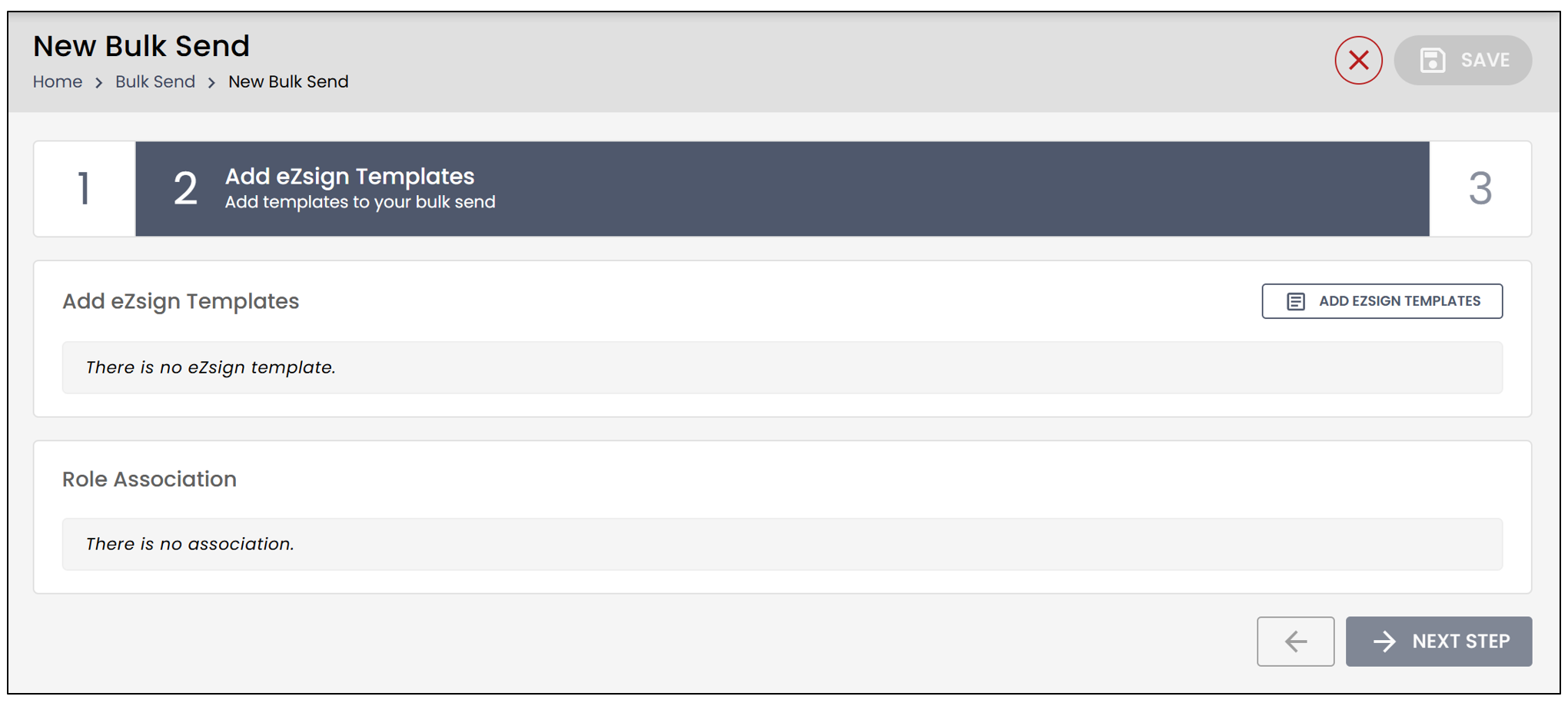
- During the Add eZsign Templates step, you will have the option to add eZsign templates.
NOTE: If you want to add an eZsign template, make sure it is located in the folder type you previously selected.
- Click Add eZsign Templates , then click the "+" to add the desired template.
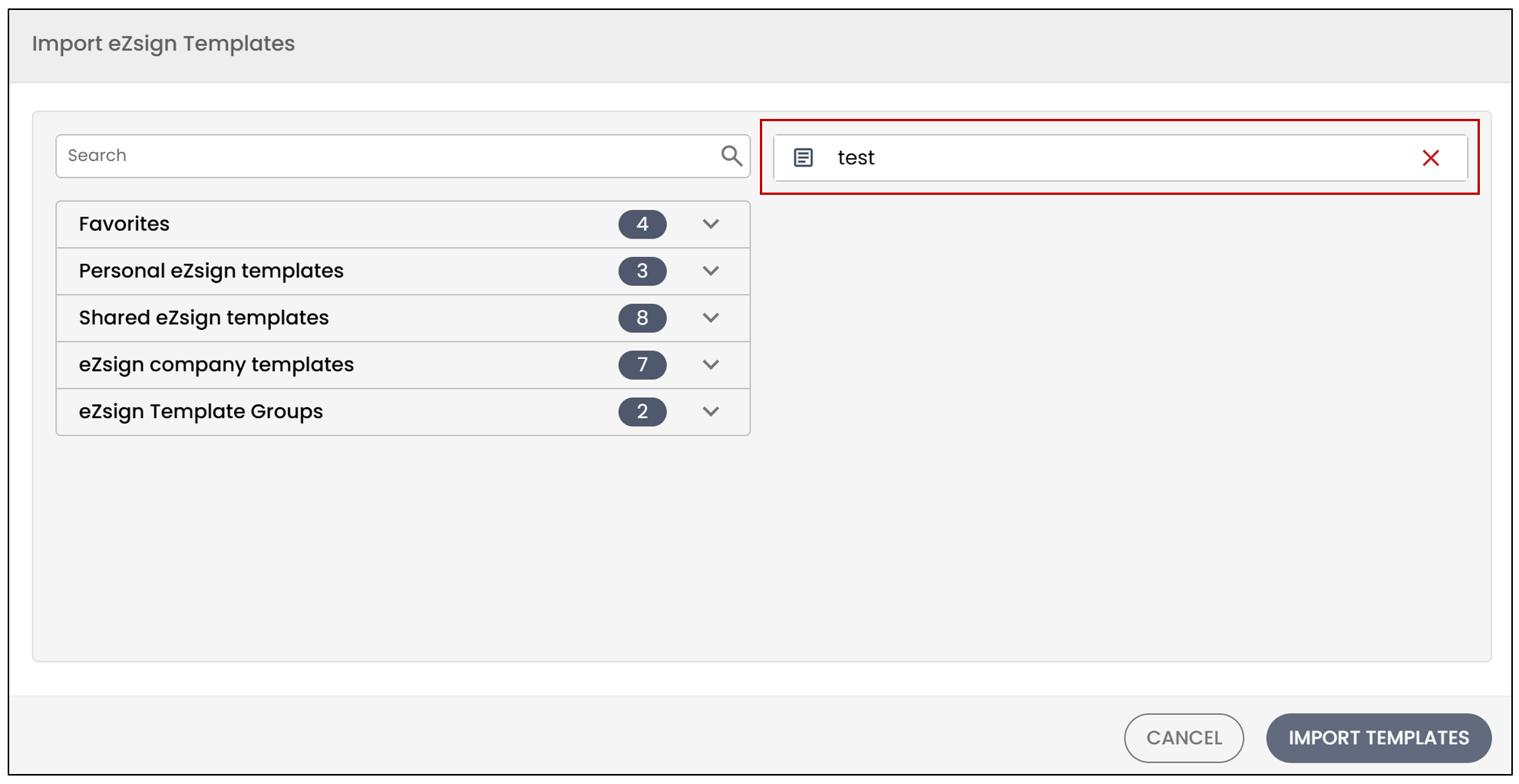
- Then click on Import Templates.
Role Association
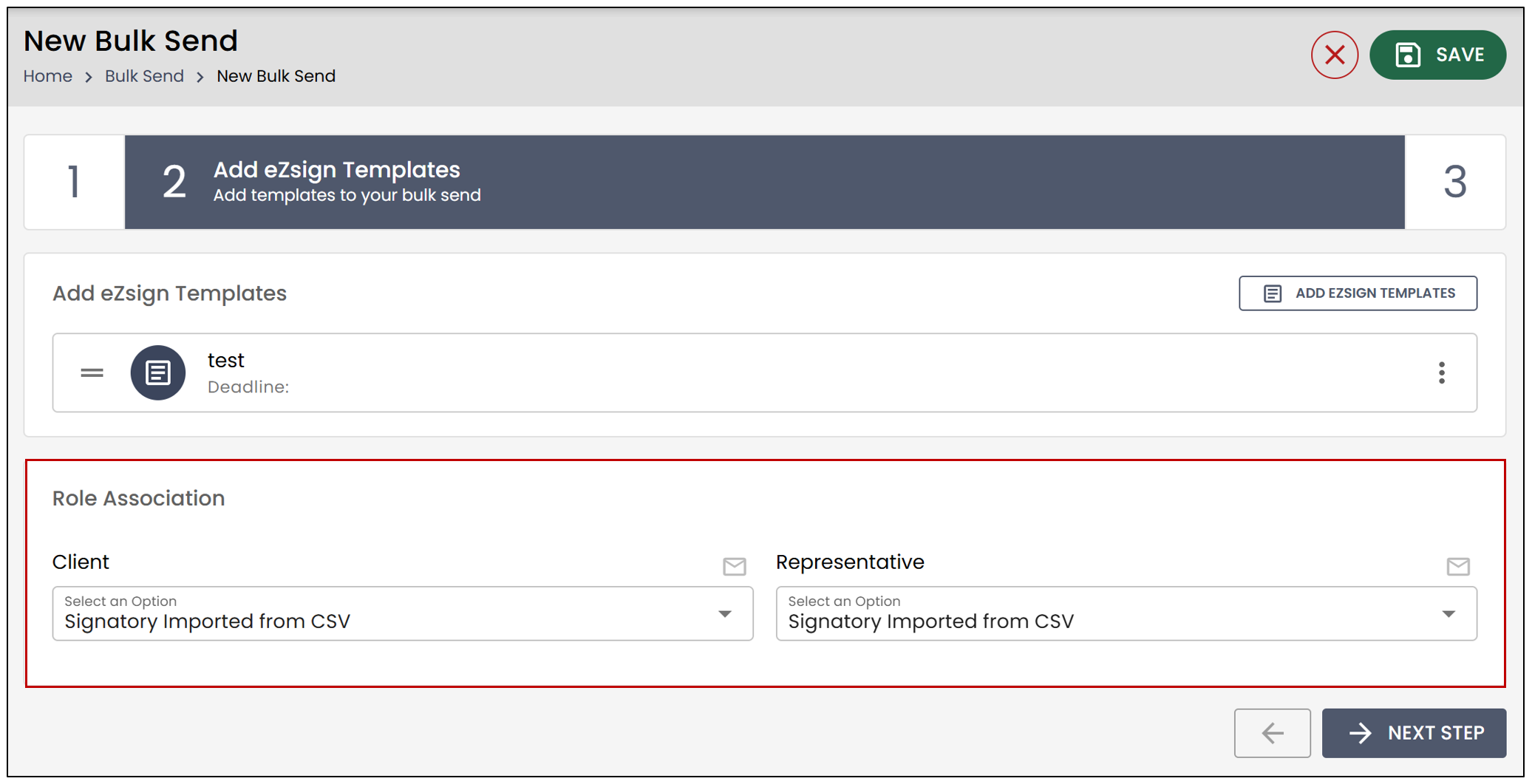
Next, it will be necessary to determine the source of the individuals who will be signing. If you want the company representative as well as the client to be imported from the CSV, select this option. If you wish to sign the document yourself, select You.
- Once the source of the signers is selected, click Next Step.
Transmission Creation
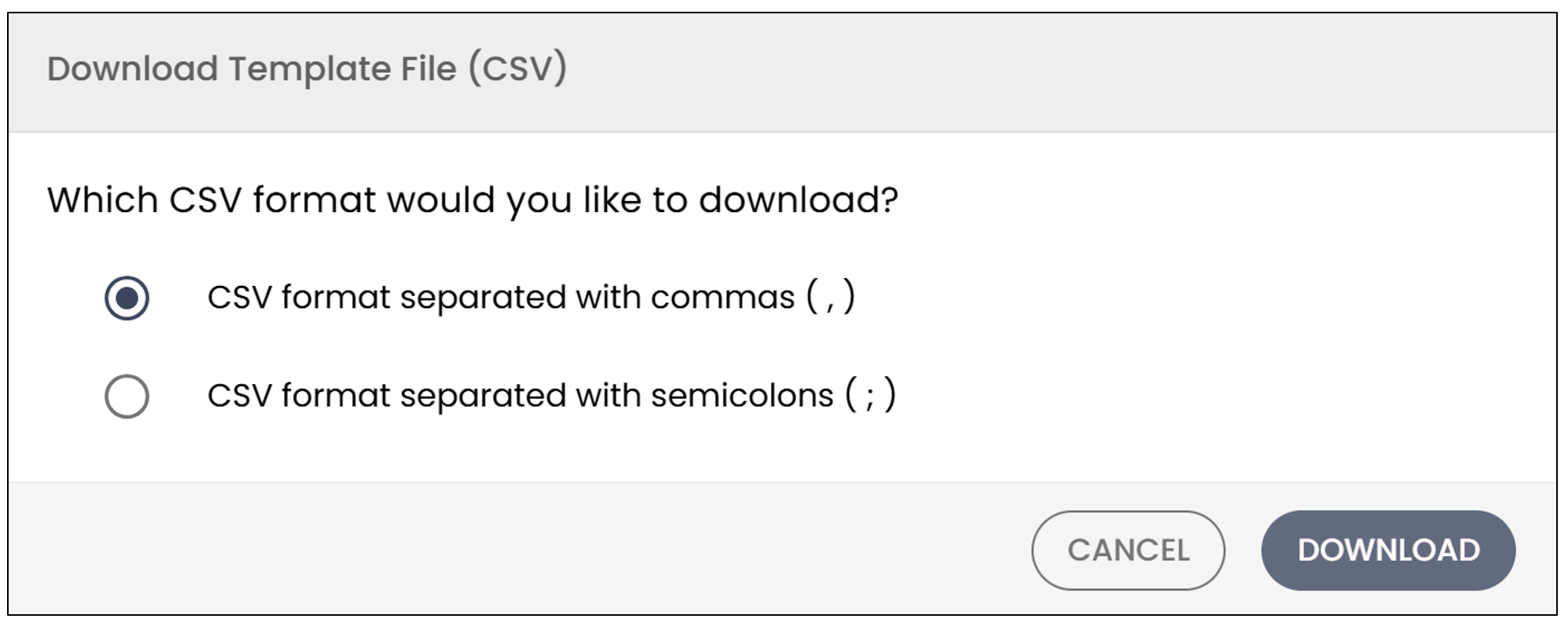
- To fill out the CSV file, you will need to Download Template File (CSV).
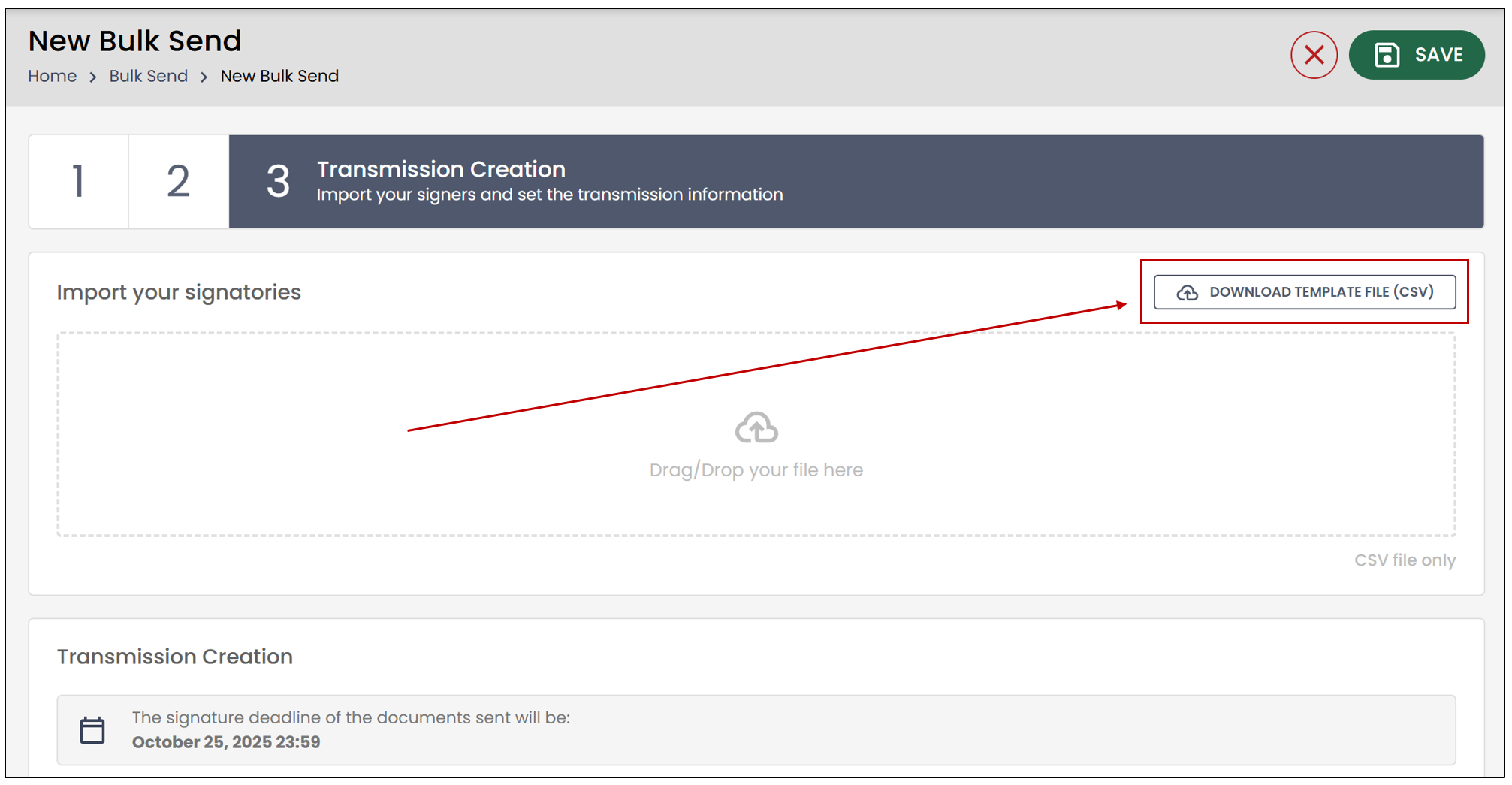
- Choose the desired CSV format, then click Download.
After opening the file, you can fill in the information for all the individuals who will receive the document for signing.
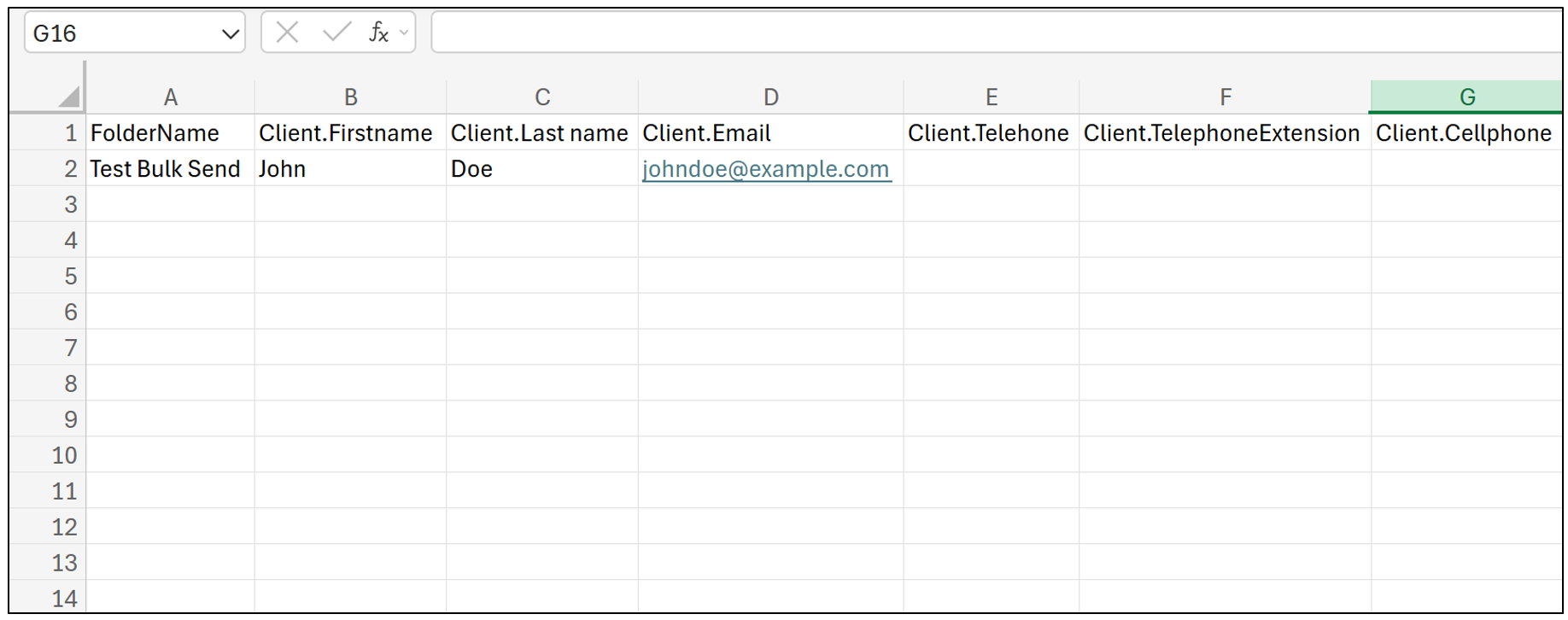
NOTE: It is much more efficient to complete this document than to send each document individually.
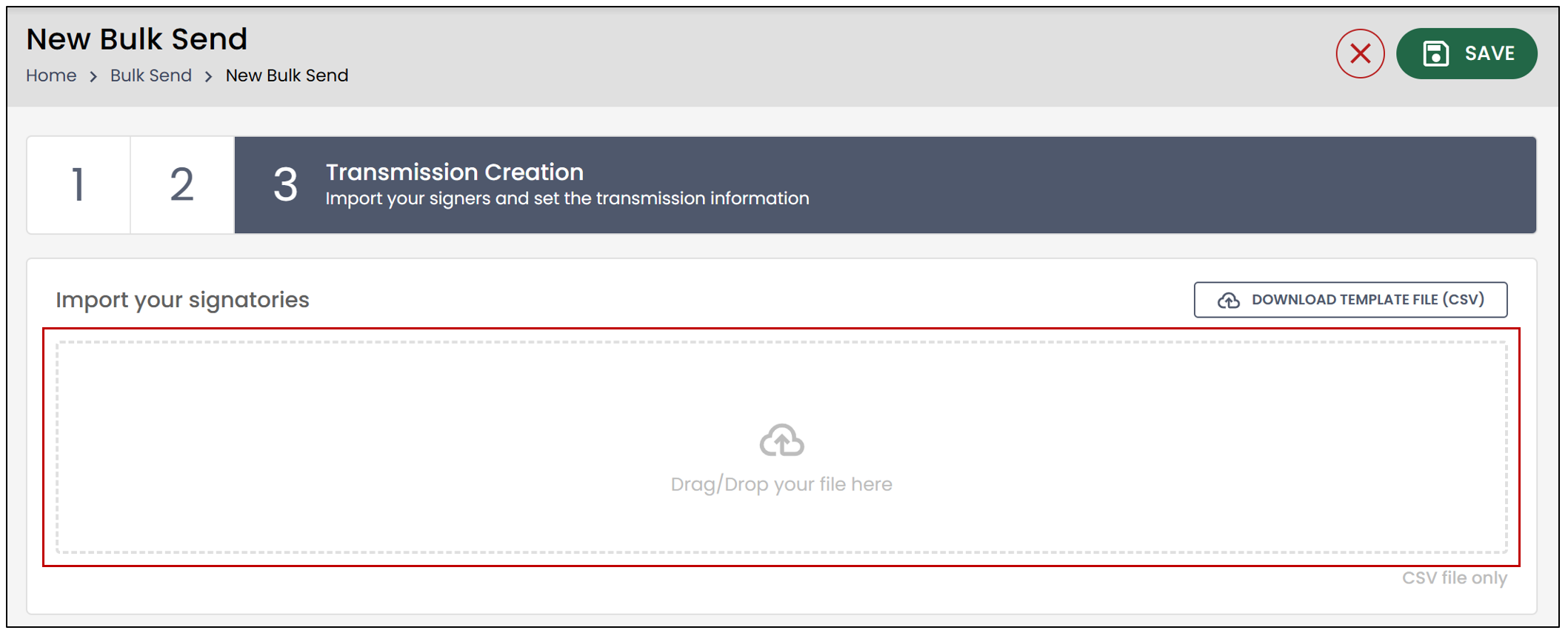
- Once saved, drag and drop the document into the Import your signatories**** section, then click Send the transmission.
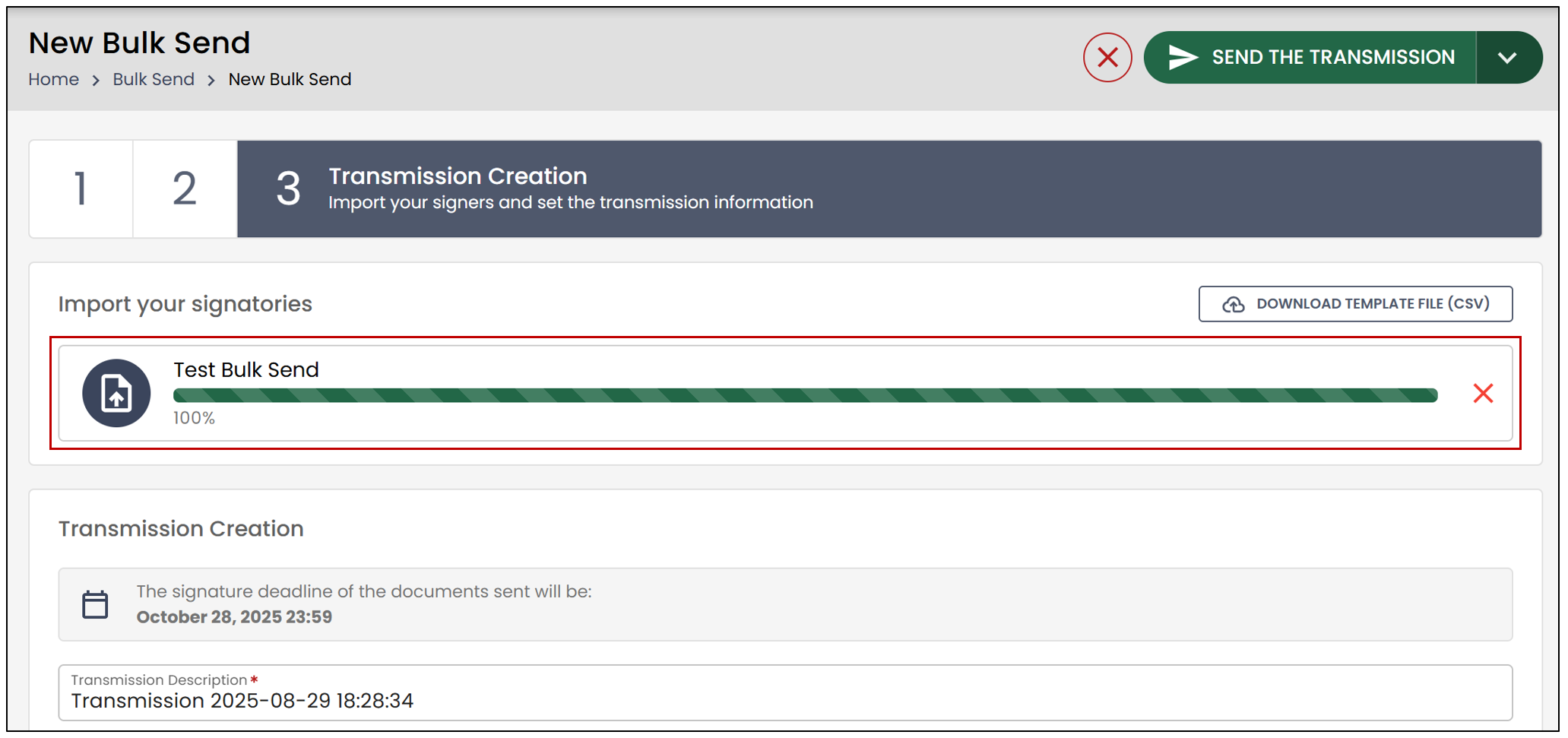
NOTE: If you have multiple signers, the upload process may take longer, as eZsign will create a folder for each signer, add all the signature fields, and send the document.
Transmission
Once the transmission is complete, you will be able to see the list of all the folders sent to the signers, as well as their progress.
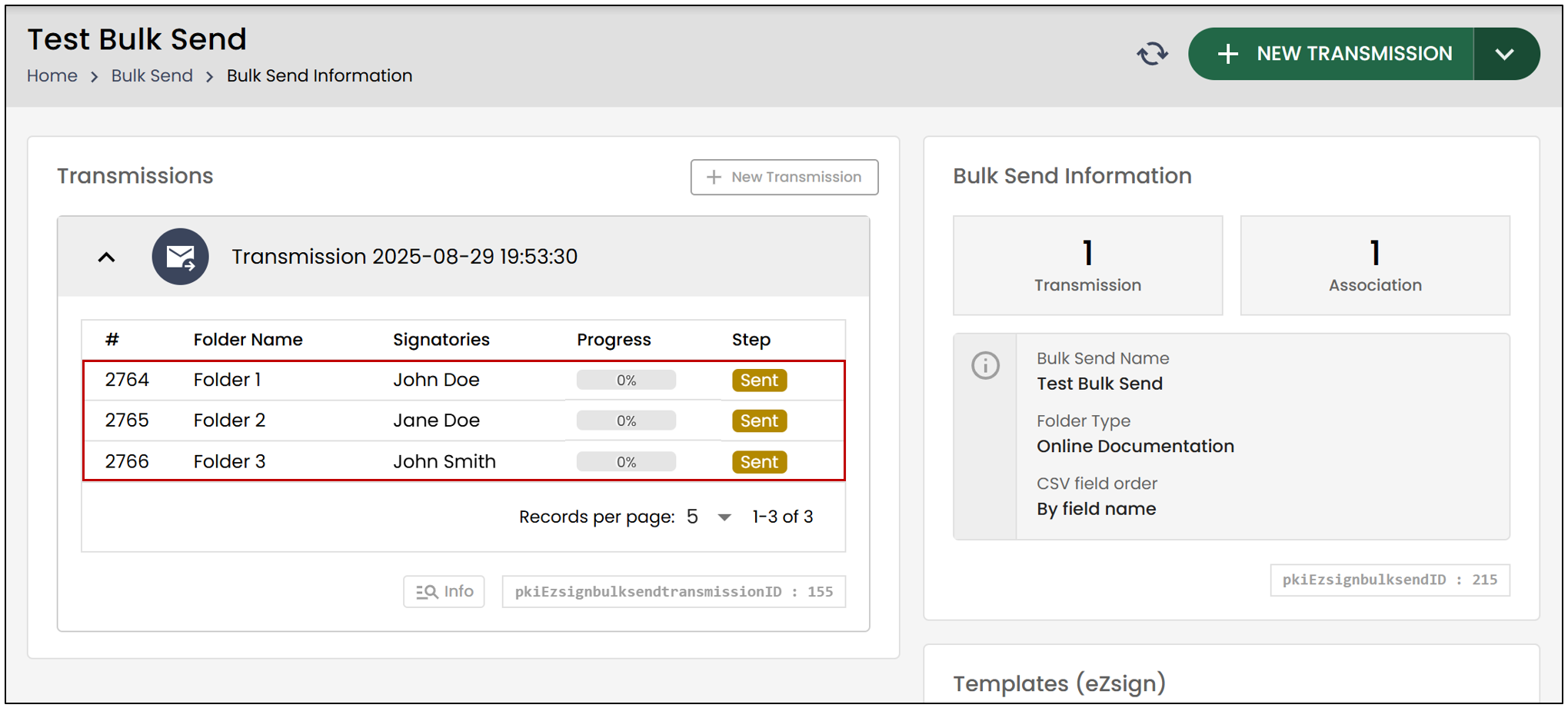
By clicking on a folder, you will be able to view all the information related to it. You will also be able to edit a folder directly, without affecting the other folders in the transmission.
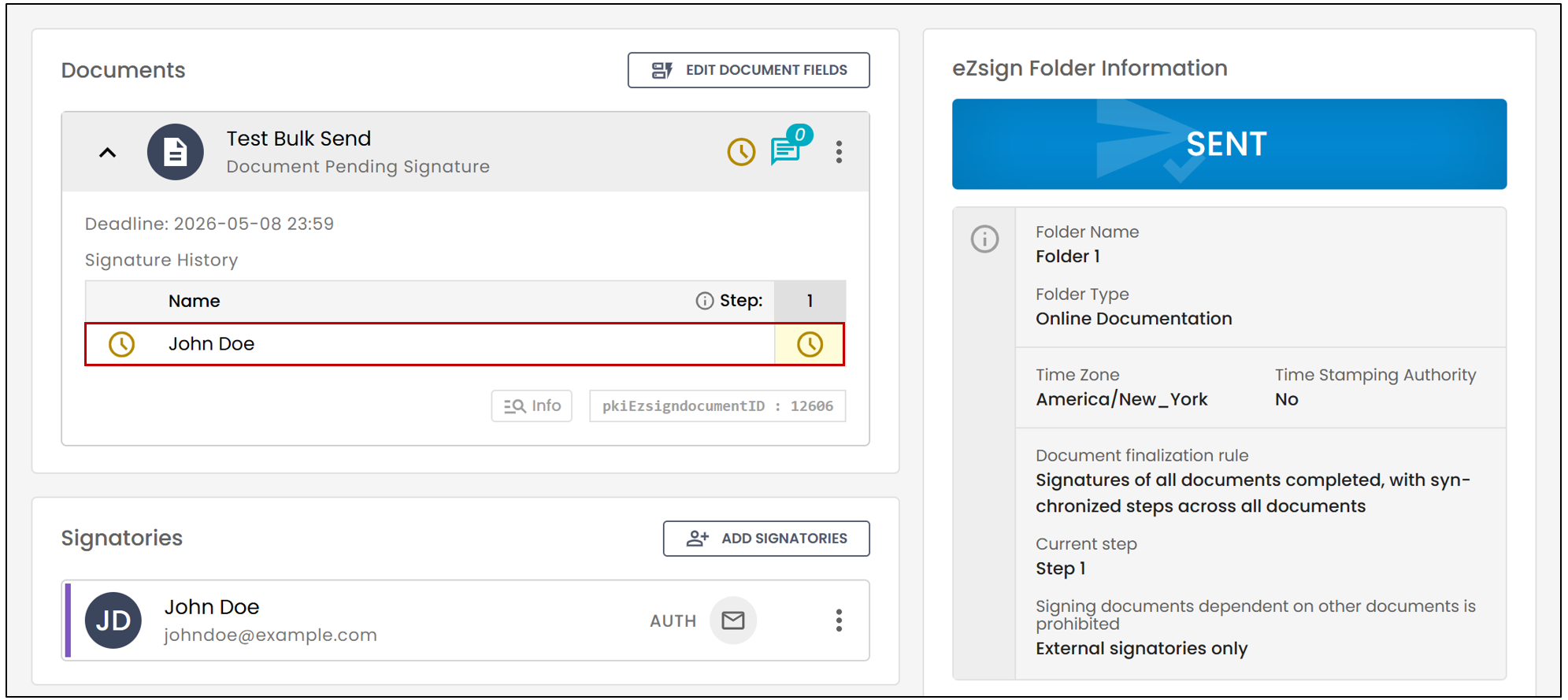
Signature
NOTE: The information in the form fields will be pre-filled before the signer applies their signature. The signer will have the option to modify the fields before signing.
In the Bulk Send Information , you will be able to track the progress of the signatures.
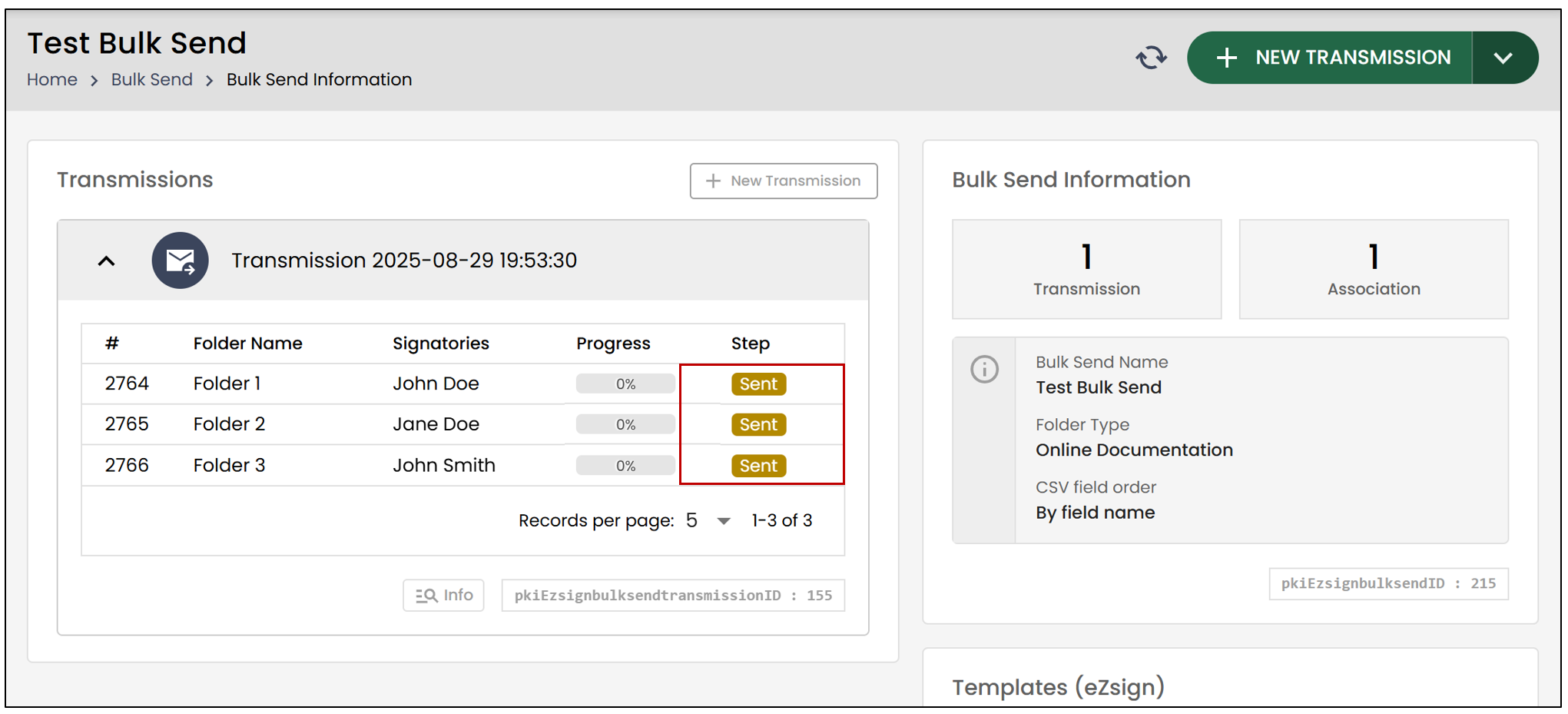
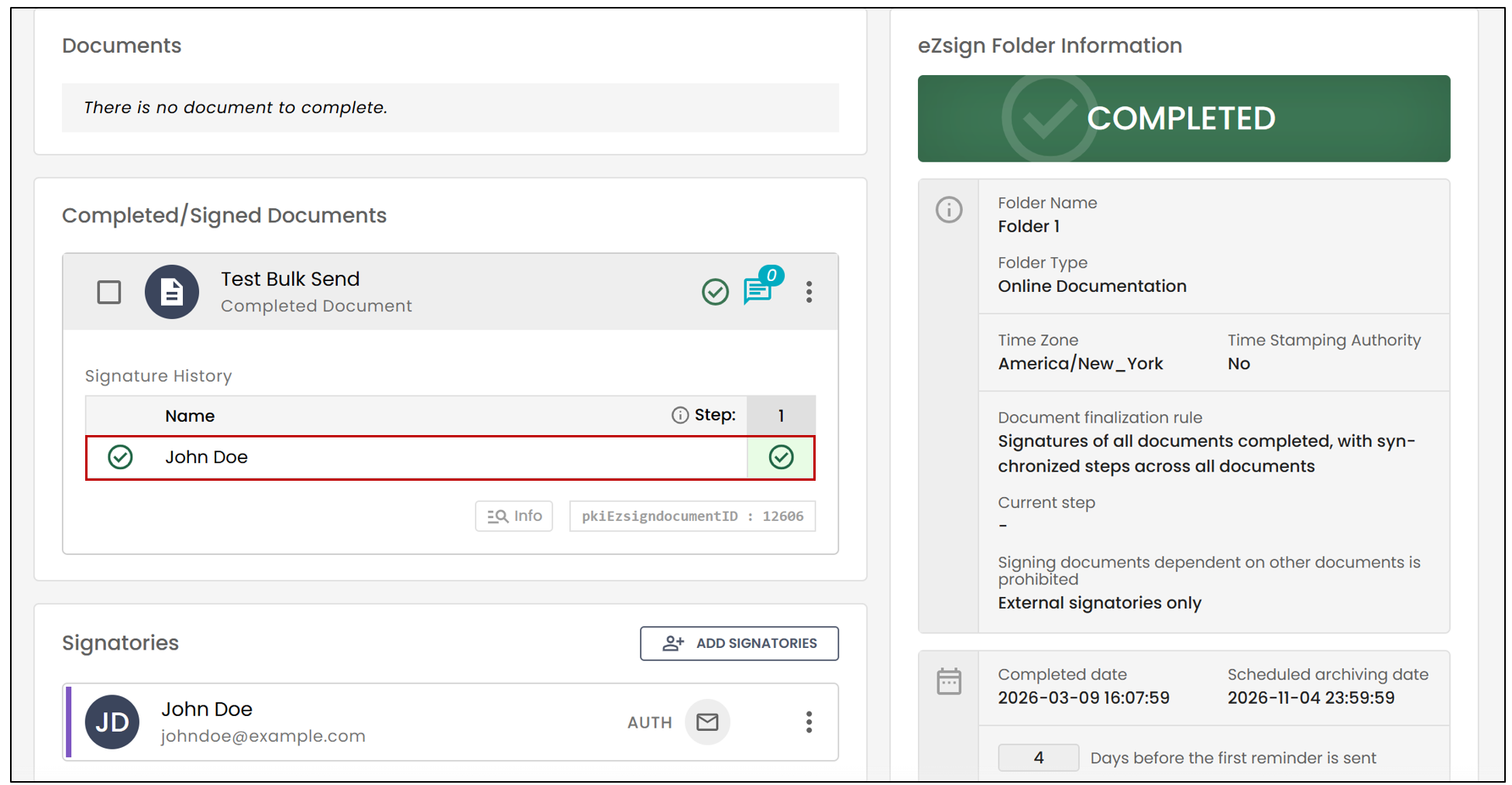
In the Folder Information , you will also be able to track the progress of the signatures.