English
Sending Attachments by Email Along With the Signed Document
Sending Attachments by Email Along With the Signed Document
The new email attachment sending feature simplifies and automates the transmission of files associated with a document to be signed. Once this option is enabled, all attachments linked to the document are automatically retrieved and sent together with the signed document. This ensures a complete and effortless delivery, eliminating the need for manual handling and providing a better experience for all recipients.
NOTE: This feature is available for all Individual Accounts and for all Business and Enterprise Accounts.
Enable the Option to Send Attachments by Email with the Signed Document
The option to send attachments by email must be enabled for each folder type and for every recipient category (external signers, users, etc.).
From the main menu >> Folder Types
- Select the desired folder type, then click on Edit Folder Type.
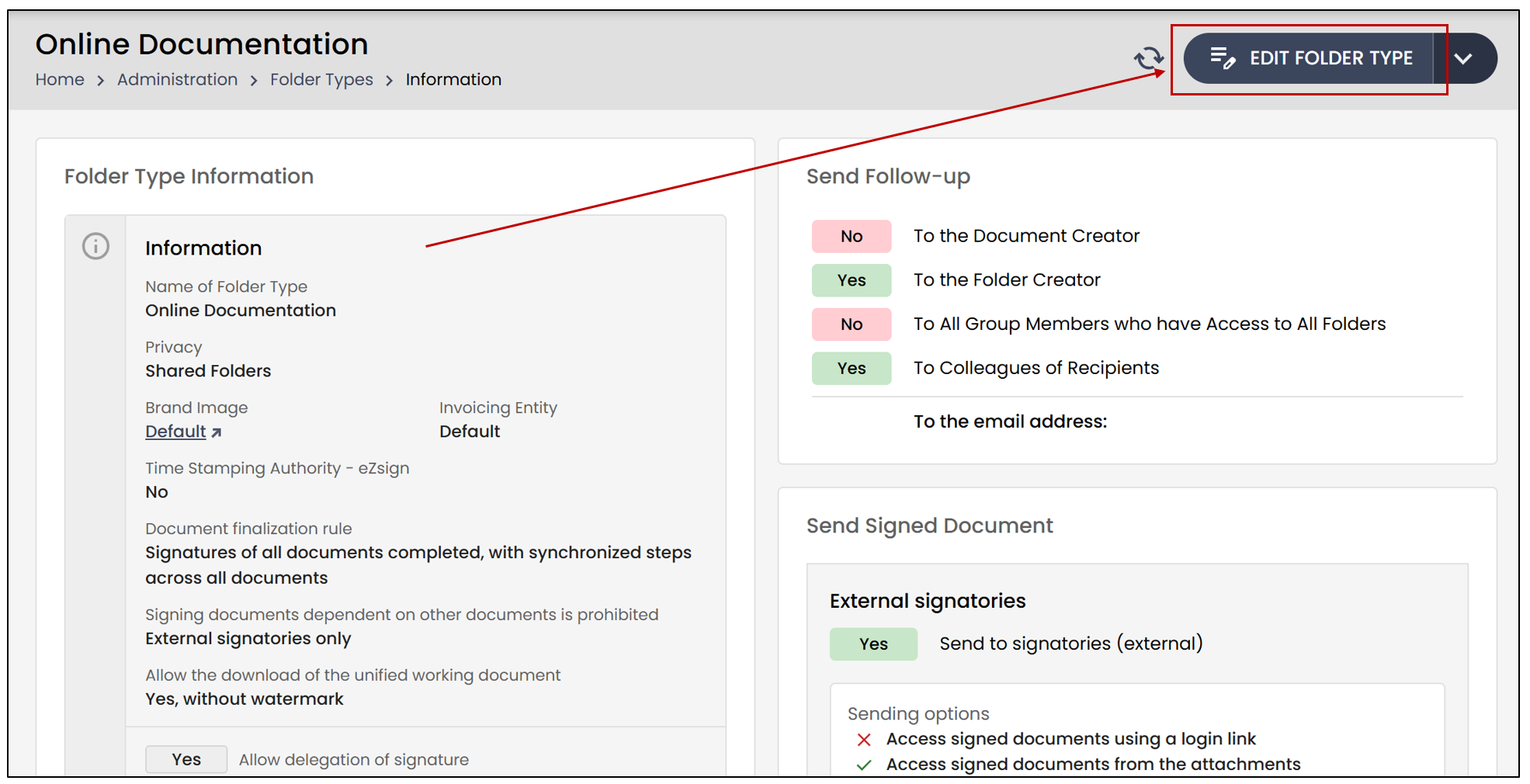
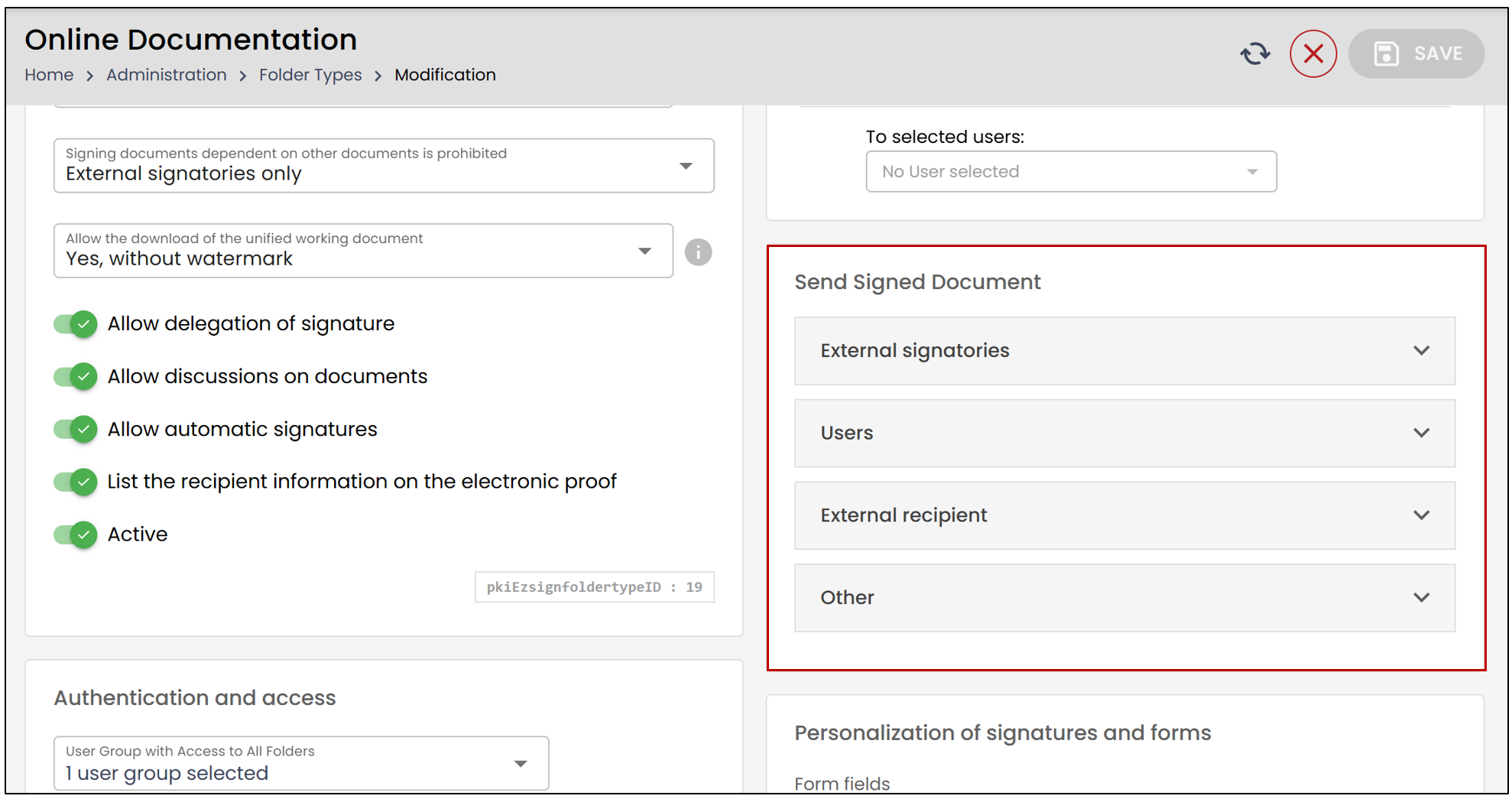
- In the Send Signed Document section, you will find four categories of recipients.
- In the External signatories category, you can choose to include attachments in the sent email and allow signers to download them.
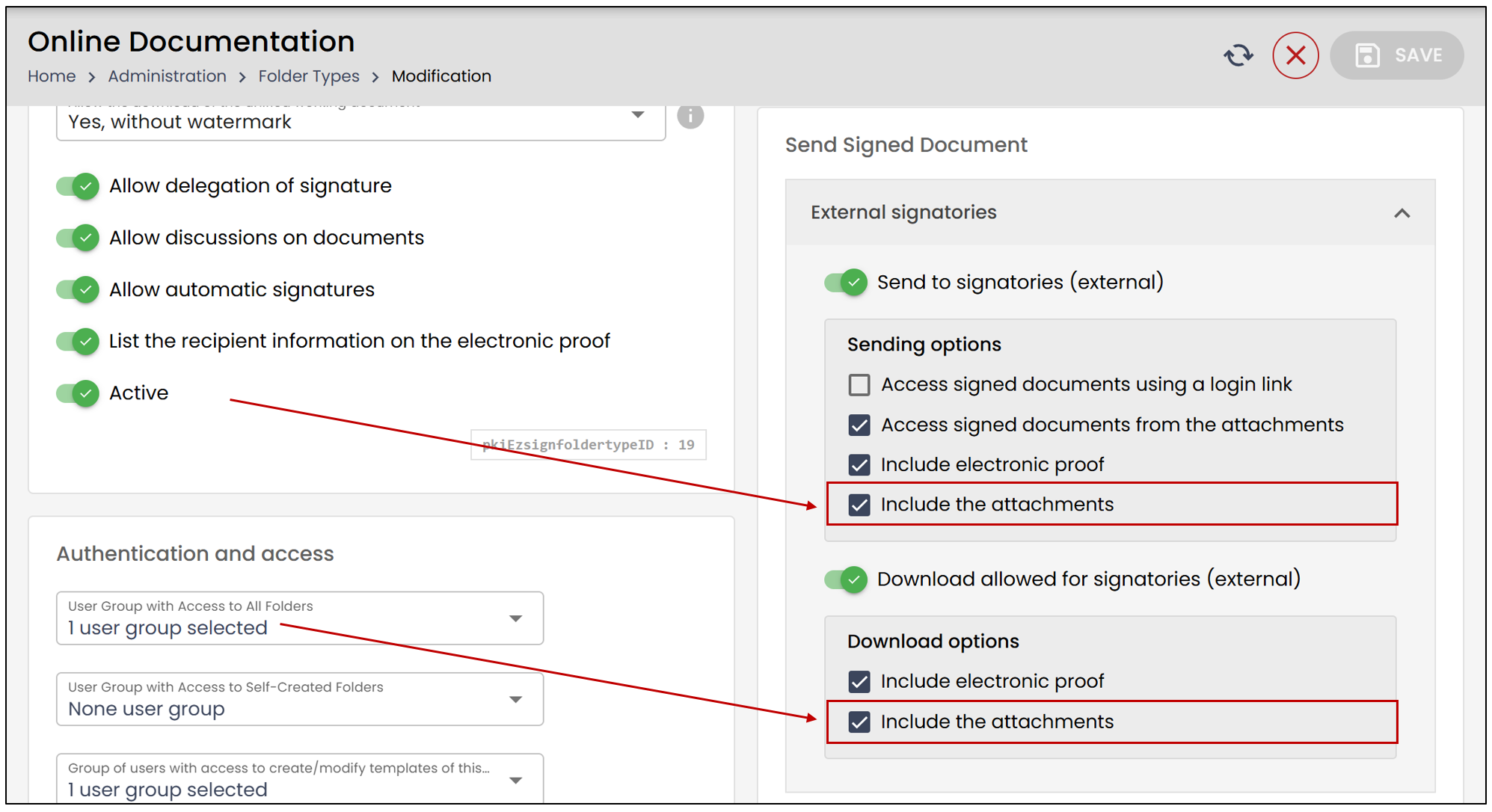
- In the Users and External Recipient categories, only the option to include attachments in the sent email is available.
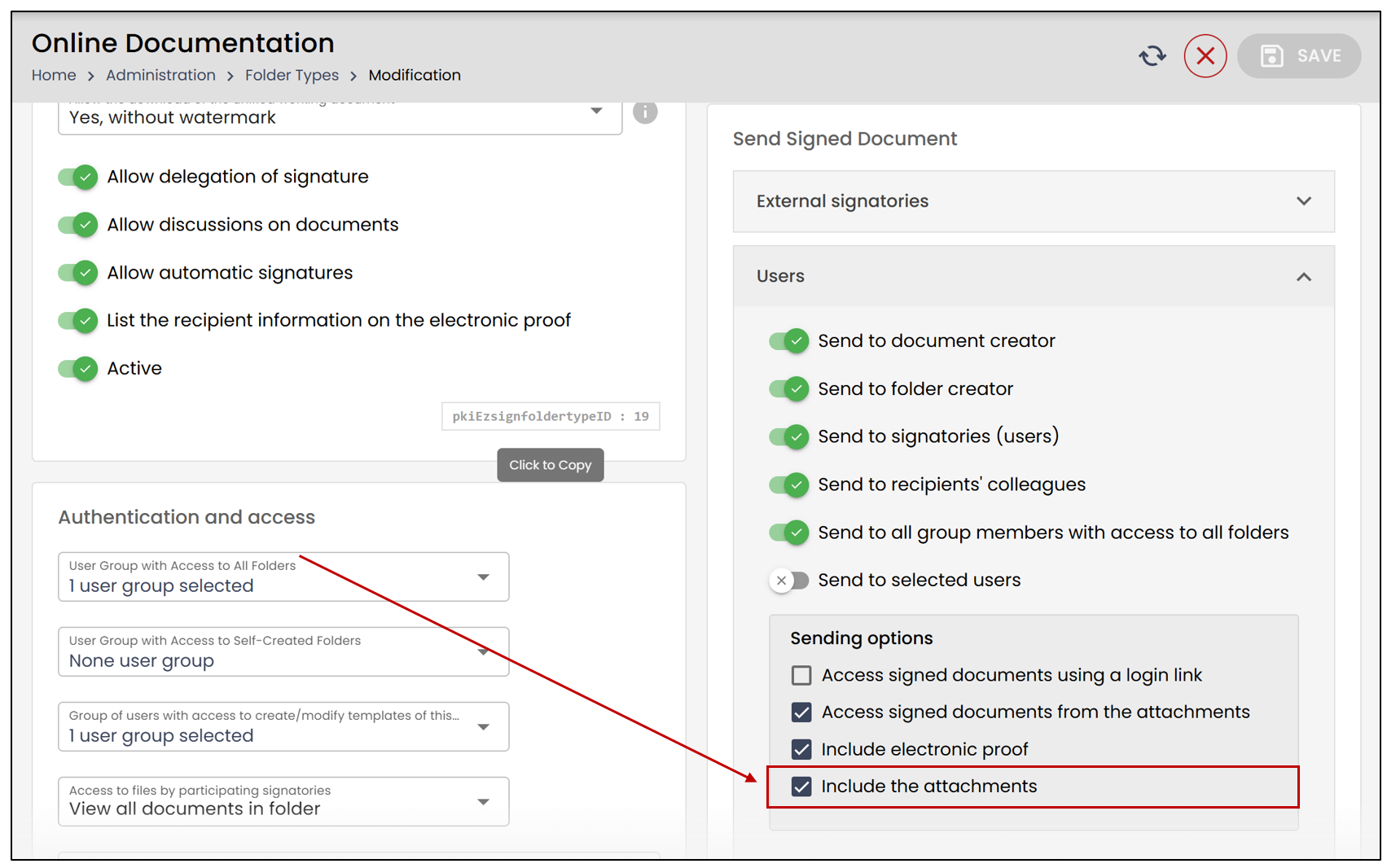
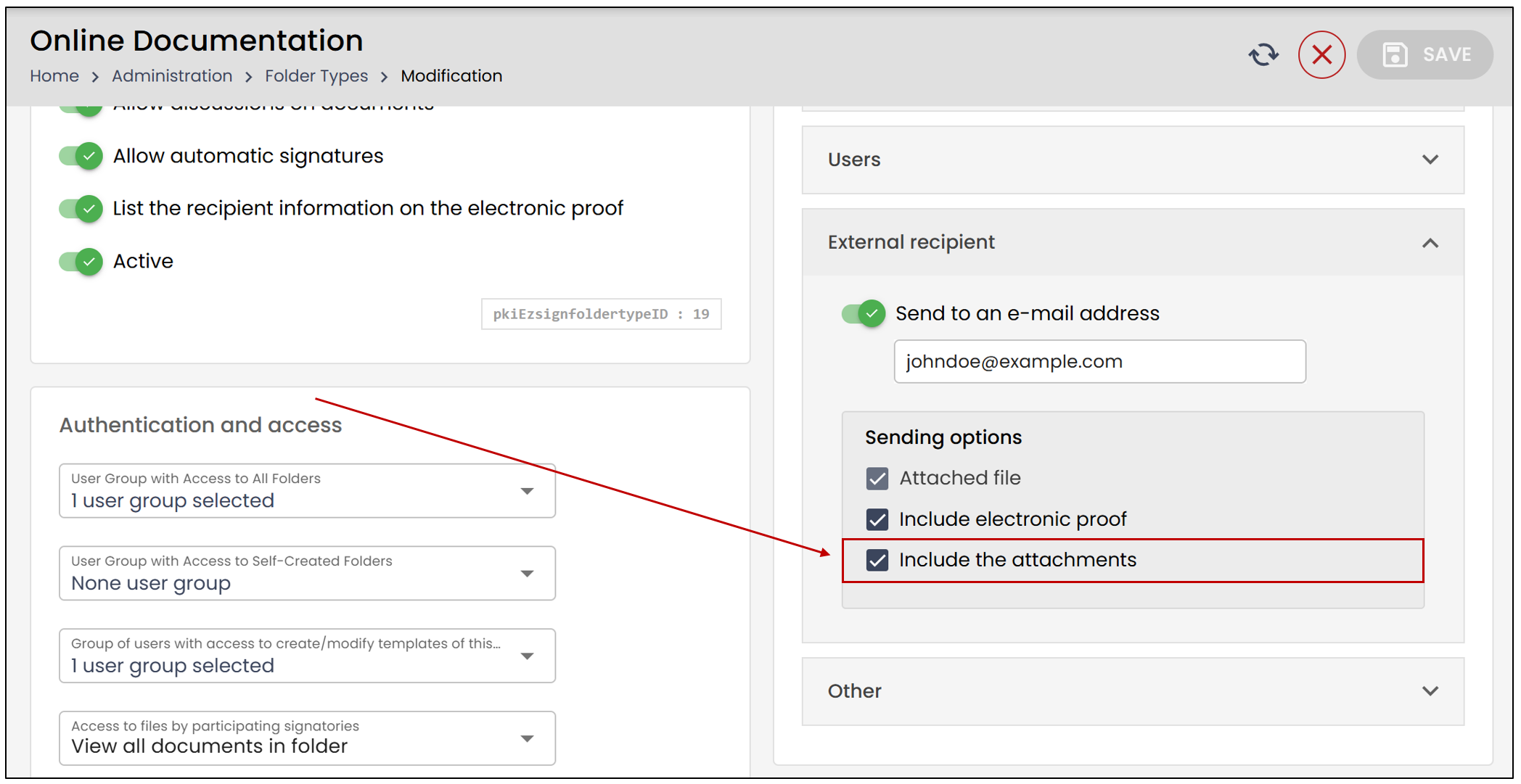
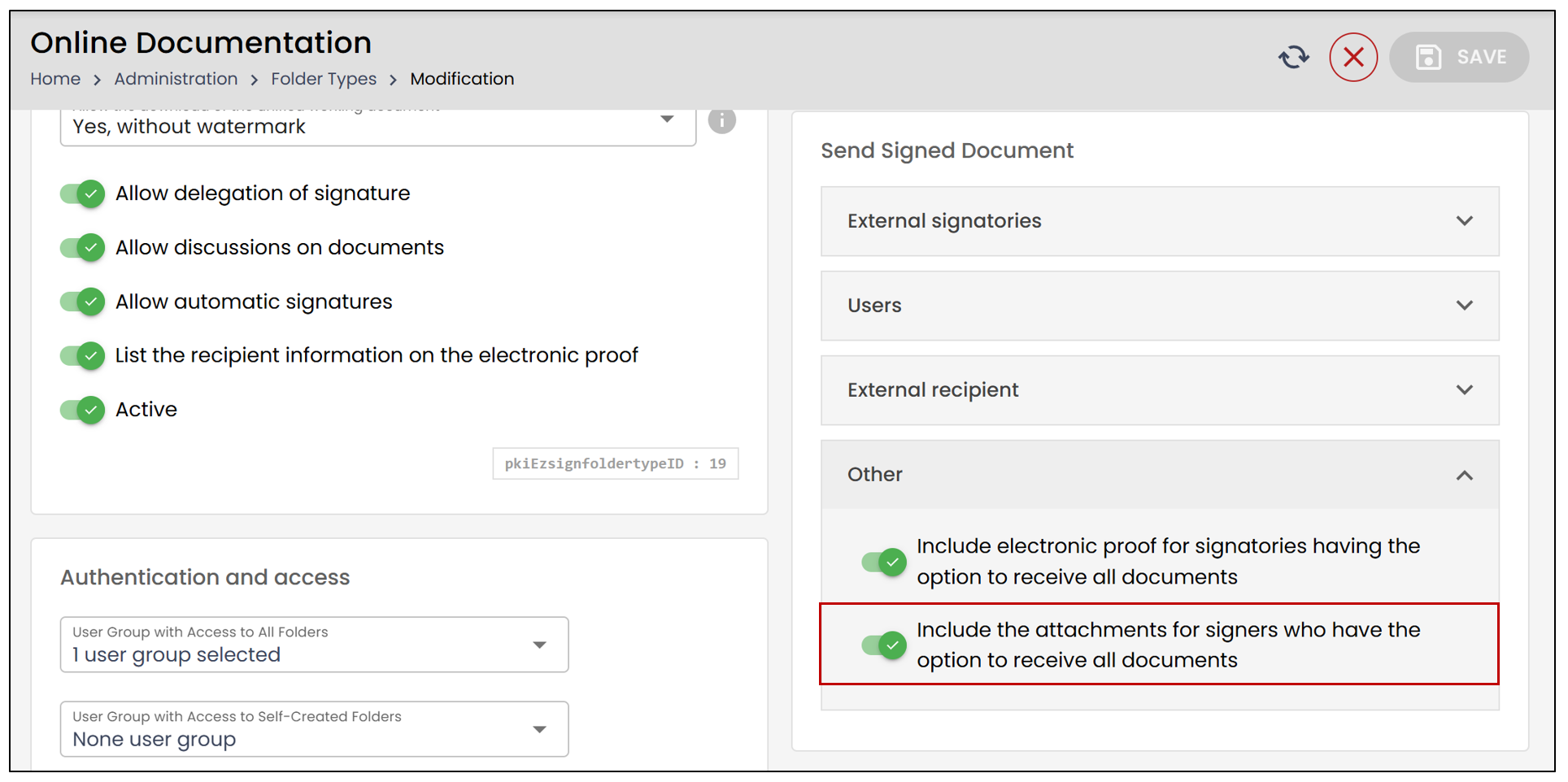
- In the Others section, you can enable the option Include the attachments for signers who have the option to receive all documents , so that these signers also receive the attached files in the email.
Overview of Sending Attachments by Email with the Signed Document
When creating an eZsign folder, you can add an Attachments field to a document. This allows the signer to upload their attachment directly within the document to be signed. For more information about the Attachments field, please refer to the article Adding an "Attachments" Field in a Document.
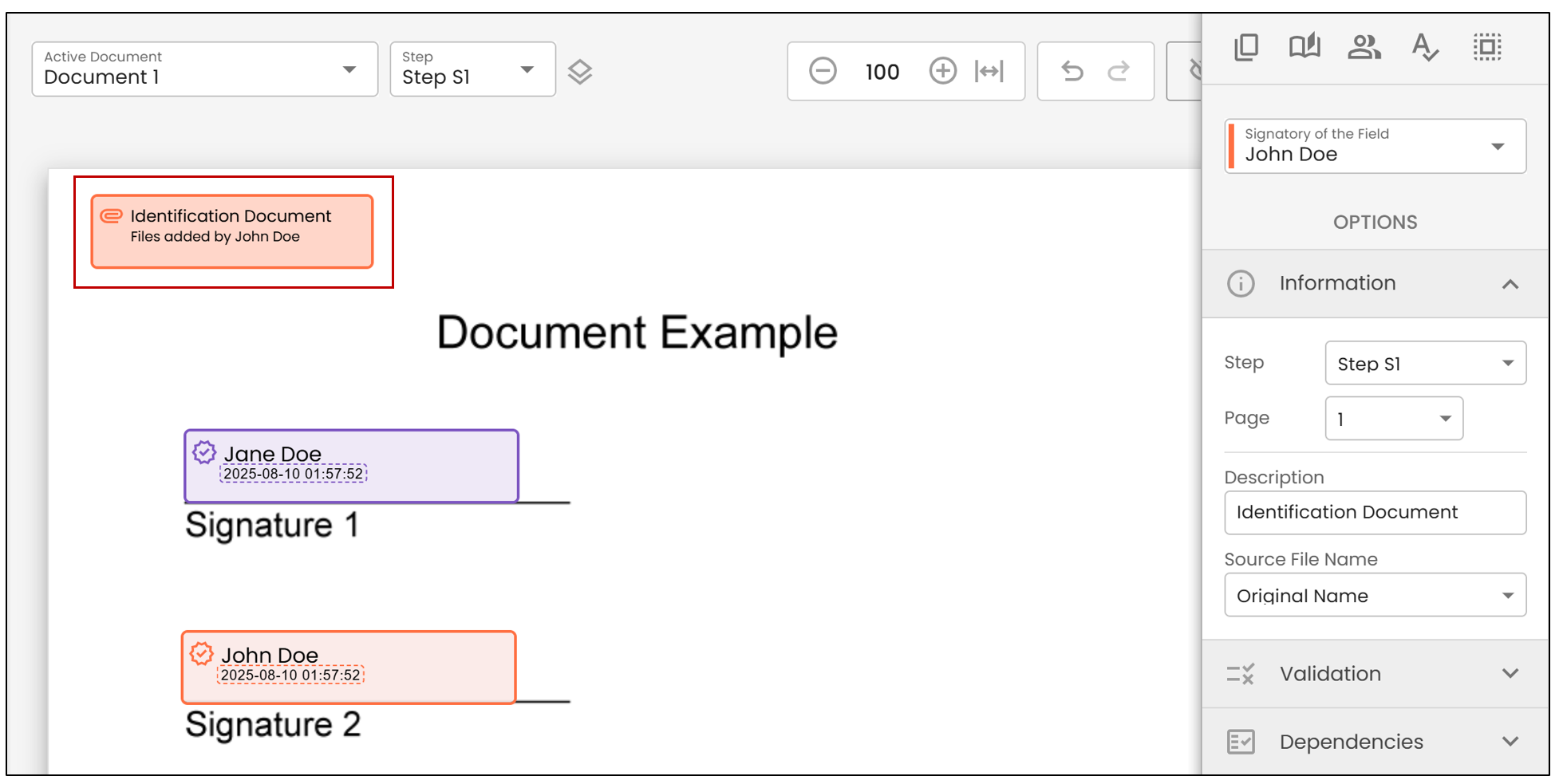
- During the signing process, the signer can select a file to attach from their computer.
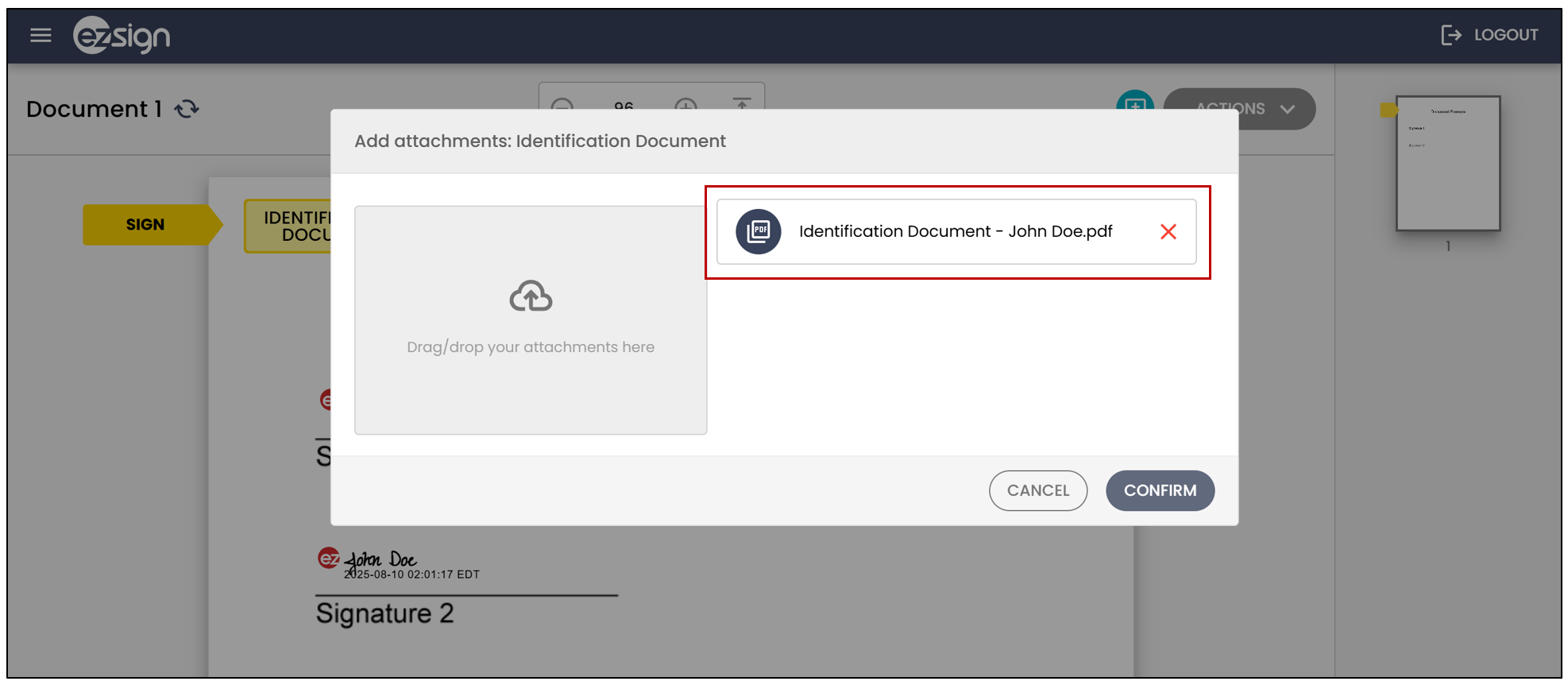
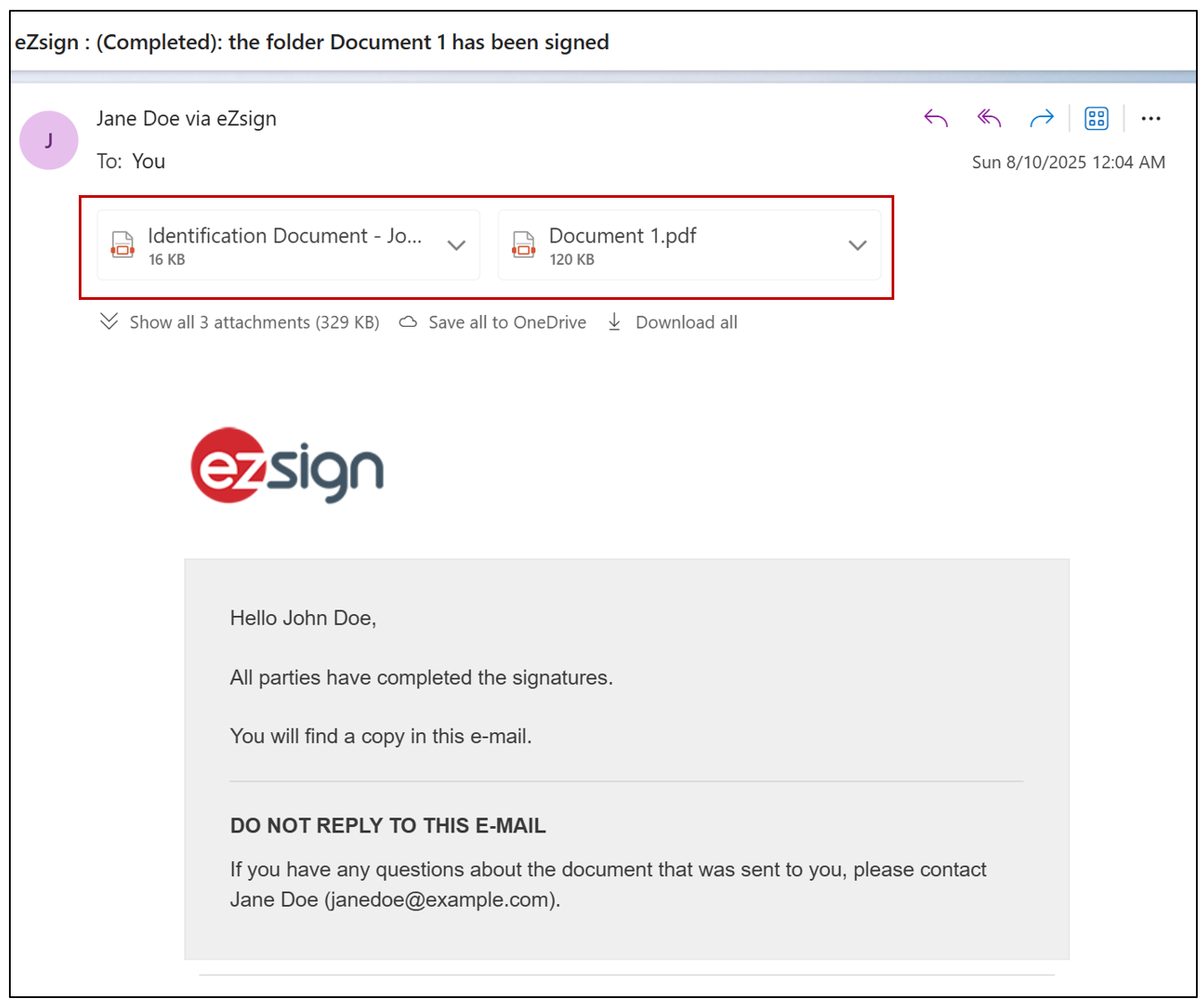
- Since the option to send attachments by email with the signed document is enabled, all recipients will receive a copy of the signed document along with the associated attachment.
Download Attachments from the Folder
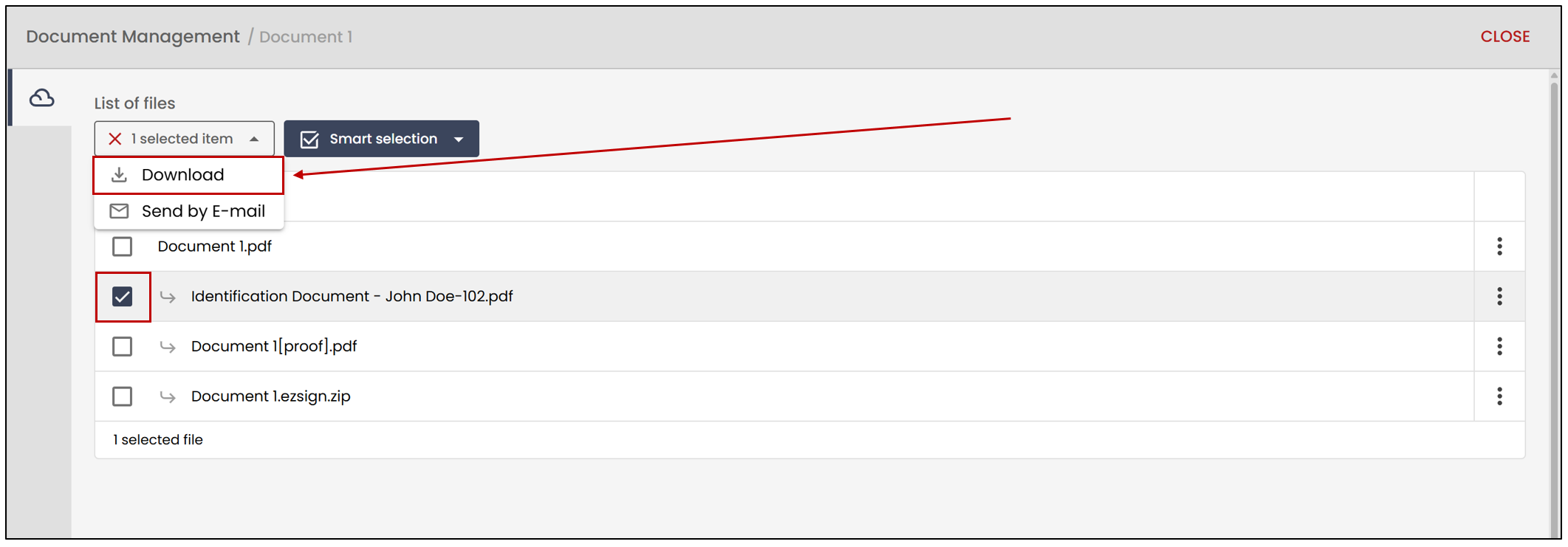
- To download an attachment from a folder, simply go to the Electronic Document Management (EDM) section.
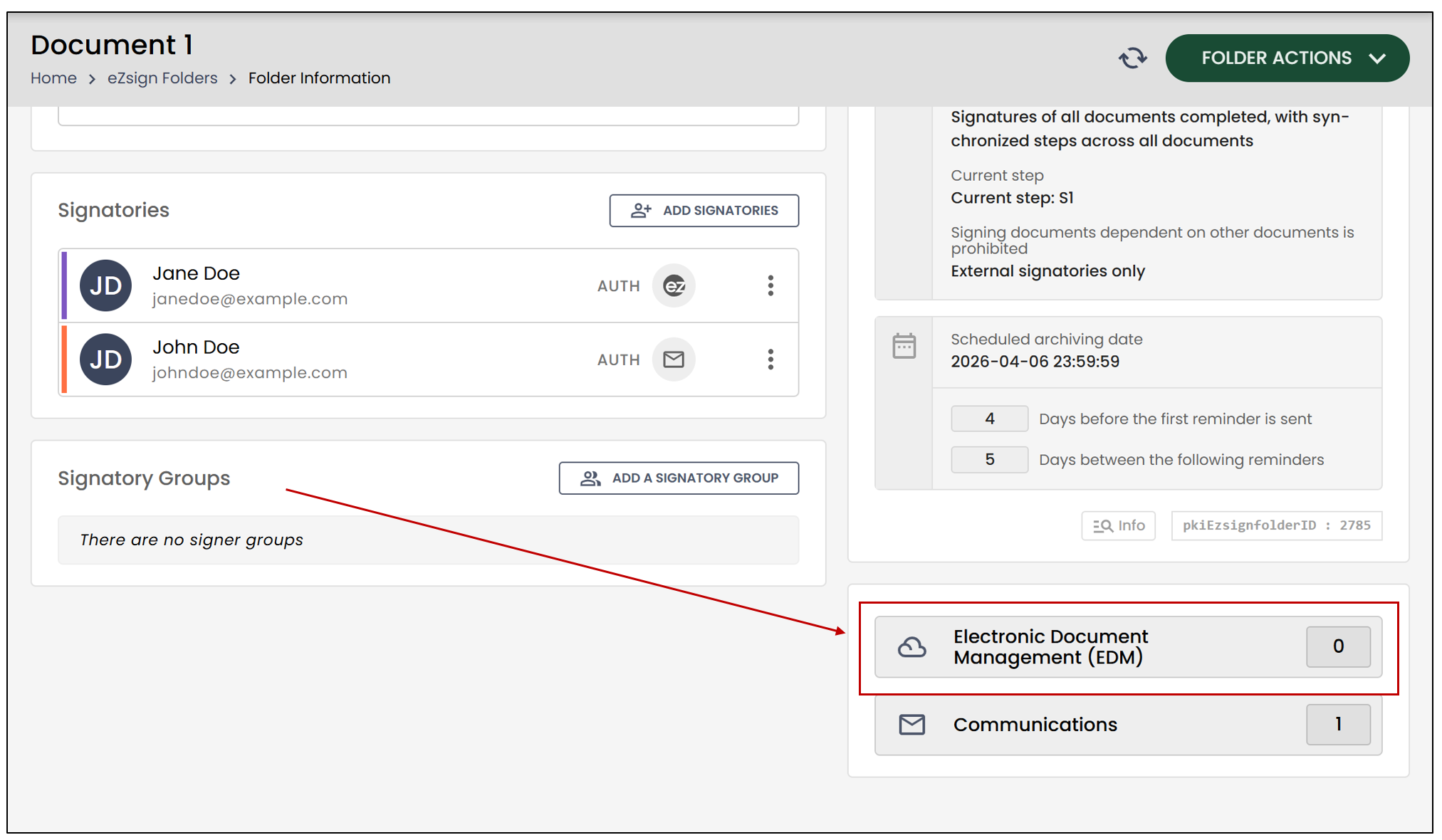
- You can then select the attachment directly from the List of files and click Download.