

English
View Folders as a Signer
This feature allows you to determine whether a signer will have access to documents in a folder type they do not have access to, once their signature has been applied.
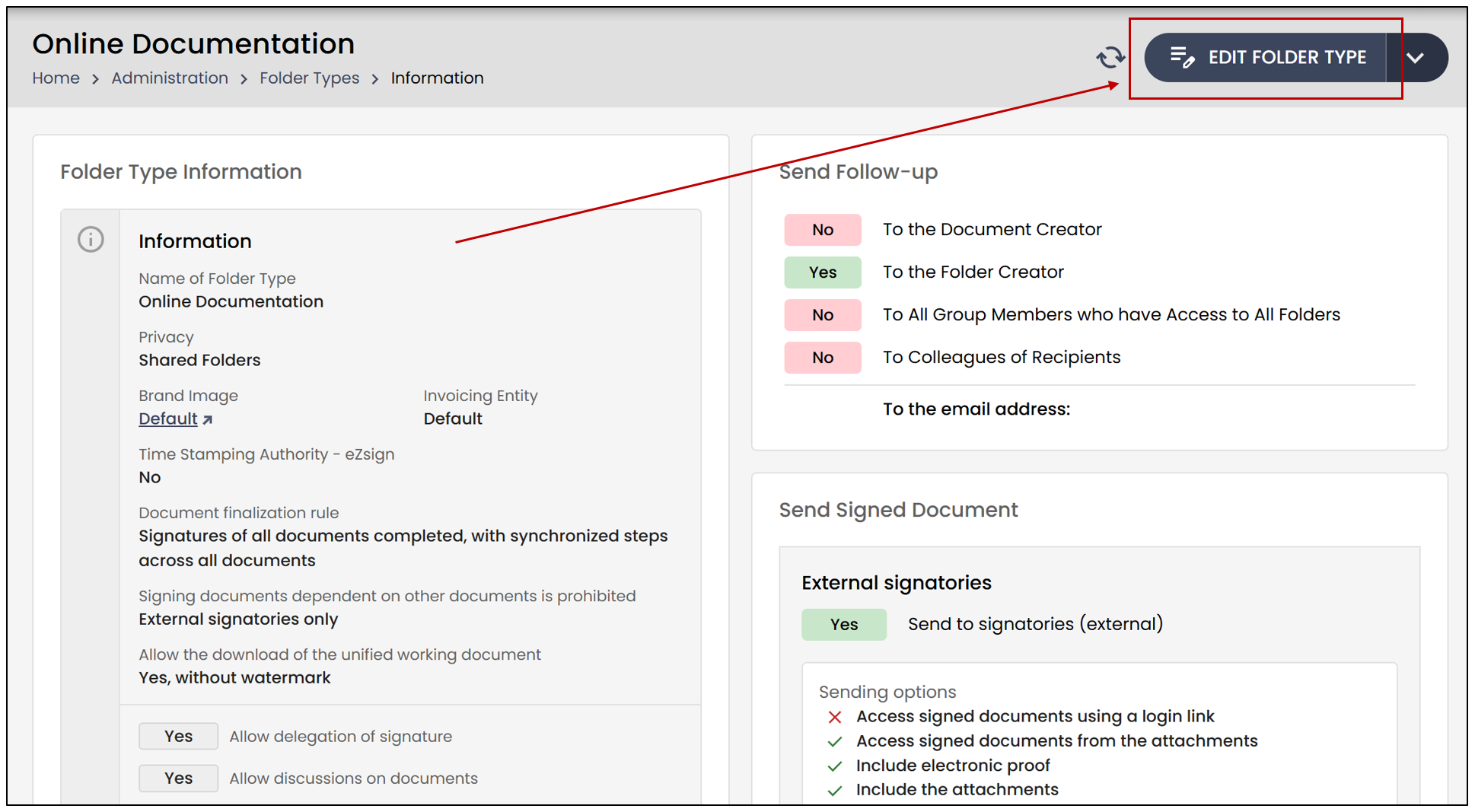
From the Administration menu >> Folder Types.
- Select the desired folder type, then click on Edit Folder Type.
In the Authentication and Access section, you will be able to modify the access to folders for participating signers:
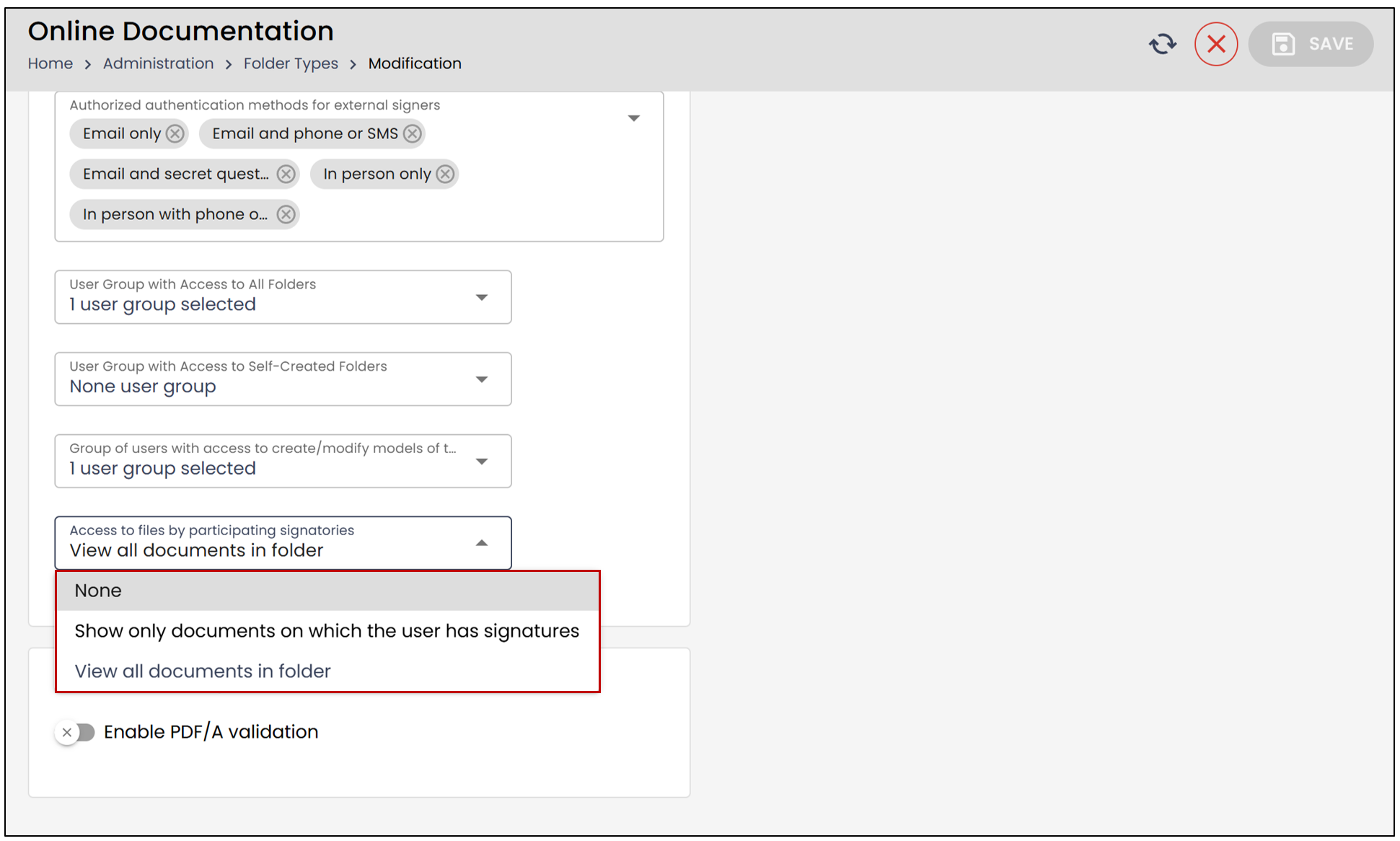
None
The signatory will sign the document, but will not have direct access to any document.
Show Only Documents on Which the User Has Signatures
Once the user signs, they will only have access to the documents they have signed.
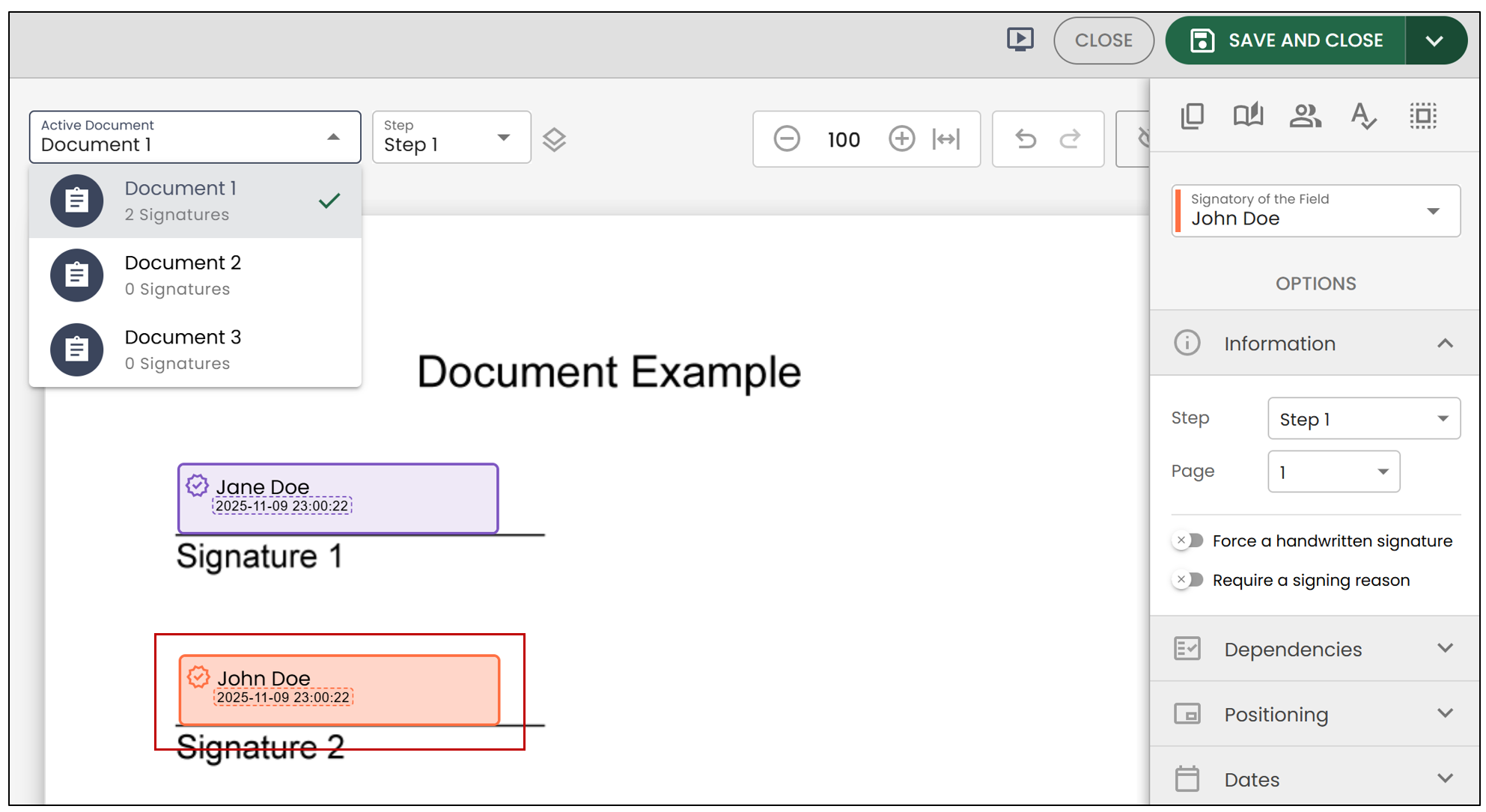
In this example, Jane Doe created a folder containing three documents. She added John Doe as a signatory only to one of the documents: "Document 1".
After the folder is sent, John Doe will receive a message informing him that he has documents to sign.
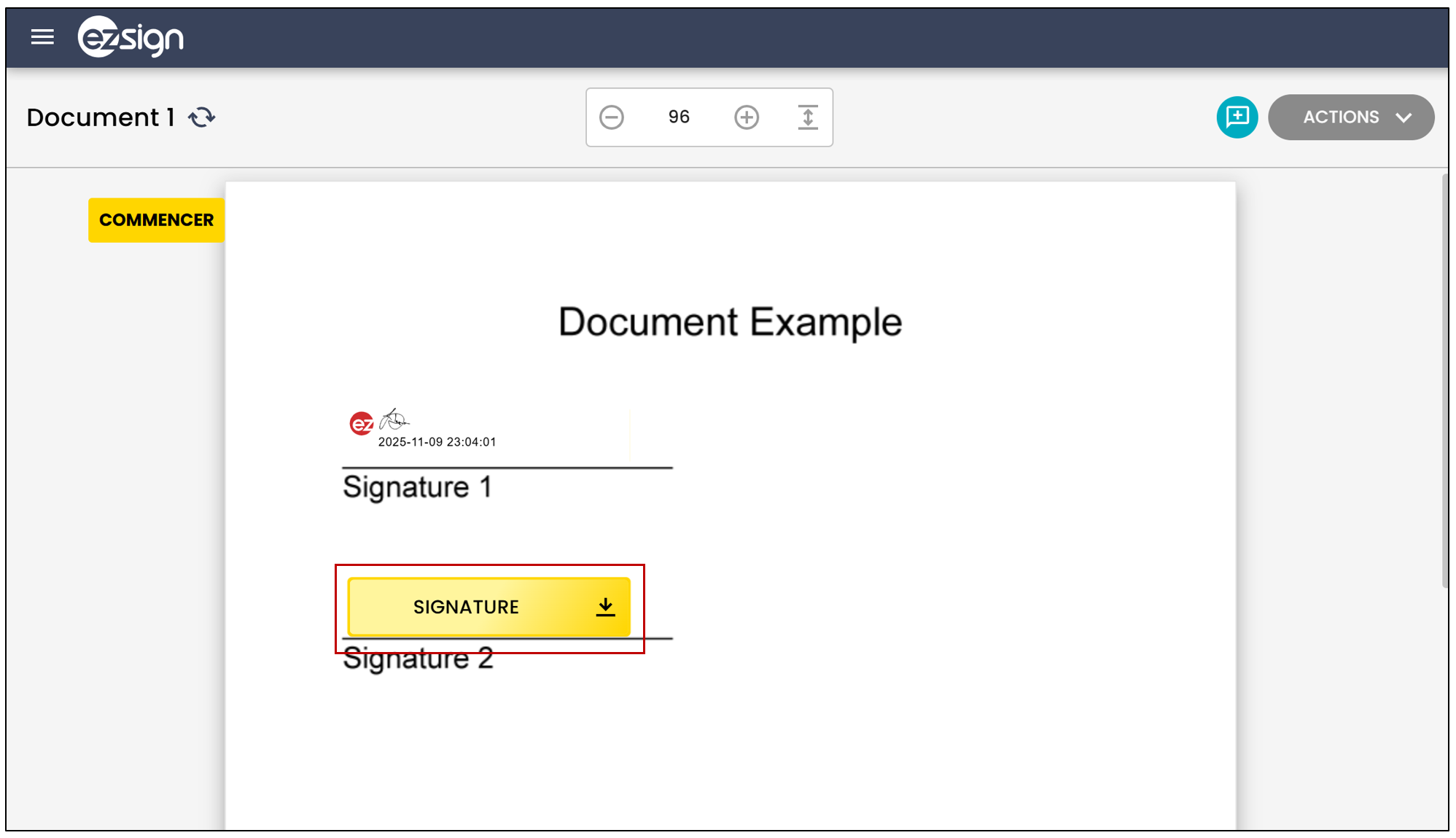
Once the document is signed, he will be able to view it in the eZsign folder. However, John Doe will not have access to any other documents he has not signed.
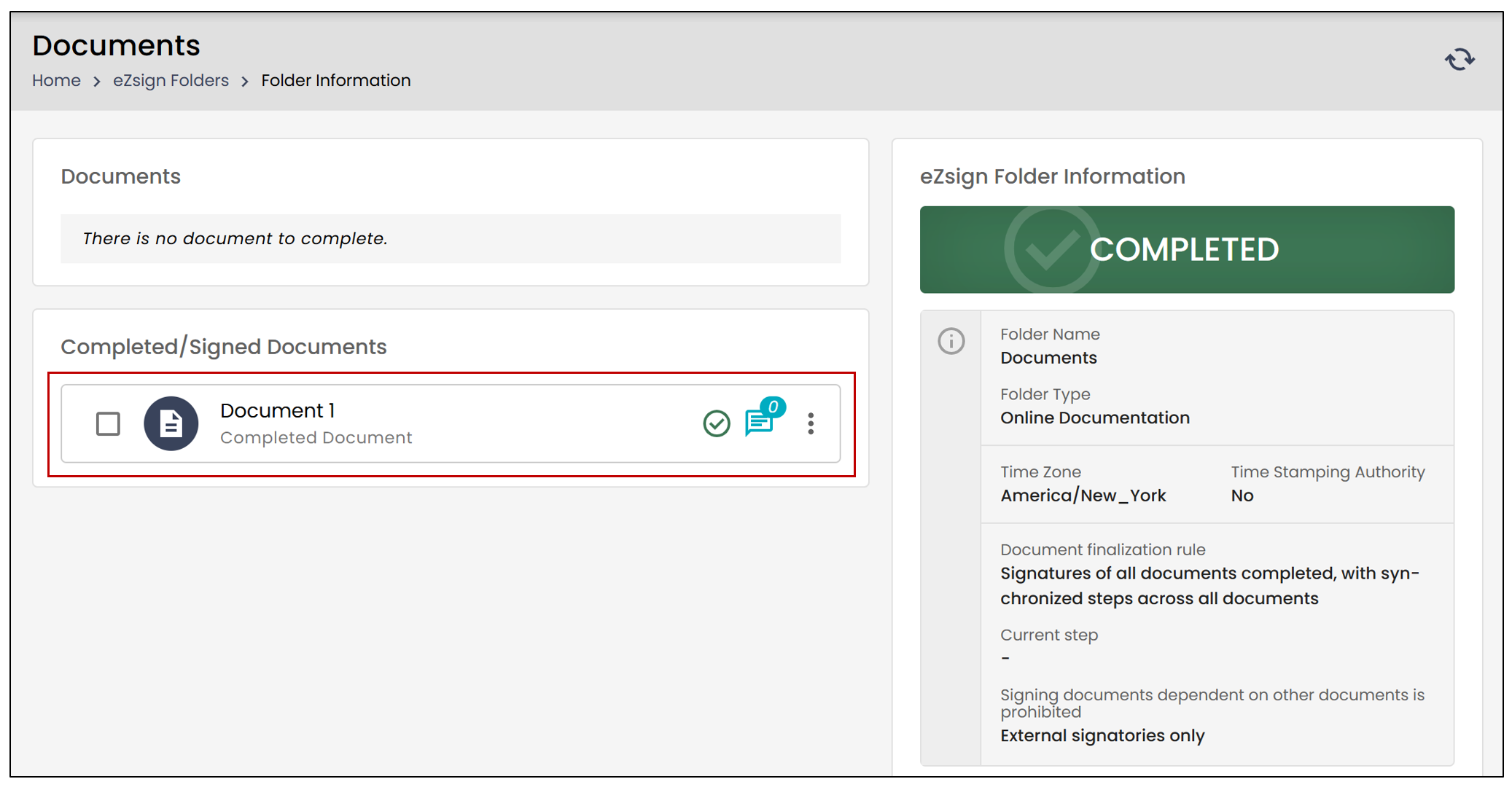
NOTE: All documents of this folder type that John Doe has signed will appear in his eZsign Folders List.
View All Documents in Folder
This option will allow the signer to access all the documents in the folder once they have signed at least one document.
In this example, John Doe only needed to sign the document "Document 1", but he now has access to all the documents in the folder.
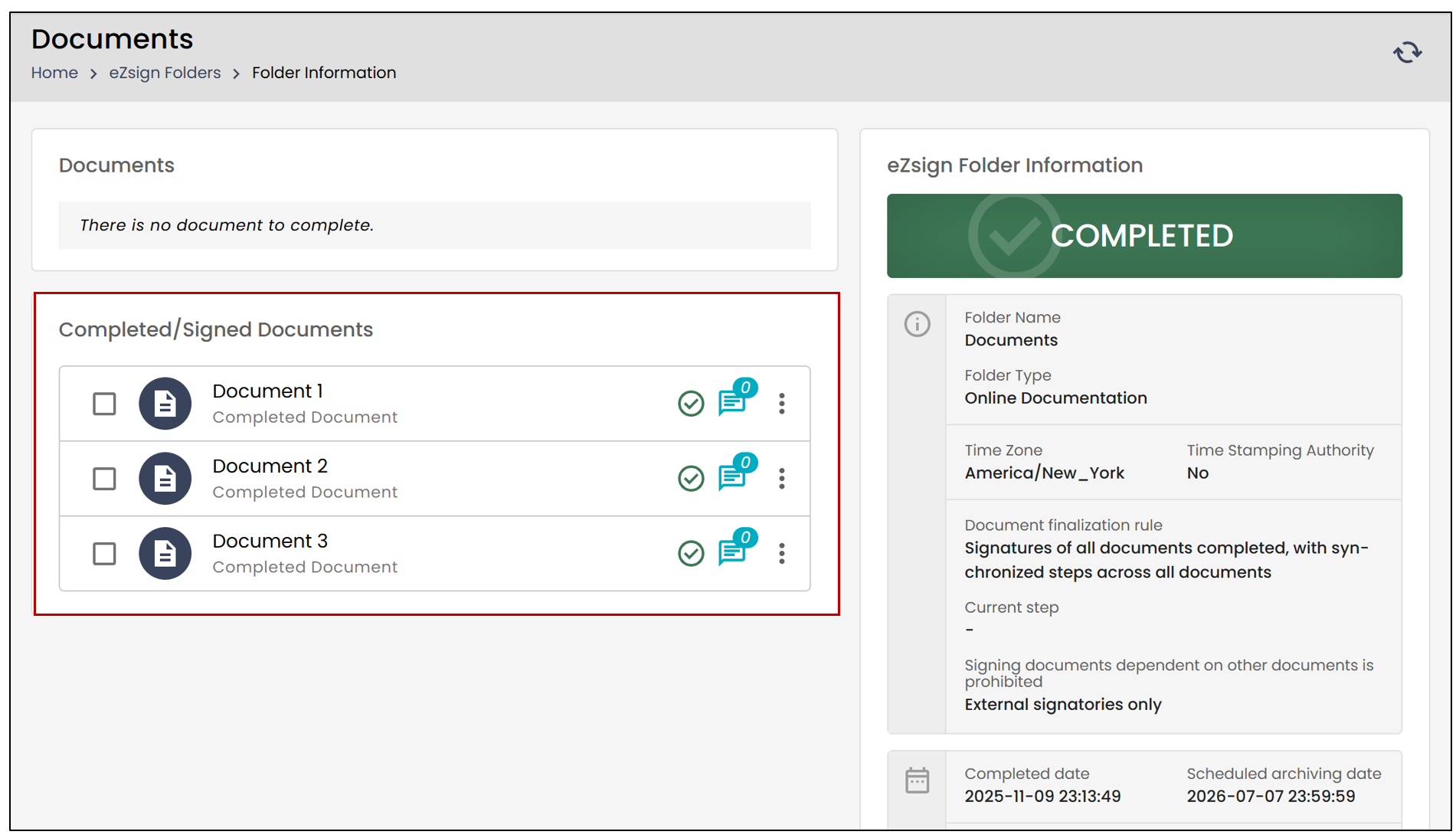
NOTE: All documents of this folder will appear in John Doe’s eZsign Folders List.