

English
Adding/Editing a Type of Shared Folders
When you are part of a user group, you can create 2 types of folders: personal folders and shared folders.
Adding a Type of Shared Folders
The user group that will be selected will be able to access this folder type.
- From left menu >> Administration >> Folder Types.
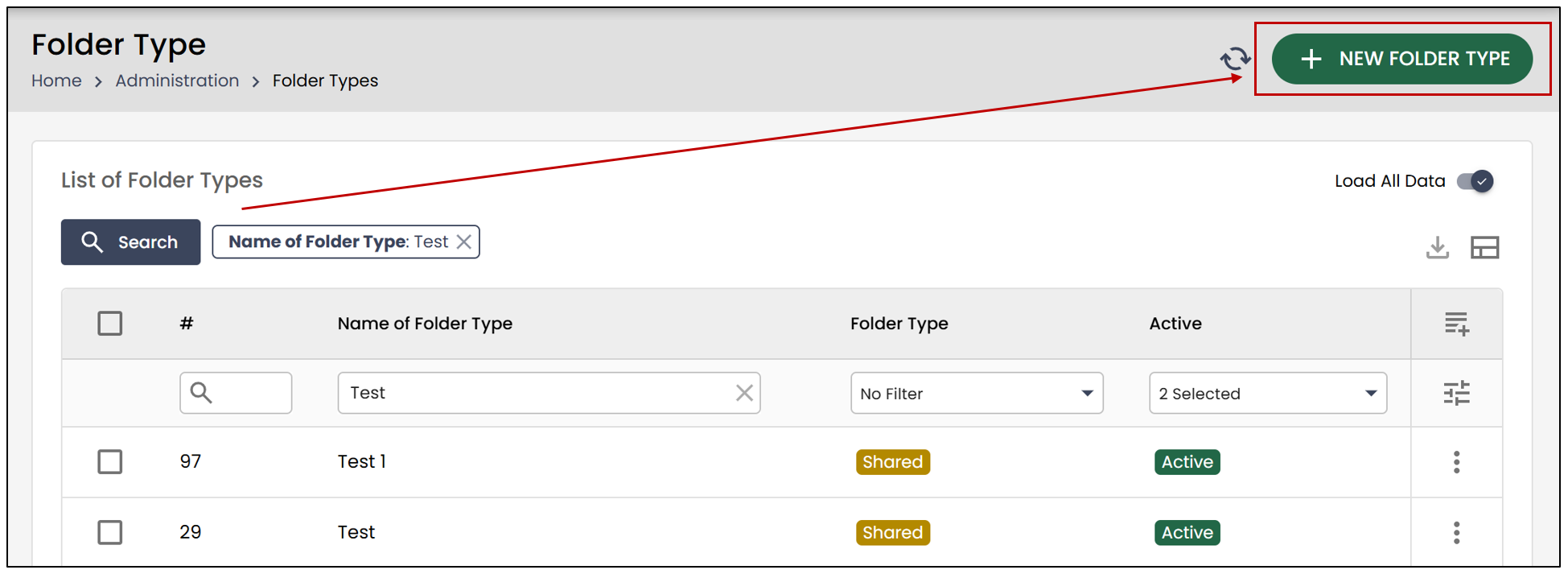
- Click on New Folder Type.
Information
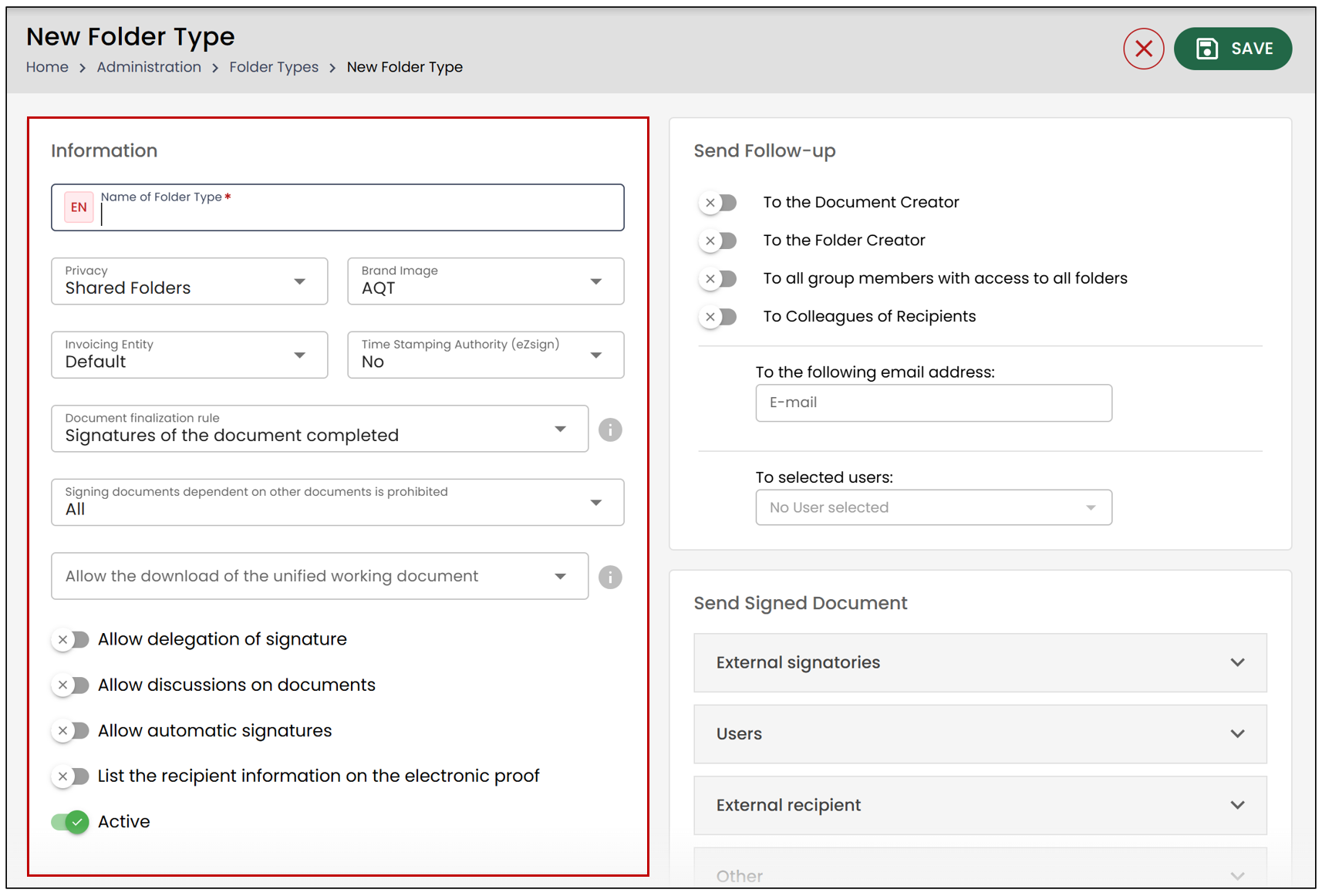
Enter the Name of Folder Type in English as well as in French.
Privacy : Select Shared Folders and additional sections will be added.
Brand Image : This feature is only available for certain packages. It allows you to select a logo that has been previously configured. The default brand image is eZsign.
Invoicing Entity : Coming soon.
Time Stamping Authority - eZsign : Select No , Best Effort or Mandatory. For more information, please see the article Time Stamping Authority.
Document Finalization Rule
Signatures of the document completed: The document cannot be finalized until all required parties have signed.
Signatures of all documents completed : The folder can only be completed once all documents are signed by all relevant parties.
Signatures of all documents completed, with synchronized steps across all documents : Each step must be completed on all documents before moving to the next. This ensures that all documents progress together, step by step.
Allow signature delegation : Allows a signer to delegate their signature to another authorized person.
Allow automatic signatures : Enables automatic application of signatures based on predefined rules or conditions.
Display recipient information on the audit trail : Shows recipient details (name, email, role, etc.) in the electronic audit report.
Active : Indicates that this file type is currently active and in use.
Send Follow-Up
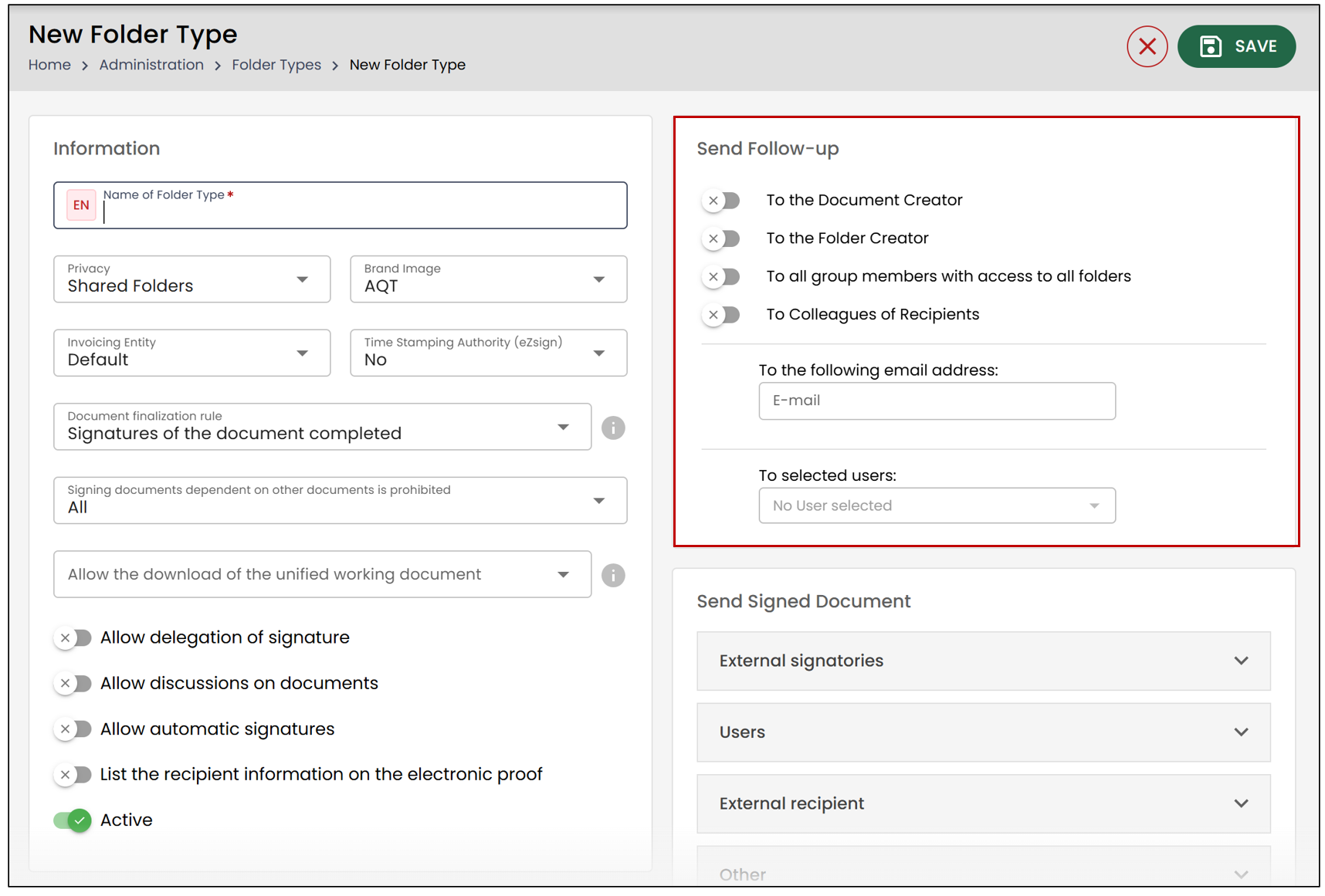
To the Document Creator : The follow-up will automatically be sent to the person who created the document.
To the Folder Creator : The follow-up will be sent to the user who created the folder containing the document.
To all group members with access to all folders : All members with the appropriate permissions will receive the follow-up.
To Colleagues of Recipients : Sends the follow-up to colleagues who have been granted temporary access to the recipient’s account (e.g., during absences or vacations). This works with the Colleague Access Management feature.
Under “To the following email address” : You can manually enter the email address where you want the document signing follow-up to be sent.
To selected users : From the drop-down list, you can choose one or more users to whom the follow-up will be sent.
Send Signed Documents
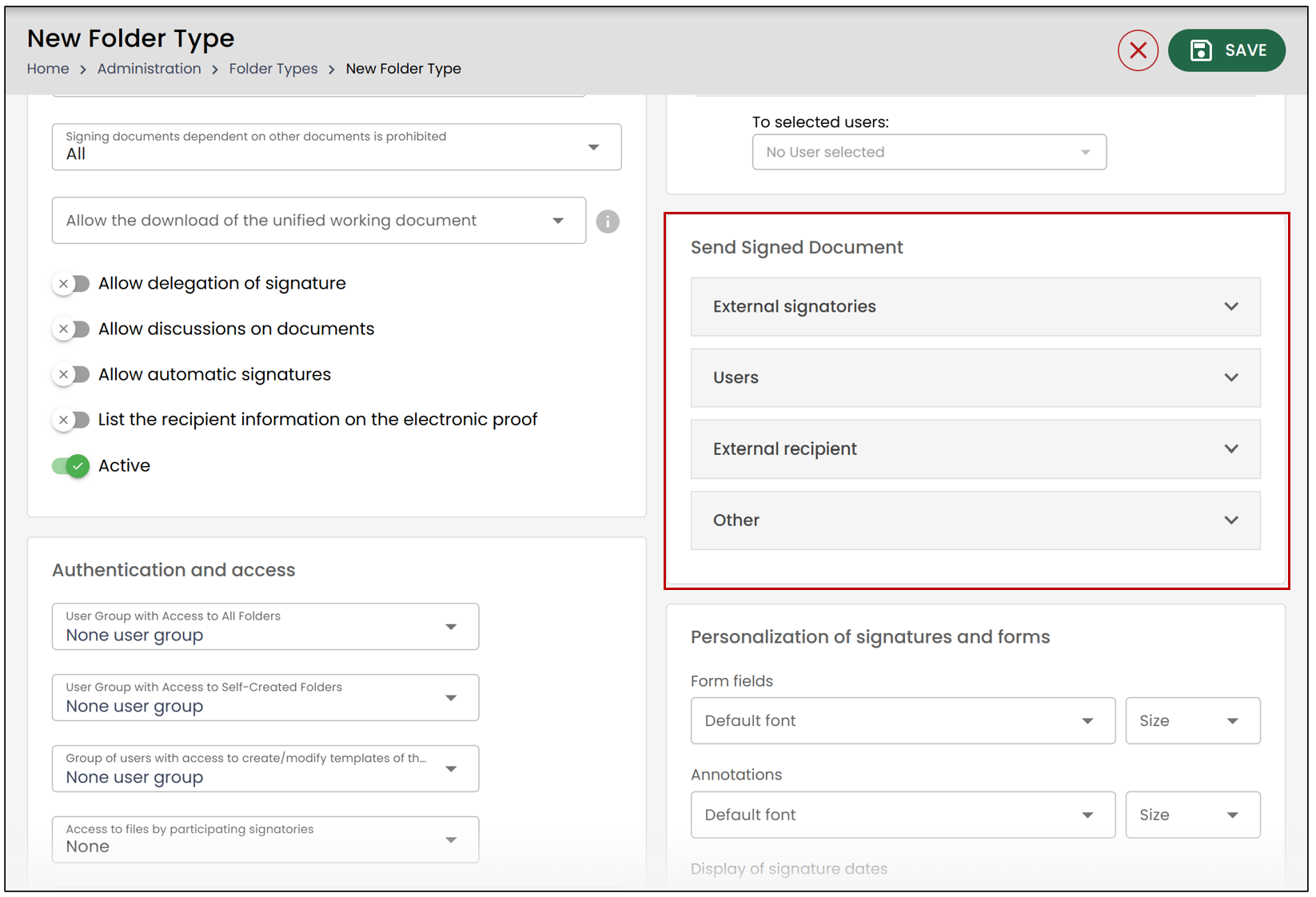
When all parties have completed their signatures on a document, it is possible to send an email to the desired recipient containing a copy of the signed document as well as the electronic proof of signature.
For more information about Sending the signed document , please consult the article Configure the Sending of the Signed Document.
Authentication and Access
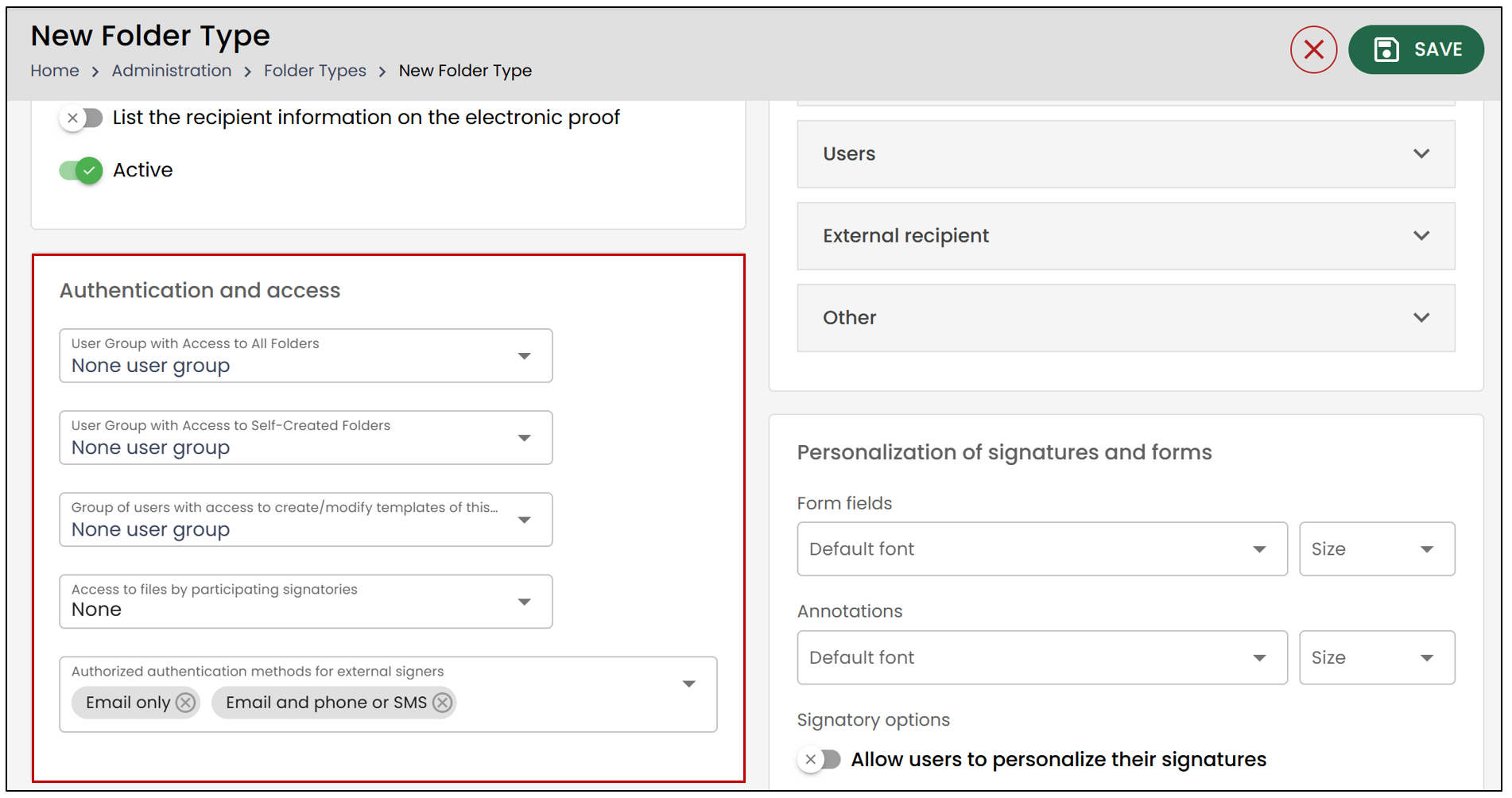
User Group with Access to All Folders : You can select a specific user group from the drop-down list or allow Everyone to access all folders.
User Group with Access to Self-Created Folders : You can choose a specific group or allow Everyone to access only the folders they have created.
Group of users with access to create/modify templates of this type : You can select a group or allow Everyone to create and modify templates associated with this folder type.
Access to folders by participating signatories
None : The user will have no access to the documents in the folder.
Show only documents on which the user has signatures : The user can only view documents they are required to sign.
View all documents in folder 😗*** The user can view all documents in the folder, even those they are not signing.
Authorized authentication methods for external signers : You can define the accepted authentication methods for signing documents in this folder type.
Personalization of Signatures and Forms
You have the option to select a default font and size for signature fields as well as form fields.
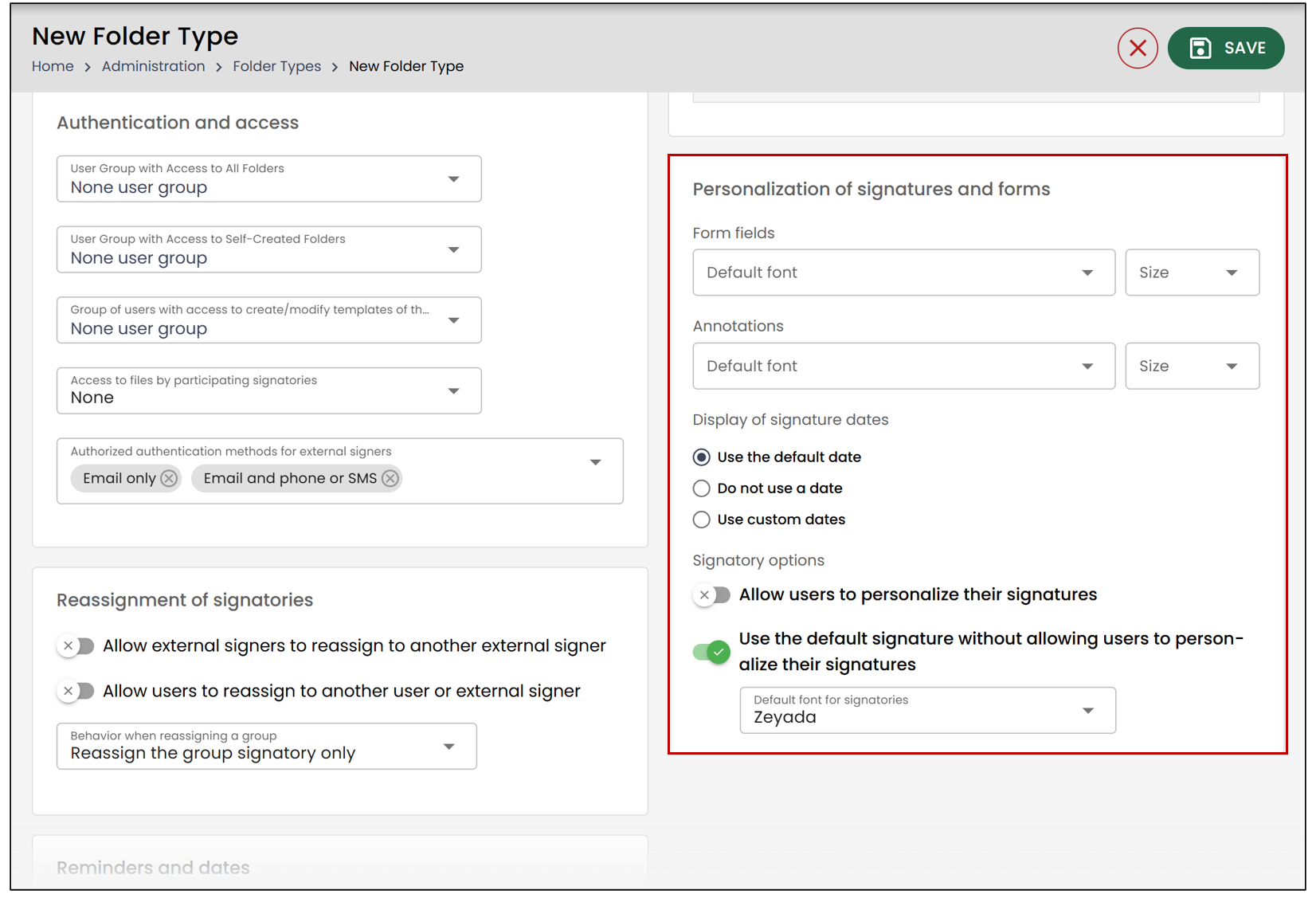
Form Fields : Select a default font and the desired size for form fields.
Annotations : Select a default font and the desired size for annotations.
Display of signature dates
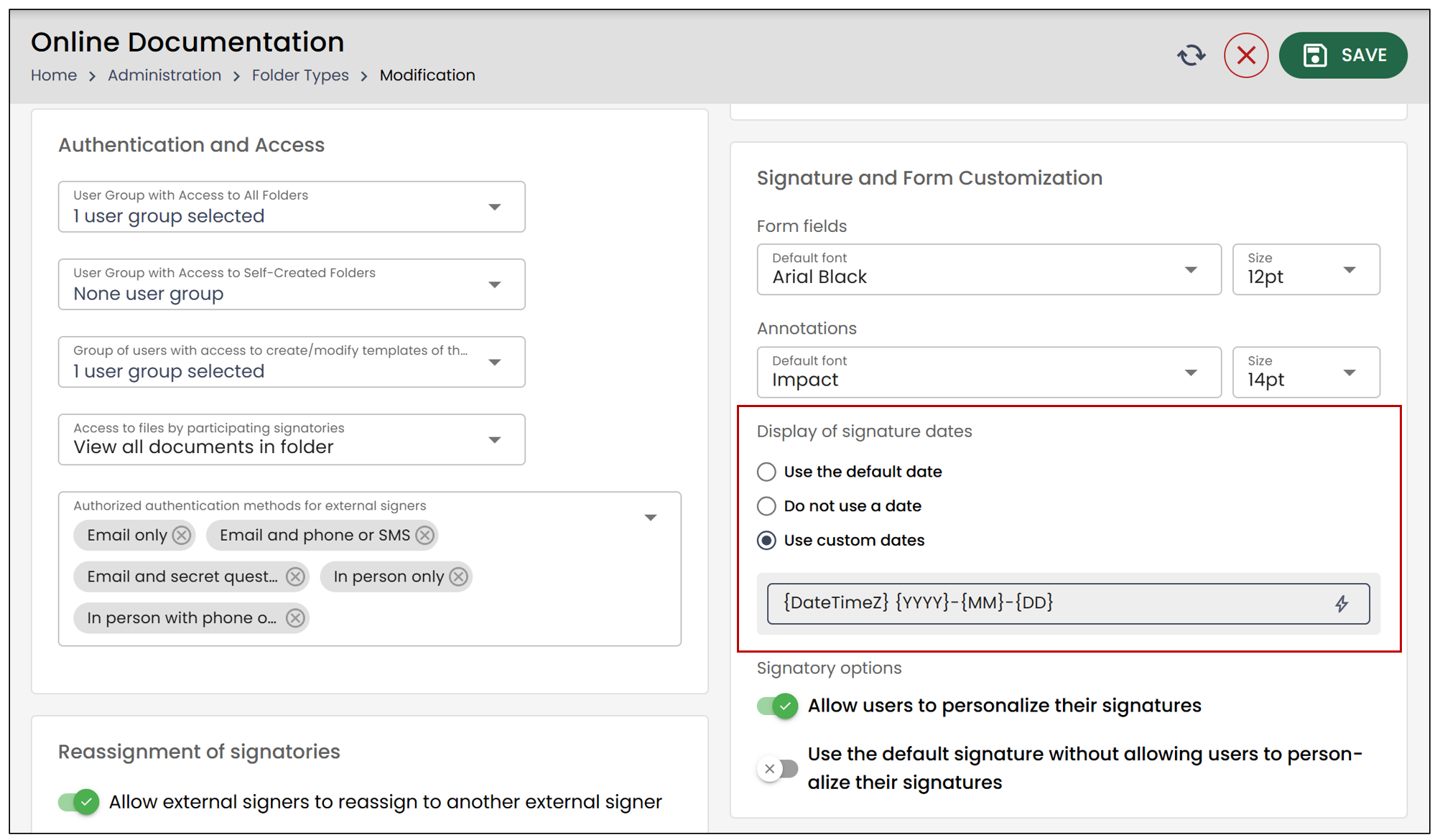
* **Use the default date** : displays the full date and time.- Do not use a date : the signature field is displayed without a date.
- Use custom dates : choose the format that meets your needs, for example, displaying only the date (YYYY-MM-DD).
- Signatory Options
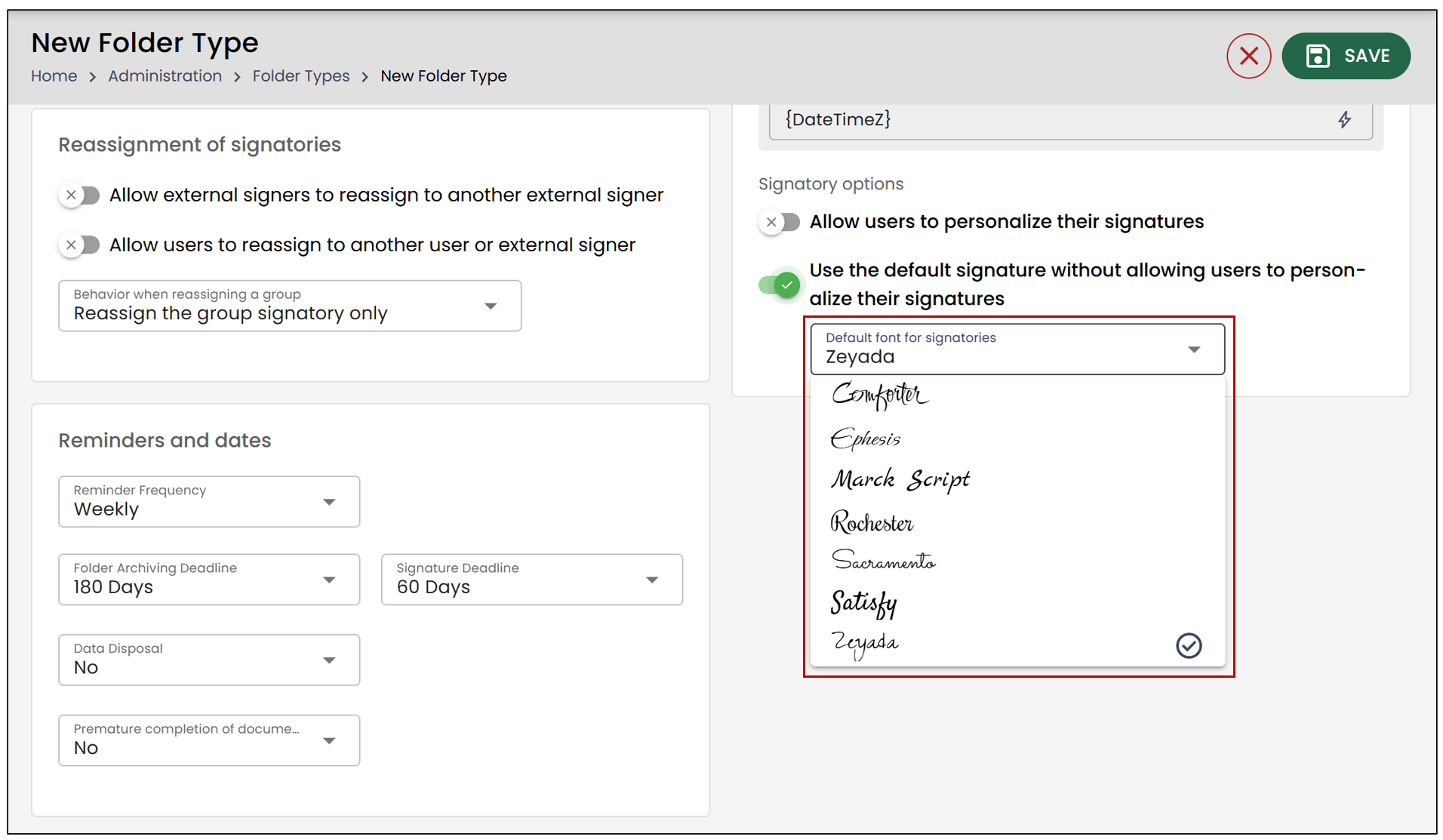
- Allow users to personalize their signatures : The signer will have the option to select either a formatted signature or a freehand one when signing.
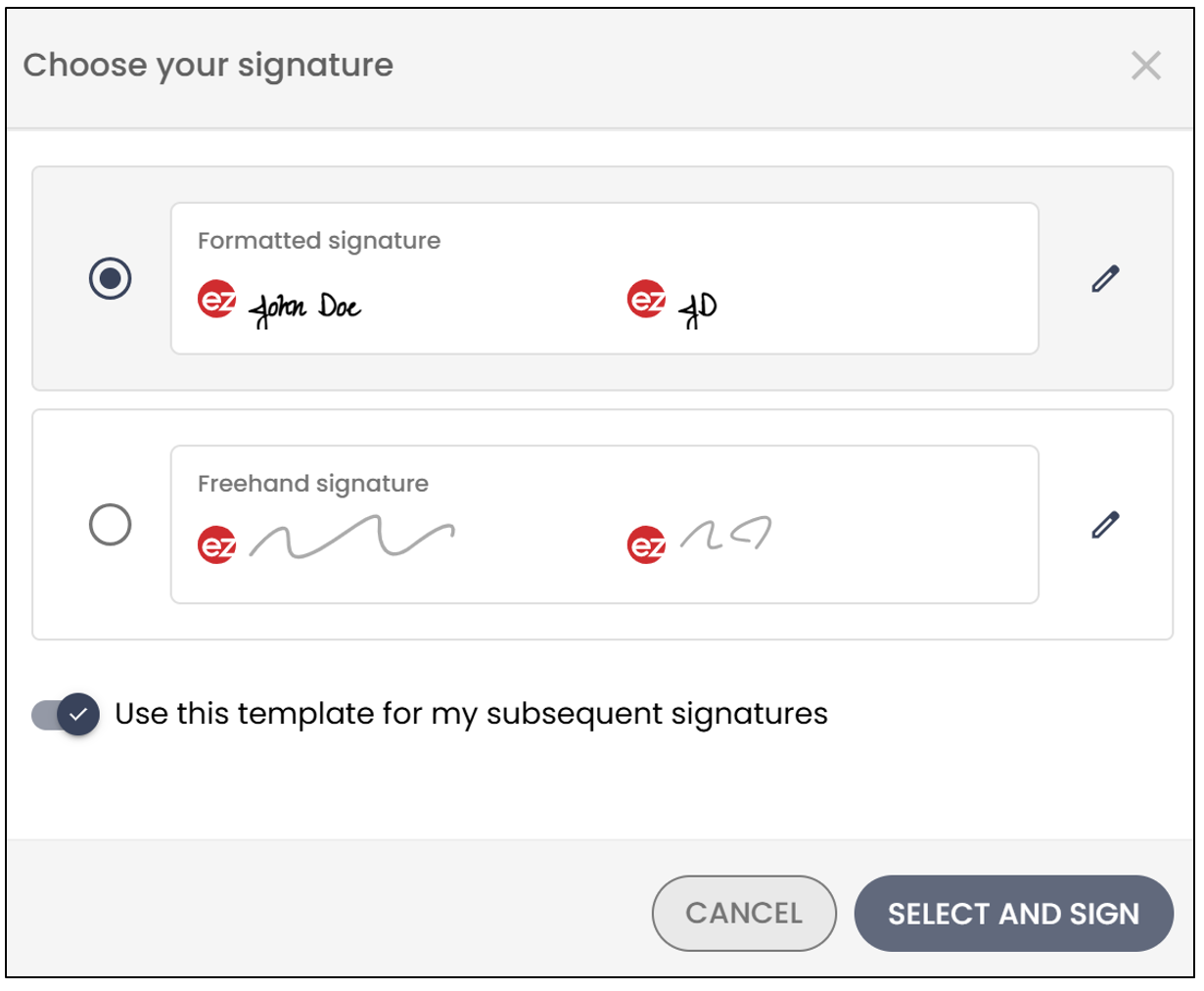
* **Use the default signature without allowing users to personalize their signatures** : You will be able to select a default font, which will be applied when the signer signs.
Reminders and dates
You will have the option to select the Reminder Frequency and the Folder Archiving Deadline , as well as manage the Data Disposal.
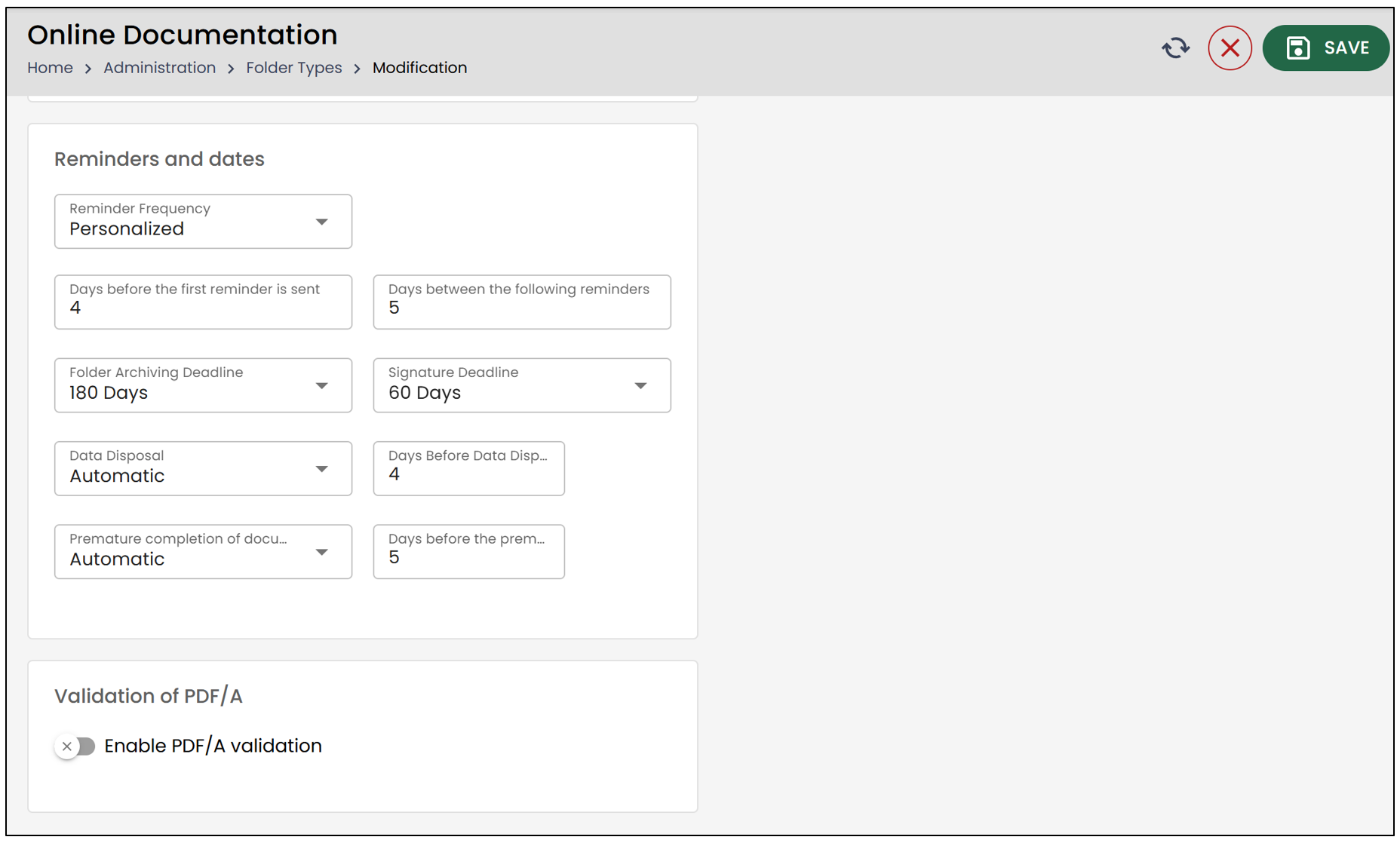
Select the desired Reminder Frequency. An email will be sent to an external signer reminding them that they need to add their signature to a document.
None : No reminder will be sent, even if signatures are missing from the document.
Daily : The reminder will be sent every day until the document is signed.
Weekly : The reminder will be sent once a week until the document is signed.
Personalized : This frequency allows you to set up two reminders. You can select the number of Days before the first reminder is sent , as well as the number of Days between the following reminders , i.e., the recurrence of the reminders. For more information on setting up personalized reminders, please refer to the article Configuration of personalized reminders in folders.
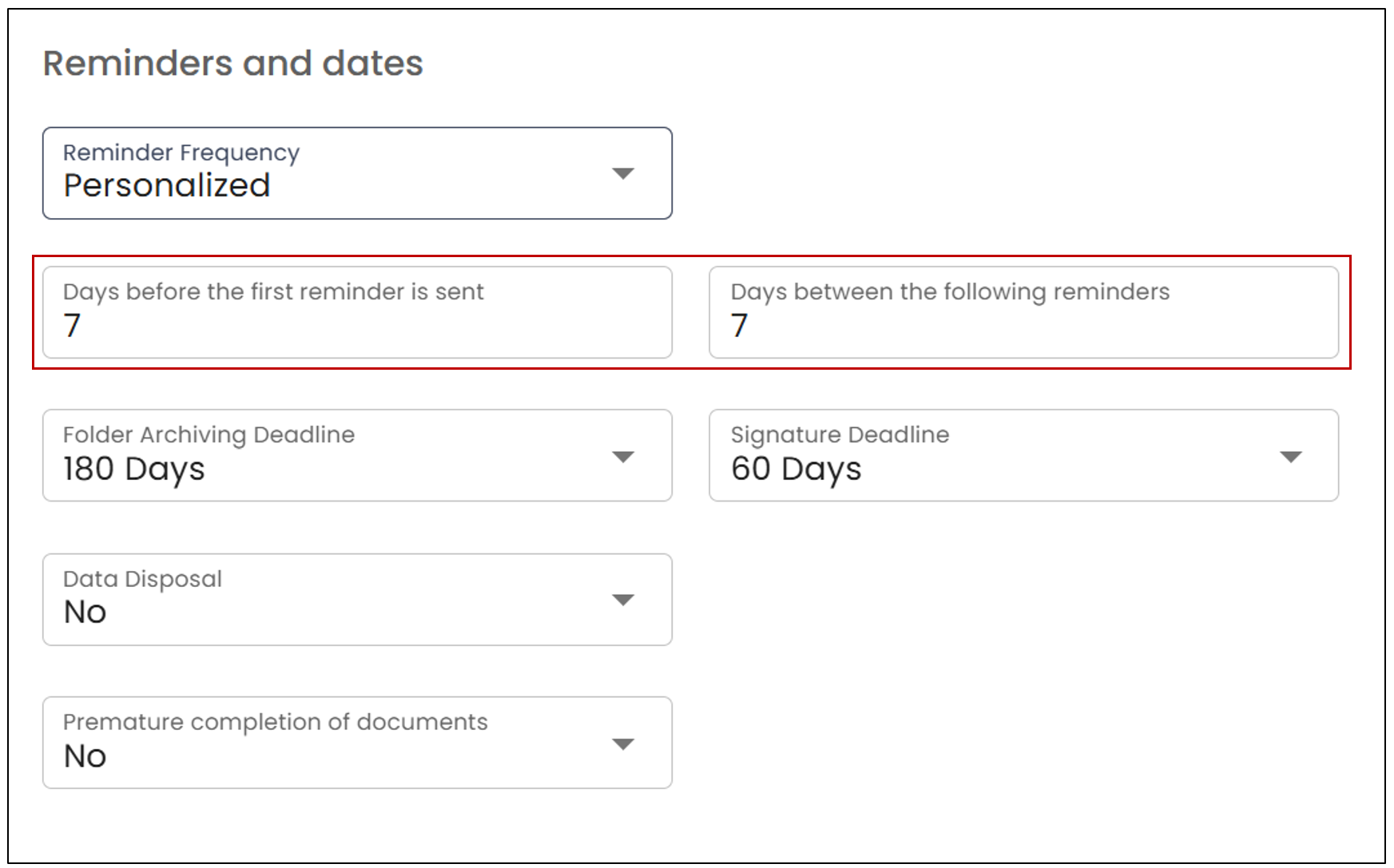
- You will then be able to select the Folder Archiving Deadline as well as the Signature Deadline.
NOTE: The archiving period begins after the last signature deadline indicated in the folder, even if the document was signed before that date. For example, if a document is signed on February 1st but the signature deadline is set for February 15th, the archiving period will begin after February 15th.
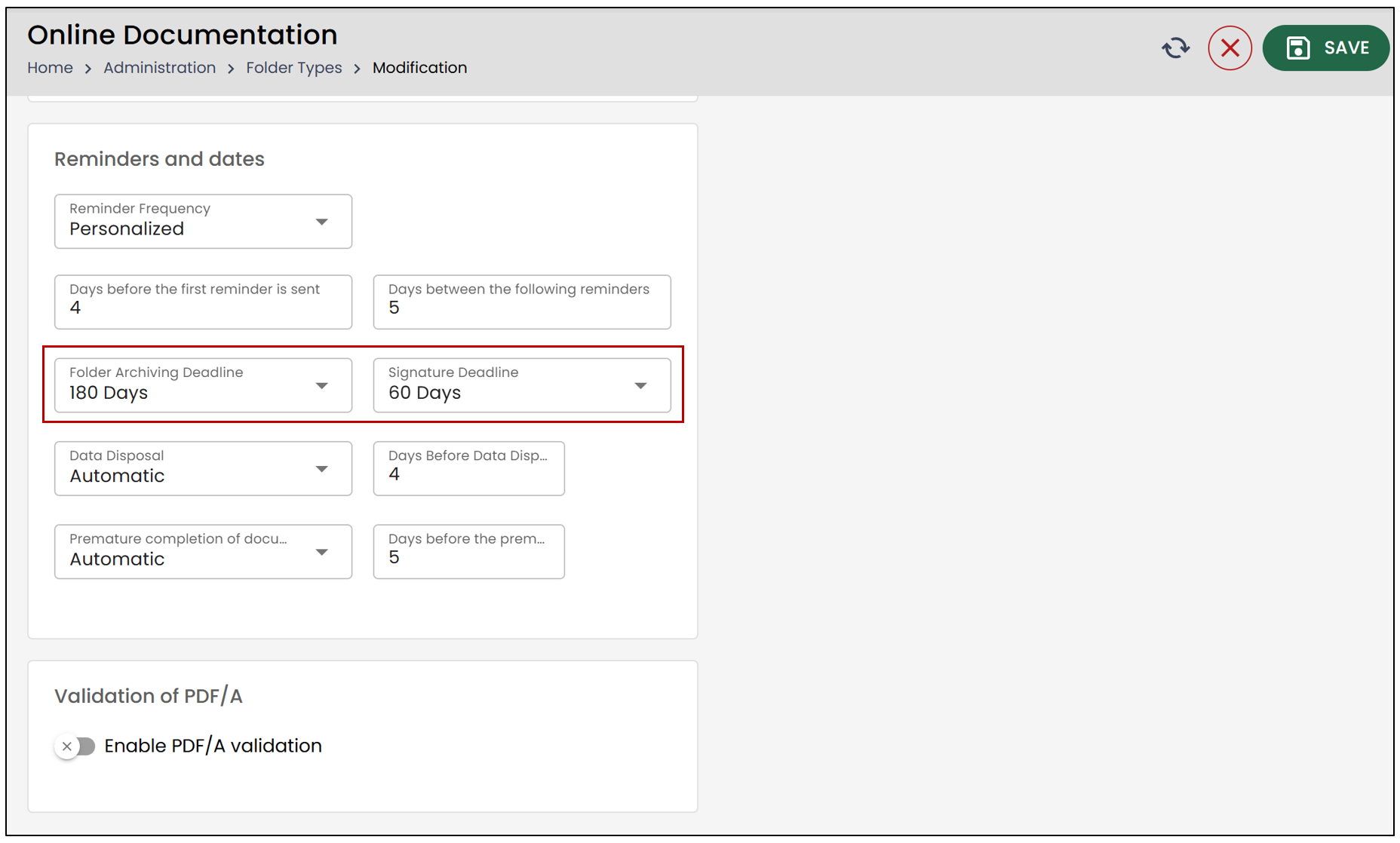
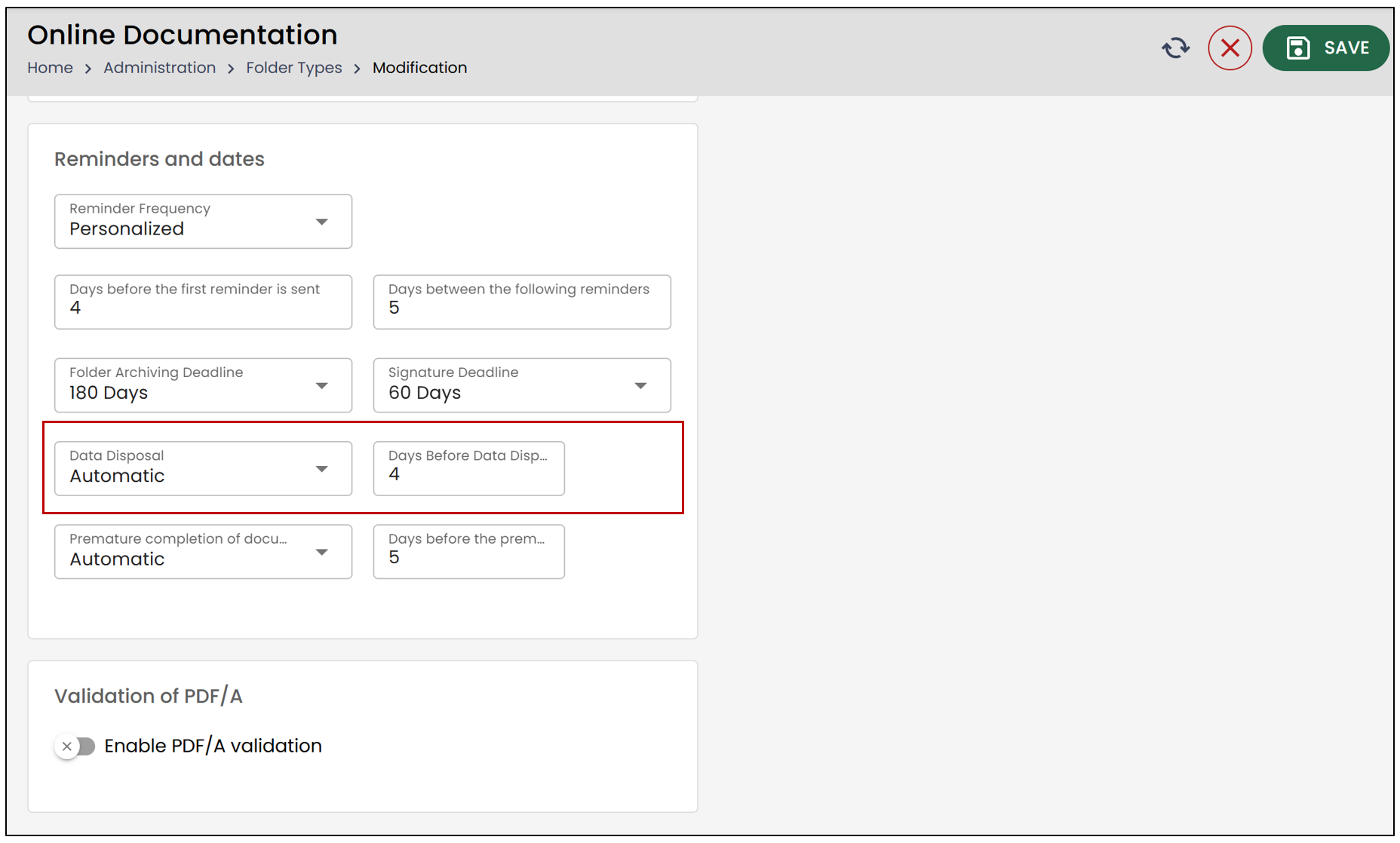
Data Disposal : Functionality that applies in folder types.
No : Once the folders are archived, they will remain on the eZsign servers.
Manual : It is possible to select the number of days after archiving the folders when they will be eliminated. A notification will appear on the home page and it will be possible to delete the folders manually.
Automatic : It is possible to select the number of days after archiving the folders at which they will be disposed of. A notification will appear on the home page and it will be possible to delete the folders manually.
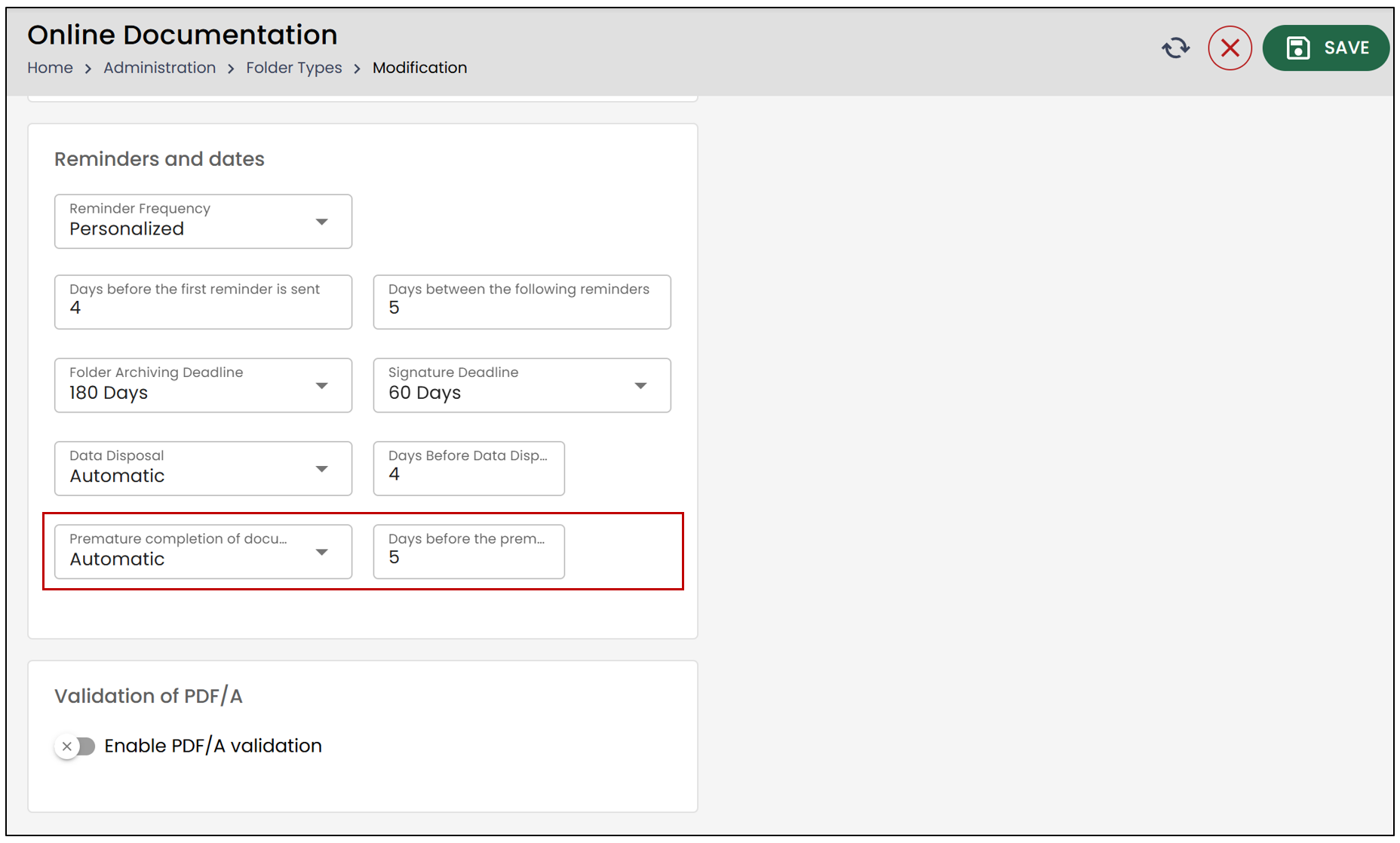
- If you wish to enable the Premature completion of documents for this folder type, choose the Automatic option. Then, specify a number of days.
NOTE: This period will begin as soon as the signature deadline expires.
- When you are finished, click Save to record your changes.
Editing a Type of Shared Folders
From left menu >> Administration >> Folder Types.
Click on the desired folder type and on Edit Folder Type.
Make the desired changes and click on Save.
Copy a Type of Shared Folder
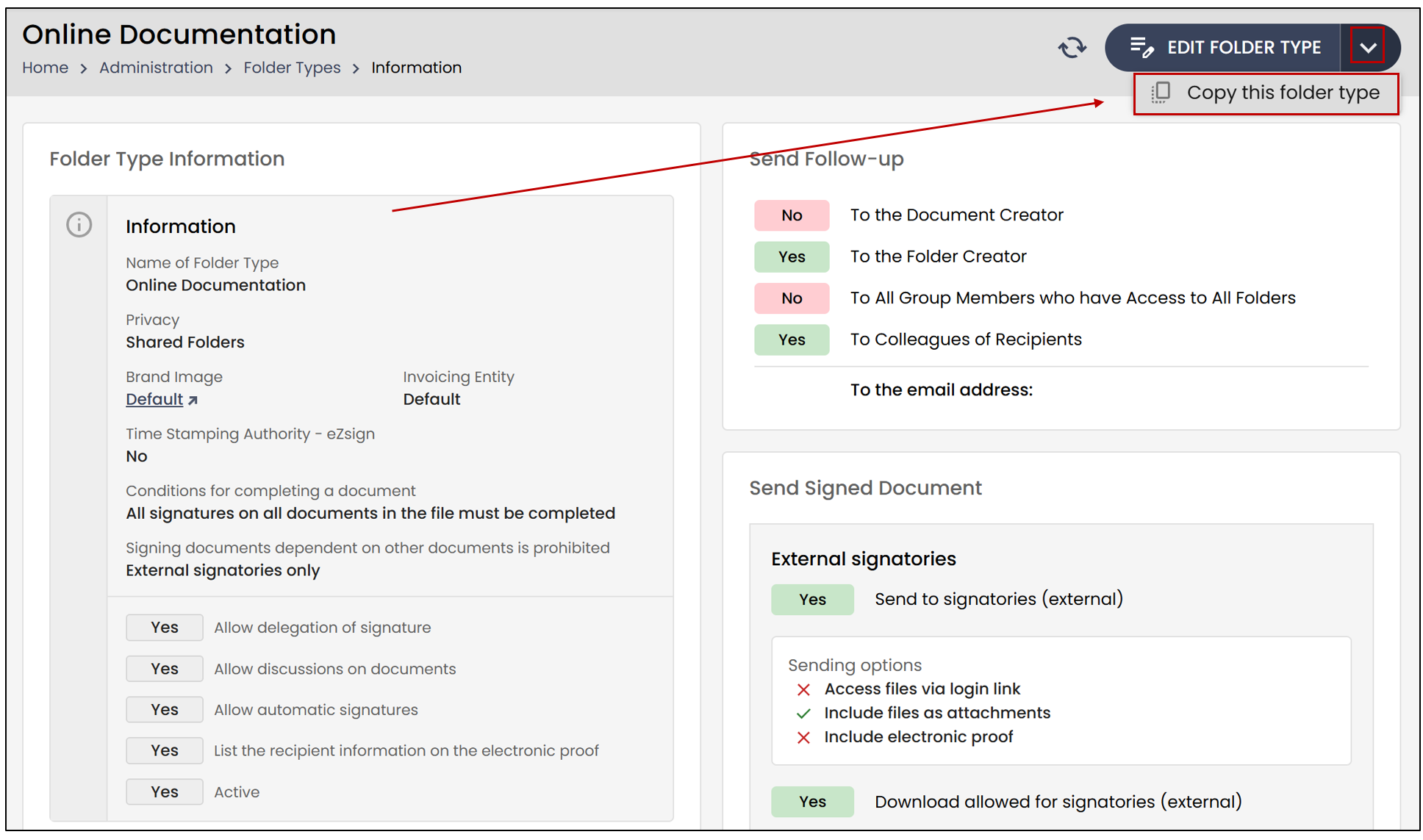
To copy a shared folder type, you will need to select the desired folder type from the List of Folder Types.
- Then, click the downward-pointing arrow and select Copy this folder type.
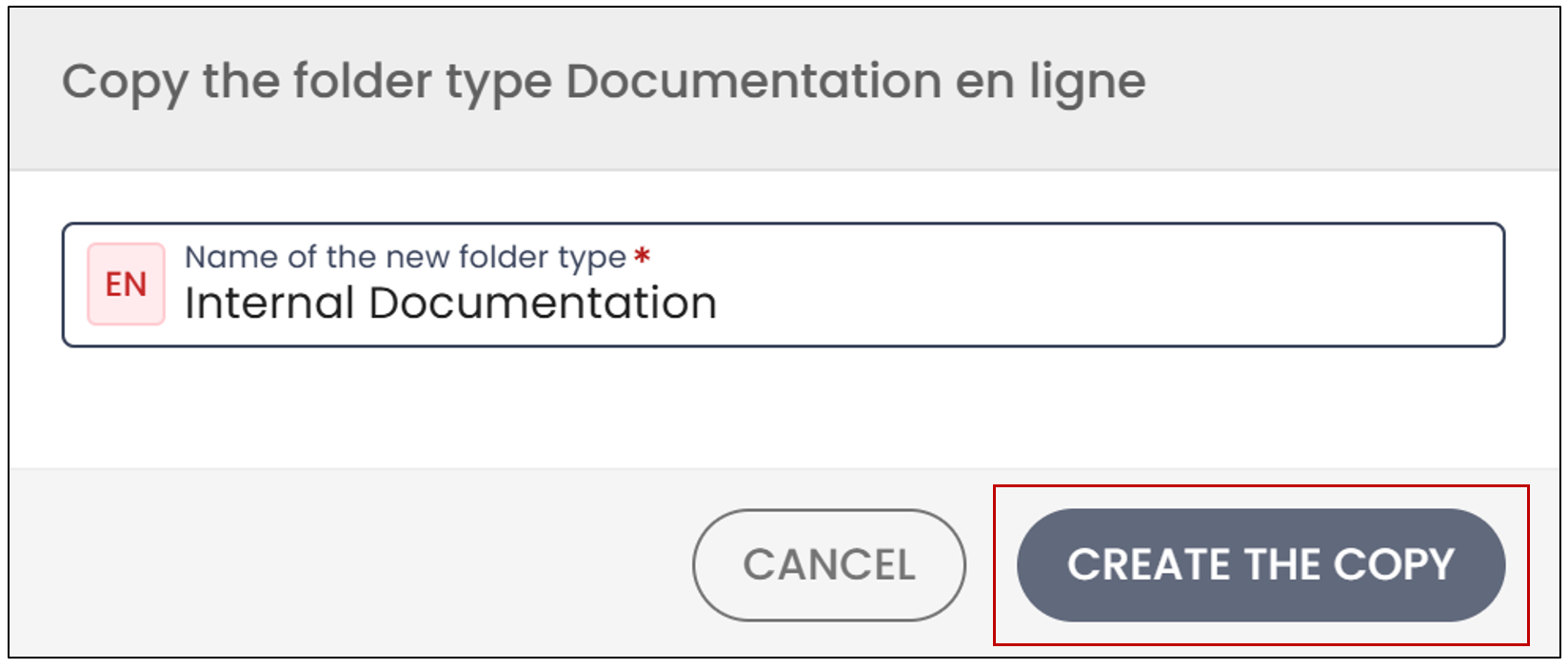
- You can then choose the name of the new folder type, and click Create the copy.
- The new folder type will then be available from the List of Folder Types.