

English
How to Resolve Broken E-Signature Links?
How to Resolve Broken E-Signature Links?
If a signatory encounters an "invalid link" message while trying to sign a document (see image below), it is likely due to a high-security application or environment blocking the link. This article provides guidance on how to resolve this issue using a non-default browser.
NOTE: High security settings often enforce strict protocols that can disrupt or block links, preventing your signers from accessing documents properly.
Fix the problem with a computer
To bypass restrictions and resolve invalid link errors, open a different browser than the default one.
You will then need to copy the link. Right-click the email signature button, then select Copy Link Address.
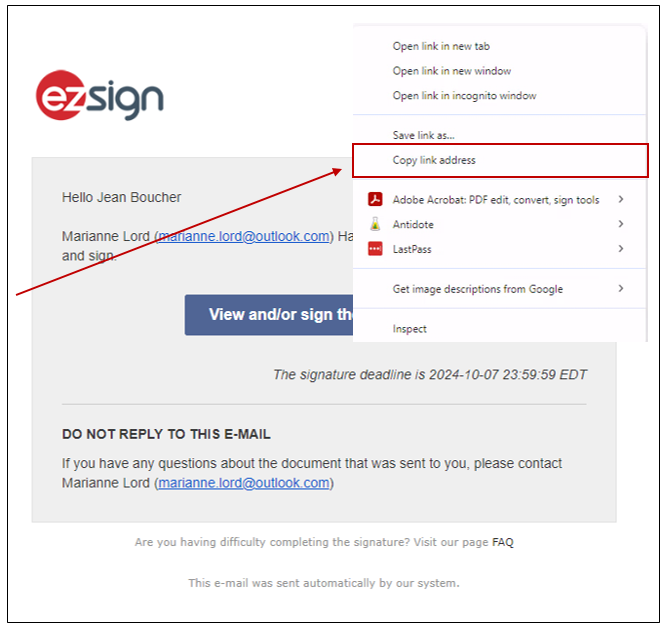
Open another browser, paste the link into the address bar, then press Enter.
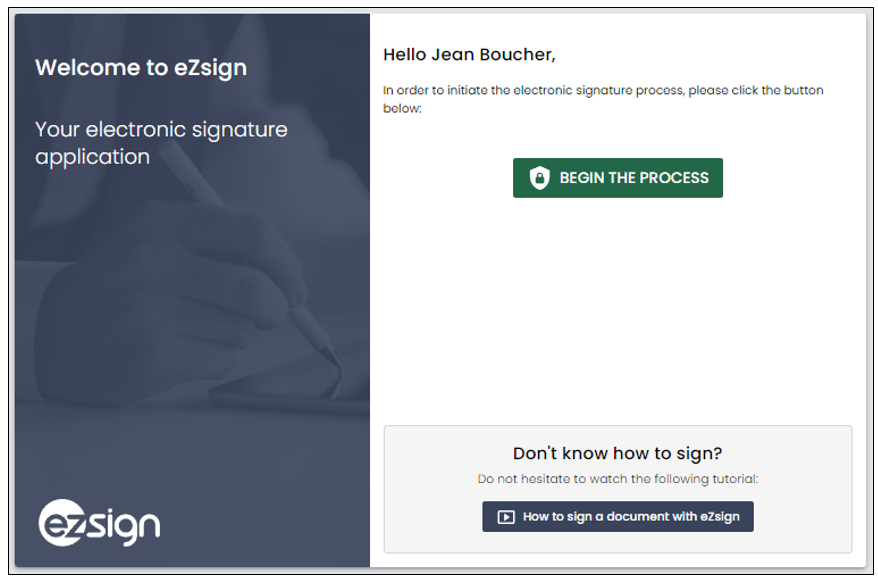
You will be redirected to the signature page. Follow the instructions to complete the electronic signature process in the new browser.
Fix the problem with a smartphone
To bypass restrictions and resolve invalid link errors, open a different browser than the default one.
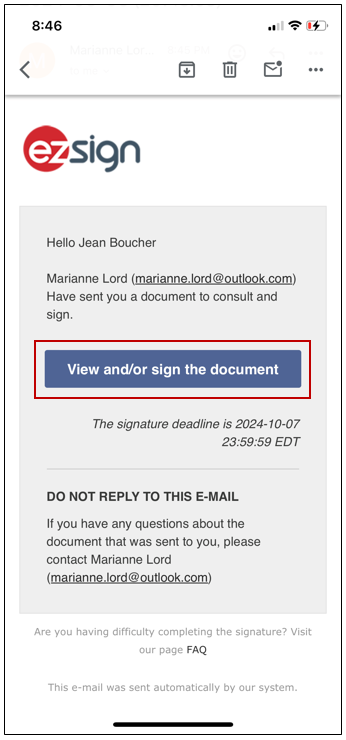
In the email received previously, copy the link while holding your finger down on the View and/or sign the document button. Then select Copy link.
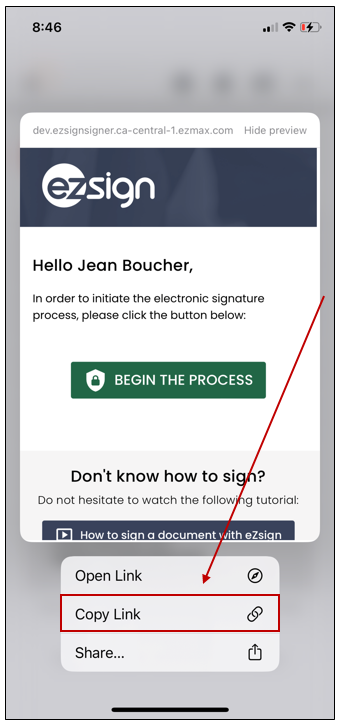
- You will then need to open a web page in another browser and paste the link into the address bar.
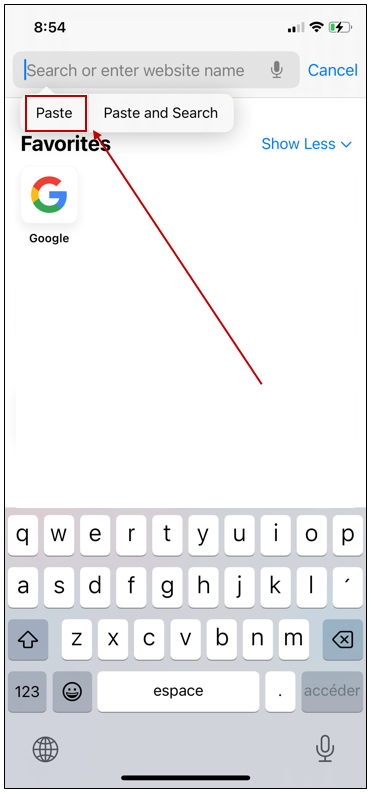
- You will be redirected to the signature page. Follow the instructions to complete the electronic signature process in the new browser.
NOTE: If the issue persists, please contact our support team for further assistance.
