

English
Signing a Document as a User
Sign the Documents as a User
When you send the documents for signing, after clicking on Send , if you need to sign as a user and depending on the types of fields in the document, you will be prompted to sign automatically. If you do not sign directly in the field, you can do so later from the eZsign folder or the homepage.
Sign the Documents Automatically
NOTE: In order to access this option, the folder type must allow automatic signatures.
Applicable only for signature fields:
Signature
Initials
Signature City
Acknowledgment of receipt
When sending documents for signing, after clicking Send.
Here is an example of a document with signature fields Signature and Initials :
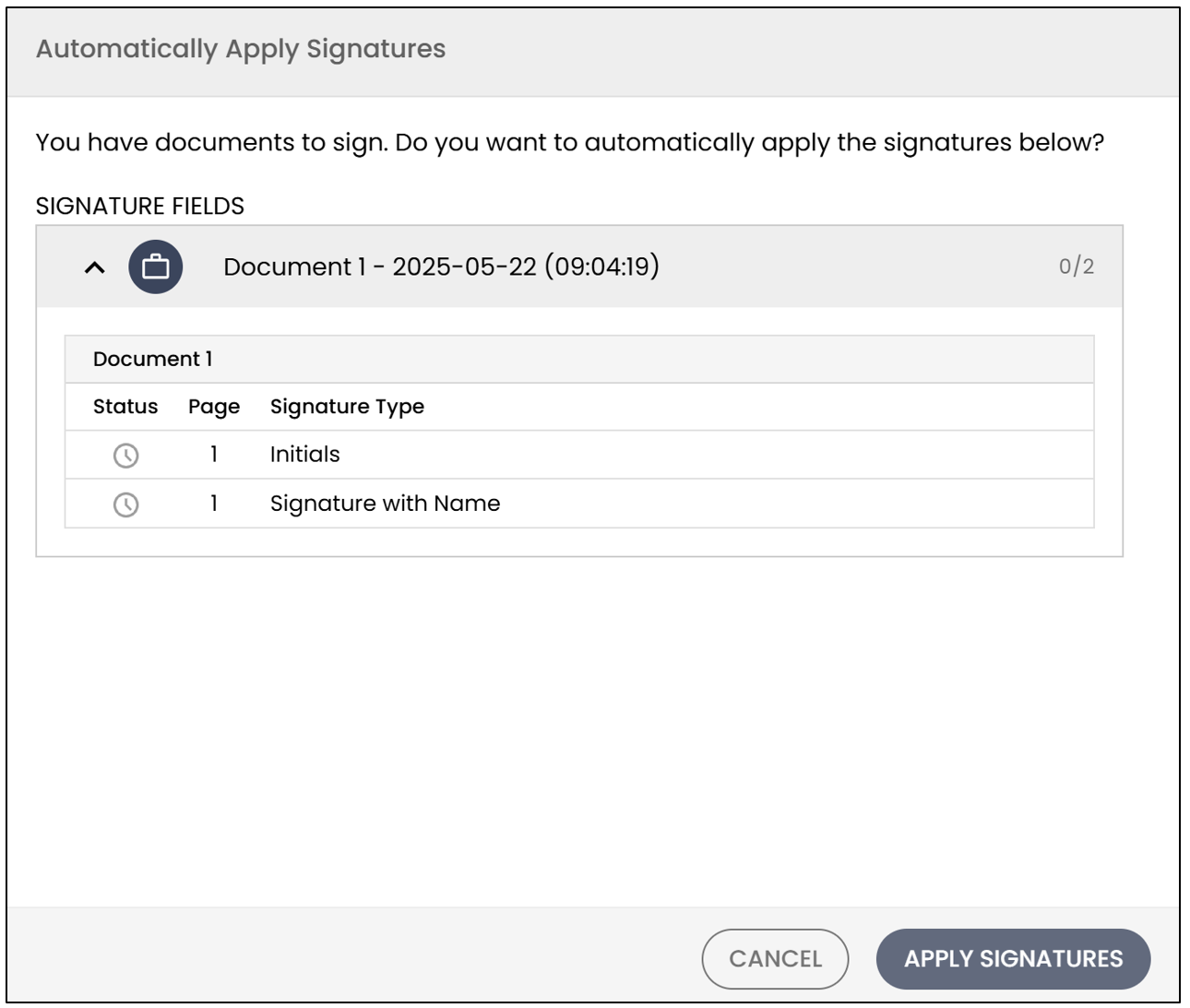
- Click on Apply Signatures and the document will be signed.
Here is an example of a document with a Signature City signature field:
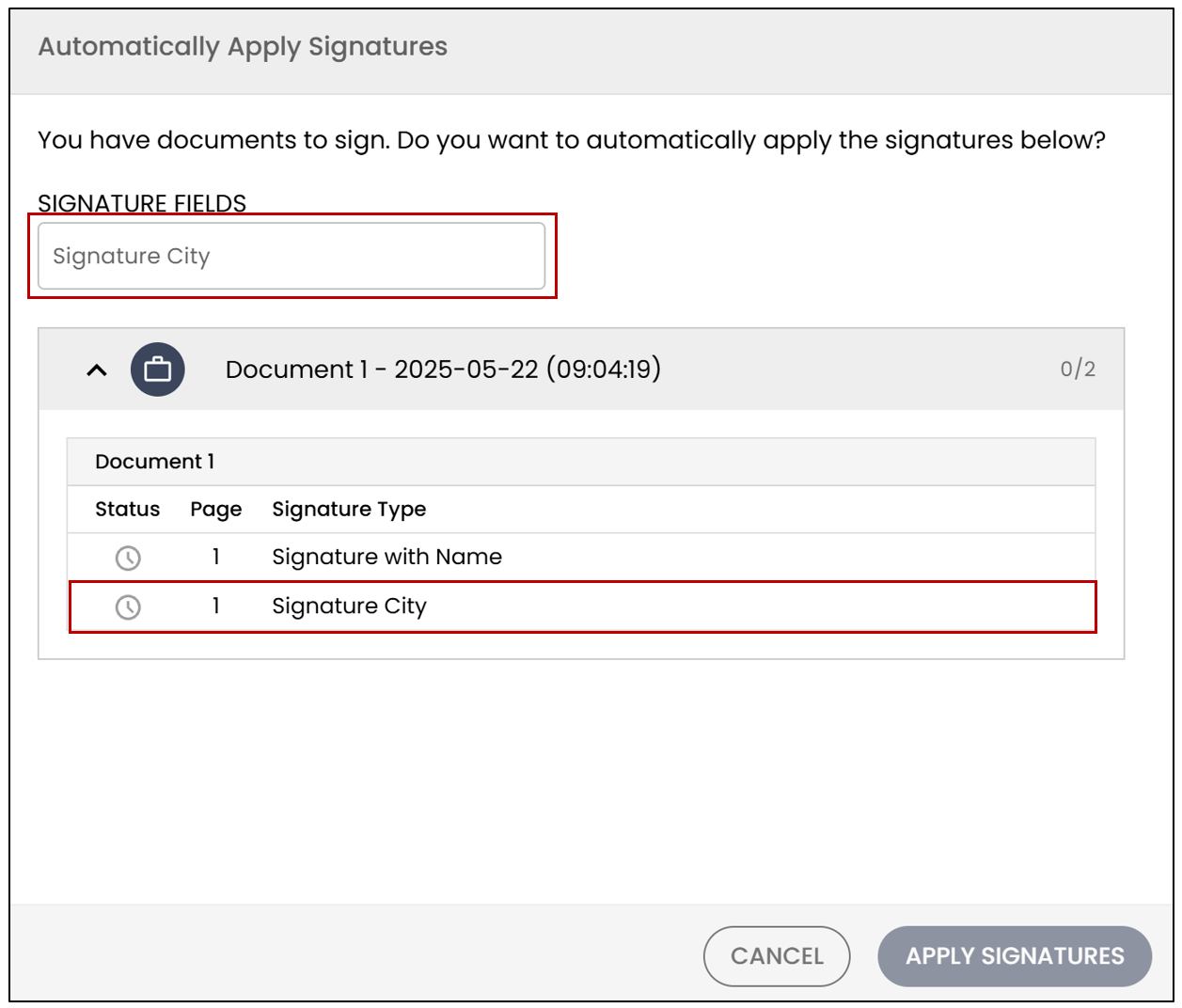
- Enter the name of the city of the signature, click on Apply Signatures , and the document will be signed.
Here is an example of a document with an Acknowledgment of Receipt signature field:
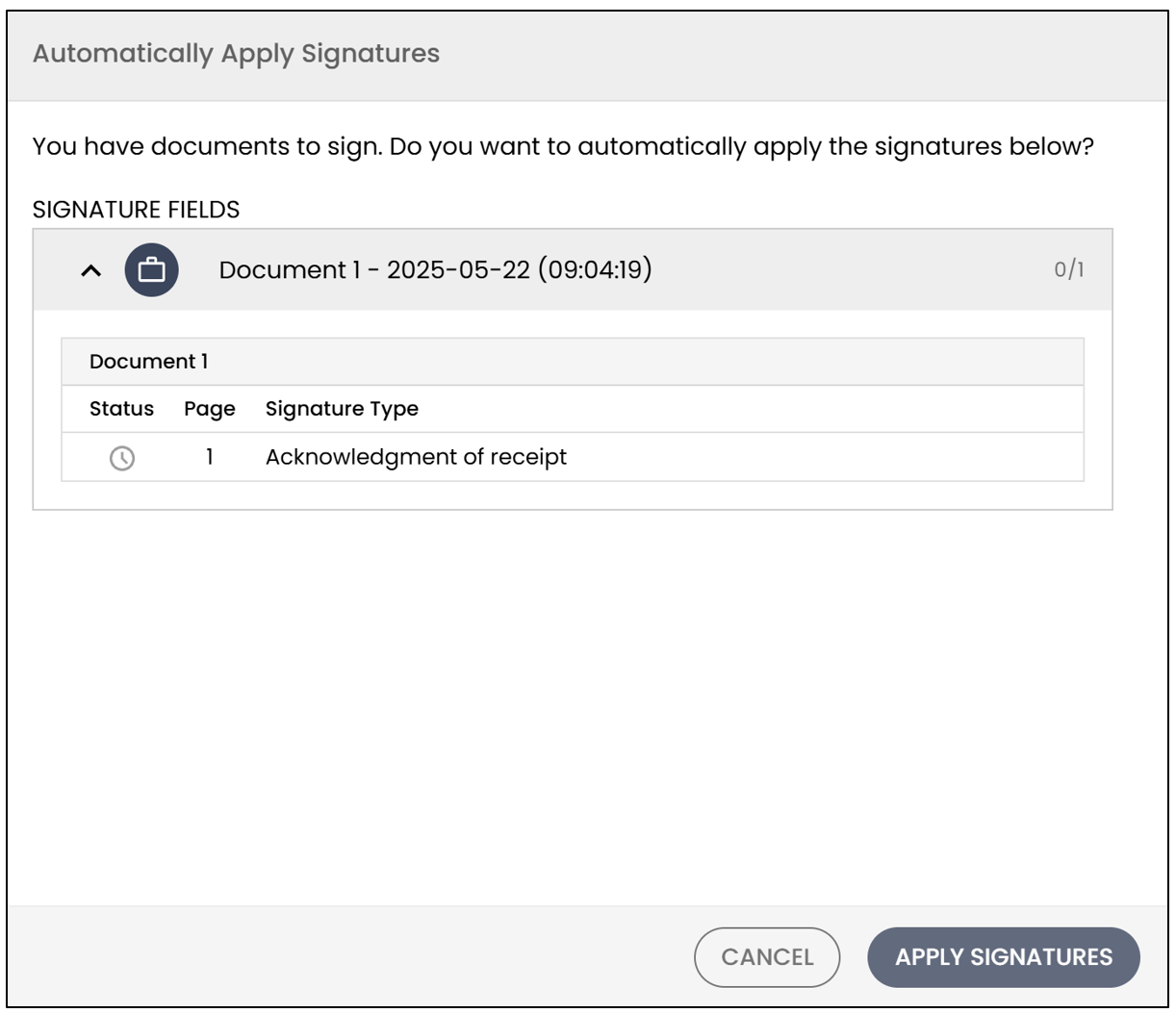
- Click on Apply Signatures and the document will be signed.
Sign the Document Later - From the eZsign Folder
Applicable to all signatures and form fields.
- When sending documents for signing, after clicking Send , if you do not sign automatically, you will be redirected to the folder.
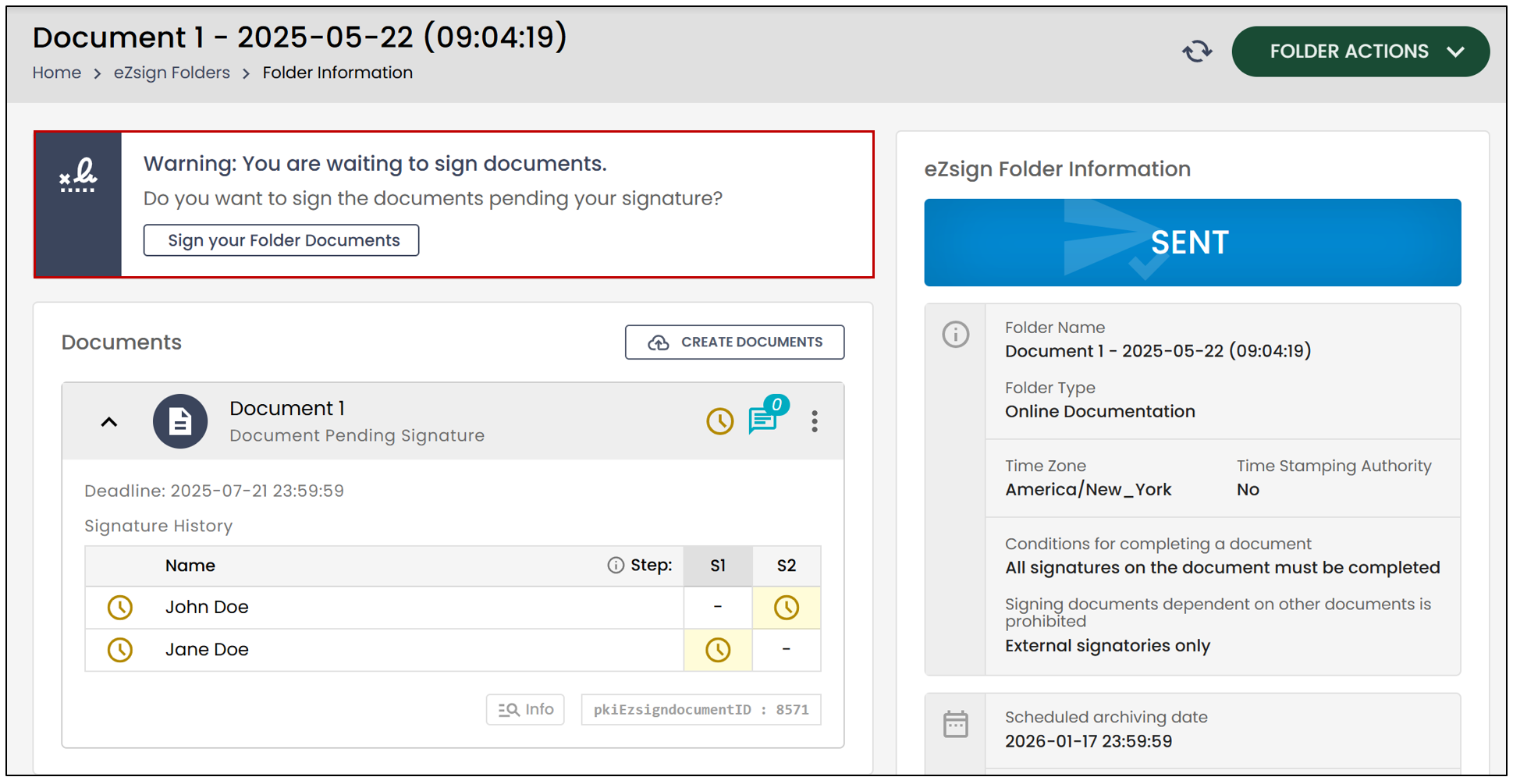
In the Warning: You are waiting to sign documents box, click on Sign your Folder Documents.
- The next steps will vary depending on the type of fields contained in the document, such as form fields or electronic signature fields.
NOTE: Form fields must be filled out before electronic signature fields.
If you have completed all the required fields on your part, but there are still signatures to be obtained from other signers, this message will appear to inform you that the electronic signing process is complete for you.
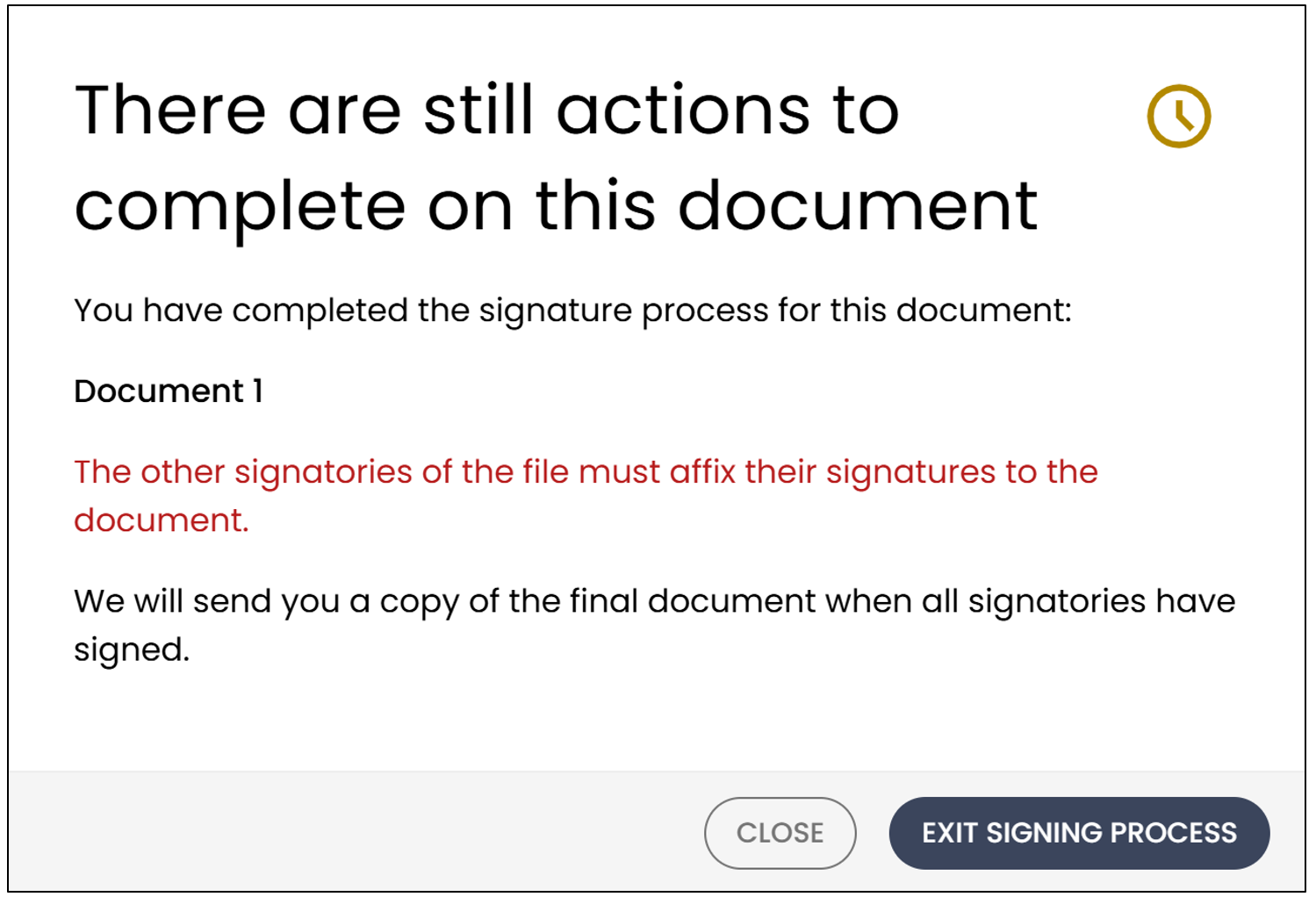
- You can click on Close to return to the signed document or Exit signing process to return to the folder.
If all signatures have been obtained in the document, this message will appear to inform you that the electronic signing process is complete.
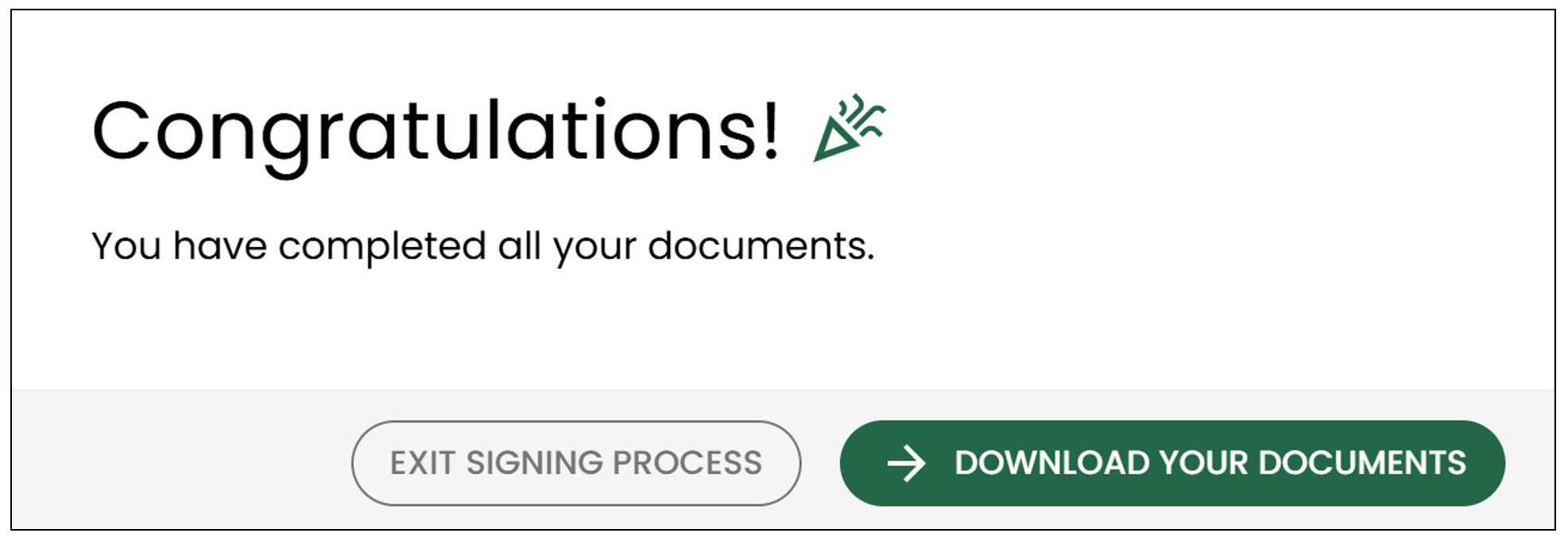
- You can click on Download your documents or click on Exit signing process to return to the folder.
Sign the Document Later - From the Homepage
On the eZsign homepage, you will have pending signatures. Look for the following notifications:
"You have automatic signatures pending"
"You have signatures pending"
"You have forms pending"
For more information, see the article Pending Signatures.