English
Create/Edit/Remove an External Authentication – Administration (eZsign Web)
Create an External Authentication
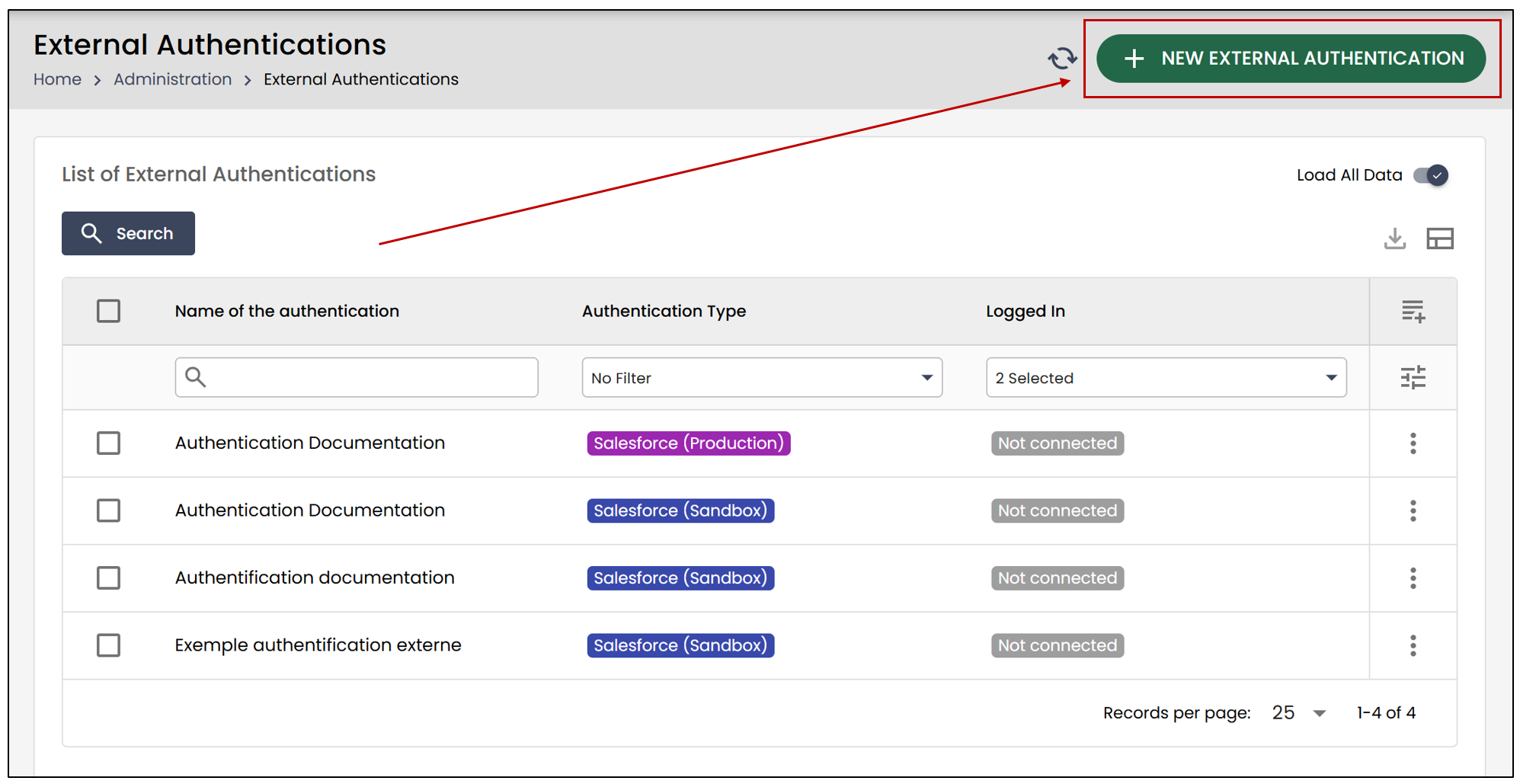
From the Administration menu >> Select External Authentications.
- Click the New External Authentication button.
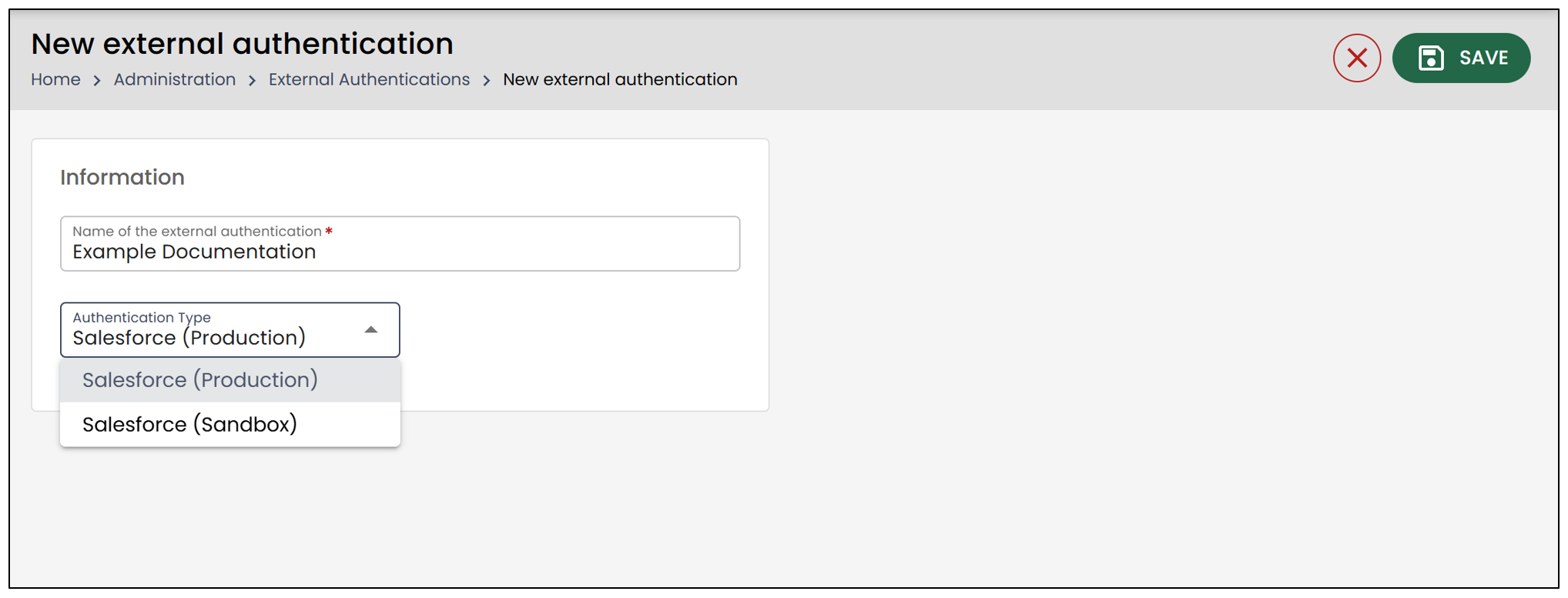
Enter the Name of the external authentication.
Next, select the Authentication Type. Currently, the available external authentication options in eZsign are: Salesforce (Production) and Salesforce (Sandbox).
Click Save.
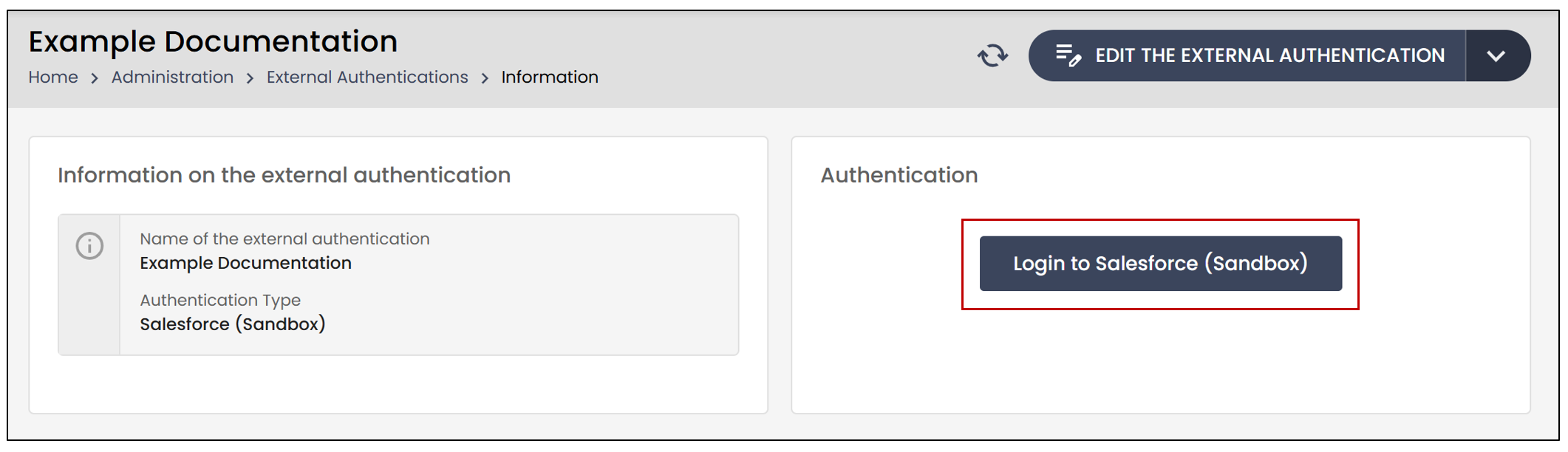
Once the authentication has been created, you must connect it to your environment by clicking the Login to Salesforce (Sandbox) or Login to Salesforce (Production) button, depending on the authentication type you previously selected.
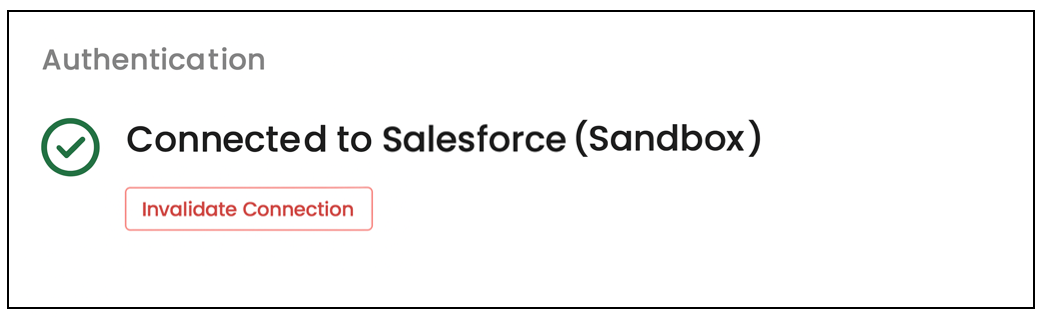
After the authentication has been created and connected to your environment, you will receive a connection confirmation. You will then be able to add it to your webhooks.
Edit/Remove an External Authentication
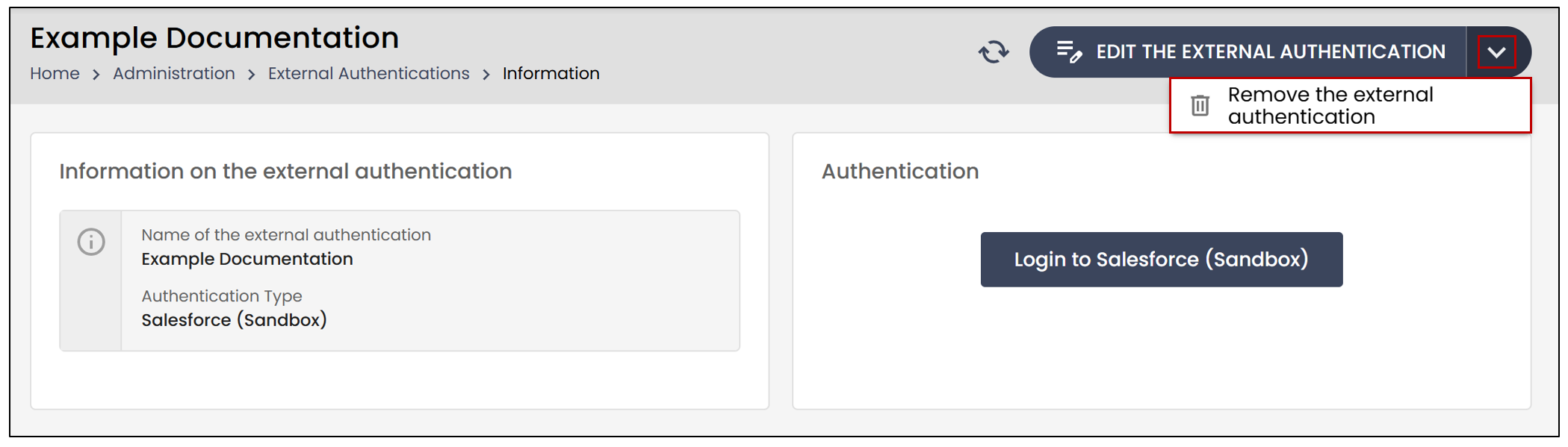
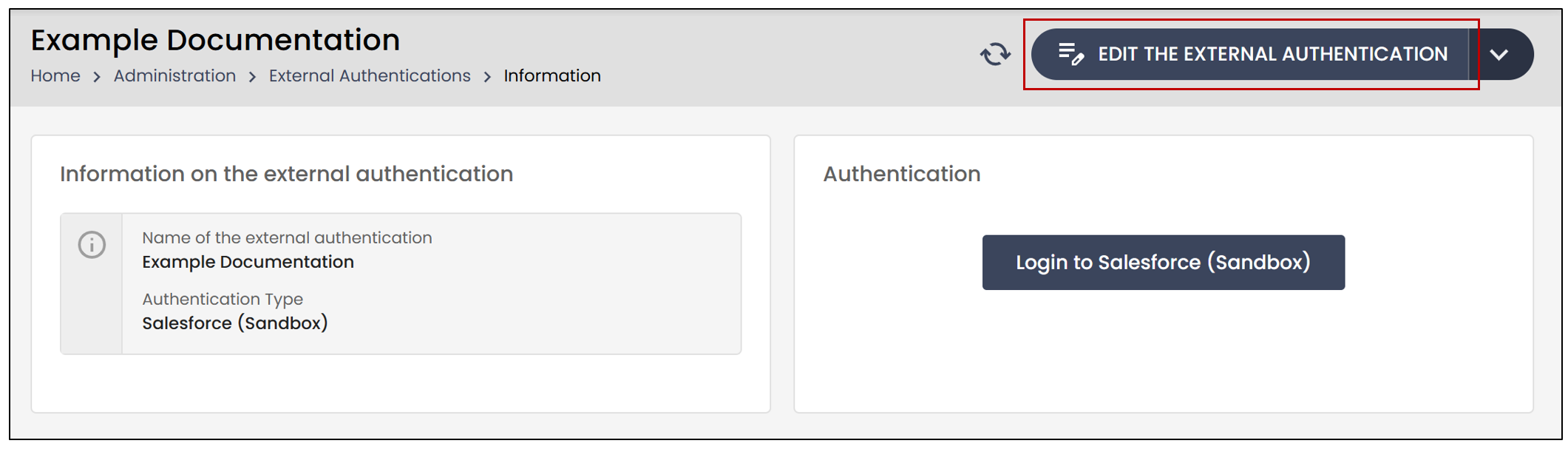
To edit an existing external authentication, select it from the List of External Authentications , then click on Edit the External Authentication.
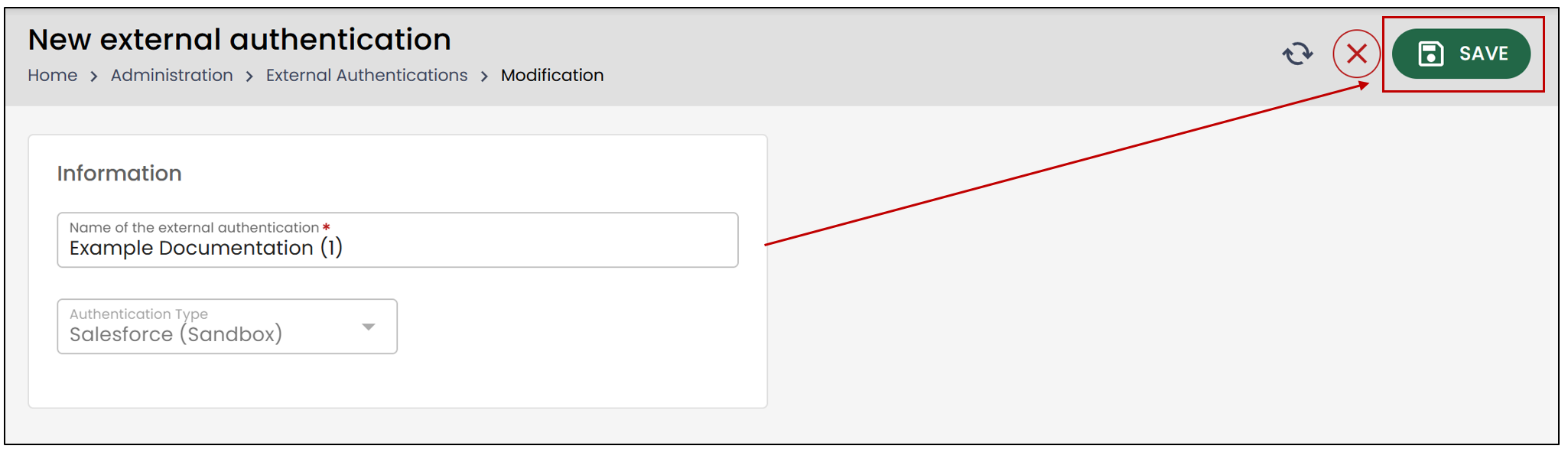
- You can only modify the Name of the external authentication. Make the desired changes, then click Save to apply them.
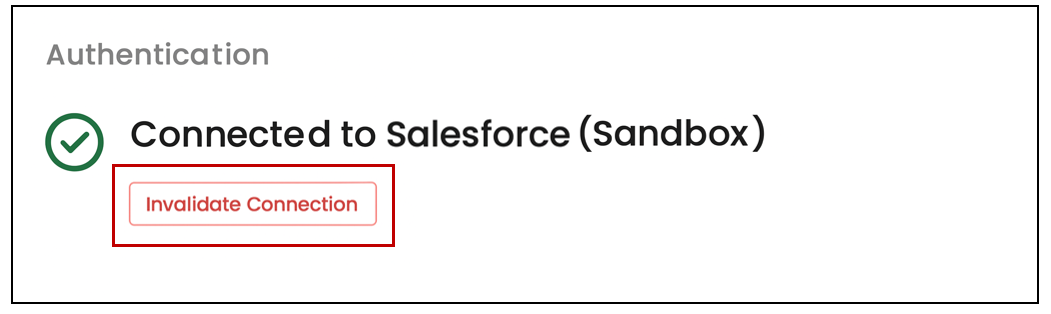
- You can invalidate the connection by clicking the Invalidate Connection button.
- To remove an external authentication, click the arrow to the right of the Edit the External Authentication button and select Remove the external authentication.