

English
Signing a Document Containing an "Attachments" Field as a User
When you send a document that contains a "Attachment" type signature field and you need to sign/add an attachment as a user, you can do so directly from the eZsign folder.
When sending documents for signature, after clicking Send :
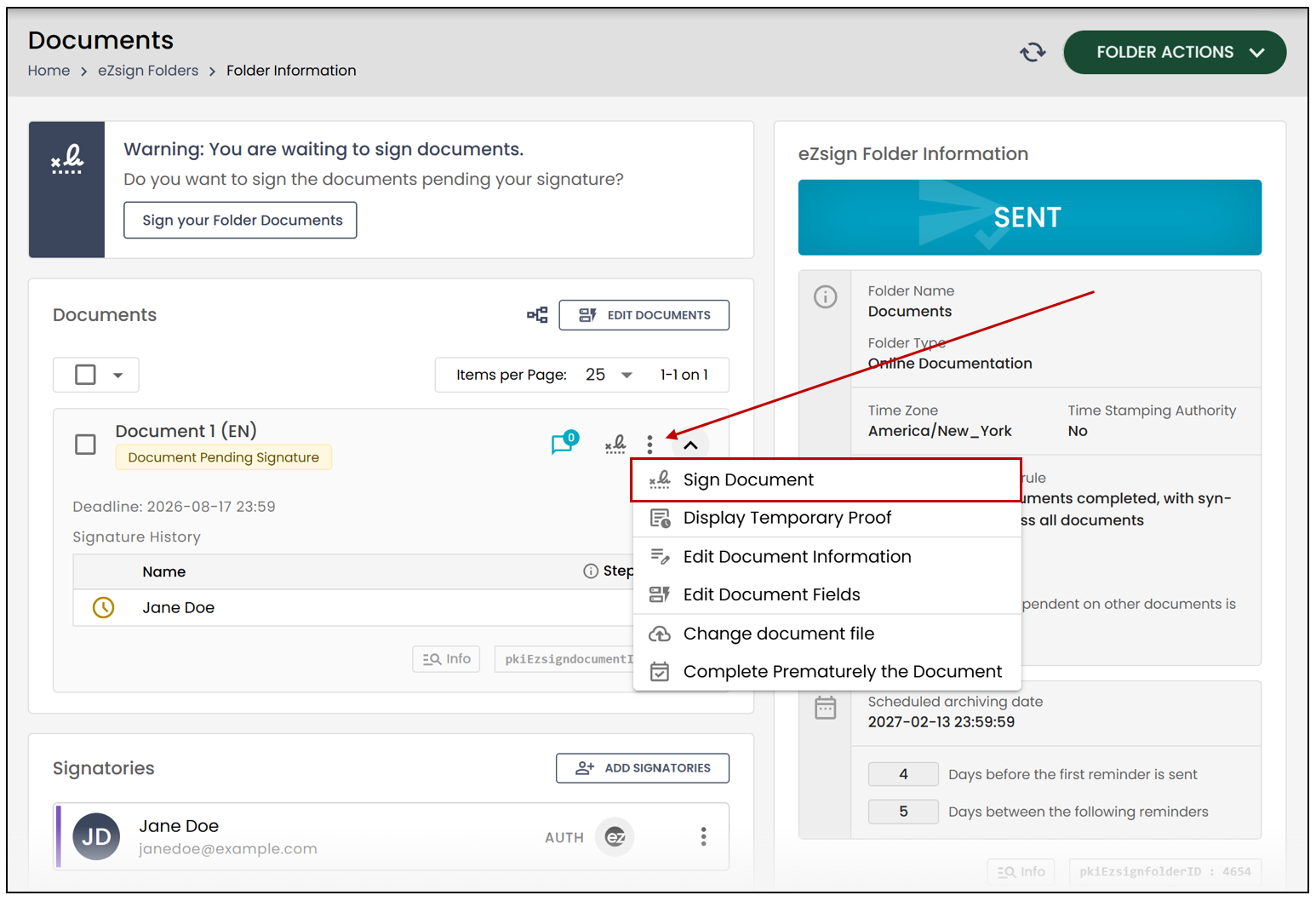
- In the box "Warning: You are waiting to sign documents.", click on Sign your Folder Documents , or in the "Documents" section of the desired eZsign folder, click on the three vertical dots icon to the right of a document and select Sign Document.
NOTE: If the document contains form-type fields, they must be filled out before the electronic signature fields. For more information, see the article Fill out a form as a user (eZsign Web).
- If this icon

(Information) appears to the left of the Attachments field, click it to display the text entered in the Tooltip field when the field was added.
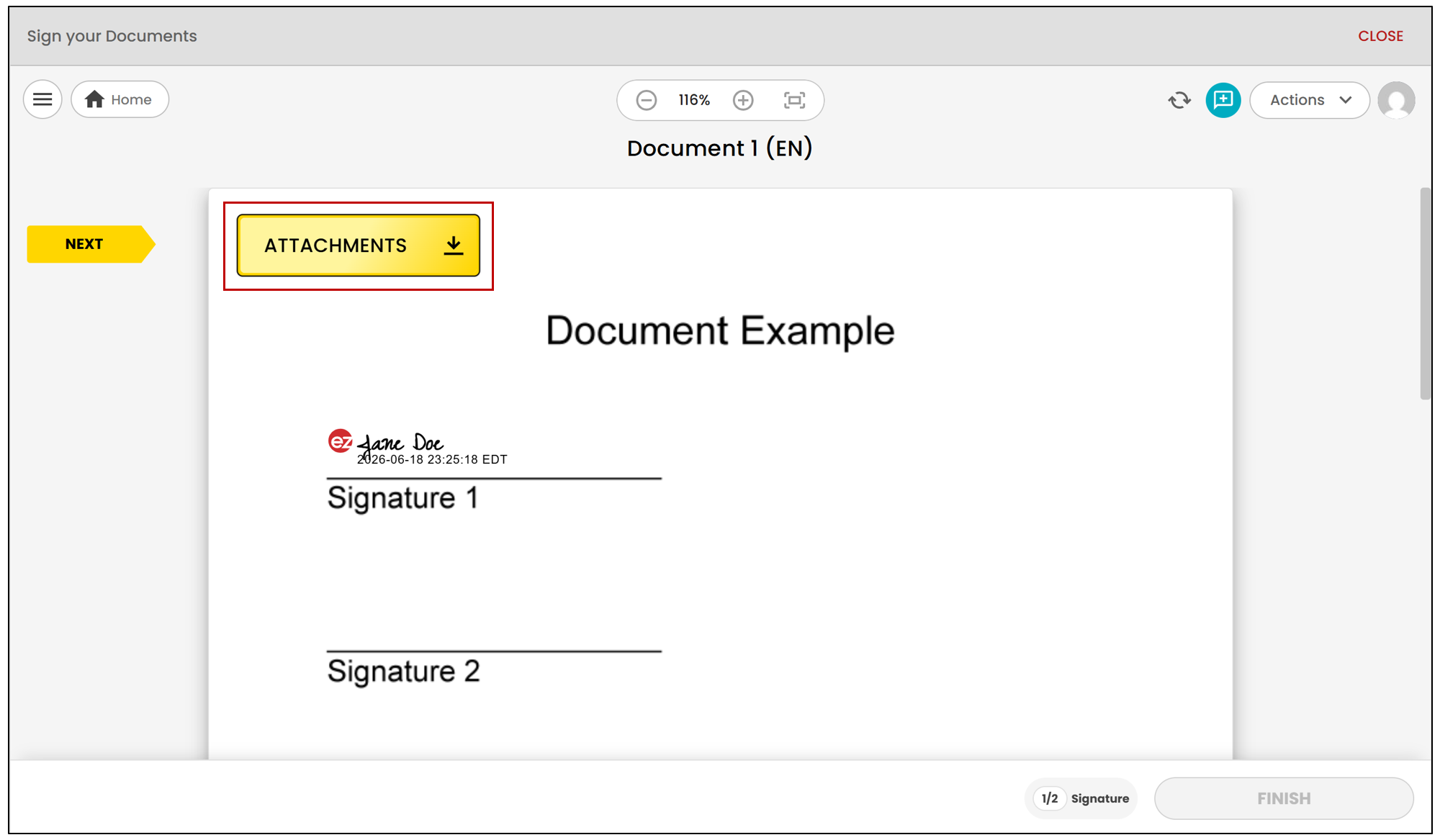
- To add the requested file(s), click Attachments , then drag and drop your attachments into the designated area.
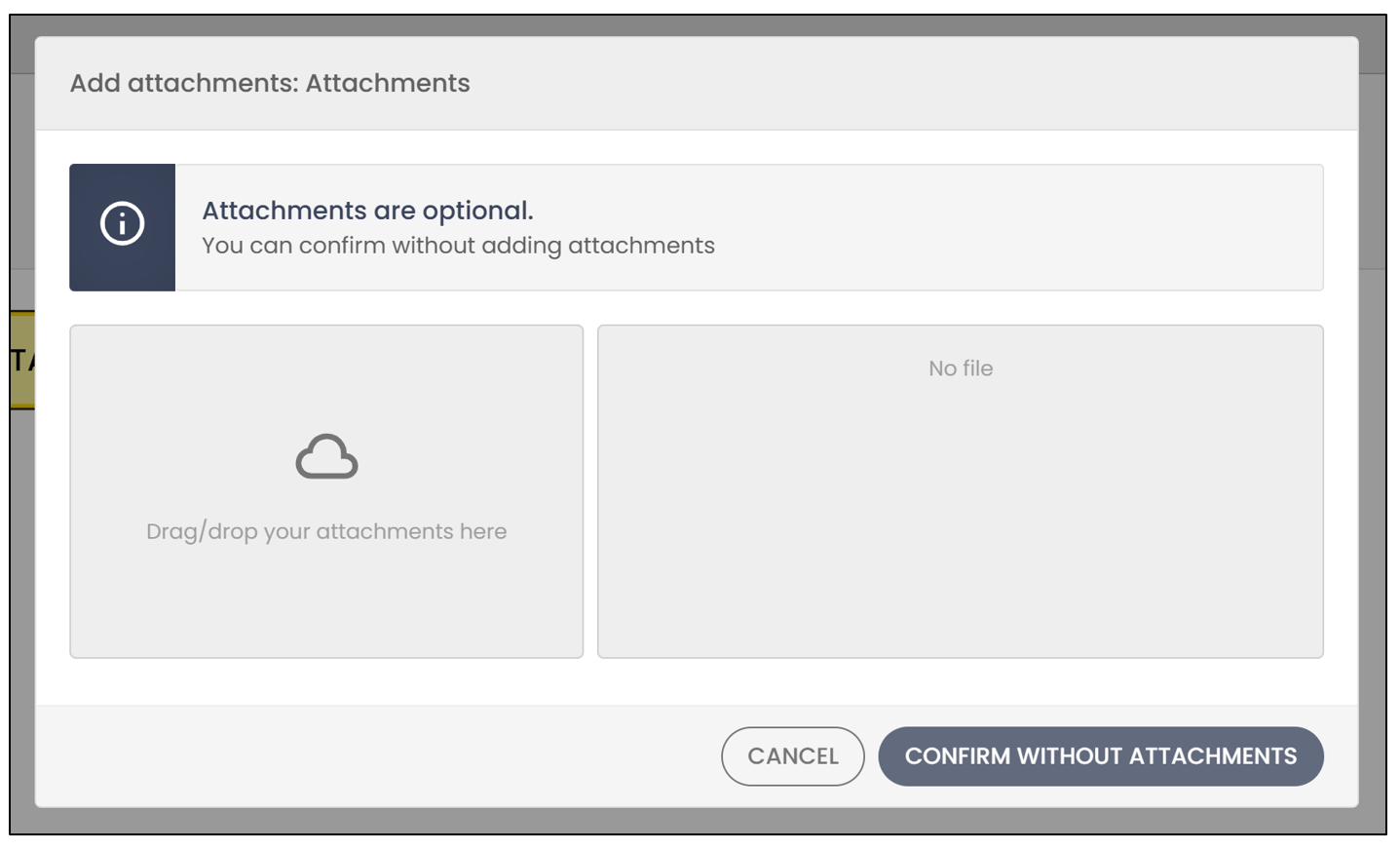
NOTE: You can select multiple files to add them all at once.
- You can delete an uploaded file by clicking the red X to its right.
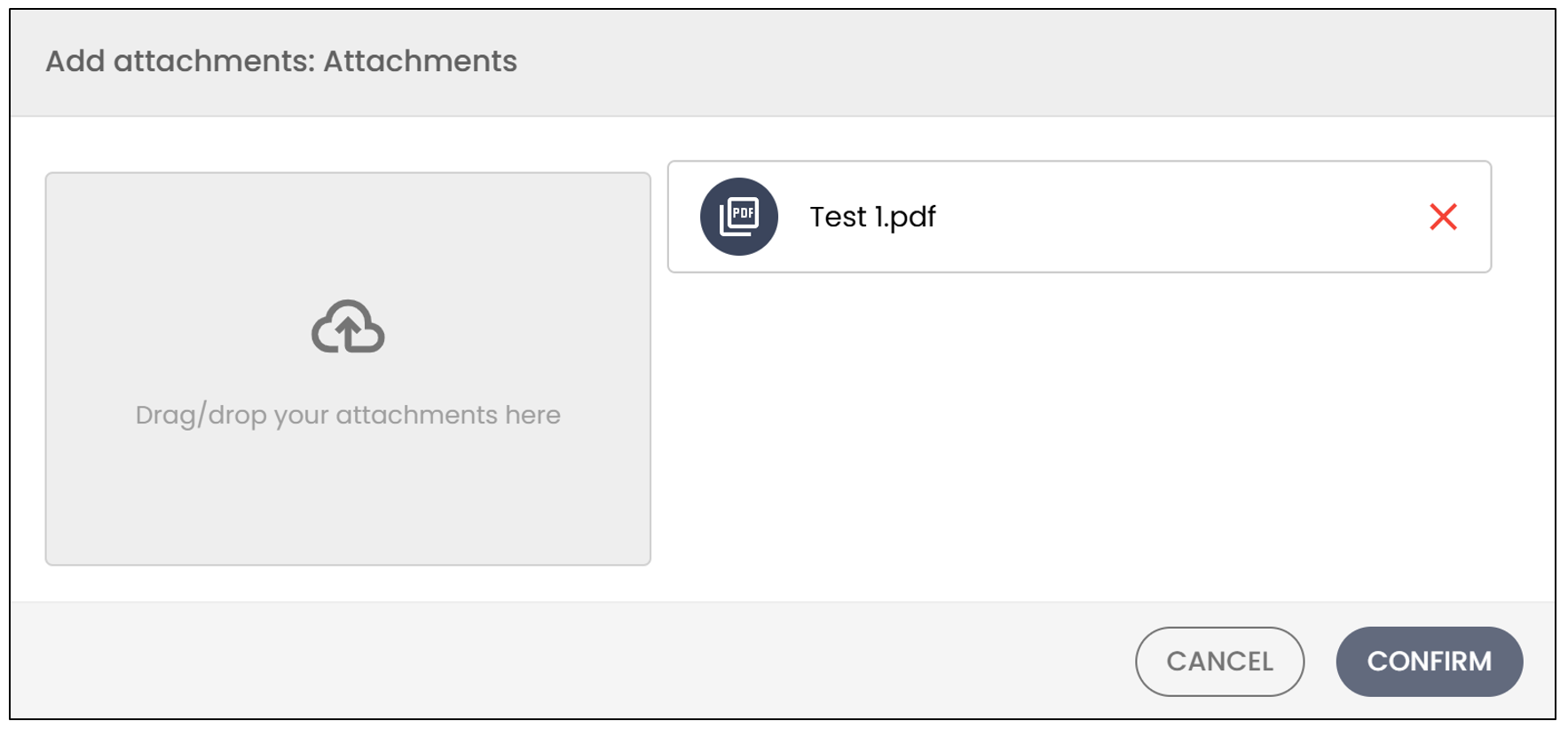
Click Confirm , and the file(s) will be imported into the document.
If the document contains other electronic signature fields and you are the signer, sign the document in the indicated locations by clicking Signature.
Once all your fields have been completed, click Finish.
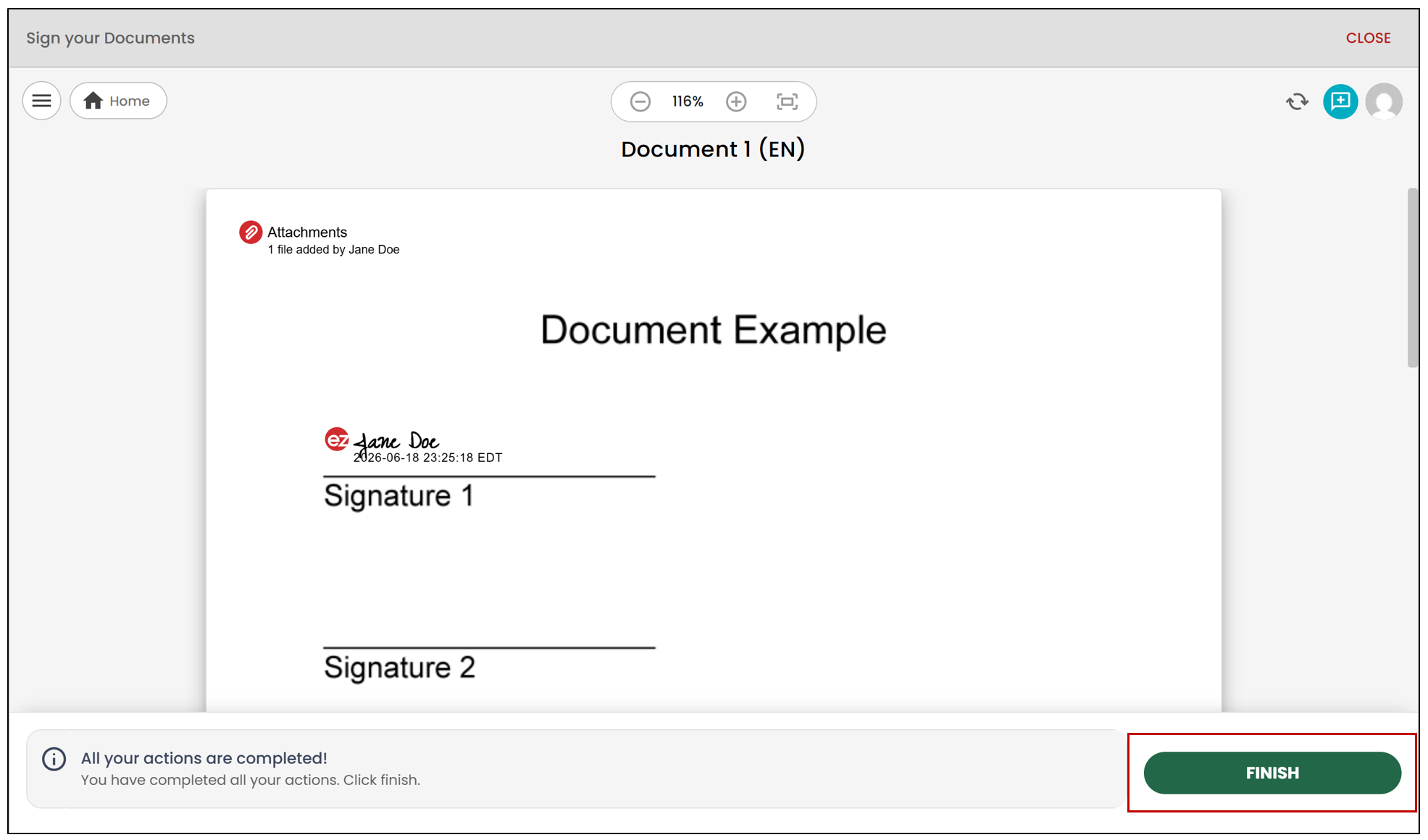
- If all signatures have been obtained in the document, this message will be displayed to indicate that the electronic signing process is complete.
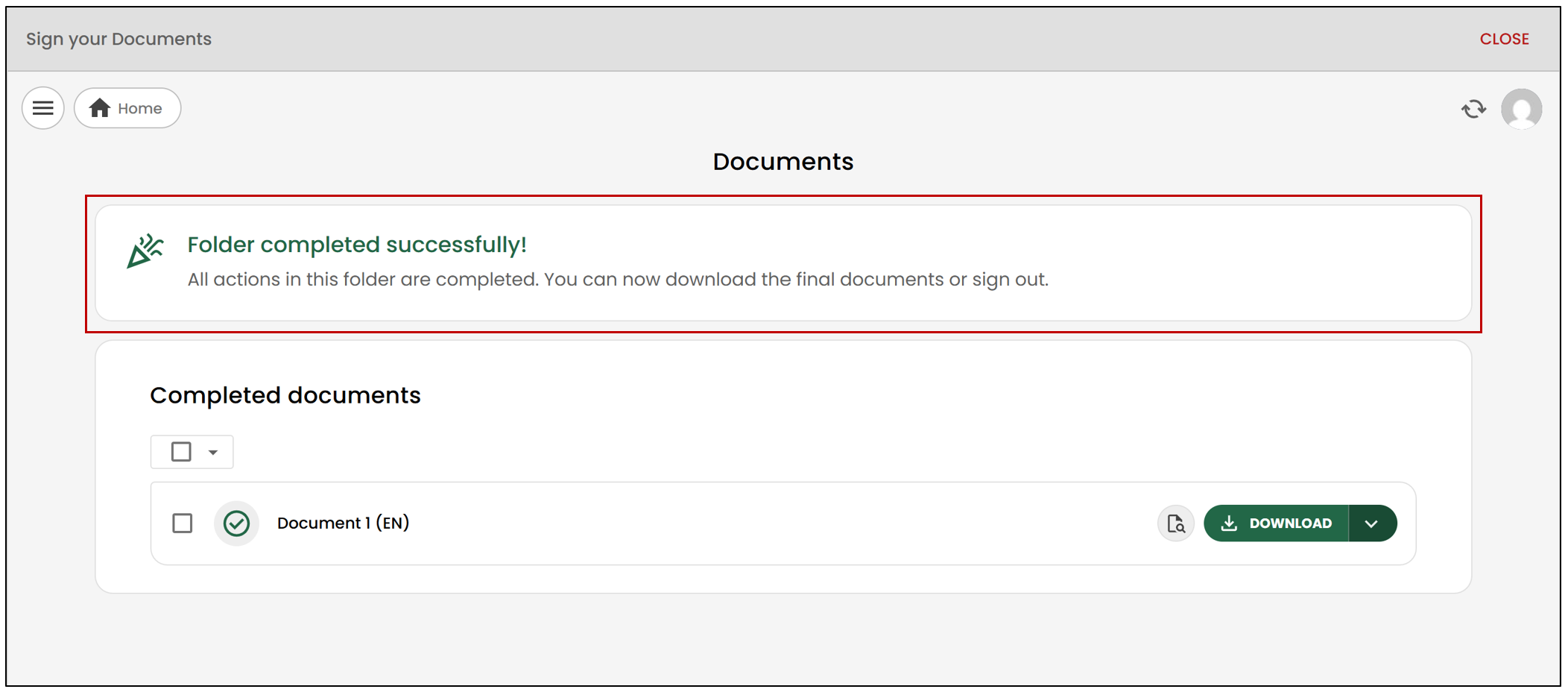
- You can click on Download to view the documents or on Close if you wish to return to the folder.