

English
Add/Edit/Delete a Signatory Group in an eZsign Folder
This feature allows you to assign a signature or form field to a group of signers rather than to an individual signer. It can be used when the signing of a document or the completion of a form does not need to be done by a specific person.
Add a Signatory Group
From the main menu, select eZsign folders , then click on New eZsign folder.
- At the Signatories step, select Add signatories. You will need to ensure that all the signers you want to include in the group are selected.
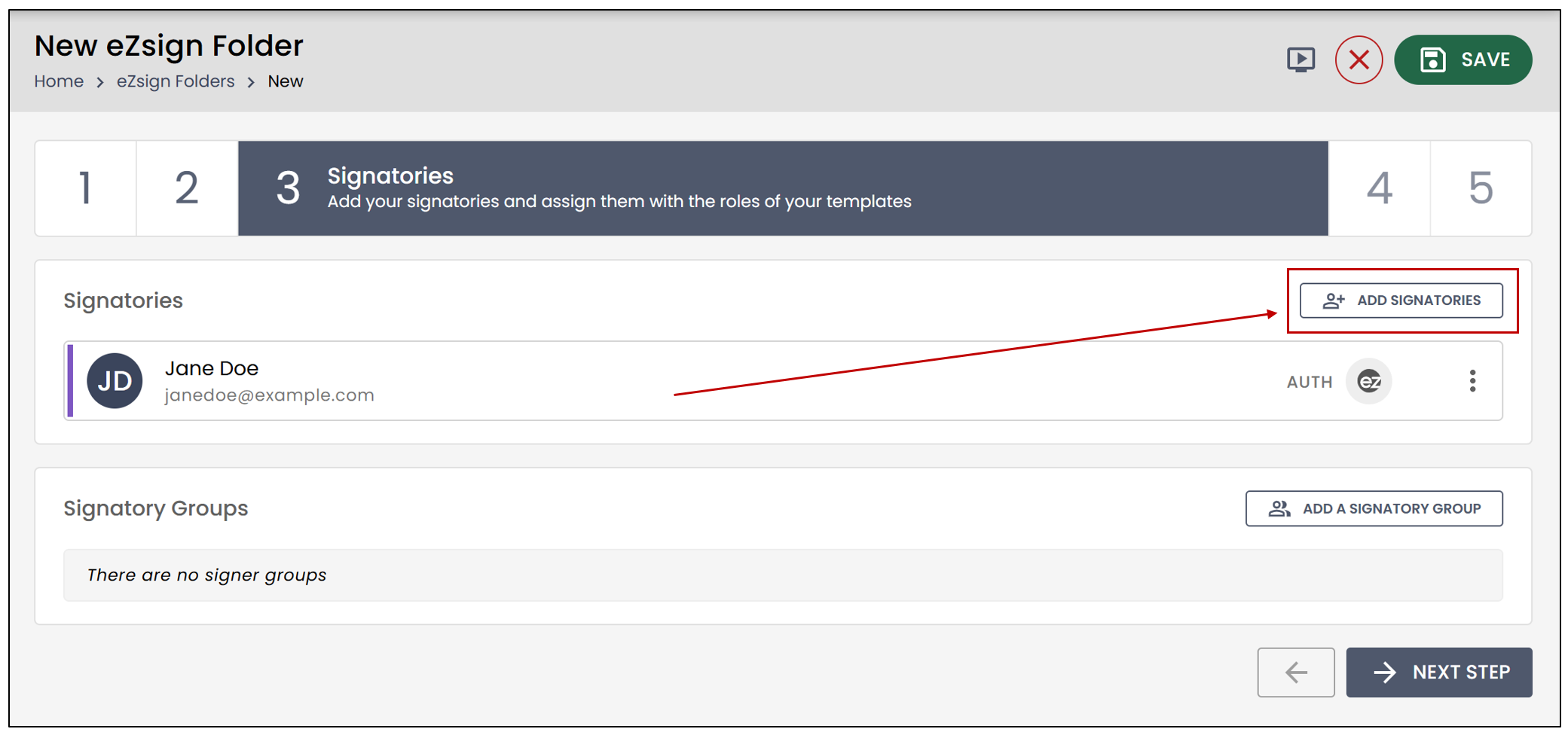
NOTE: The recent Signatory Groups category is now available in eZsign when adding signatories. It lets you quickly find and reuse previously used groups, making it easier and faster to prepare your folders. Recently created signer groups appear automatically in this section, helping simplify the process.
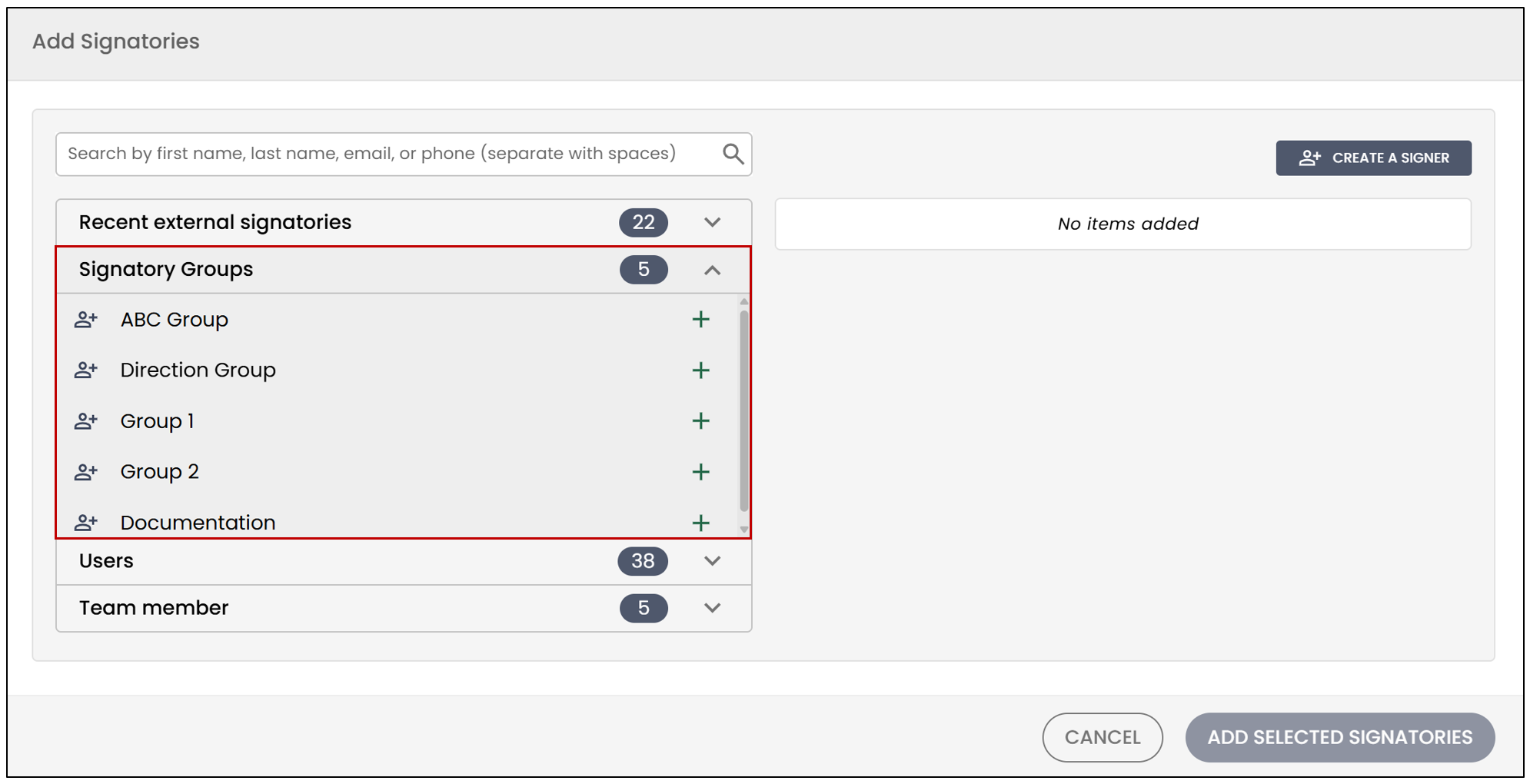
- Click on the names of the desired signers, then click on Add selected signatories.
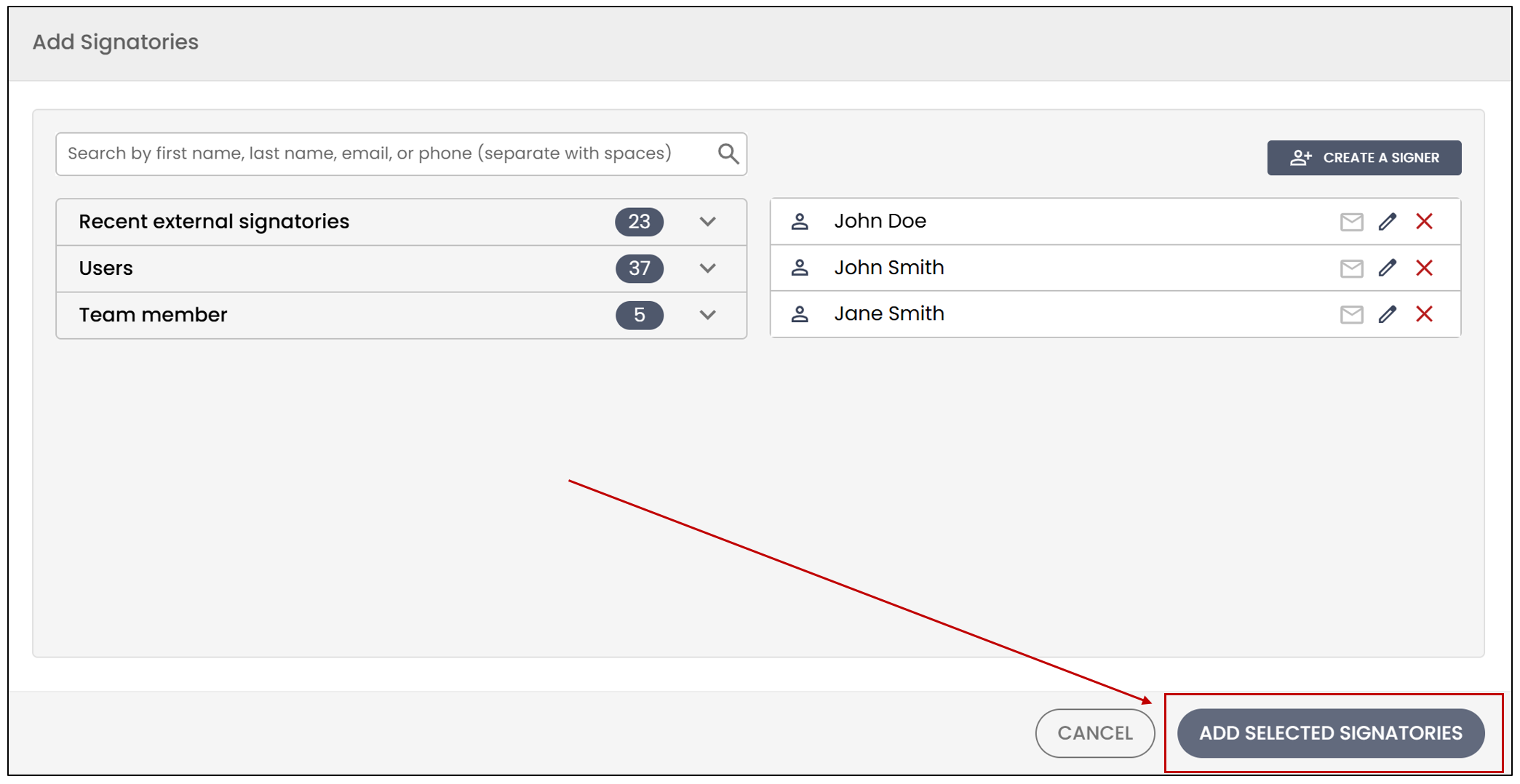
NOTE: Recent signers are displayed for a period of up to 13 months. The reference date used for this display is the creation date of the folder associated with the signer. It should also be noted that, for a signer to appear in this list, they must have the required permissions to manage the folder and must have an authorized login type for the new folder. To view the creation date, click on Info.
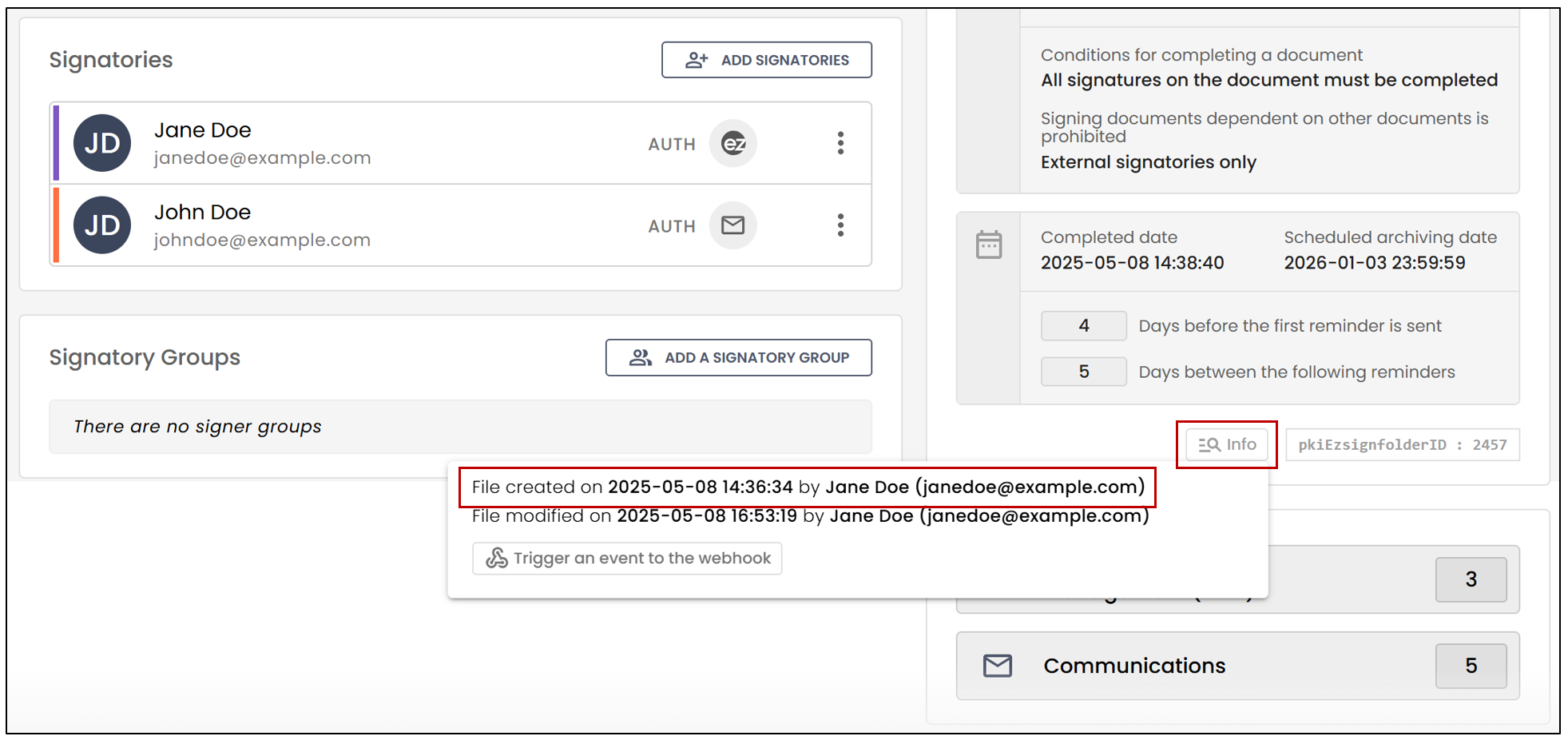
- Once all the signers you want in the group are added to the list, click on Add a signatory group.
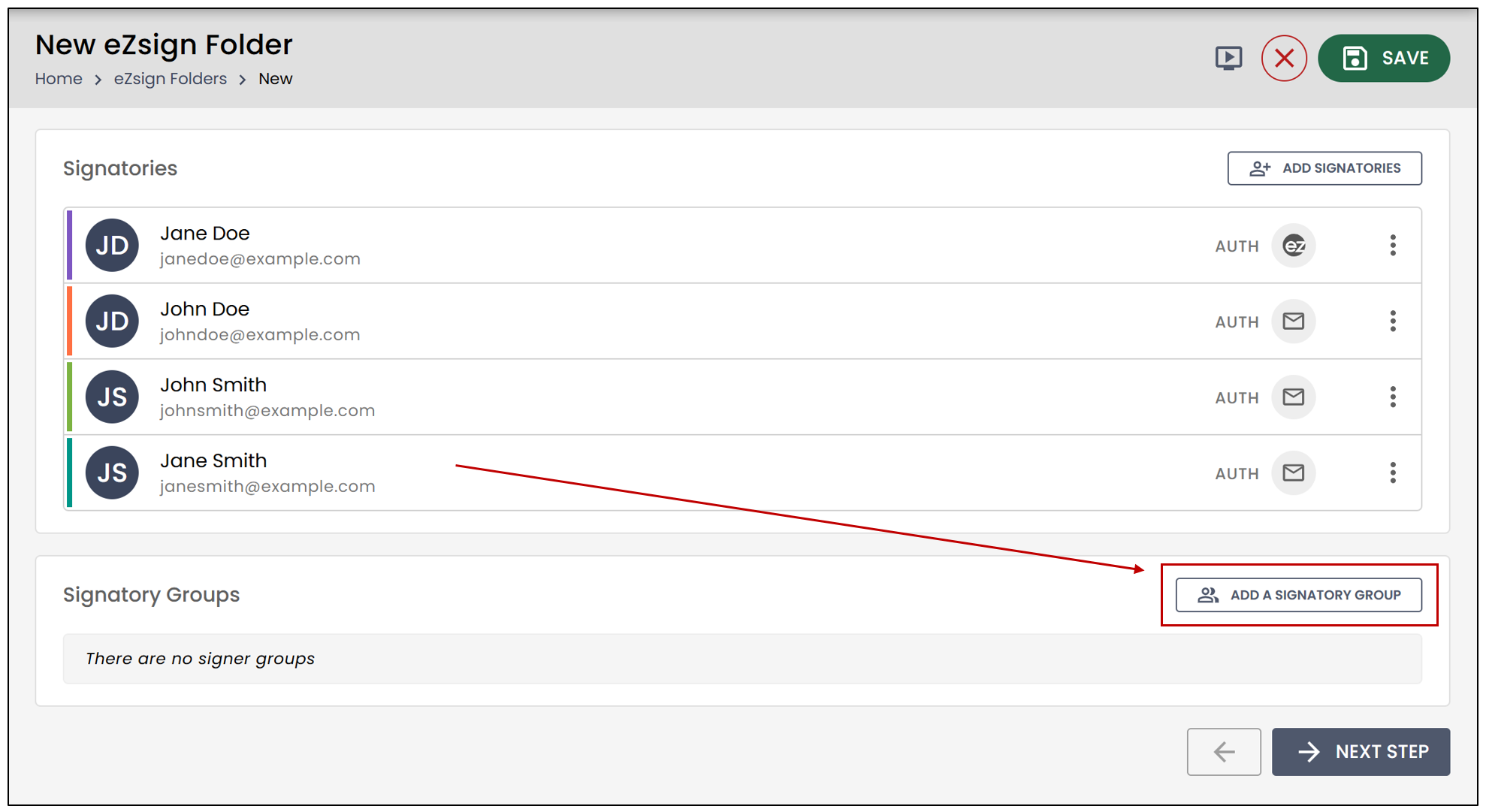
- You will need to enter the Name of the signatory group.
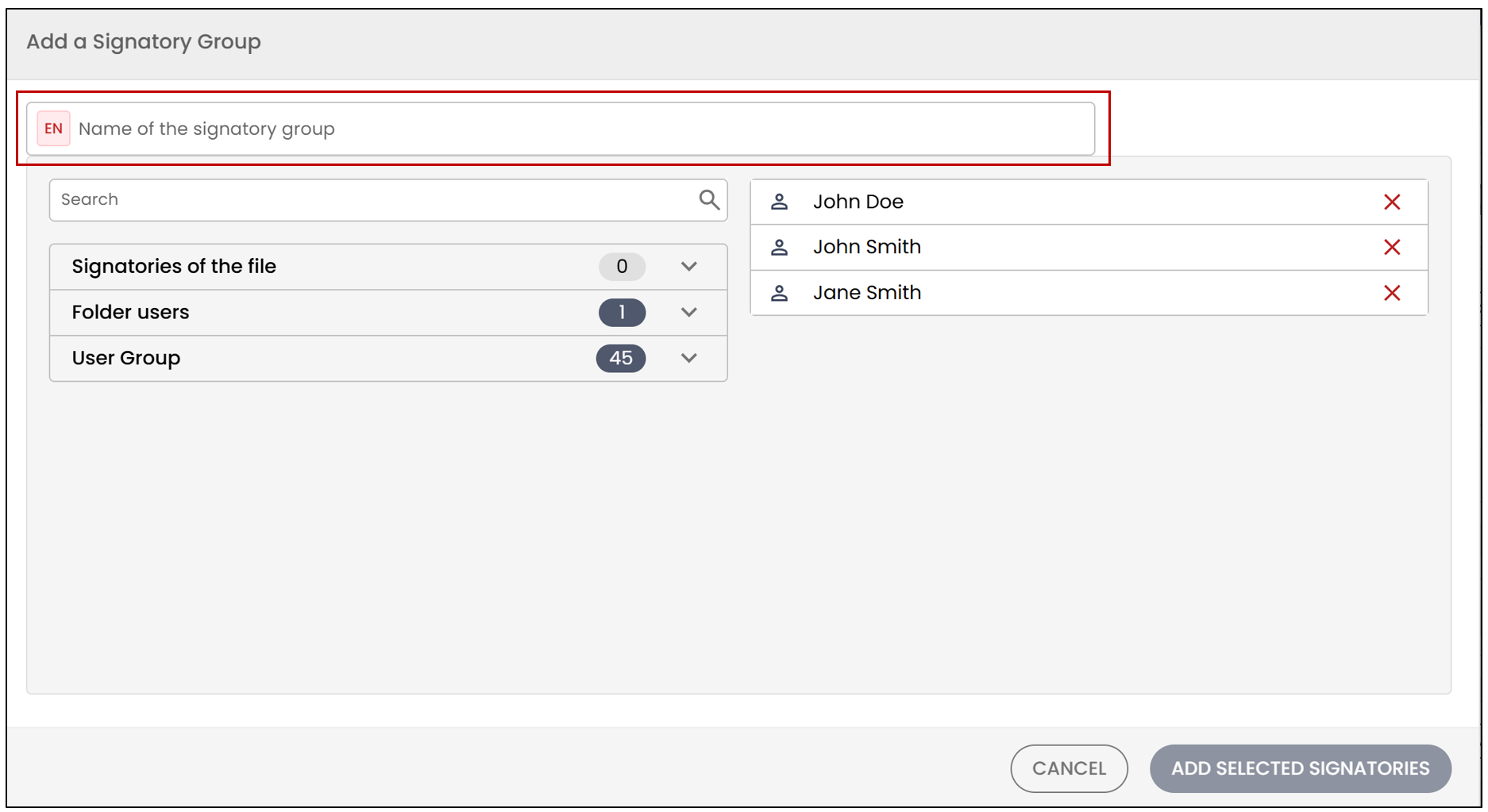
- Select the desired signers from the list on the left, then click on Add selected signatories. You also have the option to directly add a user group to this new group by selecting it from the list.
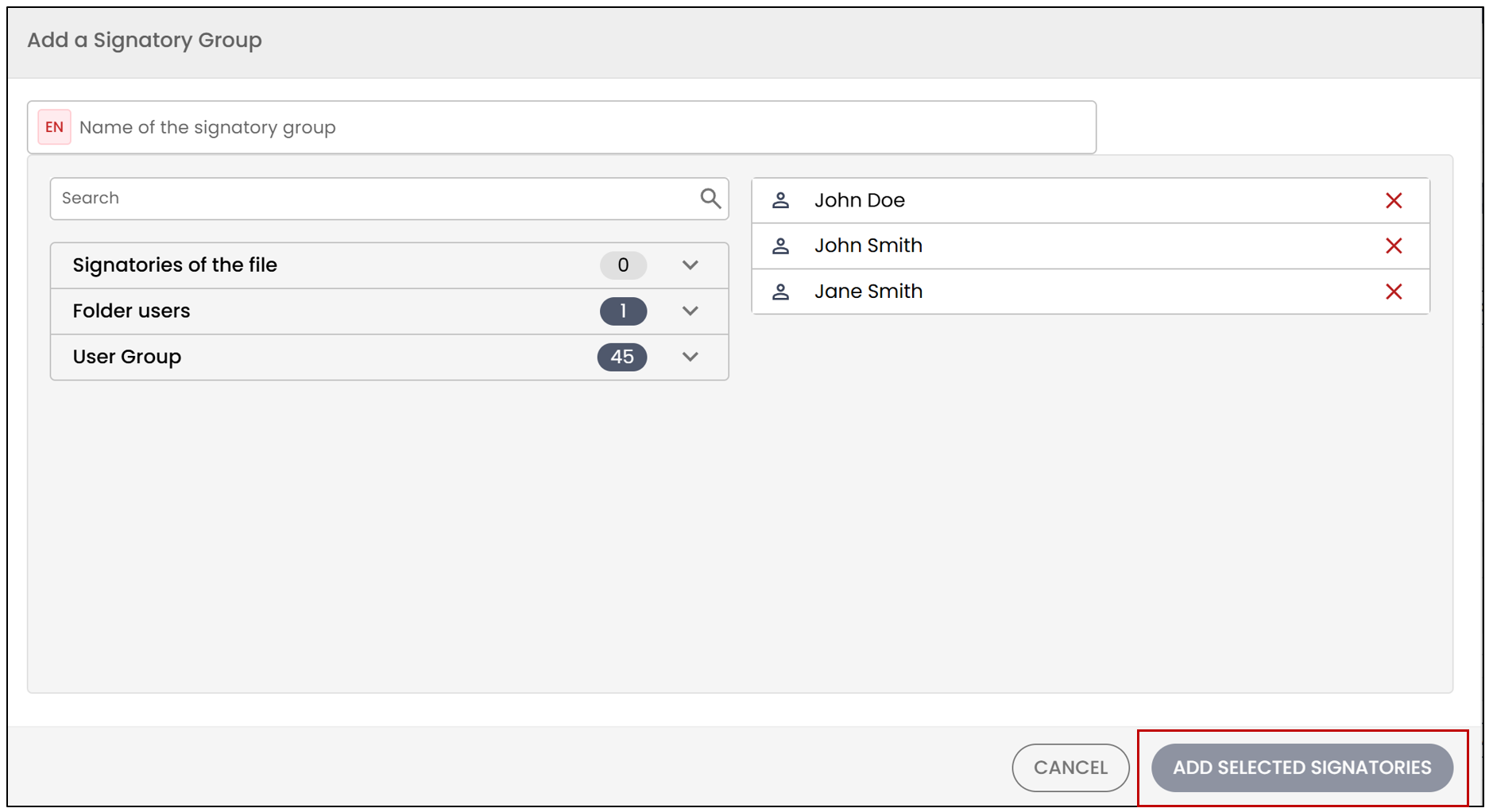
- You should be able to see the group appear at the bottom of the page. When finished, select Next Step.
- At the Document Verification step, select Edit Document Fields.
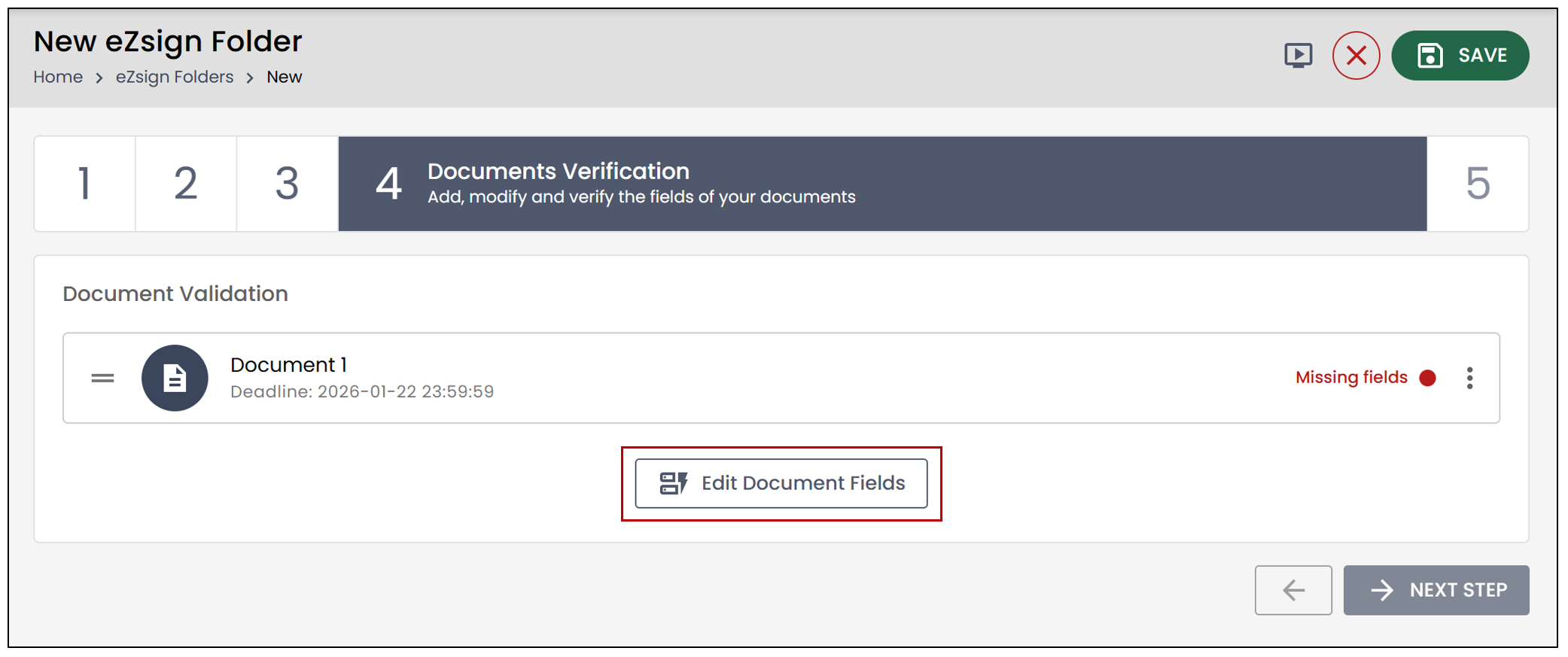
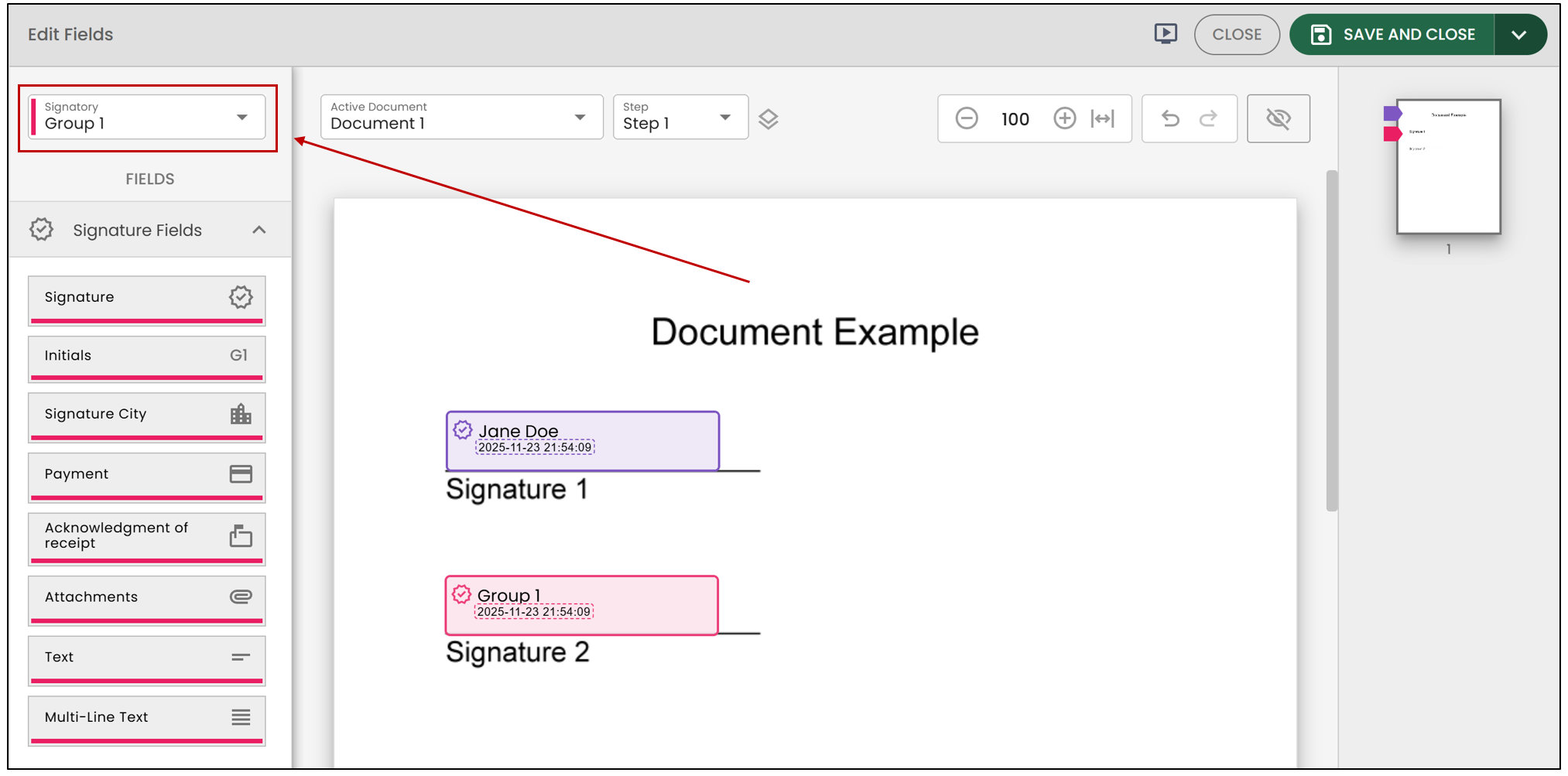
- From the list of signers, you will be able to select the previously created signatory group. You can then add a signature field to the document.
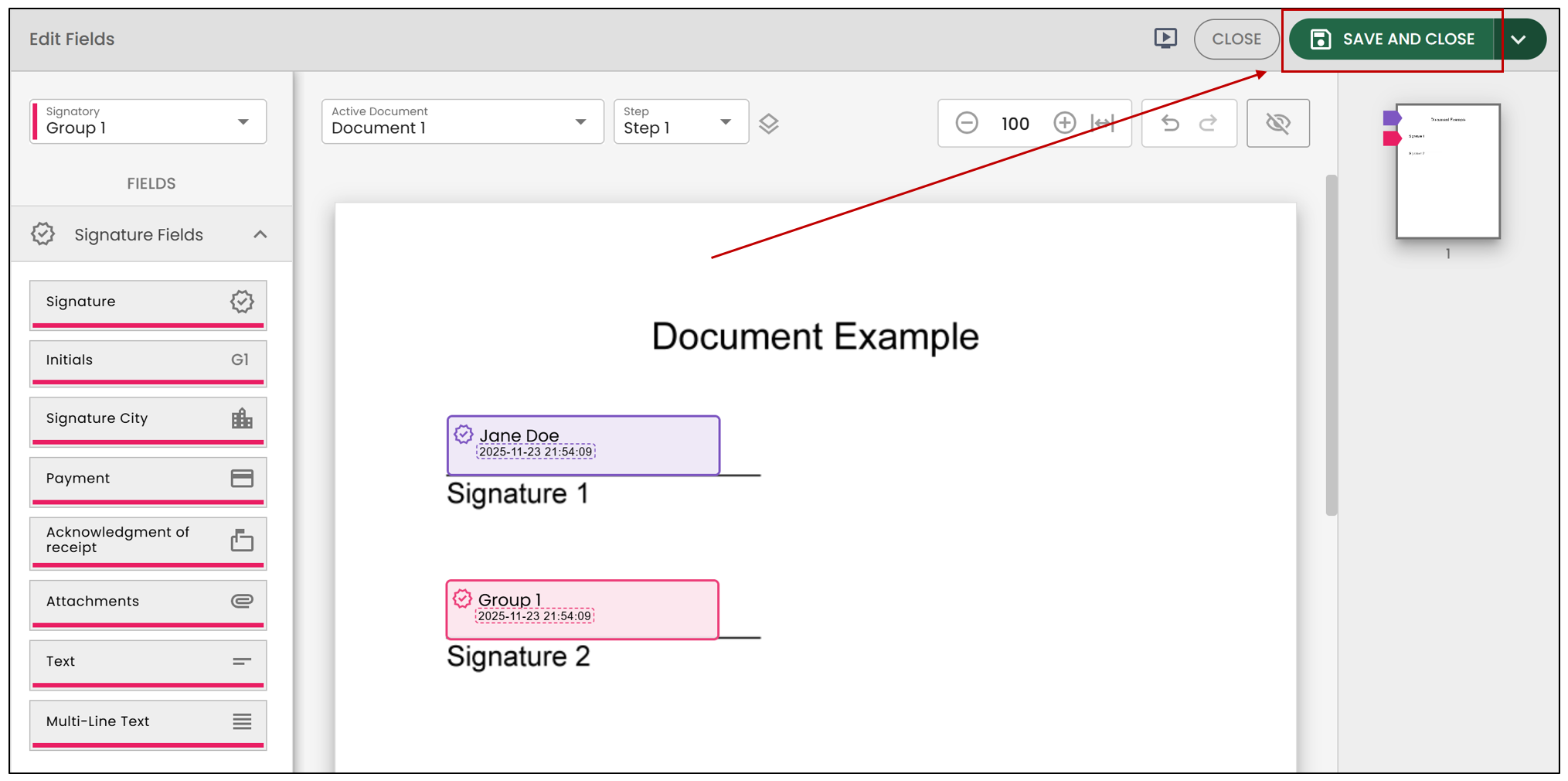
- Once all the desired fields are added, click on Save and close.
- When sending the folder, an email will be sent to each member of the group. You will be able to view this in the Communications section of the eZsign folder.
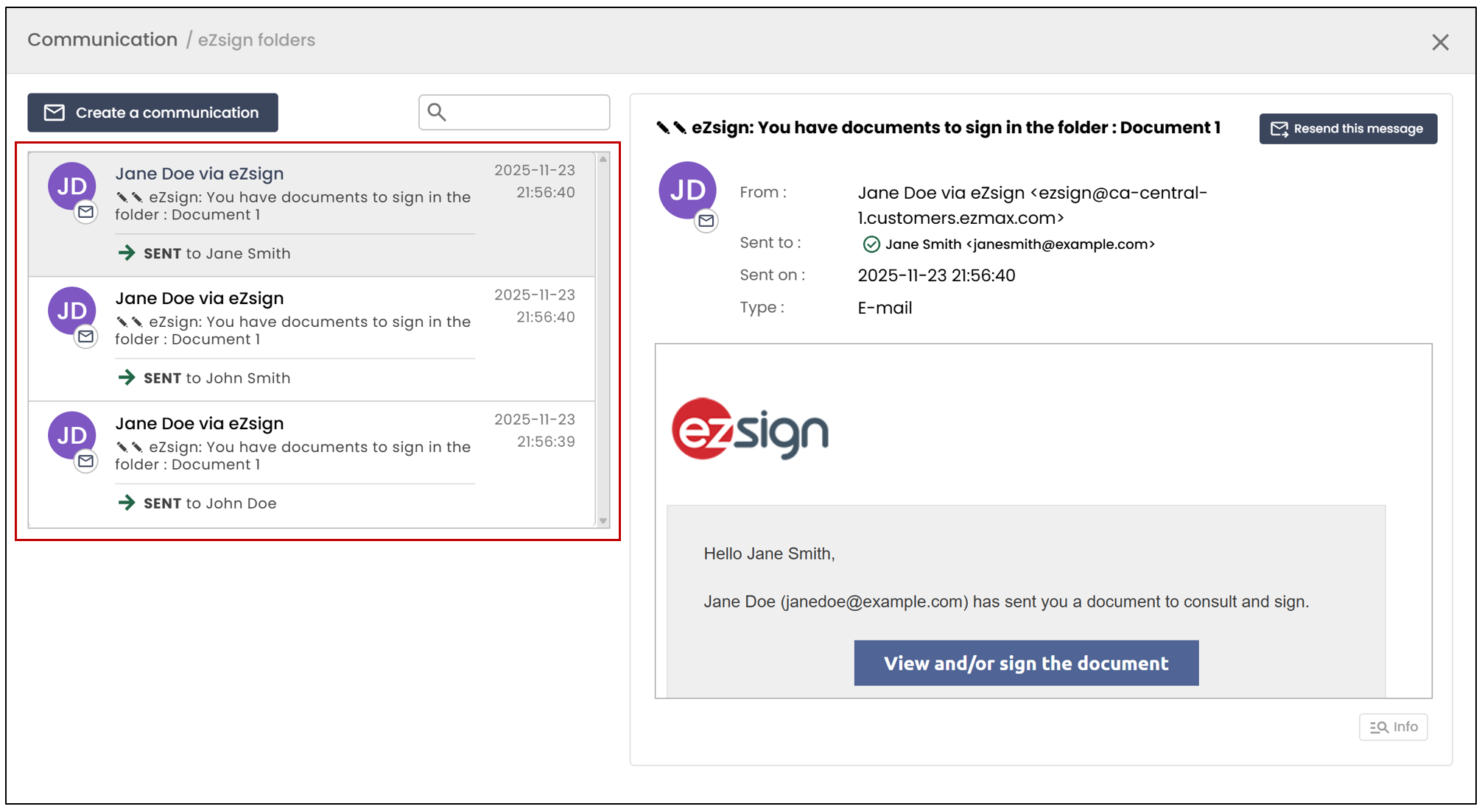
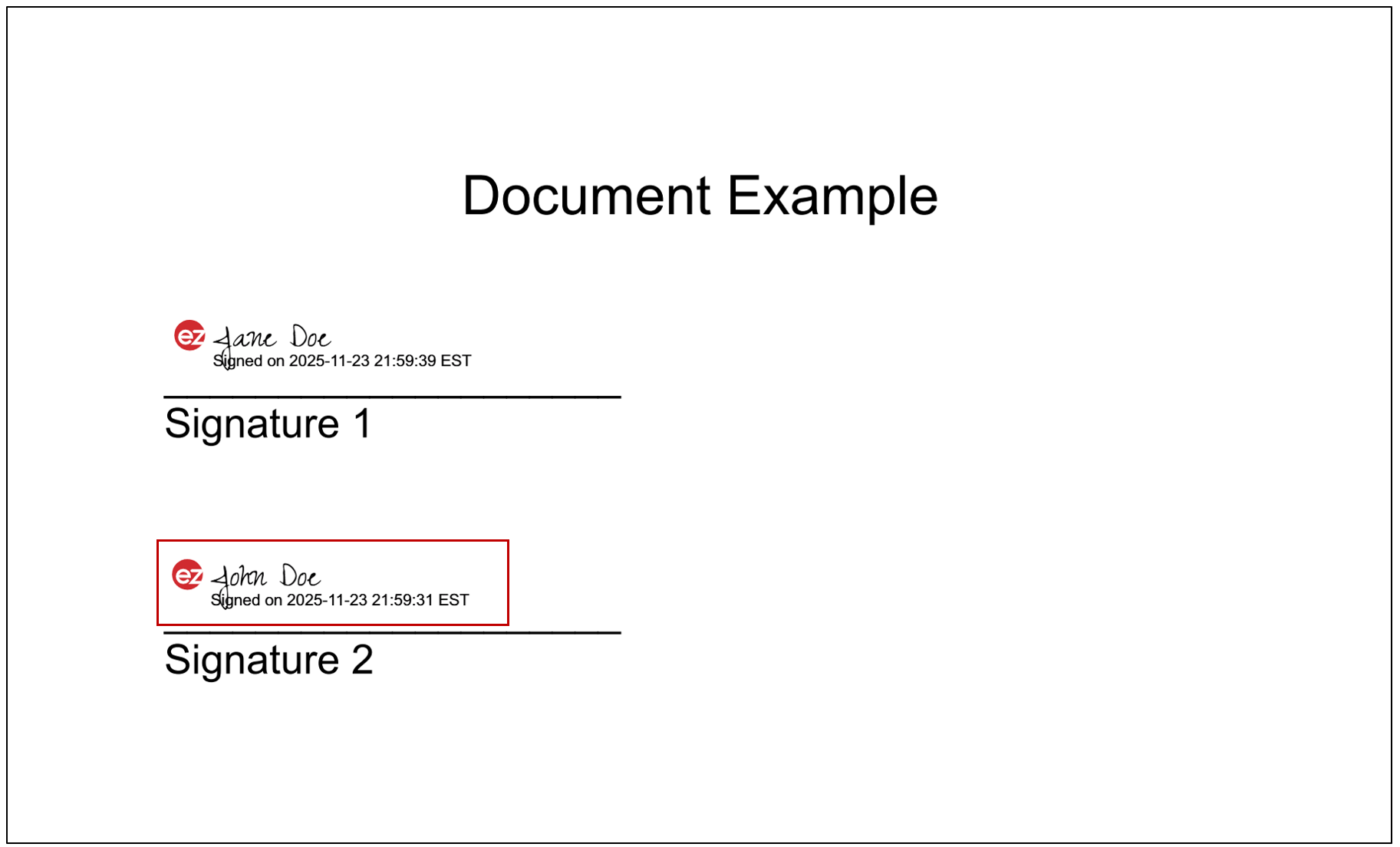
NOTE: Only the name of the first person in the group to sign will appear on the document.
Edit a Signatory Group
From the main menu, select eZsign folders , then click on New eZsign folder.
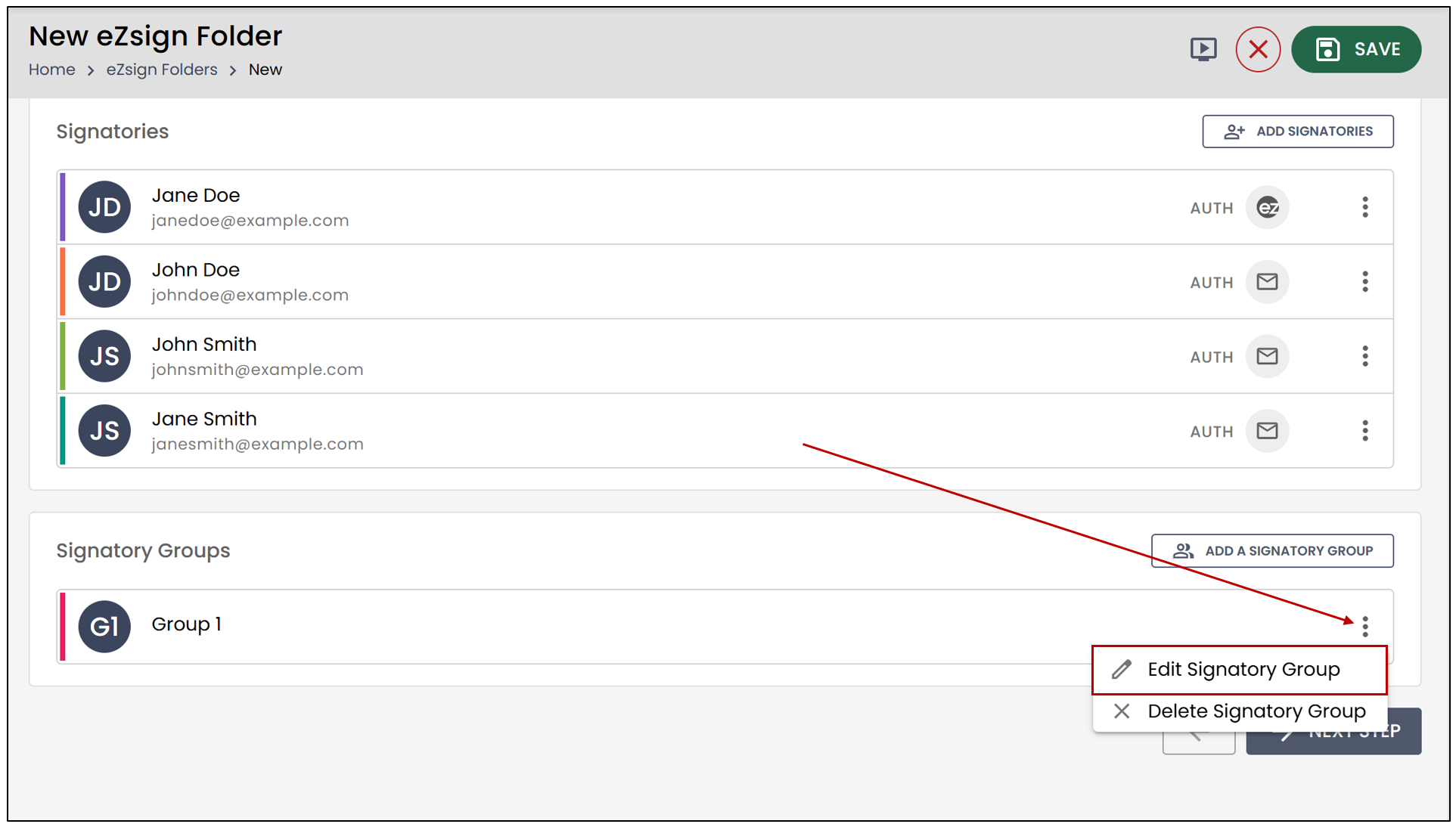
- At the Signatories step, after adding the group, you will have the option to edit it. Click on the three vertical dots, then select Edit Signatory Group.
- You will then have the option to add signers by selecting them from the drop-down list or remove signers by clicking on the ’X’. You can also edit the Name of the signer group.
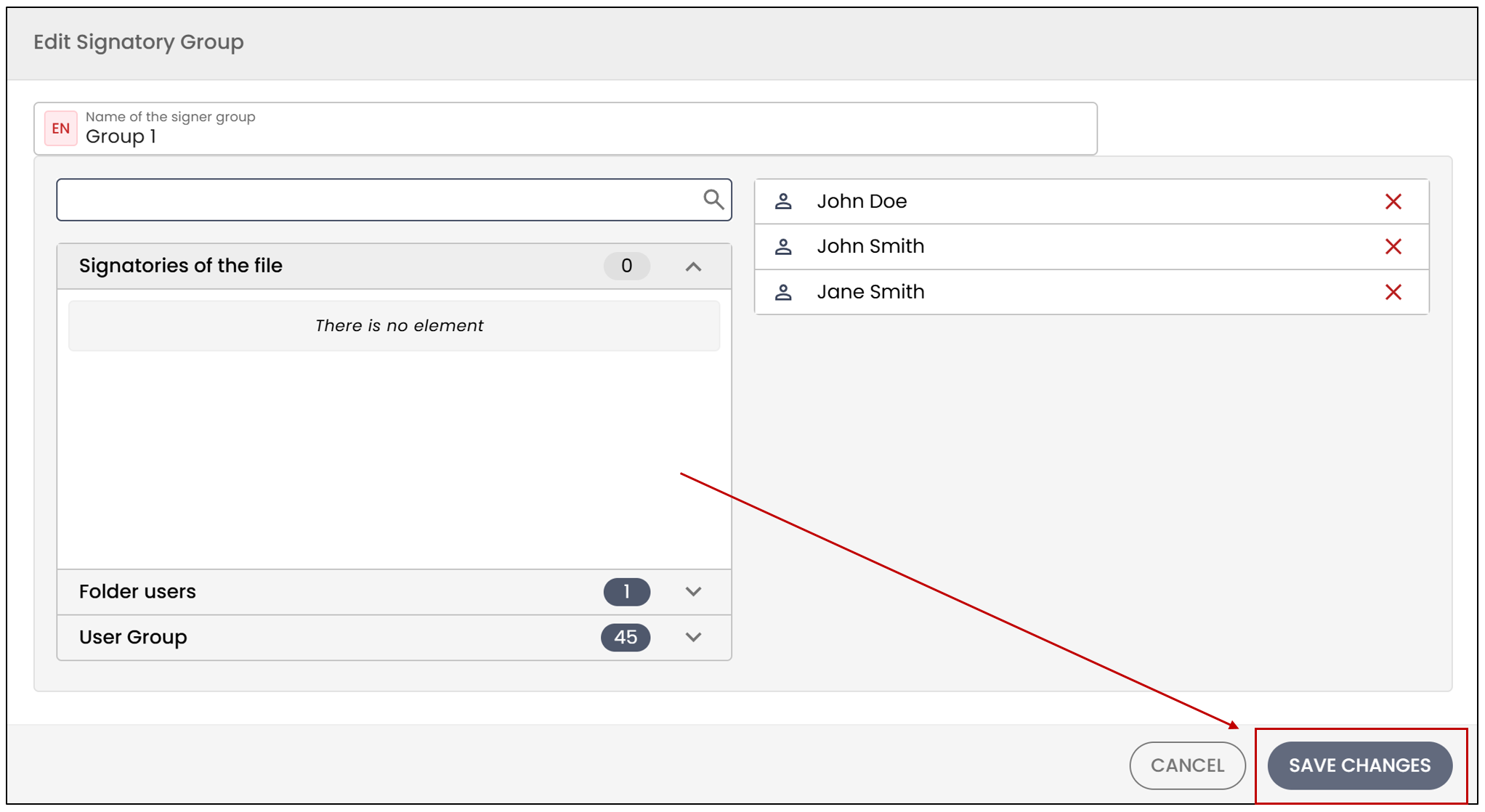
- Select Save Changes to save your changes.
You will also be able to edit the signatory group after sending the folder.
From the main menu, select eZsign folders , then click on the desired folder.
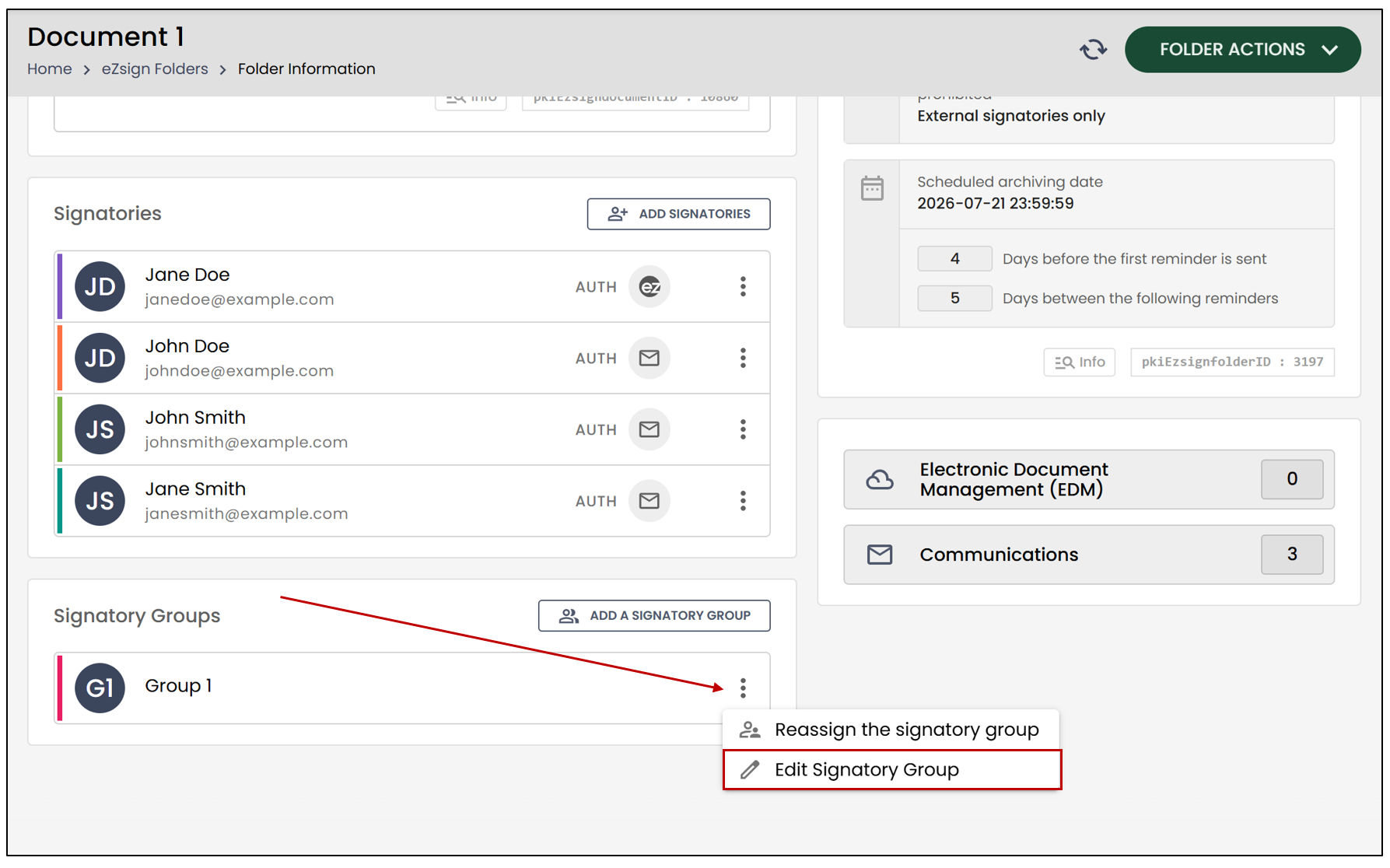
- In the Signatory Groups section, click on the three vertical dots of the group you wish to edit, then click on Edit Signatory Group.
- You will then have the option to add signers by selecting them from the drop-down list or remove signers by clicking on the ’X’. You can also modify the Group name.
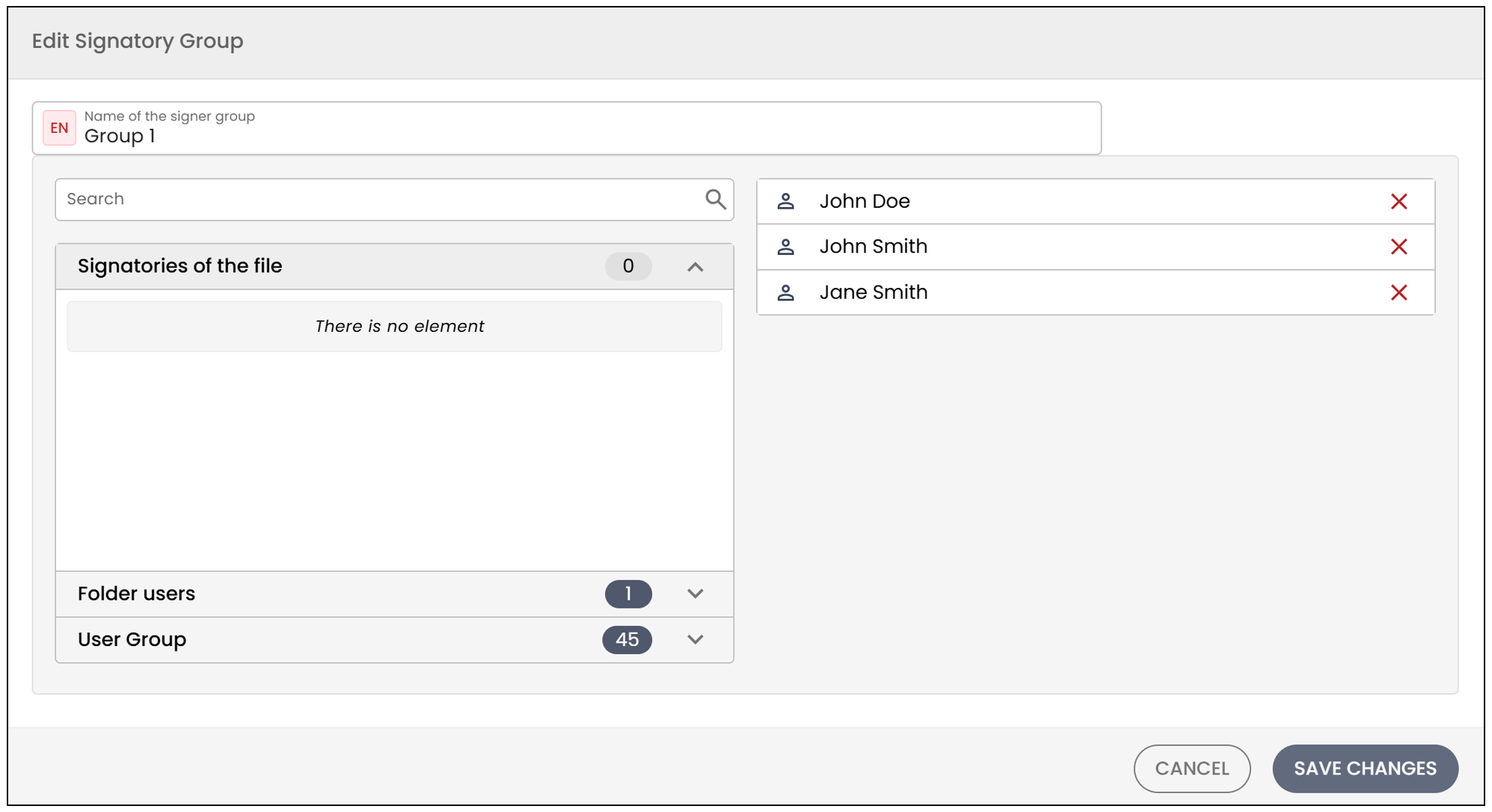
- Select Save Changes.
Delete a Signatory Group
From the main menu, select eZsign folders , then click on New eZsign folder.
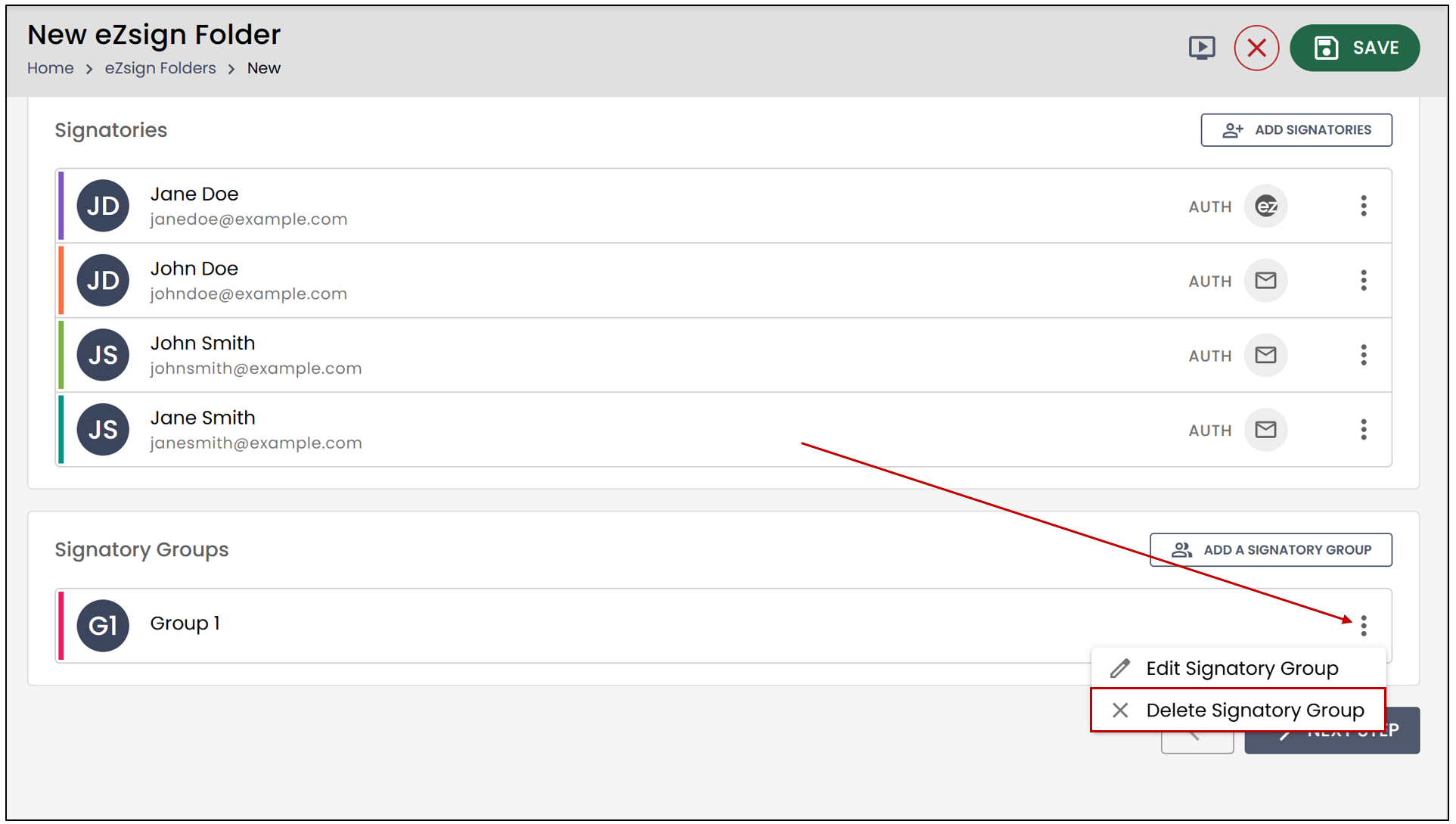
- At the Signatories step, after adding the group, you will have the option to delete it. Click on the three vertical dots, then select Delete Signatory Group.
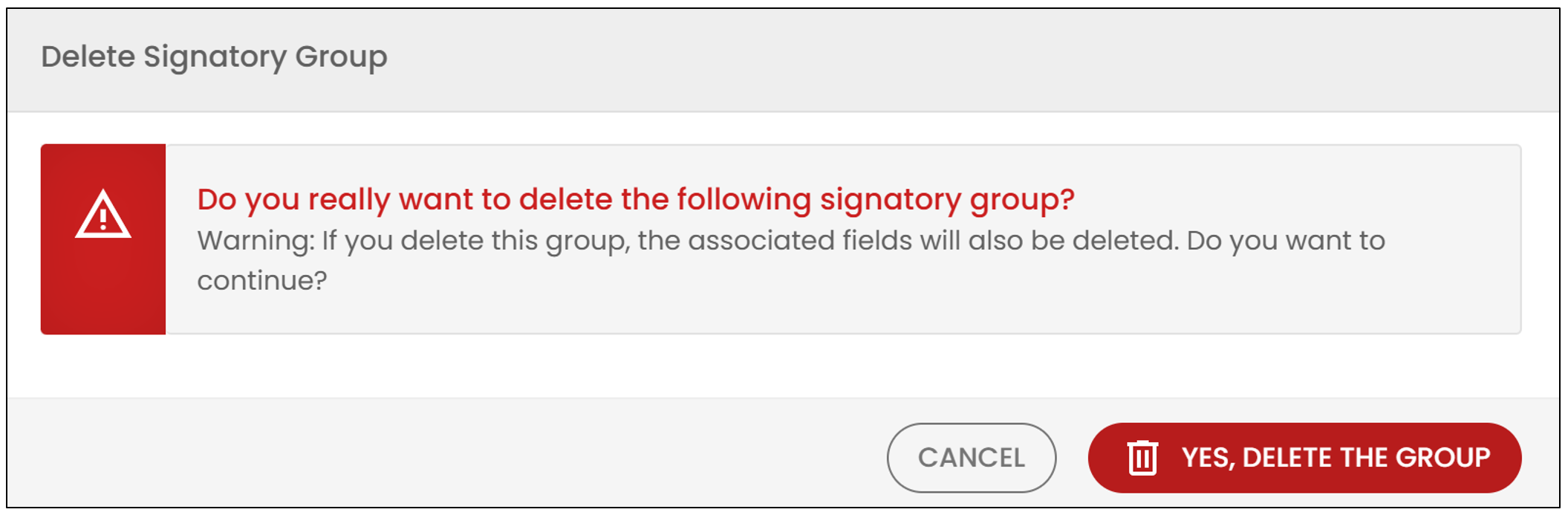
- The following message will appear. If you wish to delete the signatory group, click Yes, delete the group.
NOTE: You will only be able to delete a signatory group if the folder is at the Pending Sending status.
From the main menu, select eZsign folders , then click on the desired folder.
- In the Signatory Groups section, click on the three vertical dots of the group you wish to delete, then click on Delete Signatory Group.
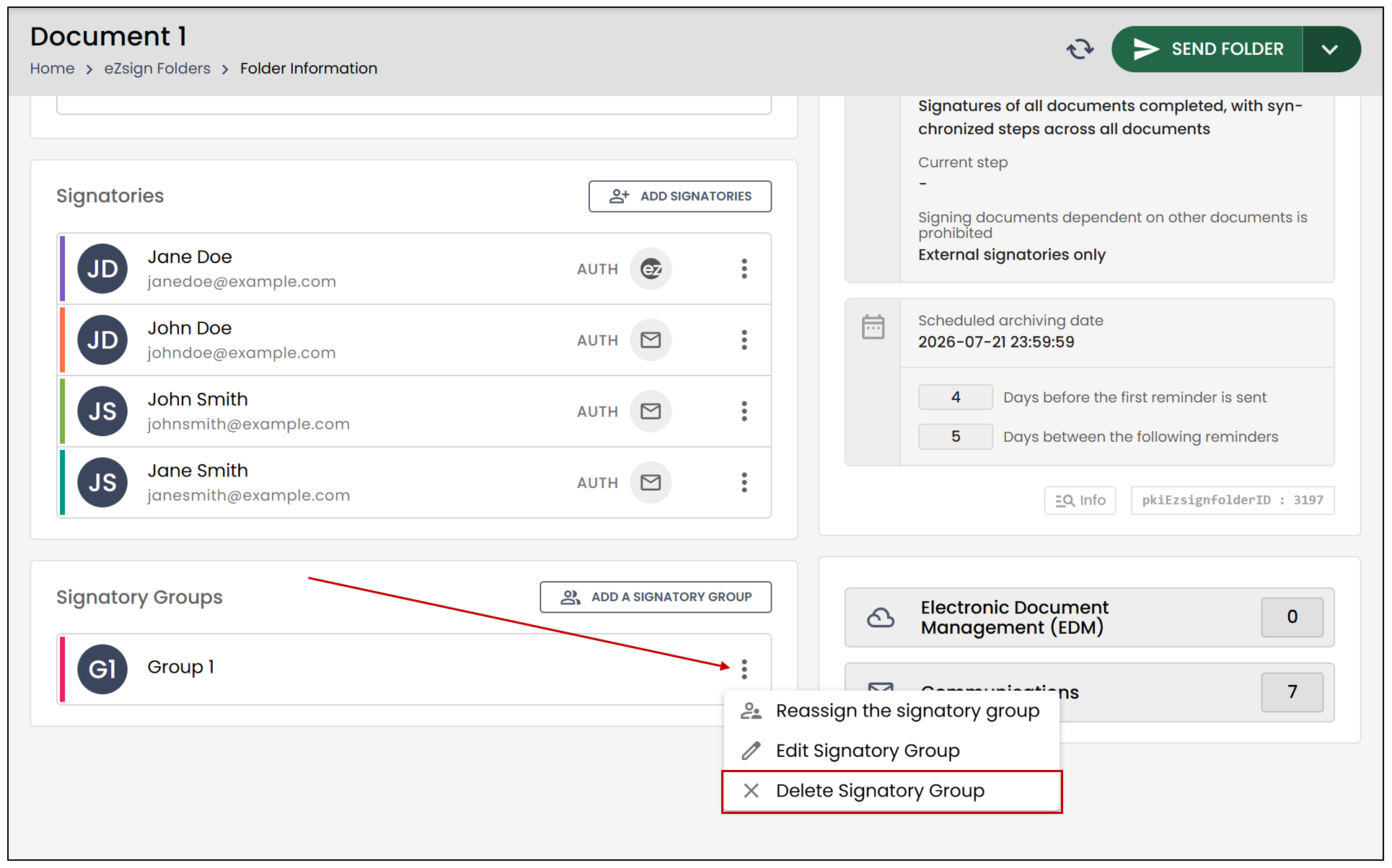
- The following message will appear. If you wish to delete the signatory group, click Yes, delete the group.
NOTE: Deleting the group will also remove the fields associated with it.
For more information on managing signatories, please consult the article Adding/Editing/Deleting a Signatory in an eZsign Folder.