English
Differences between eZsign and Docusign
The purpose of this article is to assist the user in transitioning from the Docusign solution to eZsign.
Terminology
- An envelope (or Agreements) (in Docusign) = A folder (list of folders) (in eZsign)
- Status (in Docusign) = Step (in eZsign)
- Email subject (in Docusign) = Folder name (in eZsign)
- Recipient (in Docusign) = Signer (in eZsign)
- Folder types (in eZsign) = Equivalent to a Folder directory
eZsign Folders vs. Envelopes in Docusign
- In Docusign, you create an envelope:
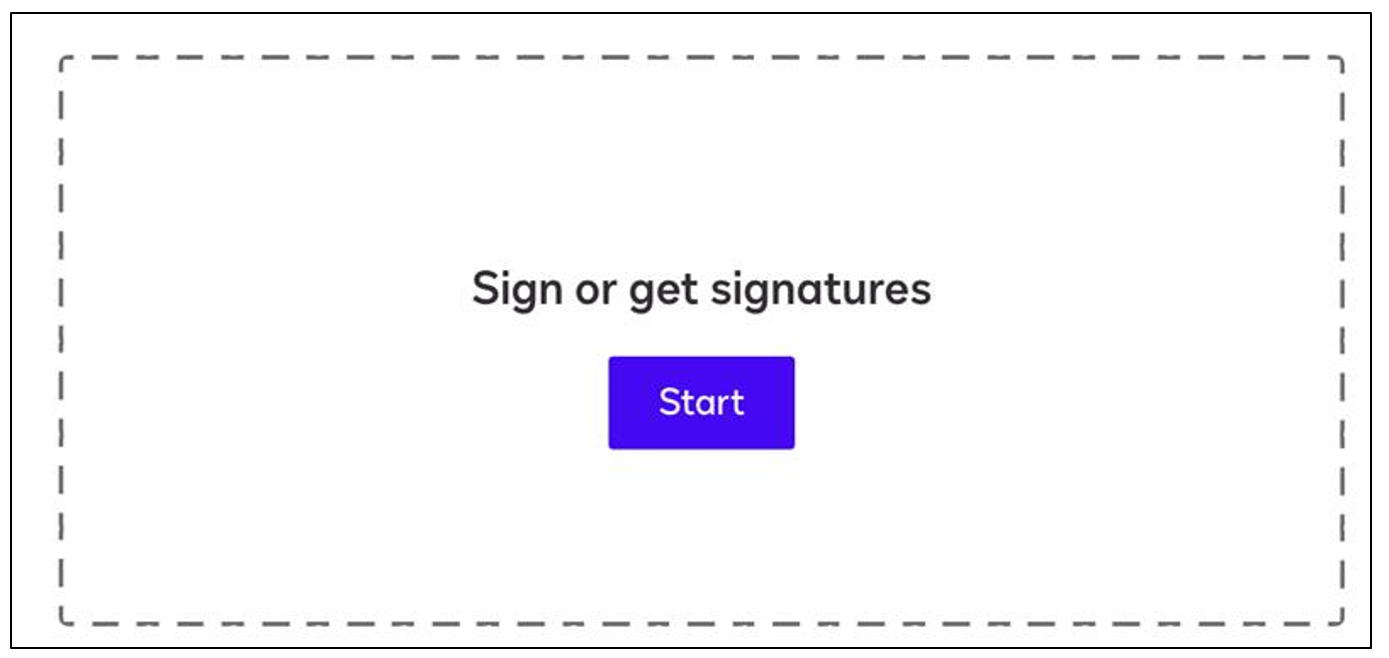
- In eZsign, you create a folder:
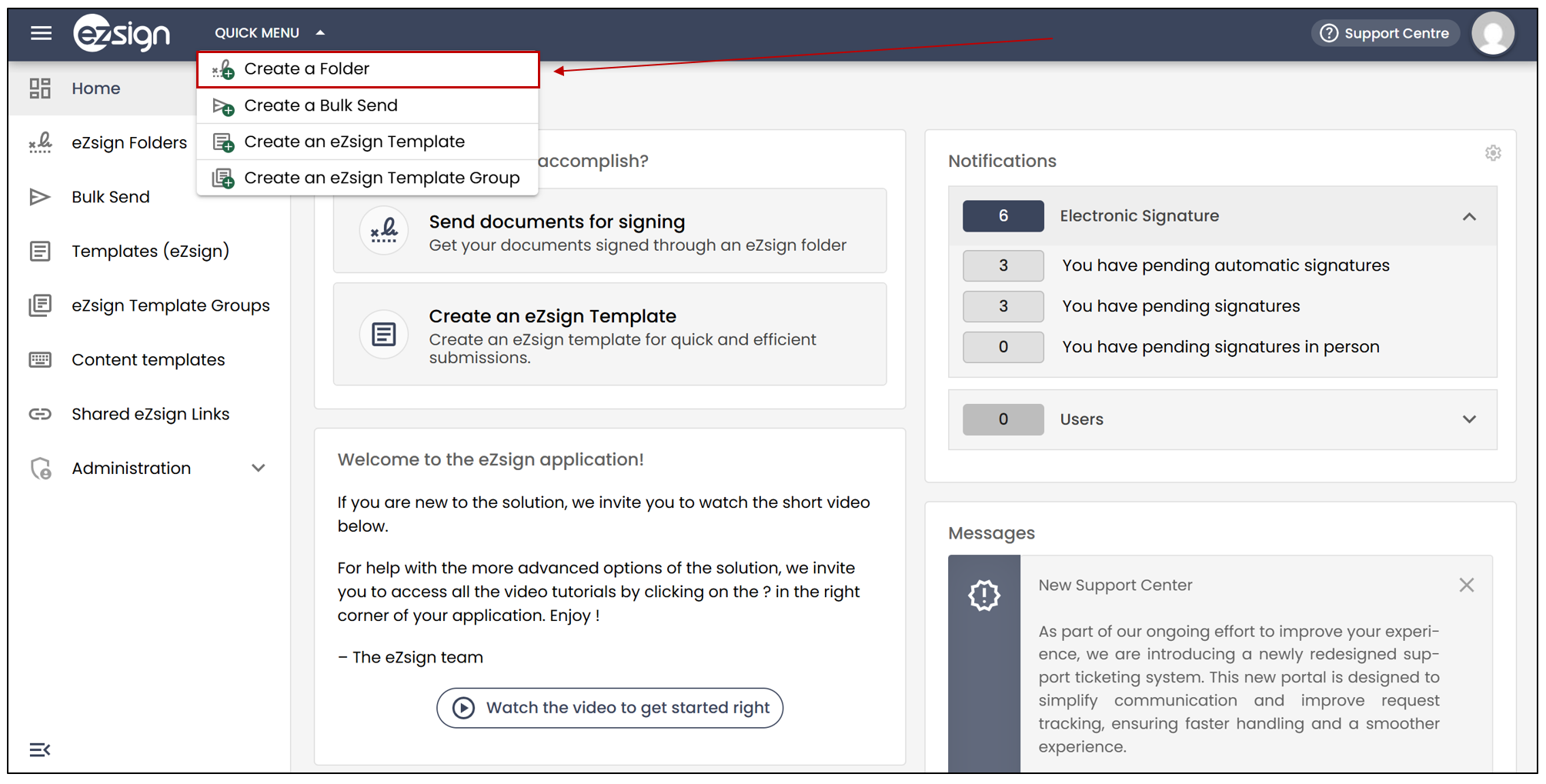
Docusign Inbox vs. eZsign Folder List
The inbox in Docusign displays all the envelopes with their different statuses.
In eZsign, you will go to the eZsign folder list and see all the folders with their different steps.
Differences Between Docusign Statuses and eZsign Steps
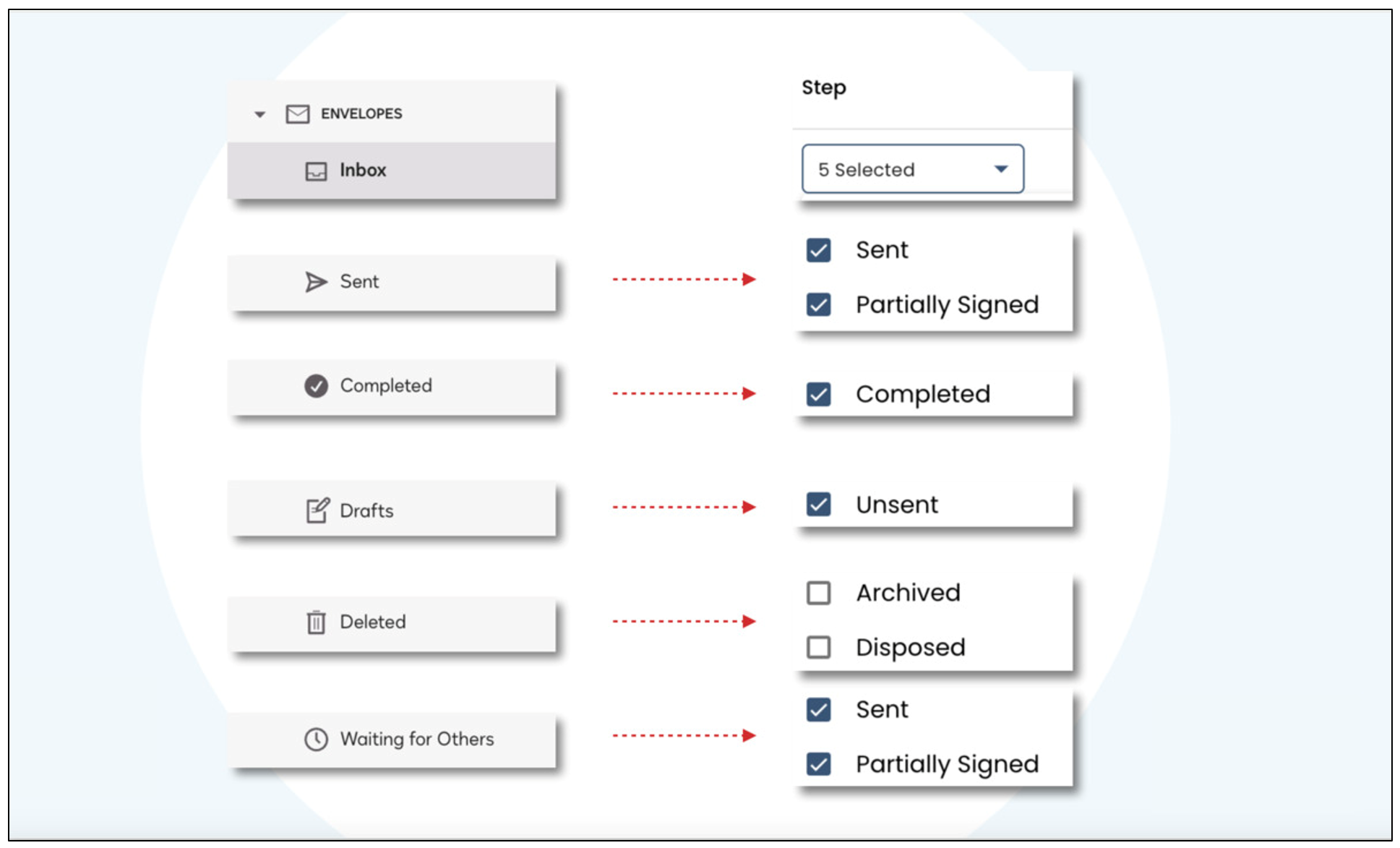
- In Docusign, you go to the list of Agreements and access the inbox. This displays your ongoing envelopes with their statuses. In eZsign, you will go to the eZsign folder list and see all the folders. You can filter the list by step. Here are the correspondences between Docusign statuses and eZsign steps.
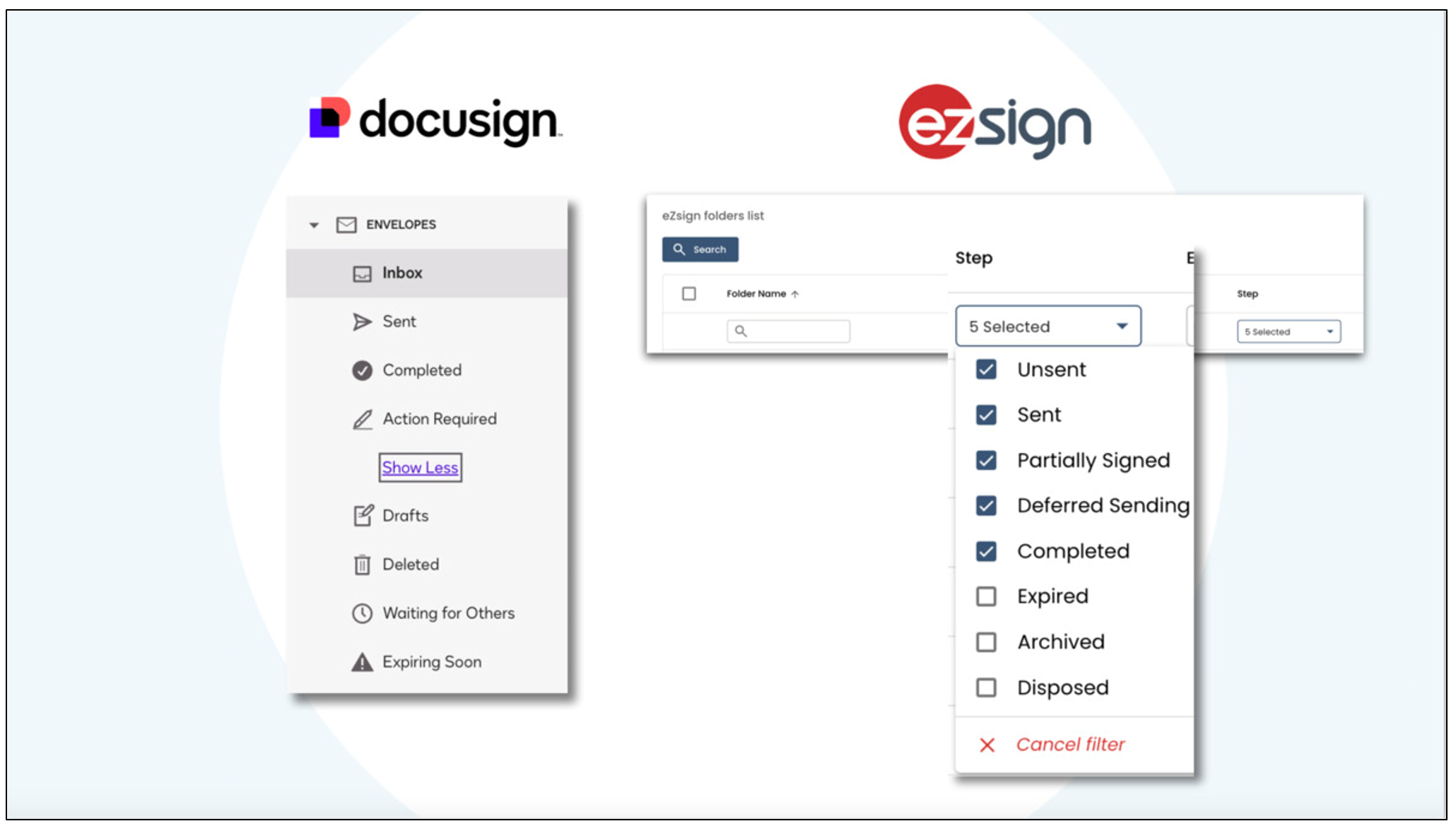
Folders About to Expire
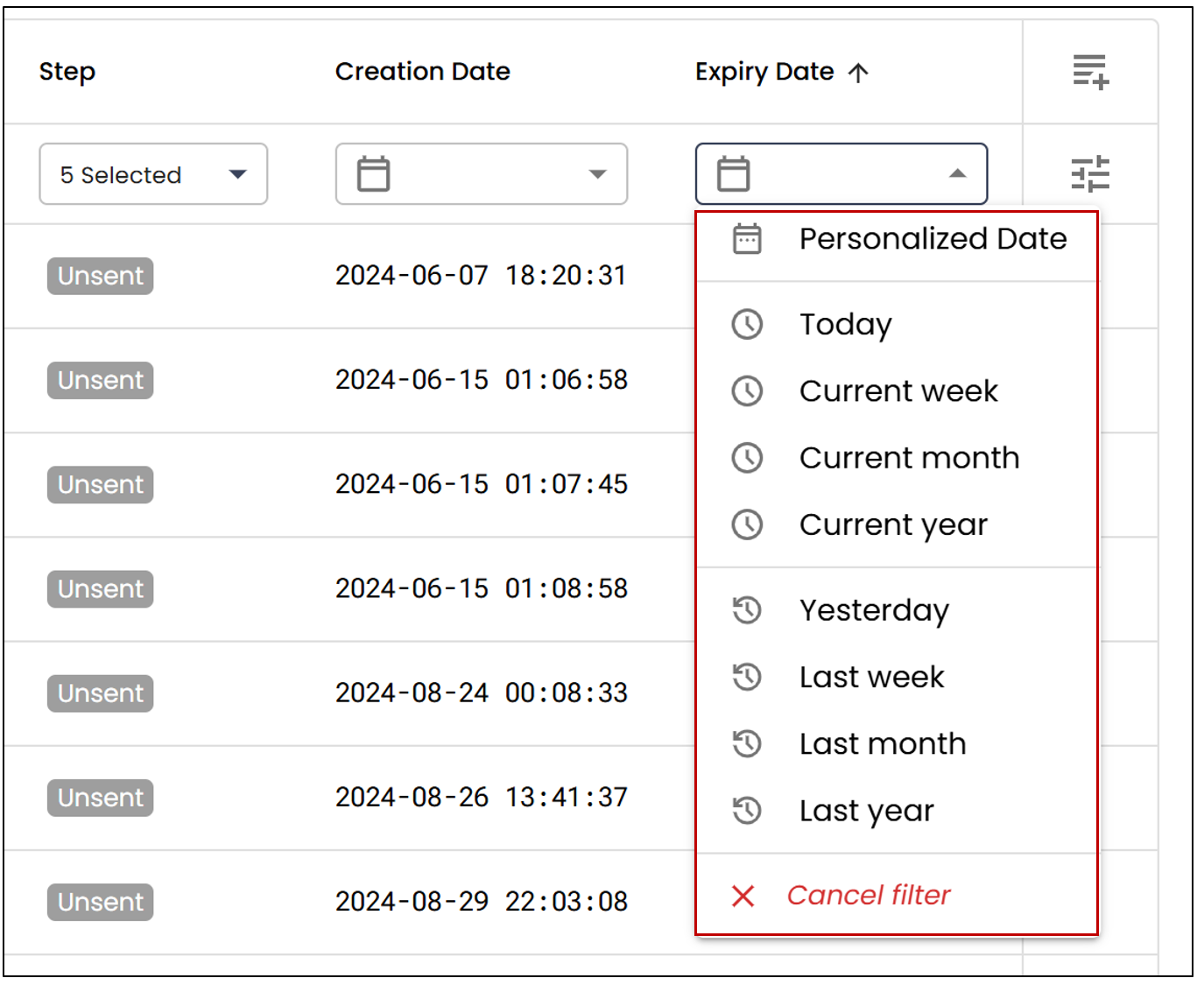
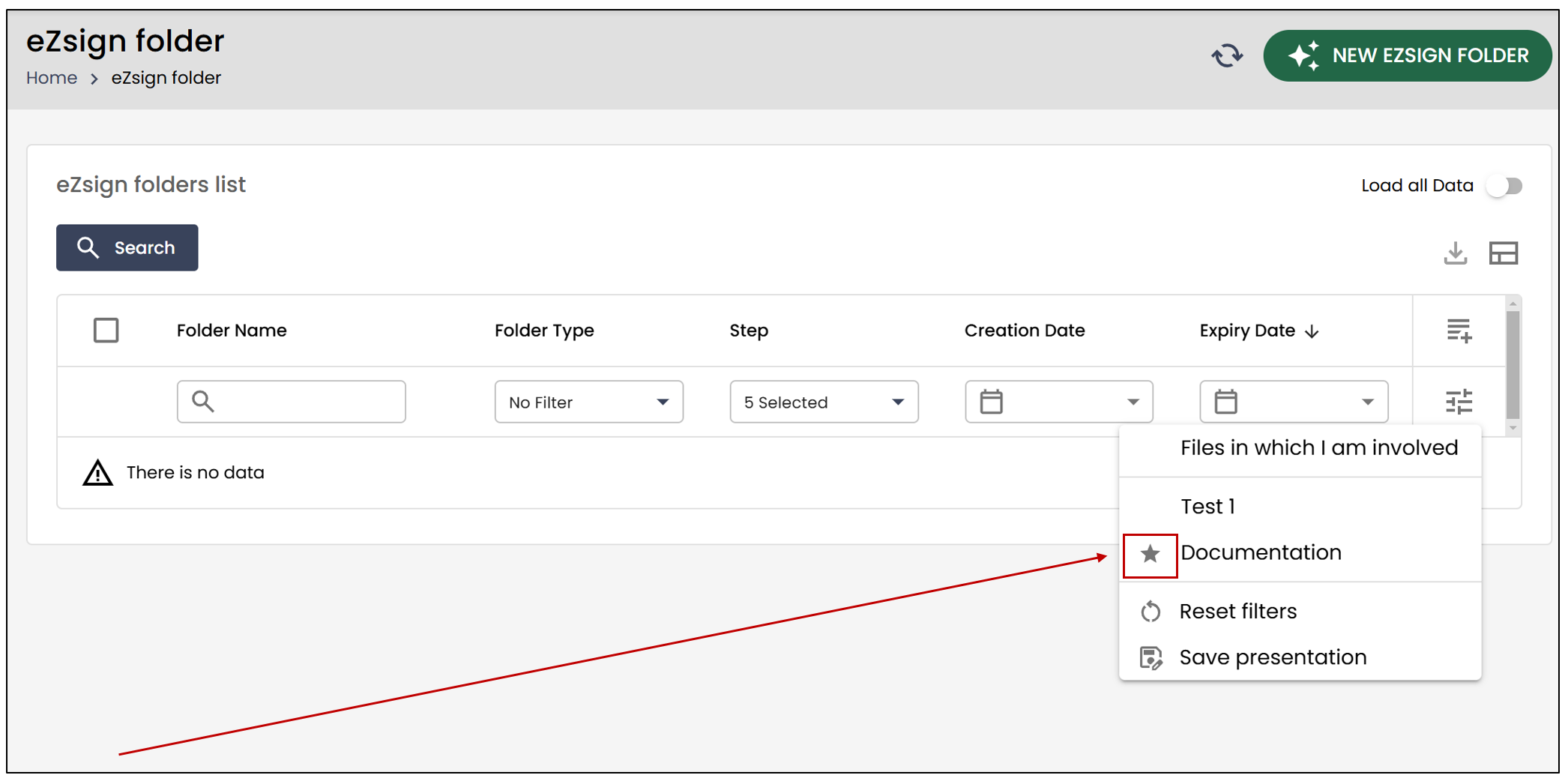
To quickly access folders about to expire in eZsign, we recommend creating a folder list with specific filters and saving this view for future reference. Here’s how to proceed:
- Go to the folder list and add the Expiry Date column.
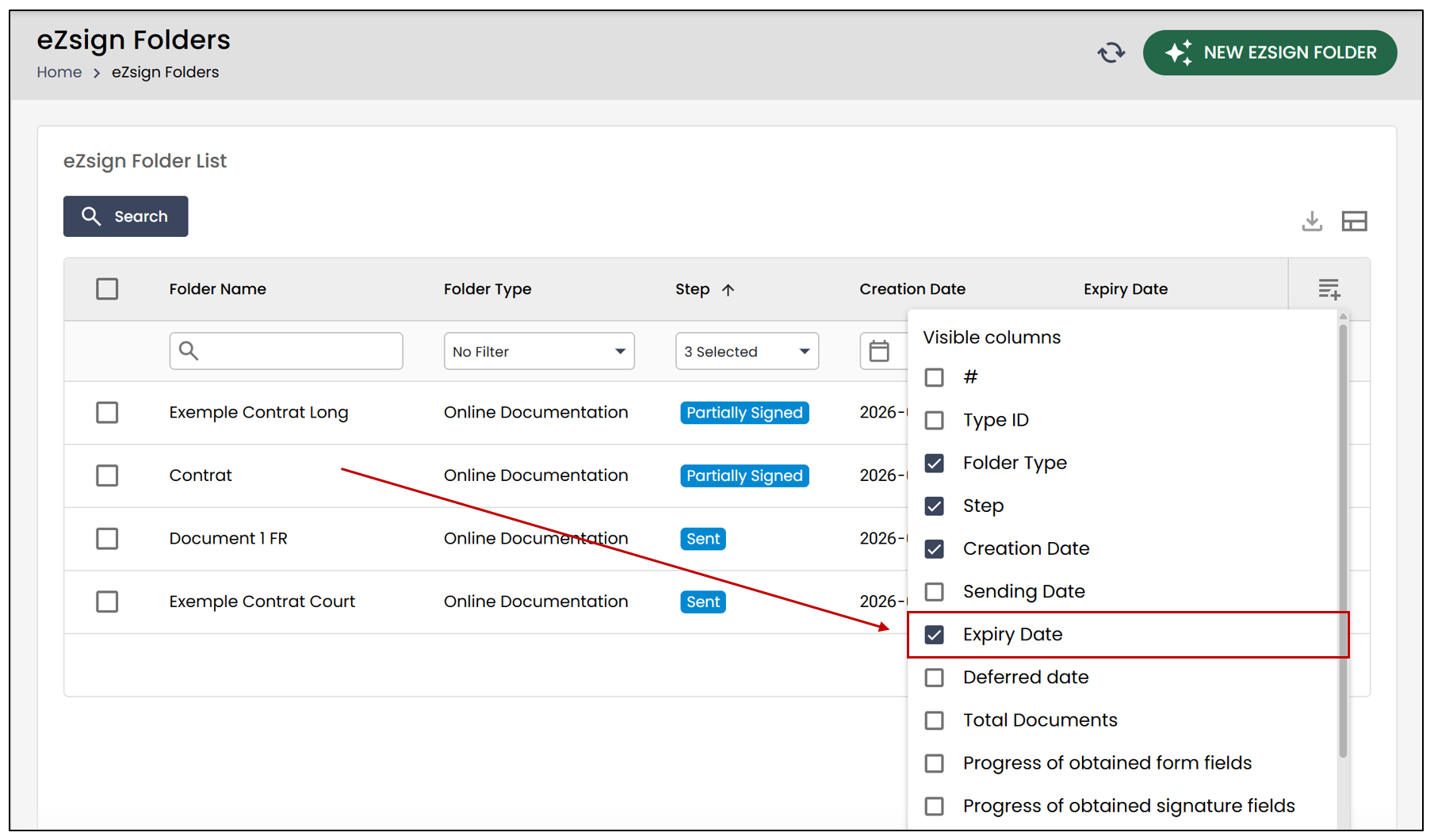
- Select the desired dates.
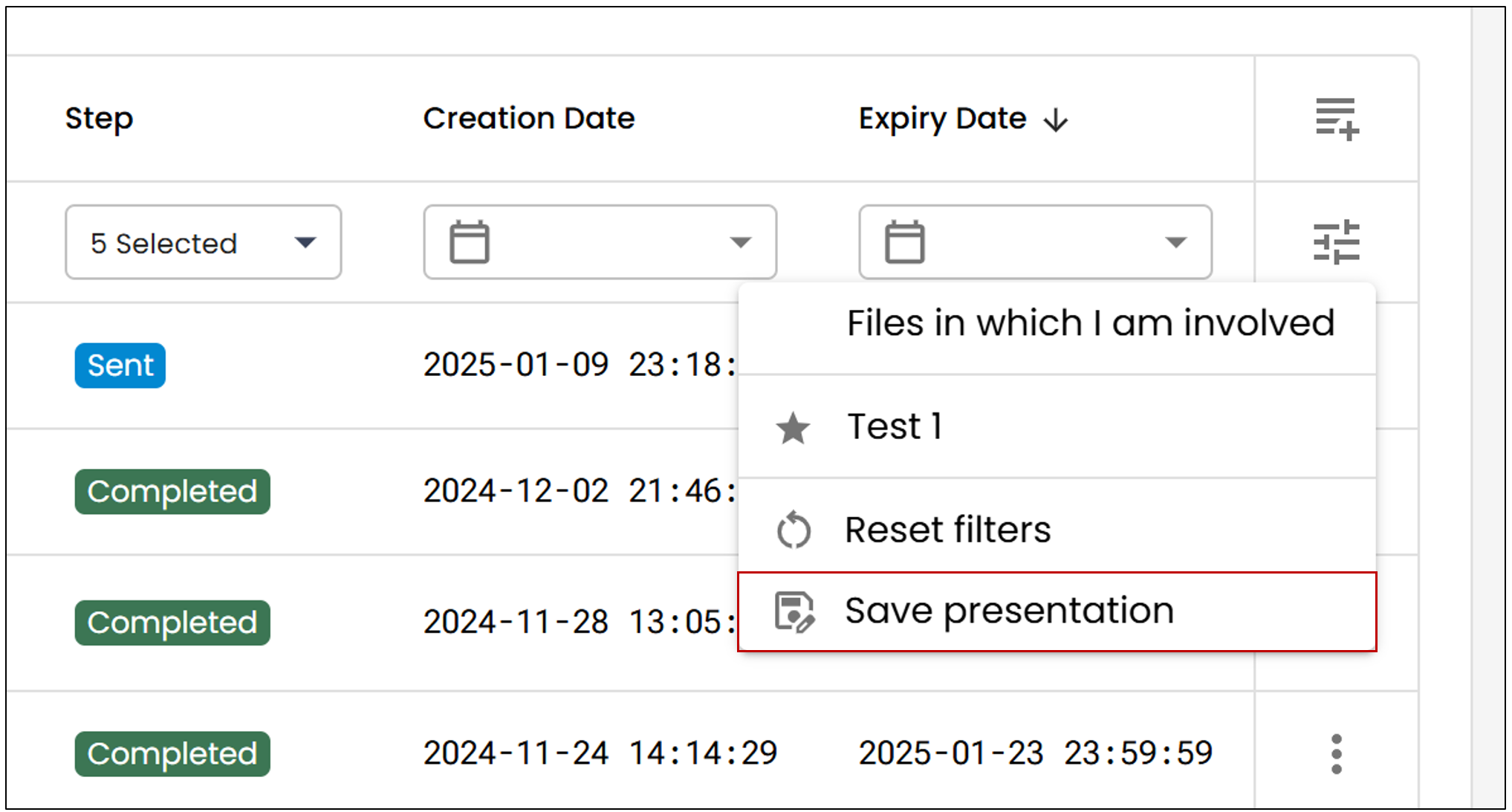
- Save this view for future use by clicking on the icon

, then on Save Presentation.
Envelopes Sent by me in Docusign >> Equivalence in eZsign
To quickly access the folders created by you in eZsign, we recommend creating a folder list with specific filters and saving this view for future reference. Here’s how to proceed:
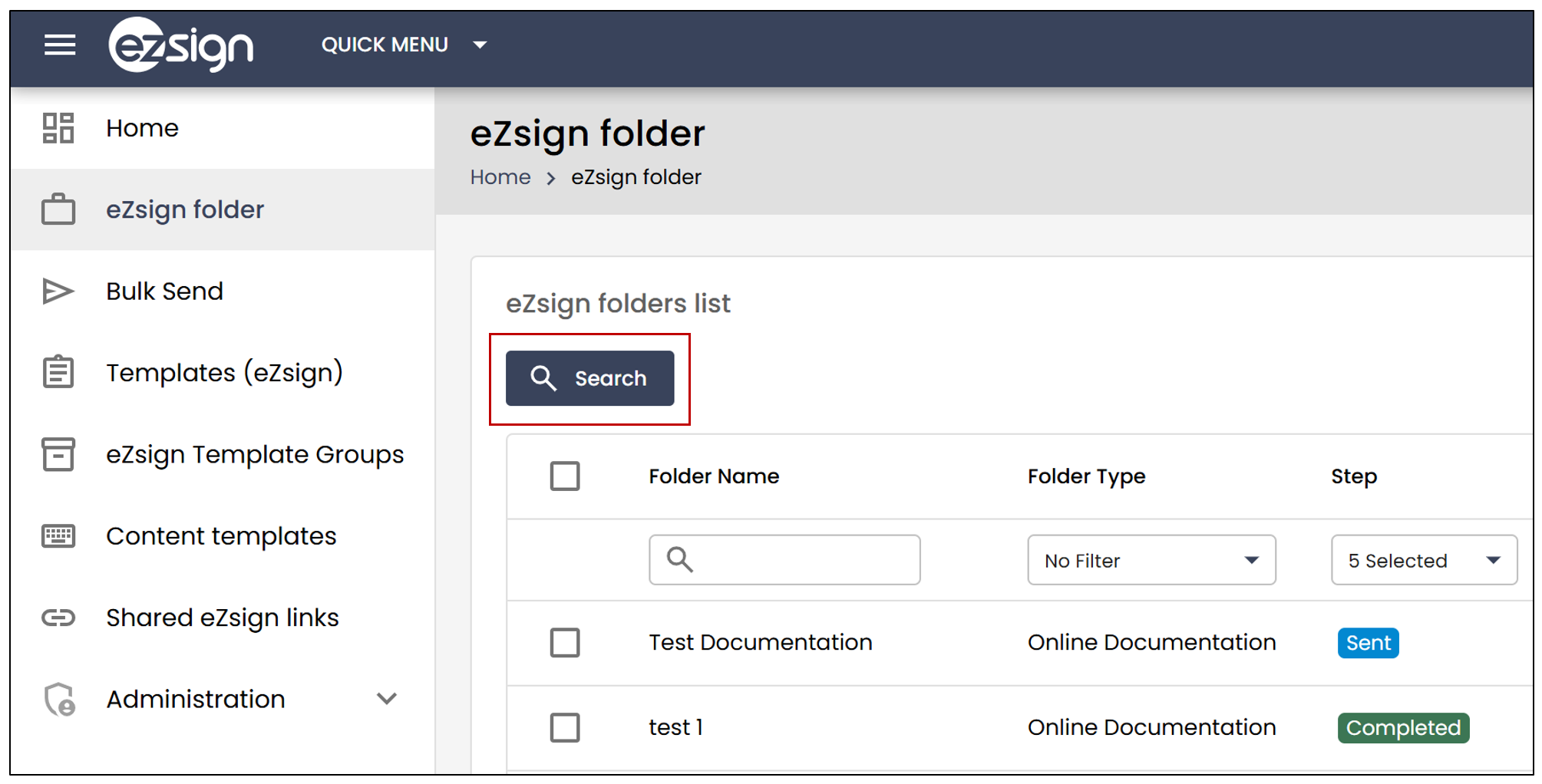
- Go to the folder list and click on Search.
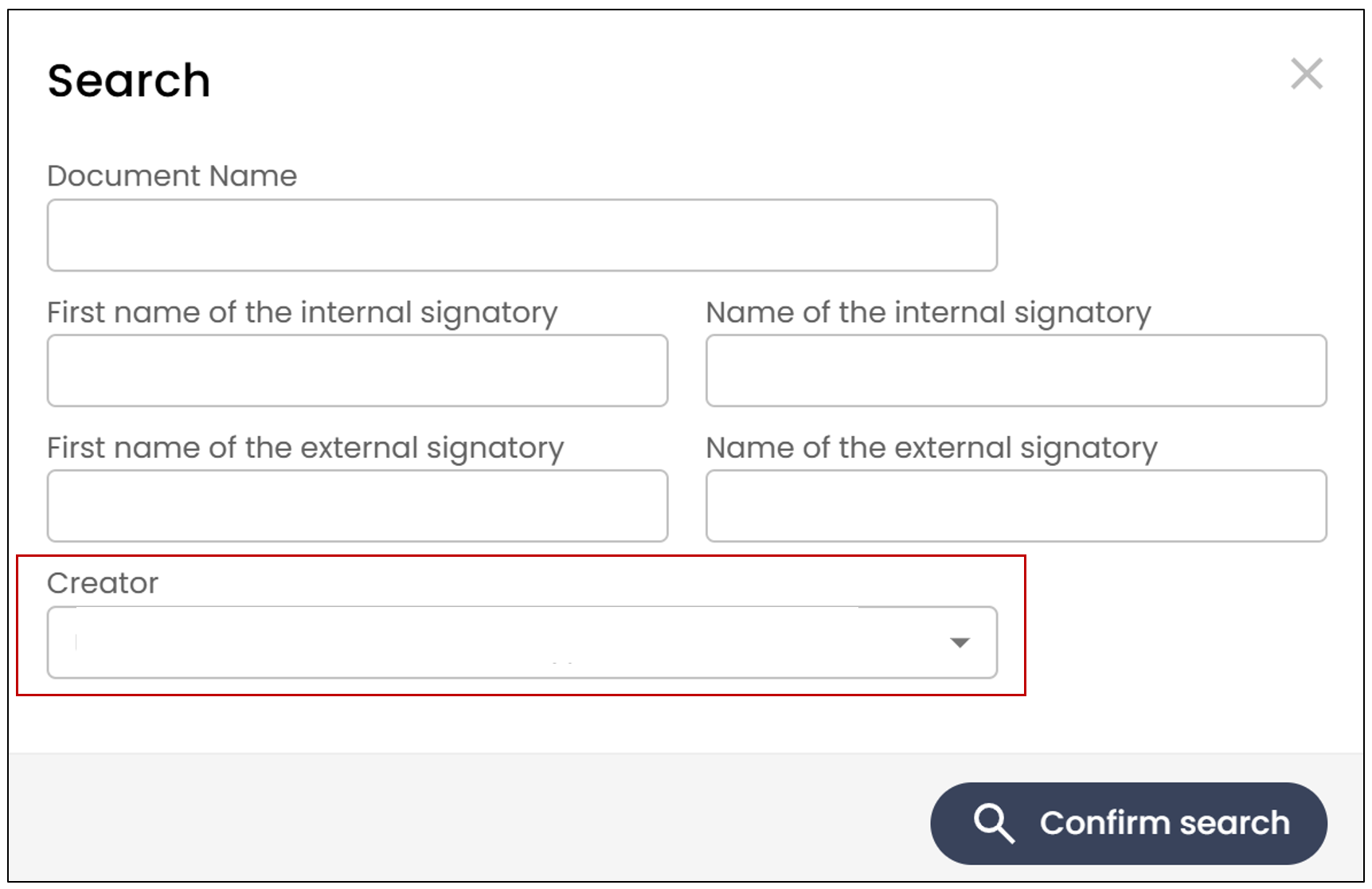
- Select your name in the Creator field and click on Confirm Search.
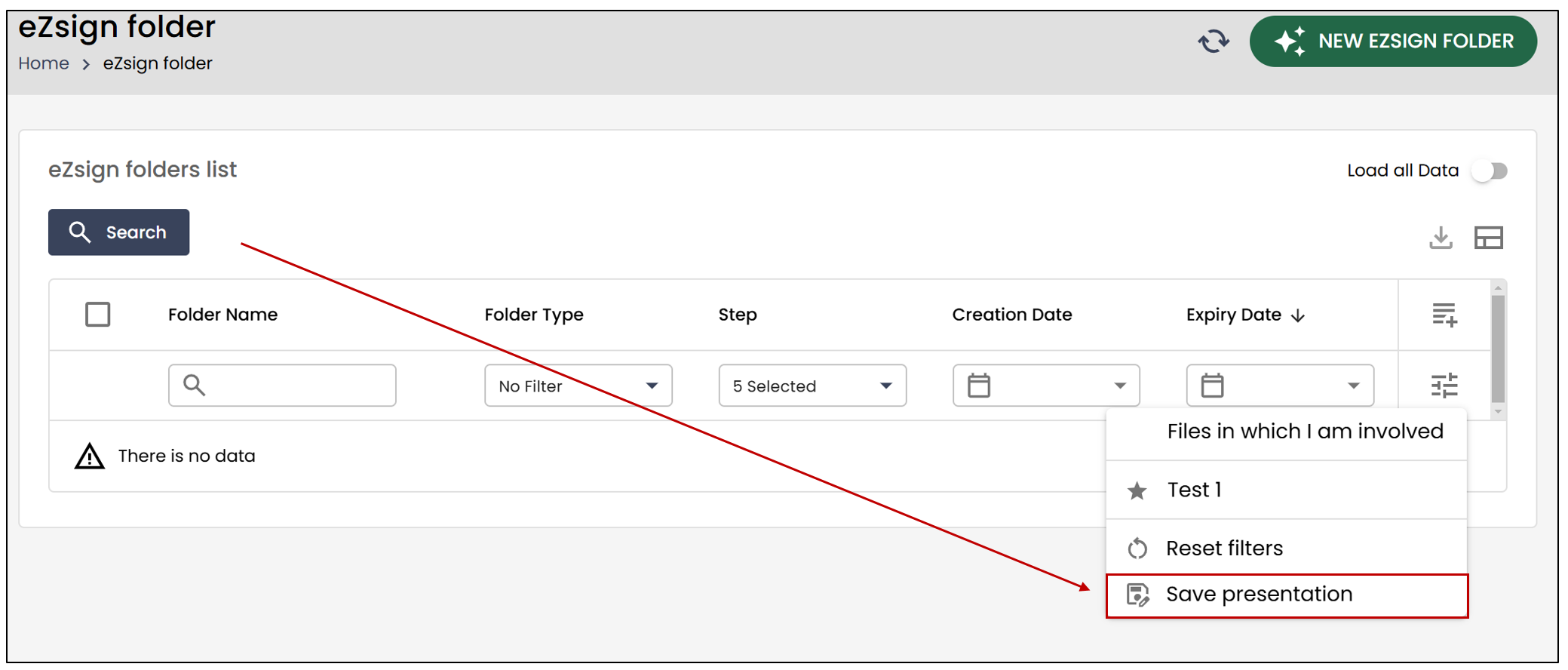
- Save this view for future use by clicking on the

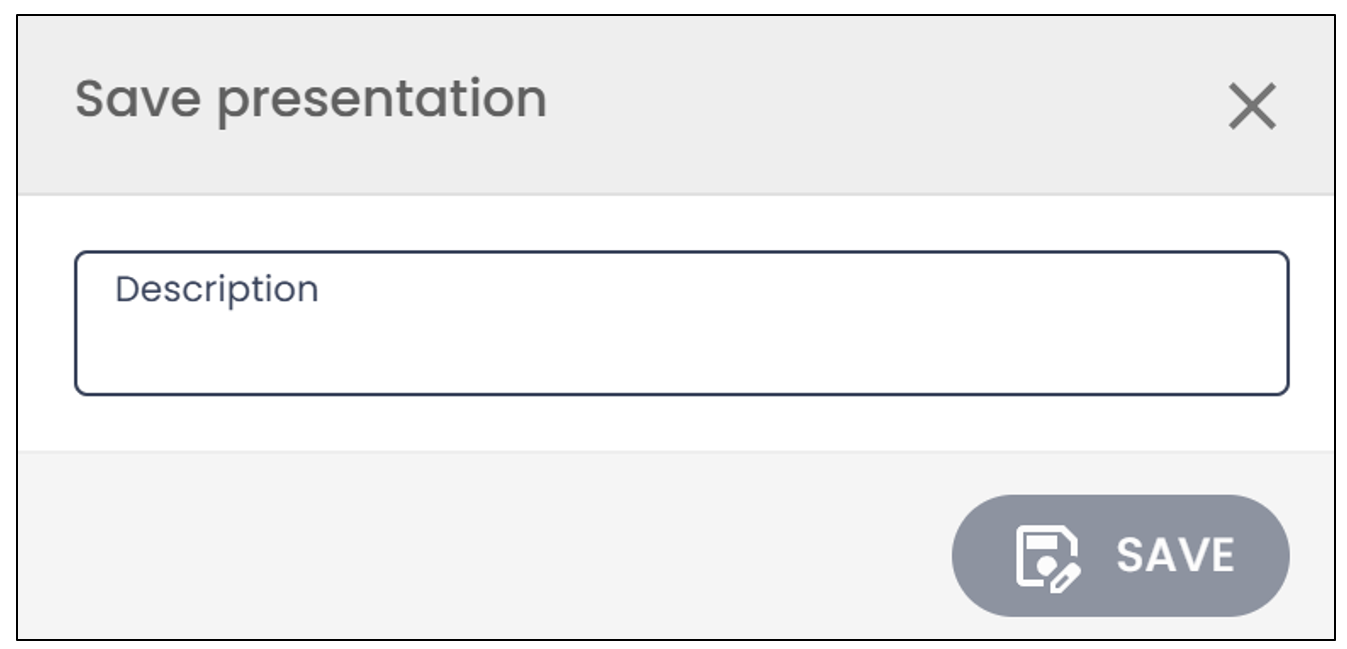
icon, then on Save presentation. Then, add a Description.
- By clicking on the star, this list will be displayed by default every time you access the folder list.
Form Fields vs. Signature Fields in eZsign
Form fields must always be filled out before electronic signature fields.
When the signer fills out the form fields, they always have the option to save and return to complete the form later. They can also modify the information in the fields.
Once the signer has finished filling out the fields, they must click on "Process the form," and this is when the PDF document is created. If signatures are required, the signer is automatically directed to the signature fields.
NOTE: There are also "text" signature fields. These will be used on documents that are already signed, and the text signature fields will be added incrementally. These fields will have fewer configuration options than form text fields.
The available form field types are:
- Text;
- Multiline text;
- Checkbox;
- Radio;
- Drop-down list;
For the full description of form field parameters, refer to the article: Form Field Types.
The available signature field types are:
- Signature;
- Signature with reason;
- Handwritten signature;
- Initials;
- Signature city;
- Acknowledgment;
- Attachments;
- Text;
- Multiline text.
For the full description of signature field parameters, refer to the article: Types of Signature Fields.
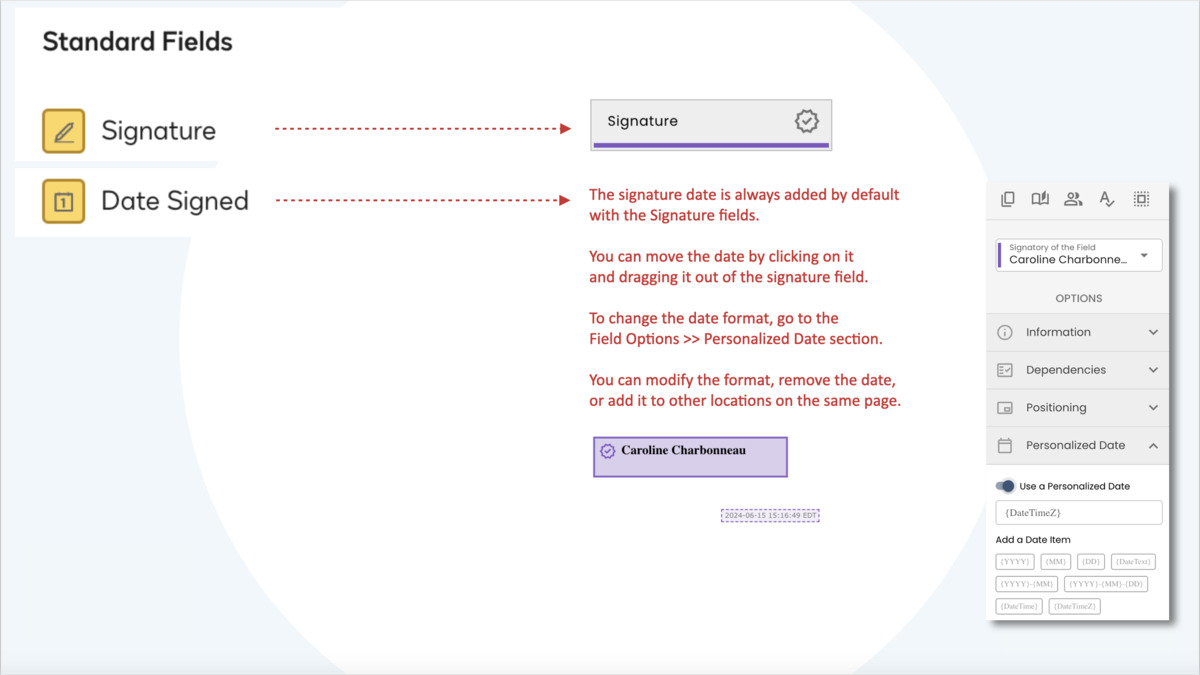
Equivalence of Signature Fields Between Docusign and eZsign
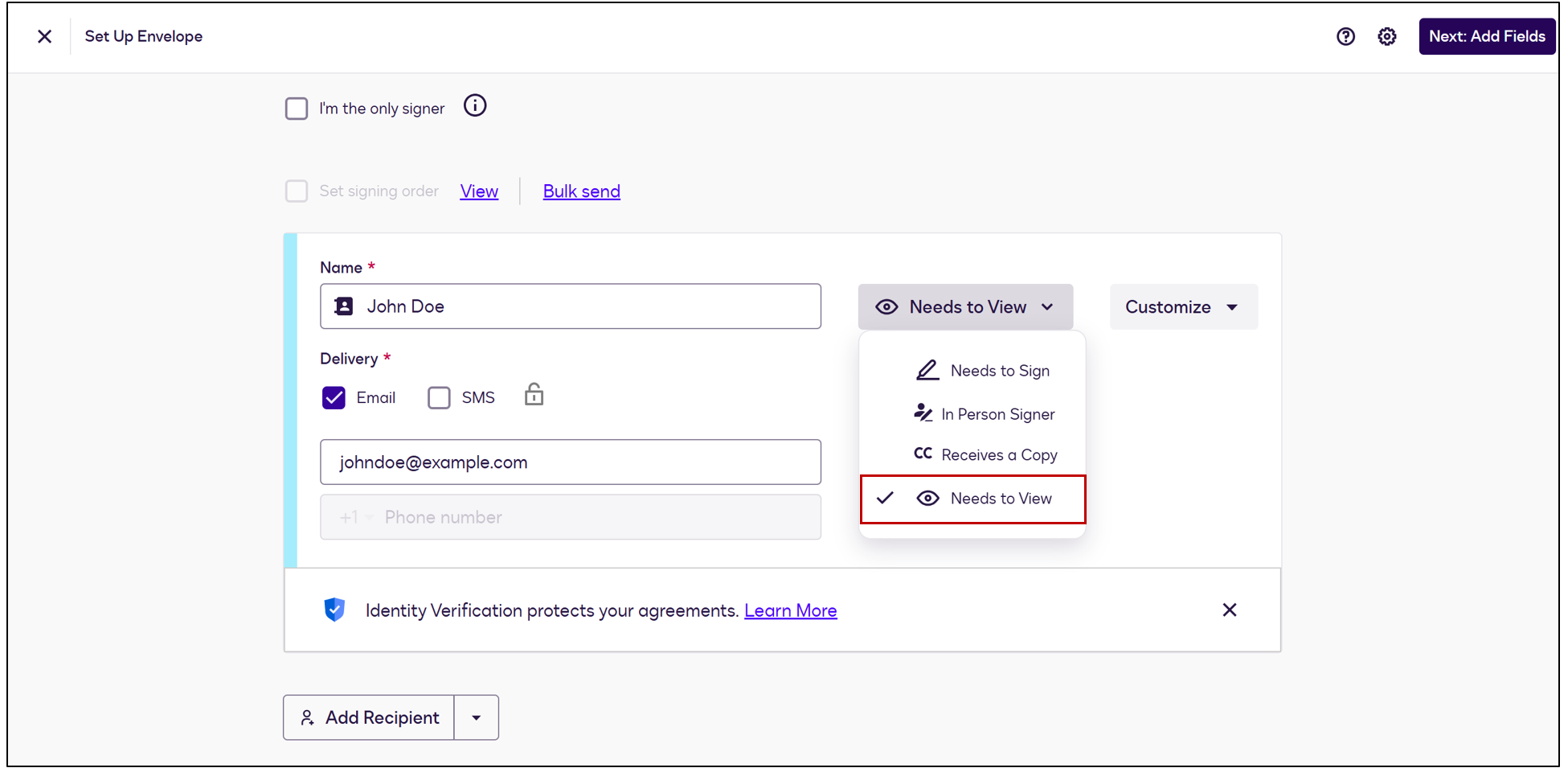
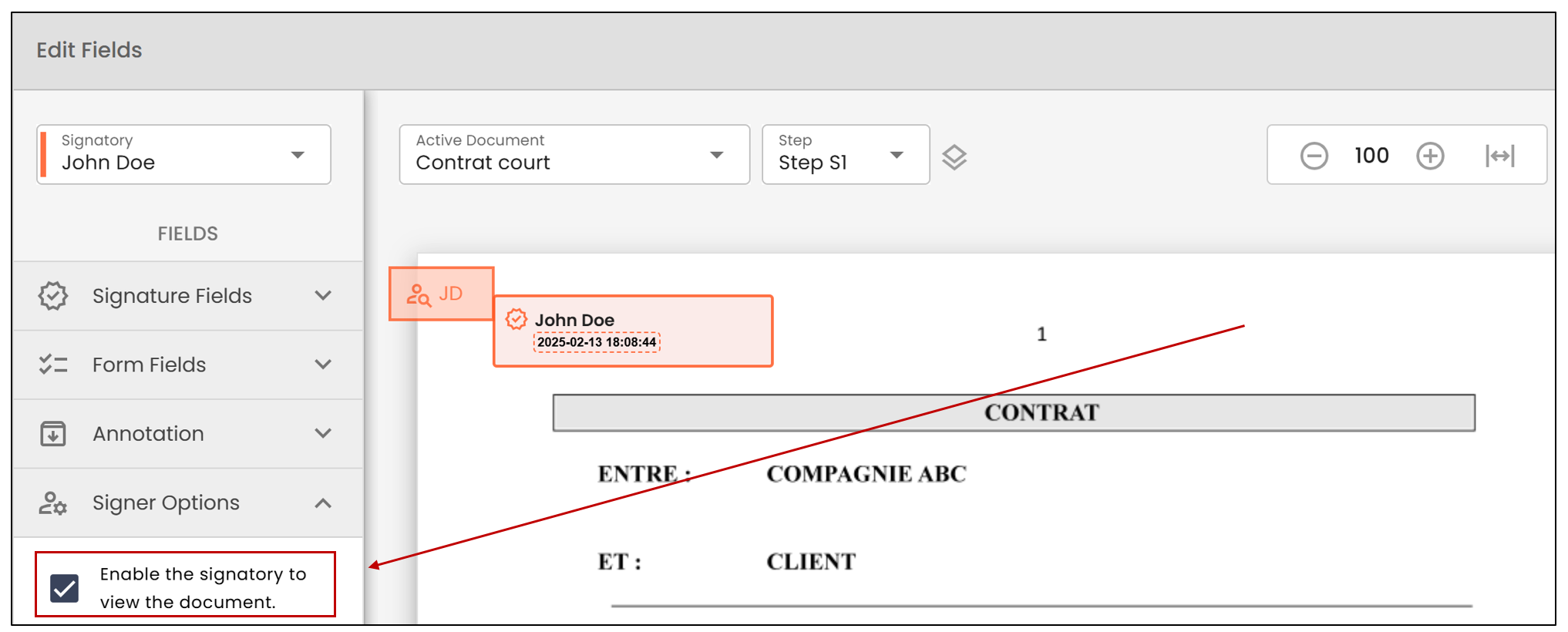
The Signer Must Review
- In Docusign:
- In eZsign:
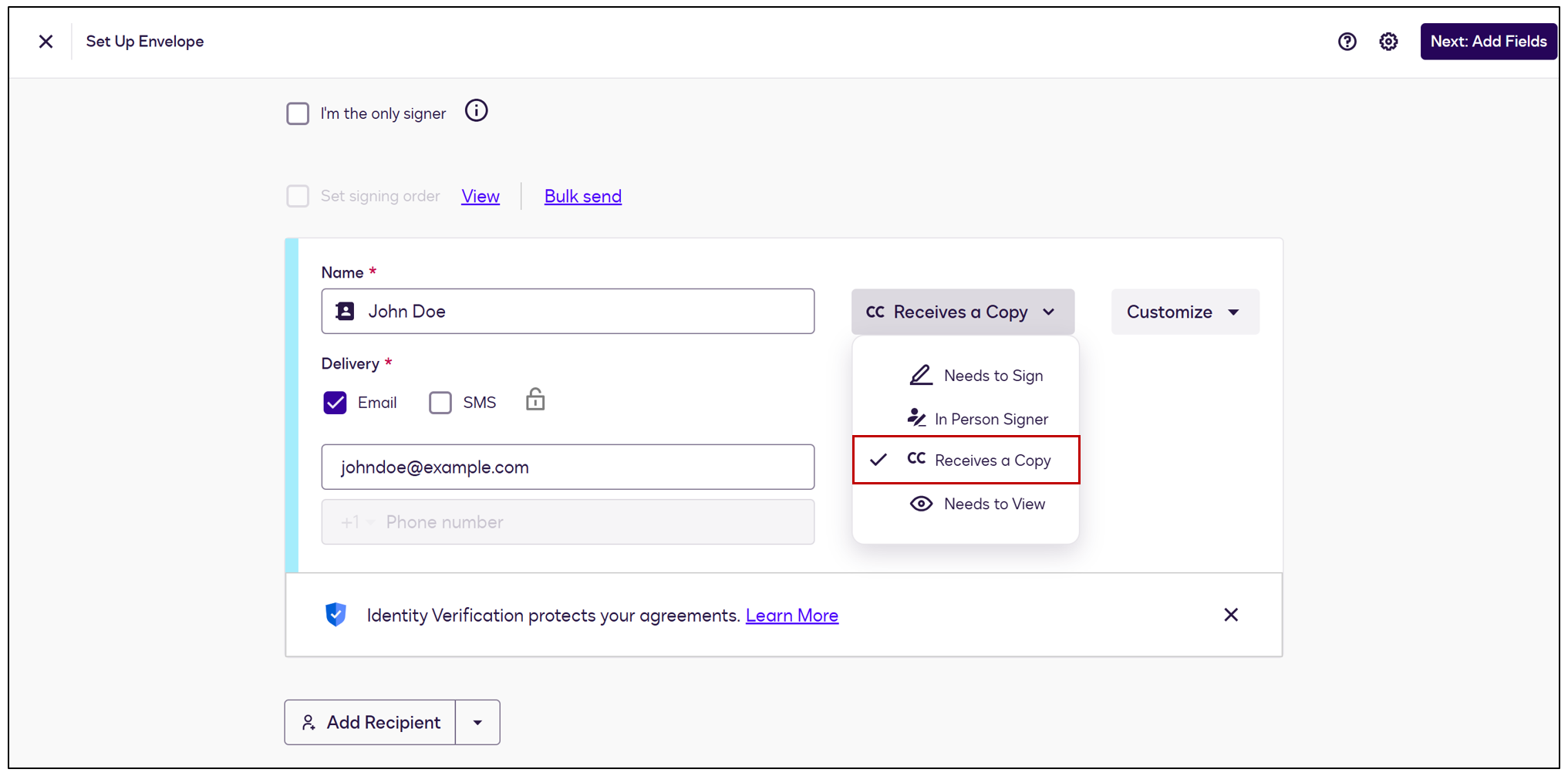
The Signatory Must Receive a Copy
- In Docusign:
- In eZsign: