English
Expired eZsign Document (eZsign Web Version)
**Expired eZsign Document **
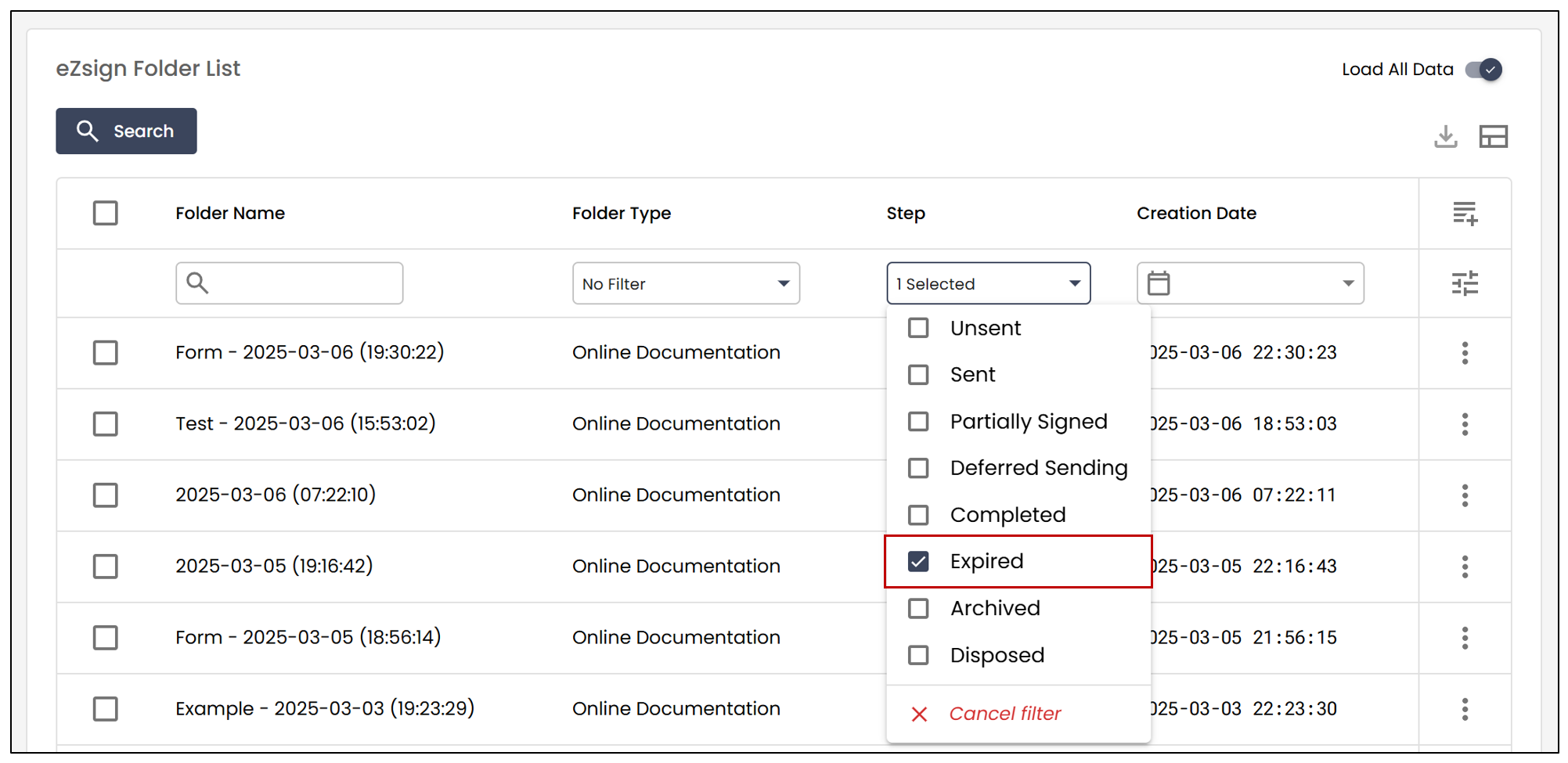
To resend an expired eZsign folder, you must first go to the eZsign Folder List.
- To directly display all expired files, you can enable this filter in the Step section.
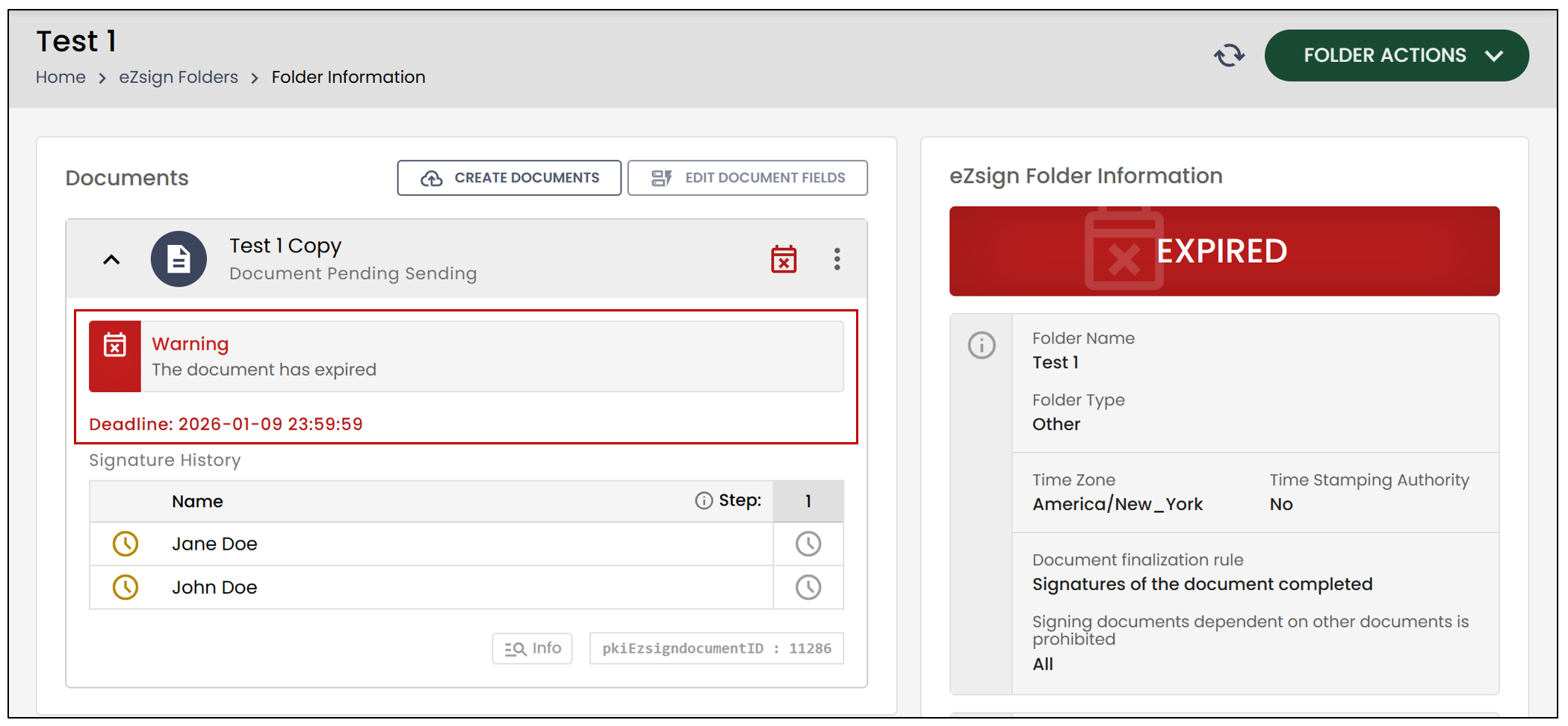
- Next, select the desired folder. You will see a message indicating that the document has expired, along with the document’s Deadline shown in red.
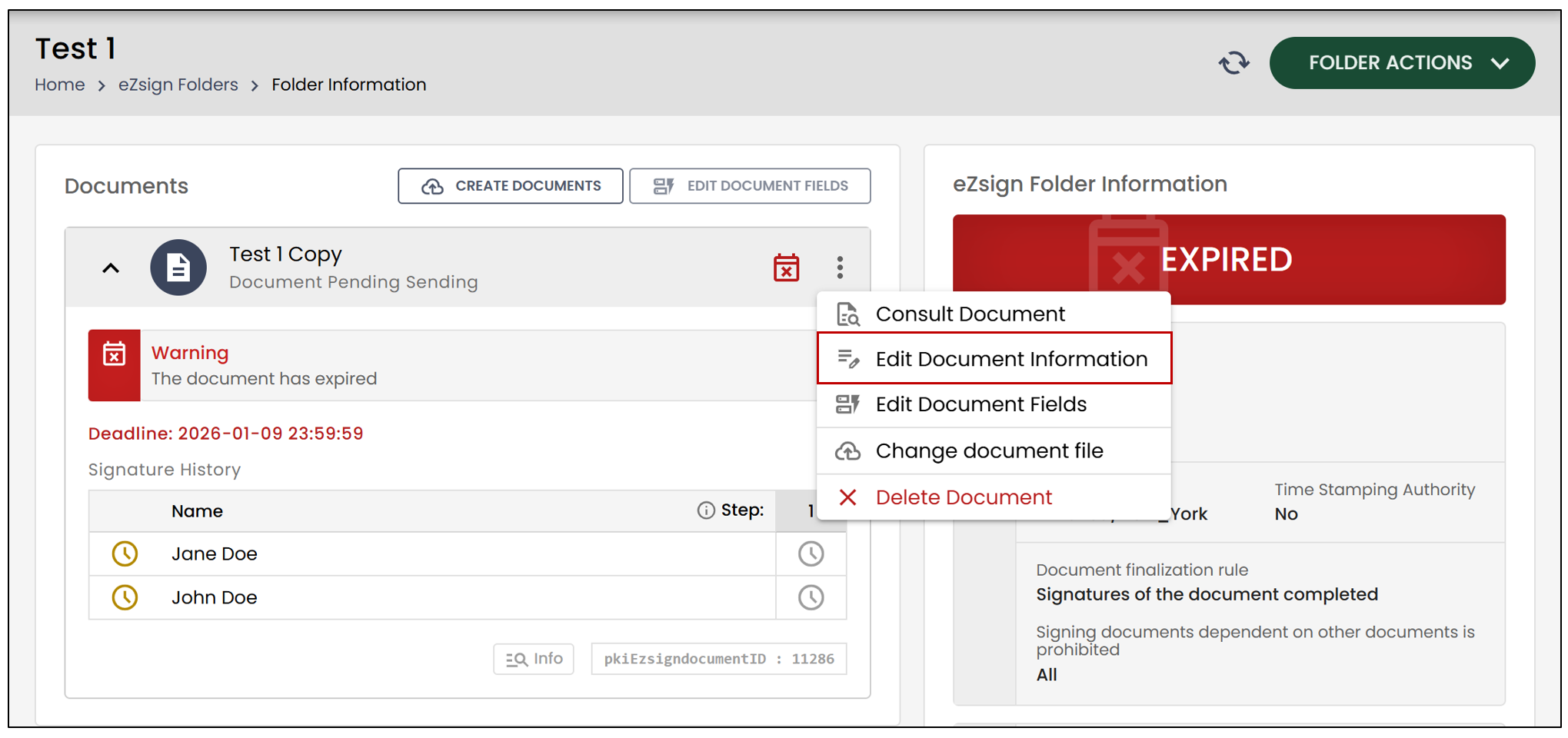
- To reactivate the file, you need to change the document’s deadline. To do this, click on the three vertical dots, then select Edit Document Information.
- You will notice that the number shown under Signature Deadline is negative, because the document has expired.
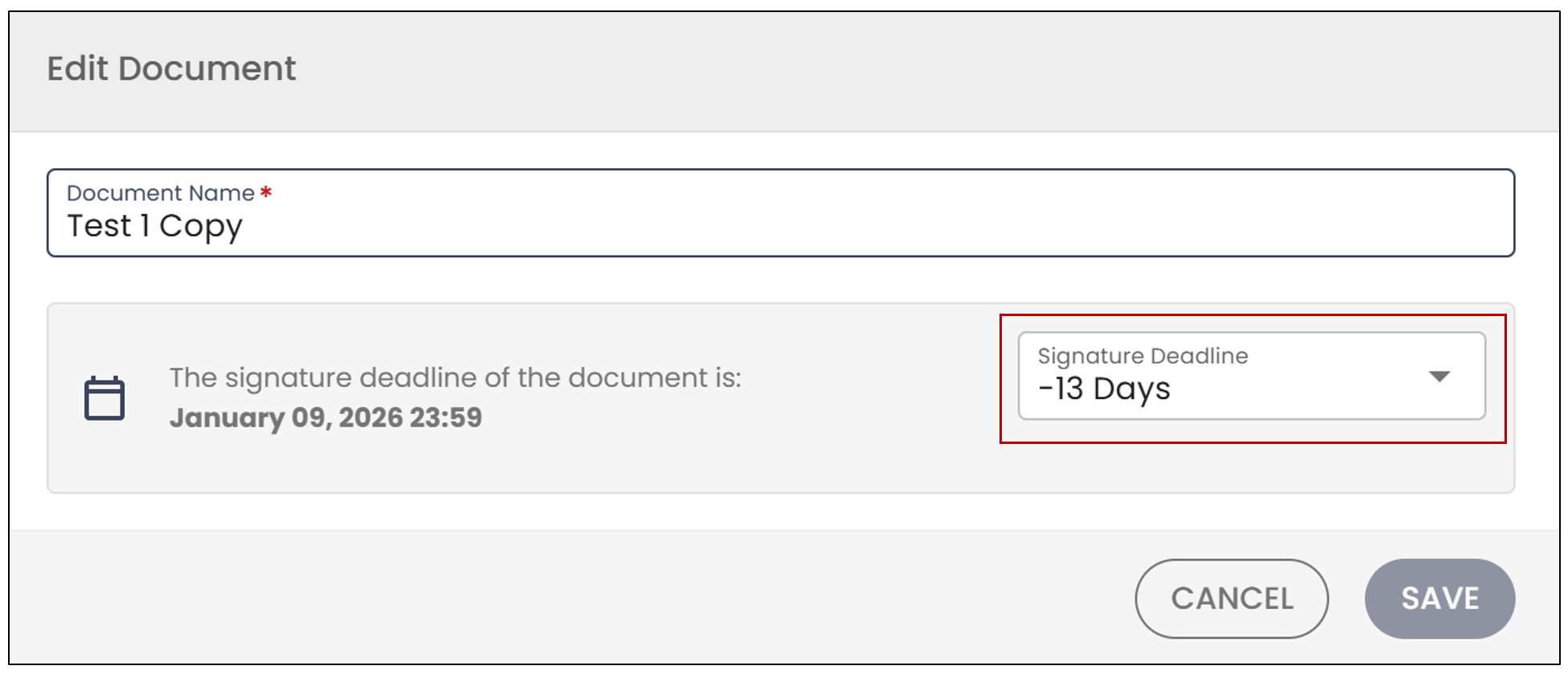
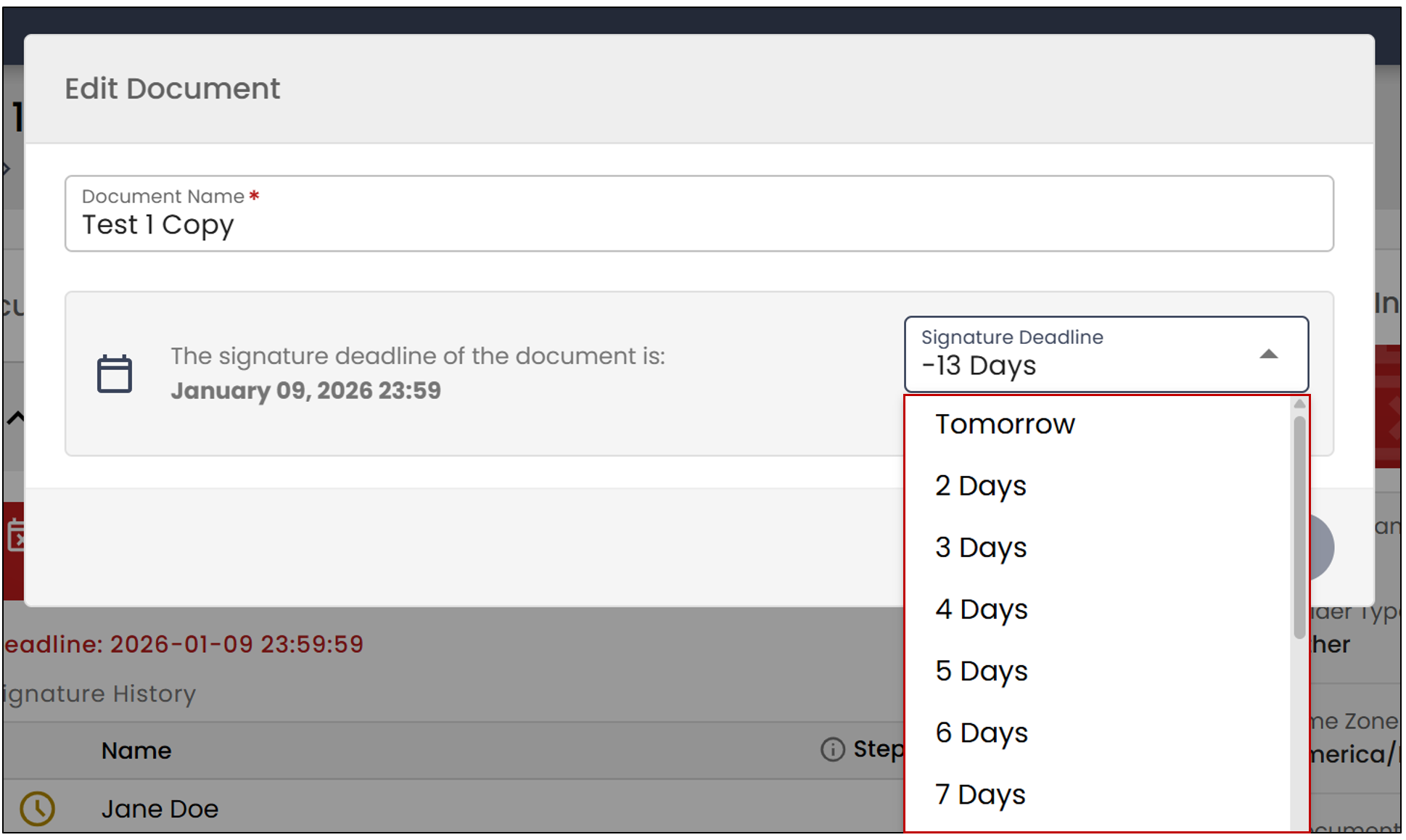
- From the drop-down list, select the number of days for the new Signature Deadline.
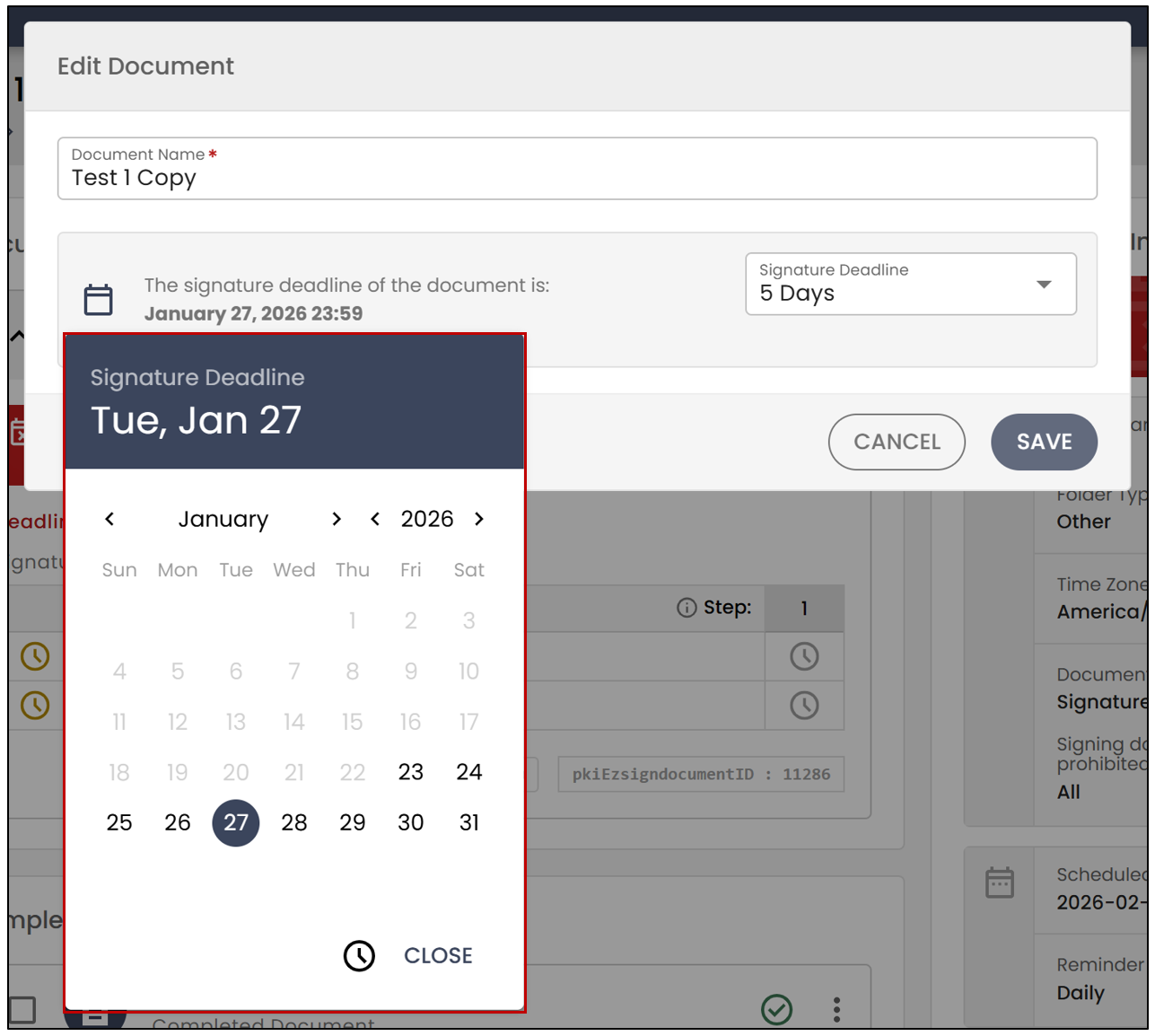
- If you prefer to select a date, click on the

icon. You will then be able to choose the new deadline.
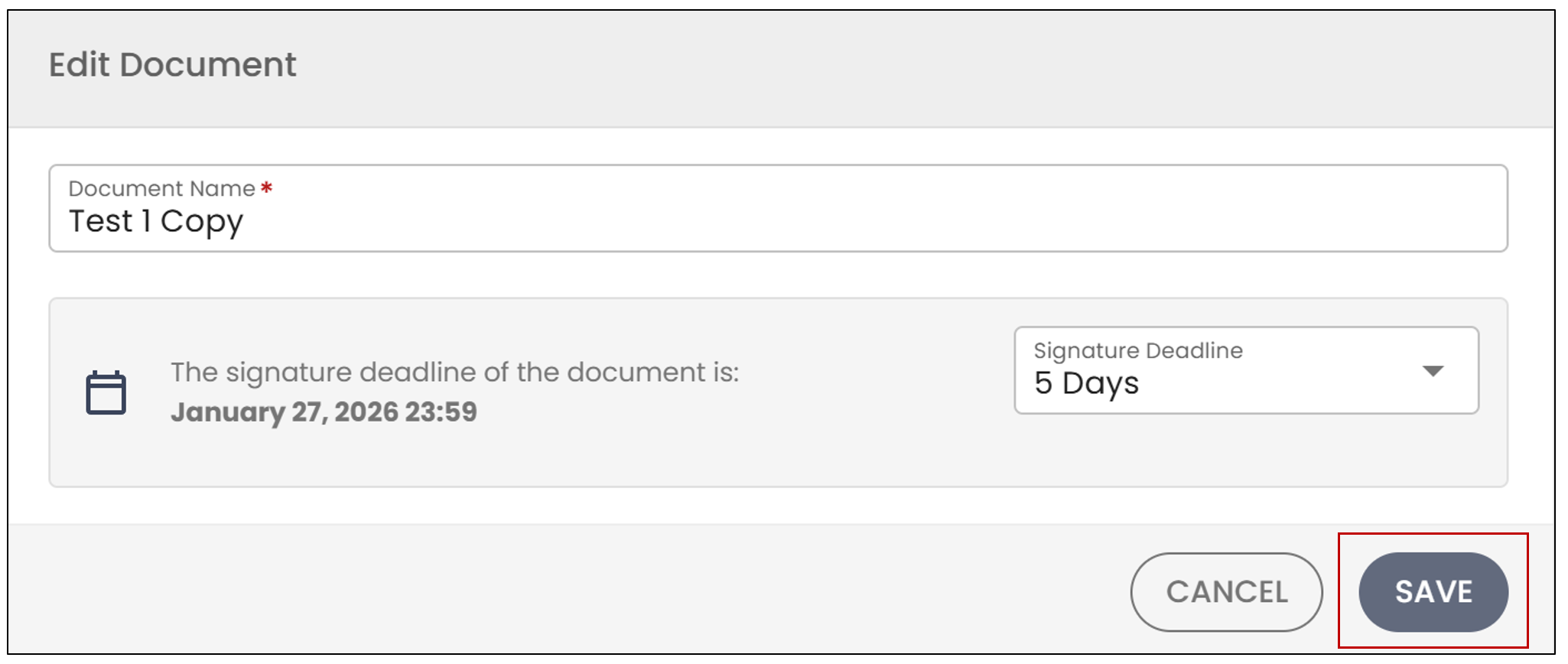
- Once you have chosen the new signing deadline, click Save.
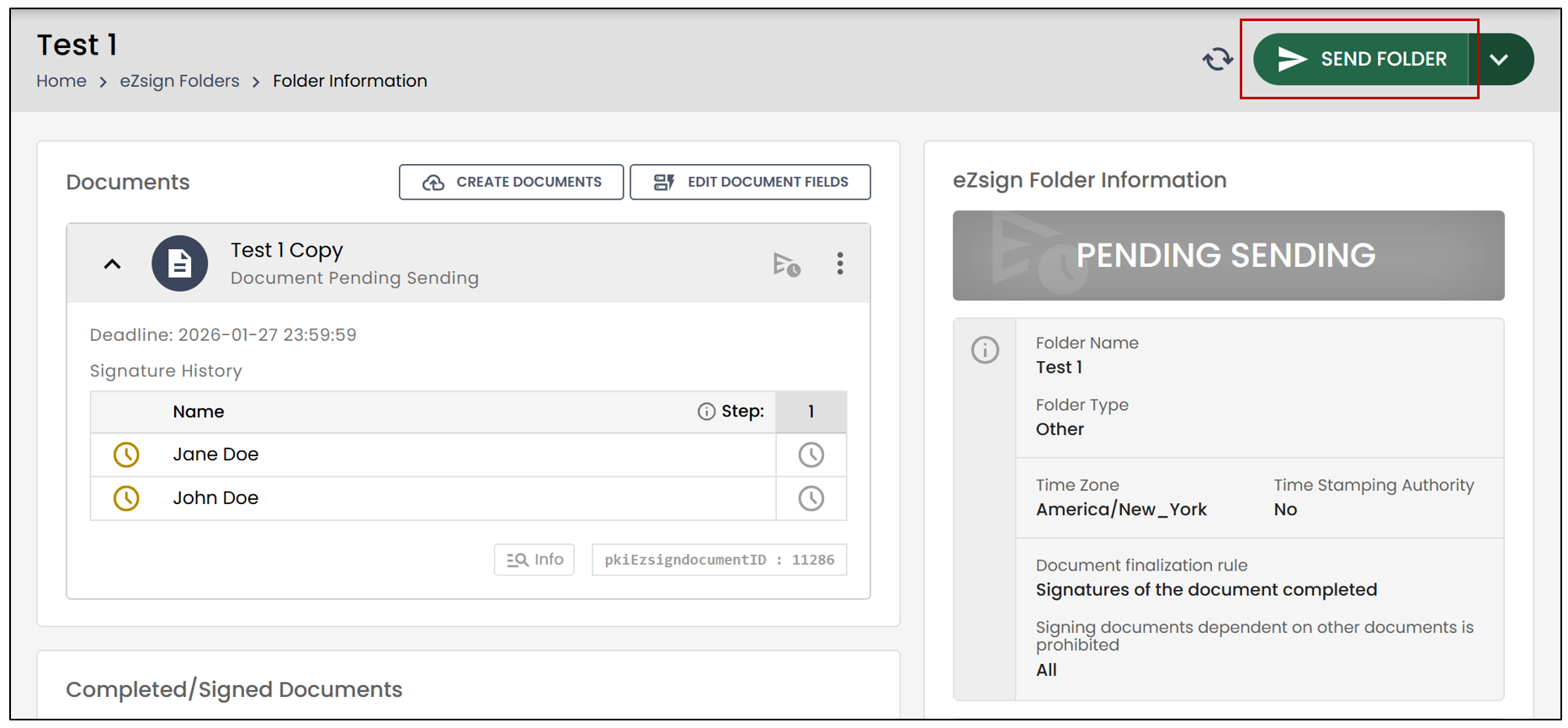
- The document will then return to the Pending Sending step. To send the file to the signers, click Send Folder , located at the top right of your page.