

Français
Adding an "Attachments" Field in a Document
It is possible to add an "Attachments" electronic signature field in a document so that the signatory can attach one or more files to the document when signing electronically.
- From the eZsign folder containing the desired document:

- **In the "List of Documents" sectio n of your folder, click on the file name or the **Fountain Pen icon to display the document.
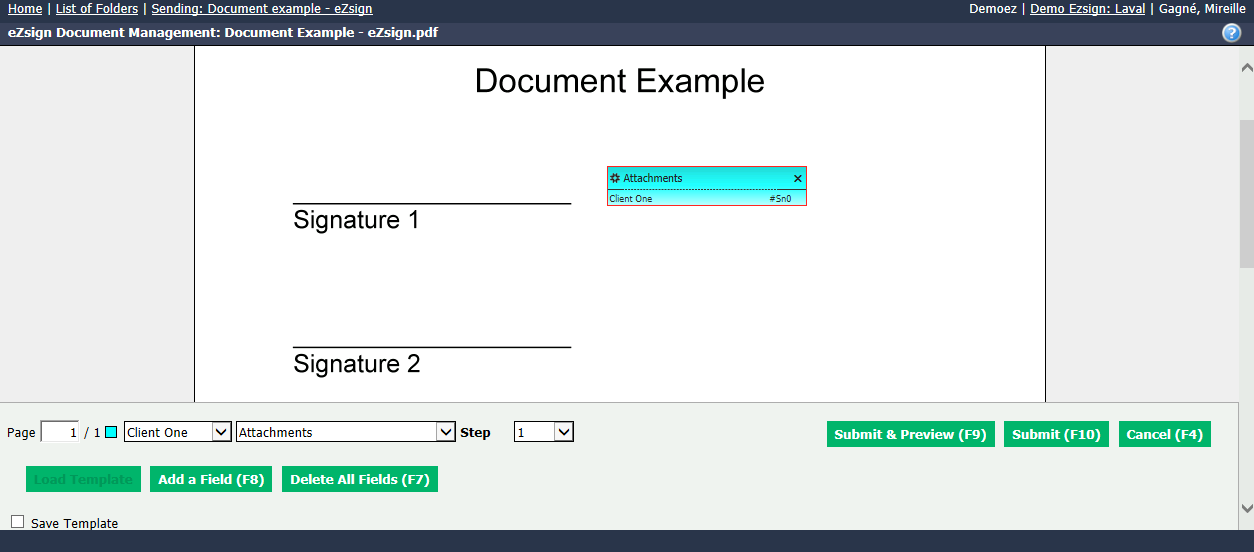
From the drop-down lists, select the desired signatory, "Attachments" field type and desired Step.
Click on the Gear Wheel icon (Menu) in the field.
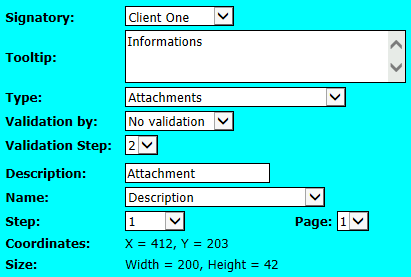
Tooltip : You can enter information for the signatory about the file to add.
Validation by : If you want the file that will be added by the signatory to be accepted or rejected by the user who created the folder, select it from the drop-down list. For more information, please see the article Attachment Validation.
Validation Step : If you have chosen to validate the attached file, select the step (2 or 3) at which the user will do so.
NOTE: Only the user who created the folder can validate an attached file.
Description : By default, the description is "Attachment" but you can change it and enter the desired name of the file to add.
Name : From the drop-down list, you can select:
- "Description": By default. The name entered in the Description field will appear in the document.
- "Original Name": The name of the file when downloading (the name that the client gave to his file) will appear in the document.
- "Description - Original Name": The name entered in the description and the name of the file when downloading (the name that the client gave to his file) will appear in the document.
When all the desired fields are added/edited, you can click on Submit & Preview to verify the appearance of the final document or you can click on Submit to confirm the location of the fields.
From the Actions menu, click on Send Documents. For more information, please see the article Sending Documents to Sign.
QUERY LENGTH LIMIT EXCEEDED. MAX ALLOWED QUERY : 500 CHARS