

Français
New process Protection Royale
From January 2024, the procedure for billing Protection Royale insurance will change.
Protection Royale will now be charged as a transaction fee. Billing directly through the shield

system should no longer be used.
Protection Royale will be invoiced to the agency on the same invoice as the 1% at the beginning of the month for the previous month’s transactions.
NOTE :
- All current open deals in the system will be done with the new procedure (transaction fees).
- All insurances that were purchased before 2024 and the transactions that are still open in the system must be billed again using the new process. Octave will refund the purchased protection on the credit card used.
Create GL accounts
Create general ledger account in your Income (For the protection claimed on the commission payment of the agents) and in Expenses (when the brokerage pay the RLP invoice at the beginning of the month).
From the menu Accounting >> Financial Configuration >> GL Accounts >> Actions >> New GL Account
Incomes
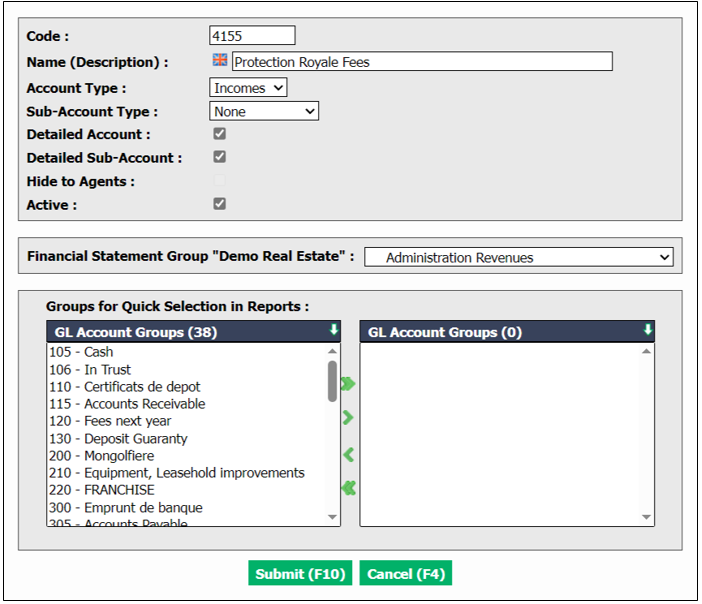
Code : Use a code from your Incomes section in the same number sequence. Ex. If your incomes are in the numbers 4000 follow the same sequence.
Name (Description) : Protection Royale Fees
Account Type : Incomes
Sub-Account Type : None or Departments if you have more than one office
Financial Statement Group : Administration Revenues
Expenses
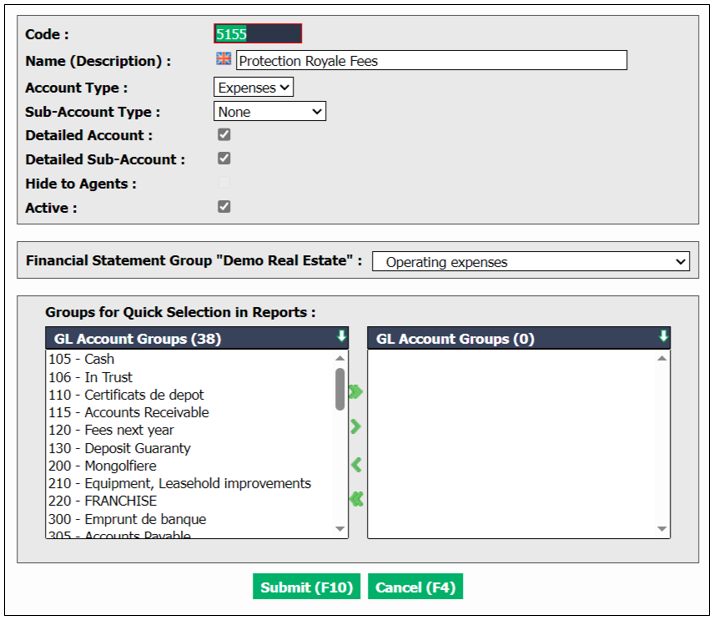
Code : Use a code from your Expenses section in the same number sequence. Ex. If your expenses are in the numbers 4000 follow the same sequence.
Name (Description) : Protection Royale Fees
Account Type : Expenses
Sub-Account Type : None or Departments if you have more than one office
Financial Statement Group : Operating expenses
Create a Commission Deduction Category
From the main menu, Real Estate >> Real Estate Configuration >> Commission Deduction Categories >> Actions >> New Commission Deduction Category
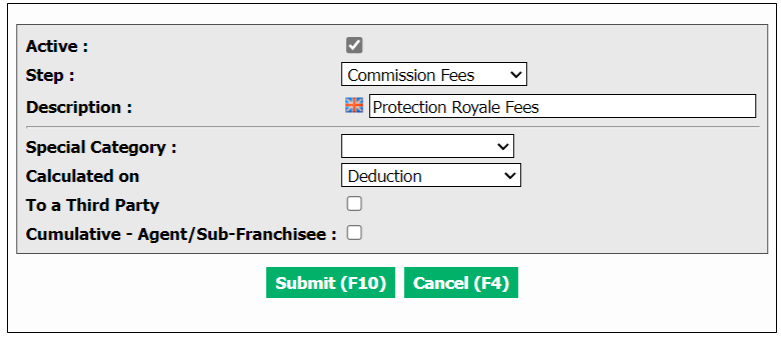
Step : Commission Fees
Description : Protection Royale Fees
Special Category : Empty
Calculate on : Deduction
Add the Fee to all Protection Royale members Agents
From the main menu, Real Estate >> Real Estate Configuration >> Agents or by the Icon

or

Actions >> Commission Deduction
Gene ral Section
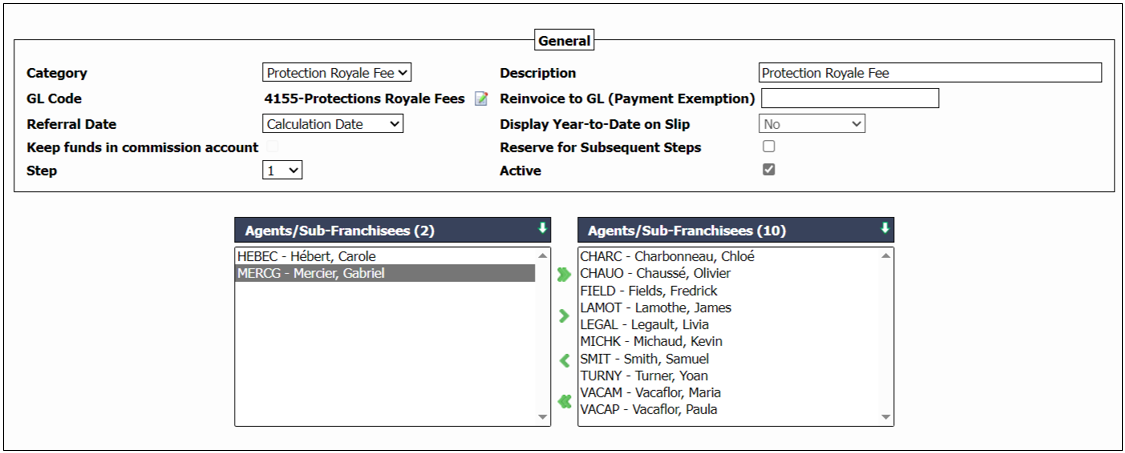
Category : Protection Royale Fee
Description : Protection Royale Fee
GL Code : (Incomes) Protection Royale Fees
Select the Protection Royale members Agents and transfer them to the right column.
Do not edit anything the Application Criteria Section
Charges Section
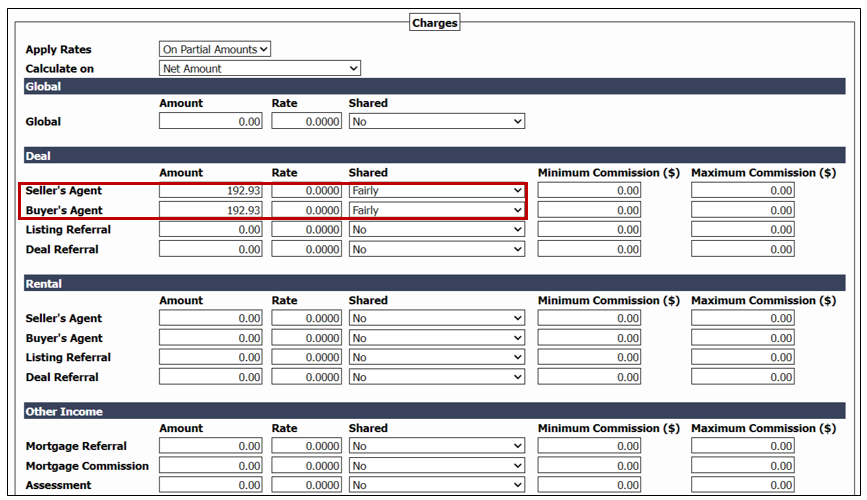
Deal >> Seller’s Agent >> Amount 192.93
Deal >> Buyer’s Agent >> Amount 192.93
Shared Column >> Fairly (If you have more than one agent of the office in the same transaction the fee will be divided fairly)
Do not edit anything in Limiting Factors Section
You can now complete transactions and the Protection Royale fee will be charged. If the fee should not be charged for a certain reason, set the fee to 0.00 when you do the commission calculation.
NOTE : The following transactions are not eligible for Protection Royale
- Commercial
- New Property
- Rental