

Français
Adding/Loading/Editing a Template
QUERY LENGTH LIMIT EXCEEDED. MAX ALLOWED QUERY : 500 CHARS
Adding a Template
Before you can use a template for the electronic signature of a document, it must be added to the list of templates.
Create an eZsign folder in the desired folder type (personal or shared). For more information, please see the articles Difference between a Personal Folder and a Shared Folder and Creating an eZsign Folder.
Add the signatory in the "List of Signatories" section. For more information, please see the article Adding/Editing/Deleting a Signatory in an eZsign Folder.
NOTE: The user who created the folder is automatically added to the signatories.
- Add the PDF document in the "List of Documents" section. For more information, please see the article Adding/Editing/Deleting a Document in an eZsign Folder.
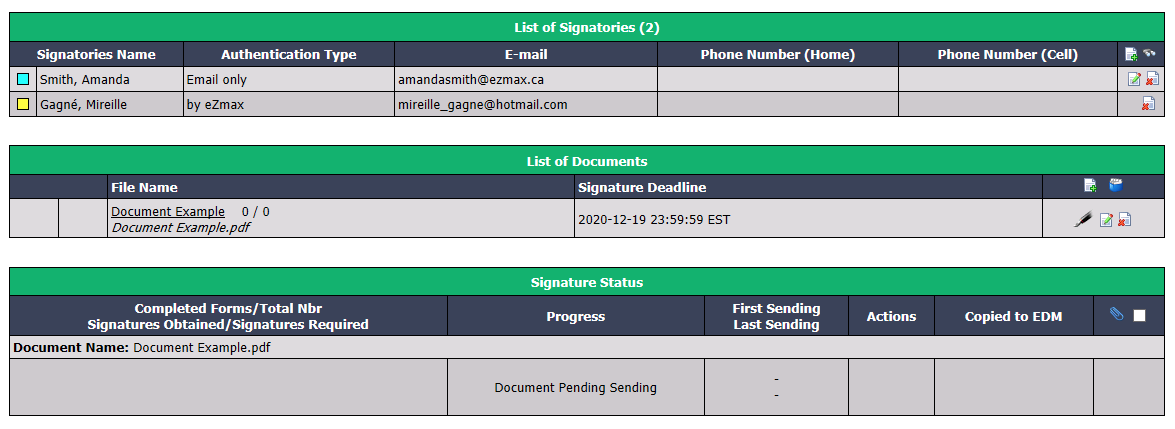
Click on the file name or the Fountain Pen icon to display the document.
Add the desired fields in the document. For more information, please see the article Adding/Editing/Deleting a Field in a Document.
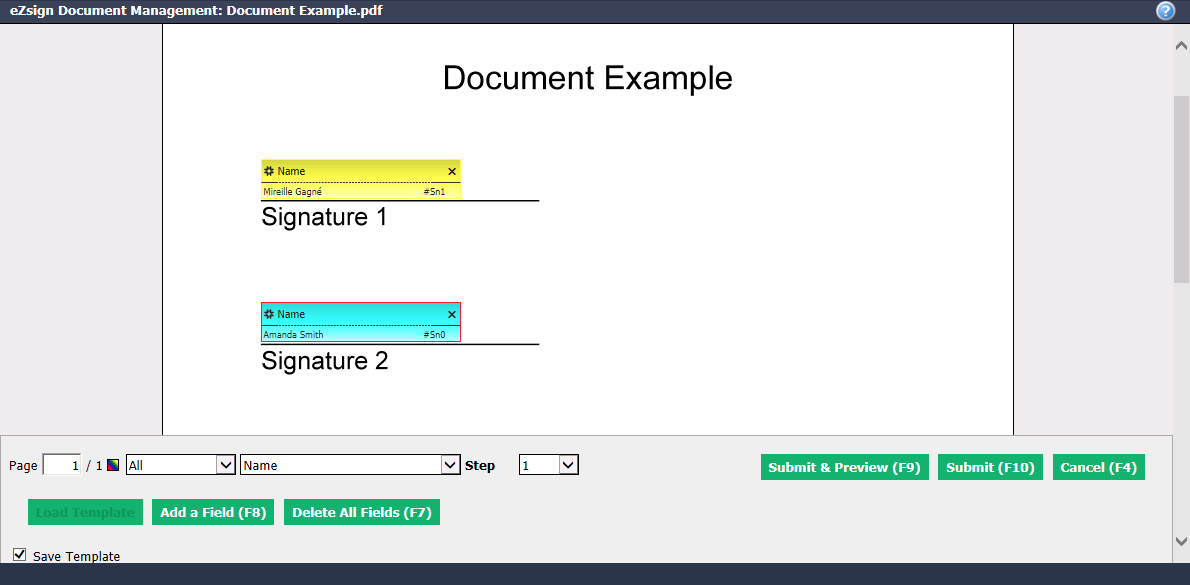
When all the desired fields are added, check the Save Template box.
Click on Submit.
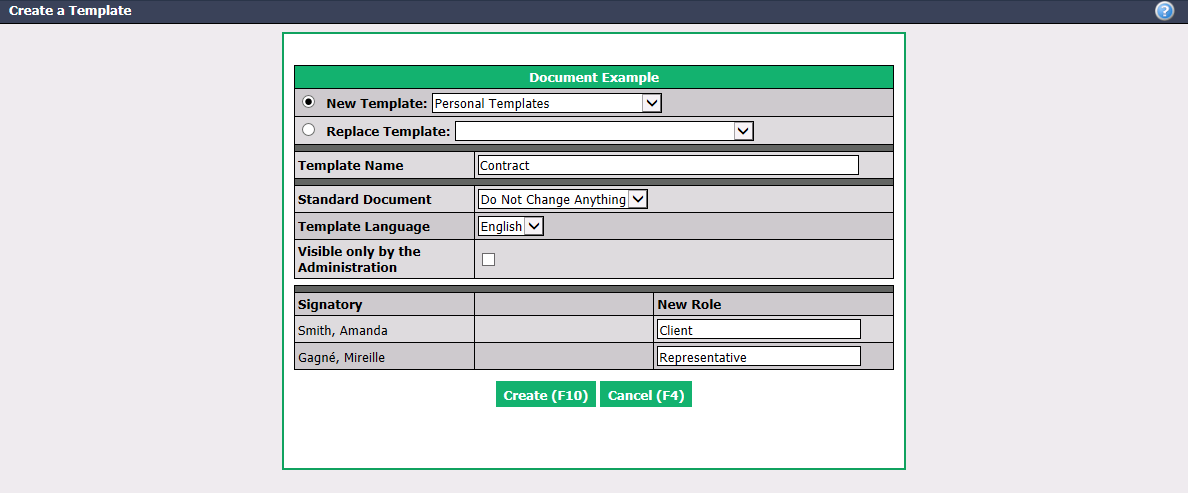
In New Template , select the type of templates in which you want to add the one you just made. For more information, please see the article Types of Templates.
Enter the Template Name, i.e. the name of the document/form. In this example: "Contract".
Standard Document : Select "Do Not Change Anything".
Select the appropriate Template Language.
Visible only by the Administration : Check this box if you want this template to be visible only to administrators.
New Role : Assign a role to the signatories of this document. In this example: Amanda Smith (turquoise field) is the client and Mireille Gagné (yellow field) is the representative.
Click on Create and the template will be added to the list of templates.
Loading a Template in an eZsign Folder**
Once a template has been added to the list of templates, it can be loaded to quickly add fields in a document of the same type instead of adding them manually.
- From an eZsign folder, in a document in which you must add fields:
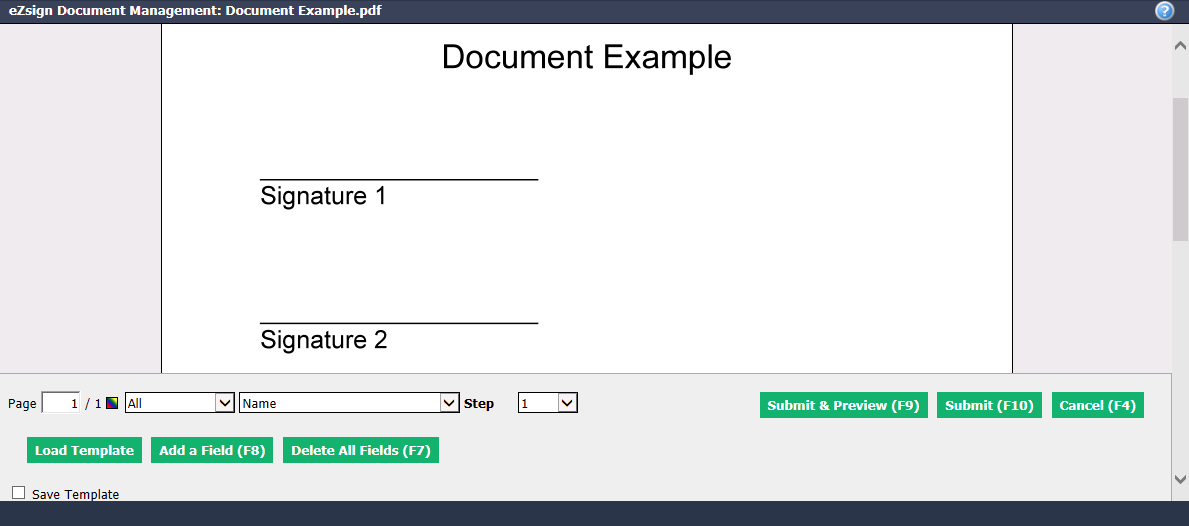
- Click on Load Template.

You can Search the template by writing its name in this field or you can select it from the drop-down list of templates in French or English. In this example: "Contract".
Assign the role of each of the signatories. In this example: Rebecca Stone is the client and Mireille Gagné is the representative.
NOTE: If, for example, you have only one signatory instead of two, select "-- Unused --" for the 2nd role.
Click on Submit.
The fields will automatically appear in the document in the same places as in the template you saved.
Editing a Template
It is possible to modify an existing template by replacing it.
Complete all the steps to load a template (see above in this article).
Edit the template. In this example : A field has been added for the initials of a signatory.
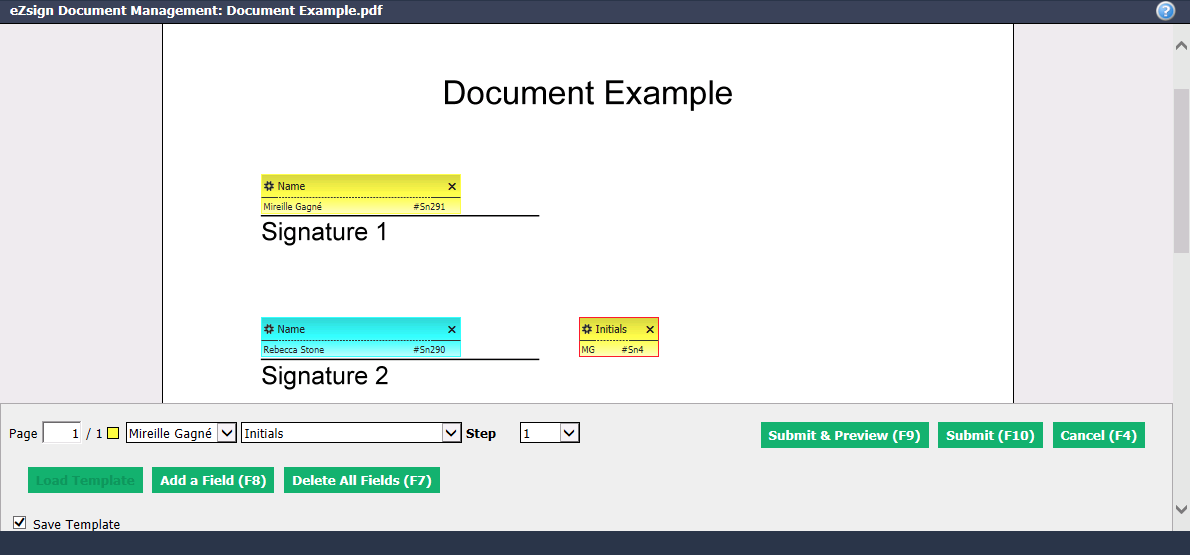
When you have completed the changes, check the Save Template box.
Click on Submit.
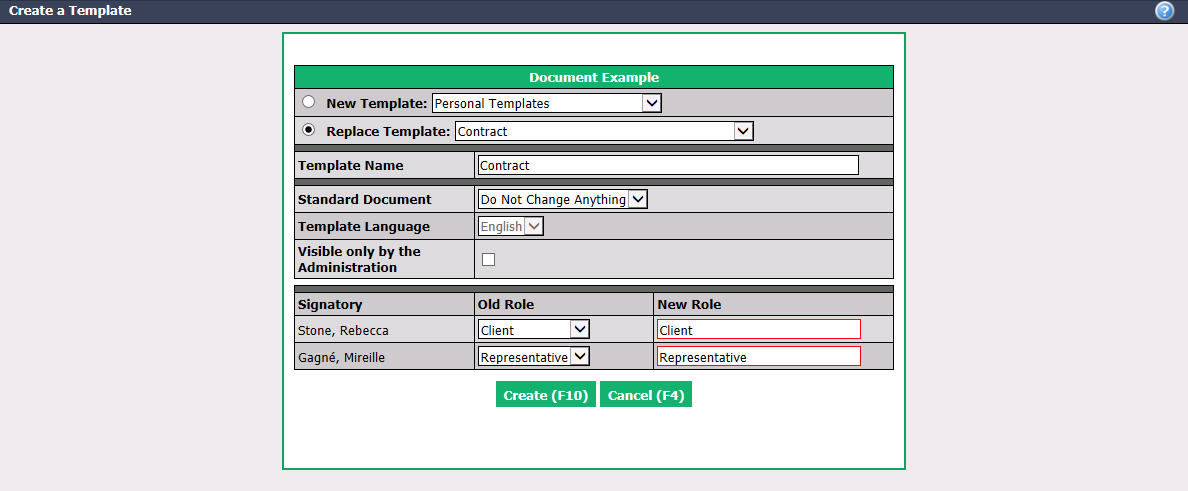
Check the Replace Template box and select the desired template. In this example: "Contract".
In the Template Name , enter the same name to avoid having multiple versions of the same template. In this example: "Contract".
Standard Document : Select "Do Not Change Anything".
Template Language : Cannot be changed.
Visible only by the Administration : Check this box if you want this template to be visible only to administrators.
Old Role and New Role : Assign the roles to the signatories of this document. In this example, the roles remain the same: Rebecca Stone (turquoise field) is the client and Mireille Gagné (yellow field) is the representative.
Click on Create and the template will be replaced in the list of templates.