

English
Adding/Editing a Purchasing Group
In the event that a company makes a purchase and wants to distribute the amount among several people, it is possible to create a purchasing group consisting of these people. You will be able to select this group when entering a purchase instead of individually selecting each of the desired people.
Adding a Purchasing Group
From Main menu >> Accounts Payable >> List of Purchasing Groups.
Click on Actions >> New Supplier Group.
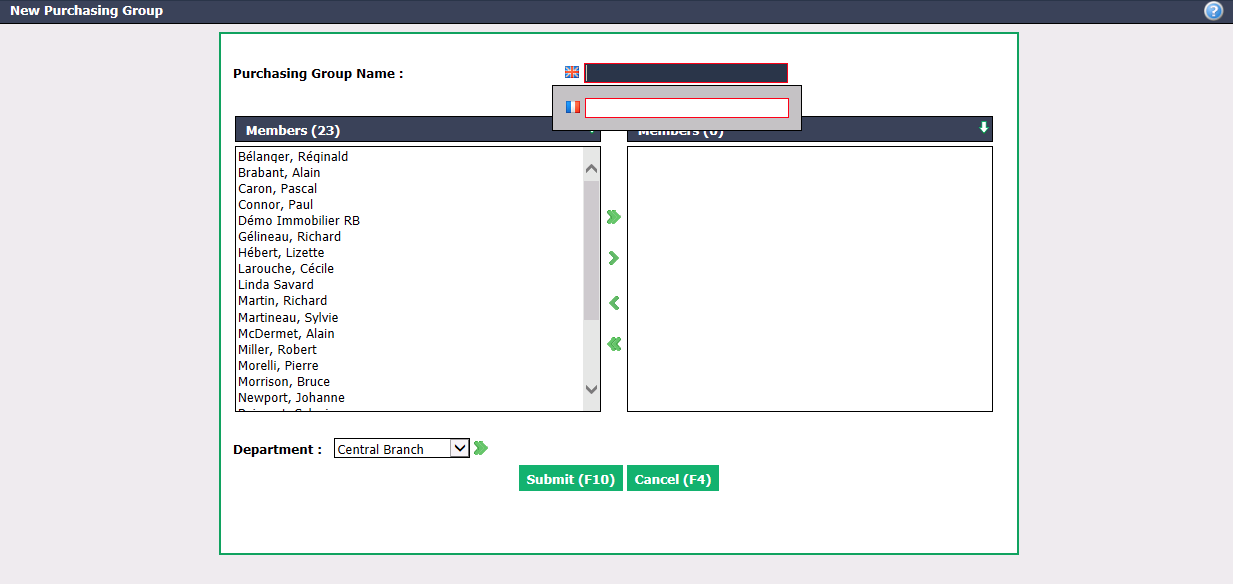
Enter the Purchasing Group Name in English as well as in French.
Select the desired Members using the green arrows. The double arrow allows you to select all members with one click, while the single arrow selects only one at a time.
You can double-click on a member to select it instead of using the green arrow.
You can also select all members of a Department using the double arrow, if applicable.
Click on Submit and the purchasing group will be added in the system.
Editing a Purchasing Group
To modify an existing purchasing group, select it from the List of Purchasing Groups.
Make the desired changes and click on Submit to save them.