

English
Batch Payment Preparation
If you have several suppliers to pay at the same time, it is possible to prepare batch payments without having to enter each purchase individually and thus save you time.
- From Main menu >> Accounts Payable >> Batch Payment Preparation.
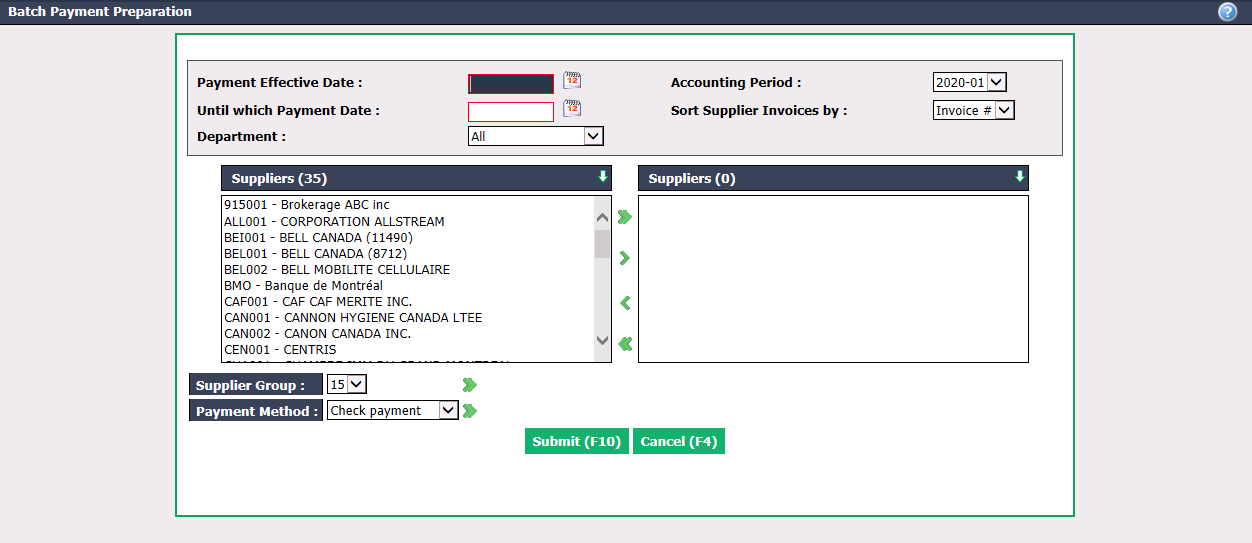
- Enter the desired Payment Effective Date. The Accounting Period will be automatically selected according to the payment date entered.
Warning
Please make sure that the date entered is the same as the selected accounting period.
Until which Payment Date : All purchases with a payment date earlier than or equal to the date you enter will be included in this batch payment preparation.
It is possible to Sort Supplier Invoices by the "Invoice #" or the invoicing "Date".
You can filter available suppliers by selecting the desired Department , if applicable.
You can select suppliers by:
- Individual Suppliers: Select the desired Supplier(s) using the green arrows. The double arrow allows you to select all suppliers with one click, while the single arrow selects only one at a time.
You can double-click on a supplier to select it instead of using the green arrow.
* Supplier Group: Select the desired **Supplier Group** previously added in the system by clicking on the double arrow on the right. For more information, please see the article [Adding/Editing a Supplier Group](../configurations/adding-editing-supplier-group.md).- Payment Method: Select the desired Payment Method that is associated with specific suppliers (i.e. the payment method that was configured when creating the supplier) by clicking on the double arrow on the right. For more information, please see the article Adding/Editing a Supplier.
Click on Submit.
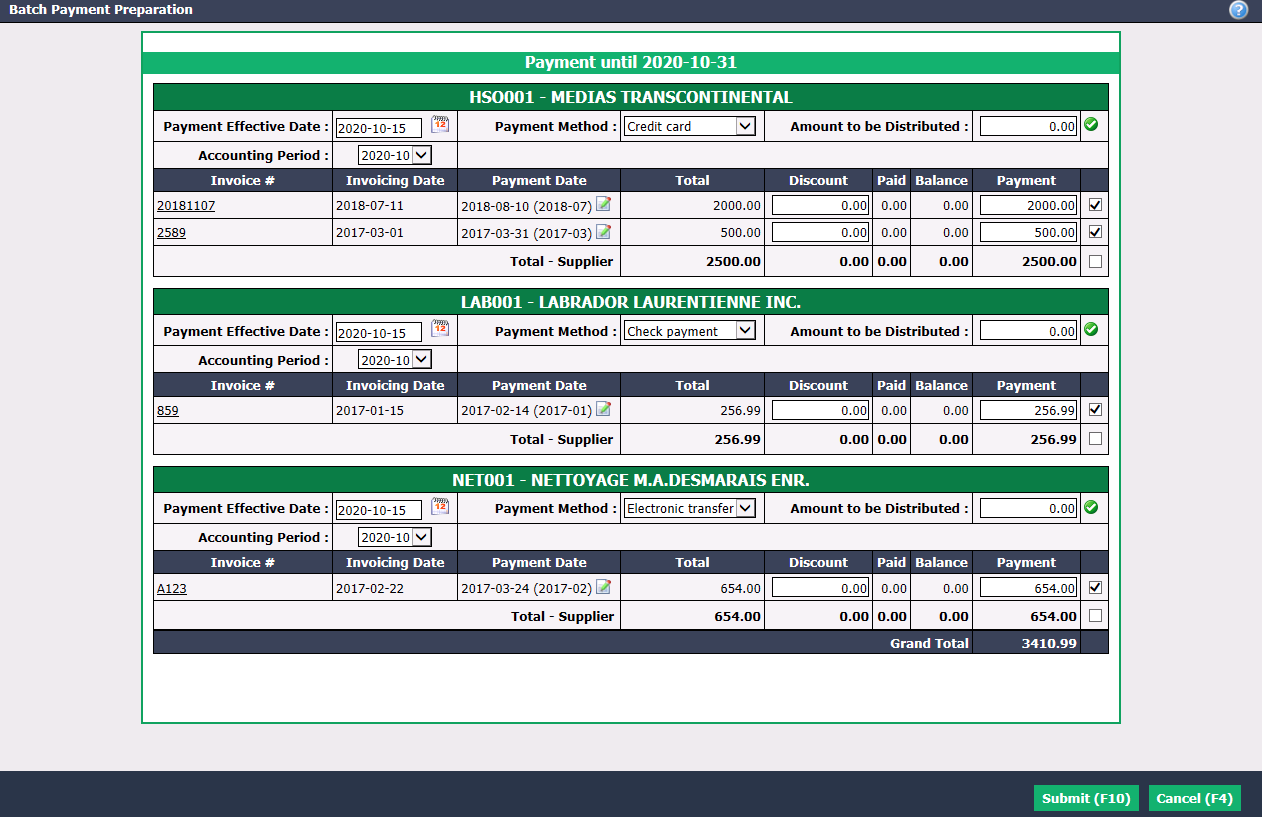
For each supplier, select the desired Payment Method.
Amount to be Distributed : If you want to pay only part of the total amount for a supplier, enter the desired amount in this field and click on the Check Mark button.
Click on Submit to add this batch payment preparation in the system.
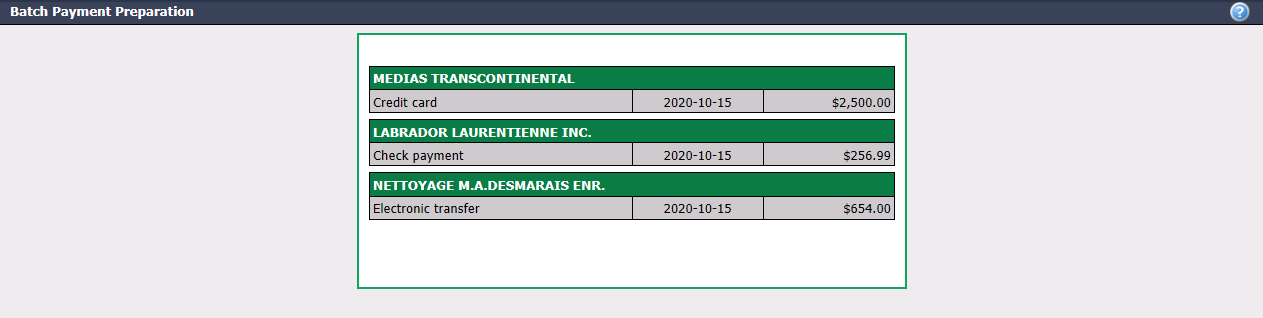
For each supplier, you will see the method, the effective date and the amount of the payment.
Each of the payment preparations will appear on the home page, according to the payment method selected, under "Pending Preparations of Payment by Credit Card", "Cheques in Preparation" and/or "Non-Transmitted Electronic Transfers".