

English
Adding/Editing a Required Document
It is possible to add and modify a document that will be required in different types of file, depending on your agency, such as a listing or a deal. You can determine under what circumstances the required document will appear in the file.
Adding a Required Document
From Main menu >> Real Estate >> List of Required Document.
Click on Actions >> New Document.
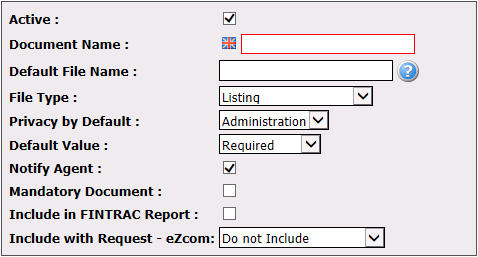
Active will be checked when the document is active. To inactivate a document, uncheck this box.
Document Name : Enter the name of the document in English as well as in French (mandatory).
Default File Name : If desired, you can enter how you want the document to be named by default in the file.
NOTE: If you click on the Question Mark icon, you will have access to a legend with the codes and their meanings, depending on the file type you have selected. You can copy and paste a code in the default file name, such as {MLS}, so that the MLS number appears in the name.
Select in which File Type this document will be requested.
Privacy by Default : Determine who will be able to see this document when it is added to EDM, either the Administration , the document Creator or All. This field only applies for the Other Income, Buyer’s Contract, Listing and Deal file types.
Default Value : Select whether the document is Required or Not Required in the file.
Notify Agent : Check this box if you want the agent to receive notifications indicating the number of documents required in a file.
Mandatory Document : Check this box if you want an alert message to appear in a transaction indicating that a required document is missing. In addition, if you check this box as well as Notify Agent , the agent involved in the transaction will be notified until the required document is added in the file. If you do not check this box, the agent will be notified for a maximum of three times, even if the required document has not yet been added in the file.
Include in FINTRAC Report : Check this box if you want the document to be associated with FINTRAC questions.
Include with Request eZcom : If the eZcom module is enabled for your agency, you can choose whether or not to include the document. If you want to include it automatically with the request, select the type of document from the drop-down list.
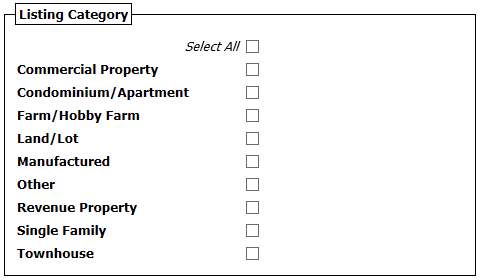
- "Listing Category" section: Check the desired category or categories. This section only appears for the file types Buyer’s Contract, Listing, Deal and Refused Offer.
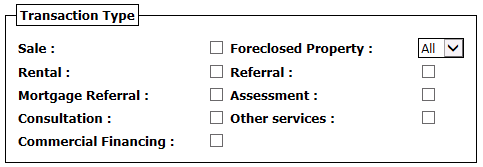
- "Transaction Type" section: Check the desired transaction or transactions. This section only appears for the file types Buyer’s Contract, Listing, Deal and Refused Offer.
- Foreclosed Property :
- "All": Corresponds to the case where the document must be in the list of required documents of all deals.
- "No": Corresponds to the case where the document must be in the list of required documents when the deal is not a foreclosure.
- "Yes": Corresponds to the case where the document must be in the list of required documents only if there is a foreclosure.
- Foreclosed Property :
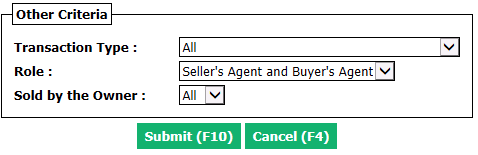
"Other Criteria" section
Transaction Type : Select who the agency represents in the transaction.
- "All": The required document will appear in all files.
- "Agency Represents Sellers": The required document will appear in a file where there must be a seller’s agent (listing agent) from the agency. There may therefore also be a buyer’s agent (collaborating agent) from the agency or external in the file.
- "Agency Represents Only Sellers": The required document will appear in a file where there must be a seller’s agent (listing agent) from the agency and an external buyer’s agent (collaborating agent).
- "Agency Represents Buyers": The required document will appear in a file where there must be a buyer’s agent (collaborating agent) from the agency. There may therefore also be a seller’s agent (listing agent) from the agency or external in the file.
- "Agency Represents Only Buyers": The required document will appear in a file where there must be a buyer’s agent (collaborating agent) from the agency and an external seller’s agent (listing agent).
- "Agency Represents Sellers and Buyers": The required document will appear in a file where there must be a seller’s agent (listing agent) from the agency and a buyer’s agent (collaborating agent) from the agency. Therefore, there is no external agent/agency in this file.
Role : Select who the agency will provide this required document.
- "Seller’s Agent and Buyer’s Agent": The required document can be provided by the seller’s agent or the buyer’s agent.
- "Seller’s Agent": It is only the seller’s agent who will be able to provide the required document and will be notified.
- "Buyer’s Agent": It is only the buyer’s agent who will be able to provide the required document and will be notified.
Sold by the Owner : There is no agency that represents sellers.
- "All": Whether the property is sold by the owner or not, you want the required document to be in the file.
- "Yes": You want the required document to be in the file only if the property is sold by the owner.
- "No": You want the required document to be in the file only if the property is not sold by the owner.
Click on Submit and the required document will be added in the system.
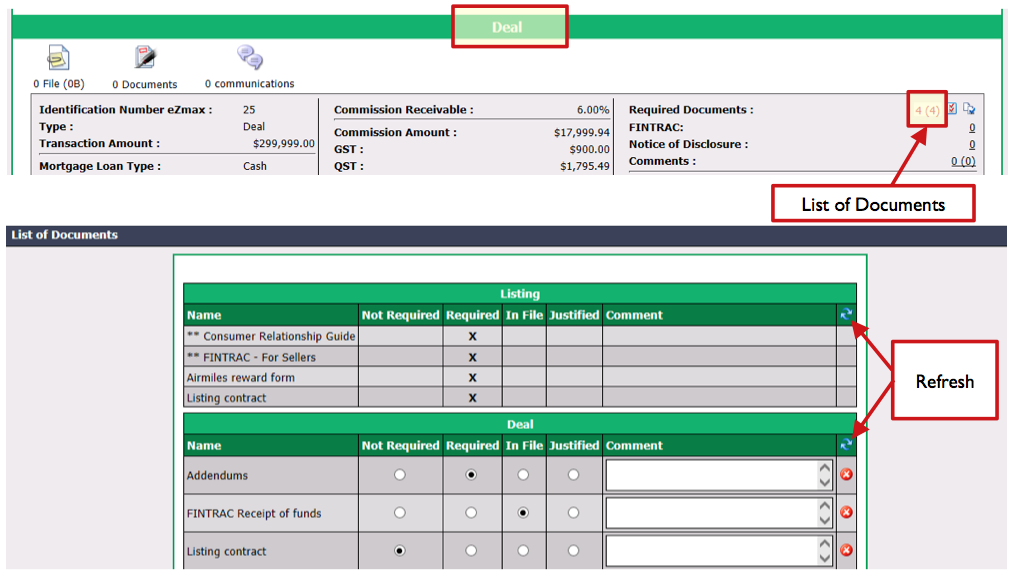
NOTE: By default, this new required document will not be in effect in transactions prior to the date of creation of this document. If you want the required document to appear in a previous transaction, go to the "Listing" or "Deal" section of the transaction in question and click on the numbers to the right of the Required Documents field to display the List of Documents. Click on the Blue Arrows icon (Refresh) in the "Listing" or "Deal" section to add the new required document.
Editing a Required Document
To modify an existing required document, select it from the List of Required Documents and make the desired changes.
Click on Submit to save changes.