

English
Request a Commission Advance in a Transaction - Administration
When a deal is not closed, agents have the possibility to obtain a commission advance from a discounter (lender). The discounter can be:
- The office (agency).
- An external company (example: Comm Plus): The company issues a cheque to the agency, the agency deposits the cheque and forwards the money to the agent. The agency will receive a document from the company to know the amount of fees or interest and the amount of the payment.
- eZmax Solutions with its eZcom service: Module to enable.
Request a Commission Advance from the Agency or an External Company
- From the desired transaction, go to the "Deal"/"Commission Advances" section.
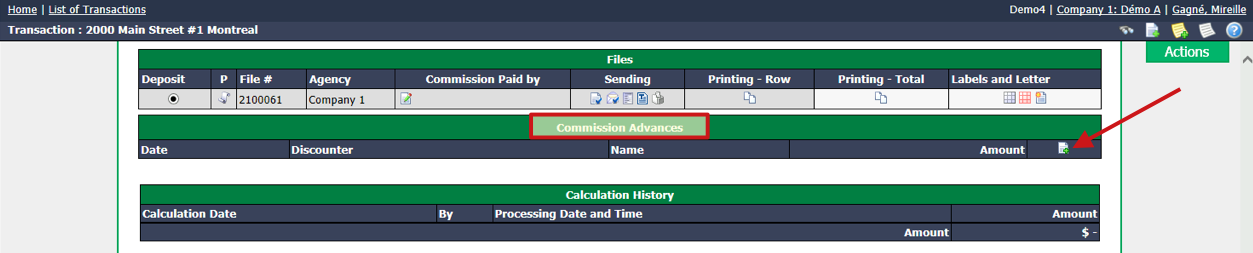
- Click on the Sheet with a + icon.
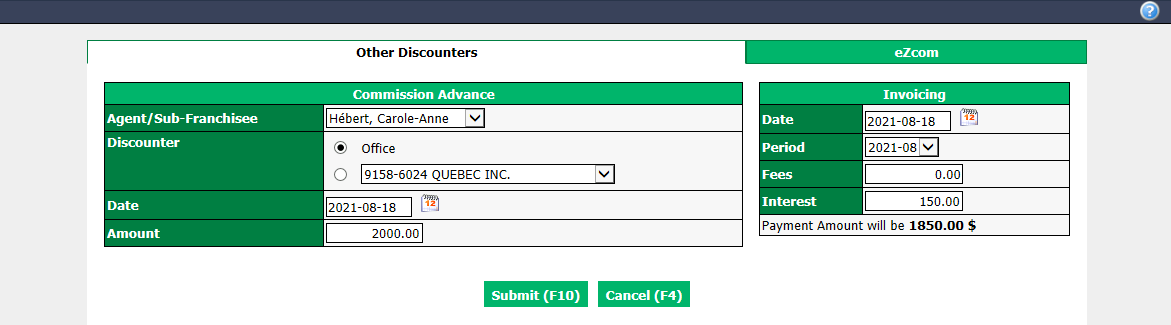
"Other Discounters" tab - "Commission Advance" section
Select the Agent/Sub-Franchisee who requests the advance. In this example: Carole-Anne Hébert.
Select who is lending the money (Discounter field): The Office (agency) or an external company from the drop-down list (ex.: Comm Plus).
Enter the Date and the Amount loaned. In this example: $2,000.00.
Warning
The amount of the agent’s commission advance must be less than the total amount of his commission for this transaction. It is therefore necessary to take into consideration taxes, deductions table items like office fees, any other deductions that normally would be deducted at time of commission calculation.
"Other Discounters" tab - "Invoicing" section
You can add an amount for Fees (taxable) or Interest (non-taxable). In this example: $150.00 in interest.
Enter the desired Date of the invoice. The Period will be automatically selected according to the cancellation date entered.
Warning
Please make sure that the date entered is the same as the selected accounting period.
- The amount that the agent will receive from the lender appears at the bottom of the section. In this example: $1,850.00.
NOTE: The amount that the agent will have to reimburse to the lender is the one entered in the Amount field of the "Commission Advance" section. In this example: $2,000.00.
- Click on Submit.
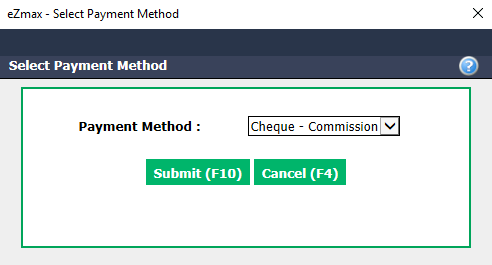
- Select the desired Payment Method and click on Submit.
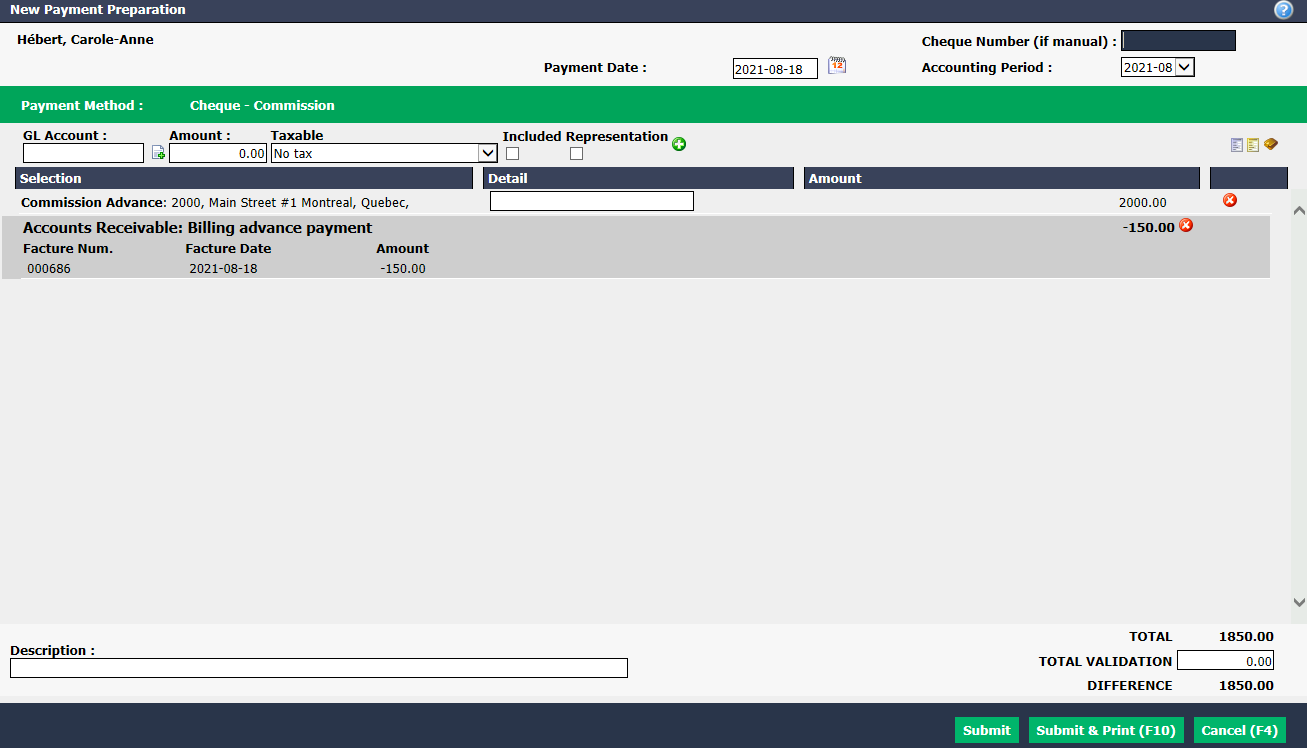
- The total amount of the commission advance appears automatically in the new payment preparation. In this example: $1,850.00.
NOTE: You can add invoices from this agent by clicking on the Blue Sheet icon (Select Invoices).
- Check if the Payment Date is right for you (today’s date is automatically displayed). The Accounting Period will be automatically selected according to the payment date entered.
Warning
Please make sure that the date entered is the same as the selected accounting period.
Payment Method: Credit Card
You can add Detail and/or Description that will appear on the payment authorization.
Click on Submit to only prepare the payment by credit card.
NOTE : If you click on Submit & Print, you will proceed to payment immediately.
- From the home page, click on "Pending Preparations of Payments by Credit Card". For the next steps, please see the article Preparation of Payment by Credit Card - Real Estate.
Payment Method: Cheque
You can add Detail and/or Description that will appear on the cheque slip.
If the cheque is made by hand, please put the number of this cheque in the Cheque Number (if manual) field.
Click on Submit to only prepare the cheque and print it later.
NOTE : If you click on Submit & Print, you will access the window to print the cheque immediately.
- From the home page, click on "Cheques in Preparation". For the next steps, please see the article Preparation of Payment by Cheque - Real Estate.
Payment Method: Electronic Funds Transfer (EFT)
You can add Detail and/or Description that will appear on the payment slip.
Click on Submit and the preparation of payment by electronic transfer will be added in the system.
From the home page, click on "Non-Transmitted Electronic Transfers". For the next steps, please see the article Preparation of Payment by Electronic Transfer - Real Estate.
Add a Deposit if the Discounter is an External Company
In addition to the previous steps, the agency must also make a deposit when the discounter is an external company.
- From Main menu, click on the Cash Register icon

or Accounts Receivable >> List of Deposits, click on Actions >> New Deposit.
- From the drop-down list, select the Bank Account you want to deposit into.
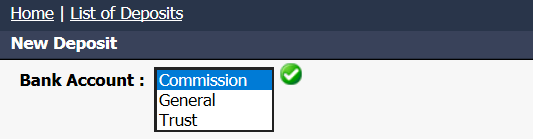
- Click on the Check Mark button.

In the Supplier field, start typing the name of the discounter (lender) and select it from the drop-down list. In this example: Comm Plus.
Press the TAB key on your keyboard.

- Click on the Yellow Sheet icon (Select Commission Advances).
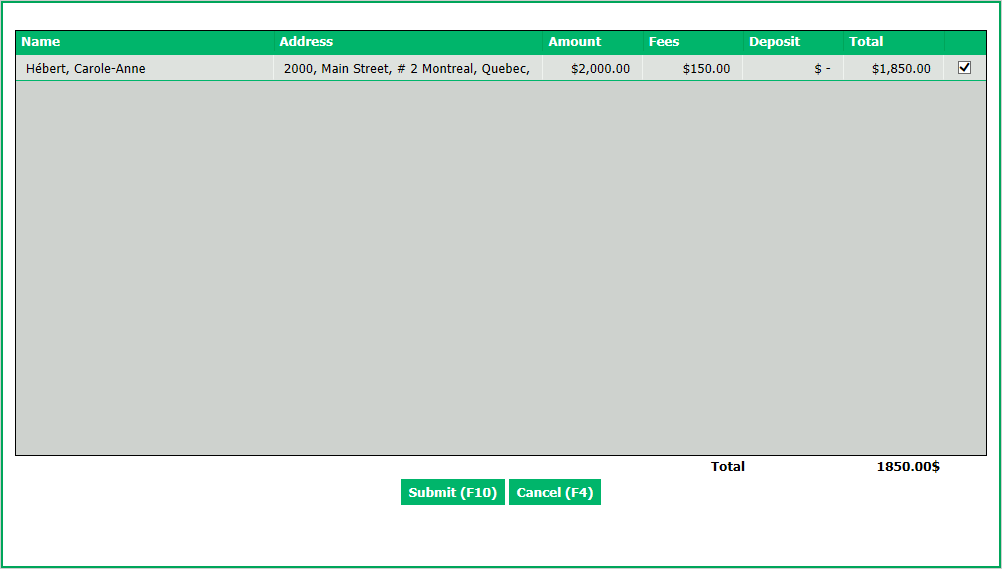
- Check the desired commission advance and click on Submit. In this example: $1,850.00.
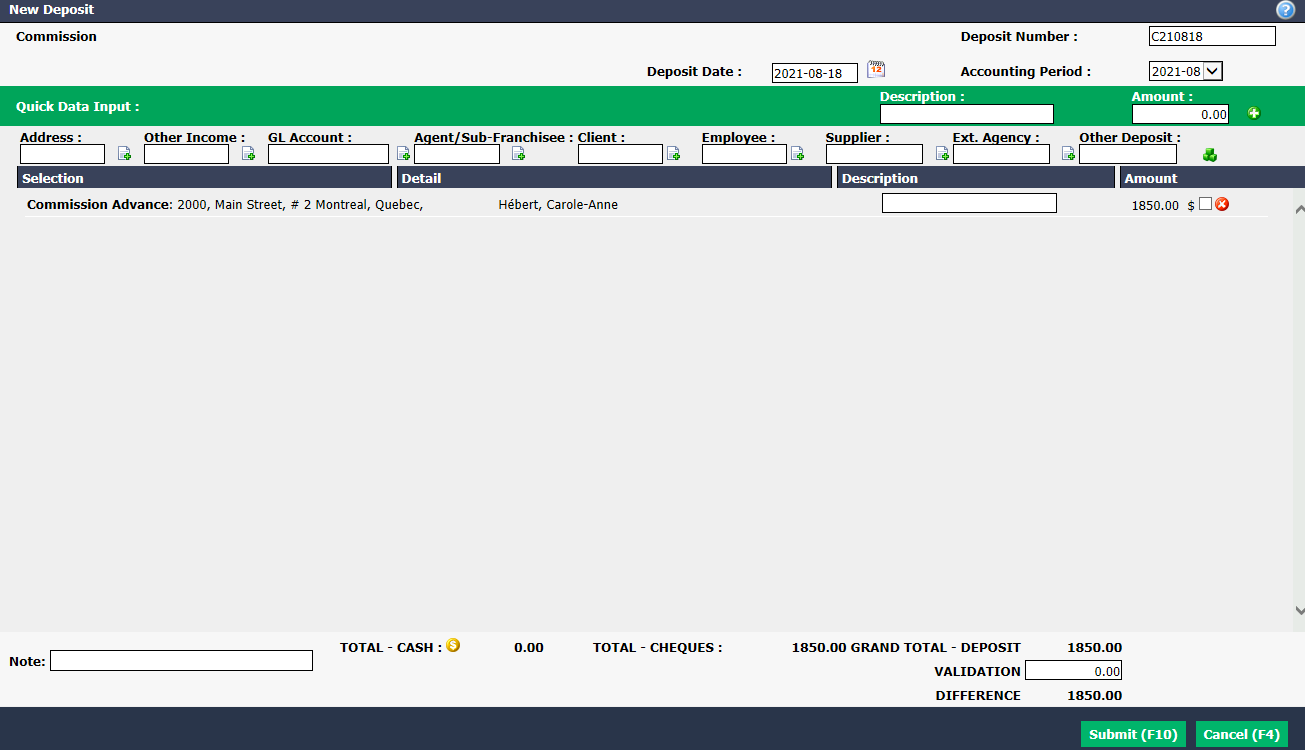
Enter Deposit Date and Deposit Number.
Click on Submit.