

English
Adding/Editing an Account Reconciliation - Credit Card
When you receive a credit card statement, you can compare the transactions (withdrawals and deposits) of the statement with those of eZmax to ensure that they are consistent and to find justifications for any differences between the two balances.
Adding an Account Reconciliation
From Main menu >> Accounts Payable >> List of Account Reconciliations.
Click on Actions >> New Account Reconciliation.
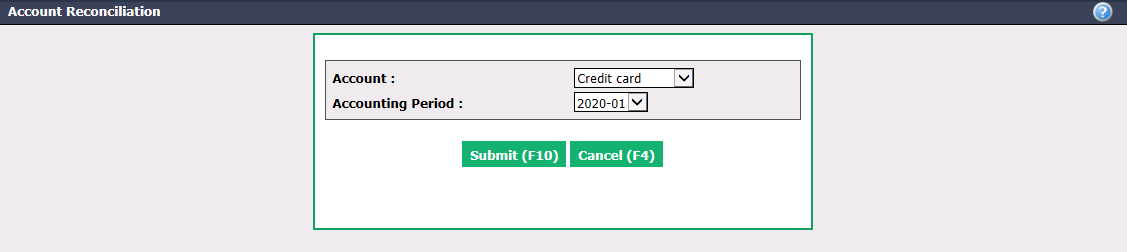
- From the drop-down lists, select the Account you want to reconcile (Credit card. For more information, please see the article Adding a Credit Card as a Payment Method (as a Bank Account)) and the desired Accounting Period. For example, if the statement date is January 15, 2020, select the period 2020-01.
NOTE: A credit card statement is not necessarily from the 1st to the 30th of a month.
Warning
Please make sure that the date entered is the same as the selected accounting period.
- Click on Submit.
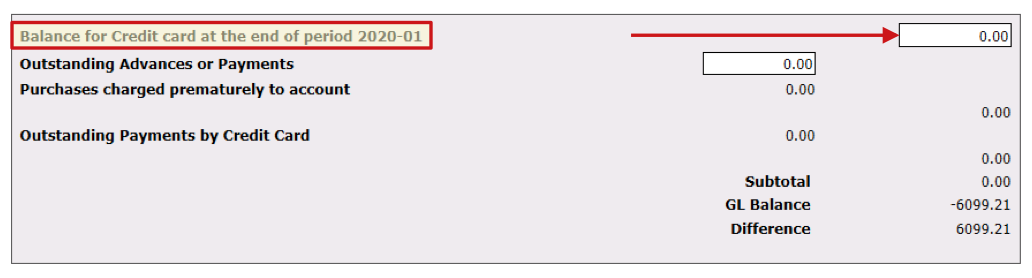
- The first step is to enter the Balance for "Account Name" at the end of period YYYY-MM. Since it is a debt, the amount must be negative.
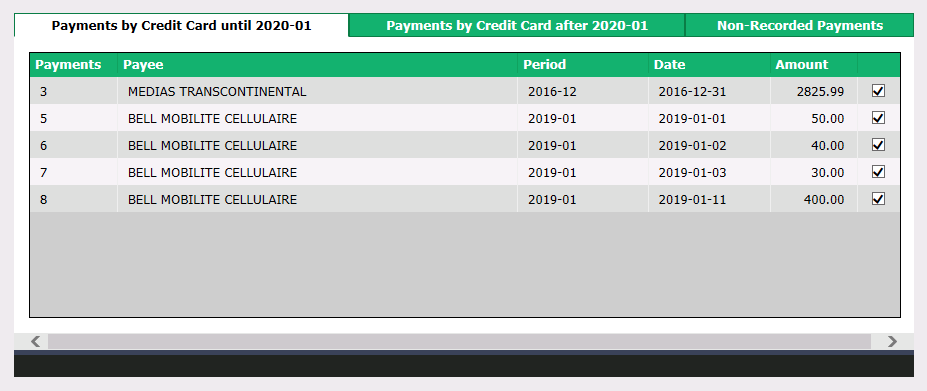
- Then, for each tab, verify and check the amounts that appear in the eZmax list and highlight those amounts on your printed credit card statement.
We recommend that you regularly click on Submit to save your selections (such as checked payment boxes). You can come back and edit the reconciliation of the account you just created from the Actions menu >> Edit Account Reconciliation.
Payments by Credit Card
"Payments by Credit Card until YYYY-MM" tab: List of all payments made before and during the selected accounting period (in this example, until January 31, 2020).
"Payments by Credit Card after YYYY-MM" tab: List of all payments made after the selected accounting period (in this example, afterJanuary 31, 2020).
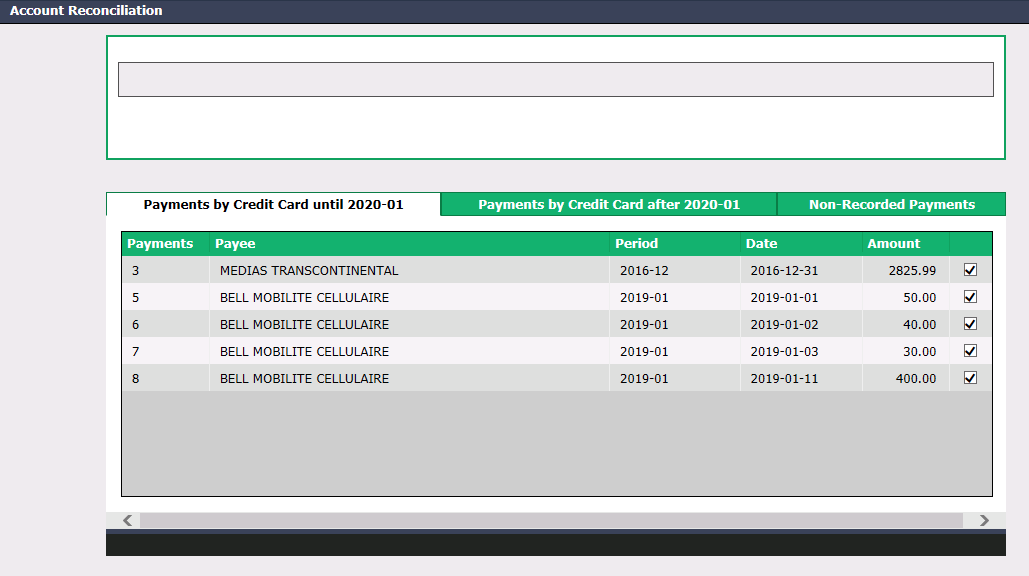
Non-Recorded Payments
- "Non-Recorded Payments" tab: List of payments that have been made in the credit card account but have not been entered into eZmax as a deposit, purchase or payment. Example: Credit card fees (withdrawal) and credits from a supplier (deposit).
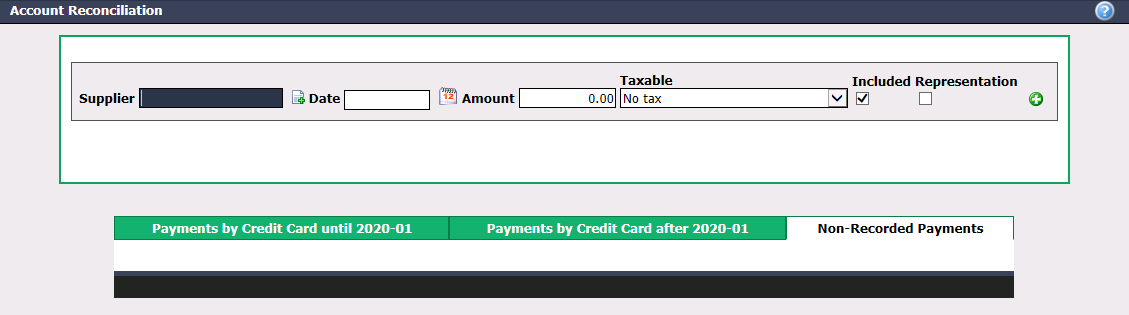
- Enter the Supplier name (for example, the name of your credit card company), the Date the payment was made and Amount.
Warning
In the case of a withdrawal, the Amount entered must be positive and when it is a deposit, the Amount entered must be negative.
NOTE: For the same type of payment, if you have had multiple payments on an account statement (and therefore multiple dates), you can enter only one date in the Date field and the total amount of those payments in the Amount field.
Indicate whether the payment is Taxable or not. If so, make sure you select the appropriate tax configuration.
Included : Check this box if the amount entered includes taxes.
Representation : Check this box only if the payment includes a representation fee (e.g. restaurant).
Click on the Green + icon or press the Enter key on your keyboard when you are in the Amount field.
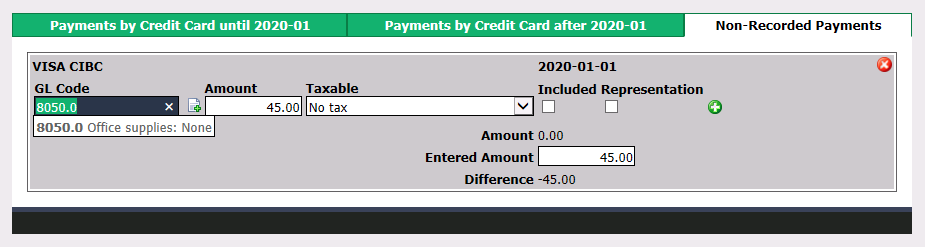
Verify the GL Code associated with the supplier that will appear by default. For more information, please see the article Adding/Editing a Supplier.
Click on the Green + icon or press the Enter key on your keyboard when you are in the Amount field and the payment will be added.
You can delete these payments by clicking on the Red X icon.
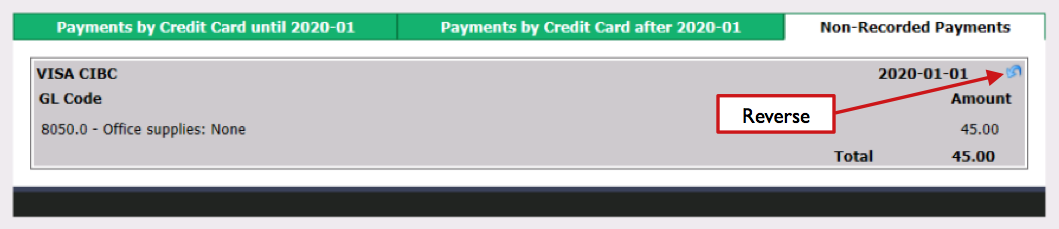
Once you click on Submit , it is possible to reverse a payment by clicking on the Blue Arrow icon.
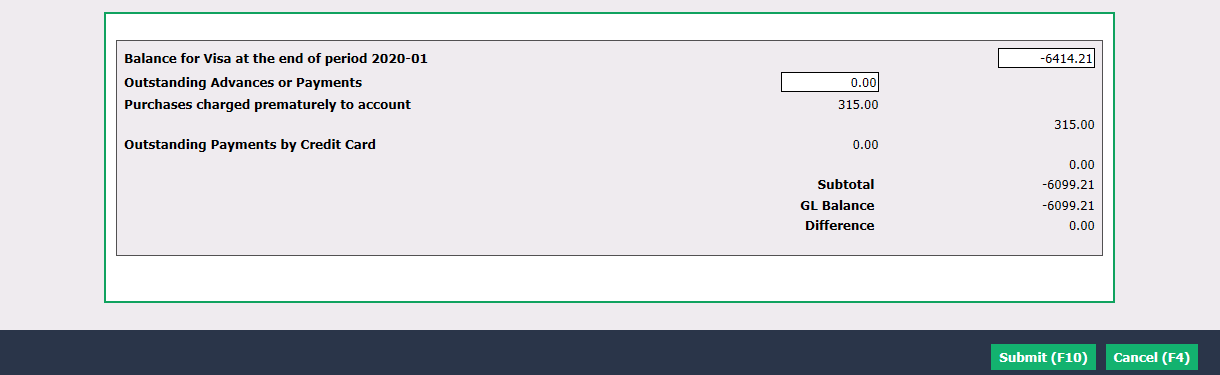
- In the bottom section of the reconciliation, you can see a summary of banking activities:
- Outstanding Advances or Payments : If you pay, for example, your credit card balance in the same period as the date of the credit card statement (reconciliation period), enter the payment amount (positive) in the field.
- Purchases charged prematurely to account : All purchases charged to the account at a later date than the reconciliation accounting period that were checked in the "Credit Card Payments after YYYY-MM" tab.
- Outstanding Payments by Credit Card : Amount of all payments that have not been checked.
- Subtotal : Reconciled account balance at the end of the reconciliation period + all deposits - all withdrawals.
- GL Balance : General Ledger balance at the time of this account reconciliation.
- Difference : Subtotal - GL Balance.
Warning
At the end of the account reconciliation, the Difference must be $0.00.
Information
If the result of the Difference is the same amount as the credit card balance, either the payment was not made in eZmax or the payment was made in the same accounting period as the date of the credit card statement ( reconciliation period).
- When you have completed the verification of all amounts on eZmax compared to those on the account statement, click on Submit and the reconciliation of this account will be added to the system.
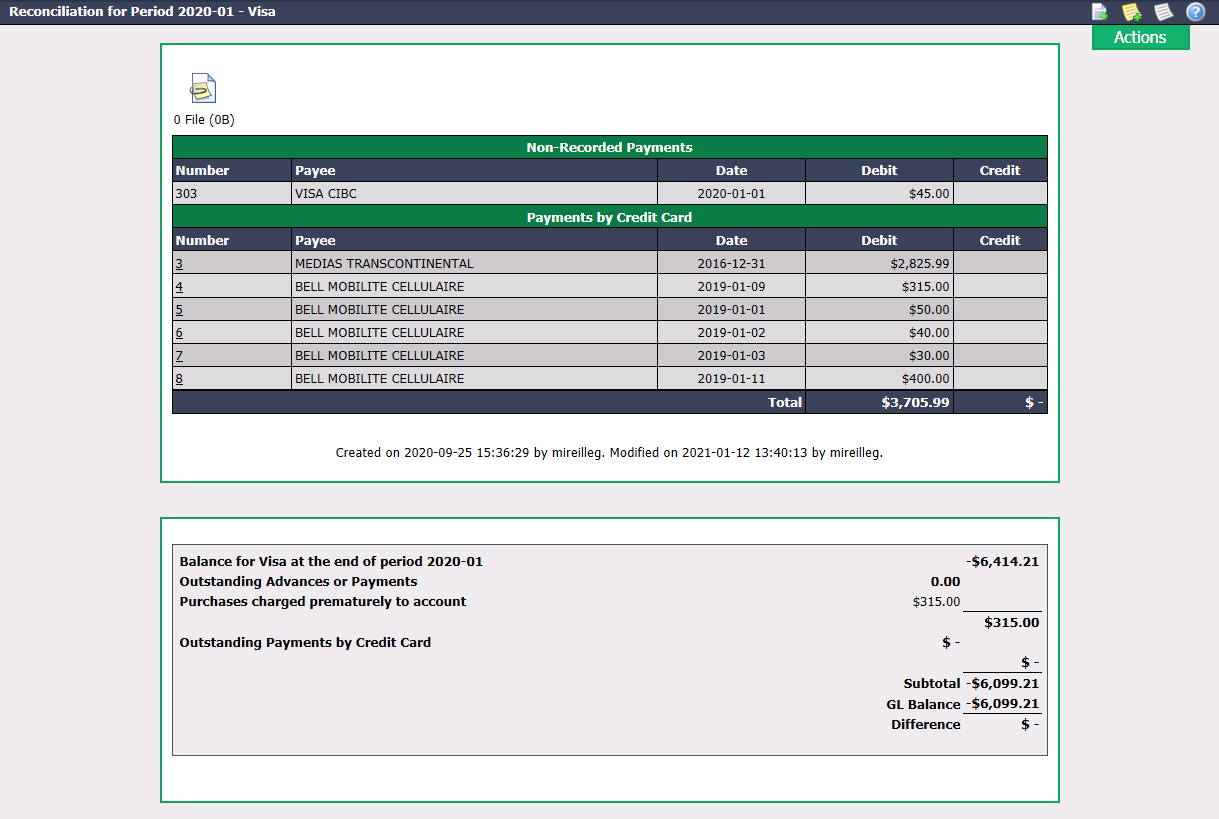
- Once the account reconciliation is created, from the Actions menu, you have the option to:
- Edit Account Reconciliation: For more information, see below in this article.
- Print Account Reconciliation: See the example below.
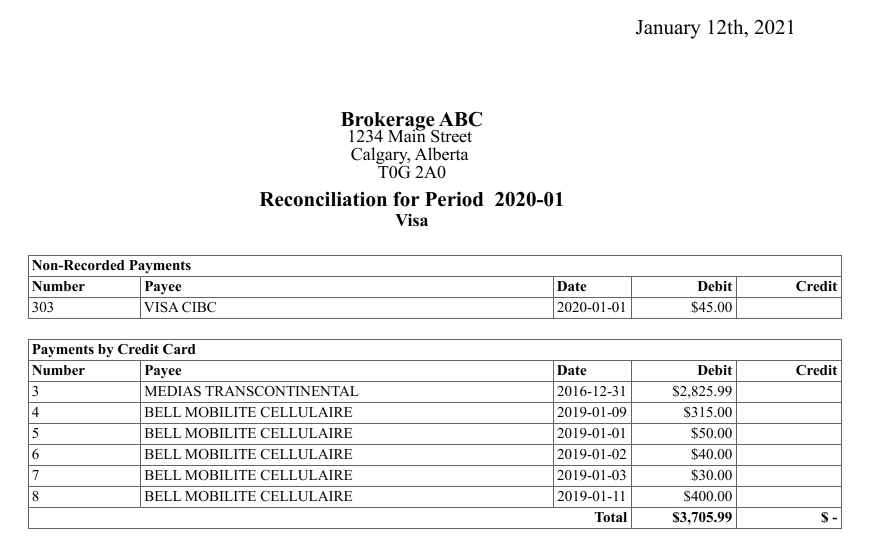
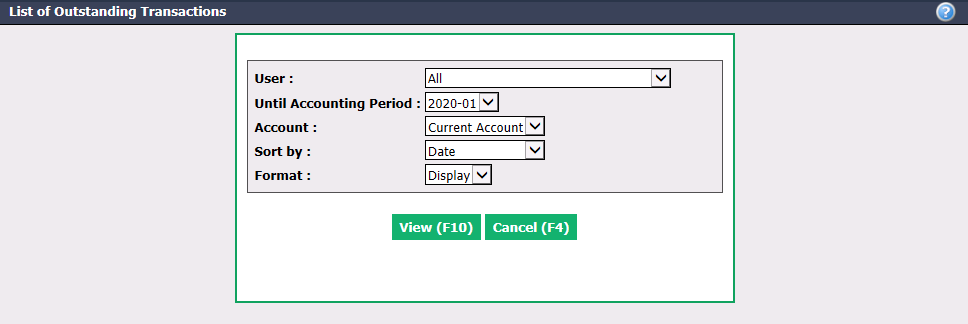
* Display List of Outstanding Transactions: List of deposits and withdrawals not yet displayed in the account but processed in eZmax.
- You can add the account statement to the EDM (Electronic Document Management) by clicking on the Document Management icon

at the top left of the reconciliation page. For more informations, please see the article Adding Documents to EDM.
Editing an Account Reconciliation
To modify an account reconciliation, select it from the List of Account Reconciliations.
Click on Actions >> Edit Account Reconciliation.
Make the desired changes and click on Submit to save them.