English
Home Page Management - Transactions Pending Validation by the Management/Administration
All transactions that need to be validated by management and/or administration are displayed on the home page under the following messages:
- "Listings Pending Validation by the management"
- "Deals Pending Validation by the management"
- "Listings Pending Validation by the administration"
- "Deals Pending Validation by the administration"

Configure Management/Administration Validation
For all agent transactions
- Click on the Agents icon

or from your Main menu >> Real Estate >> Real Estate Configuration >> Agents.
Click on the desired agent.
Click on Actions >> Edit agent.
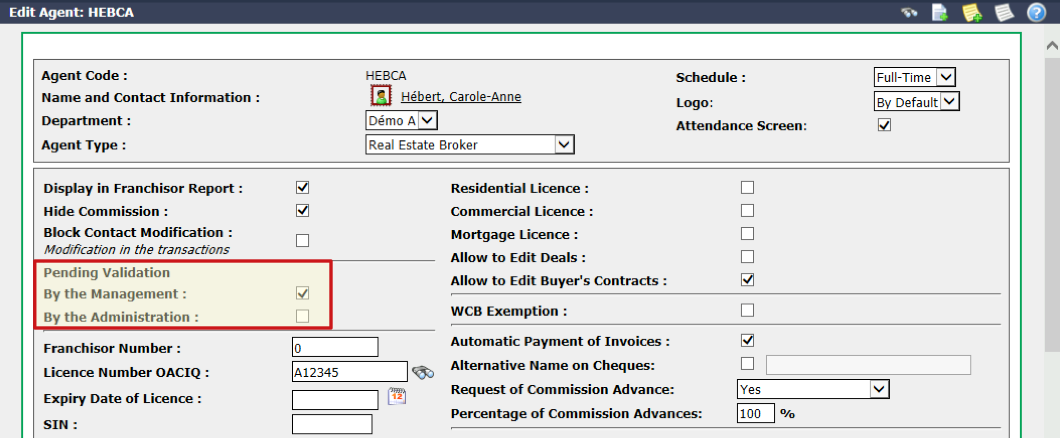
Check the Management and/or Administration box below Pending Validation so that all transactions added by this agent are validated by management and/or administration.
Click on Submit.
For all user transactions
From Main menu >> Admin >> Admin Configuration >> Users.
Click on the desired user.
Click on Actions >> Edit user.
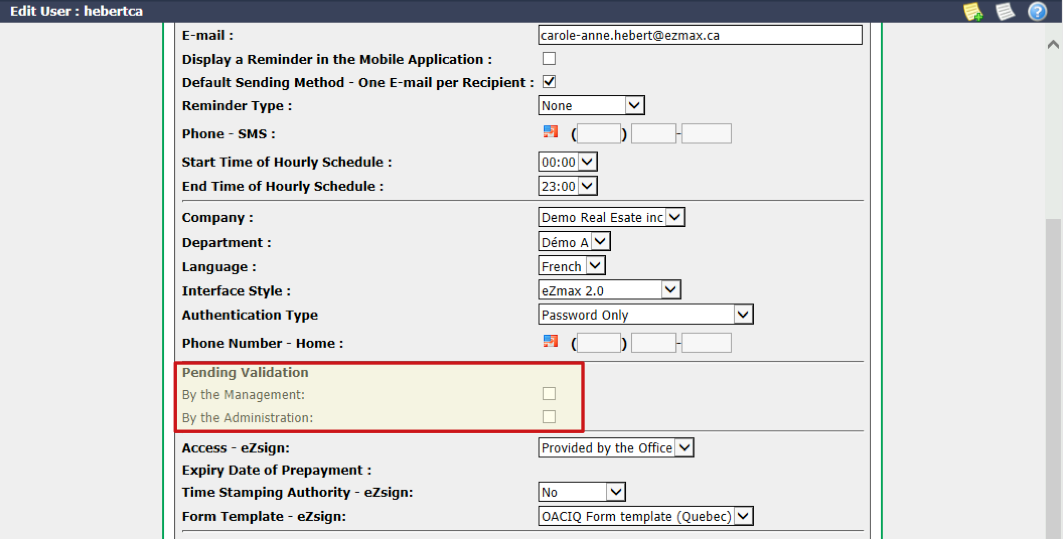
Check the Management and/or Administration box below Pending Validation so that all transactions created by this user are validated by management and/or administration.
Click on Submit.
For a specific transaction
- Click on the List of Transactions icon

or from Main menu >> Transactions >> Transactions.
Click on the desired transaction.
Click on Actions >> Edit Transaction.
NOTE: There is a Pending Validation option in the "Listing Information" section and in the "Deal Information" section of the transaction.
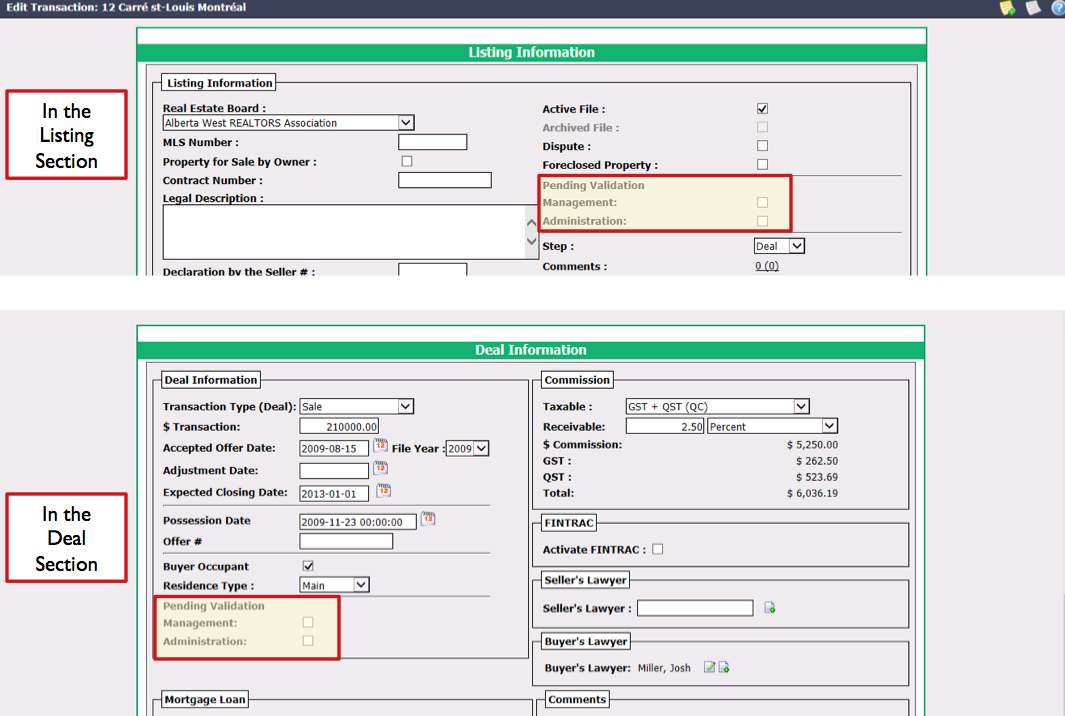
Check the Management and/or Administration box below Pending Validation.
Click on Submit.
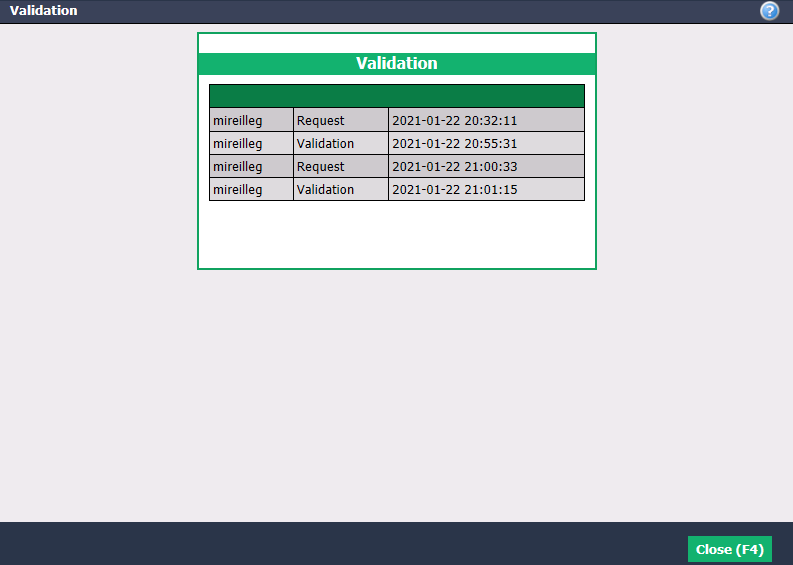
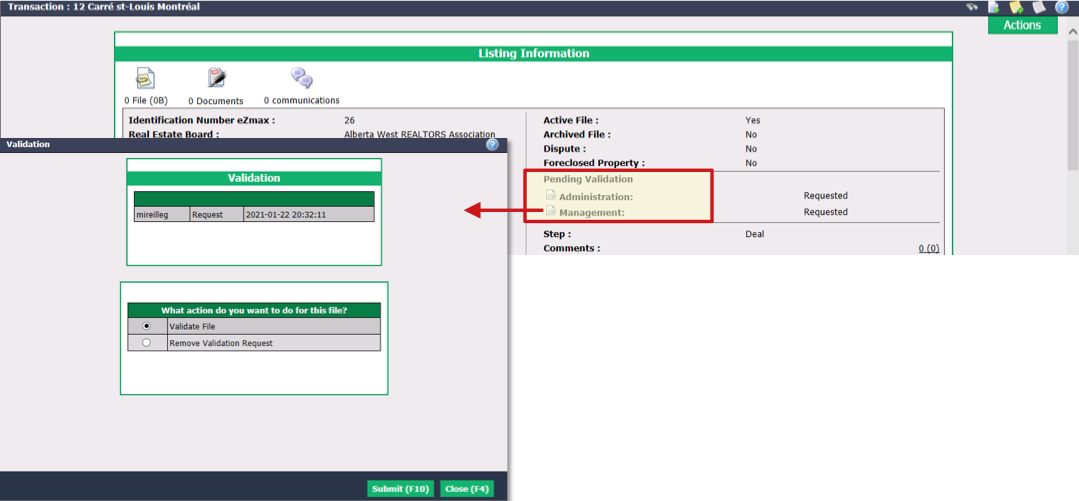
Once the pending validation has been activated, you will be able to see the request directly in the file. If you click on the icon to the left of Management or Administration , you will see who requested the validation and when it was requested.
Validate a Transaction
- On your home page, click on the number next to the "Pending Validation" message.
Warning
To validate a transaction by management or administration, the user must have authorization. Otherwise, he will see the request but he will not be able to validate the file. For more information, please see the article Authorizations of an Admin User - Real Estate Transactions.
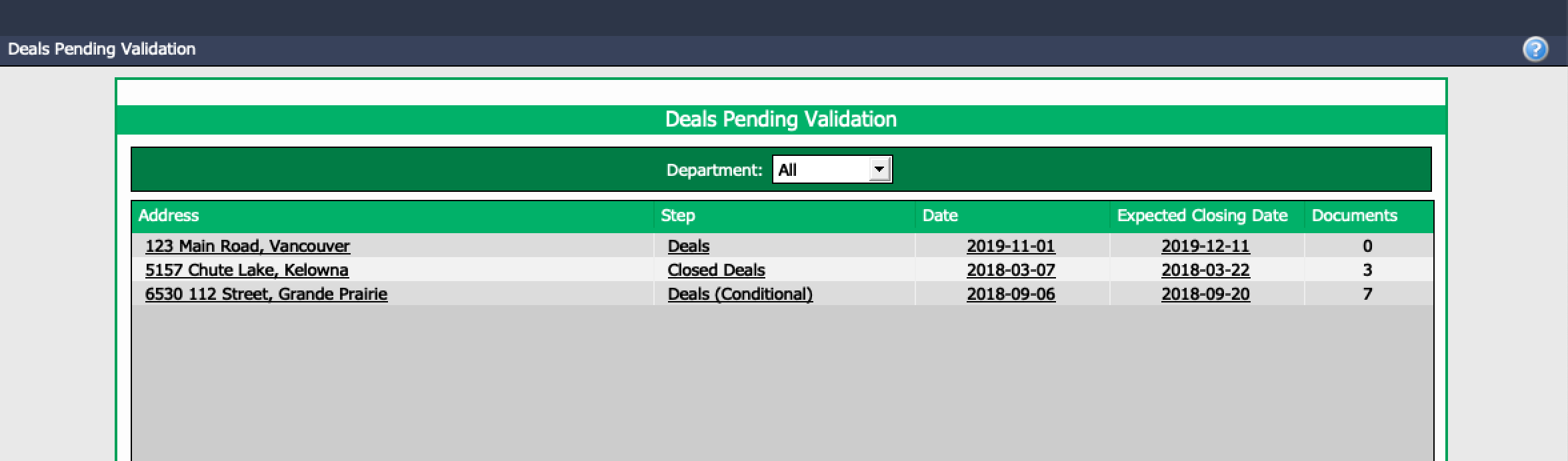
System will display all the transactions requiring validation and you will be able to filter by Department (office).
For listings, the Date displayed in the list is the listing date.
For deals, the Date displayed in the list is the accepted offer date.
The Documents column shows how many documents were uploaded to the EDM.
Click on the Address , Step or Date of the desired transaction to display it.

- Click on the icon to the left of Management or Administration.
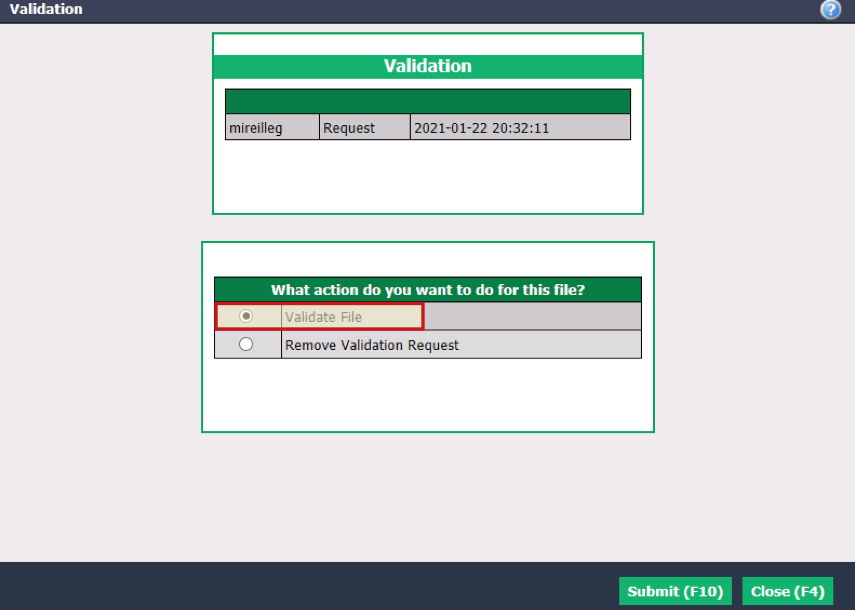
- Select Validate File.
NOTE: It is possible to cancel a request by clicking on Remove Validation Request.
Click on Submit.
Once the validation is completed, the message will disappear from the home page and the validation information will be displayed in the file.
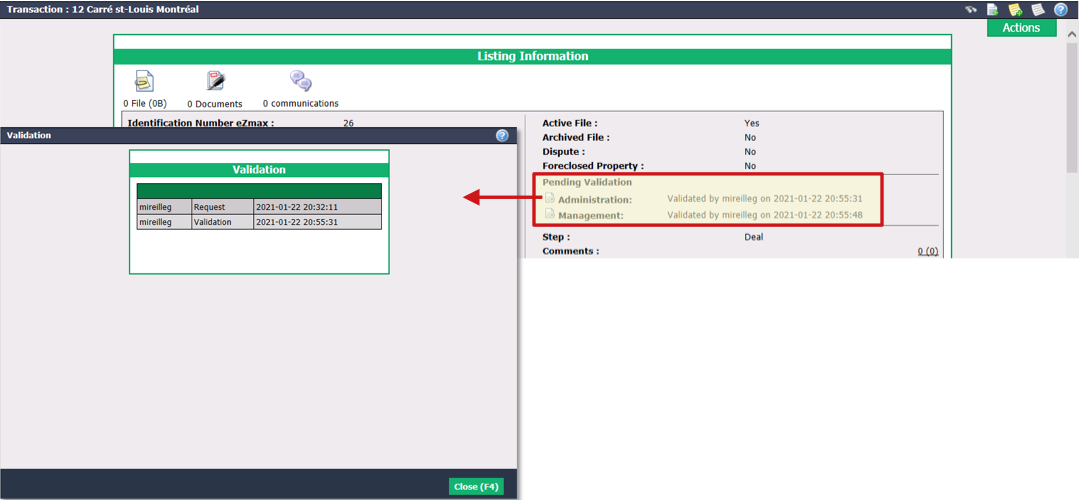
- The same file can be validated more than once.