

English
Report of Required Documents
If you want to know if there are required documents missing in a file type and for one or more agents/sub-franchisees, you can produce a report of the required documents.
- From Main menu >> Real Estate >> Office Reports >> Report of Required Documents.
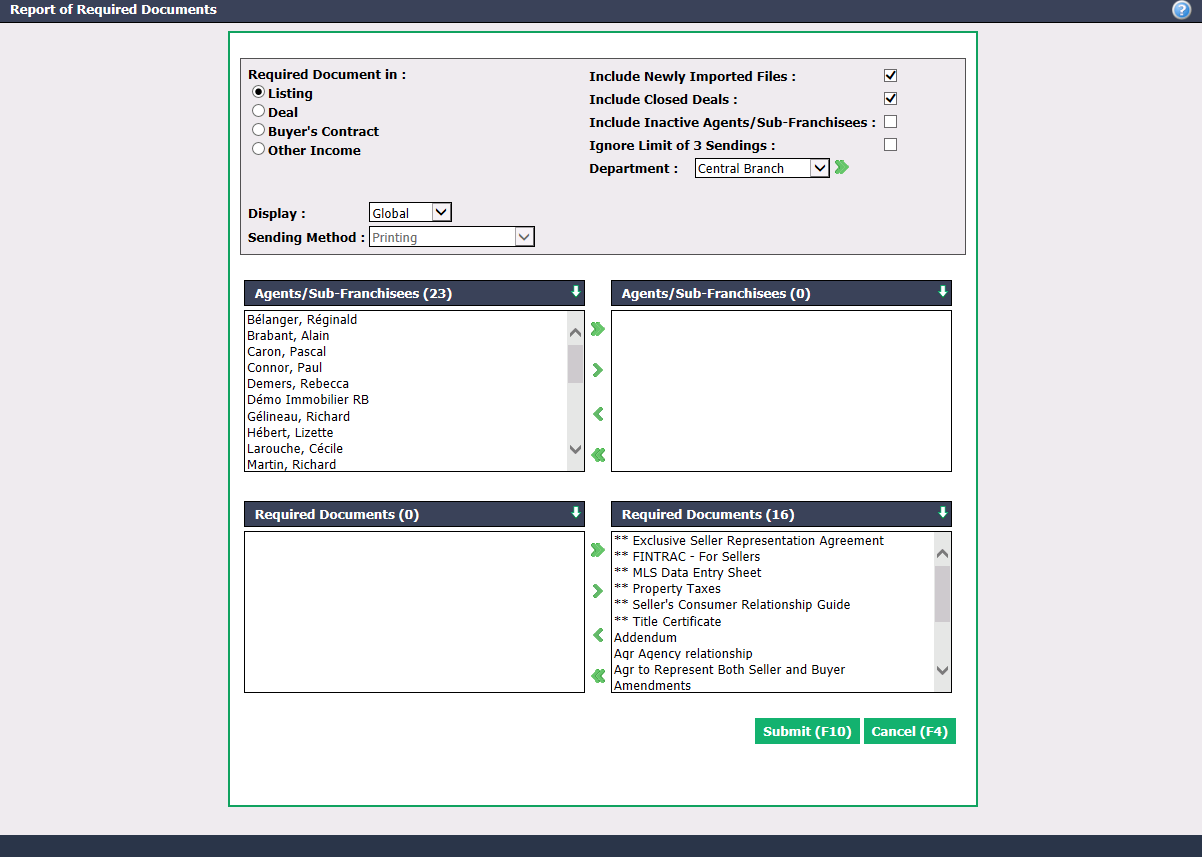
Required Document in : Select in which file type you want to know if the required documents are missing (Listing , Deal , Buyer’s Contract and Other Income).
Select the desired Agents/Sub-Franchisees and Required Documents using the green arrows. The double arrow allows you to select everything with one click, while the single arrow selects only one at a time.
You can double-click on an agent/sub-franchisee or a required document to select it instead of using the green arrow.
You can add filters like:
- Include Newly Imported Files : The required documents missing in the new files will be included.
- Include Closed Deals : The closed deals, even if required documents were missing in it, will be included.
- Include Inactive Agents/Sub-franchisees : All agents, even those who are no longer in the agency, who have required documents missing in their files will be included.
- Ignore Limit of 3 Sendings : The files, with non-mandatory required documents missing, for which the limit of 3 sendings has been reached will be included.
- Department : Select the desired department, if applicable to your agency.
Choose Report Display :
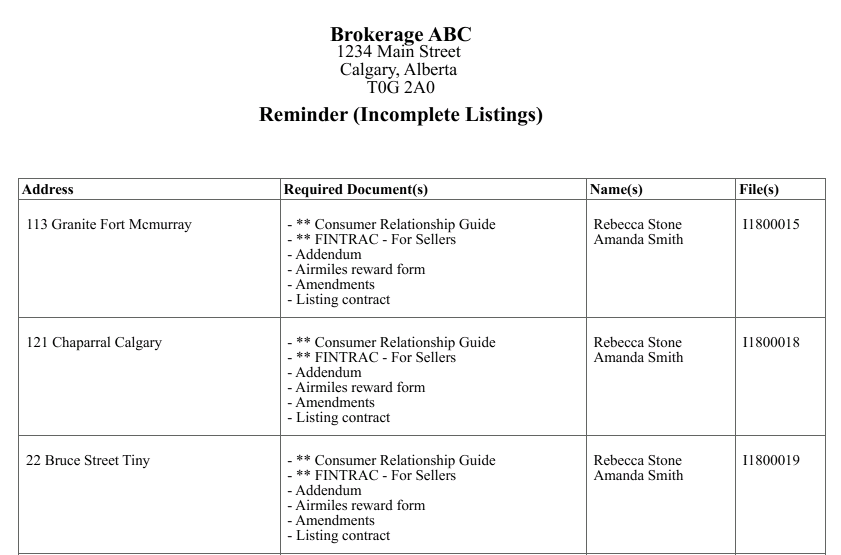
- "Global": For a given transaction, the required documents missing in the file will be displayed as well as all the agents involved in that transaction. The Sending Method of the report is "Printing". Click on Submit to view the report to be printed.
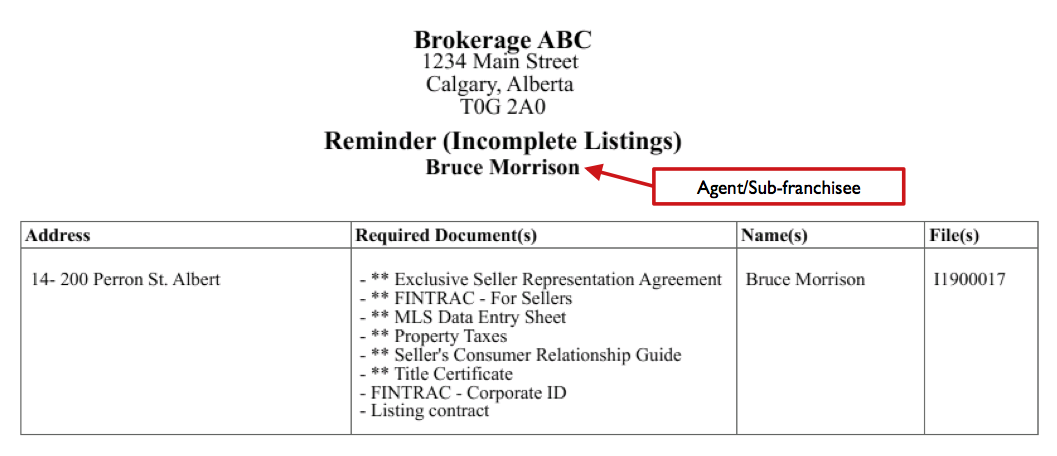
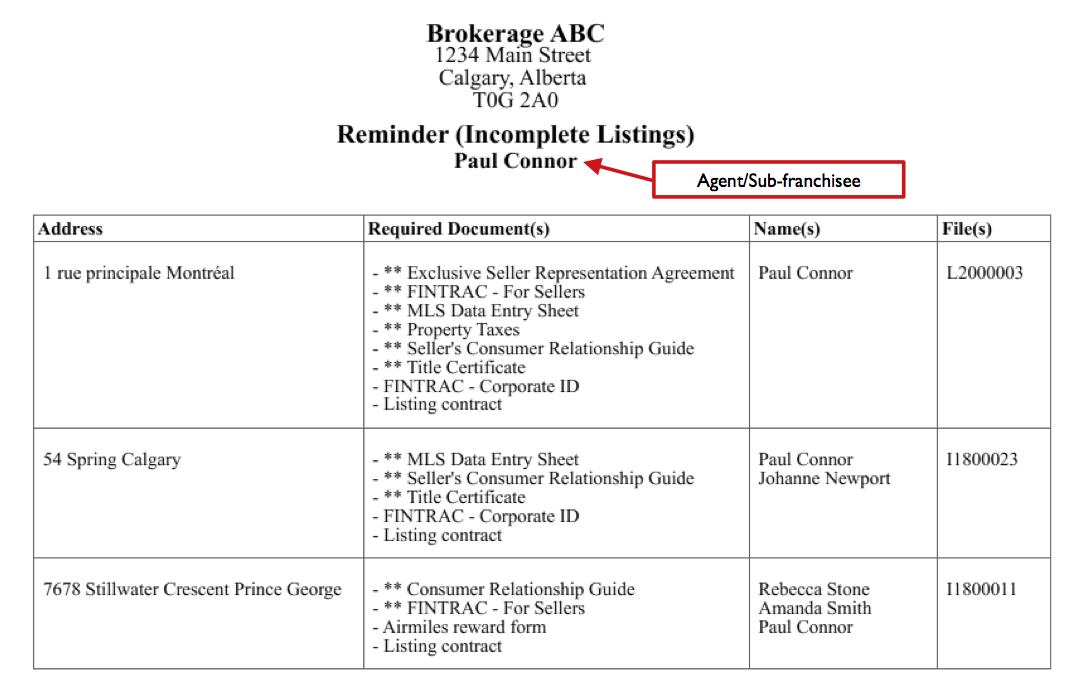
- "Per Agent": For a given agent, all transactions in which he is involved and of which the required documents are missing will be displayed. If more than one agent has been selected, they will appear in alphabetical order by last name on the report. The Sending Method of the report is either "Printing" or "According to Preference" (which is indicated in the agent’s profile, i.e. "Printing" or "E-mail"). Click on Submit to display the report to be printed or send it by e-mail to agent.
NOTE: You have the option to schedule the automatic sending of the Report of Required Documents to the desired frequency and agents. For more information about this programming, please see the article Notifications of Required Documents .