

English
Adding a Listing Manually
If your database is set up to sync with your real estate board, your listings will be automatically imported and updated into the system three times a day; at approximately 6 a.m., 12 p.m. and 6 p.m. Whatever information is published by the real estate board, it will be added to your listings, if applicable.
- In case your database is not set up to sync with your real estate board or if you want to manually enter a listing that is not in the MLS system, you can add it manually by accessing your List of Transactions and clicking on Actions >> New Transaction.
NOTE: Not all fields are mandatory. Fill the ones that pertain to your business. If you have not completed a mandatory field, when you will click on Submit , eZmax will indicate the field to complete.
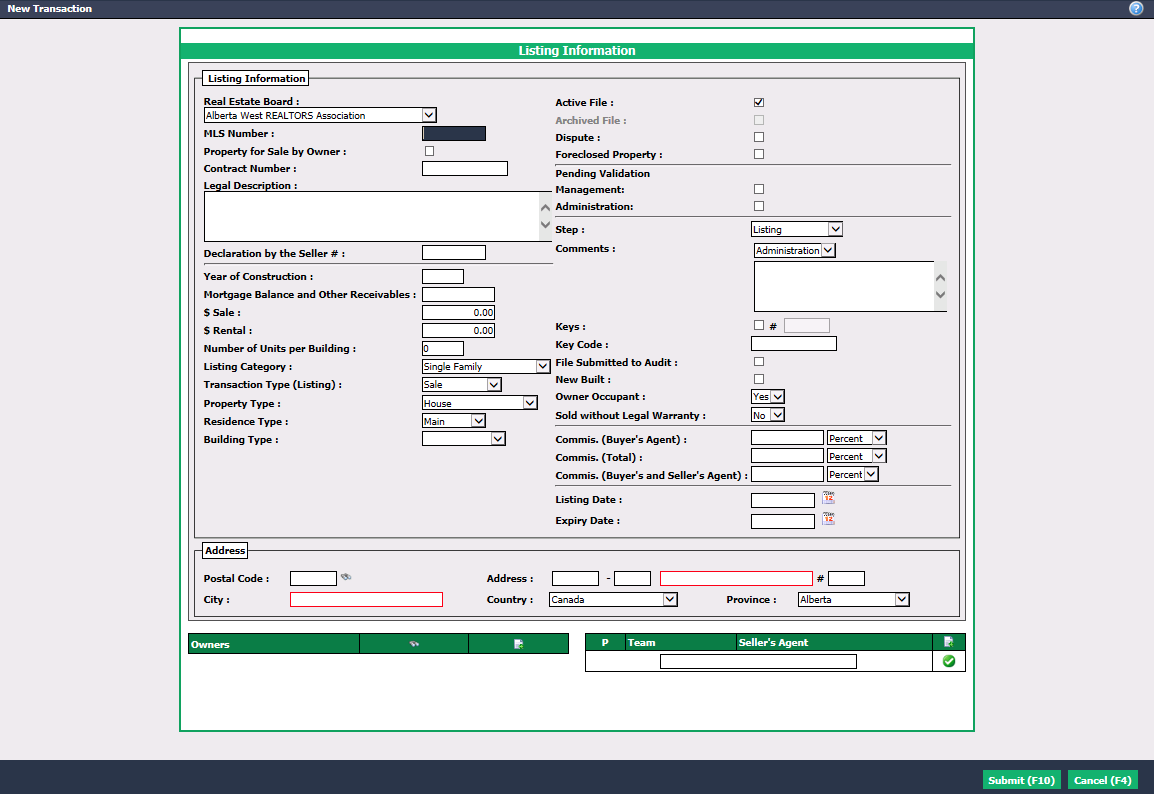
We recommend using the TAB key on your keyboard to move from one field to another.
Real Estate Board : From the drop-down list, select the name of the real estate board to which the listing belongs or "Exclusive Listing" if the listing is not on the MLS system.
Enter MLS Number if applicable.
Check Property for Sale by Owner if applicable.
Enter Contract Number , Legal Description of property and Declaration by the Seller # if applicable.
Enter property details such as Year of Construction and Mortgage Balance , if desired.
$ Sale 😗*** Asking price of the property.
$ Rental : Asking price of the property when it’s a lease.
Number of Units and Category can be entered as desired.
Specify the Transaction Type (Listing) : Sale or rental (lease).
Select Property Type , Residence Type and Building Type as desired.
If the listing becomes inactive, remove the check mark beside Active File.
Archived File : An active or inactive file can be archived manually by the office. To do so, go to Main menu >> Real Estate >> Archive Files of Closed Deals.
Dispute: A check mark is added if the listing come into dispute and you want it to be noted as such.
Foreclosed Property : Check if applicable.
Pending Validation : If this box is checked, the listing will appear on the home page under "Listings Pending Validation" for further review.
Select appropriate Step , e.g. "Listing", "Cancelled Listing", "Expired", "Off Market", "Deal", etc.
Comments may be added as:
- "Administration": Viewable only by administrators.
- "Agent": Admins and agents associated with the listing can see the comments added. Agents will also have a message on their home page under "Unread Comments".
Keys : If the keys are kept, it is possible to record the information about them and if a buzz code or security code is used, it can be recorded in the Key Code field.
Should the listing need to be audited by a governing body, click on File Submitted to Audit and it will appear on the List of Transactions in the "Audit" section.
Check New Built if applicable.
Select "Yes" or "No" for Owner Occupant and Sold without Legal Warranty.
Commis. (Buyer’s Agent) : The commission given to the buyer’s agent.
Commis. (Total) : Total commission of the listing.
Commis. (Buyer’s and Seller’s Agent) : If the agent negotiated a reduced commission in the event he double ends the transaction.
Commissions can be entered in "Percent", "Dollars" or "Tier Commissions".
NOTE: To have access to tier commissions, you have to create the tiers from Main menu >> Real Estate >> List of Tier Commissions.
Enter Listing Date and Expiry Date.
Ensure you add the property Address (mandatory field). Enter the Postal Code , use the TAB key to enter the Street Number and press the TAB key again. System will automatically enter the full address if postal code is up to date in the system. Otherwise you will be able to manually enter the address.
Enter contact information of each of the Owners by clicking on the Sheet with a + icon or via the search tool (Binoculars icon).
NOTE: Not all fields are mandatory. Fill the ones that concern each of the owners.
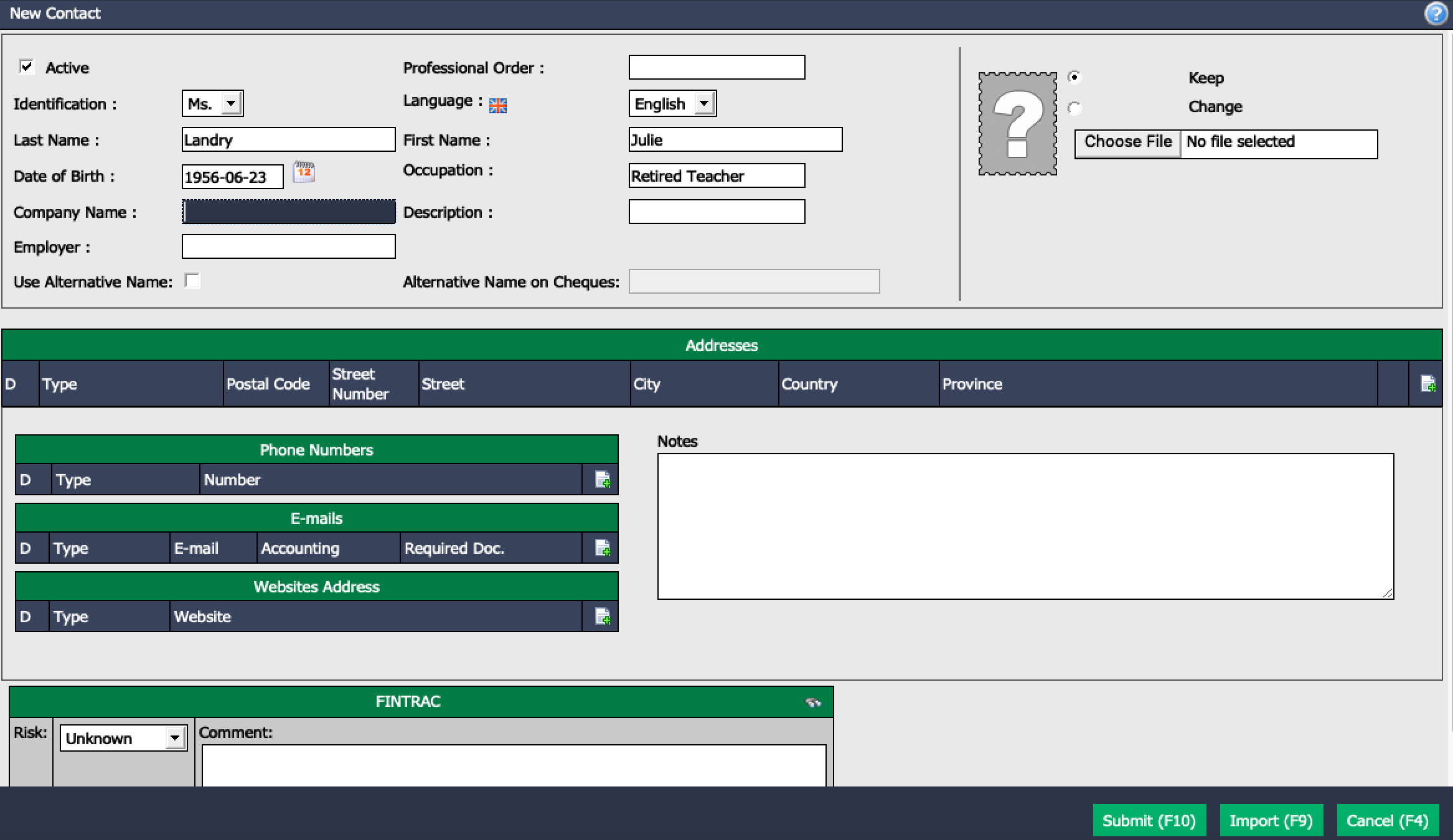
* If you wish to use the **FINTRAC** module, **Last Name** , **First Name** and **Date of Birth** fields are mandatory.

* **Addresses** , **Phone Numbers** , **E-Mails** can be added by clicking on the Sheet with a + icon.

* **FINTRAC** : You can select the **Risk** associated with this contact ("Unknown", "Low Risk", "Medium Risk" or "High Risk") and add a **Comment**. FINTRAC information will be kept in the contact profile.
NOTE: The Binoculars icon (Business Relationship Search) allows eZmax to search for all transactions made in the last 5 years with this contact (with the same first name, last name and date of birth). For more information, please see the article Business Relationship Search.
* Click on ** _Submit_** to save the contact information.
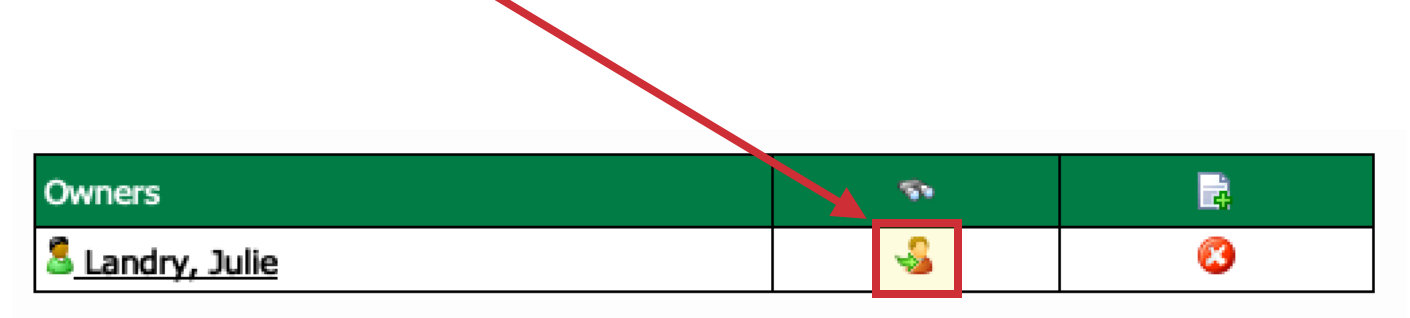
- Once a contact is added to a transaction, if you want to add a new contact with the same address and phone numbers, click on the Duplicate Contact icon.
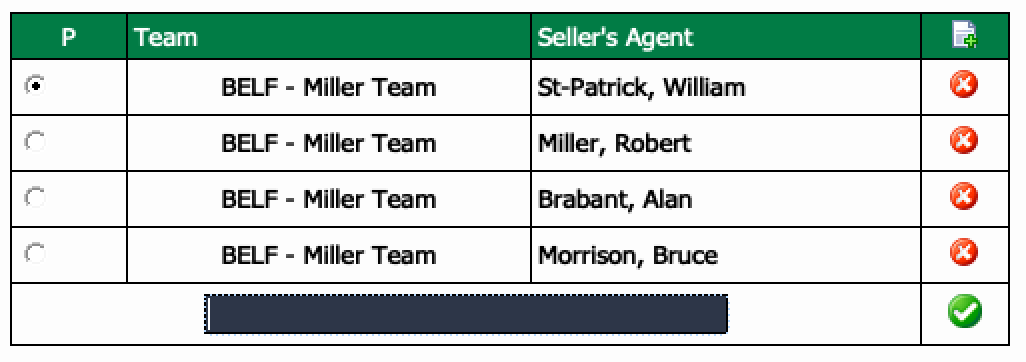
Seller’s Agent : Start typing the name of the agent in the field and click on the Check Mark button to confirm. The Sheet with a + icon to the right of the field is used to add a new agent in the system. For more information, please see the article Adding a Regular and/or Incorporated Agent.
When you type in the name of a Team , all members (agents) of the team will be automatically added to the listing.
- Click on Submit to save your listing.