

English
Documents to Validate
When a user (agent or admin) add documents to a listing, a deal, a buyer’s contract or a refused offer, these documents must be validated by the administration. If self-validation of documents has been enabled for this user, they will be automatically validated (for more information, please see the article Adding/Editing a User). When there are documents to be validated in a transaction, they will be displayed on the home page under "Documents Requiring Validation" or directly in the transaction.
Documents to Validate - From the Home Page
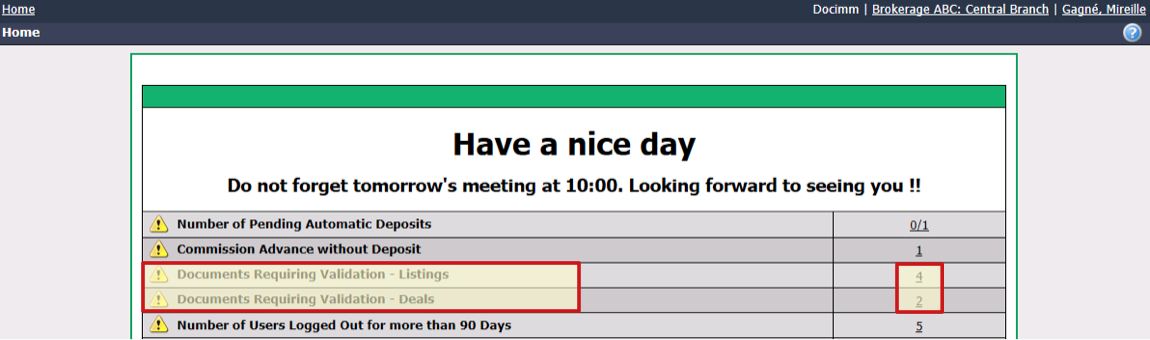
- Click on the number to the right of the message "Documents Requiring Validation."
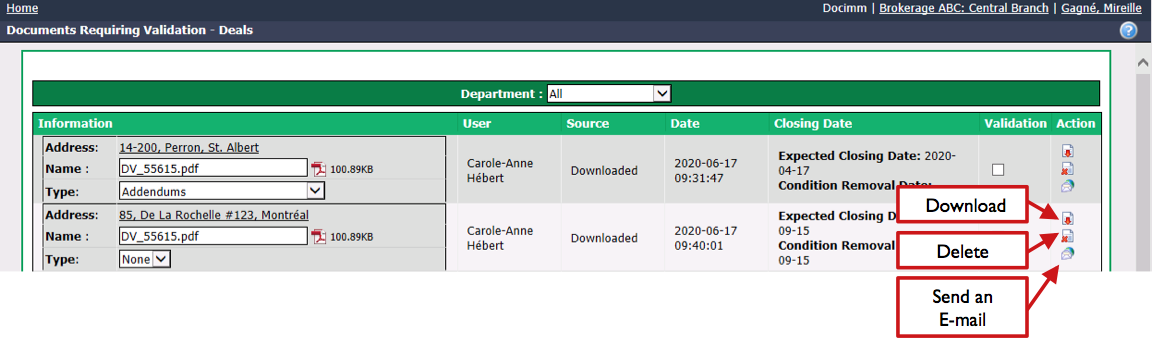
You can filter the documents requiring validation by Department , if applicable.
You can change the Name and Type of each document, if necessary.
Open a PDF document to view and verify by clicking on the Download icon

.
- You can reject a document by clicking on the Delete icon

:
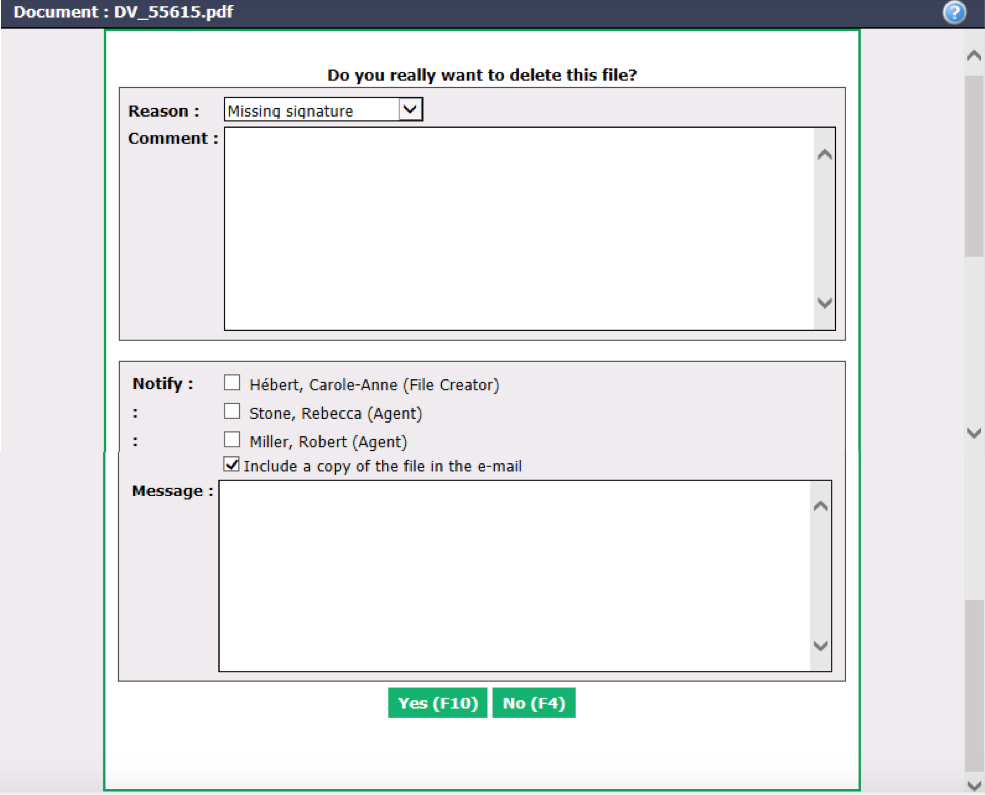
Select the Reason for rejection from the drop-down list. (For more information, please see the article Adding/Editing a Reason for Rejected Document (76).)
You can write a Comment in the field.
Check the boxes of the people you want to Notify by e-mail.
Indicate if you want to Include a copy of the file in the e-mail.
Write a Message if desired.
Click on Yes to delete the document. It will now appear in the "Deleted Documents" tab of the EDM.
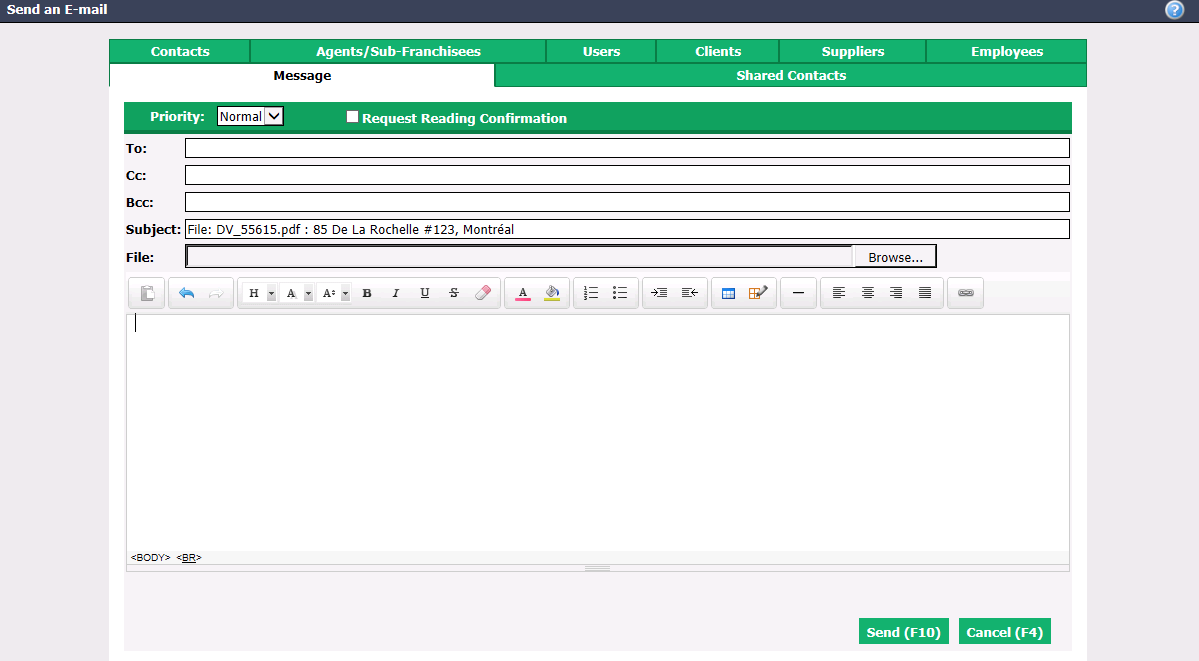
You can also send a message and a document by e-mail by clicking on the Send an E-mail icon

.
- If the document is compliant, check the Validation box and a green OK will appear in place of the box.
NOTE: Once validated, the document will disappear from the home page.
Information
In the information of the document to be validated, you can click on the Address to access the transaction file.
Documents****to Validate - From the Transaction
- Access the desired transaction.
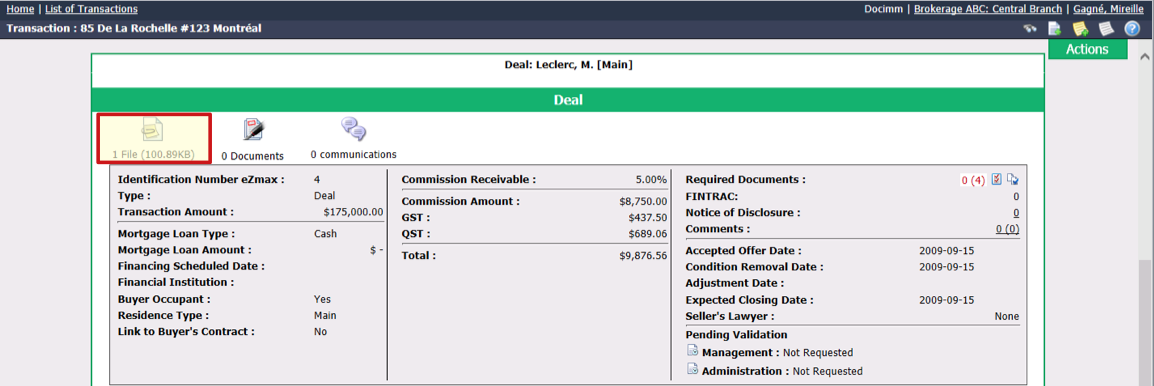
- Click on the Paper Clip and Sheet icon (Document Management).
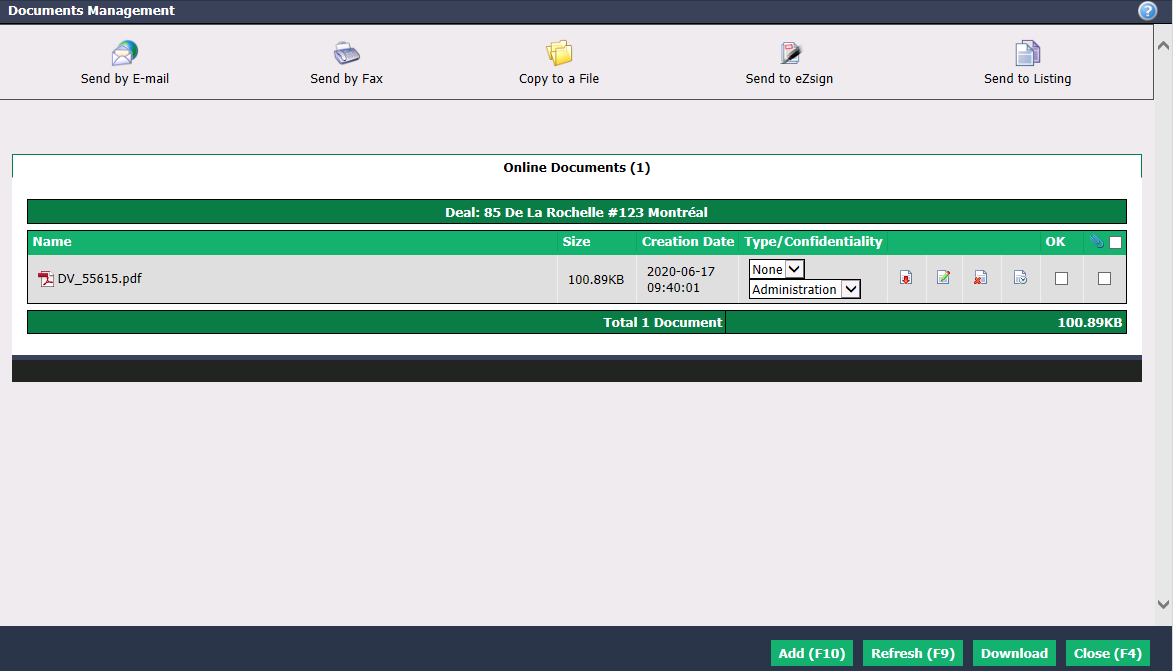
In the "Online Documents" tab, you can change the Type of document and the Privacy (who can see the document), if necessary.
Open a PDF document to view and verify by clicking on the Download icon
. For more information, see above in this article.
- To modify the name of a document, click on the Rename icon

.
- You can reject a document by clicking on the Delete icon
. For more information, see above in this article.
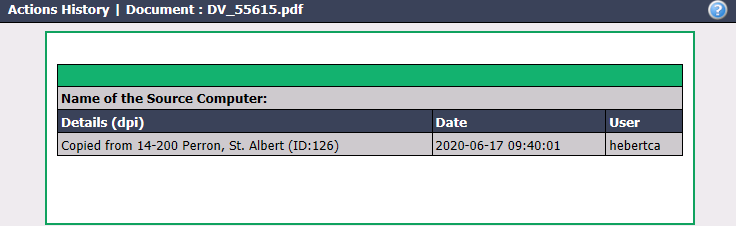
- To view the history of actions taken in relation to a document, click on the History icon

:
- If the document is compliant, check the OK box and a green OK will appear in place of the box.
NOTE: Once validated, the document will disappear from the home page.