

English
List of Deposits
When you make a deposit in the eZmax system, it is automatically added to the list of deposits. This list can be used to obtain and/or modify the information of a particular deposit.
- From Main menu, click on the Cash Register icon
or Accounts Receivable >> List of Deposits.
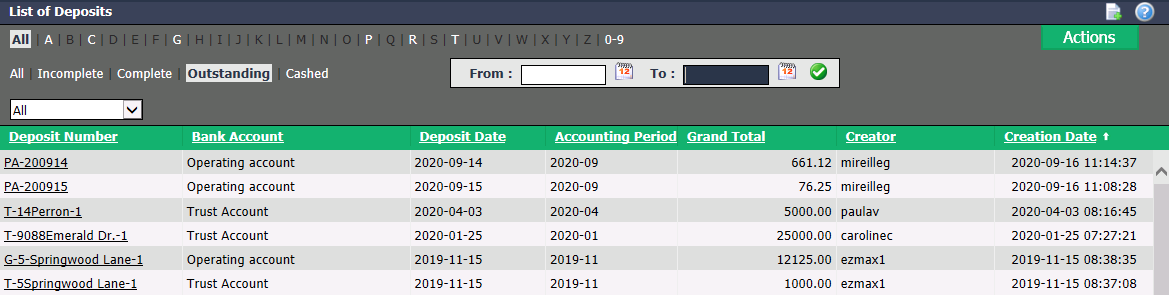
You will be able to see, among others, the Deposit Number , the Bank Account as well as the Grand Total of each deposit.
You can filter the deposits by the following types:
- "All": All types of deposits.
- "Incomplete": When making a new deposit, if you don’t know where the money is coming from, you entered the amount in quick data input until you assign an account. This deposit appears on the home page under "Incomplete Deposits".
- "Complete": Normal deposit, with all required information.
- "Outstanding": The deposit has not reconciled at the bank and its receipt was not confirmed in the system.
- "Cashed": The deposit was reconciled at the bank and its receipt was confirmed in the system.
You can also filter the deposits by date, by entering the desired dates in the From and To fields and by clicking on the Check Mark button, and by bank account from the drop-down list (for more information, please see the article Adding/Editing a Bank Account).
If you want to get the list in Excel format, click on Actions >> Excel Icon. Click on Open or Save.
Click on the desired Deposit Number to display its information.
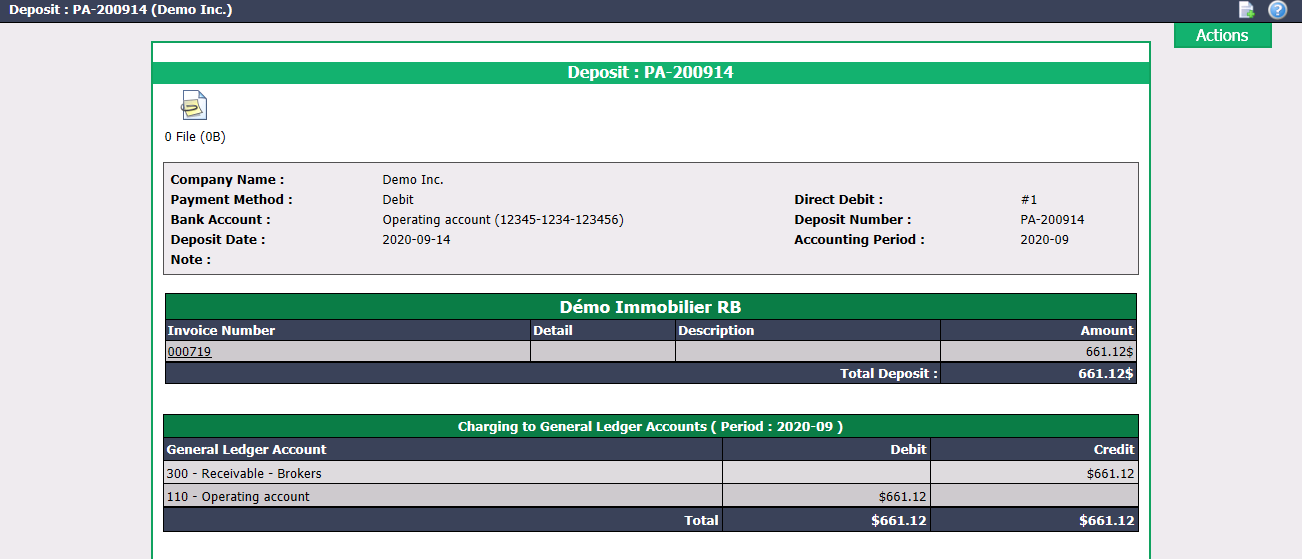
NOTE: When it is a payment of invoices by credit card, the Transaction Batch field will appear under the Deposit Date. You can click on the transaction batch number to view its information. For more information, please see the article List of Transaction Batches (469).
- You can add documents to EDM (Electronic Document Management) by clicking on the Document Management icon

located at the top left of the page. For more information, please see the article Adding Documents to EDM.
- From the Actions menu, you have the option to Edit Deposit and Print Deposit Receipt.
Edit Deposit
It is possible to modify a deposit but only if the tax report has not yet been made.
- Click on Actions >> Edit Deposit.
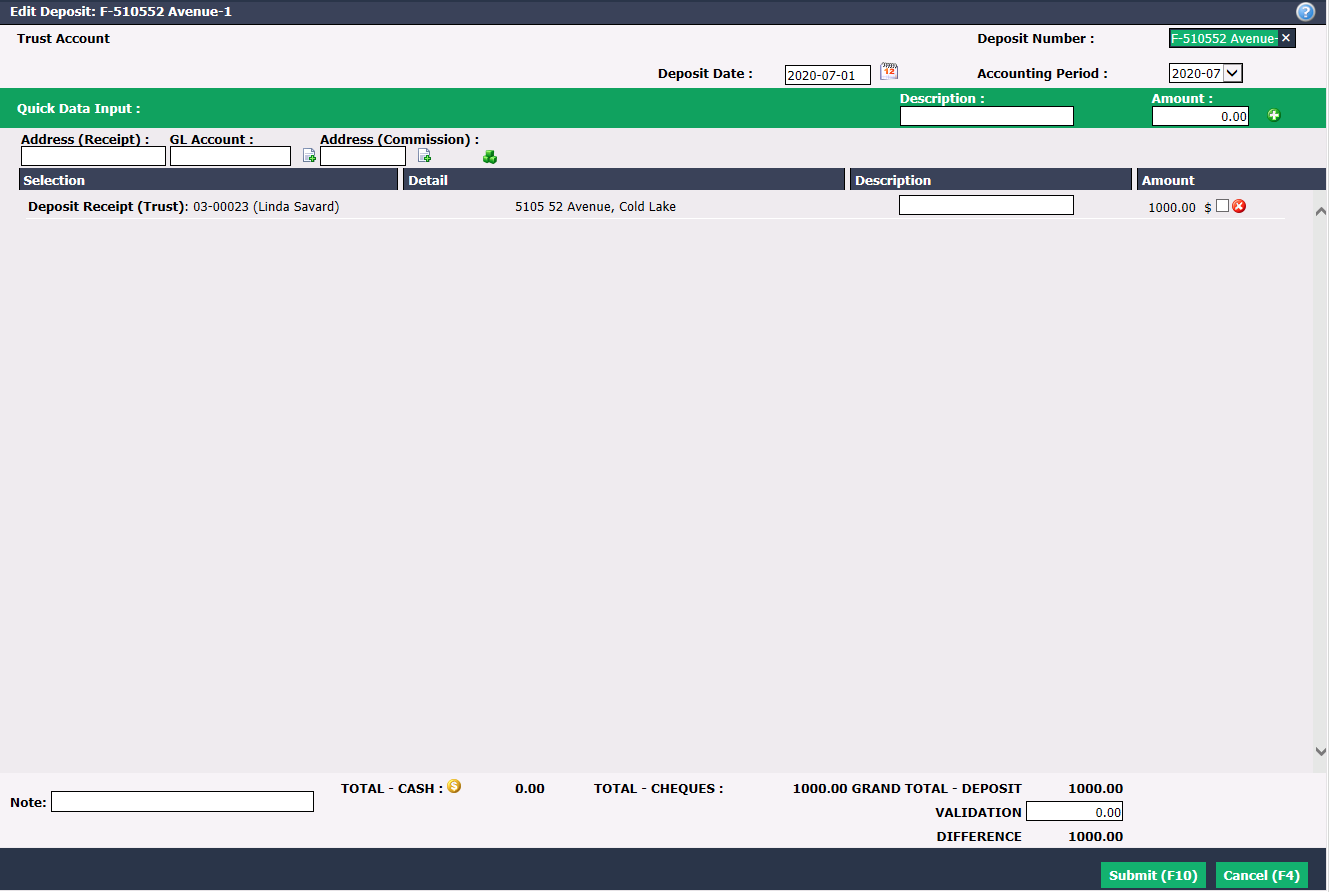
- Make the desired changes and click on Submit to save them.
Print Deposit Receipt
- Click on Actions >> Print Deposit Receipt.
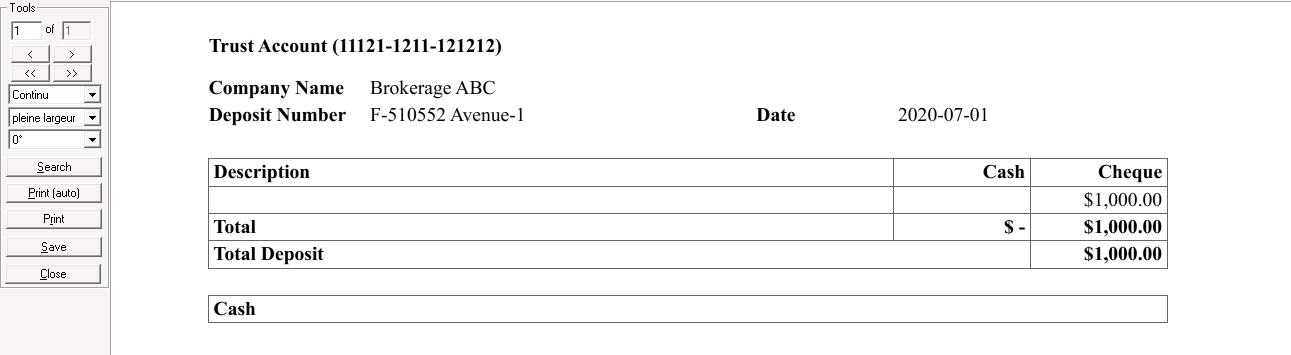
Information
The GL account that was assigned does not appear on this receipt. If you want to print all the information for a deposit, from its page, click on File in the Main menu >> Print.