

English
Adding a Purchase - Reinvoicing to Clients (General)
When you register purchases (Cart Icon), you can automatically reinvoice your clients.
- From Main menu, click on the Shopping Cart icon

.
- Enter Supplier name, Invoice Number , invoicing Date , invoice Total and confirm Taxes as you would normally do when entering an invoice.
We recommend using the TAB key on your keyboard to move from one field to another.
To reinvoice a Client for a portion of invoice, enter his name into the appropriate field and press the TAB key. Select the Variable Cost and enter Amount you want to reinvoice before tax. Click on the Green + icon to confirm.
Repeat the process for other clients or enter applicable GL Account if it’s an office expense.
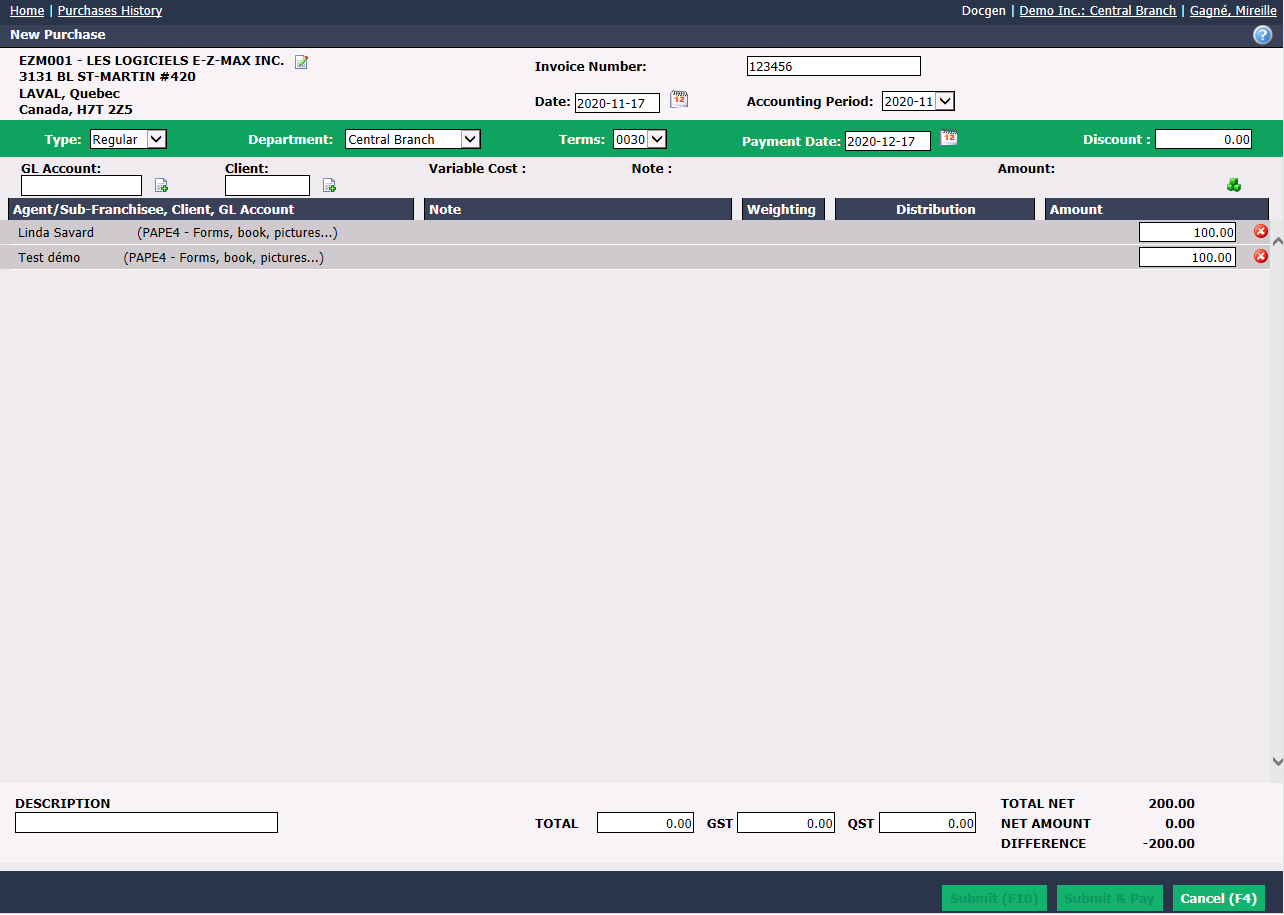
- You can also reinvoice a portion of the invoice to a client by clicking on the Green Cubes icon (Distribution).
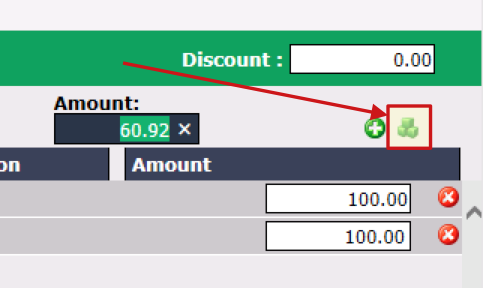
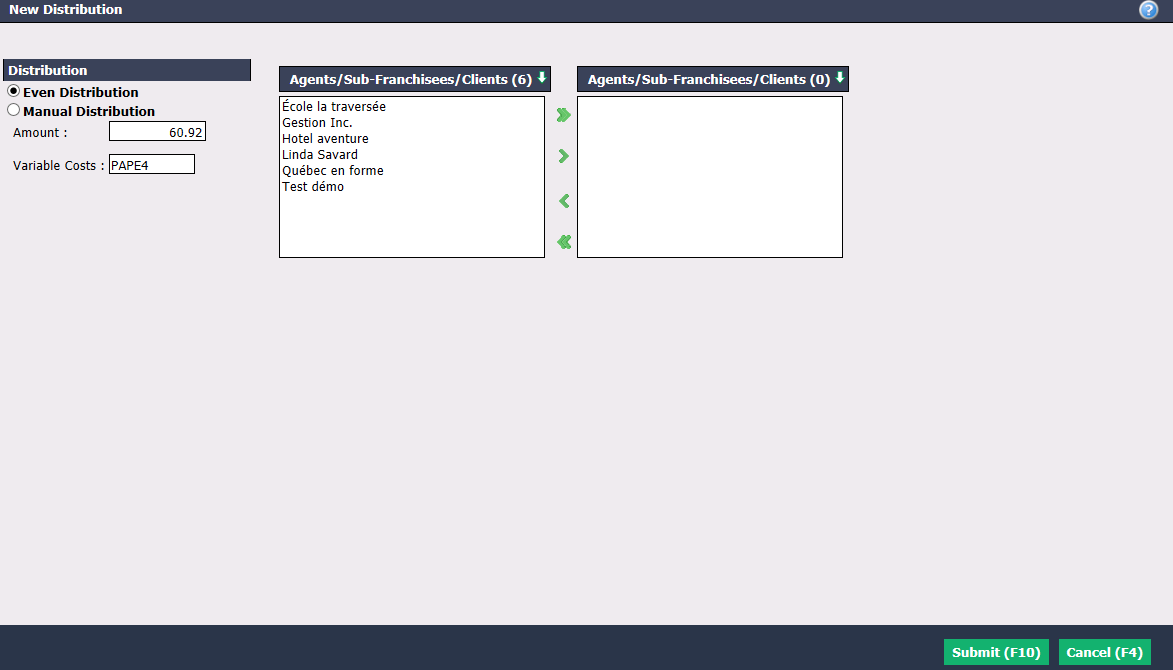
Select Even Distribution to split equally the amount between all selected parties. Enter Amount to split among the group and Variable Costs.
Using the green arrows, select the desired client from the list of Agents/Sub-Franchisees/Clients. The double arrow allows you to select all people with one click, while the single arrow selects only one at a time.
In the list, you can double-click on a person to select it instead of using the green arrow.
- When you select Manual Distribution , you will need to enter the amounts manually in the next window.
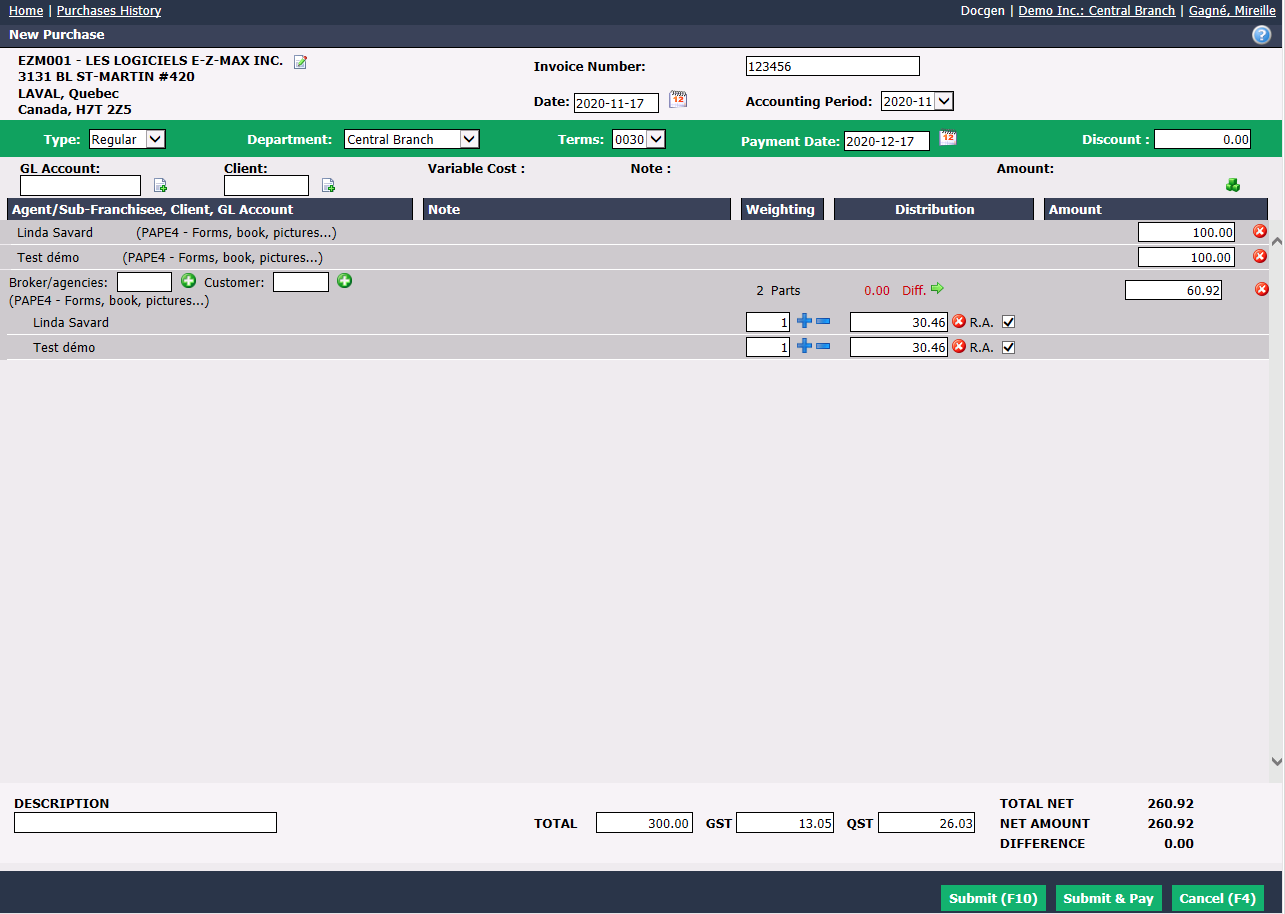
Warning
At the end of the process, the Difference must be $0.00.
Proceed with the payment by clicking on Submit or Submit & Pay as usual.
Amounts to be reinvoiced to clients will automatically appear when you create your monthly invoicing and will be invoiced during that process.