

English
New Direct Debit - General
Direct debit is used to collect an amount of money directly from a client’s bank account and then deposit it automatically.
NOTE: If you wish to use this function, you must contact the technical support.
Warning
In the client’s profile, you must click on Actions >> Edit Bank Account, check Direct Debit and enter Transit , Institution and Account numbers. For more information, please see the article Client Bank Account (408).
From main Menu >> Accounts Receivable >> Direct Debit, or;
From main Menu >> Accounts Receivable >> List of Deposits, click on Actions >> New Direct Debit.
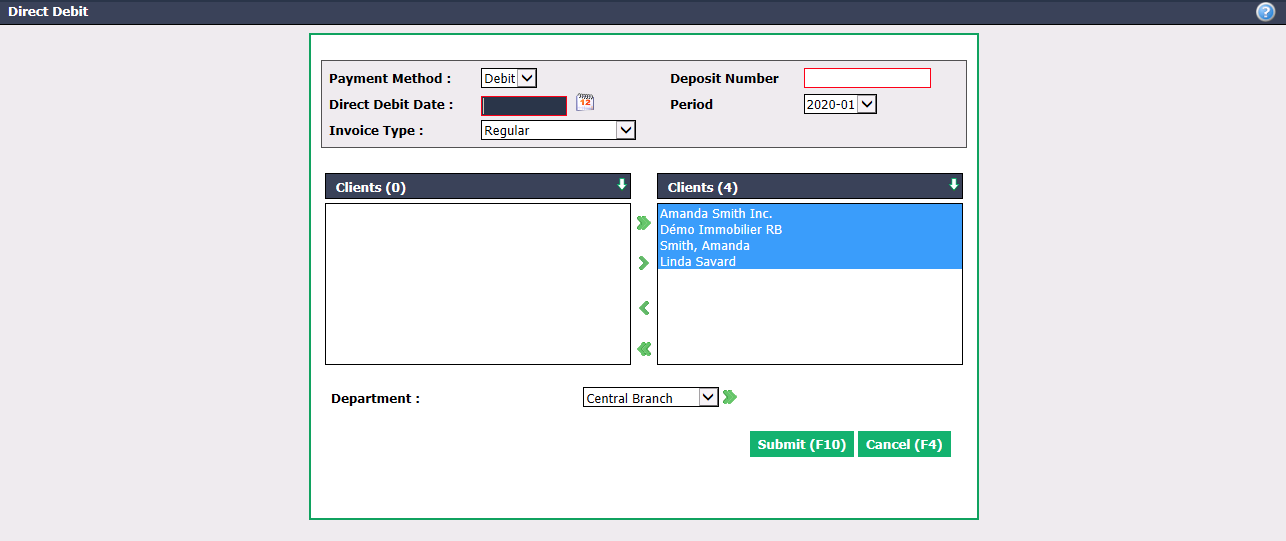
The Payment Method will be "Direct Debit".
Enter a Deposit Number because the system will deposit the money that will be collected. Suggestion: DD-YYMMDD which means "Direct Debit - Date of Direct Debit".
Enter the Direct Debit Date.
Select the Invoice Type : "All", "Regular" (by default), "Financed", "Commissions", "Commission Advances".
By default, all Clients will be selected. If you want to deselect them, use the green arrows. The double arrow allows you to deselect all clients with one click, while the single arrow selects only one at a time.
You can double-click on a client to deselect it instead of using the green arrow.
You can also filter clients by selecting the desired Department , if applicable.
Click on Submit.
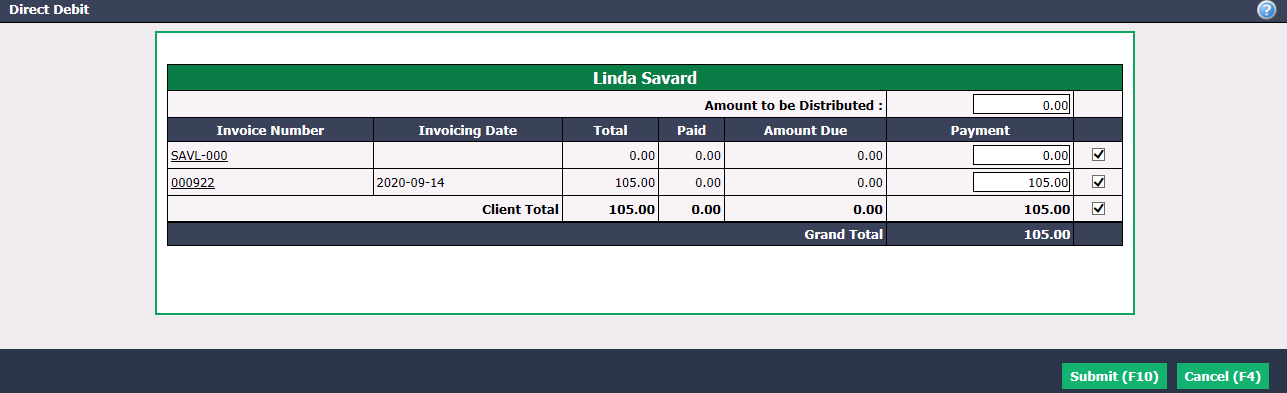
By default, all invoices will be selected, but you can uncheck them.
Click on Submit and the deposit will be made automatically.
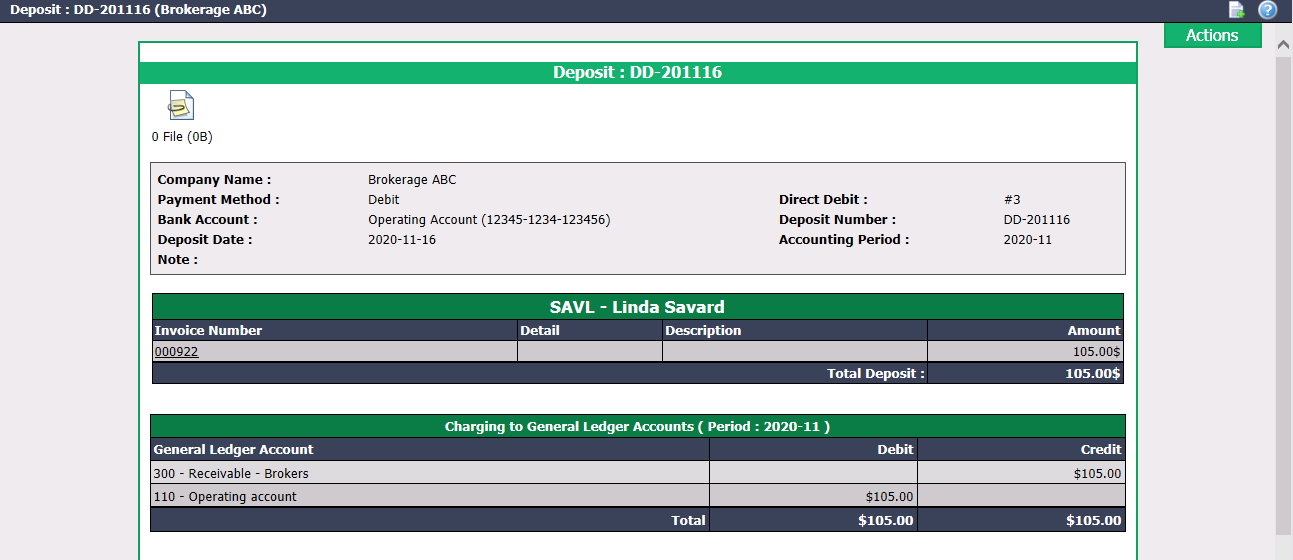
- This deposit will be included in the List of Deposits.
- You can add documents to the EDM (Electronic Document Management) by clicking on the Document Management icon

at the top left of the page. For more information, please see the article Adding Documents to EDM.
- From the Actions menu, you have the option to:
- Download File: Click on Open or Save.
NOTE: You must deposit this file on your bank’s website in order to be processed.
* Print Slip:
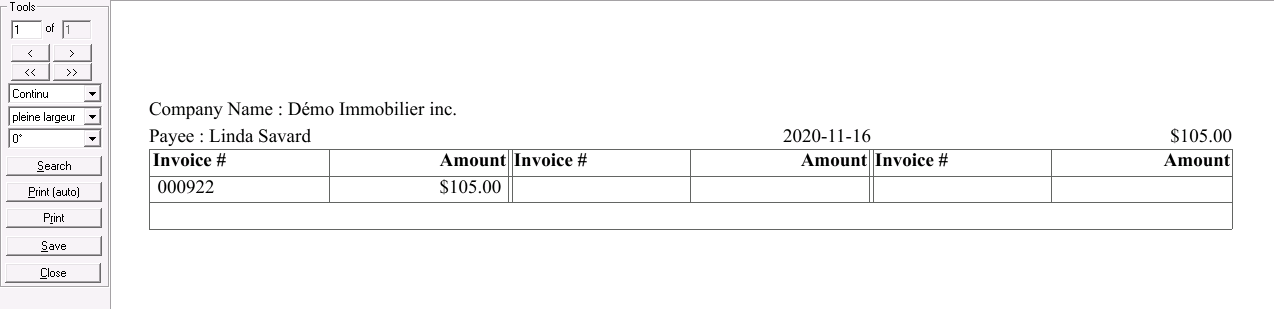
* Send Slip According to Preference: That is, according to the sending method selected in the profile of the client ("Print" or "E-mail"). For more information, please see the article [Adding/Editing a Client](../configurations/adding-editing-client.md).