

English
Monthly Invoicing
- Monthly invoicing allows you to view all activities from express supply invoicing and/or pre-set agent charges from their invoicing table and/or purchases rebilled to agents and generate an agent invoice at once.
NOTE: “Monthly Invoicing” isn’t limited to once a month. This action can be taken at any time.
From Main menu >> Accounts Receivable >> List of Monthly Invoicing.
Click on Actions >> New Monthly Invoicing.
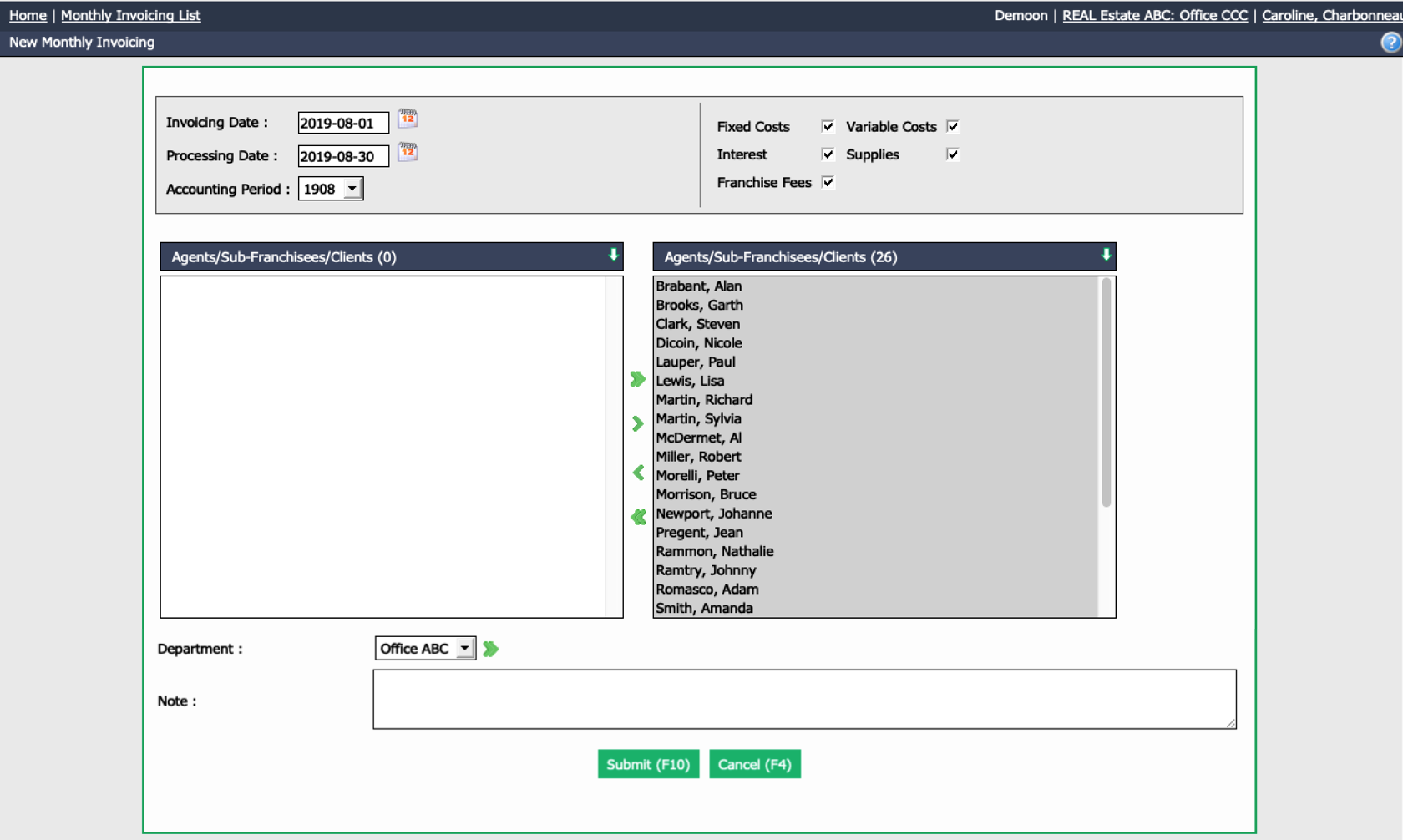
InvoicingDate is the date that will be shown on the invoices.
Processing Date: System will include on the invoice all items entered and not billed up to that date.
By default, all charges will be included in the invoicing:
- Fixed Cost : Pre-set charges in the invoicing table of the agents.
- Interest : If applicable.
- Franchises Fees : If applicable.
- Variable Costs : Purchases rebilled to agents .
- Supplies : All charges entered through express supply invoicing.
Select the appropriate Agents and/or Department you want to invoice.
You may personalize the invoice with a Note. The same note will appear at the bottom of all invoices generated through the invoicing you are processing.
Click on Submit.
If you have already generated an invoice for that month, a warning will appear asking you to confirm that you want to generate invoice. Click OK to continue.
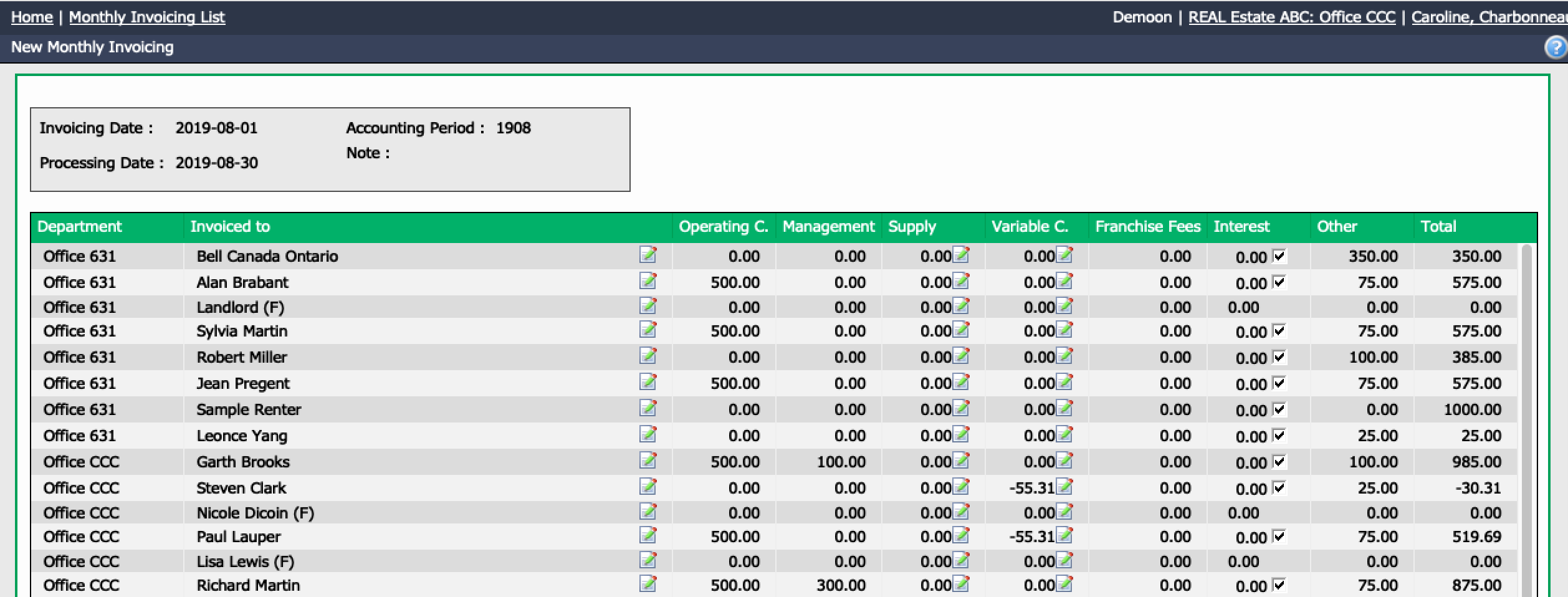
The system will display all the appropriate items to be invoiced. At this point, for any items you need to verify or edit, you can click on the Sheet with a Pencil icon and verify or edit a specific charge. When you modify, make sure to click on Recalculate at the bottom of the page.
If you are satisfied with the charges to apply, click on Submit. eZmax will ask you for confirmation that you want to proceed with the invoicing. If it’s ready, click OK.
Invoicing will be posted for applicable parties.
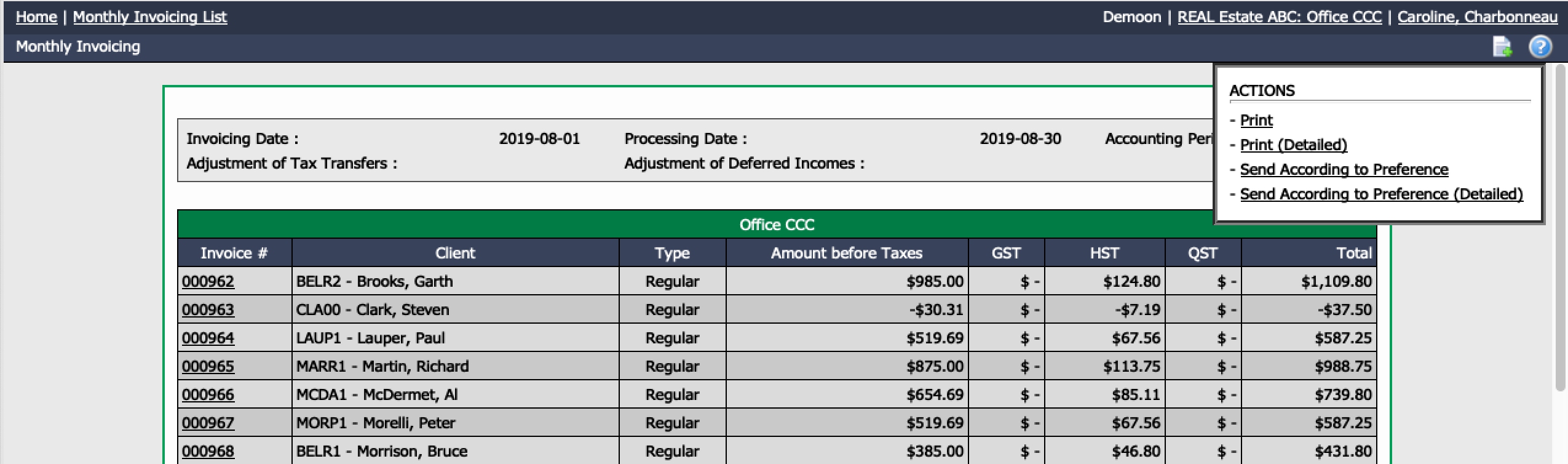
You can click on Actions and Print the invoices or Send According to Preference.
At any time, you can click on an invoice # to:
- View the details of the invoice;
- Print or Send the invoice;
- Reverse the invoice;
- View the list of Supplies billed on this invoice;
- View the list of Variable Costs billed on this invoice;
- Enter a Manual Payment by Credit Card;
- See the GL accounts activity of this invoice;
- See the Payments History.
