

English
Commission Calculation and Payment
When you have closed a deal, you can calculate and pay the commissions of the agents involved in this transaction.
Warning
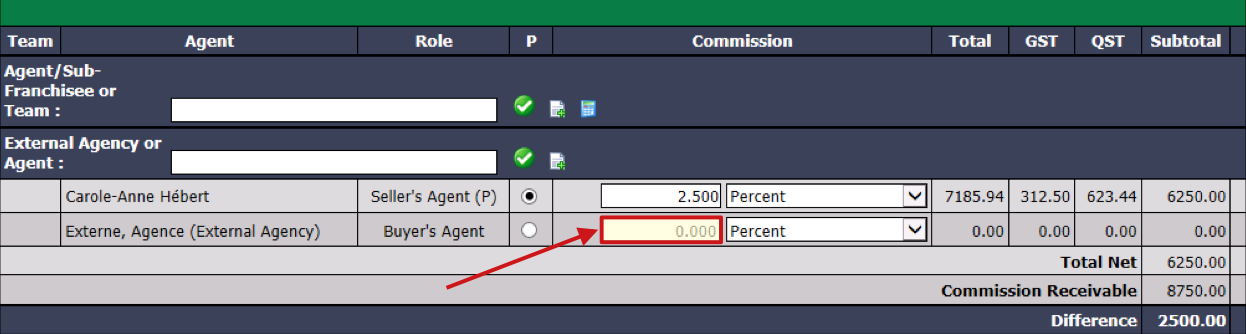
Once a commission calculation has been made for a transaction, it is no longer possible to delete an agent. However, it is possible to edit the transaction and enter "0.000" in the Commission field of the agent you want to remove.
From a deal, click on Actions >> Close the Deal, enter the Closing Date and click on Submit (for more information, please see the article Closing a Deal) or;
From a closed deal, click on Actions >> Commission Calculation.
Warning
If this message appears at the top of the commission calculation page, it is strongly recommended to add the missing documents before proceeding. You can also proceed and add the missing documents at another time. For more information, please see the articles Required Documents in aTransaction and Adding Documents to EDM.

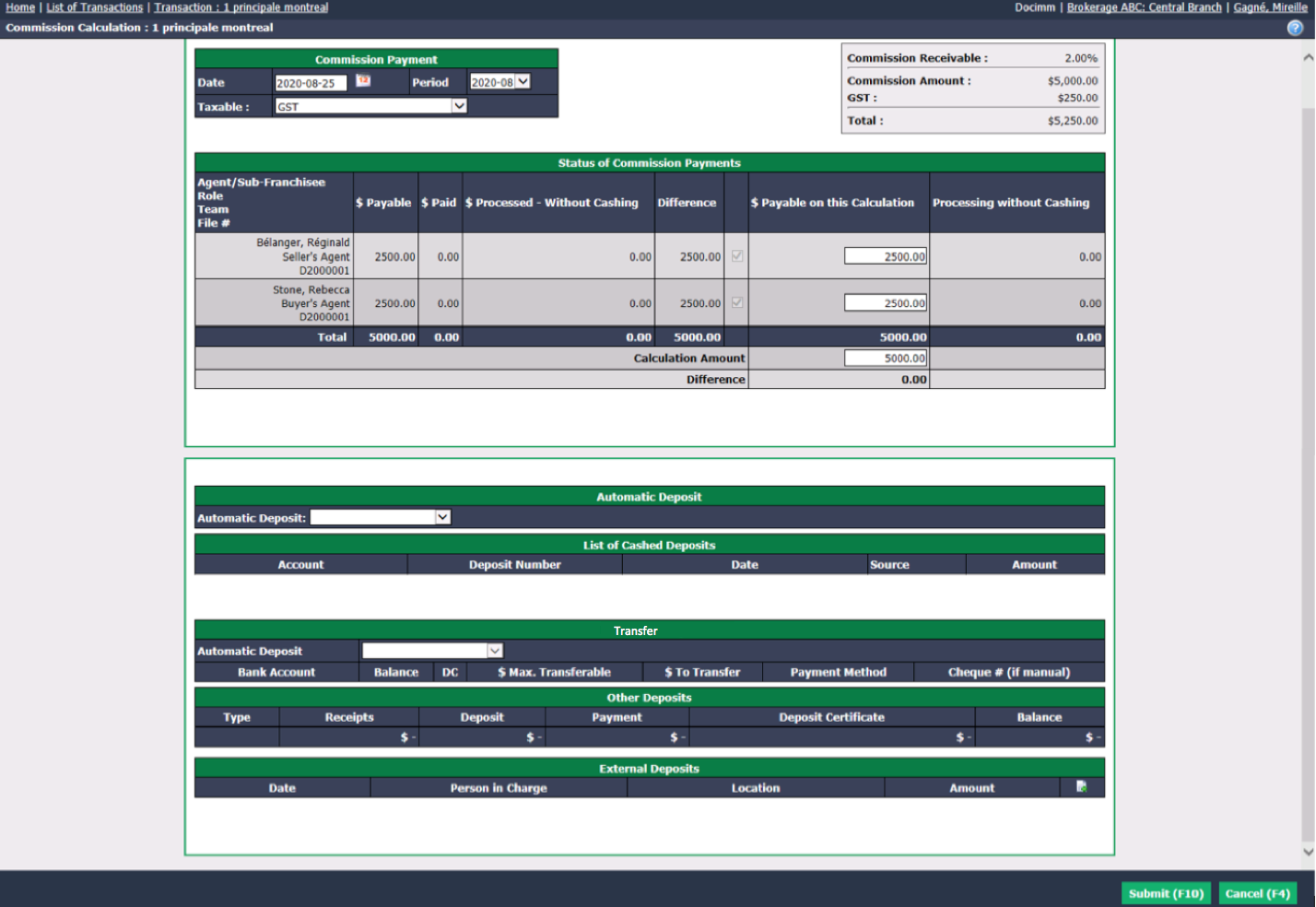
- The payment Date of the commission is by default, depending on the configuration of your system, the closing date, the date of the transaction or today’s date, but you can change it manually. The Period will be automatically selected according to the payment date entered.
Warning
The payment Date of the commission entered must be the same as the accounting Period selected and the latter must be opened. For more information, please see the article Accounting Period Management (447).
Taxable : By default, it is the same taxes that appear in the "Deal" section of the transaction, but you can change them manually.
$ Payable on this Calculation : Amount calculated automatically by the system and the Difference must always be $0.00.
NOTE: The amounts displayed in the "Status of Commission Payments" do not include taxes.
- Automatic Deposit : From the drop-down list, select the type of account and Automatic Deposit : Individual or Grouped.
- Individual: In this example, the amount of the cheque received is $5250.00 and you want to deposit only this cheque. The amount of $5250.00 will therefore be automatically entered in the Deposit Amount. The deposit will be made automatically.

* Grouped: In this example, you received a cheque of $5250.00 but also other cheques during the day and you want to deposit them together. Only one amount will appear on the bank statement. At the end of the day, you will have to check all the cheques included in this deposit.

Click on Submit.
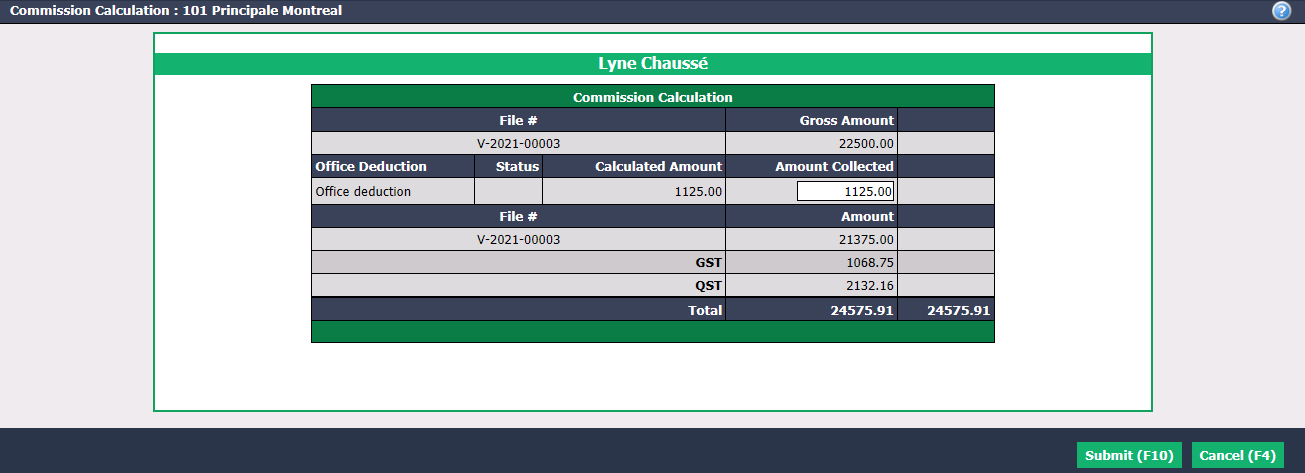
First, if the agent in the transaction has an office deduction (for example: the agency manager’s commission remains in the company’s account.), a table for office deductions will appear. It is possible to enter the desired amount in the Amount Collected field.
- After submitting the office deductions, the table of commission fees will appear. The amount will be calculated automatically according to the agent’s configuration, but it is possible to change it manually in the Amount Collected field.
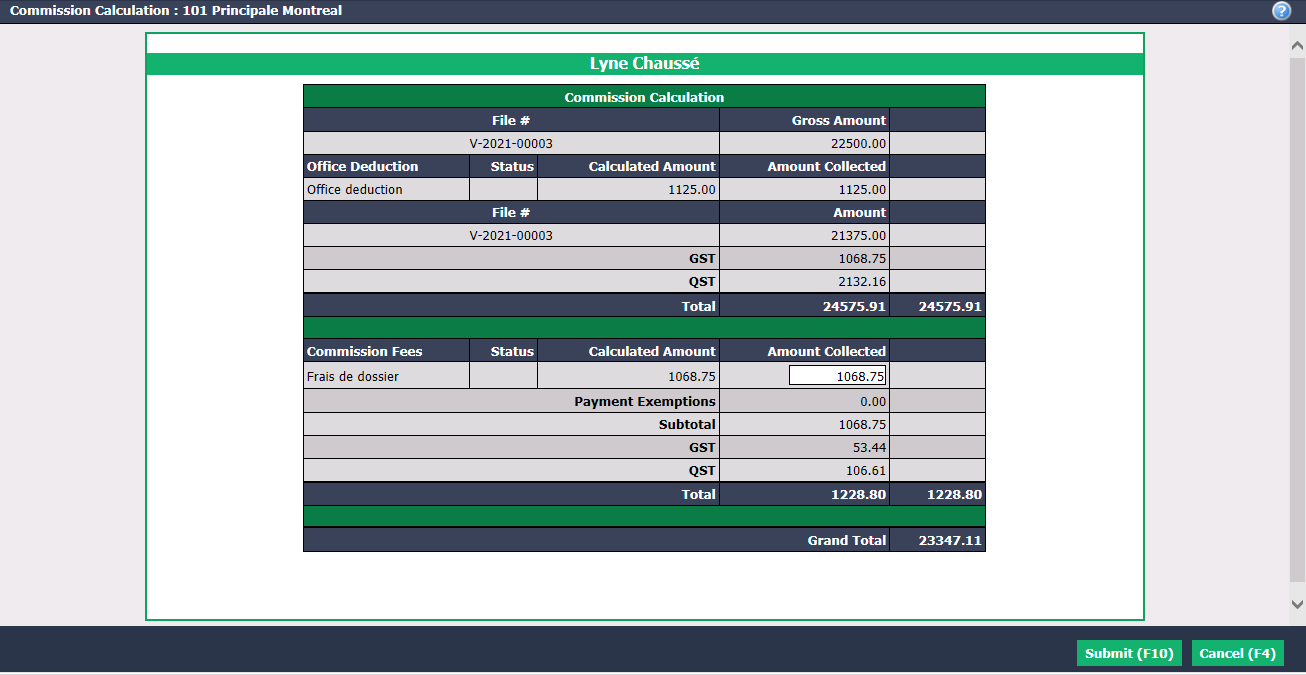
- For each agent, the Grand Total displayed is the result of the subtraction of the Gross Amount of his commission by the amount of Office Deduction and Commission Fees.
Information
If you click on Cancel , you will return to the transaction information page and the calculation of commission made will not be saved.
- When you have finished verifying the amounts, click on Submit and the payment deductions table for each agent will appear.
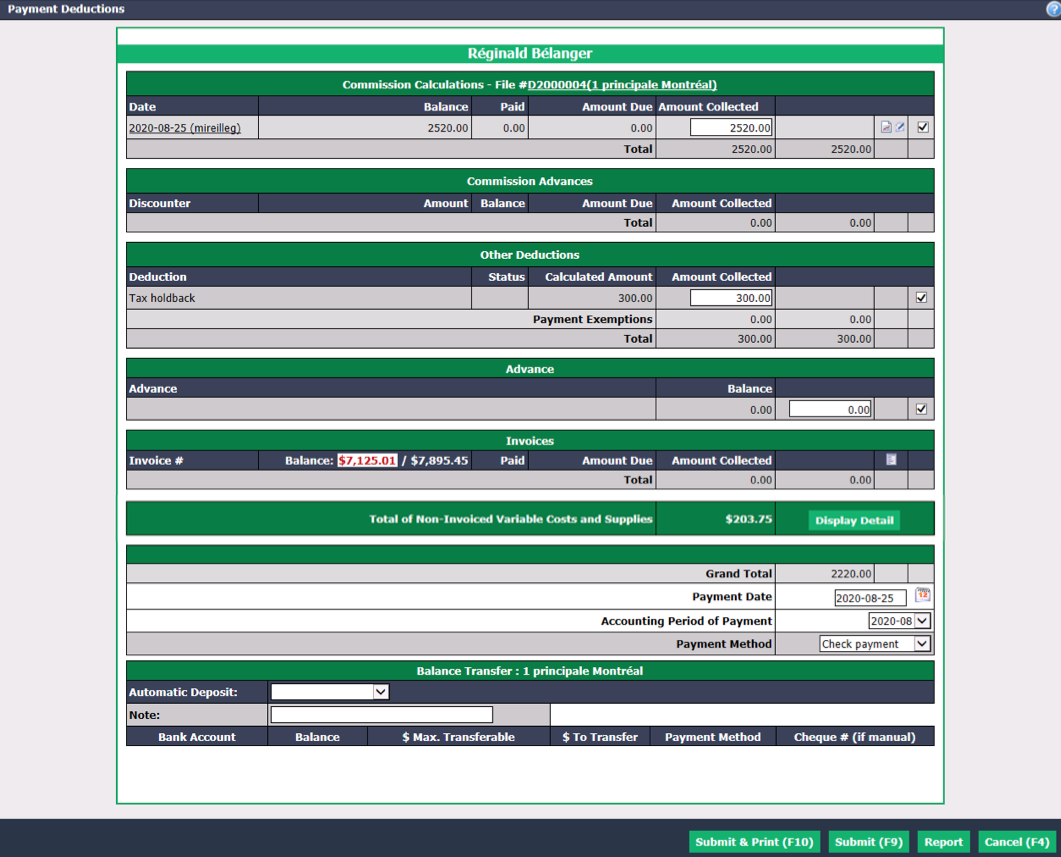
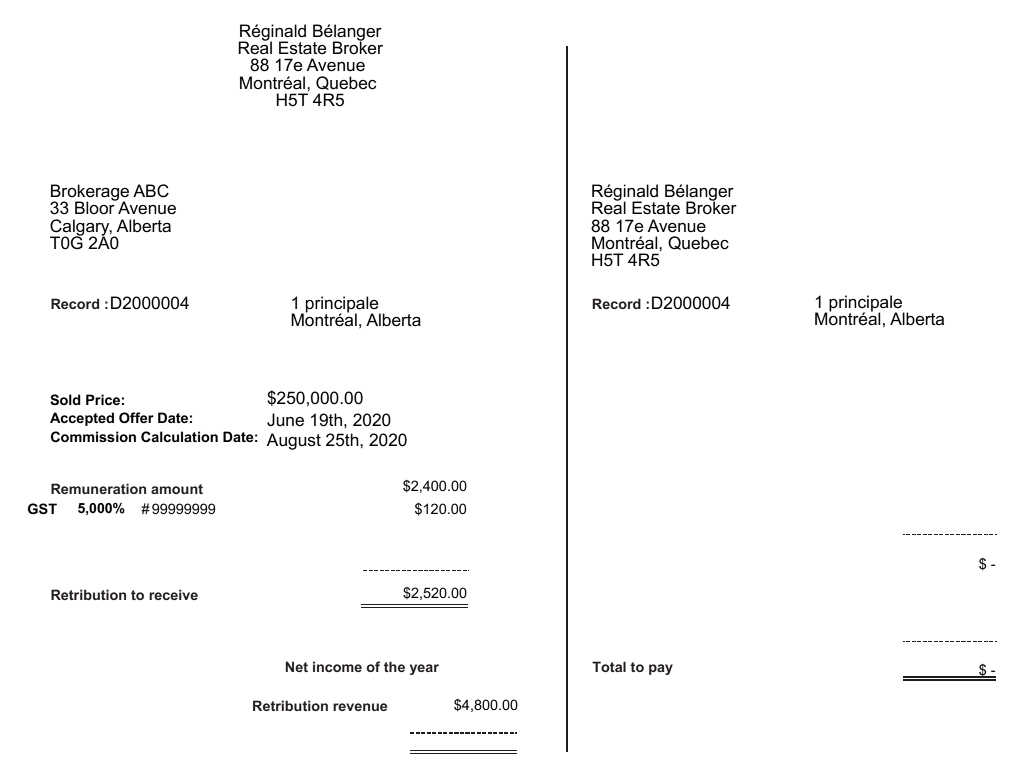
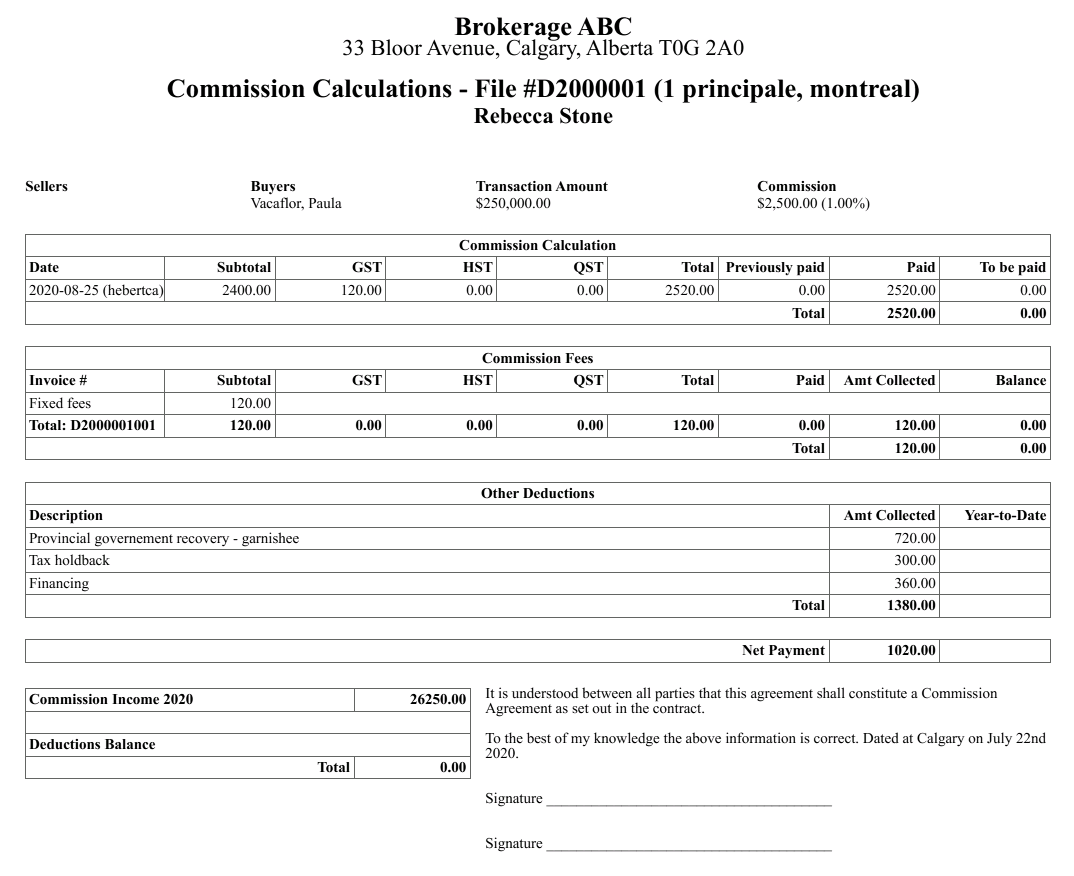
- "Commission Calculations - File #": The Total amount of the agent’s commission is displayed. You can click on this icon

to display and print the commission calculation report of this agent and click on this icon

to send by e-mail this report to the agent.
"Commission Advances": If applicable, the amount of the commission advances received by the agent may be deducted.
"Other Deductions": If applicable, the amounts of government deductions, taxes deductions or donations may be deducted.
"Advance": If applicable, the amount loaned to the agent by the office (unrelated to a transaction) is displayed.You can enter all or part of the loaned amount you want to be deducted.
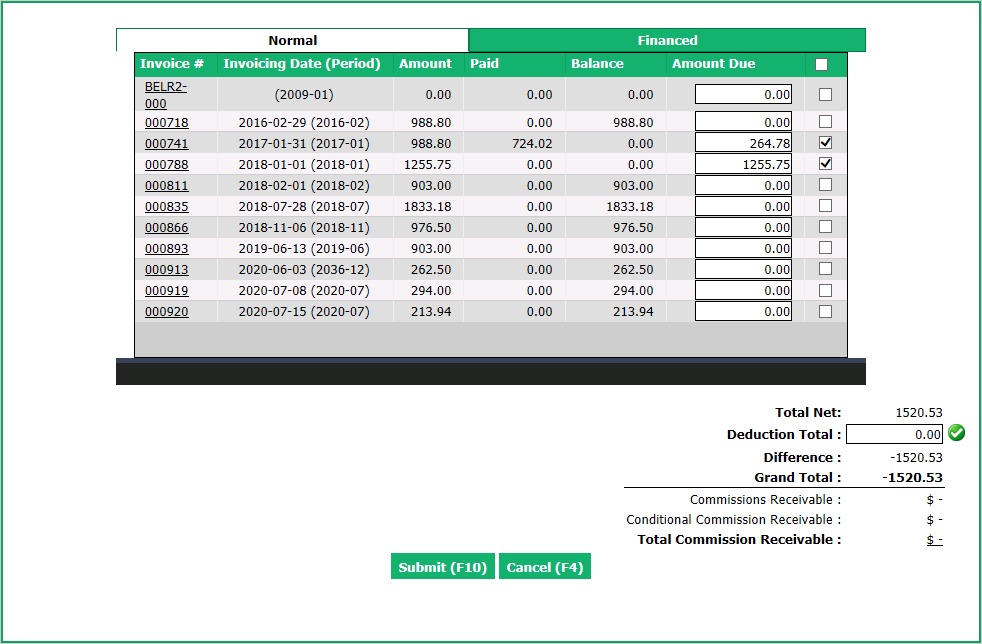
"Invoices": By clicking on the Blue Sheet icon, you will see the List of Invoices for this agent and you will be able to select the invoices you want to pay. Click on Submit to add the selected amounts in the payment deductions table.
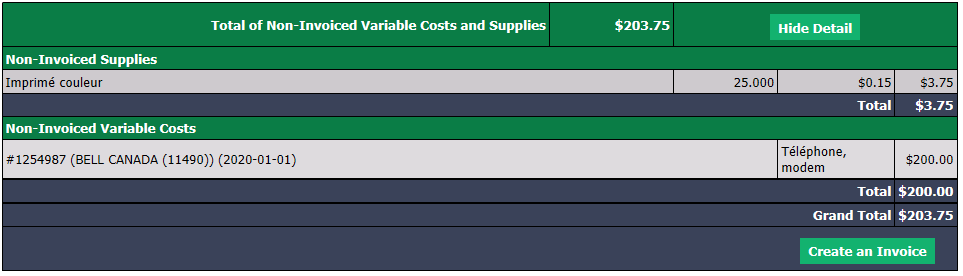
- "Total of Non-Invoiced Variable Costs and Supplies": By clicking on Display Detail , you will be able to Create an Invoice of variable costs and supplies for this agent.
- The Payment****Date is, by default, today’s date but you can change it manually. The Accounting Period of Payment will be automatically selected according to the payment date entered.
Warning
The Payment****Date entered must be the same as the Accounting Period of Payment selected and the latter must be opened. For more information, please see the article Accounting Period Management (447).
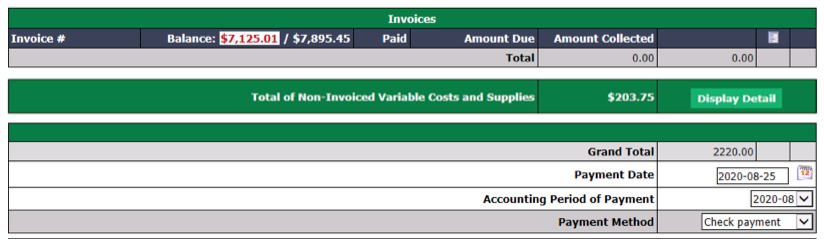
- Select the desired Payment Method (check or electronic transfer). If you don’t want to make the payment immediately (for example, if there are missing required documents), you can select "Do not submit" and the pending payment will be displayed on the home page.
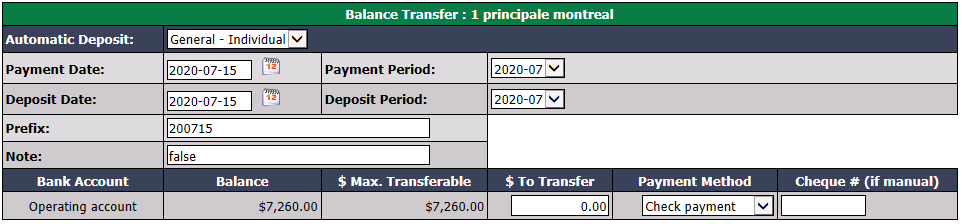
"Balance Transfer": If applicable in your agency, you can transfer money between two different bank accounts (e.g. general, commission and trust) from the commission payment.
- Select the type of account and Automatic Deposit : Individual or Grouped.
- Individual: Enter the Payment Date, the Deposit Date and the Prefix (YYMMDD).
- Grouped: Enter the Payment Date.
- Enter the $ To Transfer.
- Select the Payment Method and if you choose "Check payment", enter the Cheque # (if manual).
- This payment preparation will be displayed on the home page.
- Select the type of account and Automatic Deposit : Individual or Grouped.
Repeat the last 9 steps for each of the agents involved in the transaction.
Click on Report if you want to send, to all the agents in the transaction, their commission calculation report according to the sending method configured in their profile ("Print" or "E-mail").
If you have selected "Check Payment" as Payment Method and you click on Submit & Print, a new page will open and you will be able to enter the starting number of the cheque and print the cheque immediately.
If you click on Submit , this payment preparation will be displayed on the home page under "Cheques in Preparation" or "Non-Transmitted Electronic Transfer", depending on the payment method selected. For more information, please see the articles Preparation of Payment by Cheque - Real Estate and Preparation of Payment by Electronic Transfer - Real Estate.
If you click on Cancel , the commission calculation for all agents in this transaction will be displayed on the home page under "Commissions Payable." To find the "Deductions on Payment" page of this transaction:

* Click on the number to the right of the message "Commissions Payable" on the home page or;
* From Main menu >> Real Estate >> List of Commissions Payable.
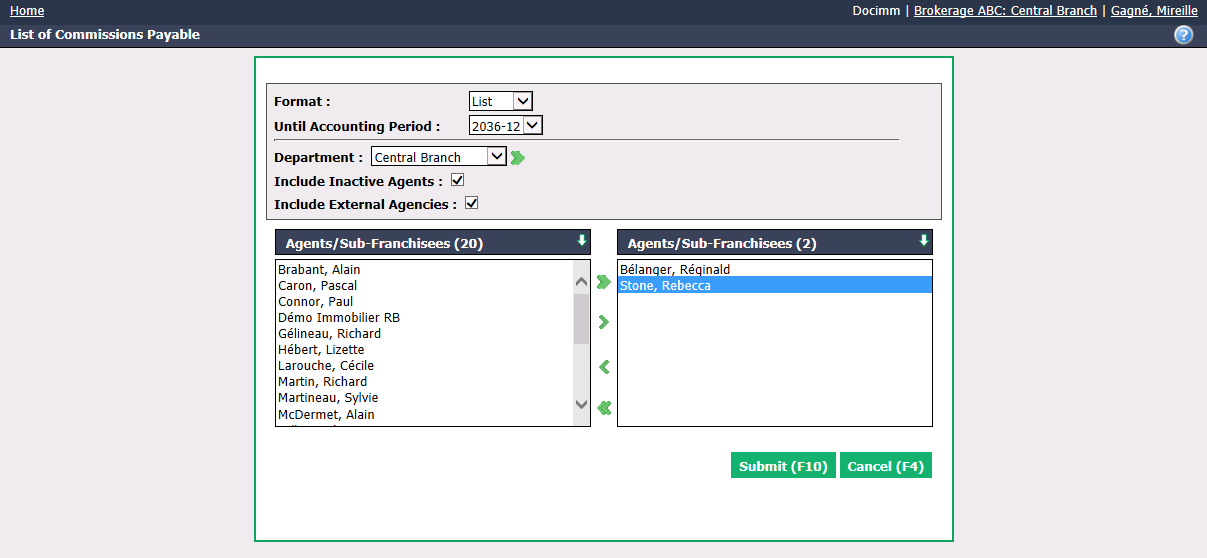
* Select the desired **Agents/Sub-Franchisees**.
* Click on **Submit**.
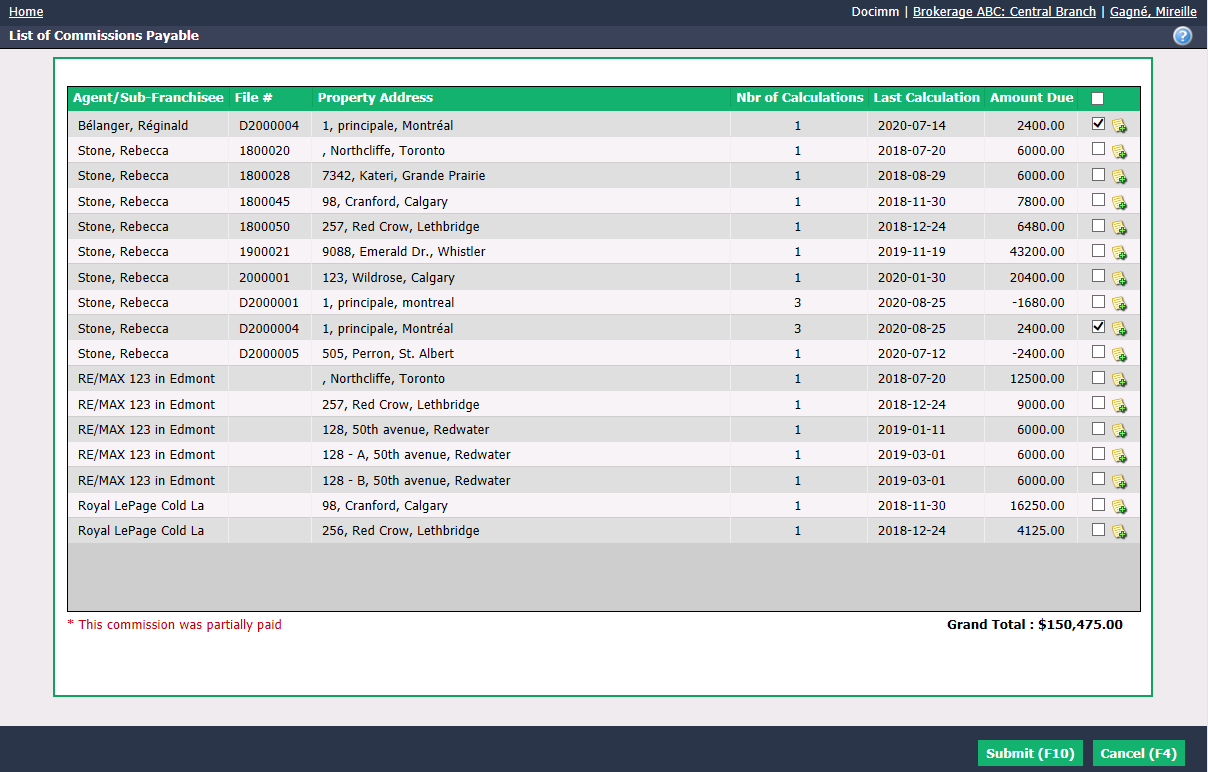
* Select the **Agents/Sub-Franchisees** boxes corresponding to the desired **Property Address**.
* Click on **Submit** and the "Deductions on Payment" page of the selected transaction will appear.
Refund a Trust Deposit
In the "Commission Calculation" page of a transaction, the "Transfer" section is used to transfer money from a trust account to a general account to pay commission.
- Let’s take this example: In a deal you closed, the total commission is $5,250, you received a cheque from the lawyer for $4,250, and you already received a deposit of $1,000 in your trust account.
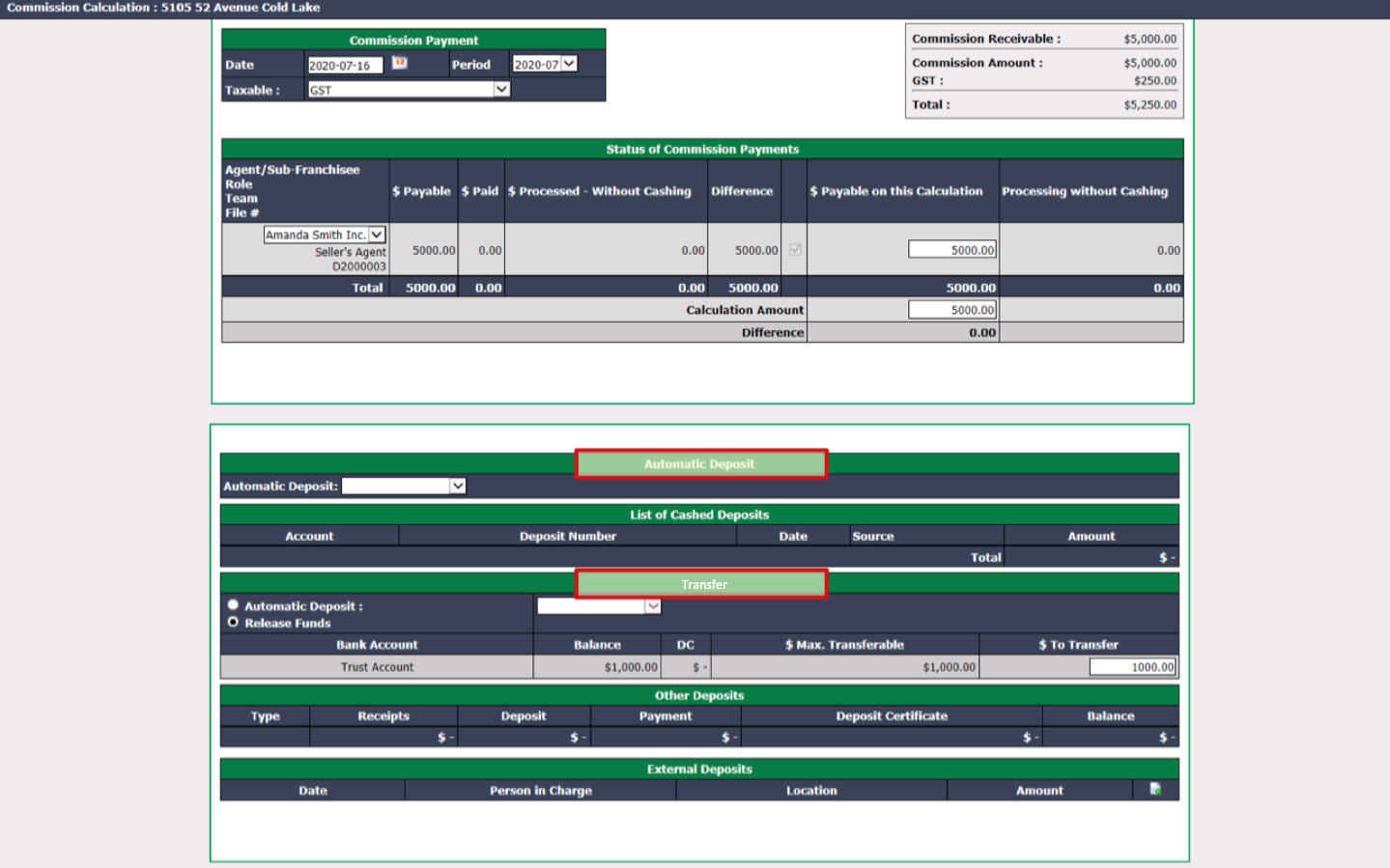
In Automatic Deposit , select "General Account - Grouped" and the amount of the lawyer’s cheque ($5,250.00-$1,000.00 = $4,250.00) will automatically appears in the Deposit Amount.
In "Transfer", click the Automatic Deposit box and select "General Account - Individual". Today’s date automatically appears in the Payment Date and Deposit Period.
$ To Transfer and Payment Method by default are $1,000.00 and Trust.
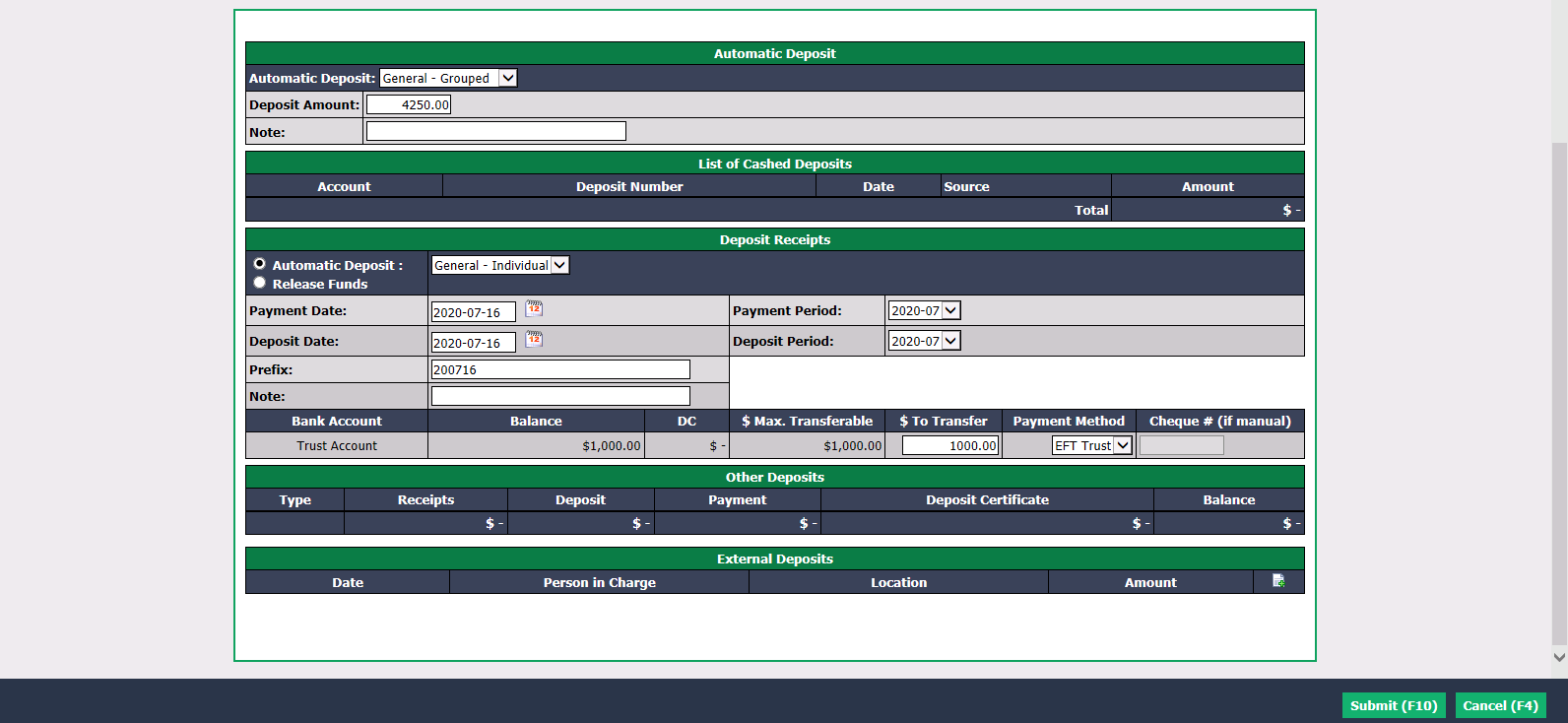
- Click on Submit. For the next steps, please see above in this article.
Grouped Automatic Deposit
- If you choose a grouped deposit (instead of individual) in Automatic Deposit , it will appear on the home page under "Number of Pending Automatic Deposits".
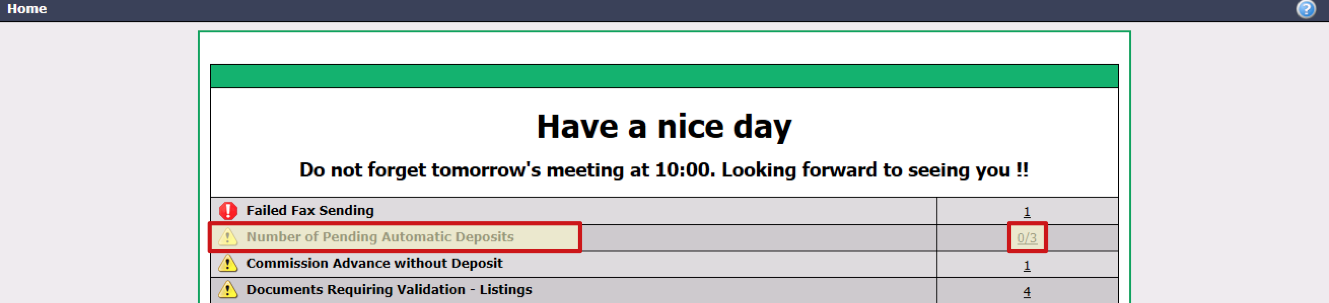
- To display them, click on the number to the right.
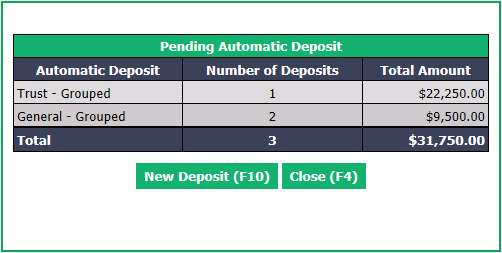
For each account, you will see the Number of Deposits and its Total Amount.
To make a deposit, click on New Deposit. For the next steps, please see the article New Deposit.
Warning
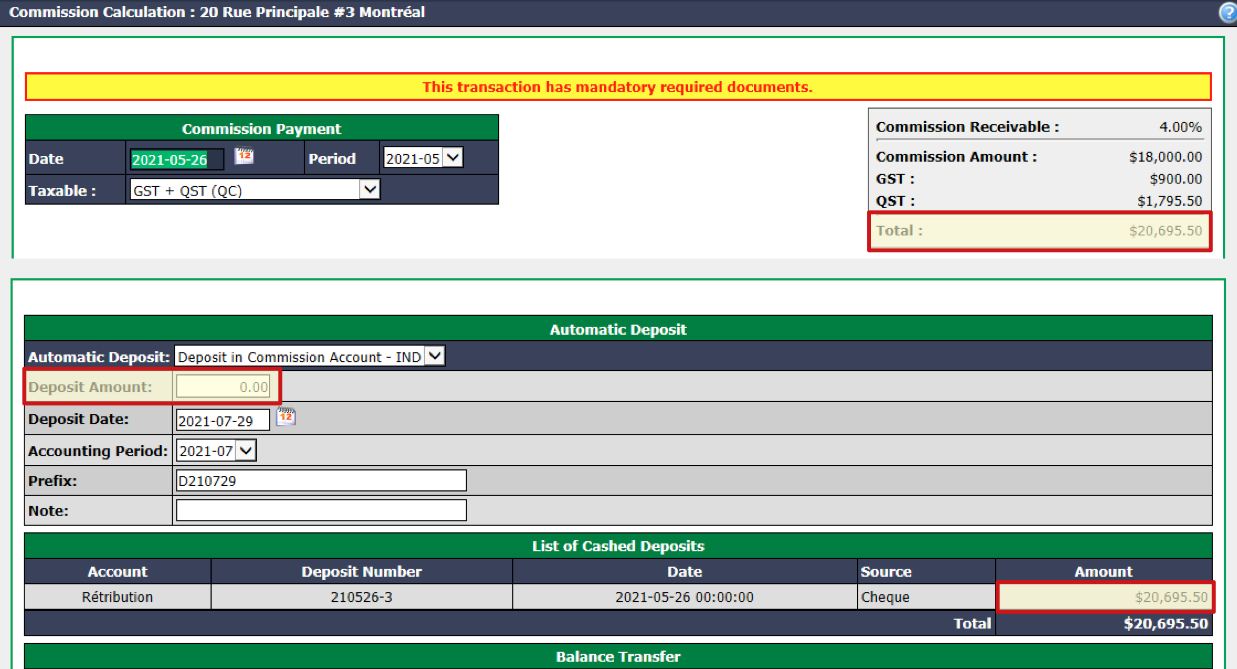
If you have to redo a commission calculation for a transaction and there is already an amount in the "List of Cashed Deposits" section that corresponds to the commission total, it means that the deposit has already been made. You must therefore make sure that the deposit amount is $0.00 in the "Automatic Deposit" section.
Individual Automatic Deposit**
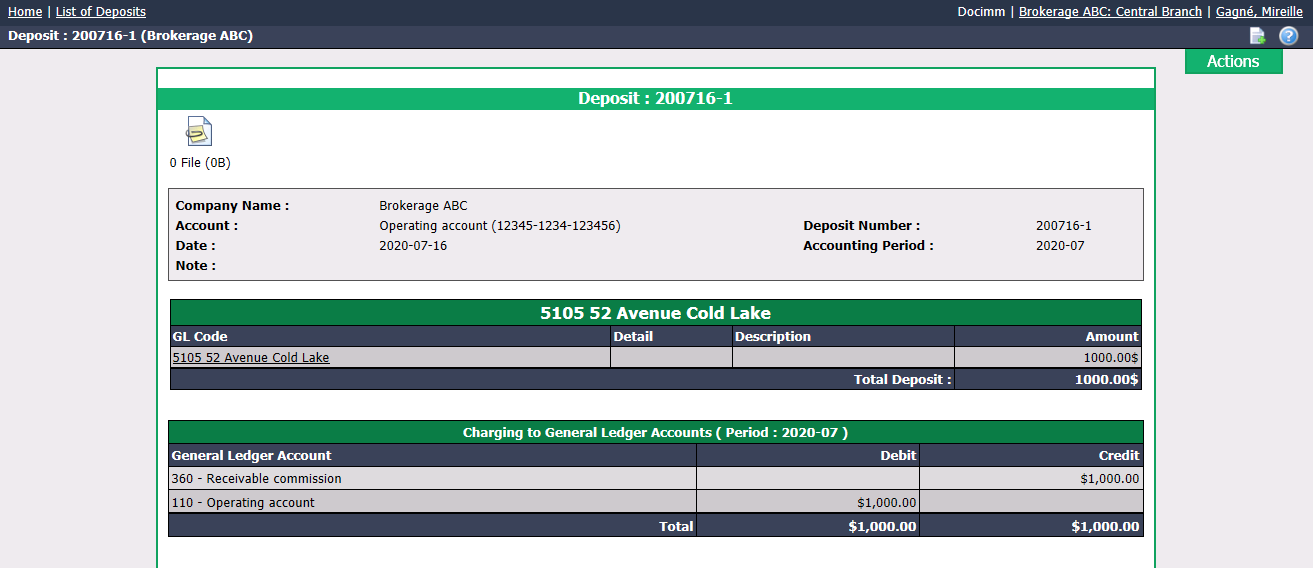
If you choose an individual deposit (instead of grouped) in Automatic Deposit , it will automatically appear in the List of Deposits.
From Main menu >> Accounts Receivable >> List of Deposits.

- Click on the Deposit Number to display it.
Calculations History
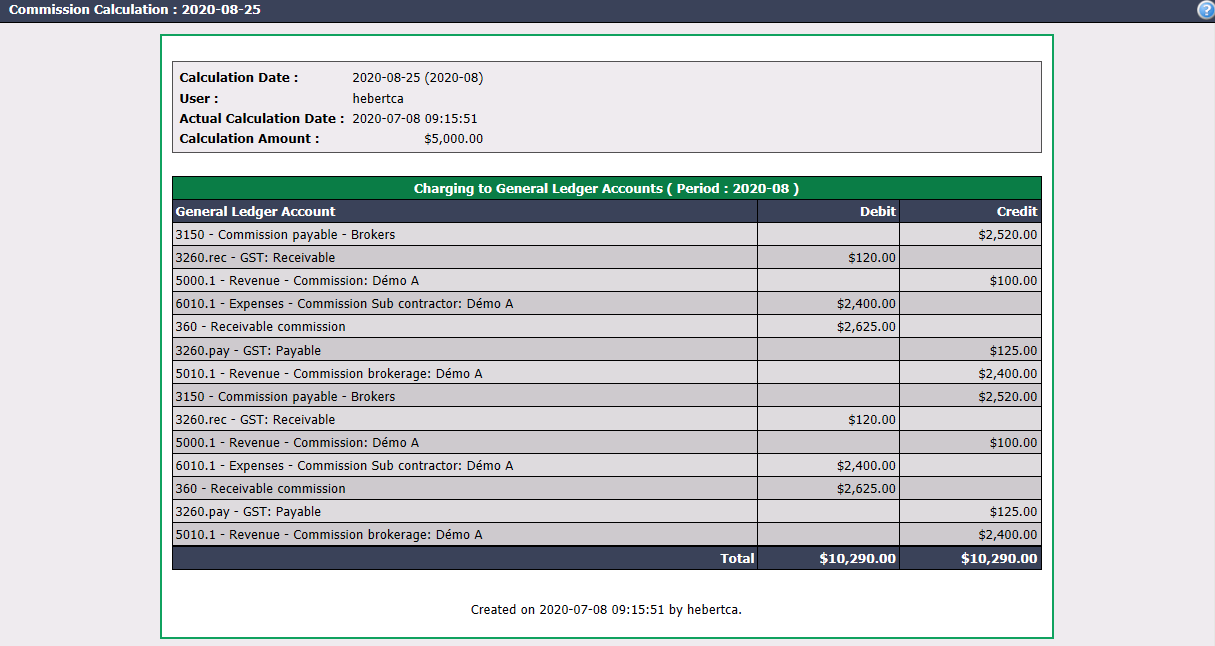
It is possible to see the GL accounts that have been affected, the commission distribution and the deductions that have been taken for each of the agents when calculating and paying the commission for a closed deal.
- From the closed deal, in the "Deal" section, scroll down to "Calculations History".
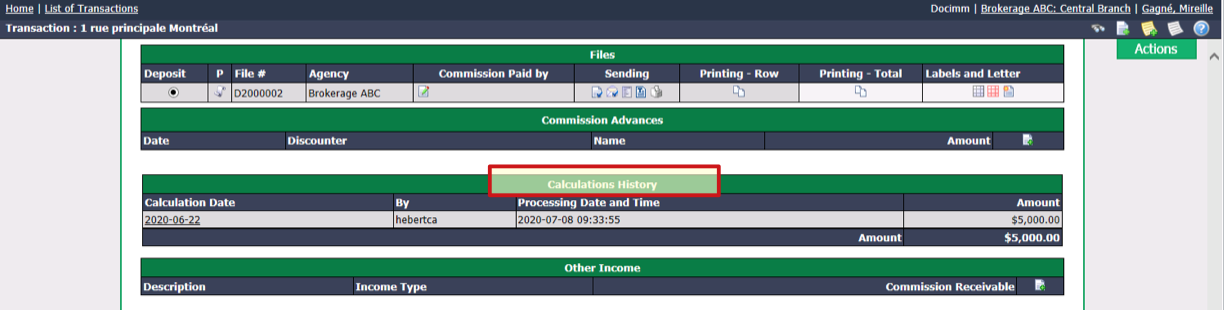
- Click on the Calculation Date.
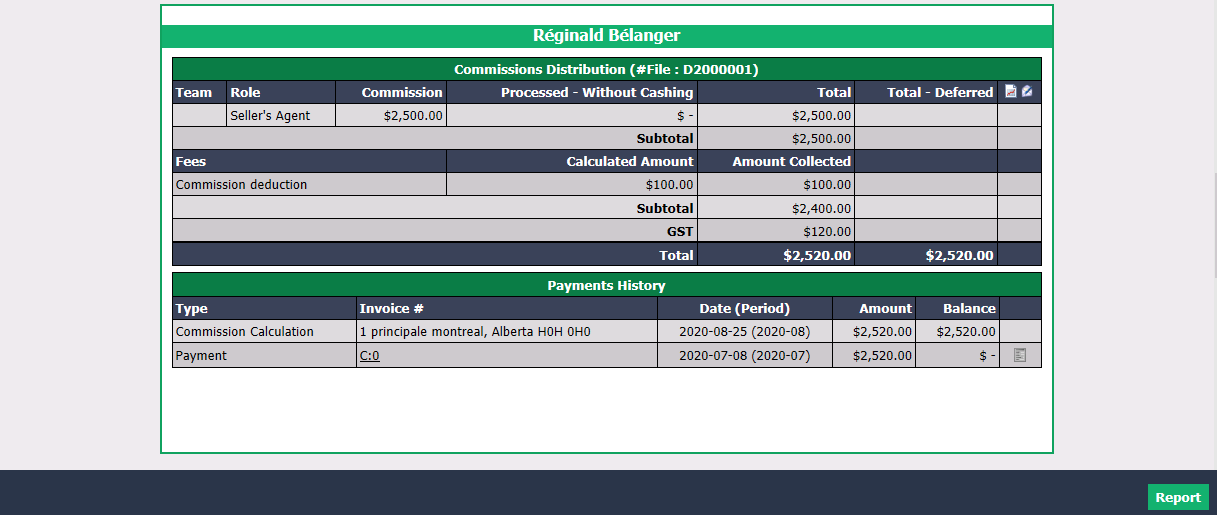
- You can click on this icon
to display and print the commission calculation report of this agent and click on this icon
to send by e-mail this report to the agent.
By clicking on the Invoice # , you will open the preparation and payment page (cheque or electronic transfer).
Click on the Grey Sheet icon to display and print the payment detail of the commission.
- Click on Report if you want to send, to all the agents in the transaction, their commission calculation report according to the sending method configured in their profile ("Print" or "E-mail").
Warning
If you have to redo a commission calculation for a transaction and there is already an amount in the "List of Cashed Deposits" section that corresponds to the commission total, it means that the deposit has already been made. You must therefore make sure that the deposit amount is $0.00 in the "Automatic Deposit" section.
Banking Transactions**
After calculating and paying commission for a closed deal, you can view the activities in your bank accounts related to this transaction.
- From the closed deal, in the "Deal" section, scroll down to "Summary of Banking Transactions".
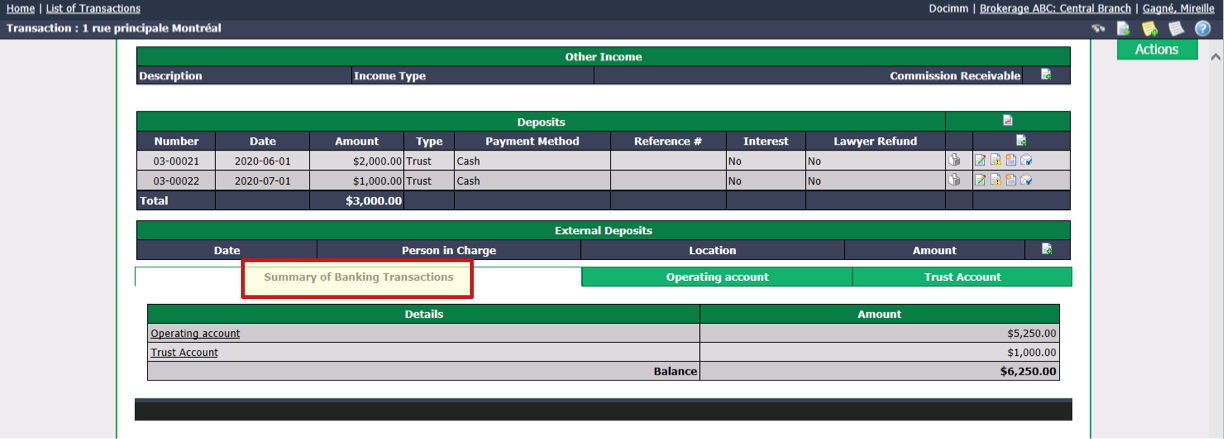
- The Amount available in each account is displayed as well as the total Balance. You can click on the Details or the desired account tab to view detailed transactions.

