

English
Generate T4, T4A and Relevé 1 - In Quebec
Warning
To be generated by February 28, 20XX, current year.
To Verify Before you Start
1- Taxable benefits and QPP correction
- Make sure that your taxable benefits (ex: car) as well as the QPP correction have indeed been made before your January source deductions remittance. Otherwise, please contact customer service before proceeding.
**2-**Verify company numbers and name
From Main menu >> Admin >> Company >> Companies.
Click on the company Name.
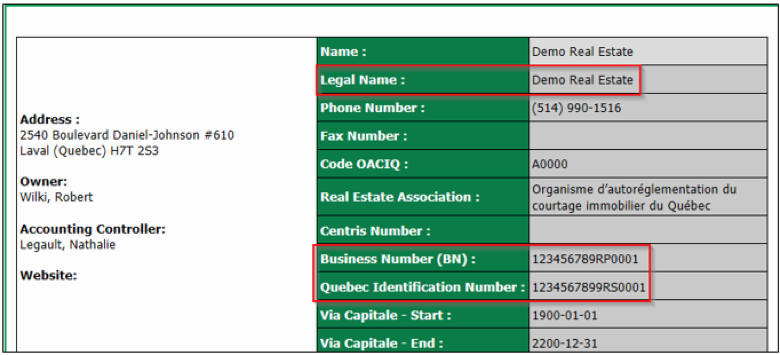
You must have the correct Business Number (BN) which consists of 9 digits followed by RP and 4 other digits (Ex: 123456789RP0001).
You must have the correct Quebec I dentification Number which consists of 10 digits followed by RS and 4 other digits (Ex: 1234567899RS0001).
You can also change the company Legal Name if necessary for printing tax slips by clicking on Actions >> Edit Company.
NOTE: The numbers can normally be found on your "Source Deductions" payroll remittance online document. If your salaries are made by another company, you must contact them to have your numbers. If you don’t make any salary but you need to send the tax slips for your brokers, contact the government to retrieve your correct numbers.
3- Social Insurance Number
- All brokers/employees must have a valid SIN. You should not have this message on the home page: "Brokers without SIN" or "Employees without SIN".
4- Civic address
- All brokers/employees must have a valid and complete address with a postal code.
NOTE: We produce T4 and RL-1 slips for employees, T4A and RL-1 slips for unincorporated brokers. If you wish to print T4A and RL-1 slip1 for incorporated brokers, make sure you have completed the Business Number (BN) field located in the "Broker Incorporation" section. This number is the recipient’s program account number.
5- Canadian Dental Care Plan
Warning
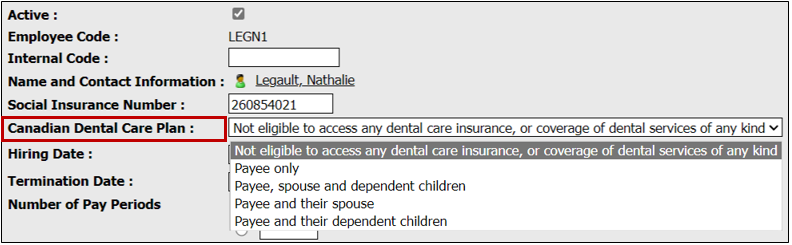
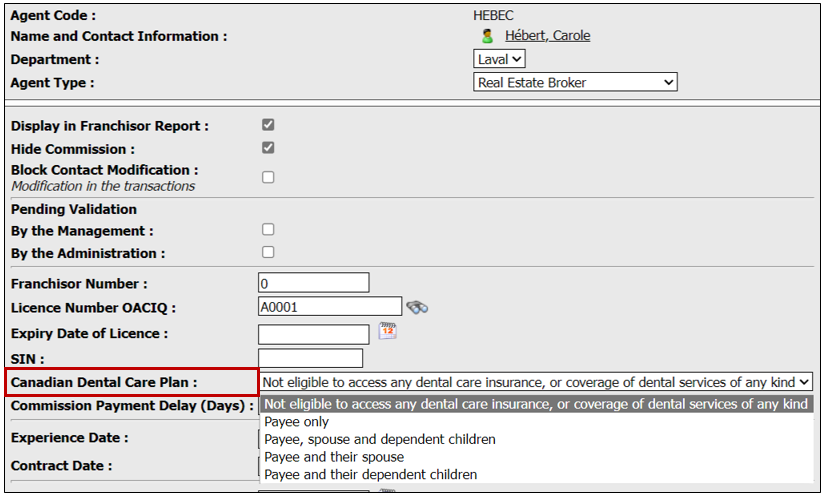
If you offer Dental Insurance to your employees and/or agents, go to their respective file and change the line titled Canadian Dental Care Plan and put what applies to each.
**** If you offer this insurance for Agents, please send and email to legaultn@ezmax.ca**
In the respective file of the Employee >> Action >> Edit Employee >> Canadian Dental Care Plan.
Change Not eligible to access any dental car insurance for the right type of Payee.
In the respective file of the Agent >> Action >> Edit Agent >> Canadian Dental Care Plan.
Change Not eligible to access any dental car insurance for the right type of Payee.
6- Generate T4A and Relevé 1 slips for suppliers
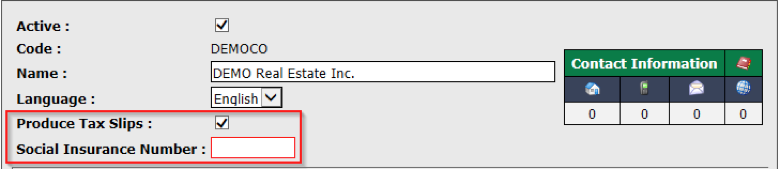
If you need to produce T4As and RL-1 slips for suppliers who don’t have a company or an amount lower than an amount prescribed by the government, you can now do so from the supplier file.
From Main menu >> AP >> AP Configuration CAP >> Suppliers.
Click on the desired supplier >> Actions >> Edit Supplier.
Check Produce Tax Slips.
Add a Social Insurance Number.
The tax slip will be made based on the amounts paid for the year before taxes.
6- Verify remuneration of brokers as well as brokers who incorporate during the year
Warning
It is your responsibility to verify the remuneration amounts for the broker before and after incorporation. Ideally, have these amounts approved by the broker himself.
To verify the remuneration amounts of your brokers, you can produce a complete list of remunerations.
- From Main menu >> Reports >> Broker Reports >> Broker Remuneration Report.
Warning
The dates shown in the screenshots are not from the current year. Please use the correct dates. For example: T4/T4A must be submitted by February 28, 2026—use the 2025 dates.
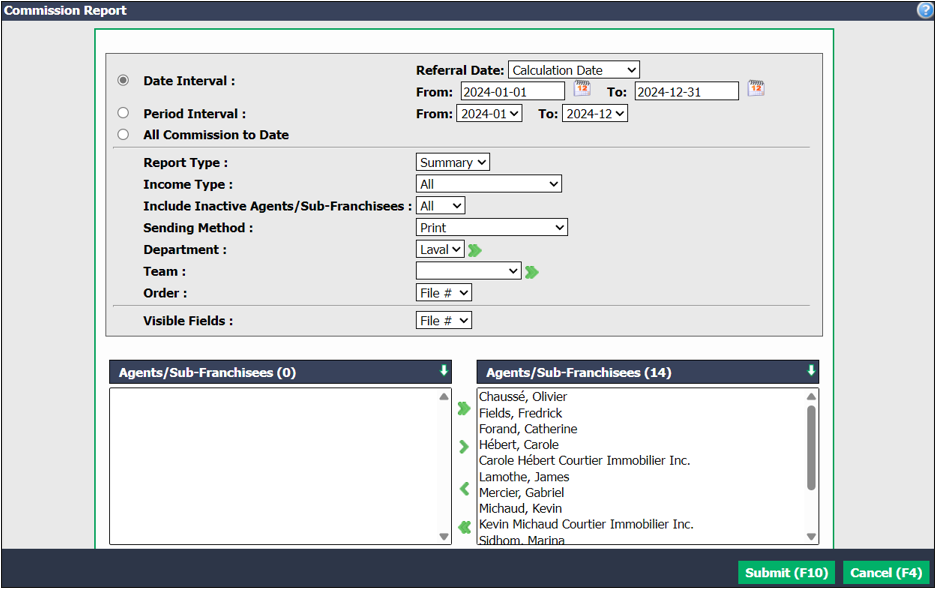
Date Interval : From : 20XX-01-01 To: 20XX-12-31.
Report Type : Summary.
Income Type : All.
Include Inactive Brokers/Sub-Franchisees : All.
Transfer all Brokers/Sub-Franchisees to the right column.
Click on Submit.
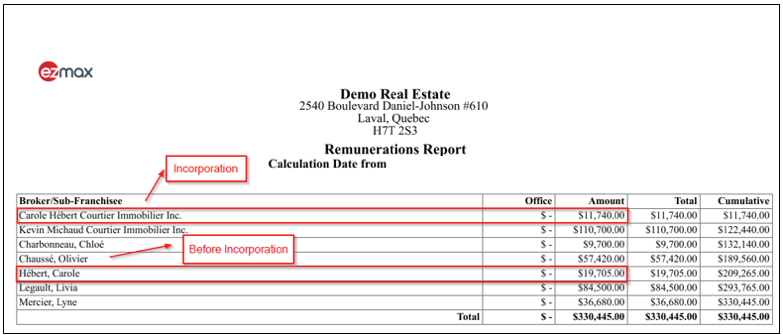
- You can thus verify brokers but especially brokers with a new incorporation. Make sure all amounts are correct.
7- Verify employee journal
- From Main menu >> Reports >> Payroll Reports >> Payroll Report.
Warning
The dates shown in the screenshots are not from the current year. Please use the correct dates.
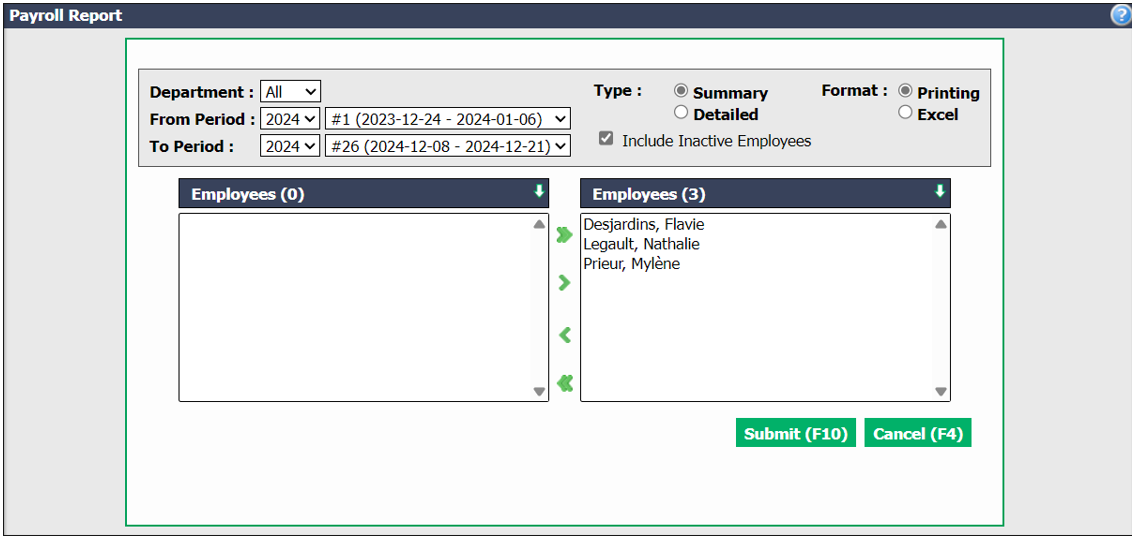
From Period : 20XX #1.
To Period : 20XX # of last pay period.
Type : Summary.
Include Inactive Employees : To check.
Transfer all Employees to the right column.
Click on Submit.
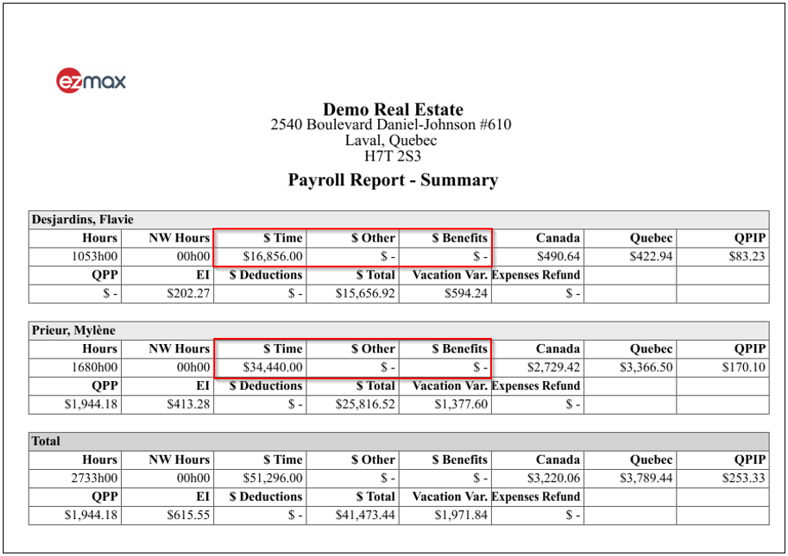
- Make sure all salary balances are correct. The balance of salaries is the accumulation of Time , Other and Benefits boxes.
Generate Tax Slips
You will need 2 codes for the transmission:
- Provincial : Will be provided in the explanations below.
- Federal : Will be provided in the explanations below.
From Main menu >> Payroll >> Tax Slips.
Click on Actions >> New Tax Slips.
Warning
The dates shown in the screenshots are not from the current year. Please use the correct dates.
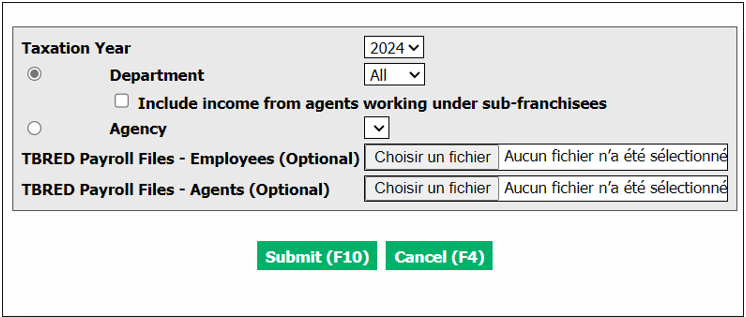
Taxation Year : 20XX.
Click on Submit.
The table is divided by group according to your company: Brokers, Agencies, Incorporated Brokers, Employees, Suppliers.
"Brokers" Section
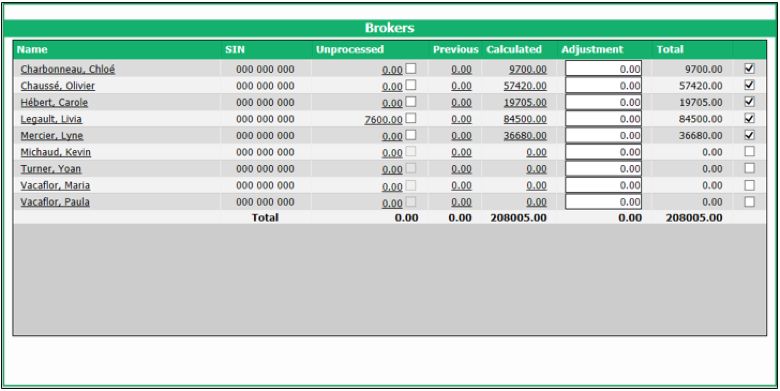
- The Unprocessed column should normally be zero.
Warning
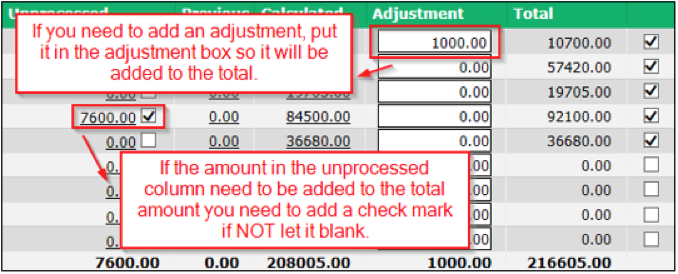
If you have amounts in the Unprocessed column, you should analyze them. It may be a previous year correction that should appear on the 20XX tax slip. If you need to add it, just check it.
- The Adjustment column is used to modify an income.
Warning
If the income is incorrect, it is best to go back and do a calculation to get proof of the modification.
If you have a Negative amount in the **Total **column, you need to uncheck the box.
- The Total column reflects the slip amount. You can verify this column using the remuneration report that we generated at the beginning in the section "6- Verify remuneration of brokers as well as brokers who incorporate during the year". If you have an amount in the column without a check mark, it is because the broker does not have a social insurance number so you cannot continue.
"Incorporations" Section
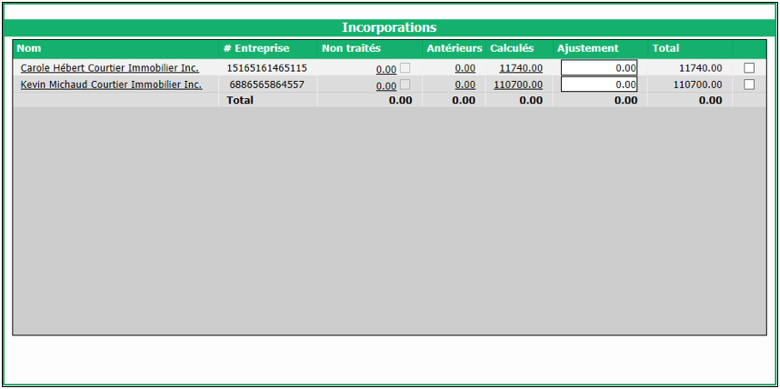
This section is rarely used, so it is normal to have amounts in the Unprocessed column as no slips have been produced.
If you want to produce slips, you must check the last column.

"Employees" and "Suppliers" Section
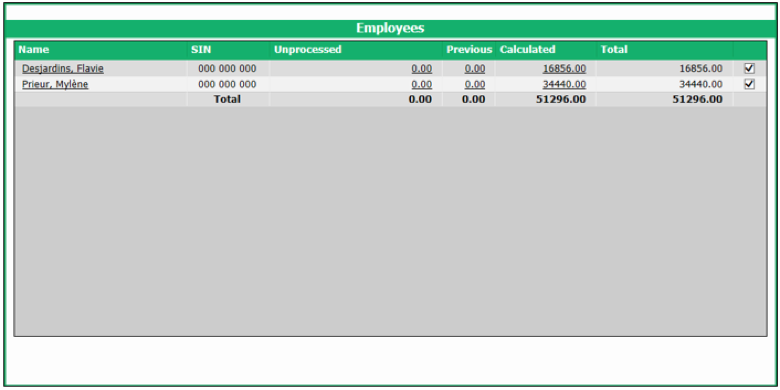
The Unprocessed column should normally be zero. If an amount appears in this employee column, it will automatically be included in the Total column.
The Total column reflects the slip amount. You can verify this column using the payroll report that we generated at the beginning in the section "7- Verify employee journal".
After complete verification, click on Submit.
Your slips are now produced.
Send Tax Slips to Government
1- Save Quebec and Canada files on your computer
Warning
If you have Agents AND Employees, there are now 2 files to download and submit for Canada. One file for employees and one file for agents.
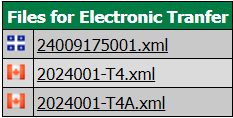
20XX001-T4 = Employees
20XX001-T4A = Agents
Click on the file to the right of Quebec flag in ** Files for Electronic Transfer** and save it on your desktop.
Click on the files to the right of Canada flag in ** Files for Electronic Transfer** and save them on your desktop.
Warning
Do not rename files. Take note of file names to transmit the right files and not reverse them.
Example:
Shortest = Canada
Longest = Quebec
2- Send file to Quebec
- Click on Quebec in ** Government Links**.

- If the site does not open automatically, click on Copy. Open your web browser and paste the address at the top of the page.
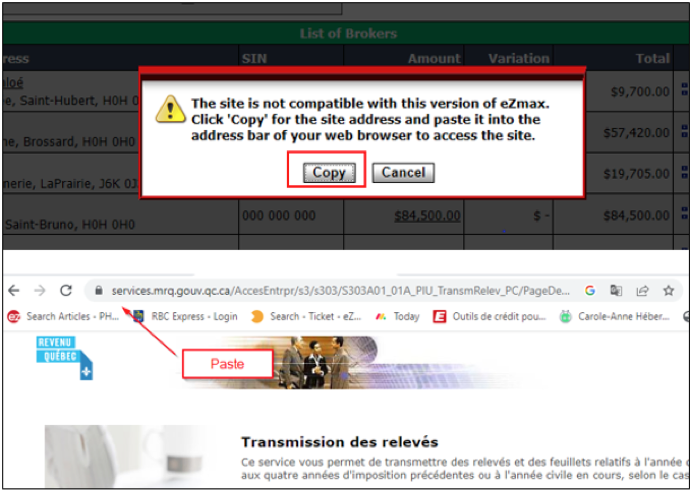
NOTE: This site is in French only.
- Once on the Revenu Québec website, click on Commencer at the bottom of the page.
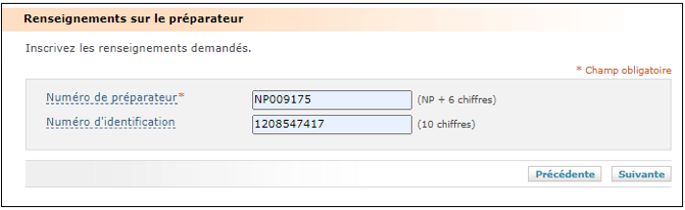
- Enter the requested numbers and click on Suivante.
- Numéro de préparateur : NP009175
- Numéro d’identification : 1208547417
Warning
The dates shown in the screenshots are not from the current year. Please use the correct dates.
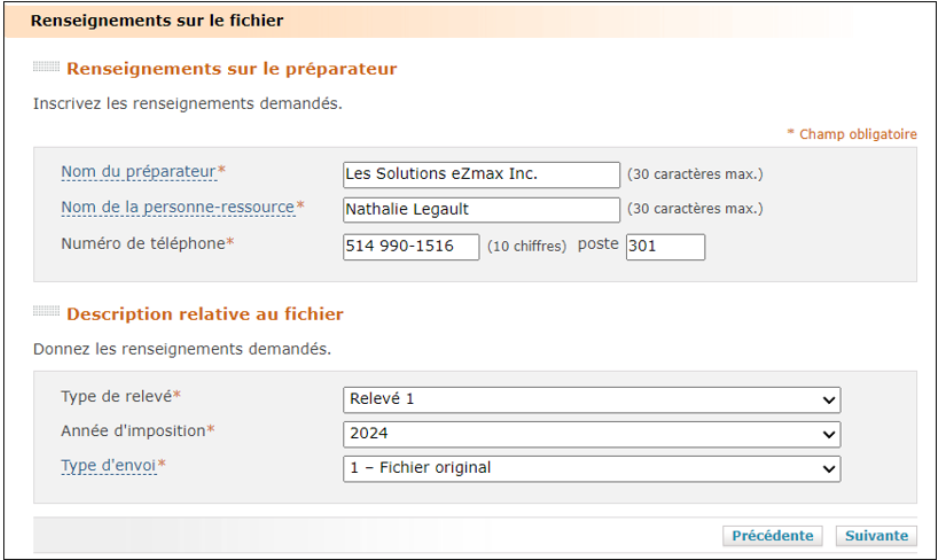
- Enter the file information and click on Suivante.
- Nom du préparateur : Les Solutions eZmax Inc.
- Nom de la personne-ressource : Nathalie Legault
- Numéro de téléphone : 514 990-1516 poste 301
- Type de relevé : Relevé 1
- Année d’imposition : 20XX
- Type d’envoi : 1- Fichier Original
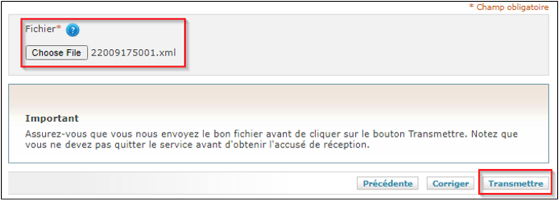
Click on Choose File and select your file for Quebec (the longest file format XX009175XXX.xml) and click on Transmettre.
Print or save the proof using the blue printer at the top of the page.
3- Send file to Canada
Warning
If you have Agents AND Employees. You must submit two files for Canada.
- Click on Canada in ** Government Links**.

- If the site does not open automatically, click on Copy. Open your web browser and paste the address at the top of the page.
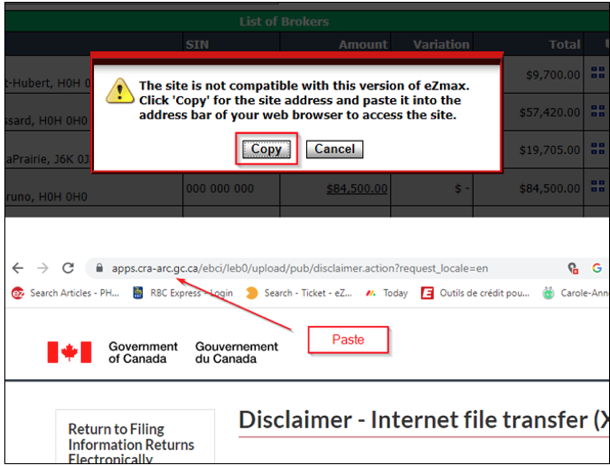
Once on the Government of Canada website, click on English at the top right and on I accept at the bottom of the page.
Enter the requested numbers and click on Next.
WARNING
Change of procedure for CANADA. You must enter the codes shown below.
* **Account number** : 854048634RP0001- Web access code : 1E3K97
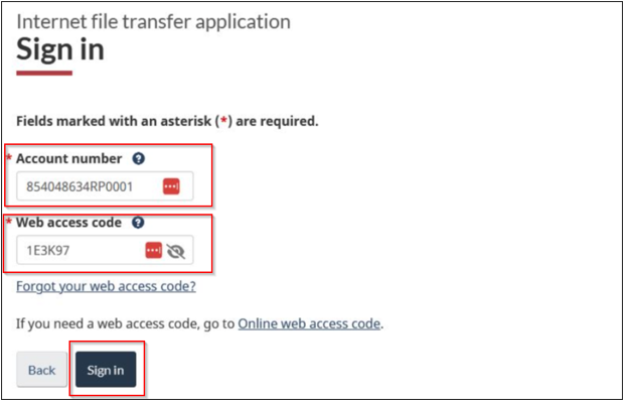
- Click on Next.
- Click on Select file and select one of the file for Canada (File format 2024001-T4.xml or 2024001-T4A.xml) and click on Next.
WARNING
After you click on Next, there is a short delay. DO NOT click on Next a second time.
The Form T619 Verification page appears.
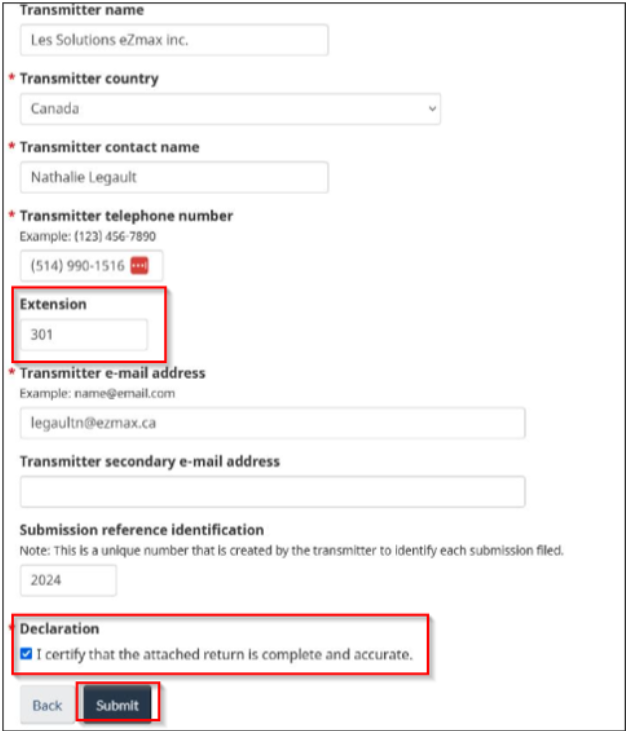
All information will be filled in automatically. You must enter the Extension number: 301.
Tick: I certify that the attached return is complete and accurate.
Click on Submit.
Warning Title
The dates shown in the screenshots are not from the current year. Please use the correct dates.
- Print or save the proof by clicking on Print/Save in the top right-hand corner.
Repeat the transmission procedure a second time (if you have two files for Canada)
Click on Produce another declaration.
Click on Select file and select one of the file for Canada (File format 20XX001-T4.xml or 20XX001-T4A.xml) and click on Next.
WARNING
After you click on Next, there is a short delay. DO NOT click on Next a second time.
- Print or save the proof by clicking on Print/Save in the top right-hand corner.
- Click on Log Out.
4- E-mail confirmation codes
Email us your confirmation codes for Quebec and for Canada that appear on your printed proof.
- E-mail: support@ezmax.ca
- E-mail title: (Your client code) – Confirmation codes of tax slips remittance
- Quebec code:
- Canada code:
5- Print or e-mail tax slips
Click on Actions >> Print Provincial Slips.
Re-click on Actions >> Print Federal Slips.
NOTE: You can also print the federal summary but you have nothing to do with the federal summary since it is sent directly to the government with your tax slips.
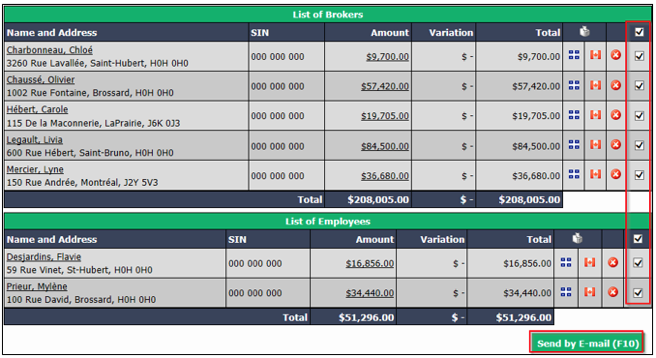
- To e-mail tax slips, select all brokers/employees in each section. Click on Send by E-mail at the bottom of the page.
Warning
The e-mail will be protected by a password that is the person’s SIN.
- The broker can retrieve his slips himself in his eZmax profile. To do so, he must go to the Finance tab >> List of Tax Slips.
Generate Relevé 1 Summary
You now have to complete your RL-1 summary before February 28, 20XX. You may refer to the email you received: Employer Toolkit.
- You must take out all your remittances made at the provincial level during the year.
NOTE: If you have difficulty with your summary, you can refer to your accountant.
To complete your summary, you will need the information below:
- Salaries
- Annual Summary of Source Deductions
- 20XX
- Quebec
- Submit
- Left icon menu >> Three dots

