English
Purchase History
When you enter a purchase in the eZmax system (via the Shopping Cart icon), it is automatically added to the purchase history. You can consult this history to obtain the information of a particular purchase.
- From Main menu >> Accounts Payable >> Purchase History.

You will be able to see, among other things, the Supplier , Date and Balance of each purchase.
You can filter the purchases by the following status:
- "All": All types of purchases.
- "Unpaid": All purchases that have been entered in the system but not paid.
- "Paid": All purchases that have been entered in the system and paid.
You can also filter the purchases by accounting period by entering the desired periods in the From Period and To Period fields and by clicking on the Check Mark button.
If you want to get the list in Excel format, click on Actions >> Excel Icon. Click on Open or Save.
Click on the desired Invoice Number to display the purchase information.
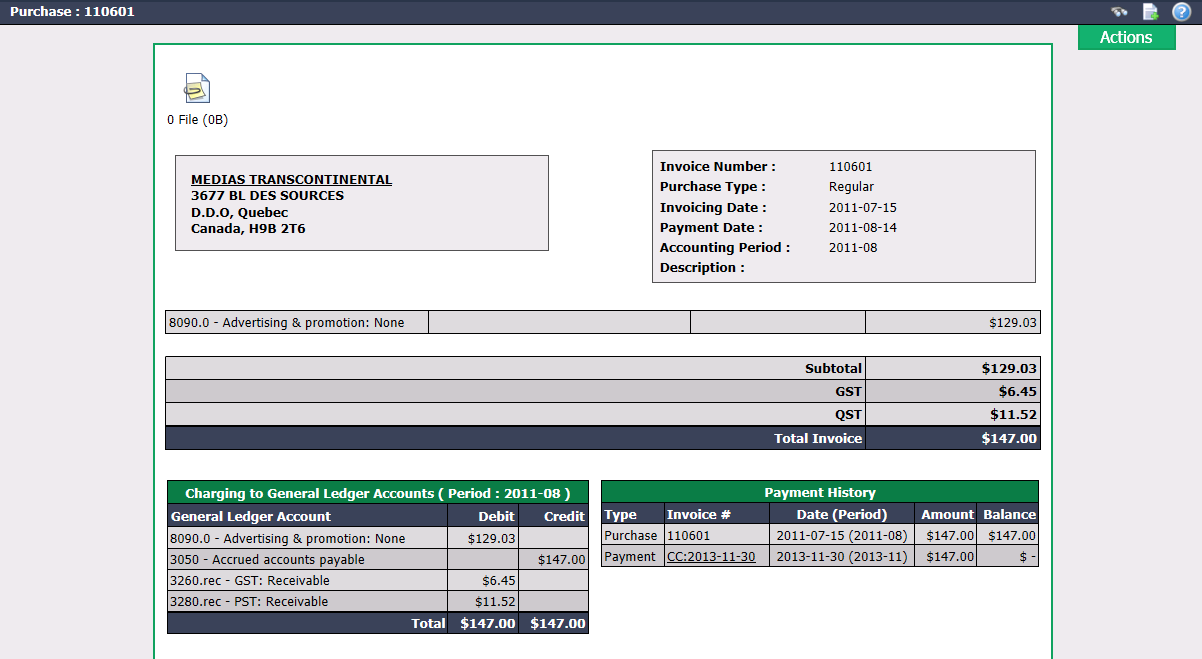
- From the Actions menu, you have the option to:
- Reverse Purchase
- Duplicate Purchase
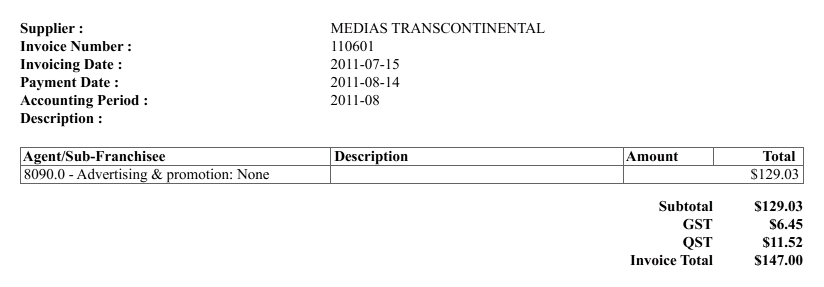
- Print Purchase Detail: