

English
Source Deduction Report
As an employer, it is possible to produce a report of the source deductions (tax, EI, CPP) that you have taken from your employees’ salaries and remit these deductions to the Canada Revenue Agency (CRA). In Quebec, you must also produce a report of source deductions (tax, QPP, QPIP, Health Services Fund, CNESST, WSDRF) that you have taken from your employees’ salaries and remit these deductions to Revenu Québec.
Producing a Source Deduction Report
From Main menu >> Payroll >> List of Source Deduction Reports.
Click on Actions >> New Source Deduction Report.
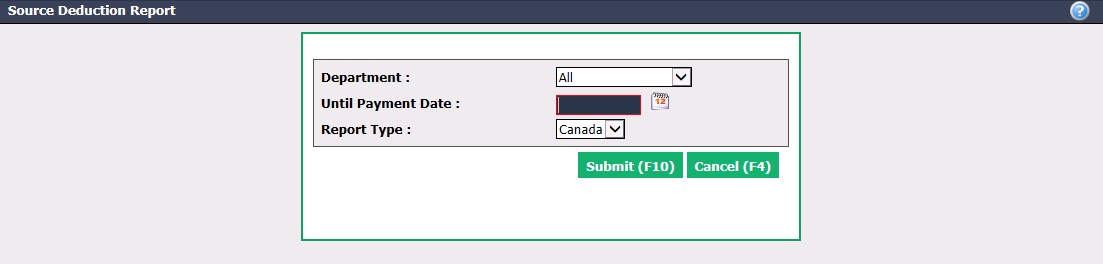
Select the desired Department , if applicable to your agency.
Until Payment Date : Enter the last day of the month to be transmitted.
Report Type : Select "Canada" to produce the source deduction report for the CRA. If you are in Quebec, you will also have to produce the source deduction report for Revenu Québec by selecting "Quebec".
Click on Submit and all pay that has been paid up to the payment date entered will appear.
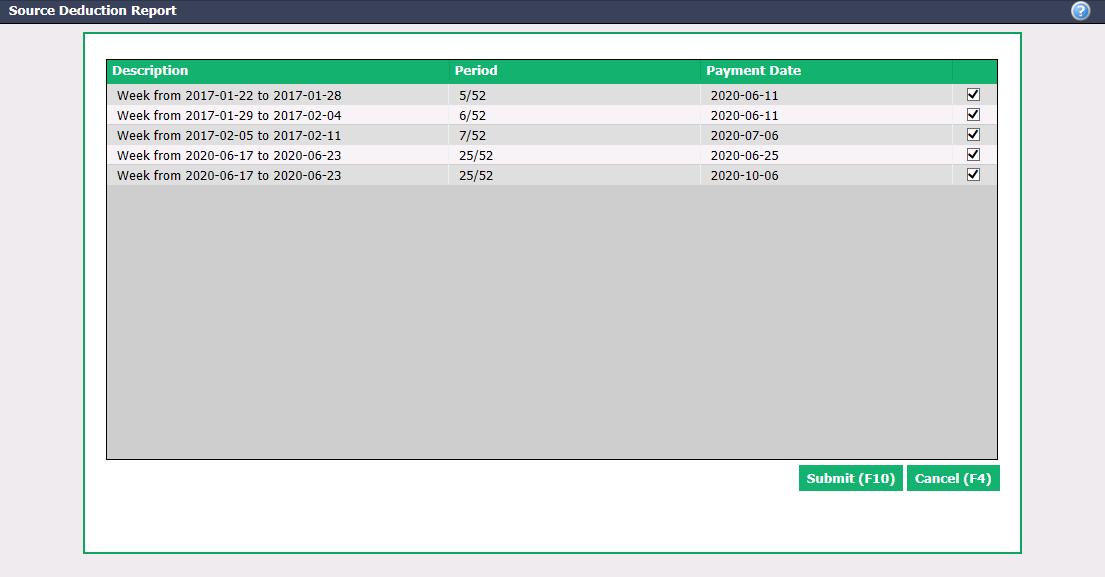
Select the pay you want to include in the report.
Click on Submit and the source deduction report will appear.
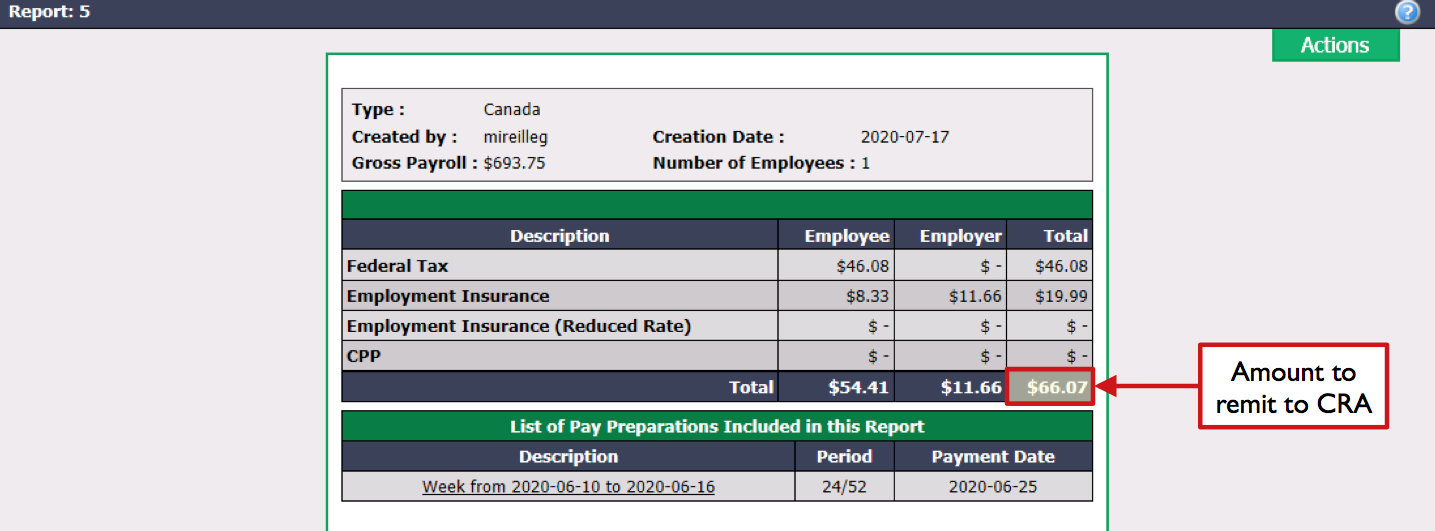
From the Actions menu, you have the option to print or delete the report.
If you are in Quebec, repeat the steps but select "Quebec" as Report Type.
Payment Preparation of the Source Deductions to the Government
- From Main menu, click on Open Wallet icon

or Accounts Payable >> List of Payment Preparations >> Actions >> New Payment Preparation.
Enter the Supplier code or number you created for the Canada Revenue Agency (ex.: CRA or RQ). To create this supplier, please see the article Adding/Editing a Supplier.
Select the desired Payment Method.
NOTE: If you want to pay by bank transfer, you must select "Check payment" as the Payment Method and we suggest you enter the payment date in the Cheque Number (if manual) field (e.g.: 200717).
- Click on the Check Mark button.
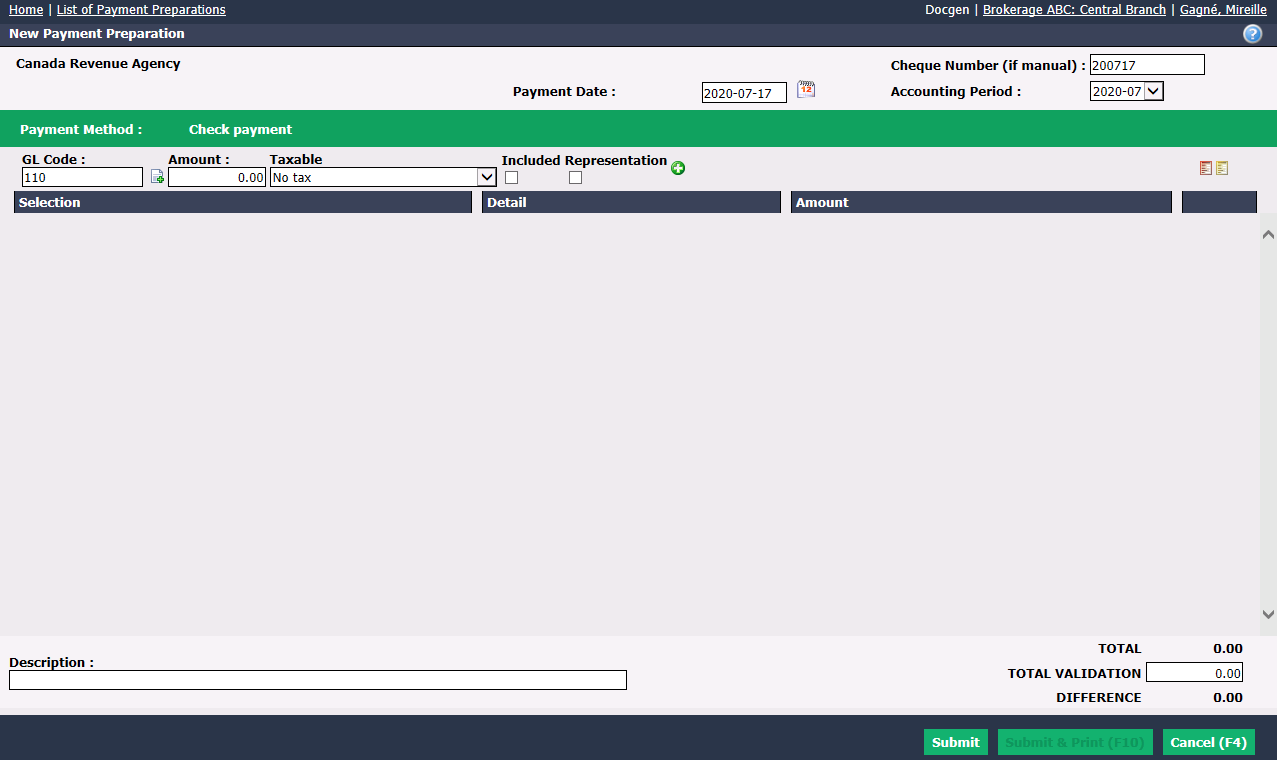
- Verify if the Payment Date is right for you (today"s date is automatically displayed). The Accoun****ting Period will be automatically selected according to the payment date entered.
Warning
Please make sure that the date entered is the same as the selected accounting period.
The GL Code field will be automatically filled based on preferences configured in the supplier’s profile.
Enter the Amount to remit to the CRA and select No tax in the Taxable field.
Click on the Green + icon.
Click on Submit and the payment preparation will be added in the system, depending on the payment method selected.
If you are in Quebec, repeat the steps but enter the code or the number of the Supplier you created for Revenu Québec.