

English
Adding/Editing a Buyer’s Contract
Adding a Buyer’s Contract
From Main menu >> Real Estate >> List of Buyer’s Contracts.
Click on Actions >> New Buyer’s Contract.
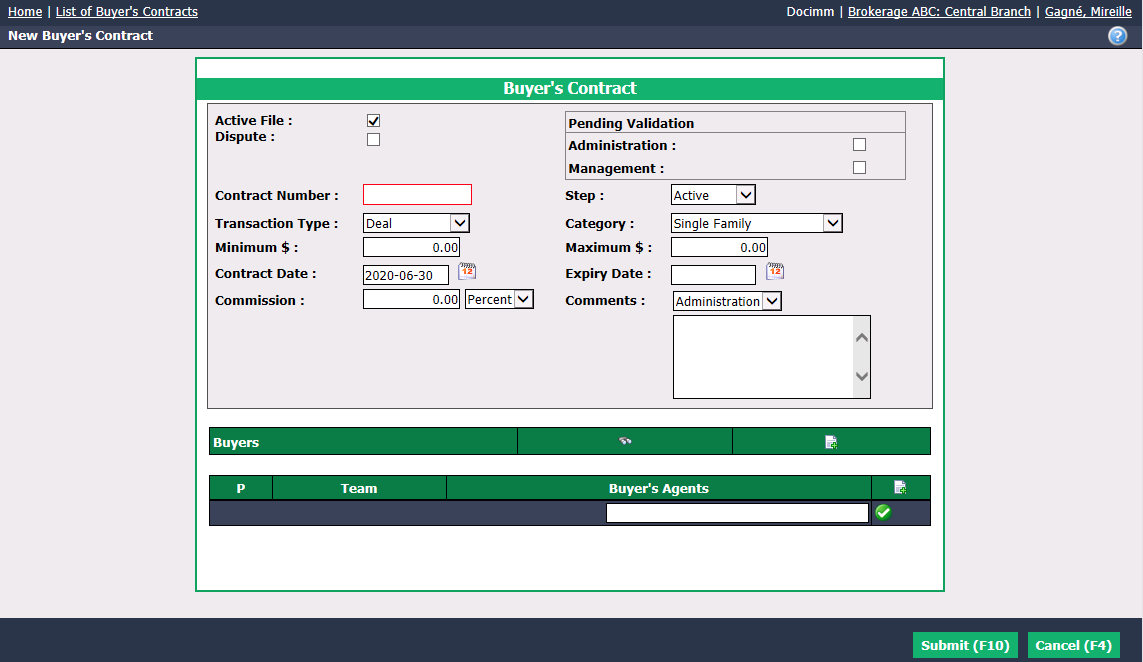
Dispute : Check this box if there is a risk of a trial against this buyer’s contract or if it will be inspected by a real estate council.
Pending Validation : If the buyer’s contract needs to be validated, indicate whether this will be done by the Administration and/or by the Management.
Enter the Contract Number (from the real estate council) and the Step of the contract.
You can enter the information of the expected property in the Transaction Type , Category , Minimum $ and Maximum $ fields.
You can enter the Contract Date , Expiry Date , amount of the agent Commission and Comments to the Administration or Agent that will appear on the home page.
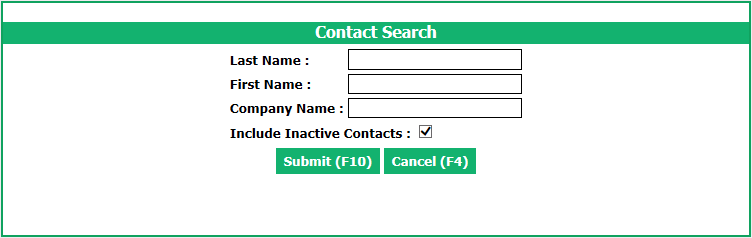
Buyers : If the buyers already exist in the system, you can use the Contact Search tool by clicking on the Binoculars icon.
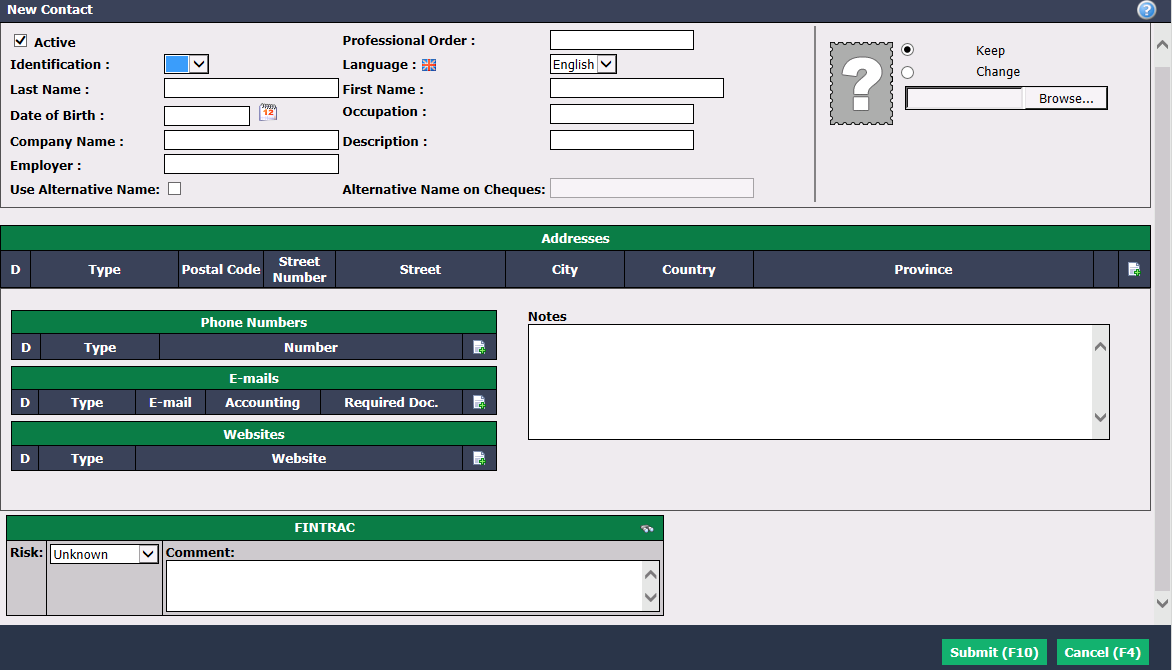
- Buyers : Alternatively, you can click on the + icon (New Contact) and enter the desired information (Last Name, First Name, Address, E-mail, etc.) to add the buyers in the system.
Start typing the name of the agent in the Buyer’s Agents field and select it from the list. Press TAB key on your keyboard or click on the Check Mark button.
Click on Submit and the buyer’s contract will be added in the system.
From an existing buyer’s contract, you can add a trust deposit and in the Actions menu, you have the option to Associate with an Existing Deal or Create a Deal. For more information, please see the articles Adding a Trust Deposit, Associating a Deal with a Buyer’s Contract and Creating a Deal from a Buyer’s Contract.
Warning
If there is a deal associated with a buyer’s contract, the deal must be created from this buyer’s contract.
Editing a Buyer’s Contract
From an existing buyer’s contract, click on Actions >> Edit Buyer’s Contract.
Make the desired changes and click on Submit to save them.