

English
New Deposit
- From Main menu, click on the Cash Register icon
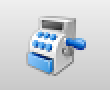
or Accounts Receivable >> List of Deposits, click on Actions >> New Deposit.
- From the drop-down list, select the Bank Account you want to deposit into.
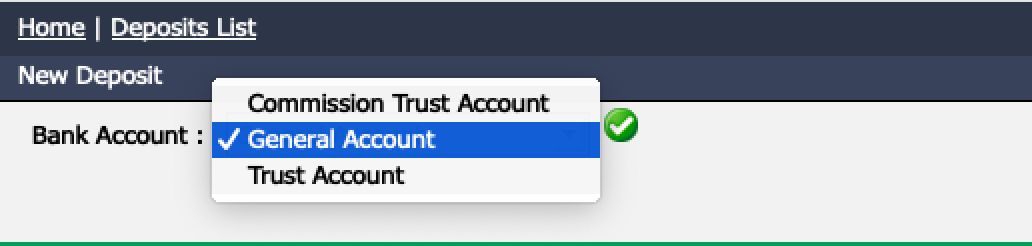
- Click on the Check Mark button.
Deposit in General and/or Commission Trust Account
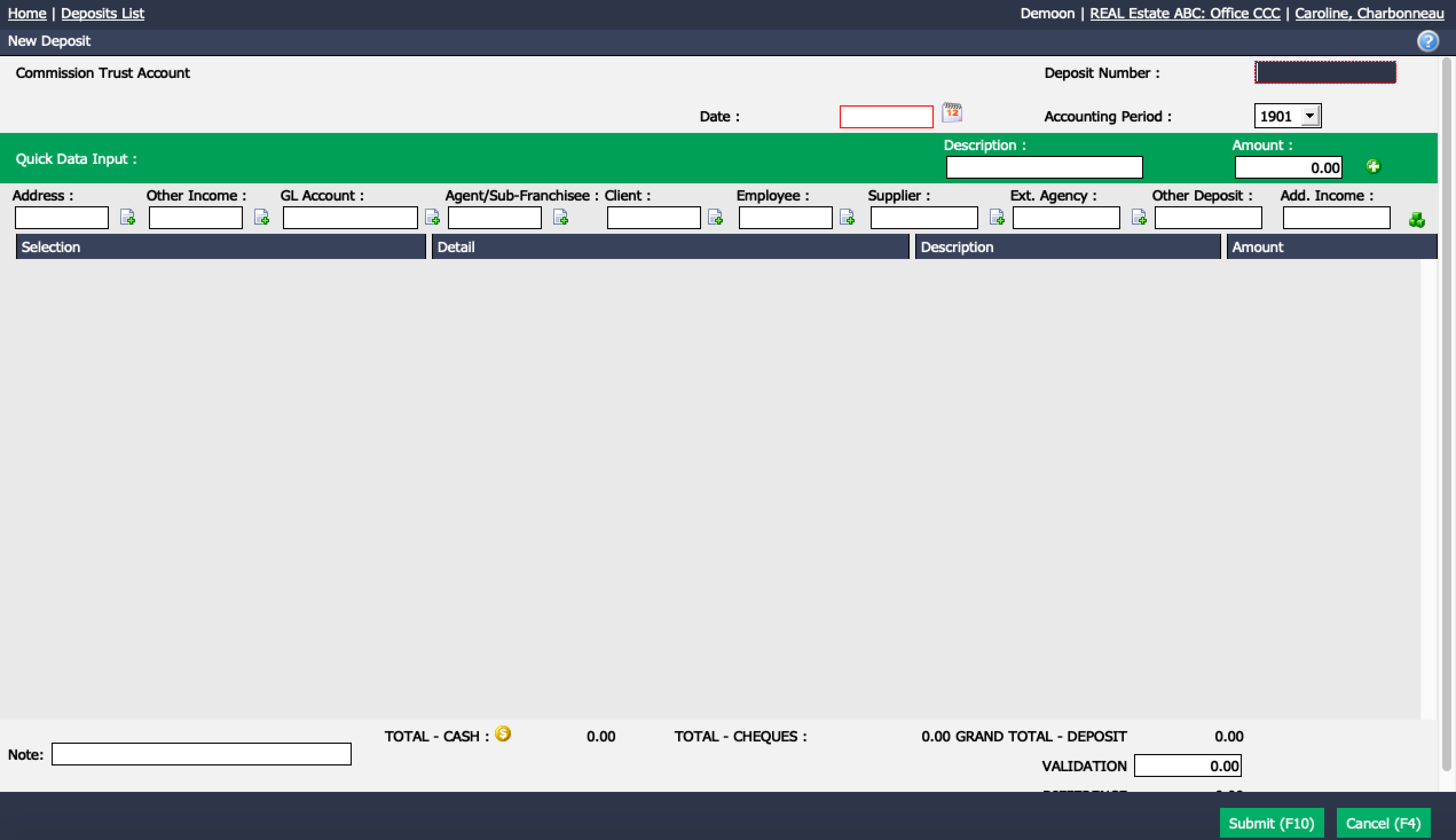
* The **Deposit Number** has to be unique. This number will be very practical when doing your bank reconciliation. For example, for a deposit in the commission trust account posted on 2019-10-18, you could use: CT-191018.

* The deposit can be entered in several ways:
  * **Address** : These are the funds that pertain to a transaction. Enter the address or MLS number of the transaction, select it from the list, press the TAB key on your keyboard and eZmax will display the expected amount for this transaction.
  * **Other Income** : These are the funds that pertain to an other income. Enter the name of the other income, select it from the list, press the TAB key on your keyboard and eZmax will display the expected amount for this income.
  * **GL Account** : If you want to offset against a specific GL account.
  * **Agent/Sub-Franchisee** : If you want to enter the funds receive from an agent, i.e. the agent who pays the invoice or refunds an overpayment commission. Enter the agent name, select it from the list, press the TAB key on your keyboard and click on the Blue Sheet icon (Select Invoices) or Green Sheet icon (Select Commissions Payable). This allows you to select the invoice or the commission to be paid by the agent.
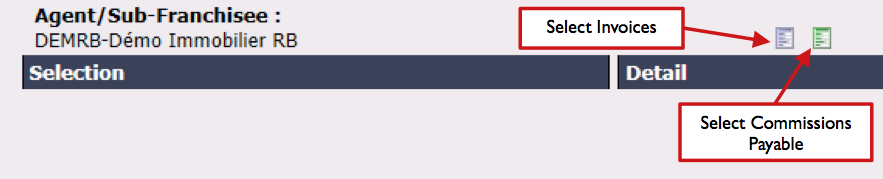
*       * **Client** : If you want to enter the funds received from a client, i.e. the client who pays an account receivable invoice. Enter the client name, select it from the list, press the TAB key on your keyboard and click on Blue Sheet icon (Select Invoices). This allows you to select the invoice to be paid by the client.
  * **Employee** : If you want to enter the funds received from an employee. Enter the employee name, select it from the list, click on the Purple Sheet icon (Select Pay Preparation) and apply the amount accordingly.
  * **Supplier** : If you want to enter the funds received from a supplier in the accounts payable, i.e. a credit entered into the system and reimbursed by the supplier. Enter the supplier name, select it from the list, press the TAB key on your keyboard and click on Red Sheet icon (Select Purchases). This allows you to select the appropriate item to enter.

* **External Agency** : These are the funds received from external agency.- Other Deposit : Single deposit of miscellaneous funds.
- Add. Income : Single deposit of miscellaneous funds.
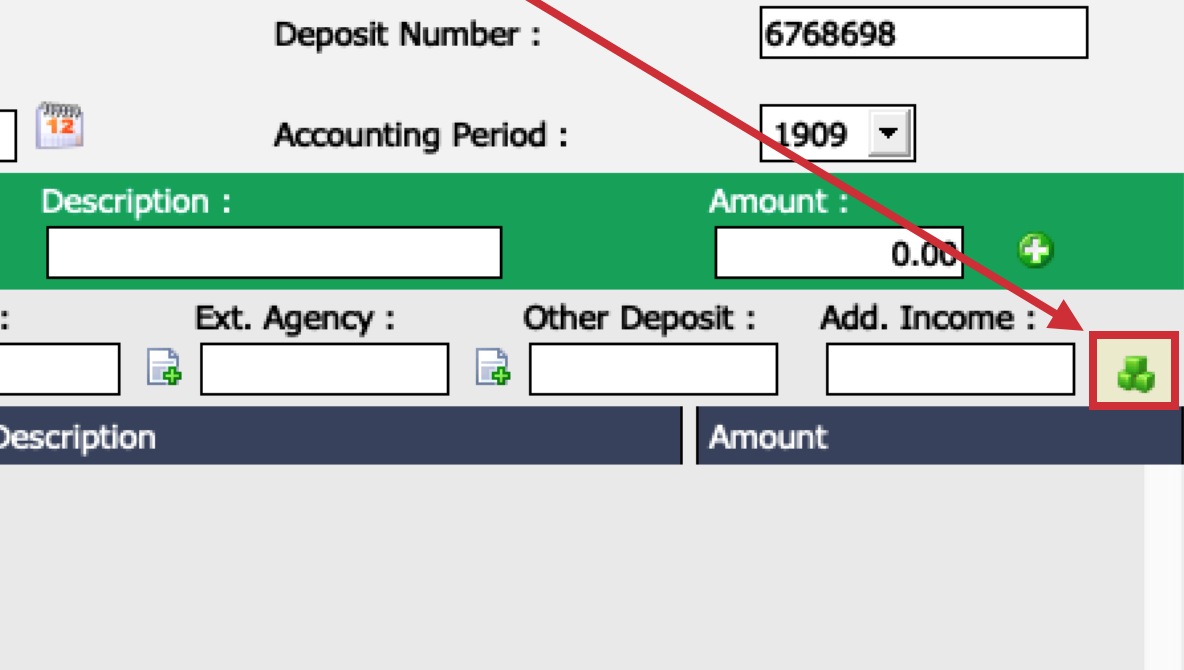
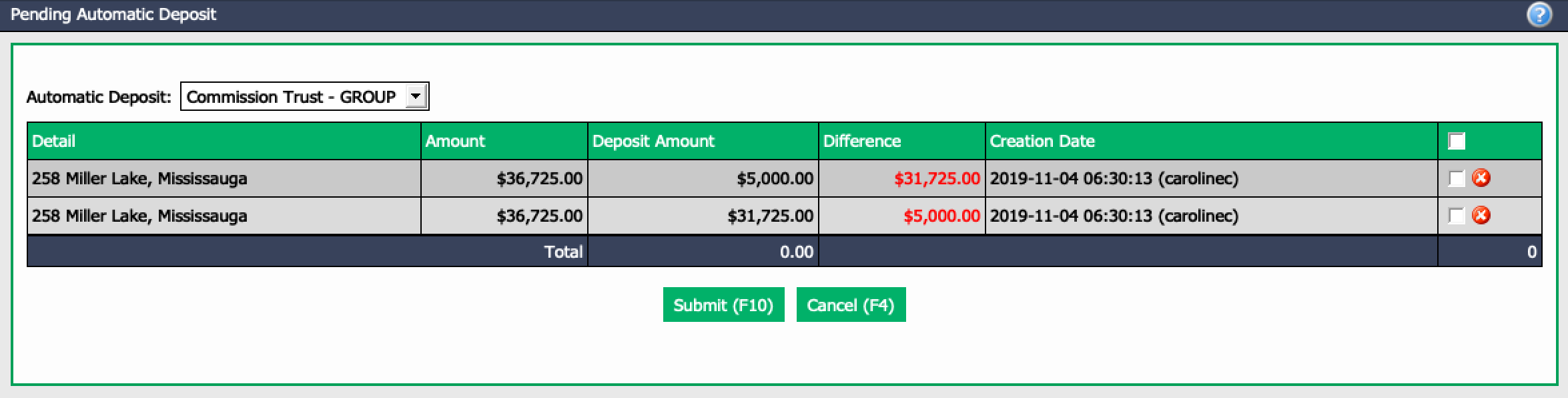
- Pending Automatic Deposits : This applies if your office uses automatic deposits to make commission collections. When you have a pending automatic deposit, the following message will appear on your home page: "Number of Pending Automatic Deposits". You can select the pending deposit that you entered during the payment process by clicking on the Green Cubes icon (Pending Automatic Deposit), then select appropriate items to be included in the deposit and click on Submit.
Additional description can be added in Note section at the bottom left.
Once all items have been entered into deposit, click on Submit.
Deposit in Trust Account
- Deposit in a trust account can only be posted in 2 ways:
- Address (Receipt) : These are the funds you received from a client in a transaction. Enter the address or MLS number of the transaction, select it from the list and press the TAB key on your keyboard. A pop-up window will open and you will be able to select the deposits you want to enter.
Warning
Before entering a trust deposit, make sure it has been entered into the transaction, otherwise it won’t appear in your address choices.
* **GL Account** : If you want to offset against a specific GL account.Automatic deposits are also available in the trust account. Click on the Green Cubes icon (Pending Automatic Deposit) icon to proceed.