English
Managing your List in eZmax
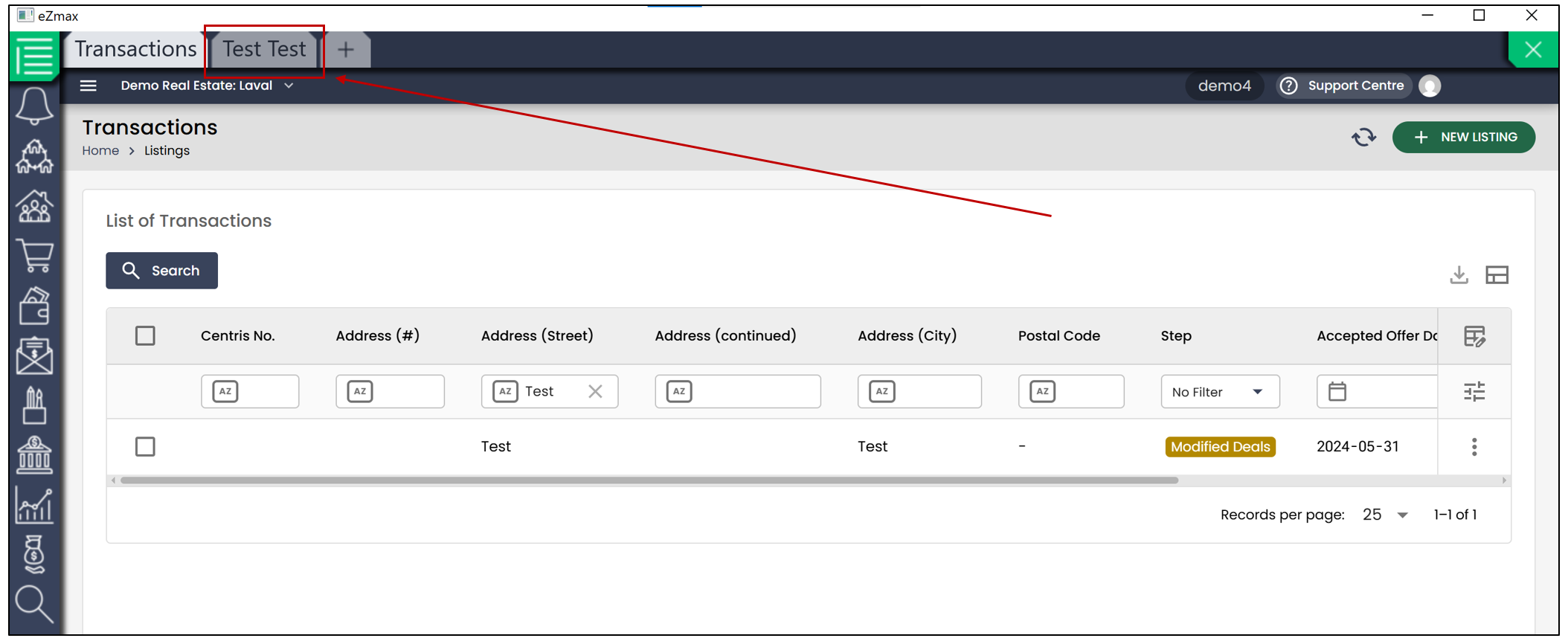
eZmax now offers a new list interface designed to help you work more efficiently and customize the information displayed according to your needs.
Several eZmax lists, including the broker list, purchase list, and transaction list, now use this cleaner, more modern interface. eZsign lists also use this new interface.
Searching a List
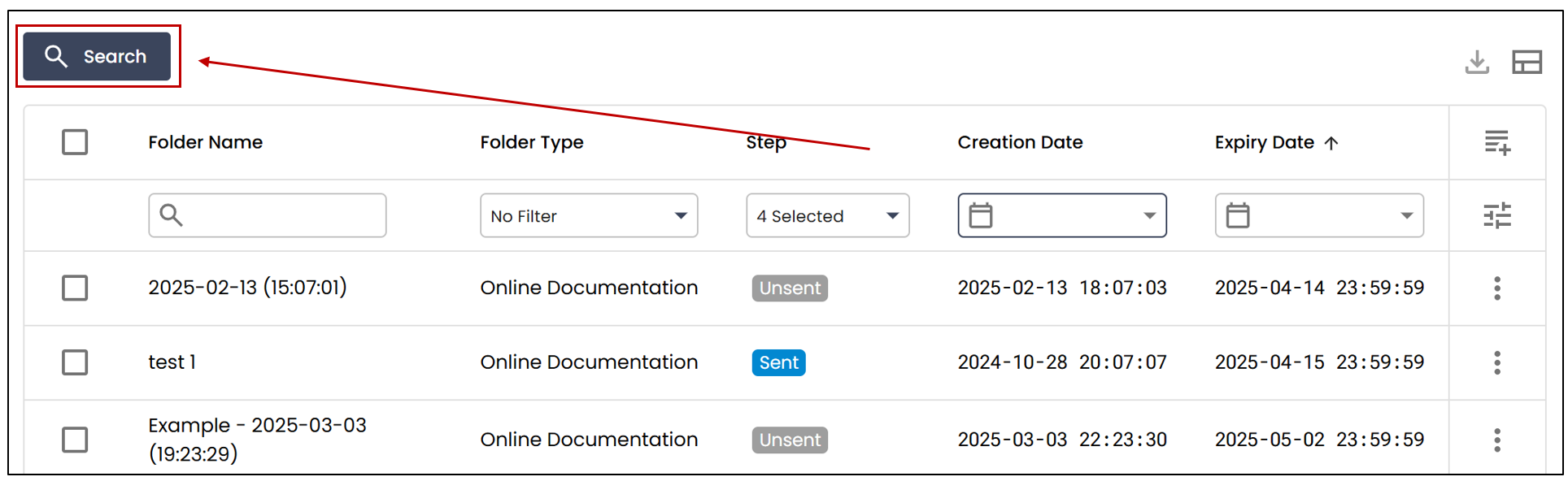
You can perform a search by simply entering the name or term you are looking for in the appropriate field. The system automatically displays matching results.
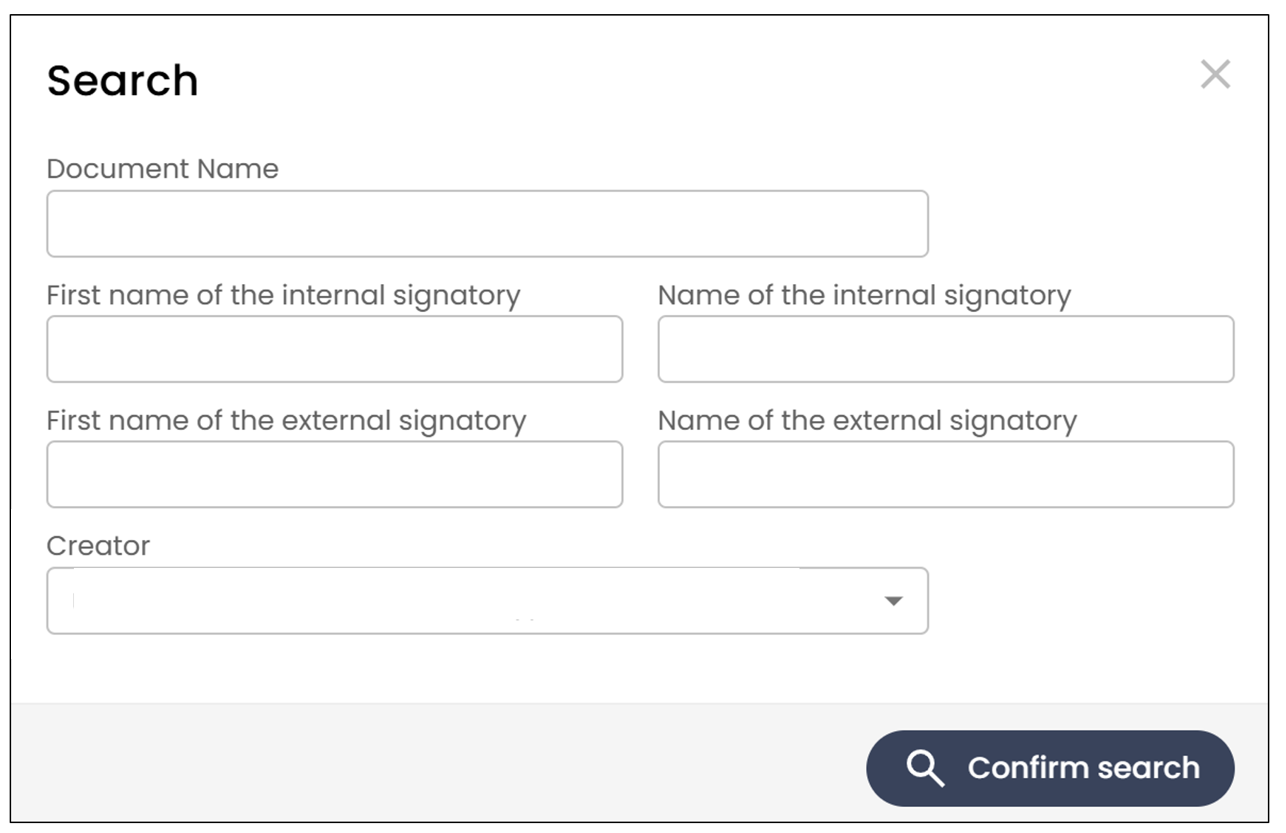
You can also perform an advanced search by clicking Search.
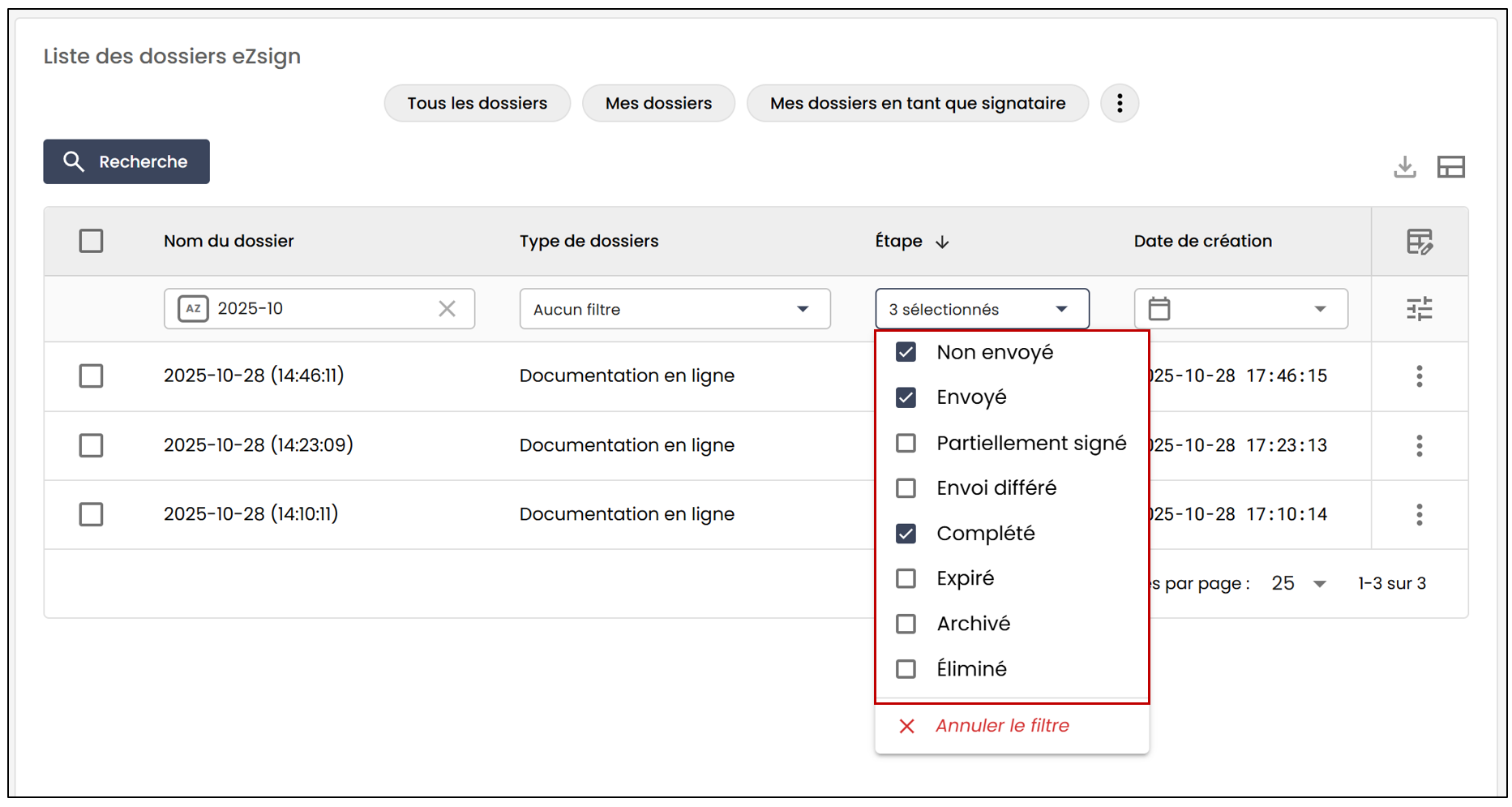
You can also refine your search using the options available in the drop-down menus for the different fields.
Adding Columns
Depending on the list you are viewing, you can add additional columns to display the information you need. When this feature is available, a + icon appears to the right of the list.
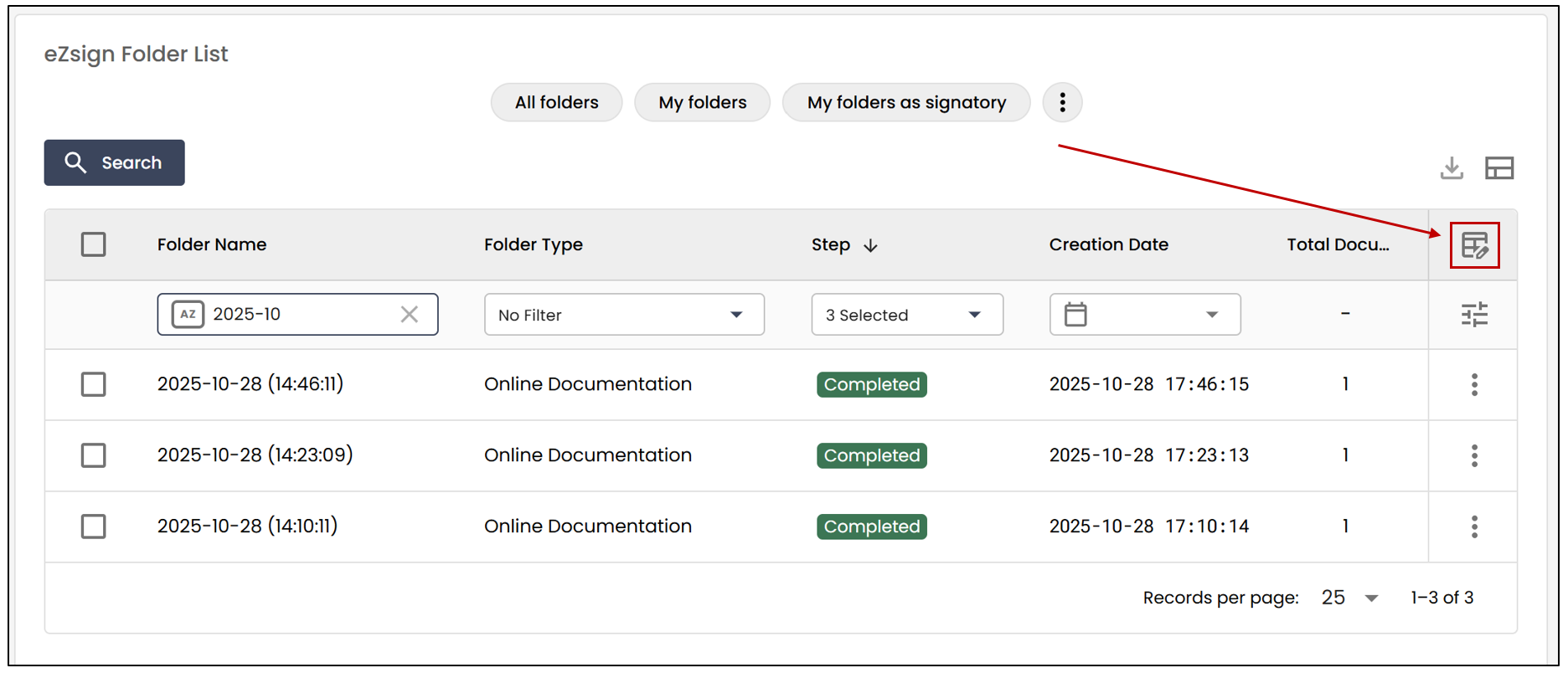
You can then select the columns you want to display.
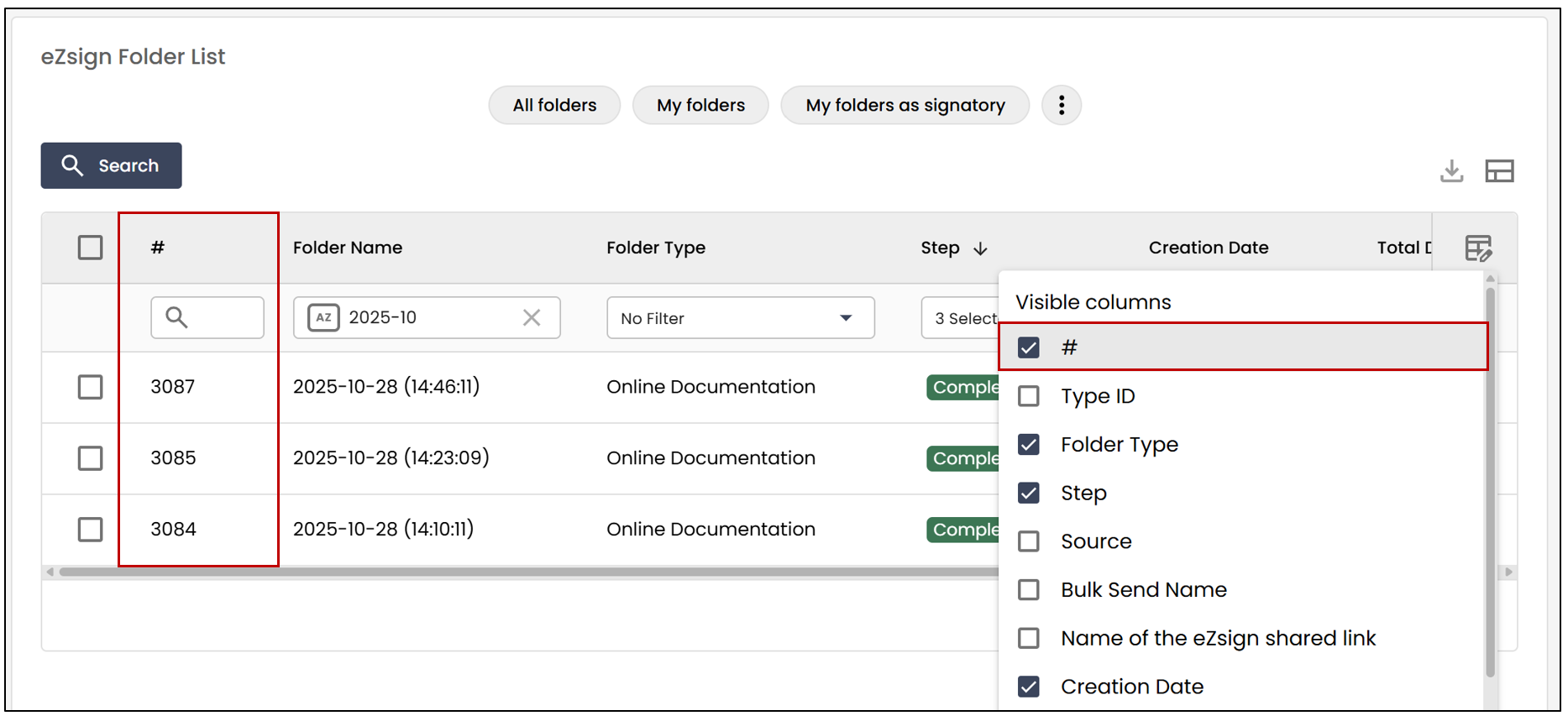
Saving a List View
You can also save list views that you use regularly.
After selecting the columns you want to display, click the

icon to save your list view.
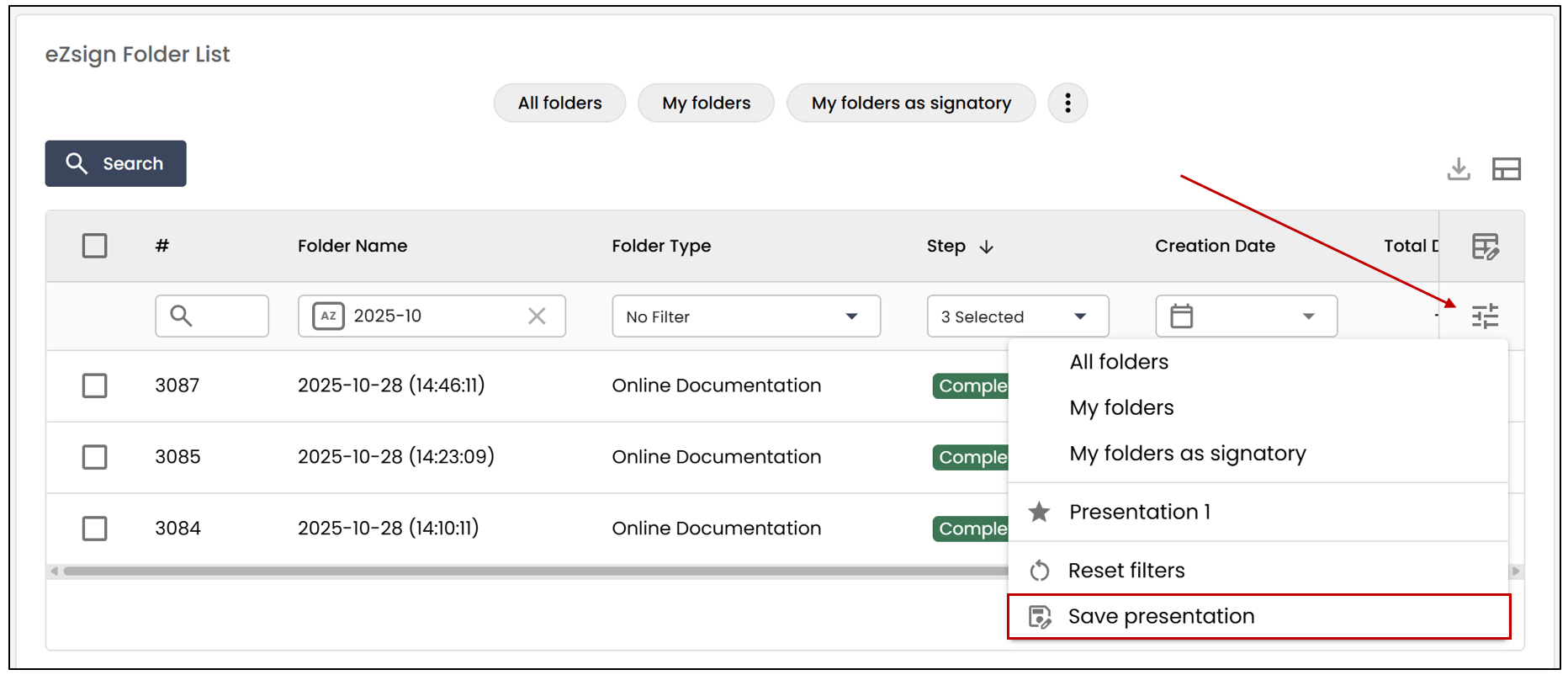
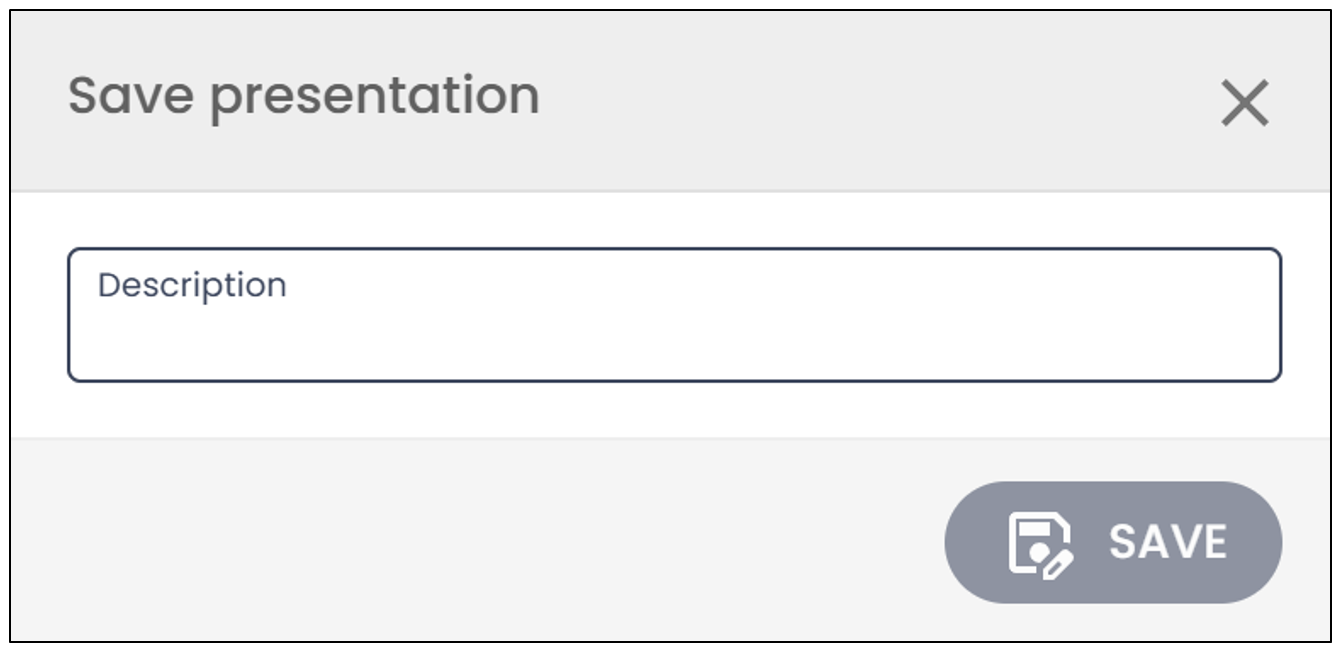
You can create as many list views as needed and give each one a name to make them easy to find.
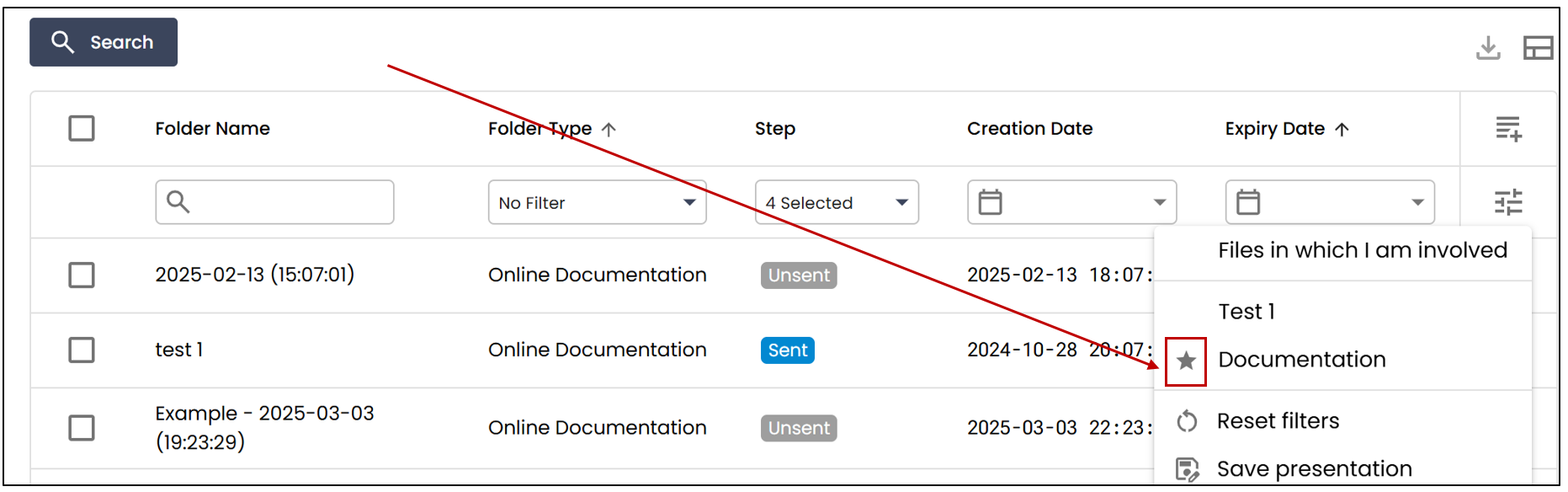
Setting a List View as a Favourite
You can also set a list view as your favourite by clicking the star icon.
Each time you sign in to eZmax and access this list, your favourite list view will automatically be displayed.
This new interface allows you to work more efficiently with lists while customizing the information displayed to suit your needs. It is another improvement aimed at modernizing eZmax and providing a simpler, clearer, and more enjoyable user experience.
Opening an Item in a New Tab
When viewing a list that uses the new interface, some items may still open in the old interface during the transition period. In this case, if you open an item directly and then return to the list, your filters may be reset.
To keep your list and filters, you can open the item in a new tab:
- On Windows , hold down the Ctrl key and click the item.
- On Mac , hold down the Command key and click the item.
The item will then open in a new tab, allowing you to keep your list and the filters applied in the original tab. You can therefore open multiple items in different tabs without losing your configuration.