

English
Creating an eZsign Folder
Creating an eZsign Folder
Whether you want to create a personal folder or a shared folder, the procedure is the same.
From Main menu >> General >> List of Personal/Shared Folders - eZsign or;
Click on one of these two icons :

(List of Personal Folders) or

(List of Shared Folders).
- Click on Actions >> New Folder.
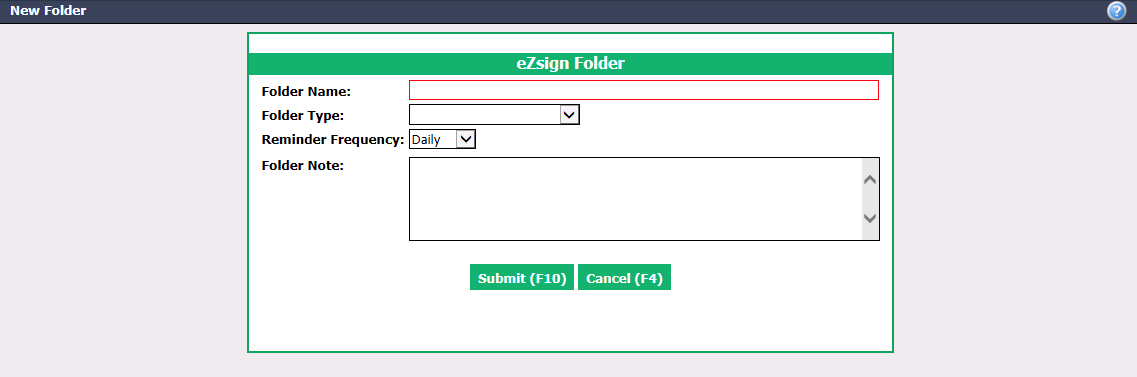
Enter the Folder Name.
Select the name of the Folder Type previously added in the system (personal or shared). For more information, please see the articles Adding/Editing a Type of Personal Folders and Adding/Editing a Type of Shared Folders.
Select the desired Reminder Frequency. It is possible to send an e-mail to an external signatory reminding him that he has a signature to complete on a document.
- "Daily": The reminder will be sent daily until the document is signed.
- "Weekly": The reminder will be sent once a week until the document is signed.
- "None": There will be no reminder sent even if the document has not yet been signed.
You can add a Folder****Note , such as the type of documents that can be added to this folder.
Click on Submit and the personal or shared folder will be added in the system.
Once the folder is created, here are, in order, the next steps:
- Add the signatories. For more information, please see the article Adding/Editing/Deleting a Signatory in an eZsign Folder.
- Add the documents. For more information, please see the article Adding/Editing/Deleting a Document in an eZsign Folder.
- Add the fields. For more information, please see the article Adding/Editing/Deleting a Field in a Document.
- Send the documents to sign. For more information, please see the article Sending Documents to Sign.
- Sign the documents. For more information, please see the articles Signing a Document as a User and Signing a Document as an External Signatory.
- Send the signed documents by e-mail. For more information, please see the article Sending Signed Documents by E-mail.