

English
Preparation of Payment by Electronic Transfer - Real Estate
Payment preparation allows you to only prepare payments (without producing them immediately) and to enter them on the home page or in the system in order to then produce them all at the same time.
- From Main menu, click on the Open Wallet icon

or Accounts Payable >> List of Payment Preparations >> Actions >> New Payment Preparation.

We recommend using the TAB key on your keyboard to move from one field to another.
- Entrer the name of the Agent/Sub-Franchisee , Client , Supplier, External Agency , Employee or Lawyer.
NOTE: The Sheet with a + icon to the right of each of these fields is used to add one in the system. For more information, please see the articlesAdding a Regular and/or Incorporated Agent, Adding/Editing a Client, Adding/Editing a Supplier, External Agencies and Agents, Adding/Editing an Employee and Adding/Editing a Lawyer (100).
NOTE: Seller/Buyer and Other Depositor fields are filled only in the case of a payment preparation in trust.
Payment Method : Make sure you select "Electronic transfer".
Click on the Check Mark button.
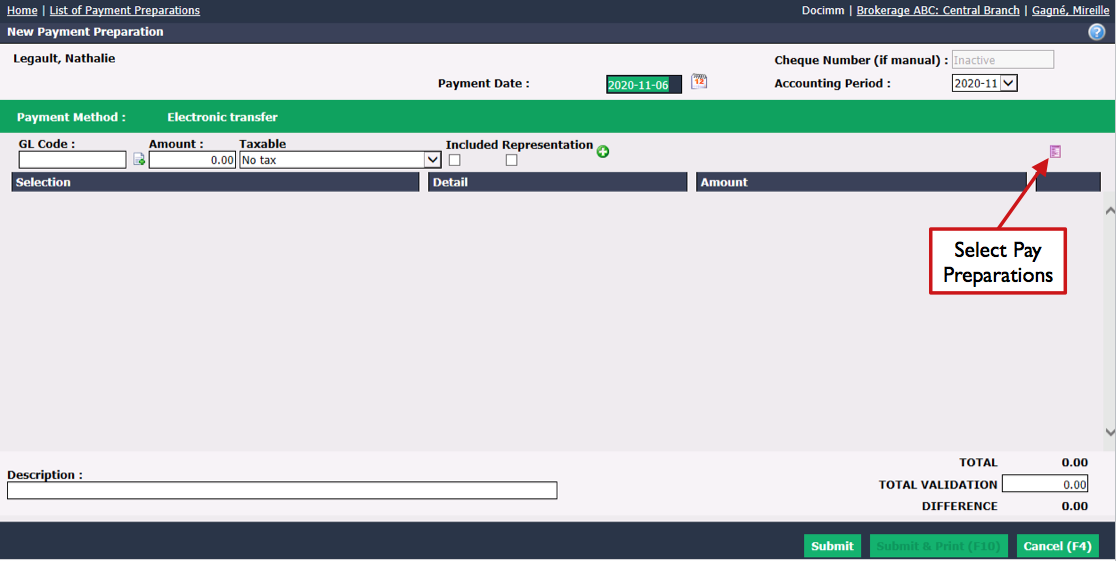
- Check if the Payment Date is right for you (today’s date is automatically displayed). The Accounting Period will be automatically selected according to the payment date entered.
Warning
Please make sure that the date entered is the same as the selected accounting period.
The GL Code field will be automatically filled based on preferences configured in the agent/sub-franchisee, client, supplier, external agency, employee or lawyer profile, but it can be manually changed.
Enter the desired Amount and make sure you select the appropriate tax configuration for your province in Taxable.
Press the Enter key on your keyboard when you are in the Amount field to automatically add taxes and purchase to the payment preparation.
Included : Check this box if the amount entered includes taxes.
Representation : Check this box only if the payment includes a representation fee (e.g. restaurant).
Click on the Green + icon.
NOTE : When it is an agent/sub-franchisee, you also have the option to select the invoices of this agent/sub-franchisee from the Blue Sheet icon (Select Invoices), his commission advances from the Yellow Sheet icon (Select Commission Advances) and his commission deductions (e.g. government seizure) from the Closed Wallet icon (Select Commission Deductions).
NOTE : When it is a client, you also have the option to select the invoice for this client from the Blue Sheet icon (Select Invoices).
NOTE : When it is a supplier, you also have the option to select the purchases of this supplier from the Red Sheet icon (Select Purchases).
NOTE : When it is an employee, you also have the option to select the payroll of this employee from the Purple Sheet icon (Select Pay Preparations).
You can add Detail and/or Description that will appear on the payment slip.
Repeat the process if you have more than one payment to prepare.
Click on Submit and the preparation of payment by electronic transfer will be added in the system.
This last preparation of payment by electronic transfer as well as the previous ones, if any, will appear on the home page under "Non-Transmitted Electronic Transfers".
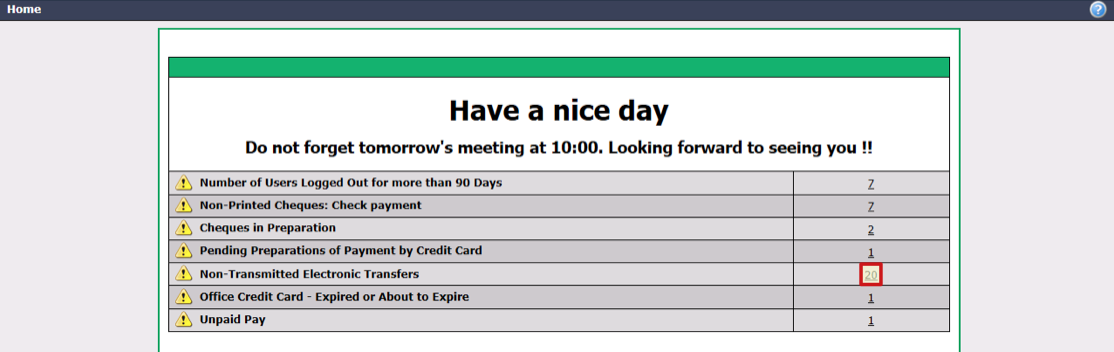
Click on the number on the right or ;
From Main menu >> Accounts Payable >> Payment Preparation >> Preparation of Payment by Electronic Funds Transfer.
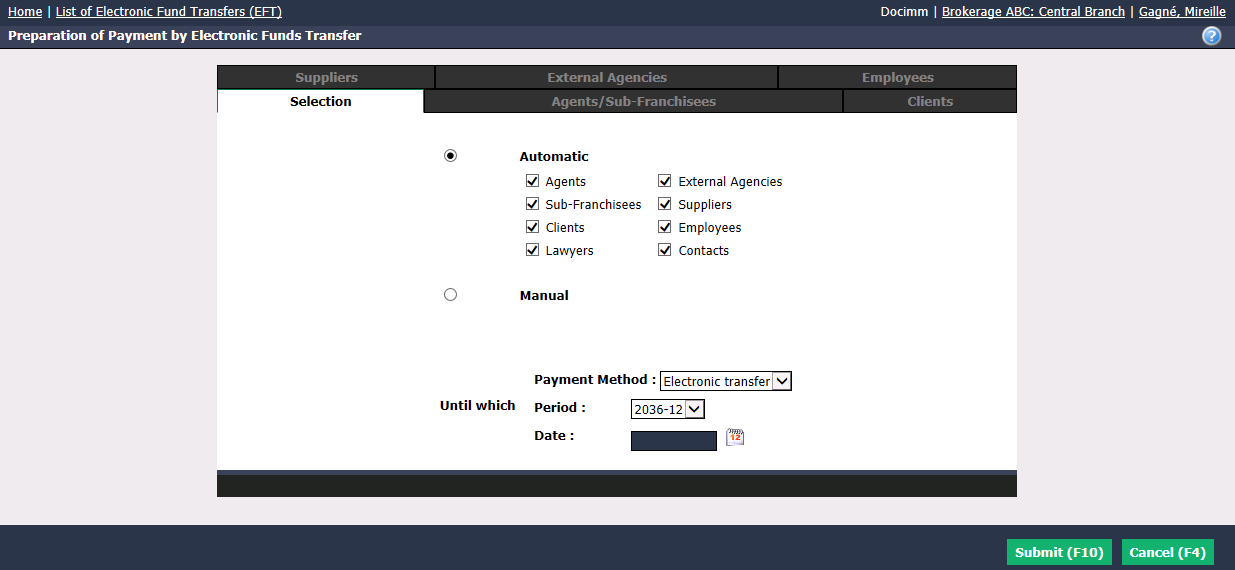
"Selection" Tab
Automatic : If you check this box, you will be able to select the desired boxes (agents/sub-franchisees, clients, contacts, suppliers, external agencies, employees and/or lawyers) to pay them by electronic transfer.
Manual : If you check this box, you will be able to select specific people (by clicking on the appropriate tabs and from the list ofagents/sub-franchisees, clients, suppliers, external agencies, employees and/or lawyers) to pay them by electronic transfer.
You can filter the payment preparations by Period or Date.
Click on Submit and a table with all the payments by electronic transfer to be made will appear.
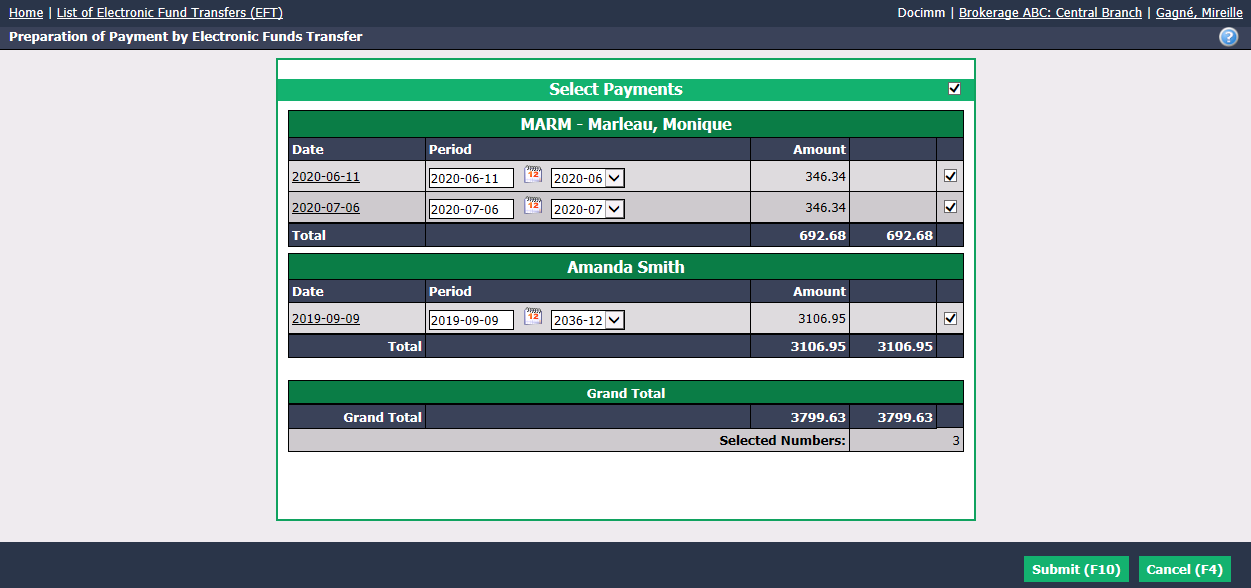
You can deselect payments that you don’t want to make now.
Click on Submit to issue the electronic transfer.
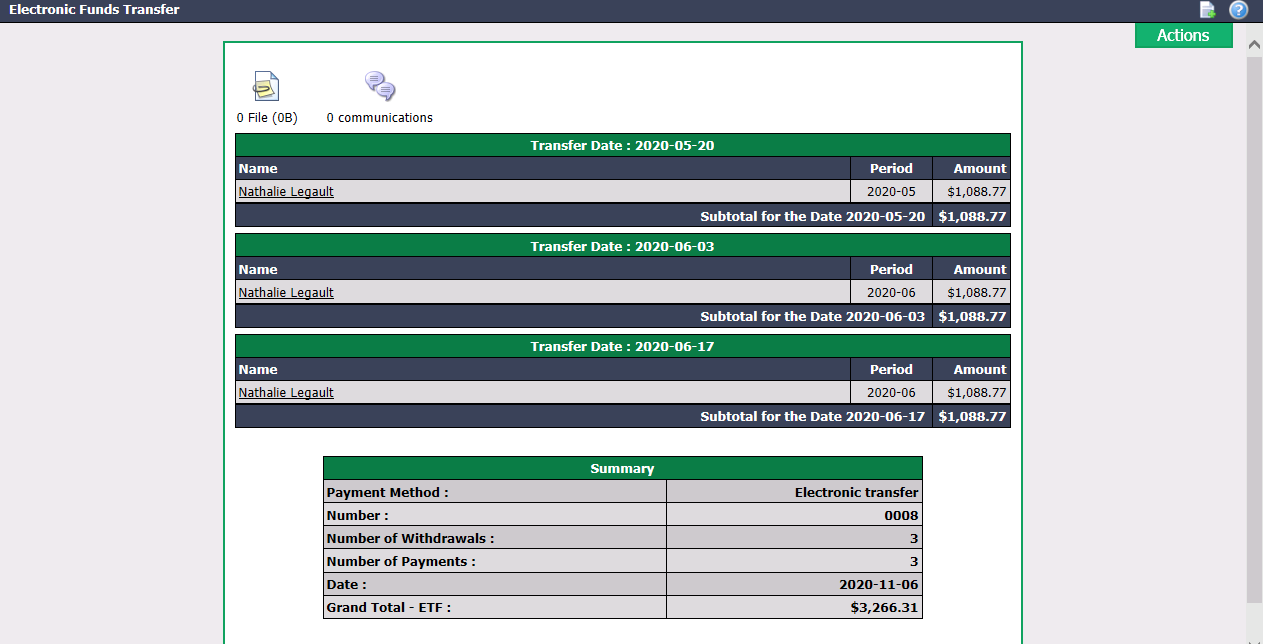
- These payments will be included in the List of Payments by Electronic Funds Transfer (EFT).