

English
Adding a Credit Card as a Payment Method (as a Bank Account)
The benefits to adding a credit card as a bank account within eZmax include:
- Allows full historical tracking of supplier purchases and payments.
- Allows you to complete a reconciliation on credit card every month similar to reconciliations on regular bank accounts.
STEP 1: Create a GL Account for Credit Card
- From Main menu >> General Ledger >> List of GL Accounts, click on Actions >> New GL Account.
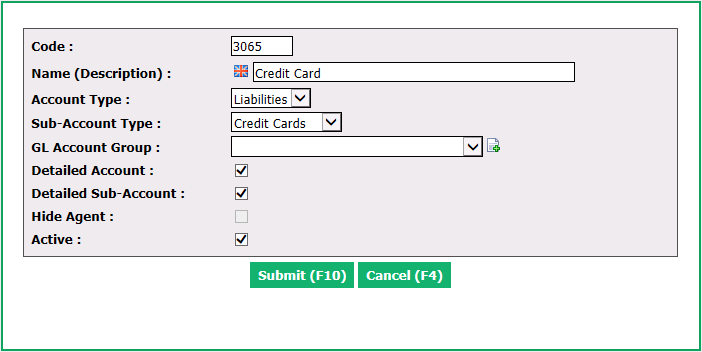
Assign a Code (GL number) to account.
Enter a **Name (**Description) and select "Liabilities" as Account Type.
Select "Credit Cards" as Sub-Account Type.
Select a GL Account Group to associate with this GL account based on your configuration.
Click on Submit.
STEP 2: Add a Credit Card Company as a Supplier
- From Main menu >> Accounts Payable >> Suppliers List, click on Actions >> New Supplier.
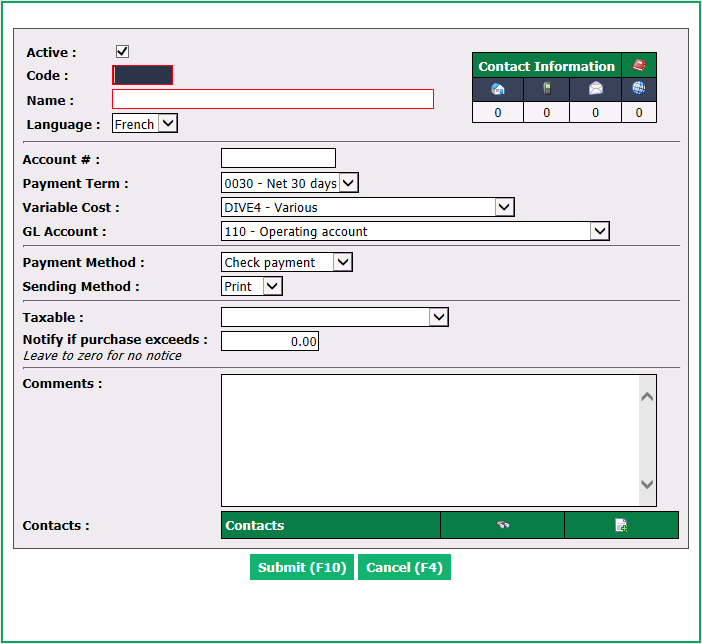
Assign a Code and a Name of supplier, select "Other" as Variable Costs , select a Payment Method and "No tax" for Taxable.
Click on Submit.
Your credit card supplier will be added to your system so you will now be able to process payments against your credit card.
STEP 3: Add a Credit Card to the List of Credit Cards
From Main menu >> Admin >> List of Credit Cards.
Click on Actions >> New Credit Card.
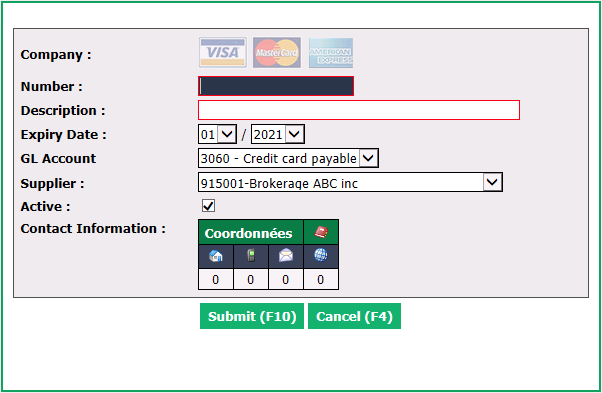
Add a credit card Number , Description , Expiry Date , GL Account with which the card is associated and enter a Supplier you just created to whom you make payments.
Click on Submit.
Credit card will now be added to the List of Credit Cards.
STEP 4: Add a Credit Card as a Payment Method
- From Main menu >> Admin >> List of Payment Methods, click on Actions >> New Payment Method.
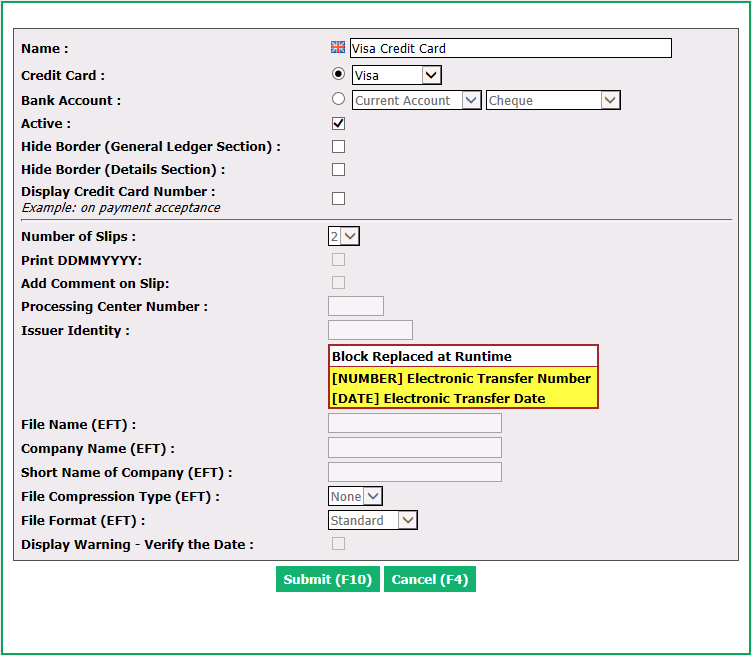
Assign a Name and select the Credit Card you just added from the drop-down list and click on Submit.
Your credit card will now be available to use as a payment method when processing payments through the Shopping Cart or Open Wallet icon.